Customers
Use the Customers section to keep buyer contact details and link sales to the correct person or business.
Add a customer
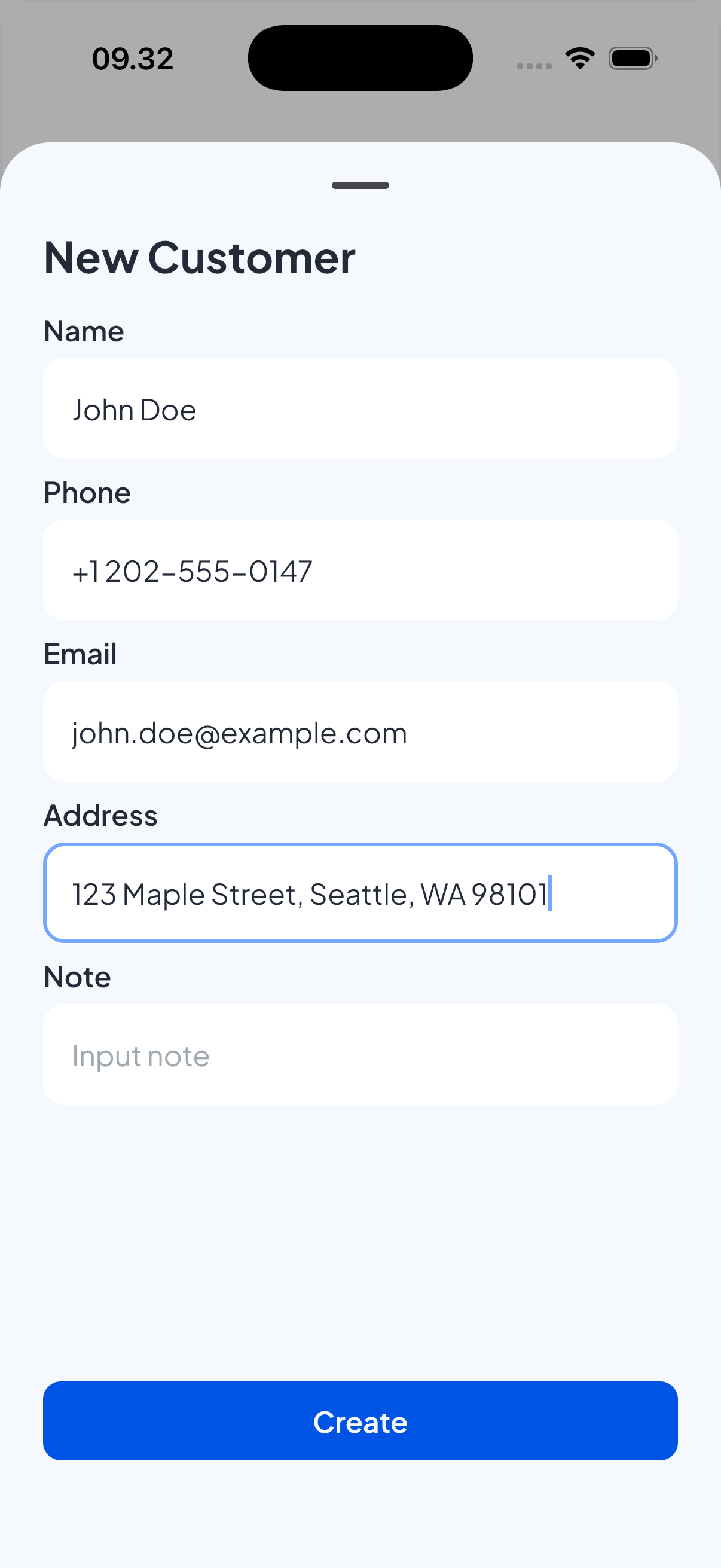
Currently, customers are added from the sale summary screen rather than directly from a dedicated "Add customer" button.
- Create a new sale.
- In the sale summary at the top, open the Customer field and choose "Add new".
- Enter the customer's details:
- Name — required (person or business name).
- Phone — optional.
- Email — optional.
- Address — optional.
- Note — optional internal note about the customer.
- Save the customer to attach it to the current sale.
Edit a customer
- Go to Customer menu.
- From the Customers list, open a customer and click Edit to update their details.
- Once done click done to save customer details.
Delete
- Deleting customers is restricted to preserve historical transaction data. So for now deleting customers cannot be done at this time.
Use an existing customer
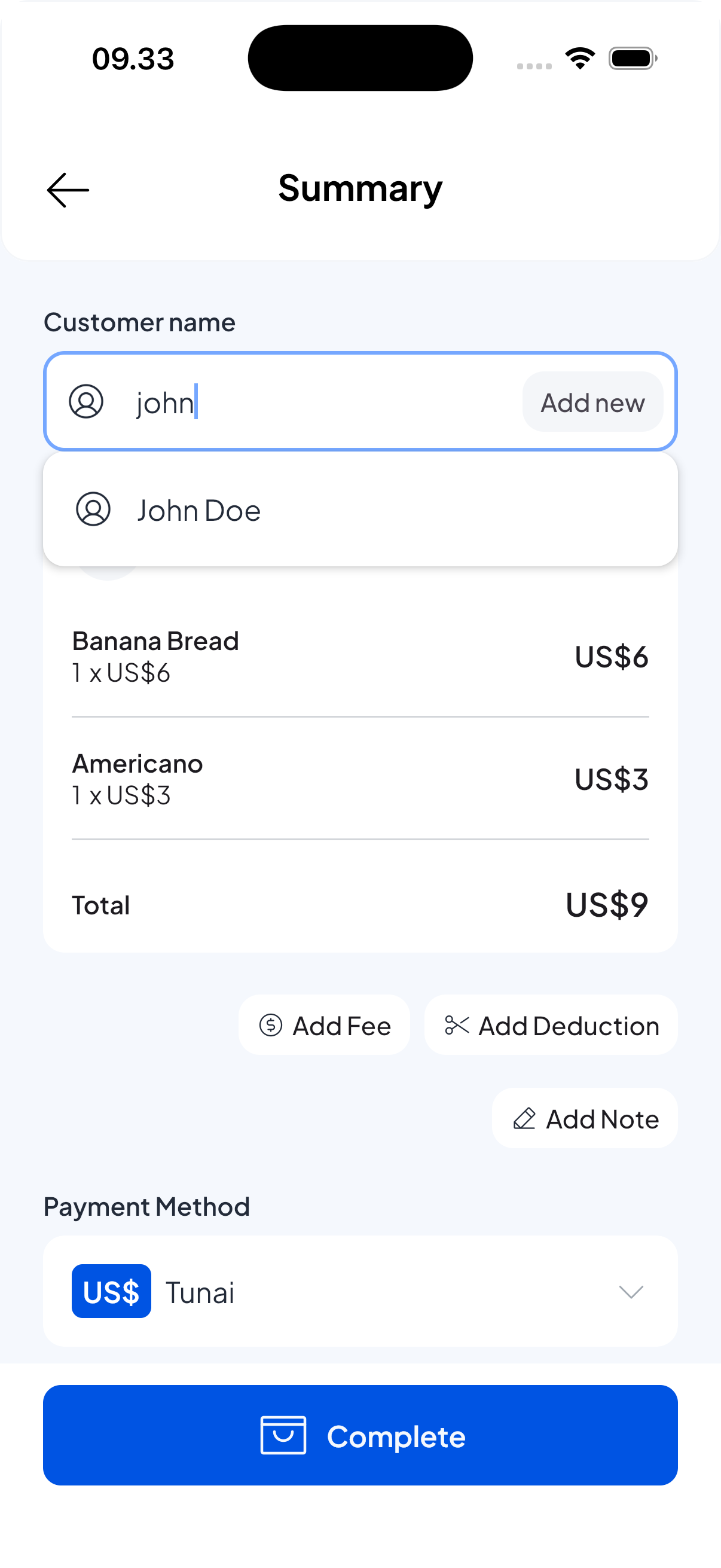
- To reuse a saved customer during create a sale, start typing their name in the Customer field and select them from the suggestions.
CSV export
You can download the customers data as CSV. The export includes the data details of all your customers.
Tips
- Use email addresses when possible to enable emailed receipts and to uniquely identify customers.
- If you see duplicate entries, use consistent naming (e.g., "Acme Co." vs "Acme Company") and consider merging duplicates if your app supports it.