Salesmaster is a point-of-sale (POS) app for shoe and bag stores on Android, iPhone & iPad, Windows and Mac. Each shoe style is one item with size or colour variants, and every variant has its own price, cost and stock, so you know how many pairs of size 42 are left without digging through the back room. It also scans barcodes, prints or sends receipts, and works out net profit from your store's expenses.
Problems every shoe store knows
A shoe store is a wall of boxes in a dozen sizes. If any of these sound familiar, this page is for you.
- 01
The size they want is gone
The sneaker is on display, but after five minutes in the back room it turns out size 41 sold out last week. The customer gives up, and you only find out at the next stock count.
- 02
Boxes of sizes nobody buys
Sizes 39 to 41 fly off the shelf while 38 and 44 sit for months. Without numbers per size, every reorder repeats the same mistake.
- 03
Costs creep up, margins shrink
Wholesale prices change with every shipment, and freight adds more. If you do not record cost per style, you cannot tell which ones still make money after a markdown.
Setting up your catalog: shoes, sandals, bags and care
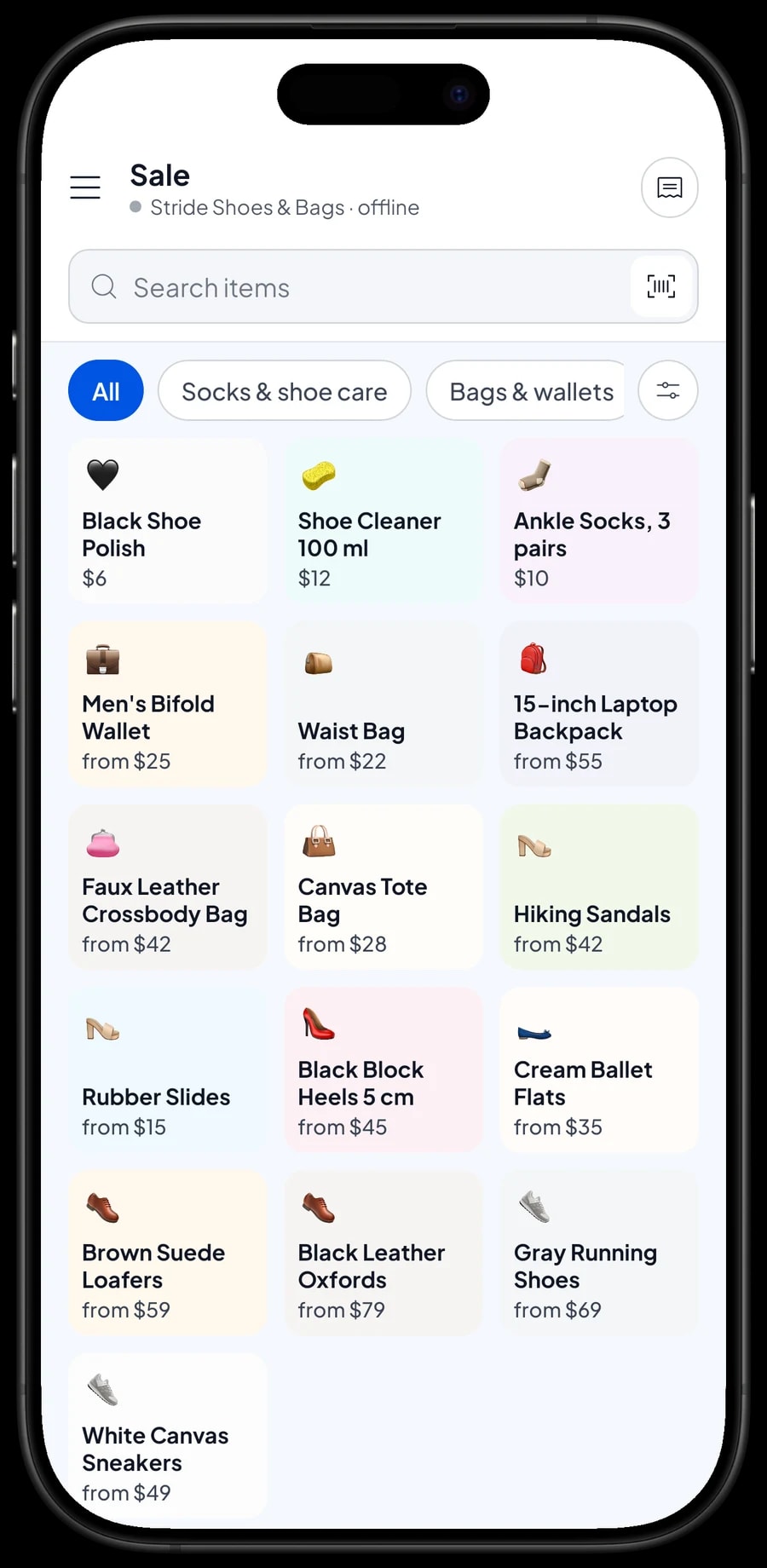
Split your stock into a few categories, such as Shoes, Sandals, Bags & wallets, and Socks & shoe care. Categories appear as tabs on the Sale screen, so whoever is at the register finds any style fast, even with a full wall of boxes.
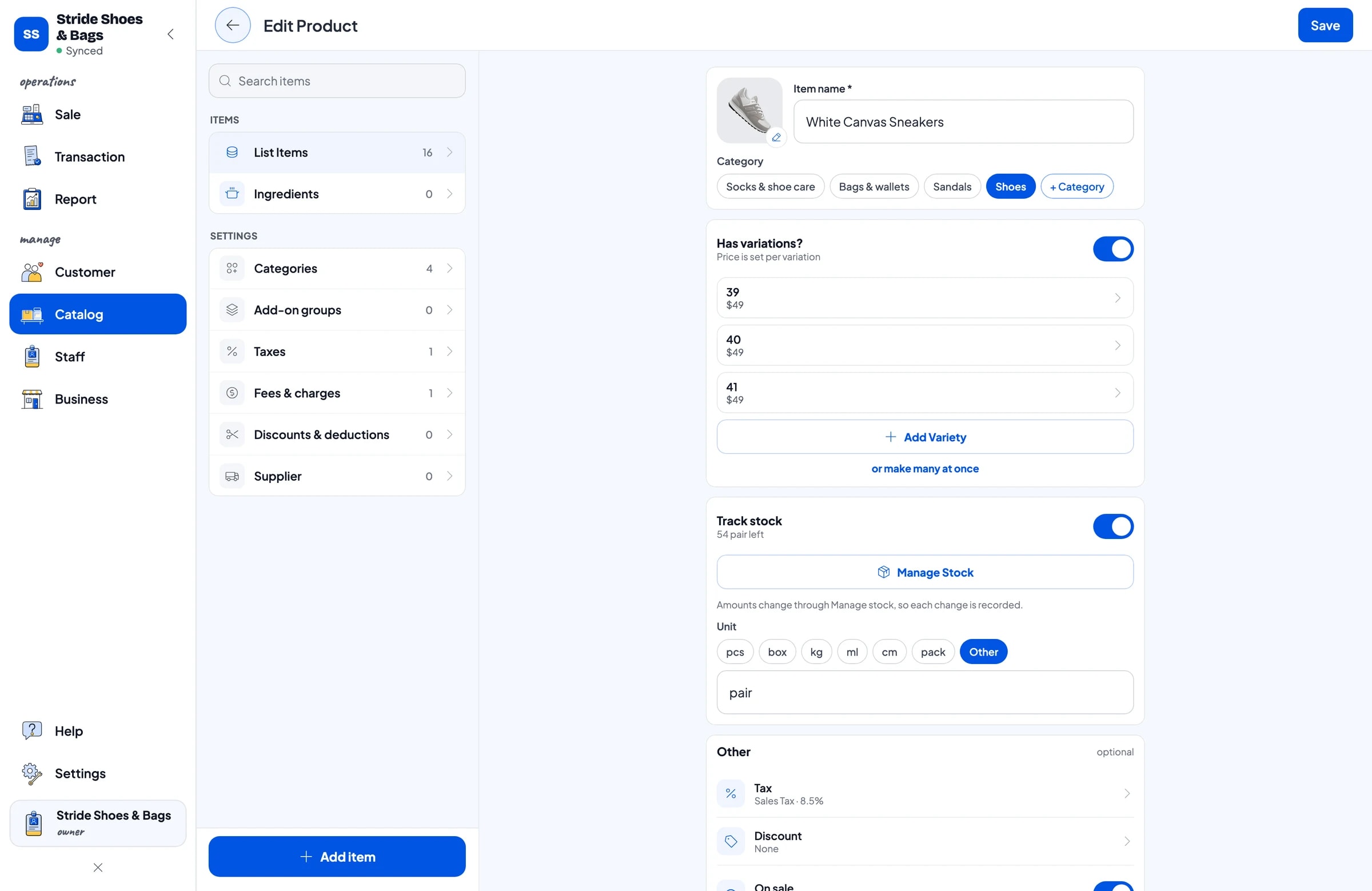
Each shoe style is one item. Name it by type and colour, like "White Canvas Sneakers" or "Black Leather Oxfords", and add a photo so a new hire knows it on sight. Use pair as the unit for shoes and sandals, each for bags, and bottle for shoe cleaner.
If you carry a lot of styles, build the catalog on a laptop first (Windows or Mac), then sell from a phone or tablet at the counter. The catalog lives in your store's account, so every register sees the same data. Boxes that already carry a factory or wholesaler barcode can be scanned right at checkout.
- Step 1: Open Catalog, go to Categories and create Shoes, Sandals, Bags & wallets, and Socks & shoe care.
- Step 2: Go to the item list in Catalog and add one item for each shoe style.
- Step 3: Set the name, the unit (pair) and the category, then add a photo.
- Step 4: Turn on Stock Tracking so every pair sold comes off stock.
Size and colour variants, with stock for every size
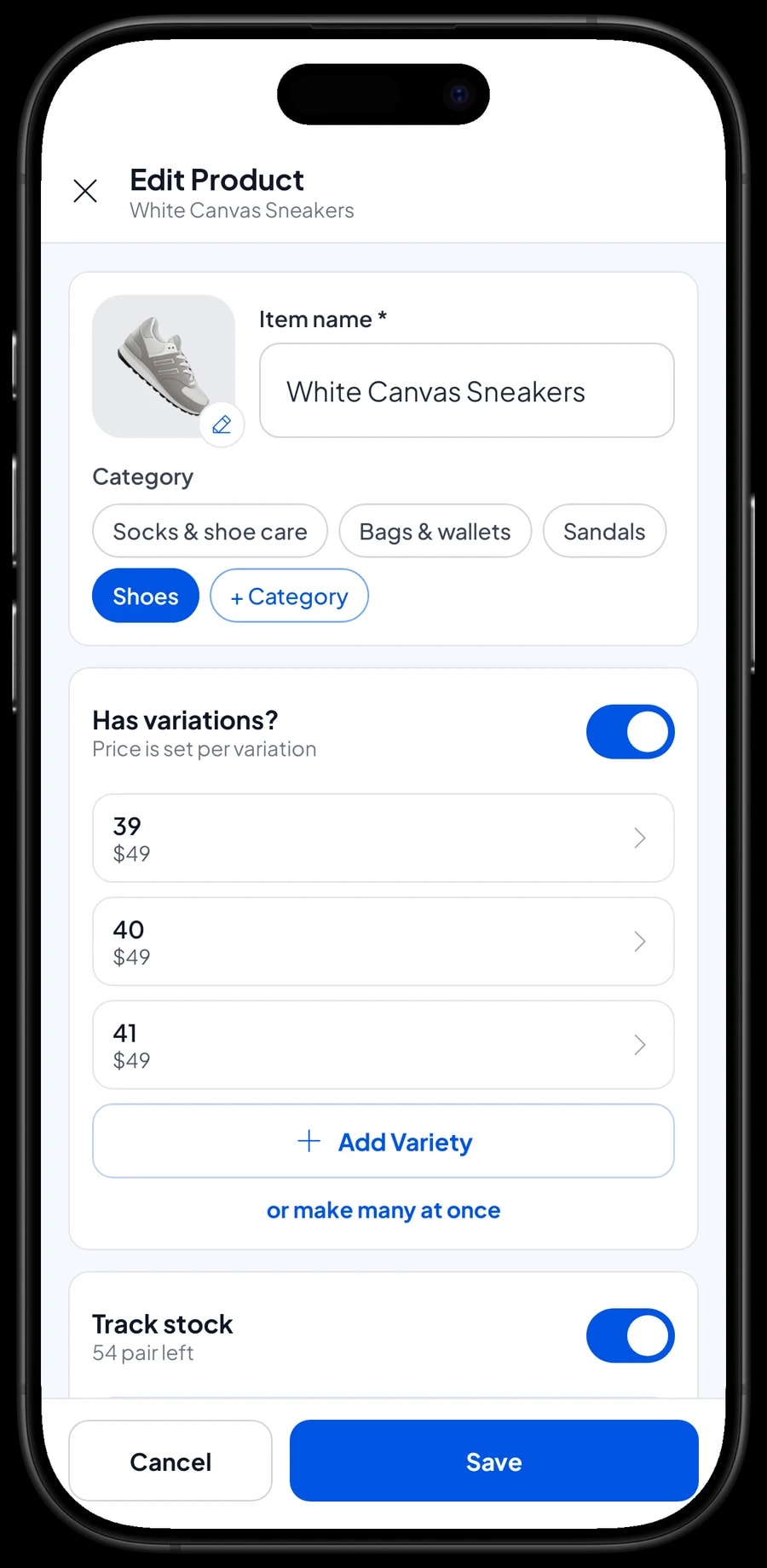
White canvas sneakers in sizes 39, 40 and 41 are one item with three variants. Each variant has its own selling price, its own cost and its own stock. When a size 40 sells, only the size 40 count goes down, so you can see which size is down to its last pair without opening a single box.
When a style comes in several colours, create a variant for each combination, like "40 Black" and "40 Brown", and each keeps its own count. Per-variant pricing also helps when bigger sizes sell for a little more, or when one colour came in at a different wholesale cost.
For bags and wallets, the variant is usually the colour: a canvas tote in Cream, Black and Olive, or a laptop backpack in Black, Gray and Navy. Things without options, like shoe polish or a 3-pack of socks, are regular items.
- Step 1: Open the shoe style in your Catalog and add a variation.
- Step 2: Name the variant by size, or by size and colour, and enter its selling price and cost.
- Step 3: Save the item, then open Inventory, Stock to enter the pairs you have in each size.
- Step 4: Each time a shipment arrives, add the new pairs to the matching sizes.
Checking out a customer who tried on three pairs
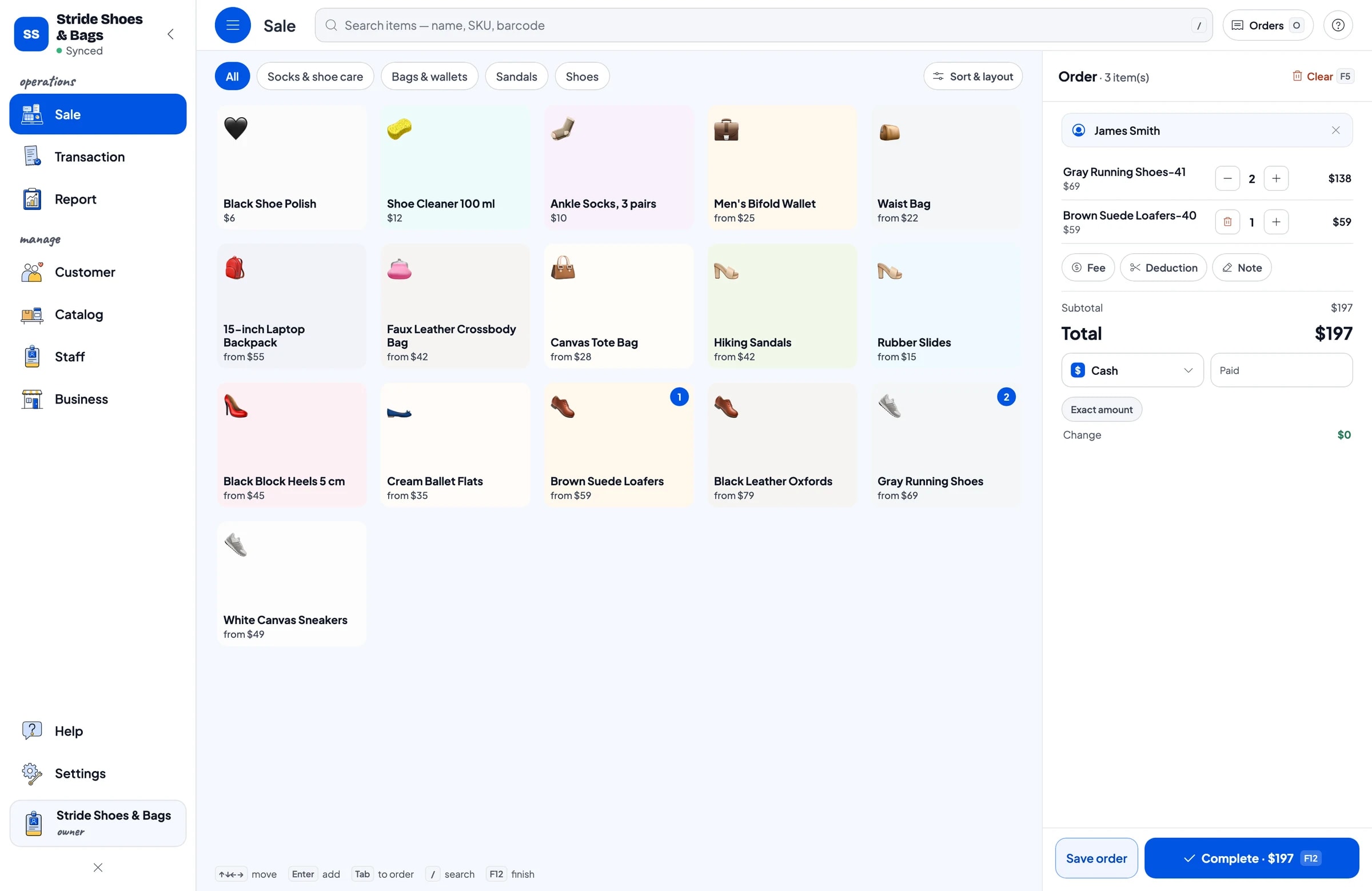
Shoe customers rarely buy the first pair. They try two or three sizes and pick one. On the Sale screen, the cashier taps the style and picks the size, or simply scans the barcode on the box. The cart shows the size and price right away.
Add the customer's name if they want their details kept, and use Add Note for things like "wants a spare box" or "sister will pick up tomorrow". Pick one of the payment methods you have set up, such as cash, card or a bank transfer, and Salesmaster works out the change.
If the customer wants to look around a bit longer, save the cart with Save order. Saved orders stay on the device that created them and are not counted as sales until they are paid, so finish the payment on that same device.
Discounts, payments and receipts
Shoe stores mark things down all the time: last season's styles, back-to-school promotions, or the odd sizes left over. In Salesmaster, a discount applies to items, as a fixed amount or a percentage, so you can mark down one style without touching the rest. Money off the whole order goes on with Add Deduction in the cart.
Every payment is recorded by method, so your cash deposit and card totals are easy to check in the reports. Sales tax is set up once and calculated on every sale automatically.
After payment, print the receipt on a Bluetooth or USB thermal printer, or send it by WhatsApp, email or a web receipt link with your logo and social accounts. A receipt helps when the customer comes back to swap a size, because the date and the pair are right there.
- Step 1: Open the discounts settings in your Catalog and create a discount such as "Clearance 30%".
- Step 2: On the Sale screen, apply it to the styles on sale.
- Step 3: Choose the payment method and complete the sale.
- Step 4: Print the receipt or send it by WhatsApp or email.
Size swaps and your sales history
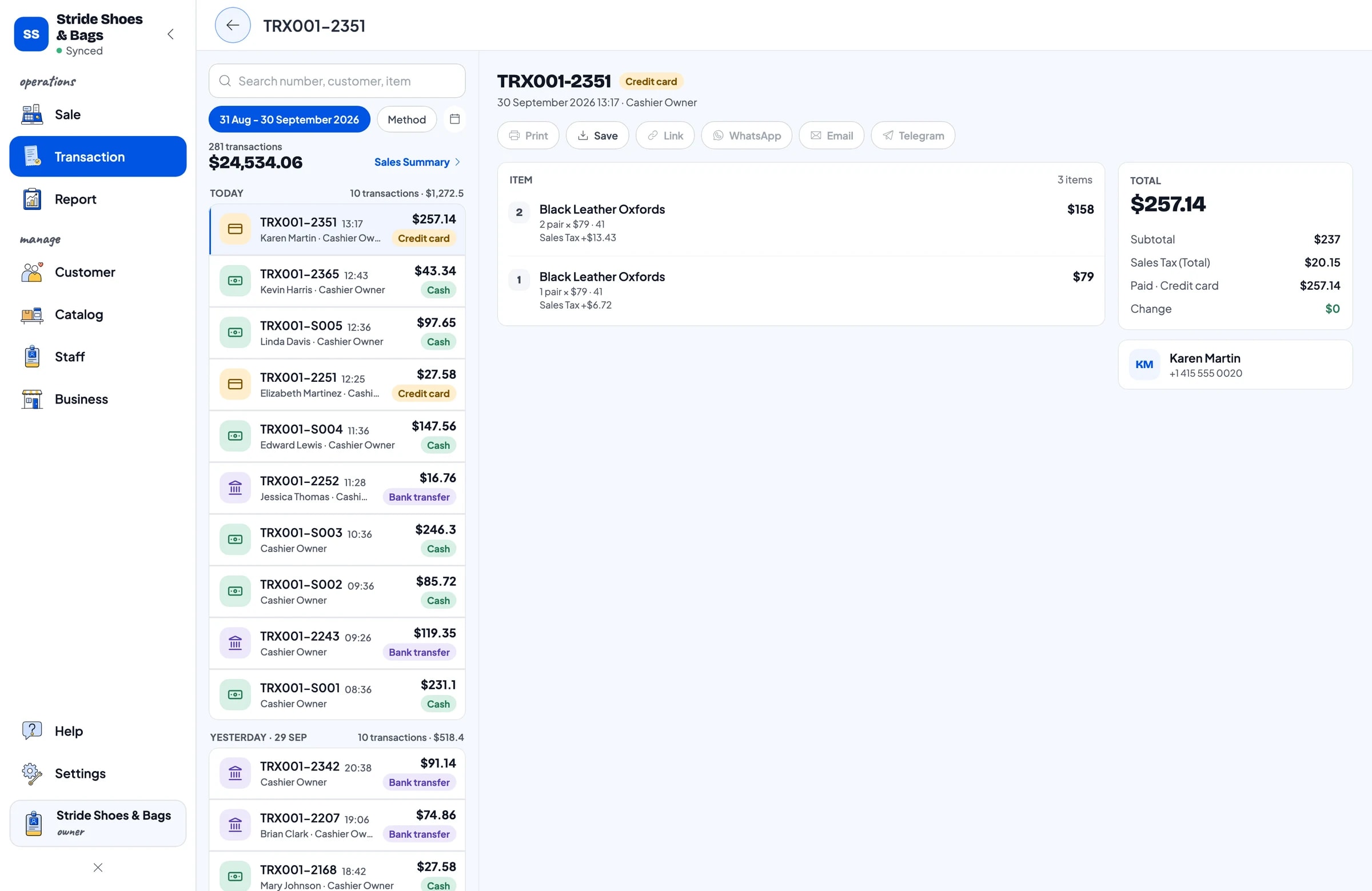
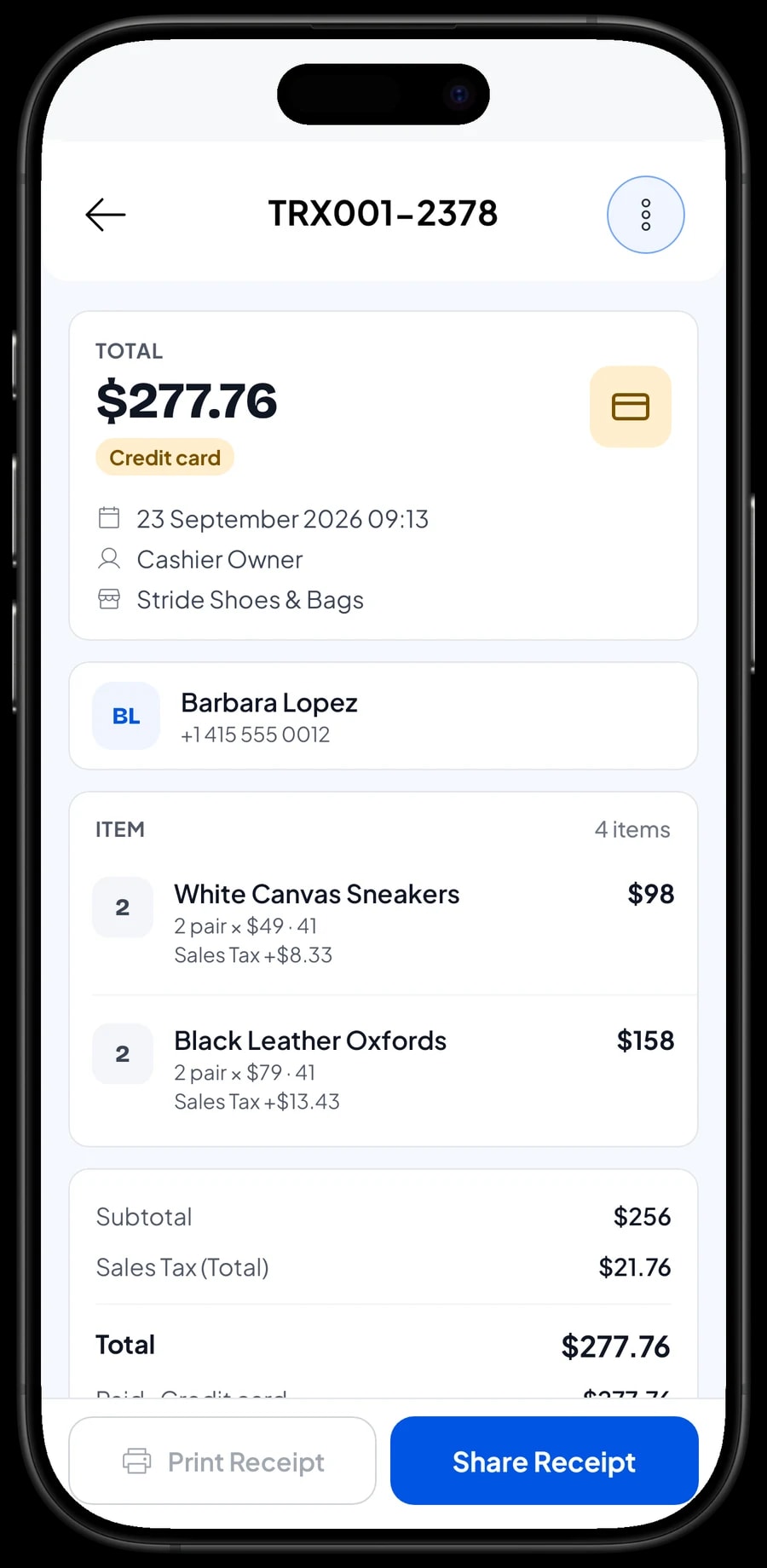
Size swaps are everyday business in a shoe store: at home, the 41 turned out a little tight. Open Transaction to find the original sale by date or customer name and see its details: style, size, price, tax and payment method.
From there, the clean way to record the swap is to add the returned size back with a stock adjustment on that variant, take the replacement size out with a stock adjustment too, and note what happened. If the customer trades up to a pricier style, ring up the difference as a new sale. That keeps the count for every size in line with what is on the shelf.
Sales staff and registers
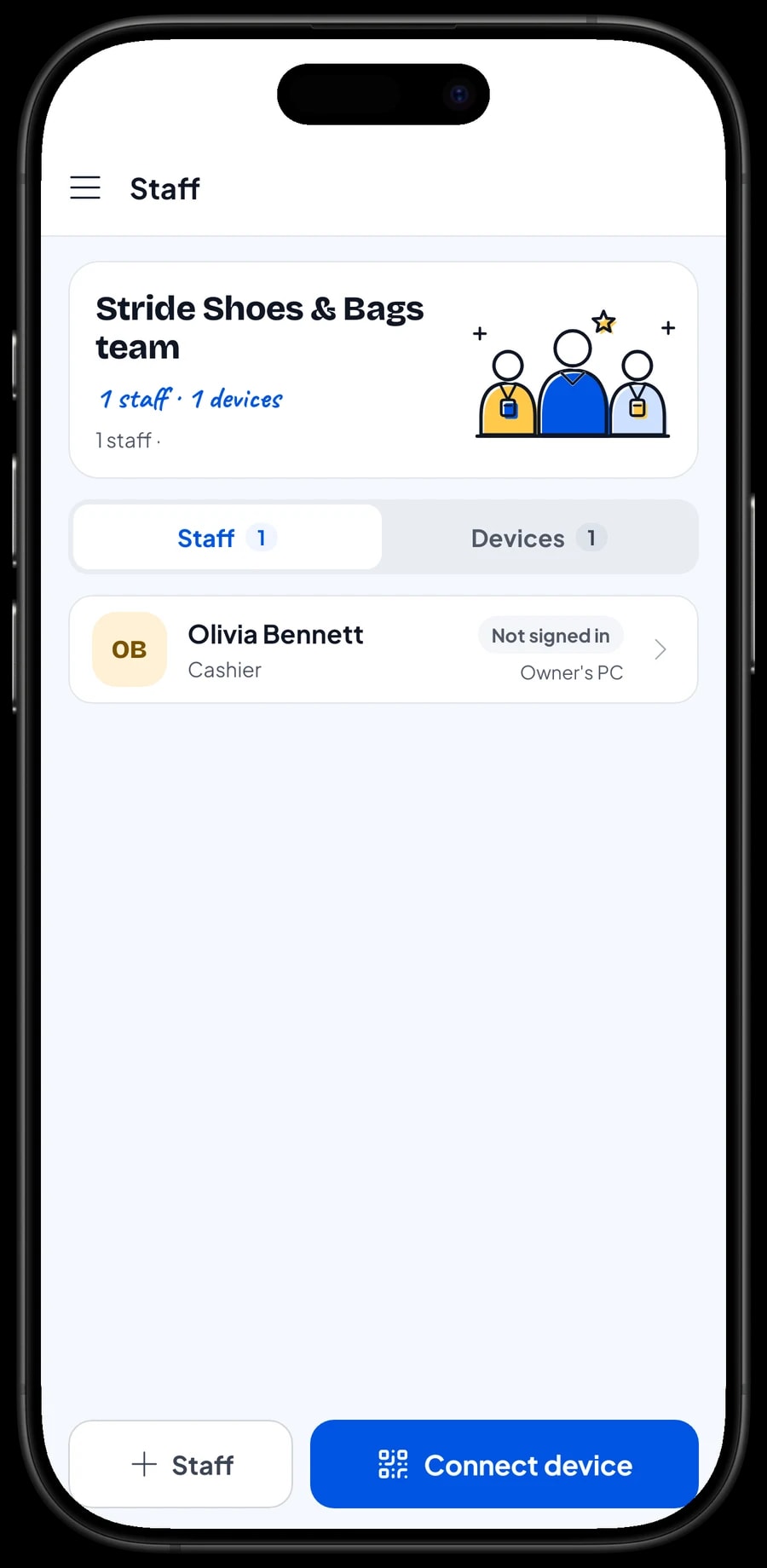
The owner signs in with the main account. An account is active on one device at a time, so your staff do not share your login. Add them as staff, register a cashier device for them and choose what they can see and change. Staff sign in with a PIN. Staff accounts come with Bronze Pro (1 staff) and Silver Pro (2 staff).
Best-selling styles and sizes
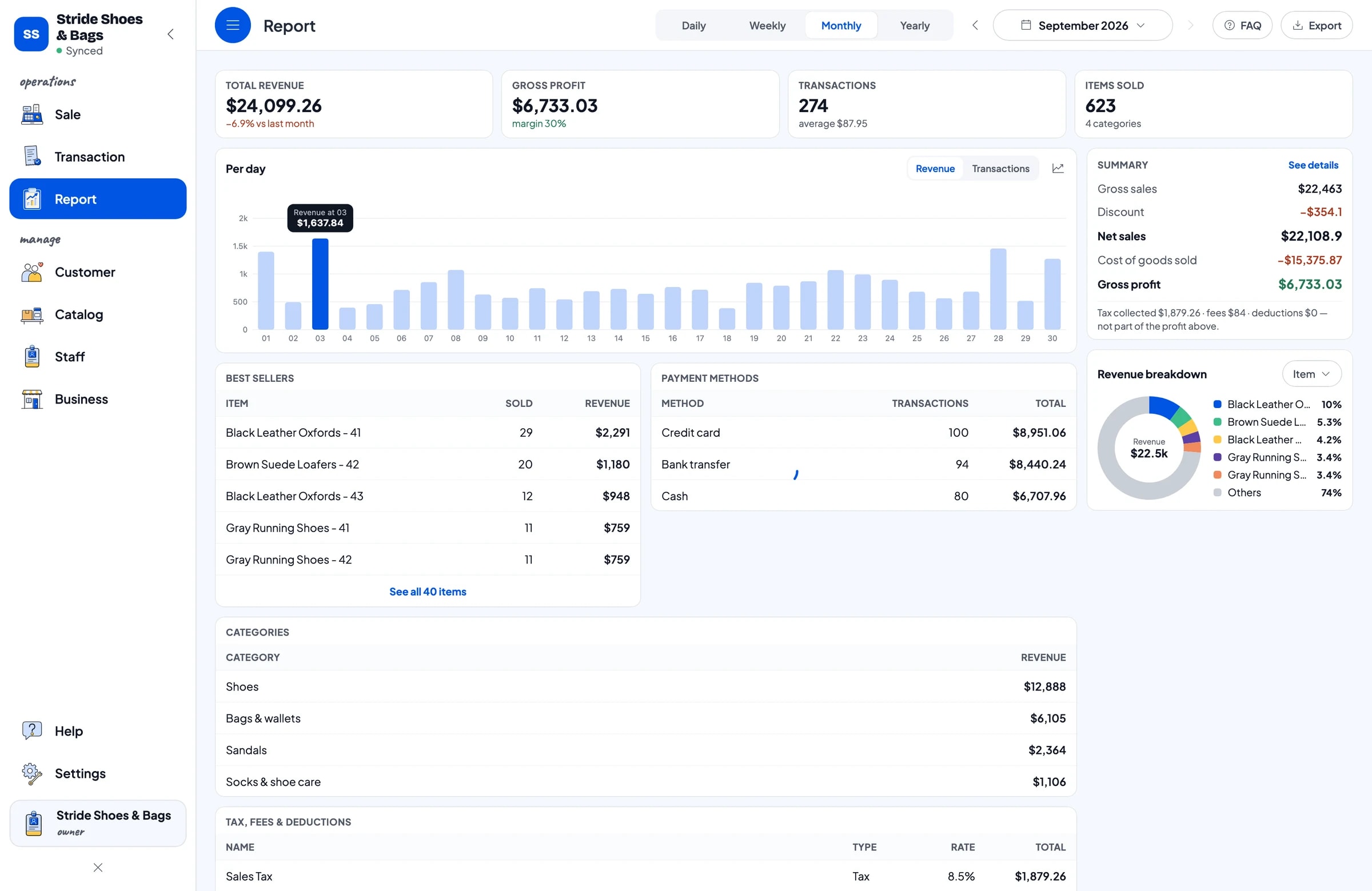
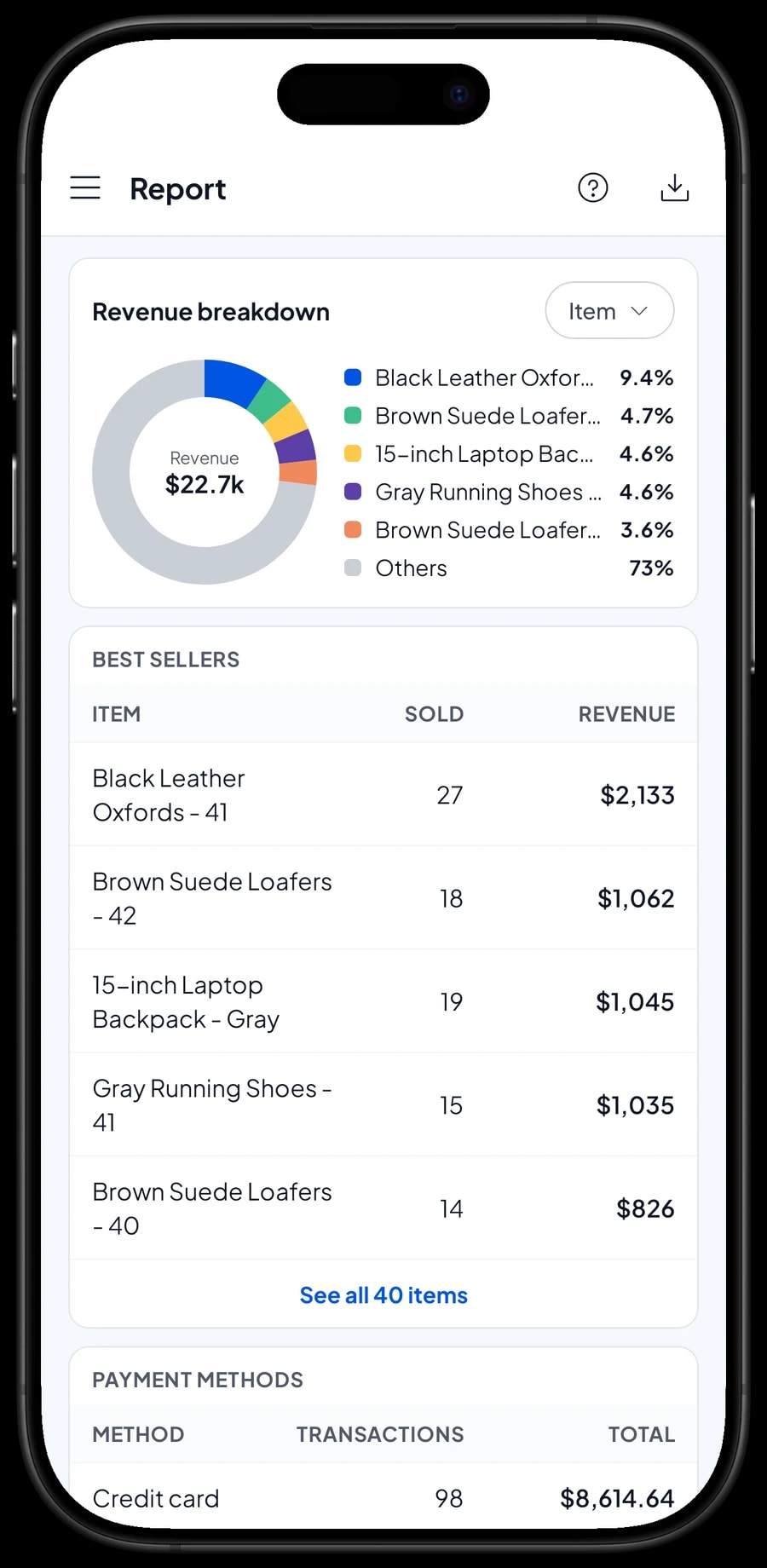
Reports are available by day, week, month and year. You see total revenue, gross and net sales, discounts, tax, payment methods and how revenue splits across items. That shows which styles carry the store, and whether shoes or bags did more of the work this month.
Put that next to the stock per size under Inventory, Stock and a buying pattern appears: order more of the middle sizes and just a pair or two of the ends. Every report can be exported to Excel or PDF to take along when you place your next wholesale order.
Store expenses and real net profit
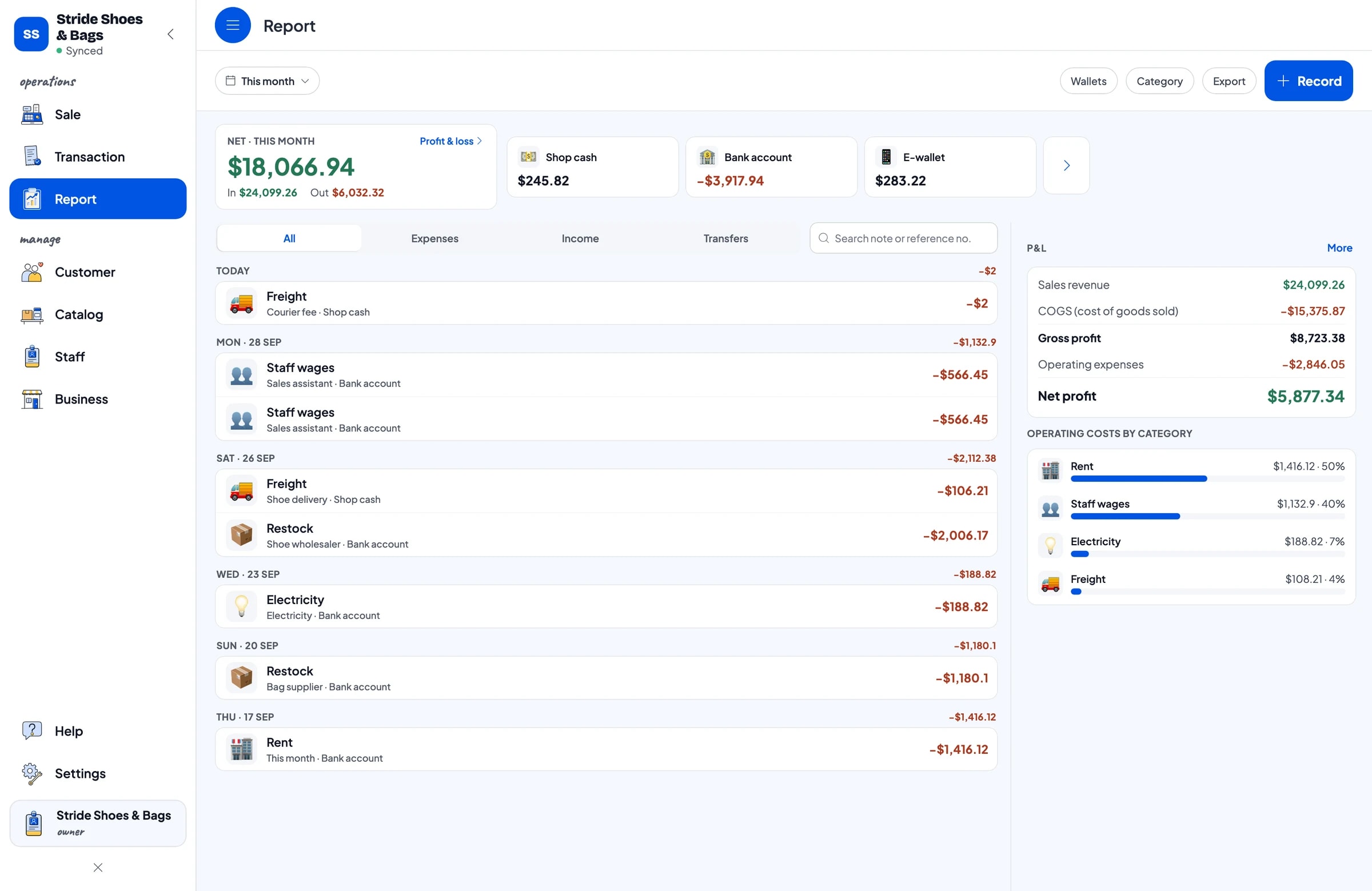
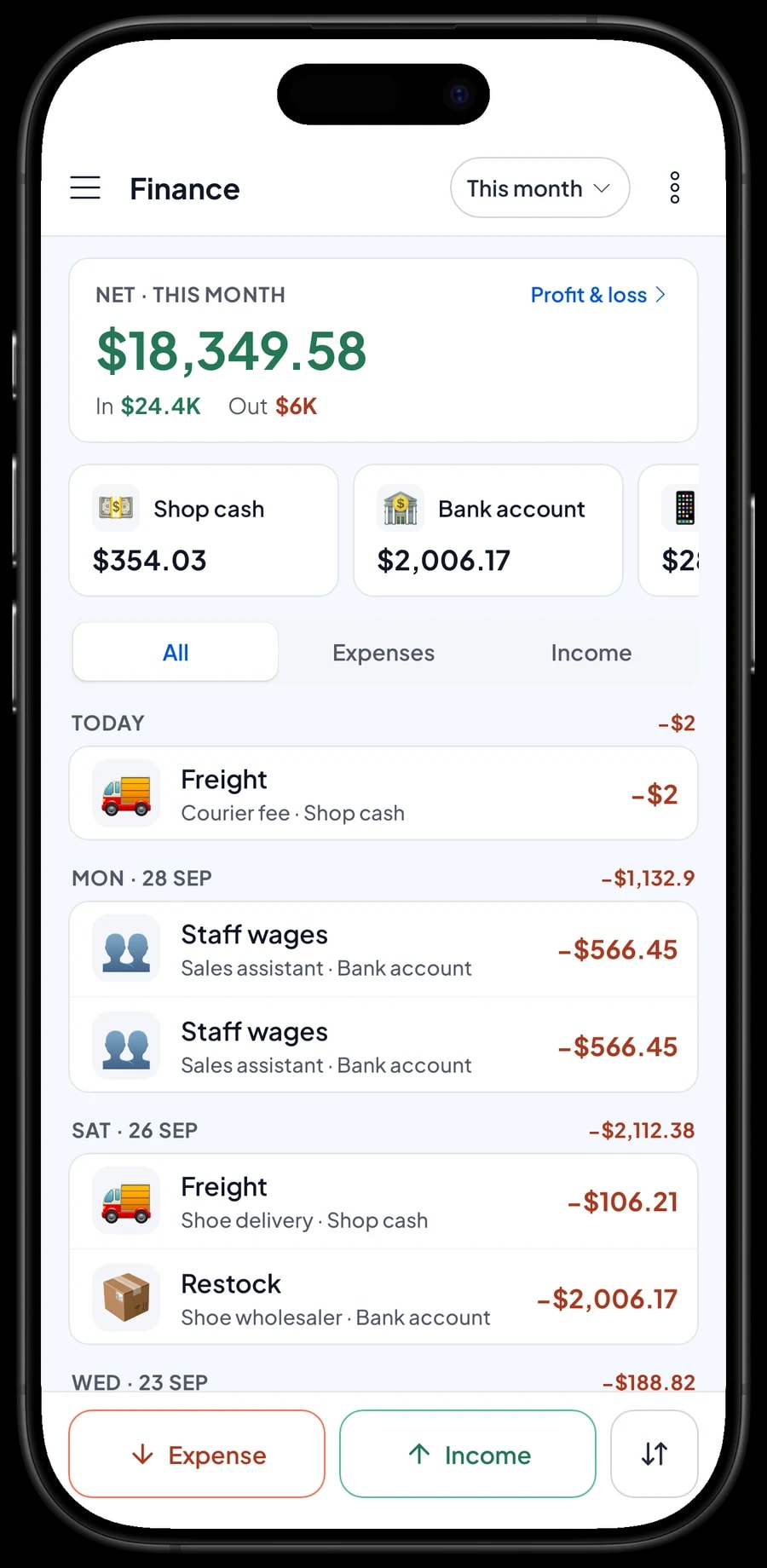
Because every variant has its own cost, Salesmaster works out the cost of the pairs you actually sold. For net profit, record the store's expenses in Finance: restocks from your shoe wholesaler and bag supplier, staff wages, rent, electricity and freight.
Each expense has a category and the wallet it came from, such as shop cash, a bank account or an e-wallet. The Finance summary then shows revenue minus cost of goods and operating costs, which is what your store earned this month. It also shows whether shipping stock in from out of state is still worth it.
Start in a day, keep selling offline
You do not need to close to switch. Install Salesmaster on the phone, tablet or laptop at the counter, create an account, then add your 20 to 30 best-selling styles with their sizes. Count stock per size for those first and add the rest during quiet hours.
Sales are saved on the device and sent to the cloud when the internet is back. Offline mode works for up to 7 days; after that the app needs to connect briefly to sync. If the register phone breaks, sign in with the same account on a new device and your store's data comes along.
Salesmaster does not connect to online marketplaces or your web store automatically. If you sell online too, ring those orders up as sales at the register so the count for every size stays accurate in one place.
An example shoe & bag store catalog
Use this table as a starting point and swap in your own styles, sizes and prices.
| Category | Item | Variants | Unit |
|---|---|---|---|
| Shoes | White canvas sneakers | 39, 40, 41 | pair |
| Shoes | Running shoes | 41, 42, 43 | pair |
| Shoes | Leather oxfords | 41 Black, 42 Black, 42 Brown | pair |
| Shoes | Ballet flats | 38, 39, 40 | pair |
| Sandals | Hiking sandals | 40, 41, 42 | pair |
| Bags & wallets | Canvas tote bag | Cream, Black, Olive | each |
| Bags & wallets | 15-inch laptop backpack | Black, Gray, Navy | each |
| Socks & shoe care | Ankle socks, 3 pairs | - | pack |
| Socks & shoe care | Shoe cleaner 100 ml | - | bottle |
Shoes and sandals are one item per style with size variants, so every size keeps its own count. Things without options, like polish or socks, are regular items with their own stock.
Which plan fits your store
Start by counting sales per day. A shoe and bag store ringing up about 9 sales a day records roughly 270 transactions a month, with more around back-to-school and the holidays.
| Plan | Price | Transactions / month | Staff accounts | Good for |
|---|---|---|---|---|
| Free | Free | 30 | Owner only | To try size variants and checkout before using it for real. |
| Solo Pro | $4.90/month | 3,000 | Owner only | Small stores where the owner runs the register. |
| Bronze Pro | $6.90/month | 5,000 | 1 staff | Stores with one sales assistant on their own register. |
| Silver Pro | $9.90/month | 8,000 | 2 staff | Busier stores with two staff on separate devices. |
Every plan includes checkout, catalog, receipts, reports and offline mode. You can change plans at any time. See pricing →
Frequently asked questions
- Can Salesmaster track shoe stock by size?
- Yes. Create one item per style and add a variant for each size, or for each size and colour combination. Every variant has its own price, cost and stock, and it goes down automatically when a pair sells.
- Can I scan the barcode on the shoe box?
- Yes. Salesmaster supports barcode scanning, so the cashier can scan the box or tag to add the pair to the cart.
- How do I record a size swap?
- Find the original sale under Transaction, add the returned size back and take the new size out with stock adjustments, and note what happened. If the new style costs more, ring up the difference as a new sale.
- Can I sell bags and wallets at the same register?
- Yes. Give them their own category, such as Bags & wallets, and use colour variants for bags that come in several colours. Everything sells from the same Sale screen and lands in the same reports.
- Is there wholesale pricing for resellers?
- Salesmaster has no automatic tiered or quantity pricing. Instead, create separate variants such as "40 Wholesale" and "40 Retail" with their own prices, and the cashier picks the right one. Keep in mind that each variant has its own stock, so wholesale and retail pairs are counted separately.
- Can my staff use their own phone as a register?
- Yes, with staff accounts. An account is active on one device at a time, so the owner keeps the main account, adds staff and registers their cashier devices. Staff accounts come with Bronze Pro (1 staff) and Silver Pro (2 staff).
- Can I keep selling if the internet goes down?
- Yes. Sales are saved on the device and sync when the connection is back. Offline mode works for up to 7 days before the app needs to connect.
Need help setting up your catalog? Chat with our team on WhatsApp →