
Salesmaster is a point-of-sale (POS) app for phone and accessory shops on Android, iPhone & iPad, Windows and Mac. Top-ups and data plans are items with one variant per amount and their own cost, accessories such as cases and screen protectors keep stock per variant, and repairs picked up later are kept as saved orders. Expenses such as wholesale stock, top-up balance and rent feed the Finance report so you see net profit. A Free plan lets you try it first.
Problems every phone shop knows
If any of these sound familiar, this page is for you.
- 01
Hundreds of small sales
A $10 top-up, a charging cable, a screen protector fitted on the spot. Each sale is small, but if they aren't recorded, by the end of the month nobody knows where the money went.
- 02
Top-up margins measured in cents
A top-up earns you well under a dollar. Without the cost recorded, revenue looks healthy while the actual profit is razor thin.
- 03
Cases in every colour, stock unknown
A customer asks for a navy case and someone has to dig through the display rack. The colours that sold out only show up when a customer is already waiting.
- 04
Phones left for repair, bills on scraps of paper
One screen repair is due tomorrow at 4, a battery swap in an hour. When the tickets live on paper, bills and promised times get mixed up or lost.
Accessories with colour and finish variants
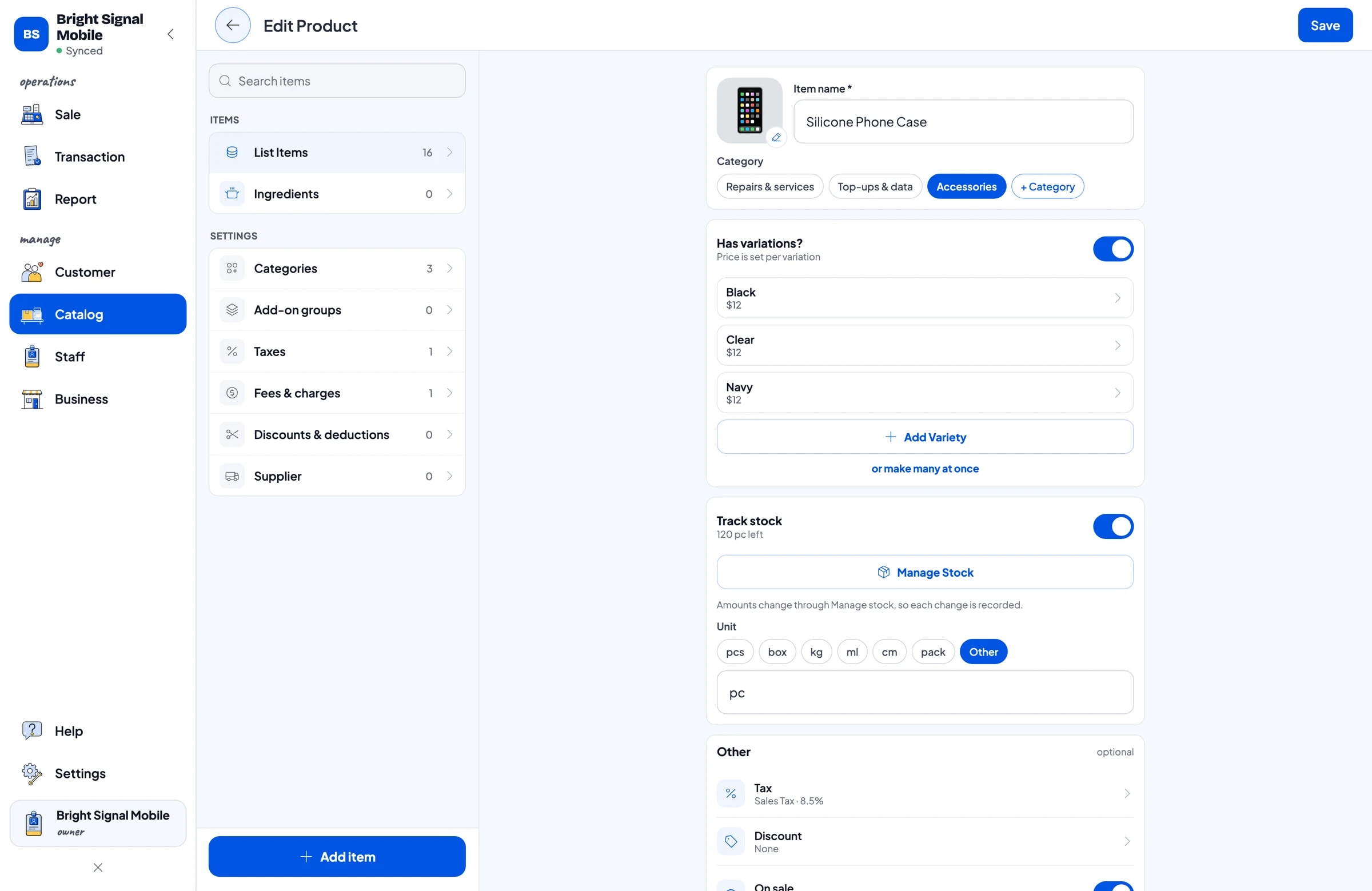
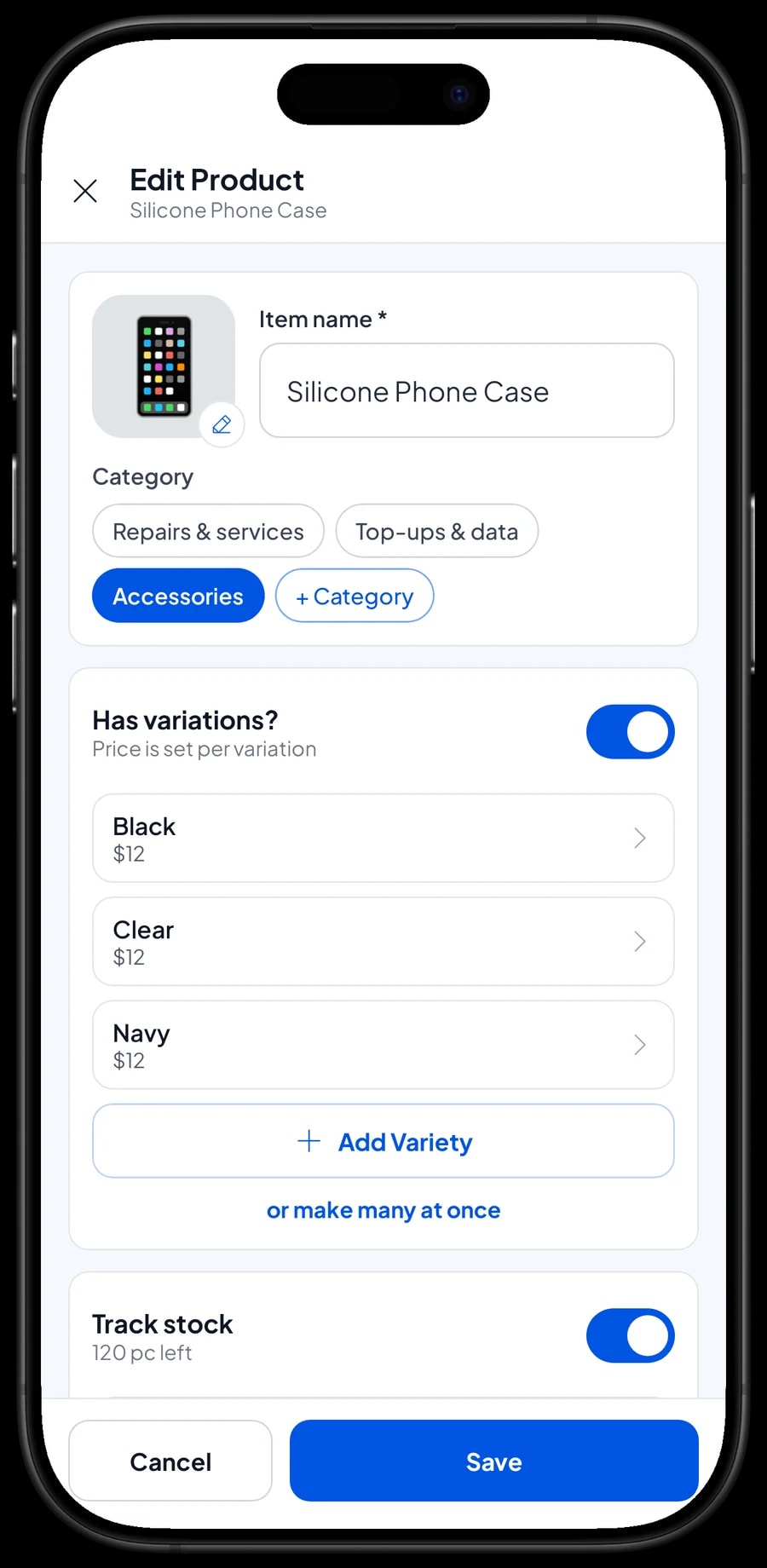
Accessories are where a phone shop makes most of its margin. In Salesmaster, each kind of accessory is one item in the Catalog, and its colours or finishes are variants. A silicone case in Black, Clear and Navy is one item with three variants. A tempered glass screen protector in Clear and Matte is one item with two.
Each variant has its own price, its own cost and its own stock. When the cashier picks the navy case, navy stock goes down. So you know which colours sell and which ones sit on the rack before your next wholesale order.
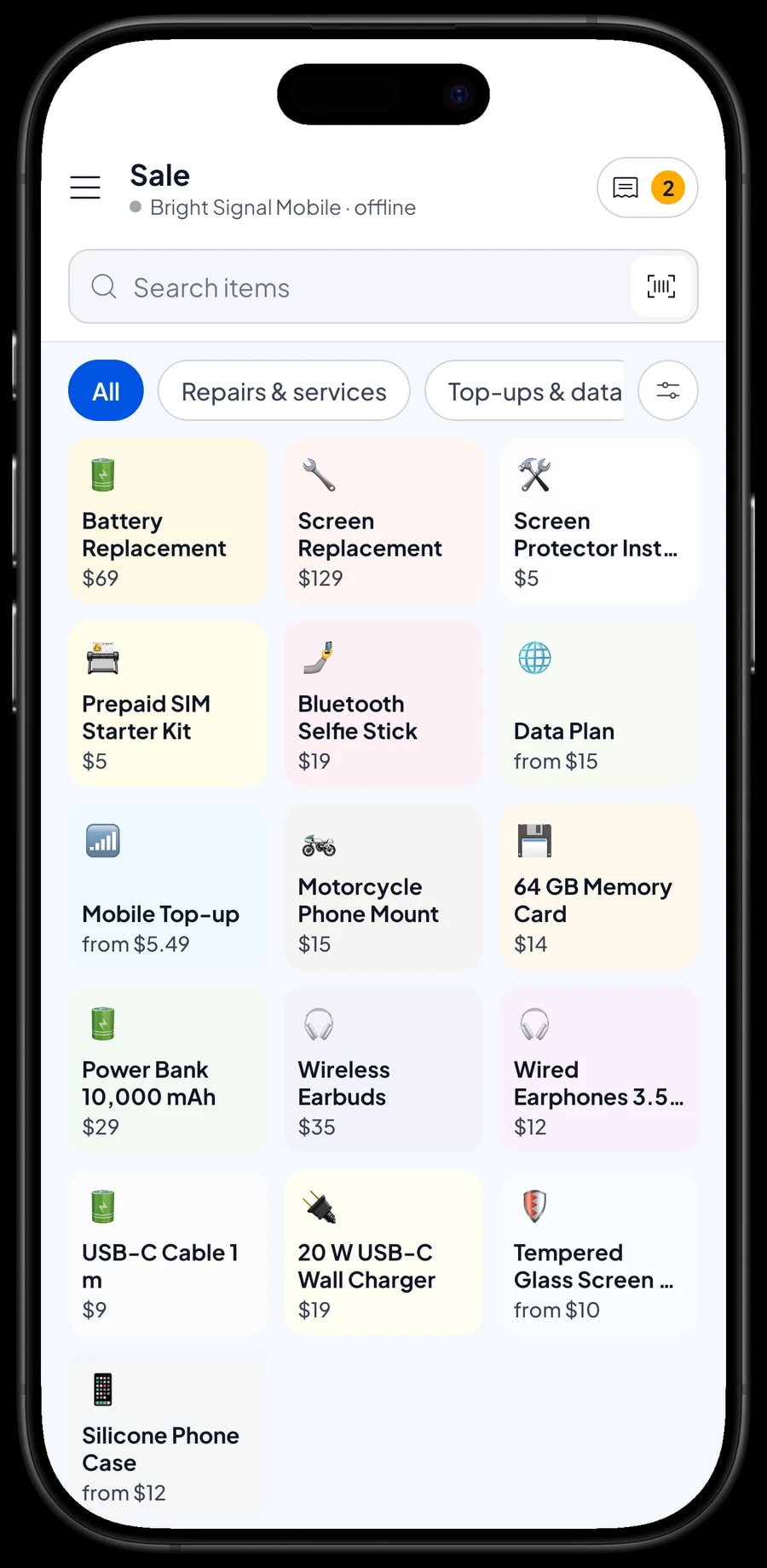
Things without options, such as a 20 W wall charger, a USB-C cable, wireless earbuds, a power bank, a memory card or a motorcycle phone mount, are regular items with stock. Keep categories simple, such as Accessories, Top-ups & data, and Repairs & services, so the cashier finds anything in one or two taps.
- Step 1: Open Catalog → Categories and create Accessories, Top-ups & data, and Repairs & services.
- Step 2: Open Catalog → List Items and add each kind of accessory.
- Step 3: Add a variant for each colour or finish, with its selling price and cost.
- Step 4: Enter the opening stock for each variant from what is on your shelves.
Top-ups and data plans by amount
Salesmaster doesn't connect to carriers or top-up providers, so you still load the balance through the provider app or terminal you already use. What Salesmaster records is the sale. Create a Mobile Top-up item with one variant per amount, such as $5, $10, $25 and $50, and a Data Plan item with variants like 10 GB for 7 days or 25 GB for 30 days.
Enter the cost on every variant. Because a top-up earns so little, the cost is what lets your reports show the real profit on top-ups instead of just revenue. Prepaid SIM starter kits are regular items with stock.
Money you load into your provider balance can be recorded in Finance under its own category, such as Top-up balance, so you can see the cash leaving the drawer or the bank. Pick one method and stick with it, so the cost of top-ups isn't counted twice when you look at profit.
Fast checkout, payments and receipts
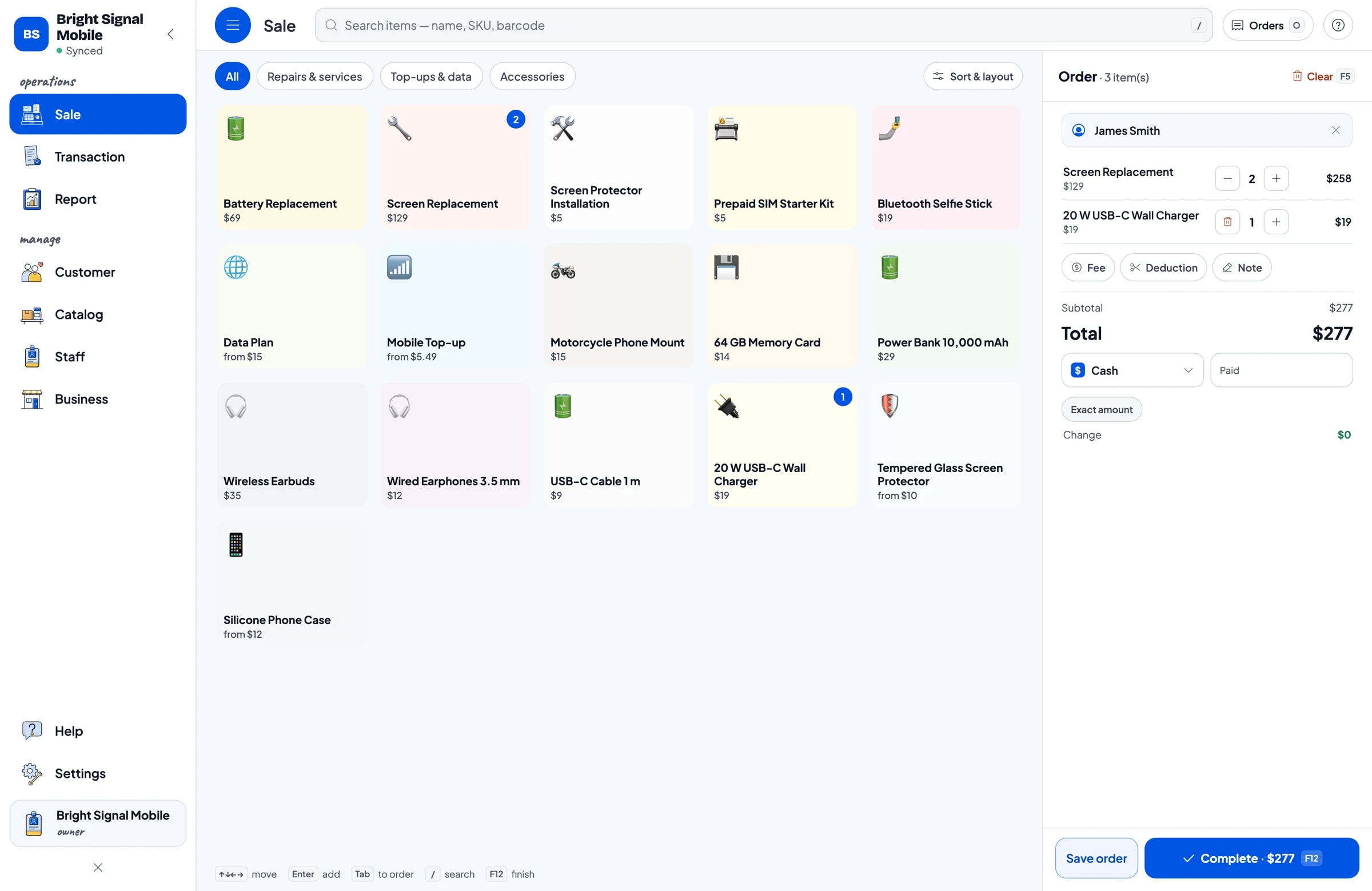
Phone shops get busiest after work, when people stop by to top up on the way home. On the Sale screen the cashier taps an item or scans the barcode on an accessory package, picks the variant and goes straight to payment. One ticket can hold a top-up, a case and a screen protector installation together.
You create the payment methods you accept: cash, card, mobile wallets, bank transfer and anything else. Salesmaster doesn't connect to card terminals or banking apps, so the cashier picks the method the customer used, and reports show how much came in through each one.
Customers who want proof of purchase can get a receipt from a Bluetooth or USB thermal printer, or by WhatsApp, email or a web receipt link. For regulars, save a name and phone number with the sale so their purchase history is kept under Customers.
Quick repairs, paid at pickup
Many phone shops also replace screens and batteries and fit screen protectors. Create each job as a service item with its own price, such as Screen Replacement, Battery Replacement and Screen Protector Installation. Parts or accessories used on the job can go on the same ticket.
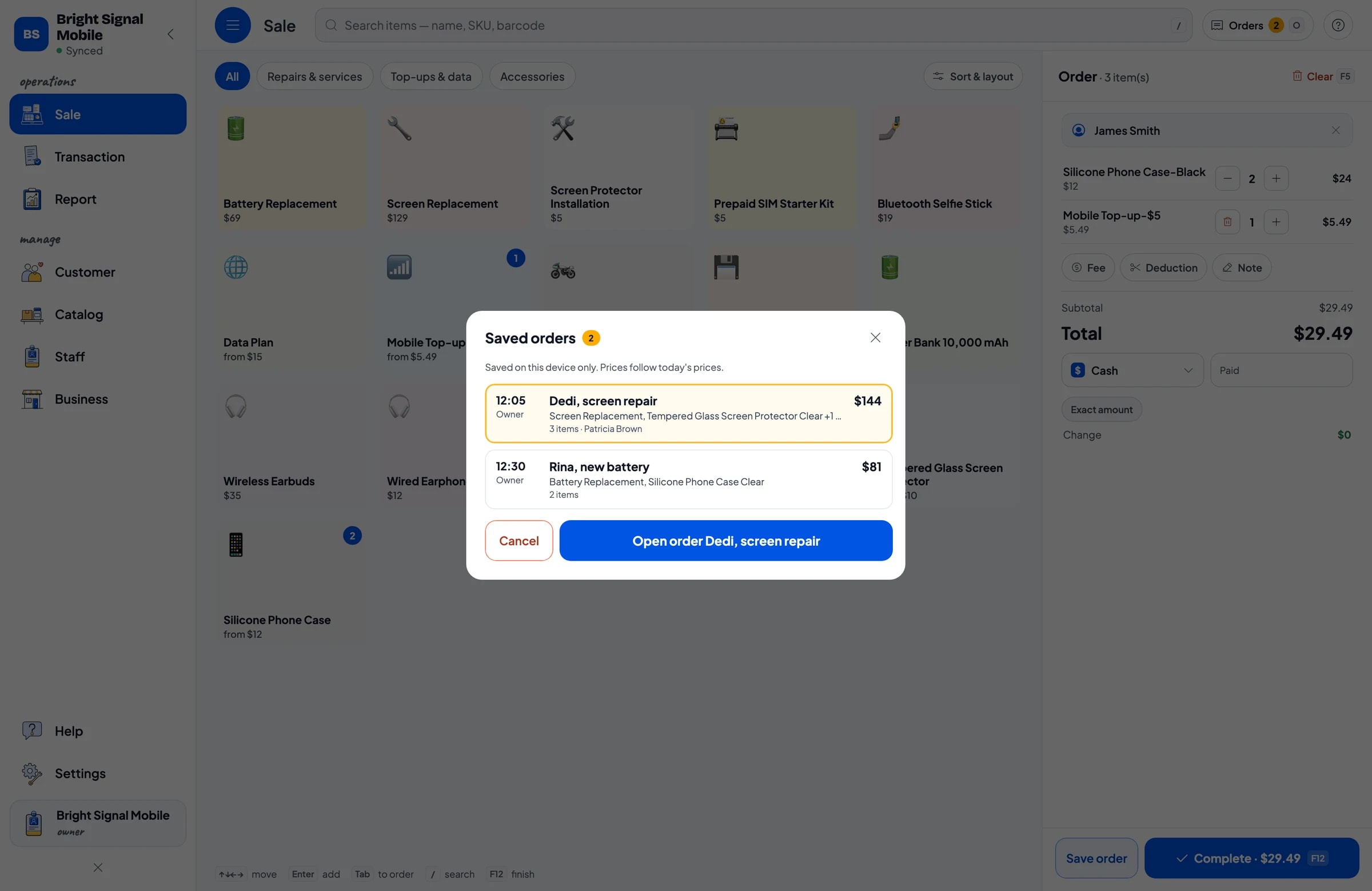
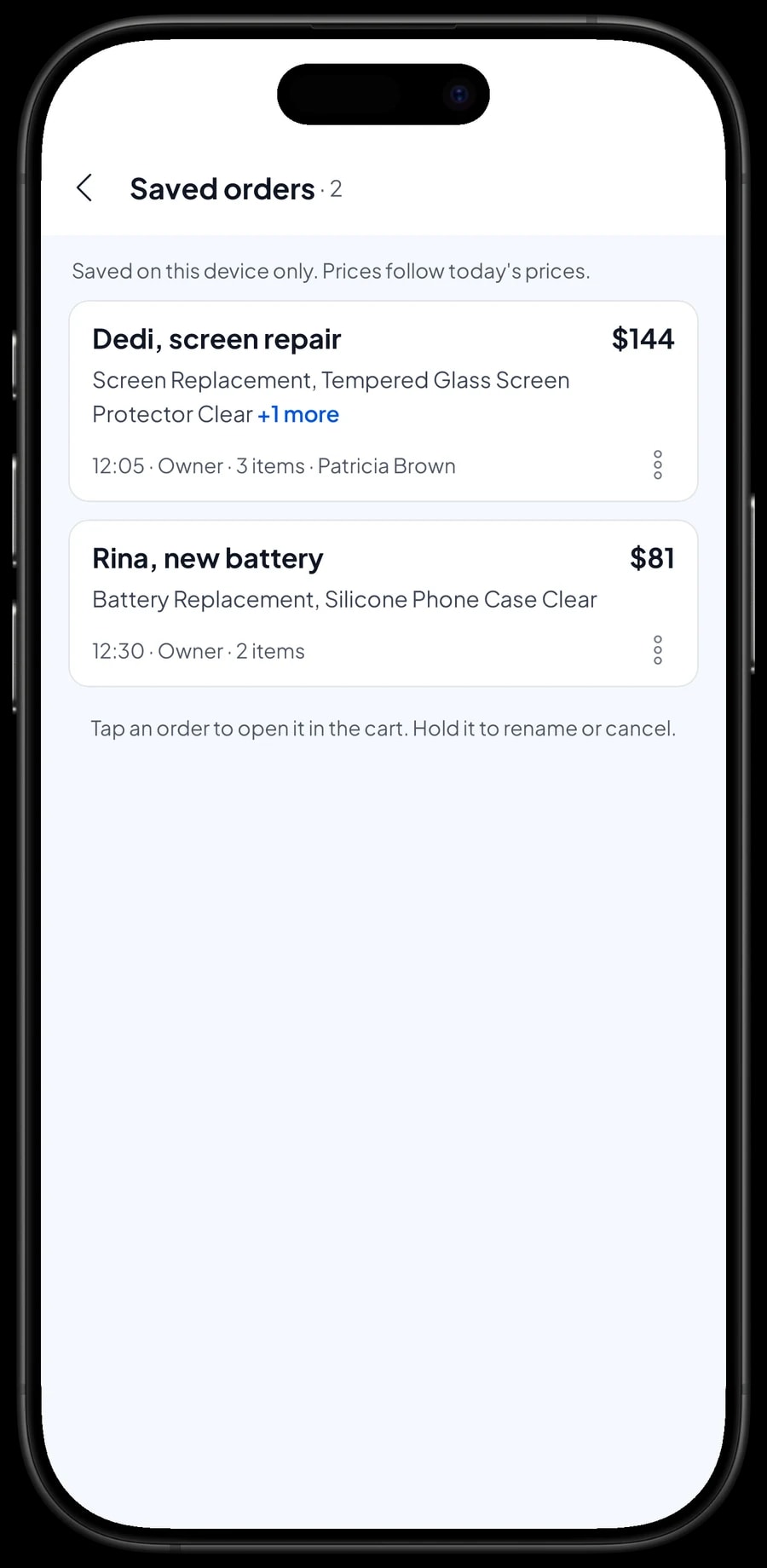
Customers usually pay when they collect the phone. That's what Save order is for: the cart is kept as a saved order under the name you give it, such as "Dedi, screen repair", with a note like "Ready tomorrow 4 pm". When the customer comes back, open Saved orders, pick the name and complete the payment.
A saved order is not counted as a sale and doesn't take stock off until it is paid. Saved orders live on the device that created them, so finish the payment on the same device. Salesmaster doesn't record partial payments on one sale, so if a customer pays a deposit up front, sell it right away as a separate Service item called "Down payment" for the amount received. At pickup, the order keeps its full price and the cashier taps Add Deduction for the deposit amount, so the drawer and reports match on both days.
Stock for small items that sell out fast
Screen protectors, cables and cases sell every day, and they run out without anyone noticing. Because every sale takes stock off the chosen variant, you can check what's left on screen at any time, including from home on your own device.
When a wholesale order arrives, add the new stock so the app matches the display. Count stock regularly, for example every Monday before opening. Damaged items, display samples and screen protectors that crack during fitting are recorded as stock adjustments.
- Step 1: Open Catalog → Inventory → Stock and choose the item or variant that just arrived.
- Step 2: Add the quantity you received.
- Step 3: Compare the numbers on screen with the display once a week.
- Step 4: Record damaged or used items as a stock adjustment.
Counter staff and cashier devices
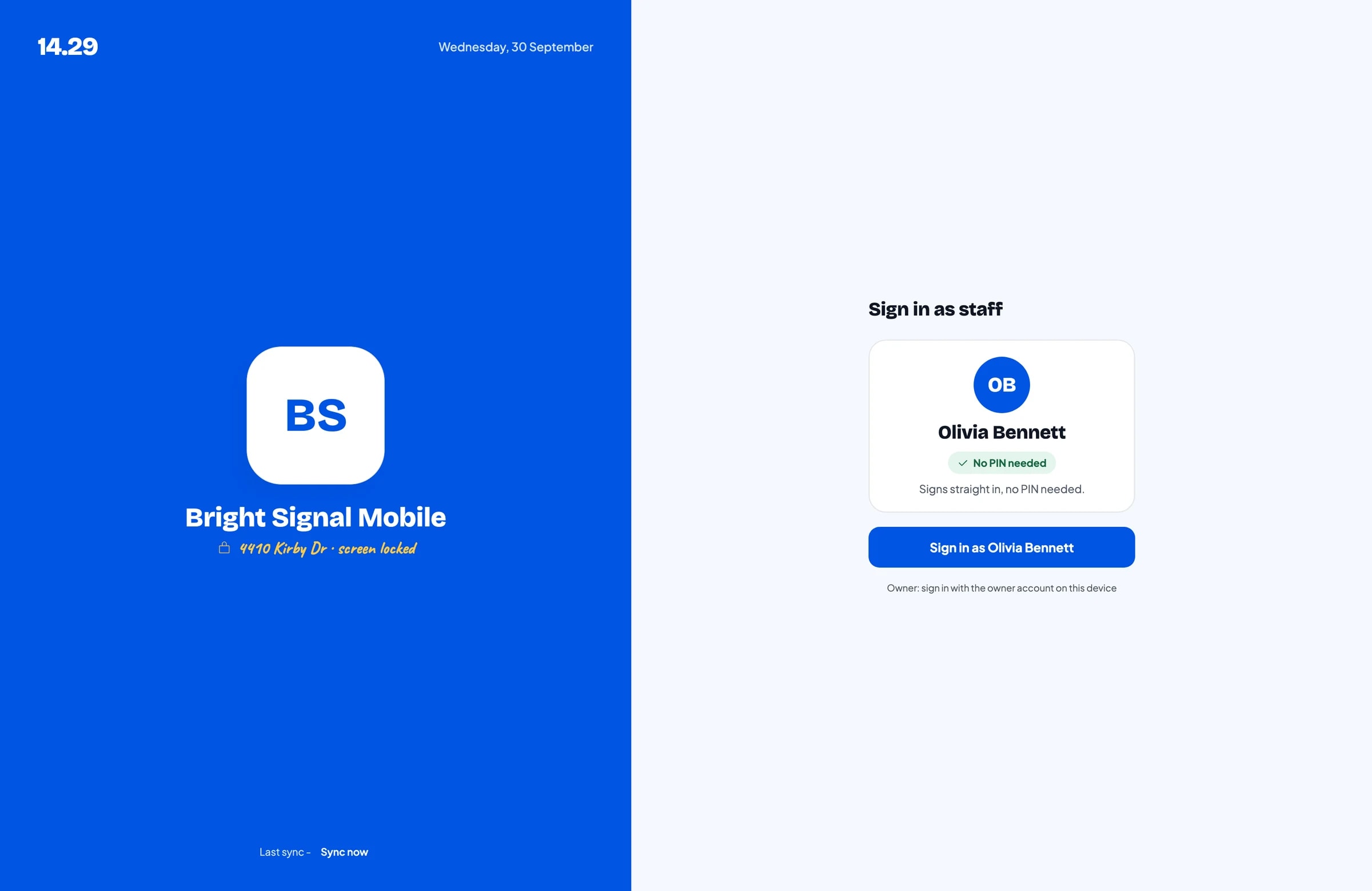
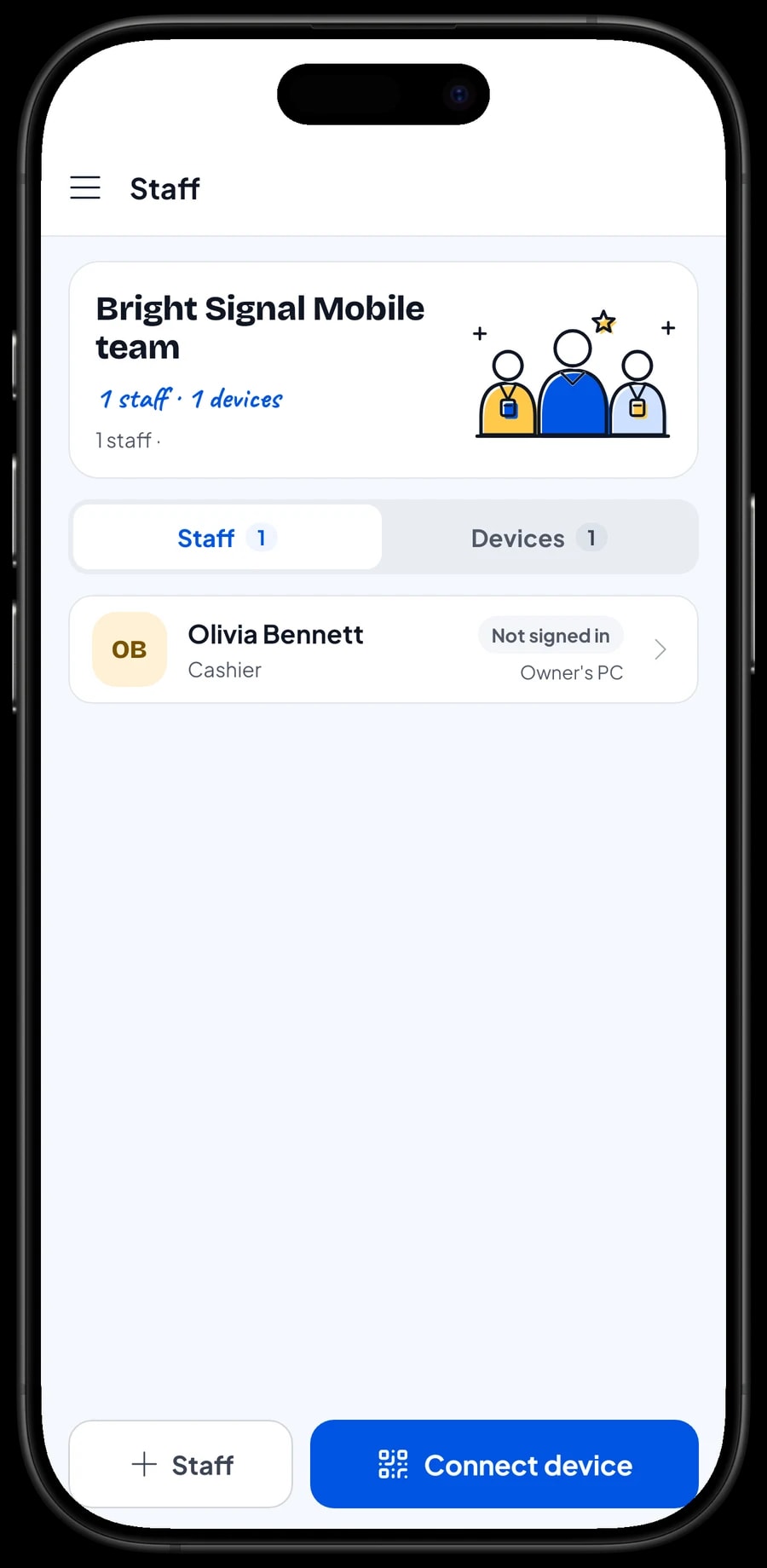
The owner signs in with the main account. Counter staff don't need your account: add them as staff, register a cashier device for them, and they sign in with a PIN. You decide what they can see and change. Staff accounts come with Bronze Pro (1 staff) and Silver Pro (2 staff). An account signs in on one device at a time.
Reports: which amounts and accessories sell
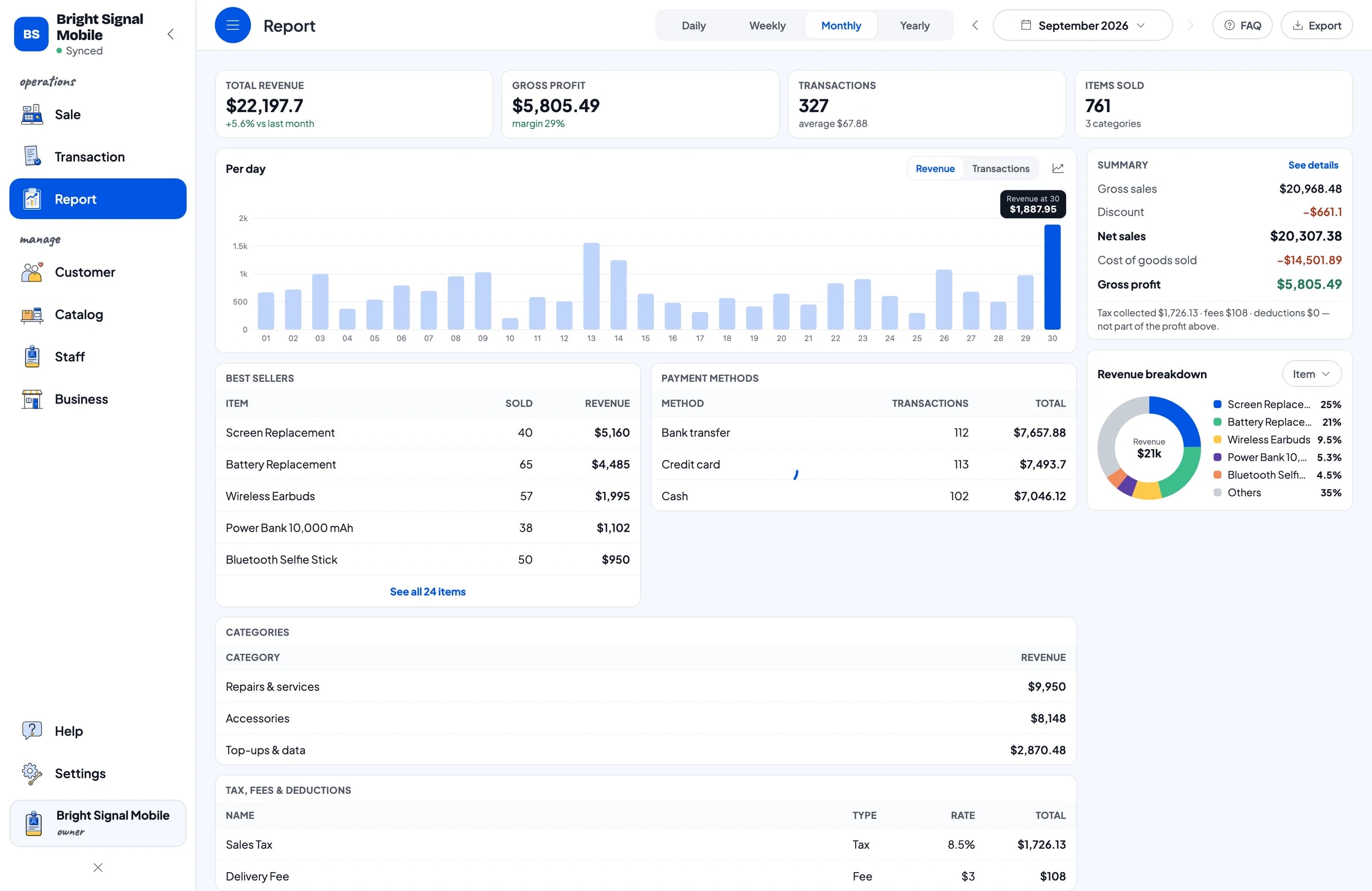
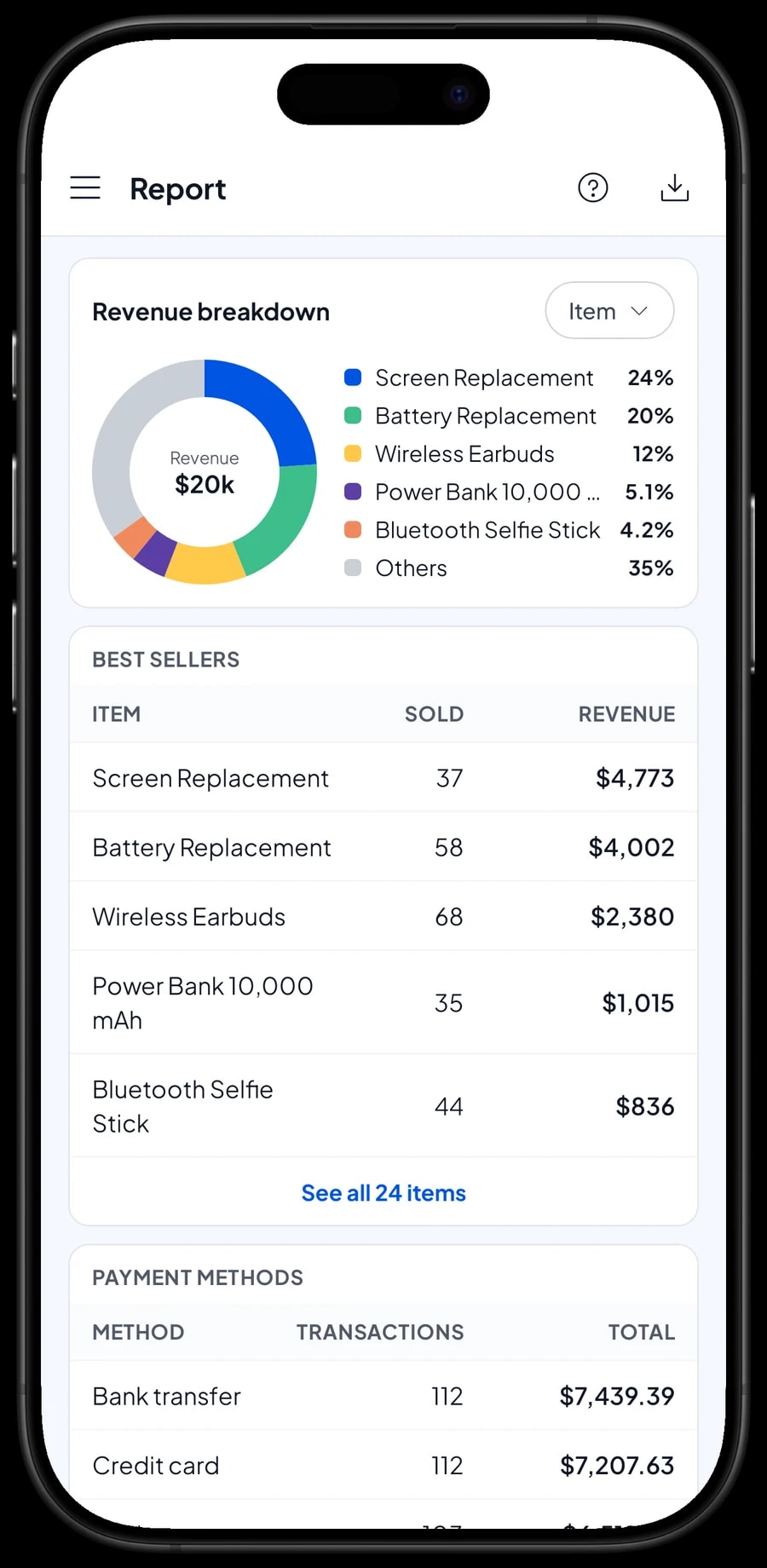
Reports are available by day, week, month and year. You see total revenue, gross profit from your costs, discounts, tax, payment methods and revenue by item. It's clear whether your profit comes mostly from top-ups, accessories or repairs.
That helps with everyday decisions: which top-up amounts people buy most, which case colours to reorder, and which days are busy enough to need two people at the counter. Reports can be exported to Excel or PDF, or printed on the thermal printer.
Wholesale stock, top-up balance and net profit
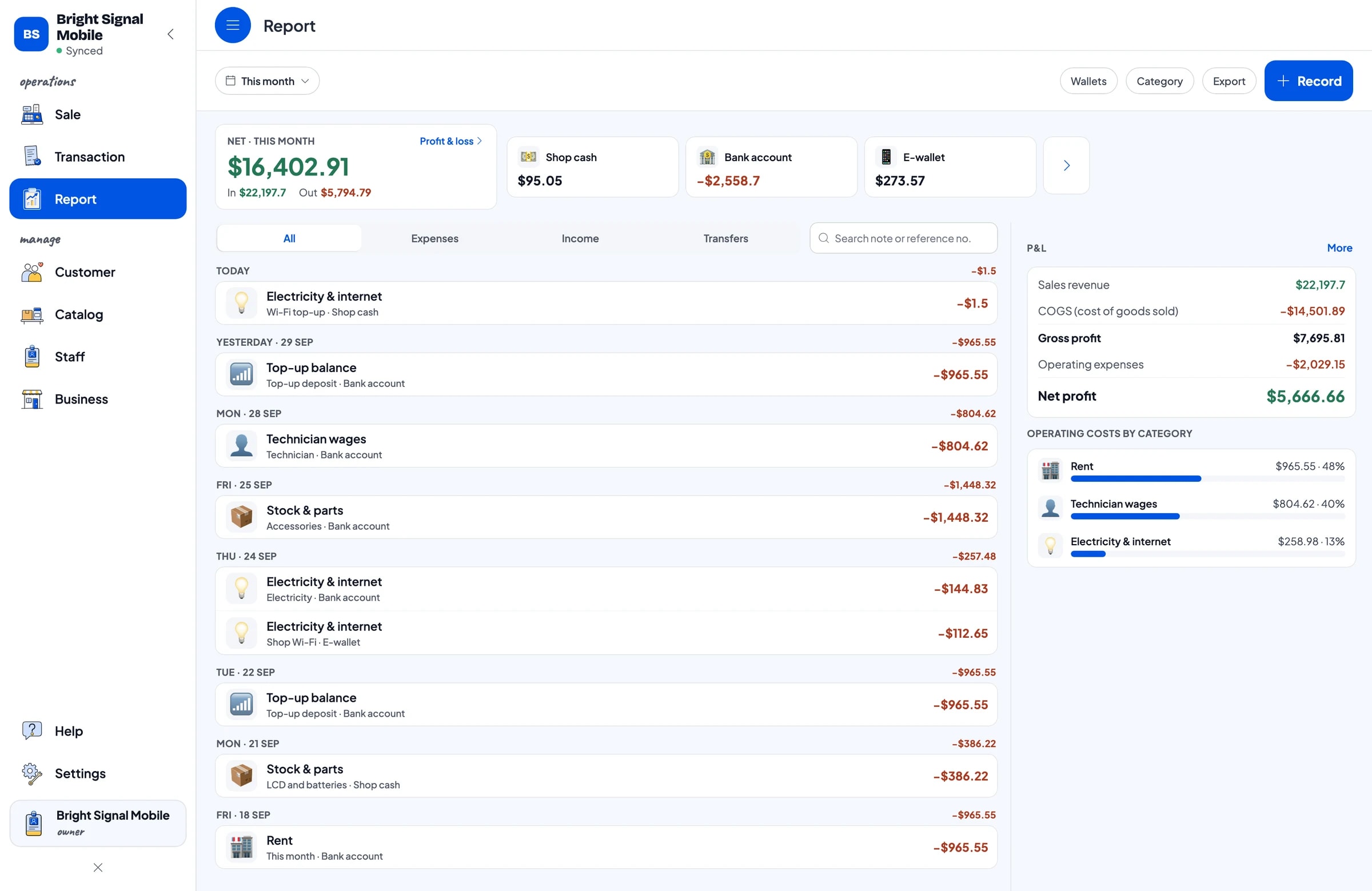
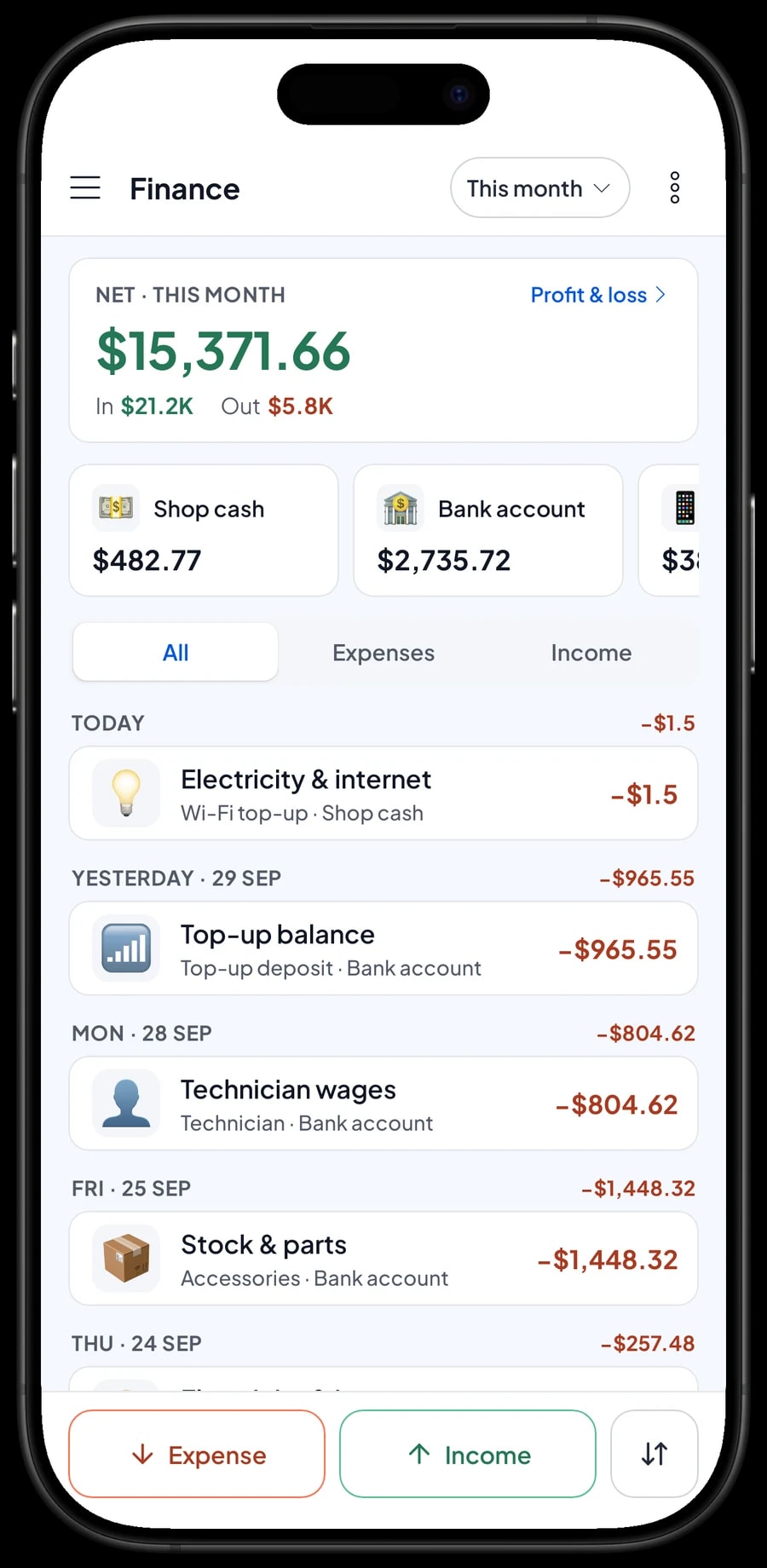
For net profit, record expenses in Finance: accessory stock, parts such as screens and batteries, technician pay, rent, electricity and the shop's internet. Each expense has a category and the wallet it was paid from, such as shop cash, a bank account or an e-wallet.
The Finance report then shows revenue minus cost of goods and operating costs: your shop's net profit. Sales tax collected from customers is kept apart from profit, because that money isn't yours. With these numbers you know whether the counter covers rent and wages, or whether you should stock more of the items with better margins.
Get started in a day, keep selling offline
Install Salesmaster on the counter phone or tablet, create an account, and enter the top-up amounts and data plans you sell most, with their costs. Add your best-selling accessories with their colour variants and stock. Everything else can follow in quiet moments.
Every sale is saved on the device first and sent to the cloud when the connection is back, so you keep selling when the Wi-Fi or signal drops. Offline mode works for up to 7 days; after that the app needs to connect to sync. Because your data lives in your account, nothing is lost if the counter phone breaks or is replaced.
Step-by-step guides for every feature are in the Salesmaster Help Centre, and our team is on WhatsApp if you need help.
An example phone shop catalog
Use this table as a starting point and replace the names, amounts and prices with your own.
| Category | Item | Variants | Item type |
|---|---|---|---|
| Top-ups & data | Mobile top-up | $5, $10, $25, $50 | Product, with cost per amount |
| Top-ups & data | Data plan | 10 GB 7 days, 25 GB 30 days, 50 GB 30 days | Product, with cost per amount |
| Top-ups & data | Prepaid SIM starter kit | - | Product |
| Accessories | Silicone phone case | Black, Clear, Navy | Product |
| Accessories | Tempered glass screen protector | Clear, Matte | Product |
| Accessories | USB-C cable 1 m | - | Product |
| Accessories | Power bank 10,000 mAh | - | Product |
| Repairs & services | Screen protector installation | - | Service |
| Repairs & services | Battery replacement | - | Service |
Top-ups and data plans have nothing on the shelf. What matters is the cost of each amount, so your reports show the real profit.
Which plan fits your phone shop
Start by counting sales per day, top-ups included. A shop serving about 30 customers a day records roughly 900 transactions a month.
| Plan | Price | Transactions / month | Staff accounts | Good for |
|---|---|---|---|---|
| Free | Free | 30 | Owner only | To try top-up and accessory checkout before using it for real. |
| Solo Pro | $4.90/month | 3,000 | Owner only | Shops where the owner runs the counter. |
| Bronze Pro | $6.90/month | 5,000 | 1 staff | Shops with one clerk or technician on their own device. |
| Silver Pro | $9.90/month | 8,000 | 2 staff | Busy shops with two staff on separate devices. |
Every plan includes checkout, catalog, receipts, reports and offline mode. You can change plans at any time. See pricing →
Frequently asked questions
- Can Salesmaster load top-ups directly onto a customer's number?
- No. Salesmaster doesn't connect to carriers or top-up providers. You load the balance through your provider app or terminal, then record the sale as a top-up item with one variant per amount and its cost.
- How do I record money loaded into my top-up balance?
- Record it in Finance as an expense under its own category, such as Top-up balance, with the wallet it came from. If the cost of top-ups is already entered on each variant, don't count those deposits again when you judge profit, or the cost is counted twice.
- Can I track stock of cases by colour?
- Yes. Create one case item with a variant for each colour or finish. Each variant has its own price, cost and stock, and the chosen variant's stock goes down with every sale.
- How do I handle a repair that's paid at pickup?
- Put the repair and any parts in the cart, then tap Save order with the customer's name and the promised time. The order stays on the device that created it and isn't a sale until it's paid, so complete the payment on the same device.
- Can I give a lower price to customers who buy in bulk?
- Salesmaster doesn't change prices automatically by quantity. If you sell wholesale, add separate variants such as Retail and Wholesale to the same item, and the cashier picks the right one.
- Can I keep selling when the internet is down?
- Yes. Sales are saved on the device and sync when the internet is back. Offline mode works for up to 7 days before the app needs to connect to sync.
- How much does Salesmaster cost for a phone shop?
- You can start on the Free plan to try it. Shops with a clerk or technician usually choose Bronze Pro or Silver Pro, because both include staff accounts. Prices for each plan are in the plan table on this page, and paying yearly costs less.
Need help setting up your catalog? Chat with our team on WhatsApp →