Salesmaster is a point-of-sale (POS) app for sports stores on Android, iPhone & iPad, Windows and Mac. You can track stock for shoes, apparel and equipment by size, colour or weight using variants, scan barcodes at the counter, hold racket stringing jobs with Save order until pickup, reward club members with loyalty points, and see net profit in the Finance report. A Free plan lets you try it first.
Problems every sports store knows
If any of these sound familiar, this page is for you.
- 01
The size they want is always gone
Size 41 futsal shoes are sold out while size 39 piles up. Without stock by size, you find out when a customer is already waiting at the wall, and reordering from the distributor is guesswork.
- 02
Hundreds of small items, easy to misprice
Overgrips, soccer socks, table tennis balls, shuttlecocks by the tube. They are small, they look alike, and their prices all differ. A new hire at the counter charges the wrong one.
- 03
Rackets left for stringing get mixed up
Players drop off rackets for restringing and come back tomorrow. The sticky note with their name falls off, and nobody knows which racket has been paid for.
- 04
Busy before tournaments, unclear profit
Before a tournament or the new school season, the store is packed. But after the distributor, staff wages, the stringer, rent and promotions, what is left? Without recorded expenses, profit is a guess.
Variants for size, colour and weight
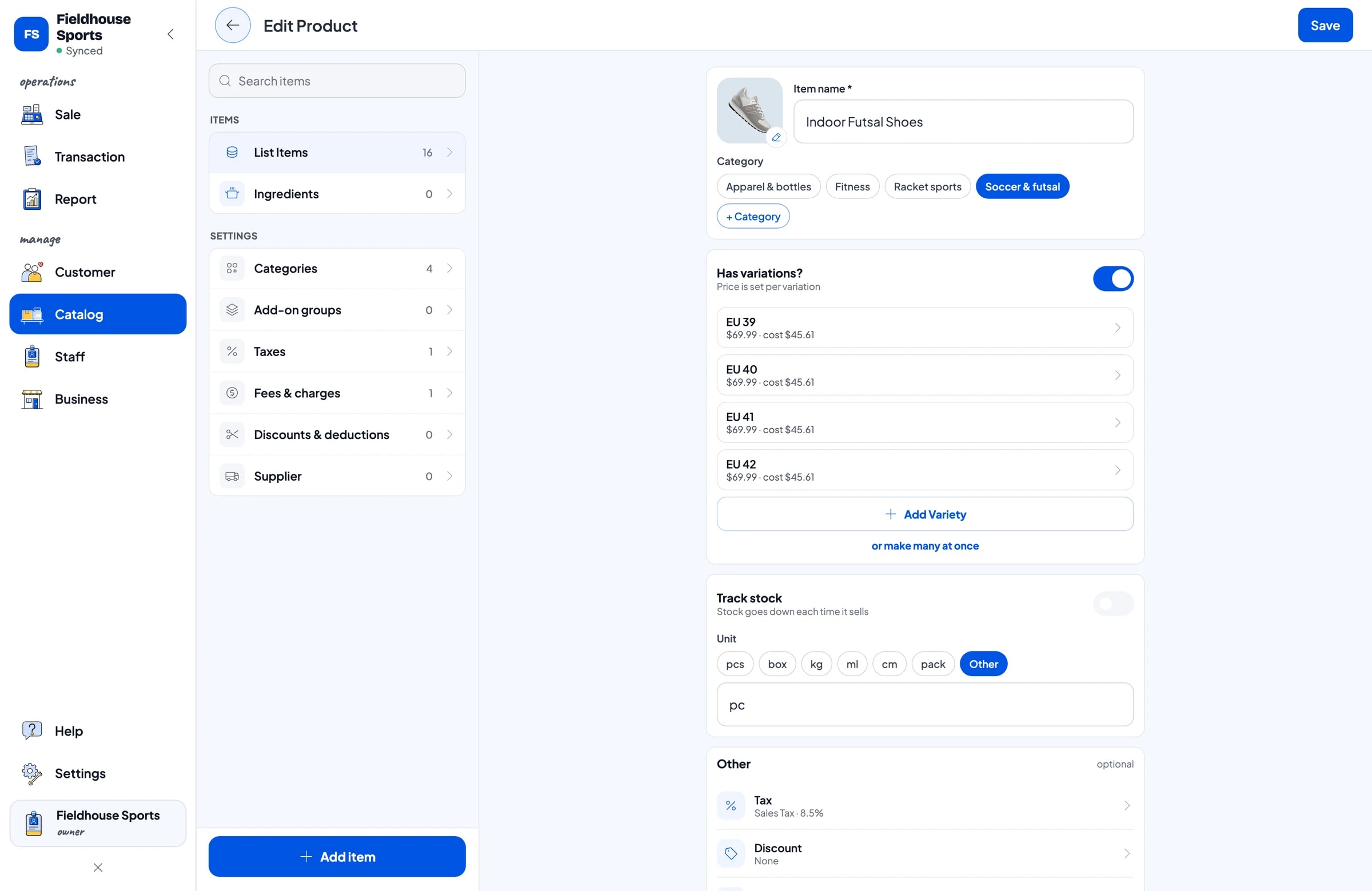
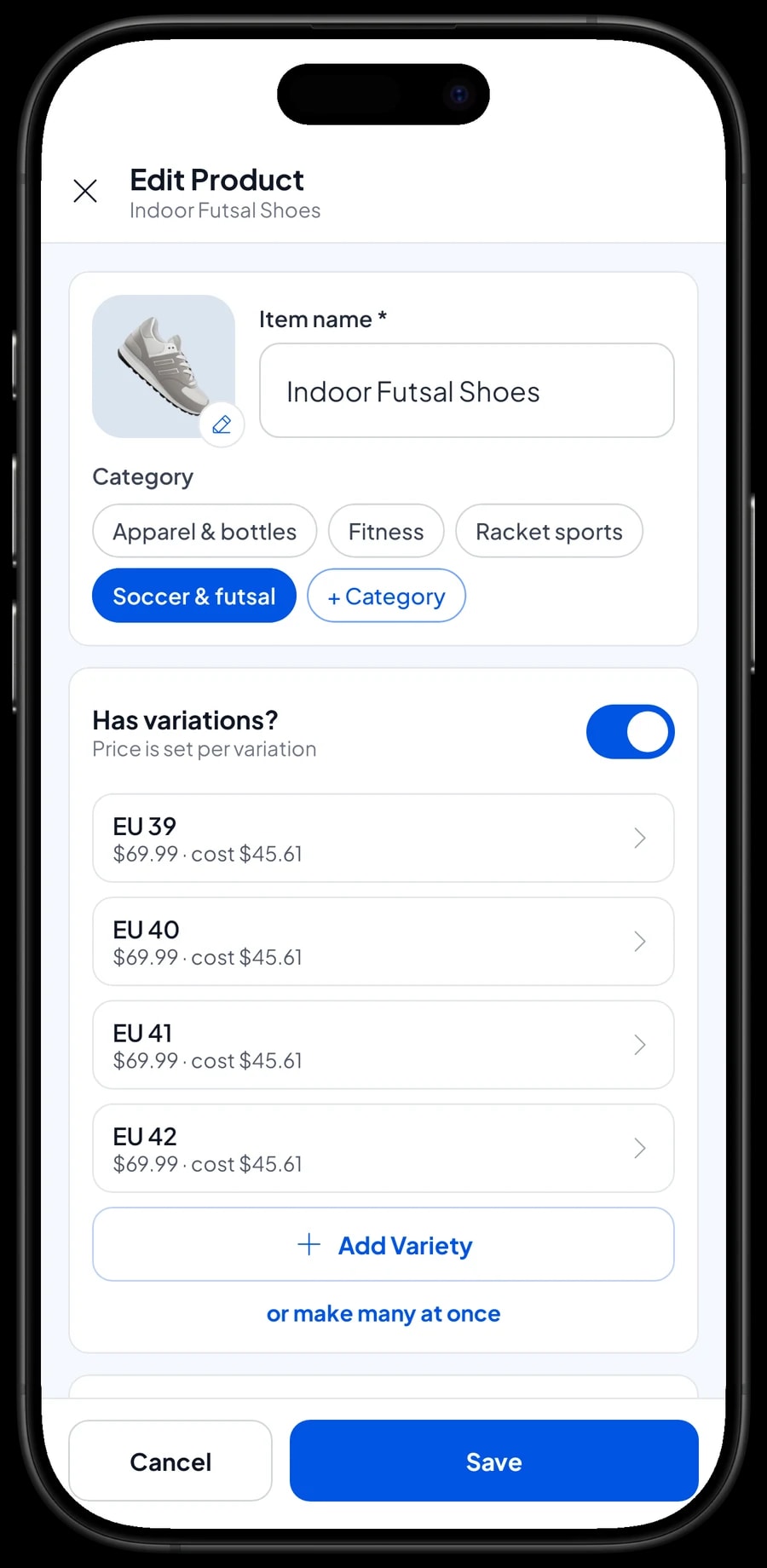
In Salesmaster, every product is one item in the Catalog, and the options within it are variants. Futsal shoes in EU 39 to 42, training tees in M, L and XL, yoga mats in Purple, Black and Green, dumbbells in 1 kg, 2 kg and 3 kg, rackets in Beginner and Intermediate. The cashier picks the variant and the price follows.
Each variant has its own selling price, its own purchase cost and its own stock. So you know exactly how many pairs of size 41 are left, not just a total for the shoe. When one size is running low, you can reorder just that size from the distributor.
Group items into categories such as Soccer & futsal, Racket sports, Fitness, and Apparel & bottles. If you carry a lot of products, enter the catalog on a laptop first (Windows or Mac), then use it on the phone or tablet at the counter.
- Step 1: Open Catalog → Categories and create categories such as Soccer & futsal, Racket sports and Fitness.
- Step 2: Open Catalog → List Items and add each product with its name, selling price, cost and category.
- Step 3: For shoes, apparel, mats or dumbbells, add size, colour or weight variants.
- Step 4: Enter the price, cost and opening stock of each variant, then save.
Scan barcodes so nothing is charged wrong
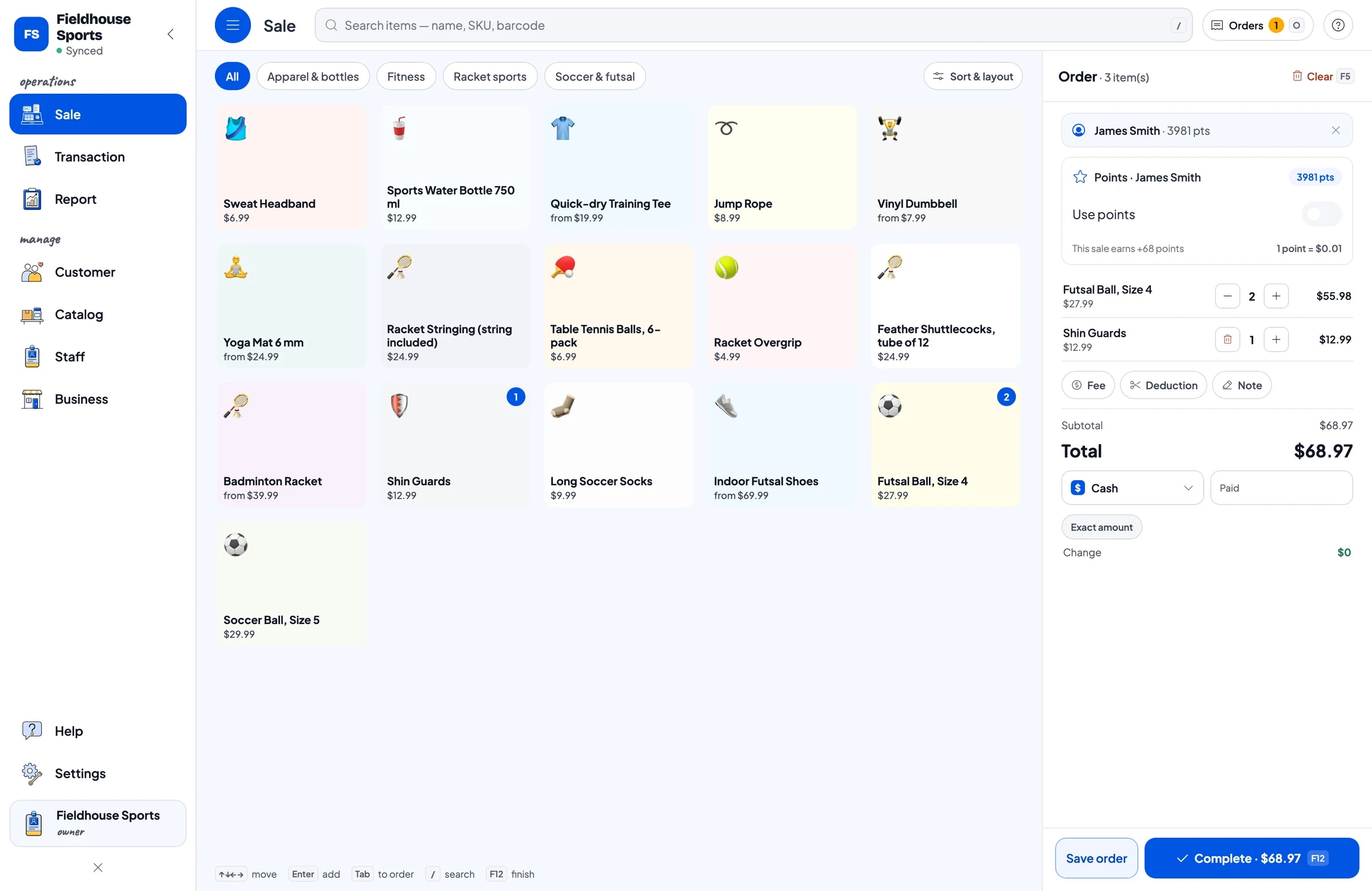
Most sports gear arrives from the distributor already barcoded: balls, shuttlecocks, water bottles, grips and socks. Enter the barcode on the item or on each variant, and the cashier simply scans it on the Sale screen. The right product at the right price goes straight into the cart, including the right shoe size when each variant has its own barcode.
For products without a barcode, staff find them by category or with search. Between the two, even a new hire can keep up on a busy Saturday without memorizing hundreds of prices.
Sales tax is set once in Fees or Tax and calculated on every sale. Discounts, such as money off team kit or a tournament promotion, are set up in Deductions.
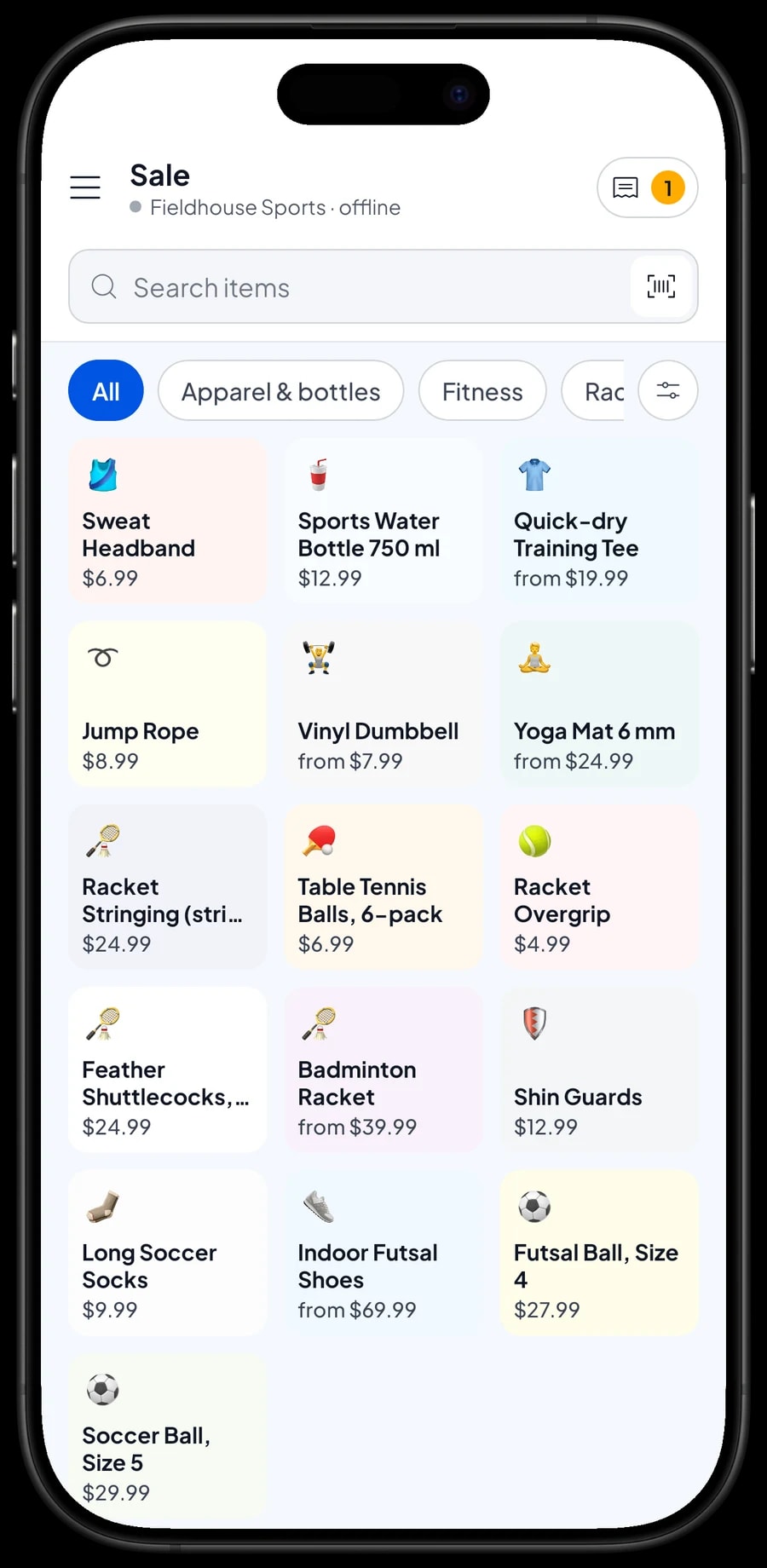
Receiving stock, adjustments and items sold by the tube
Every sale takes the item or variant off stock. When a distributor delivery arrives, add it in Catalog → Inventory → Stock per variant: so many pairs of EU 40, so many of EU 41. Damaged goods, a ball that will not hold air, or a shoe with a stitching fault are recorded as stock adjustments, so the app matches what is in the stockroom.
Watch your units. Shuttlecocks usually sell by the tube of 12 and table tennis balls by the 6-pack. Salesmaster does not convert units automatically. If you also want to sell single shuttlecocks, create Tube and Single variants with their own price and stock. When you open a tube to sell singles, record one tube going out and 12 singles coming in as stock adjustments.
The stock history shows when stock went up and down, which makes gaps at stocktake easy to trace.
- Step 1: Open Catalog → Inventory → Stock and pick the item or variant that just arrived.
- Step 2: Add the quantity received and save.
- Step 3: For damaged or faulty goods, reduce the stock and note the reason.
- Step 4: Check the stock history at stocktake to find any gaps.
Racket stringing jobs with Save order
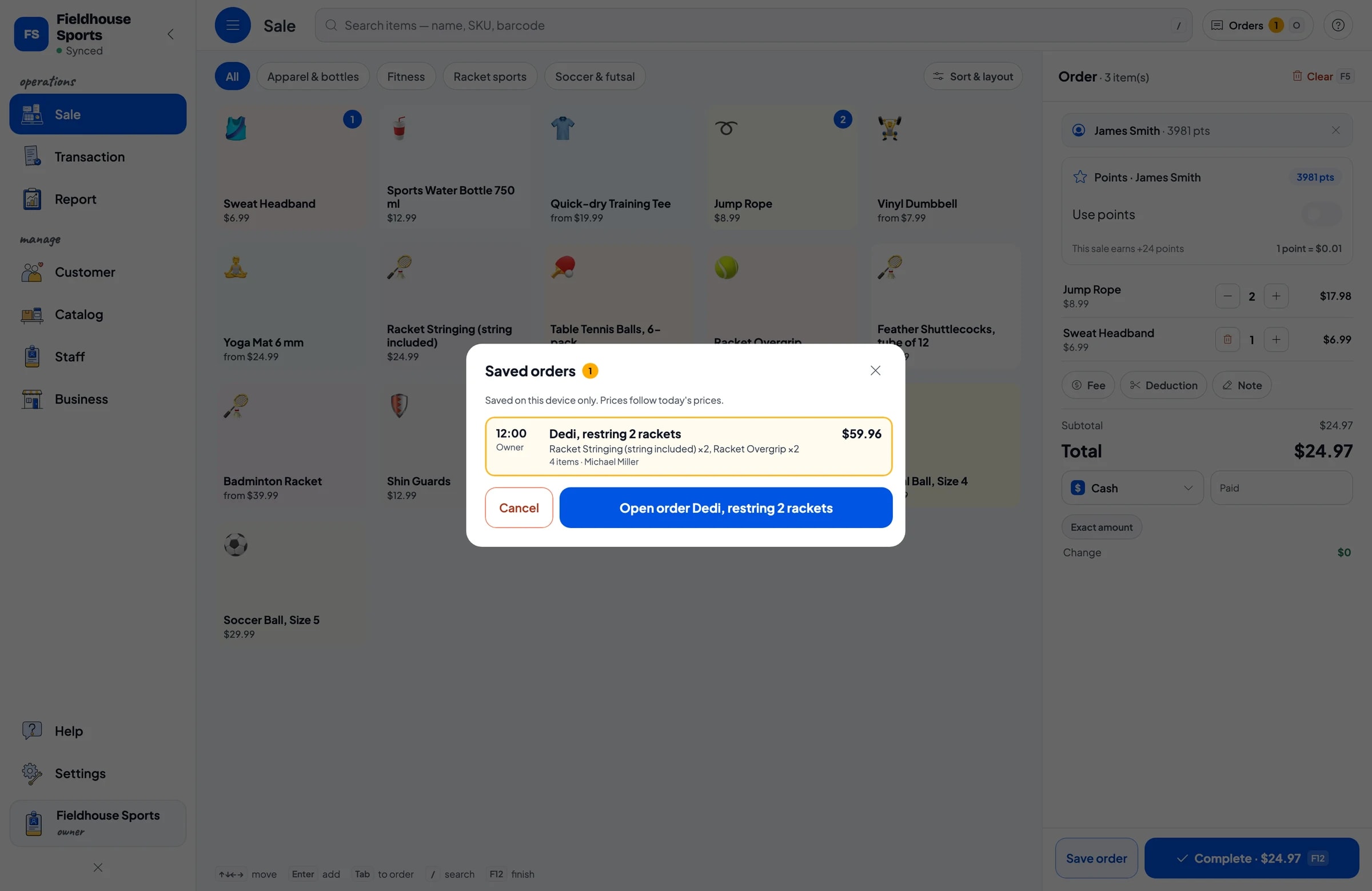
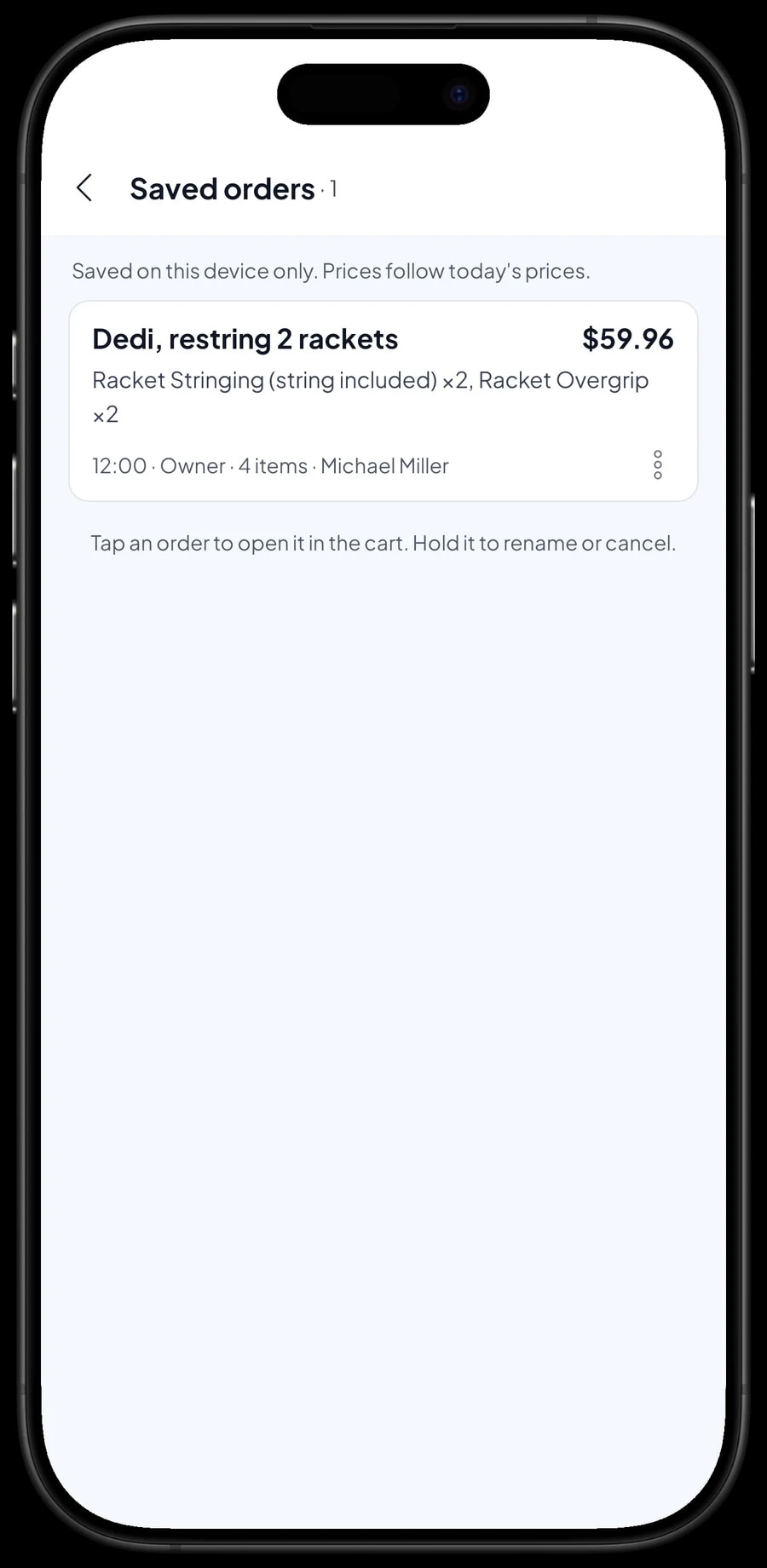
Services can be sold just like products. Create a Racket Stringing item with its price. When a player drops off rackets, add the service to the cart along with anything else they buy, like new overgrips, tap Save order and name it, for example Dedi, restring 2 rackets. Note when the rackets will be ready.
The job now sits in Saved orders. When Dedi comes to collect, open his order and complete the payment. A saved order is not counted as a sale and does not take stock off until it is paid.
Saved orders stay on the device that created them, so finish them on the same counter device. It is not a customer tab or a credit account; it is a cart held until payment. For a team kit order with a deposit, sell the deposit right away as a separate Service item called Down payment for the amount received. When the kit is collected, the order keeps its full price and the cashier taps Add Deduction for the deposit amount, so the drawer and reports match on both days.
- Step 1: On the Sale screen, add the stringing service and any other products to the cart.
- Step 2: Tap Save order and name it with the player's name and number of rackets.
- Step 3: Write when the rackets will be ready in the order note.
- Step 4: At pickup, open Saved orders, choose the order and complete the payment.
Payments and receipts
You create your own payment methods: cash, card, bank transfer, mobile payments and so on. Card payments on your terminal are recorded as a payment method; Salesmaster does not connect to the card terminal itself. Each sale is paid in full, so installments or partial payments on one sale are not recorded.
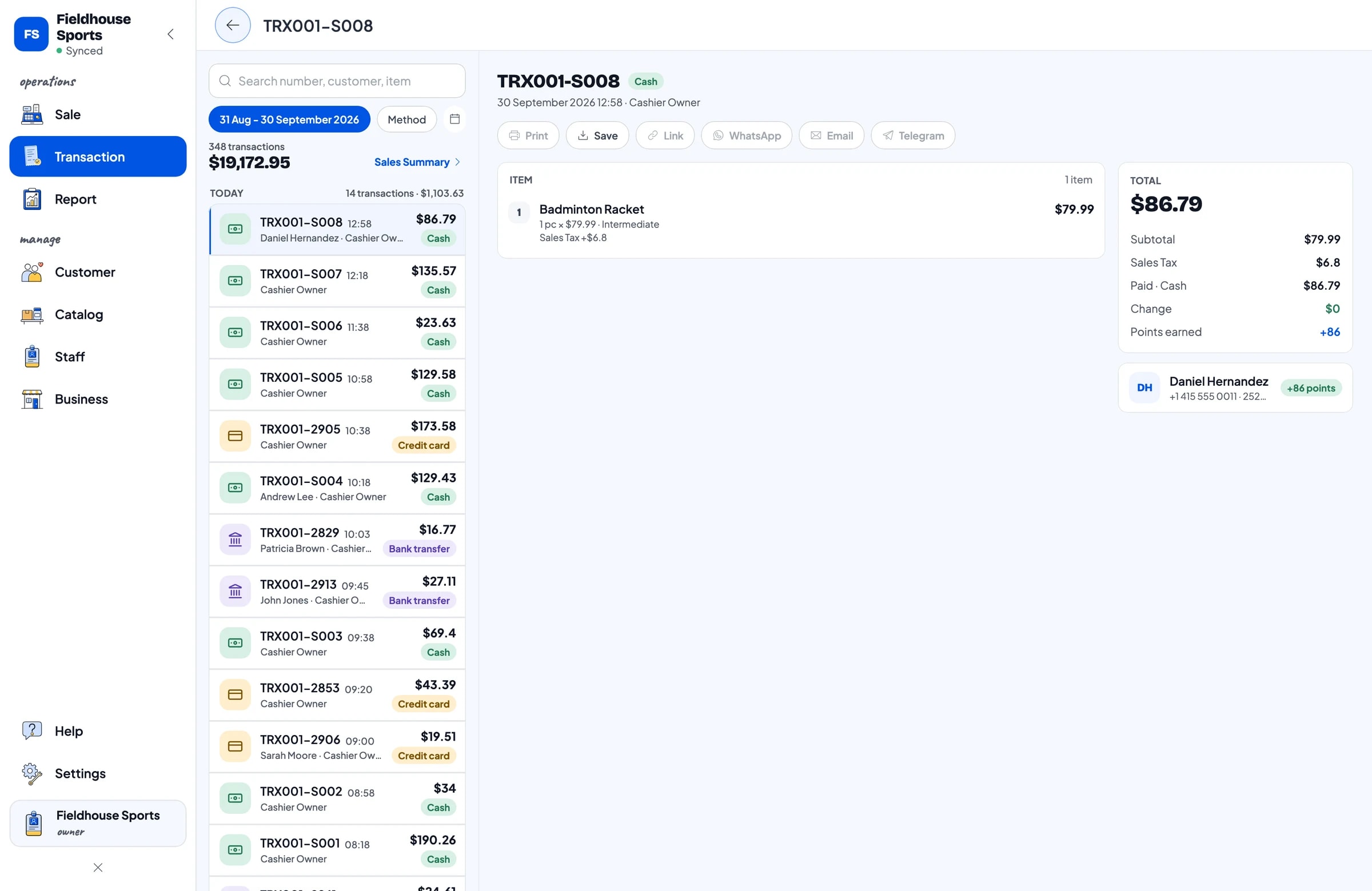
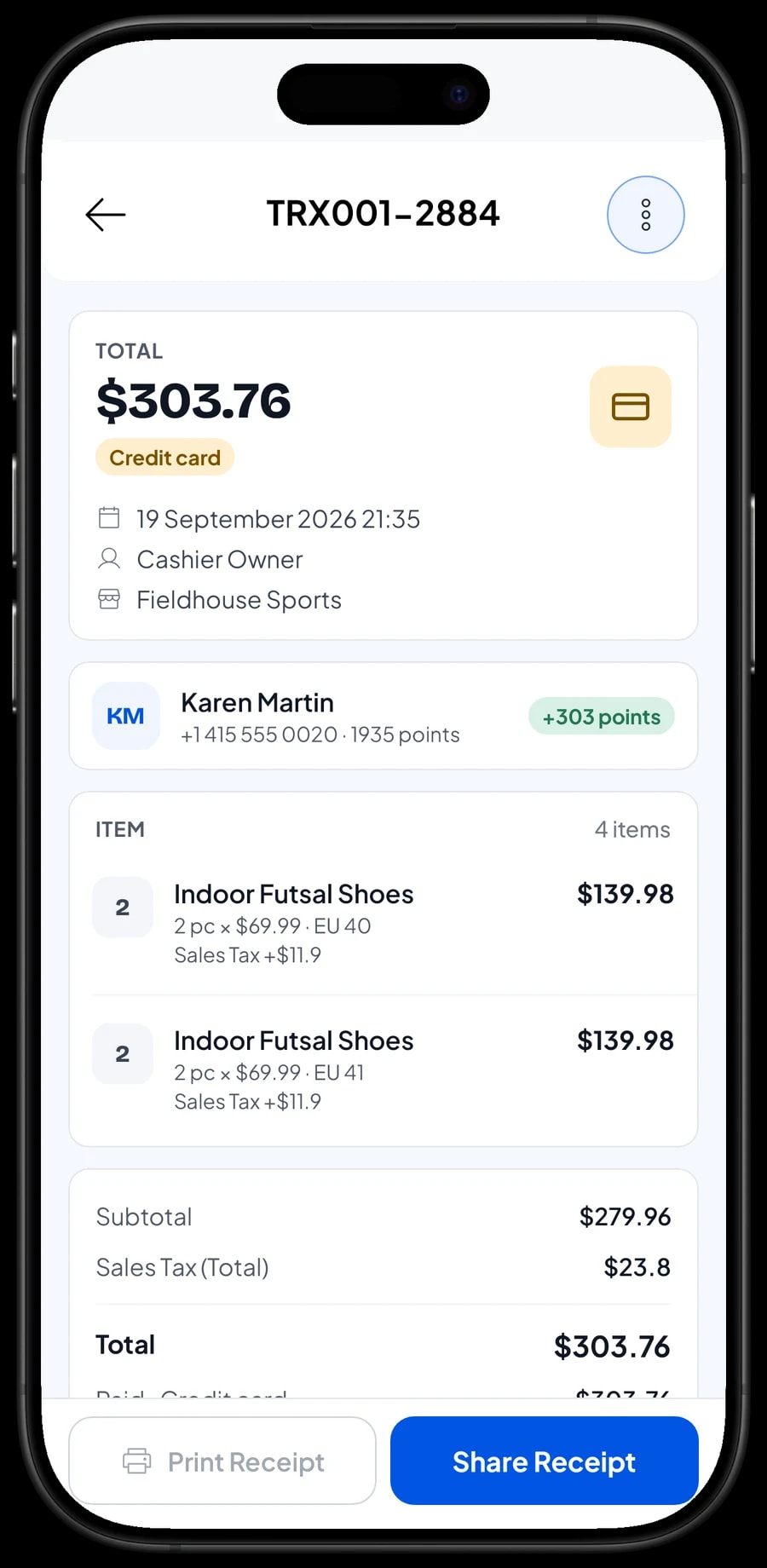
Once paid, the receipt can print on a Bluetooth or USB thermal printer, or go to the customer as a web receipt, by WhatsApp or by email. Every sale is kept in Transactions with its items, tax, payment method and customer, so when someone comes back to swap a shoe size, you can check what they bought and when.
Club members, coaches and loyalty points
Sports stores run on community: the badminton club that buys shuttlecocks every week, the local futsal team, youth soccer coaches, and gym regulars who come in every month. Save them in Customers at checkout, a name and phone number is enough, so their purchase history is kept.
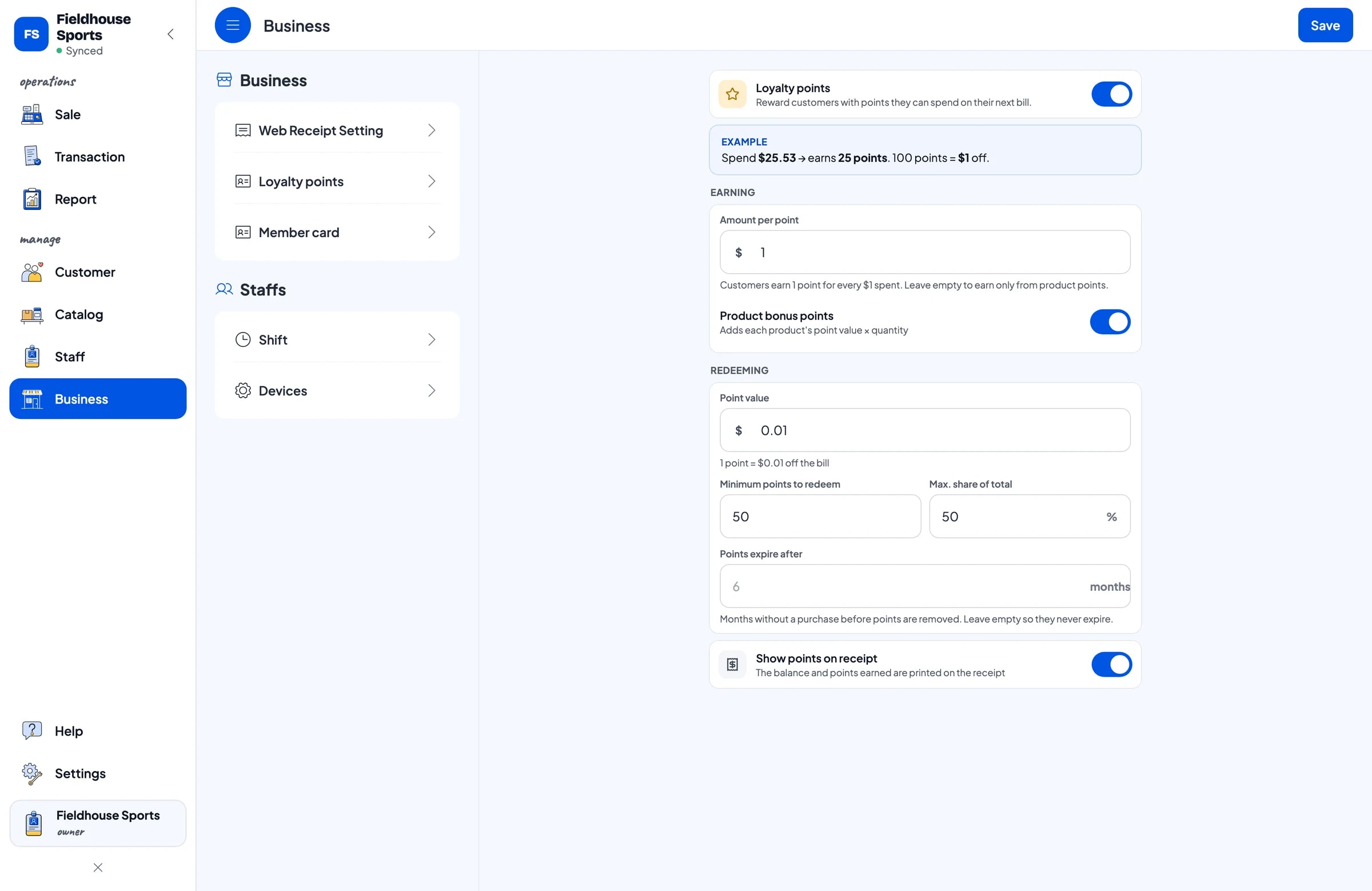
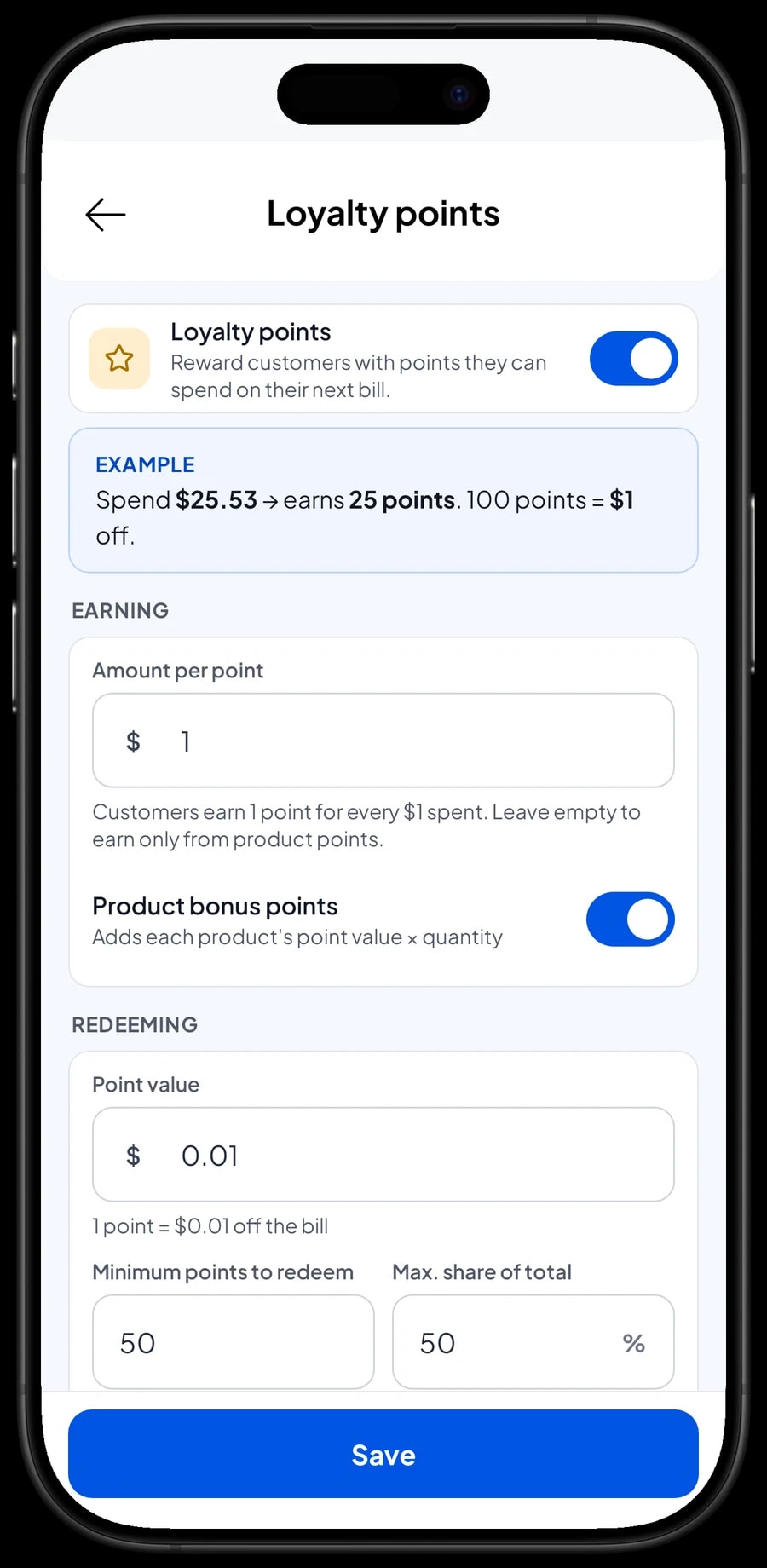
Turn on Loyalty points and set the rules: how much is spent per point, what a point is worth, the minimum points to redeem, and the largest share of a bill that points can cover. Points are added with every sale. Regulars can also get a member card in their name.
Purchase history shows you which clubs buy the most and when they usually restock on shuttlecocks.
Sales staff and cashier devices
The owner signs in with the main account. An account is active on one device at a time, so your sales assistant does not use your login. Add them as staff with their own role, then register a cashier device for them. Staff sign in with a PIN. Staff accounts come with Bronze Pro (1 staff) and Silver Pro (2 staff).
Sales reports and real net profit
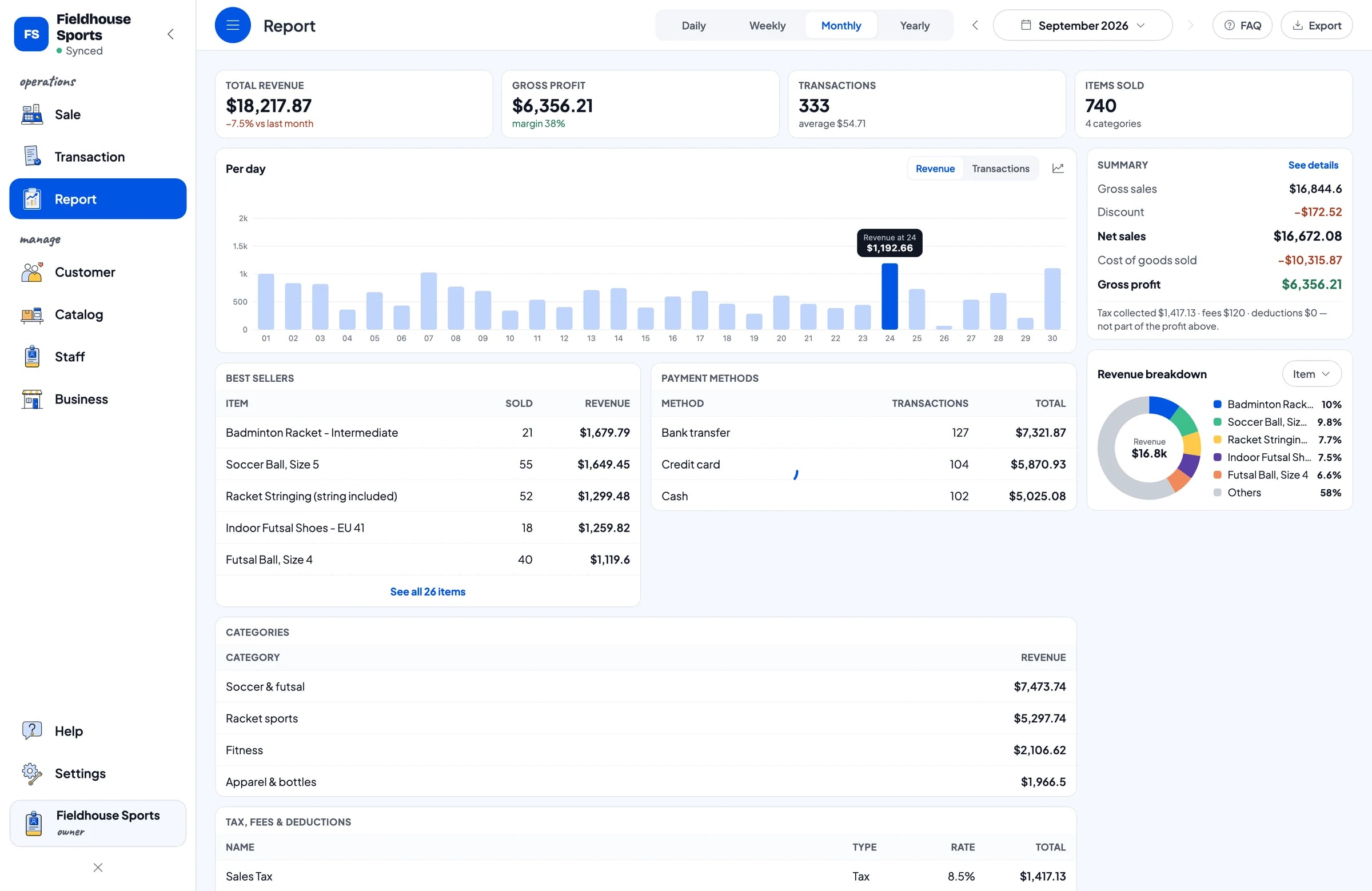
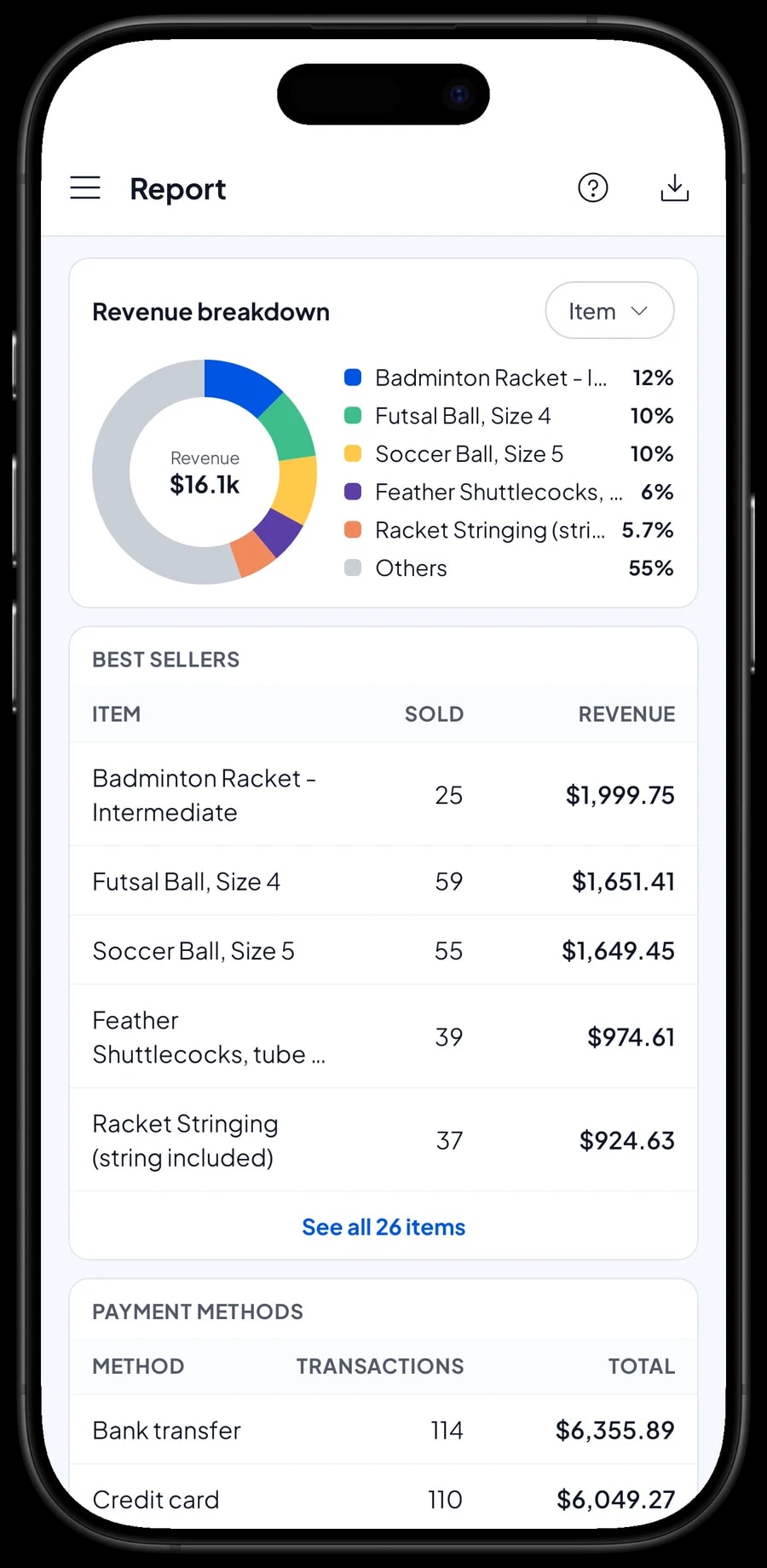
Reports are available by day, week, month and year: total revenue, gross and net sales, discounts, tax, payment methods and revenue by item. You can see what sells best before a tournament and which sizes are asked for most.
For real profit, record expenses in Finance: payments to your sports distributor, a futsal shoe delivery, shuttlecocks, wages for the sales assistant and the racket stringer, rent, electricity, a tournament promotion and a reel of racket string. Each expense has a category and the wallet it was paid from. The Finance report then shows net profit after the cost of goods and operating costs.
Reports can be exported to Excel or PDF for your accountant or business partner.
Get started in a day, keep selling offline
In the morning before opening, install the app on the counter phone, tablet or laptop and create an account. Enter your fastest sellers first, like shuttlecocks, grips and socks, then shoes and apparel with their size variants. On day one, run the counter as usual and add other products in quiet moments. In the evening, compare the daily report with the cash in the drawer.
Sales are saved on the device first and sent to the cloud when the connection is back. Offline mode works for up to 7 days; after that the app needs to connect briefly to sync. Your data lives in your account, so if a device breaks, sign in on a new one and your store's data comes with it.
An example sports store catalog
Use this table as a starting point and replace the names and variants with your own products.
| Category | Item | Variants | Item type | Stock |
|---|---|---|---|---|
| Soccer & futsal | Indoor futsal shoes | EU 39, 40, 41, 42 | Product | Per size |
| Soccer & futsal | Soccer ball, size 5 | - | Product | Per piece |
| Soccer & futsal | Long soccer socks | - | Product | Per pair |
| Racket sports | Badminton racket | Beginner, Intermediate | Product | Per variant |
| Racket sports | Feather shuttlecocks | Tube of 12, Single | Product | Per variant |
| Racket sports | Racket stringing | - | Service | No stock |
| Fitness | Yoga mat 6 mm | Purple, Black, Green | Product | Per colour |
| Fitness | Vinyl dumbbell | 1 kg, 2 kg, 3 kg | Product | Per weight |
| Apparel & bottles | Quick-dry training tee | M, L, XL | Product | Per size |
Every variant keeps its own stock, so size 41 and size 42 are counted separately. Services like racket stringing are service items, so they can be sold with grips or string in one transaction.
Which plan fits your sports store
Start by counting sales per day. A sports store serving 10 to 15 customers a day records roughly 300 to 450 transactions a month, more before tournaments or the new school year.
| Plan | Price | Transactions / month | Staff accounts | Good for |
|---|---|---|---|---|
| Free | Free | 30 | Owner only | To try checkout and barcode scanning before using it for real. |
| Solo Pro | $4.90/month | 3,000 | Owner only | Sports stores where the owner runs the counter. |
| Bronze Pro | $6.90/month | 5,000 | 1 staff | Stores with one sales assistant on their own cashier device. |
| Silver Pro | $9.90/month | 8,000 | 2 staff | Busier stores with two staff on separate devices. |
Every plan includes checkout, catalog, receipts, reports and offline mode. You can change plans at any time. See pricing →
Frequently asked questions
- Can Salesmaster track shoe stock by size?
- Yes. Create the shoe as one item with size variants, such as EU 39, 40, 41 and 42. Each variant has its own price, cost and stock, and every sale takes stock off the size that was sold.
- Can staff scan product barcodes?
- Yes. Enter the barcode on the item or its variant, then scan the product on the Sale screen. It goes straight into the cart at the right price.
- Can I give clubs or schools a bulk price?
- Salesmaster has no automatic tiered or quantity pricing. What works: create separate variants such as Bulk and Retail that the cashier chooses, or give a club discount through Deductions.
- How do I handle a team kit order with a deposit?
- Each sale in Salesmaster is paid in full, so a deposit is not recorded as a partial payment. Sell the deposit right away as a separate Service item called Down payment for the amount received, and keep the order with Save order under the team name. When the kit is collected, open the order at its full price, tap Add Deduction for the deposit amount, and complete the payment on the same device.
- What if a customer swaps a shoe size?
- Look up the original sale in Transactions. Then adjust both sizes in Catalog → Inventory → Stock: add stock back to the size that was returned and take stock off the size the customer leaves with.
- Can my sales staff use their own devices?
- Yes, through staff accounts. The owner uses the main account on one device, then adds staff and registers cashier devices for them. Staff accounts come with Bronze Pro (1 staff) and Silver Pro (2 staff).
- Can the store keep selling when the internet is down?
- Yes. Sales are saved on the device and sync when the internet is back. Offline mode works for up to 7 days before the app needs to connect to sync.
Need help setting up your catalog? Chat with our team on WhatsApp →