
Salesmaster is a point-of-sale (POS) app for thrift and second-hand stores on Android, iPhone & iPad, Windows and Mac. One-of-a-kind pieces are grouped by type with a price variant for each tag colour, so the cashier just picks “Vintage Graphic Tee, Red tag” and the price follows. Holds are kept with Save order, costs like buying stock and washing are recorded in Finance, and the reports show real net profit every month.
Problems every thrift store knows
Thrift stores sell things that almost never come in pairs. Ordinary inventory systems don't fit that very well.
- 01
Every piece is different
One batch can hold hundreds of tees, each with a different print. Photographing and naming every piece in an app would take days you don't have.
- 02
The price is on the tag, the math is in the cashier's head
Green, yellow and red tags each mean a different price. On a busy Saturday, the cashier adds it all up on a calculator and sometimes gets it wrong.
- 03
Holds get forgotten
A customer asks you to hold a jacket until Saturday. It goes behind the counter with a sticky note, and every so often it gets sold to someone else.
- 04
Which batch actually made money?
Money goes out for stock, washing, steaming, rent and ads. Without records, you can't tell which source or which haul was worth it.
Colour-tag pricing with variants
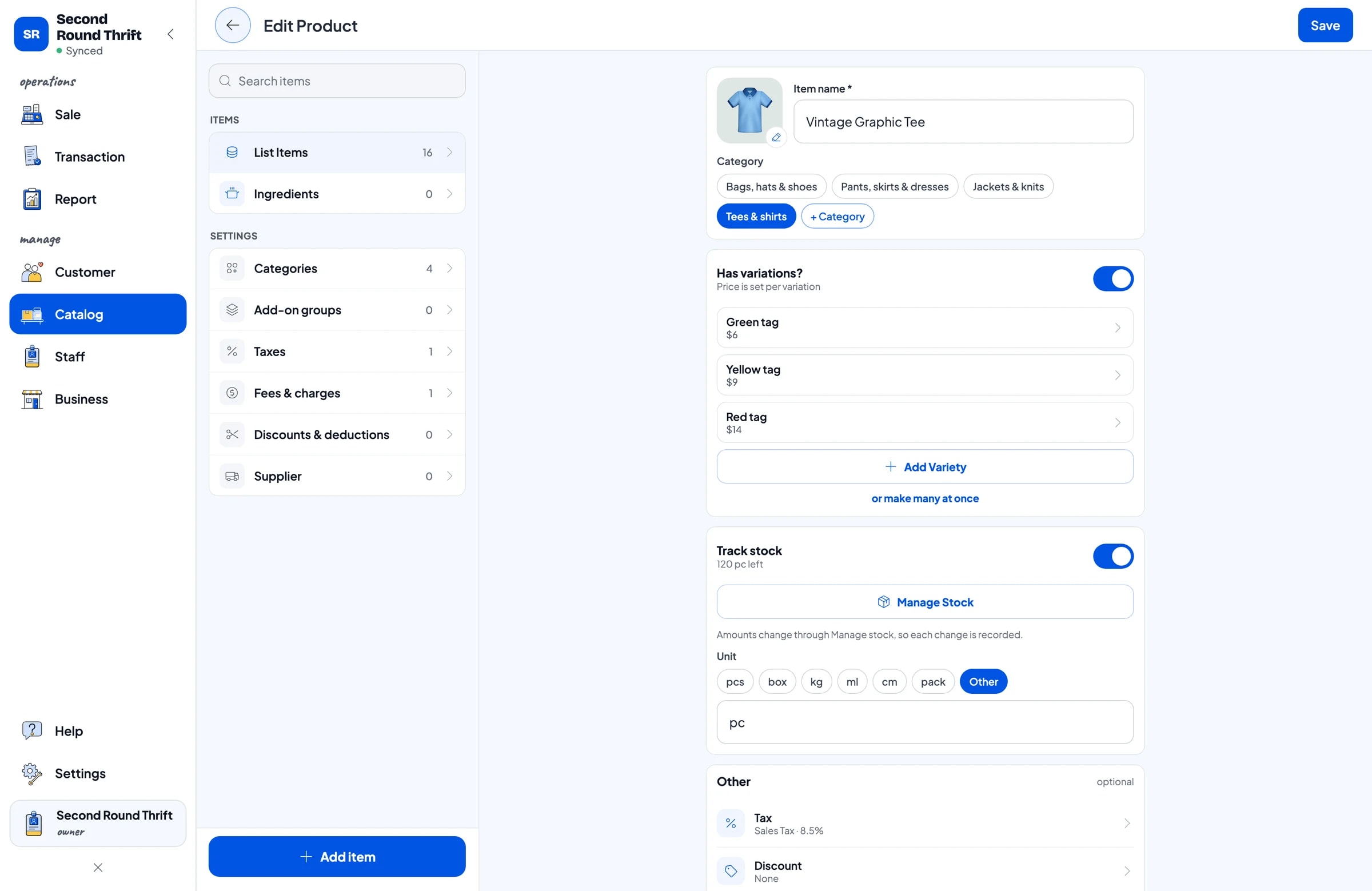
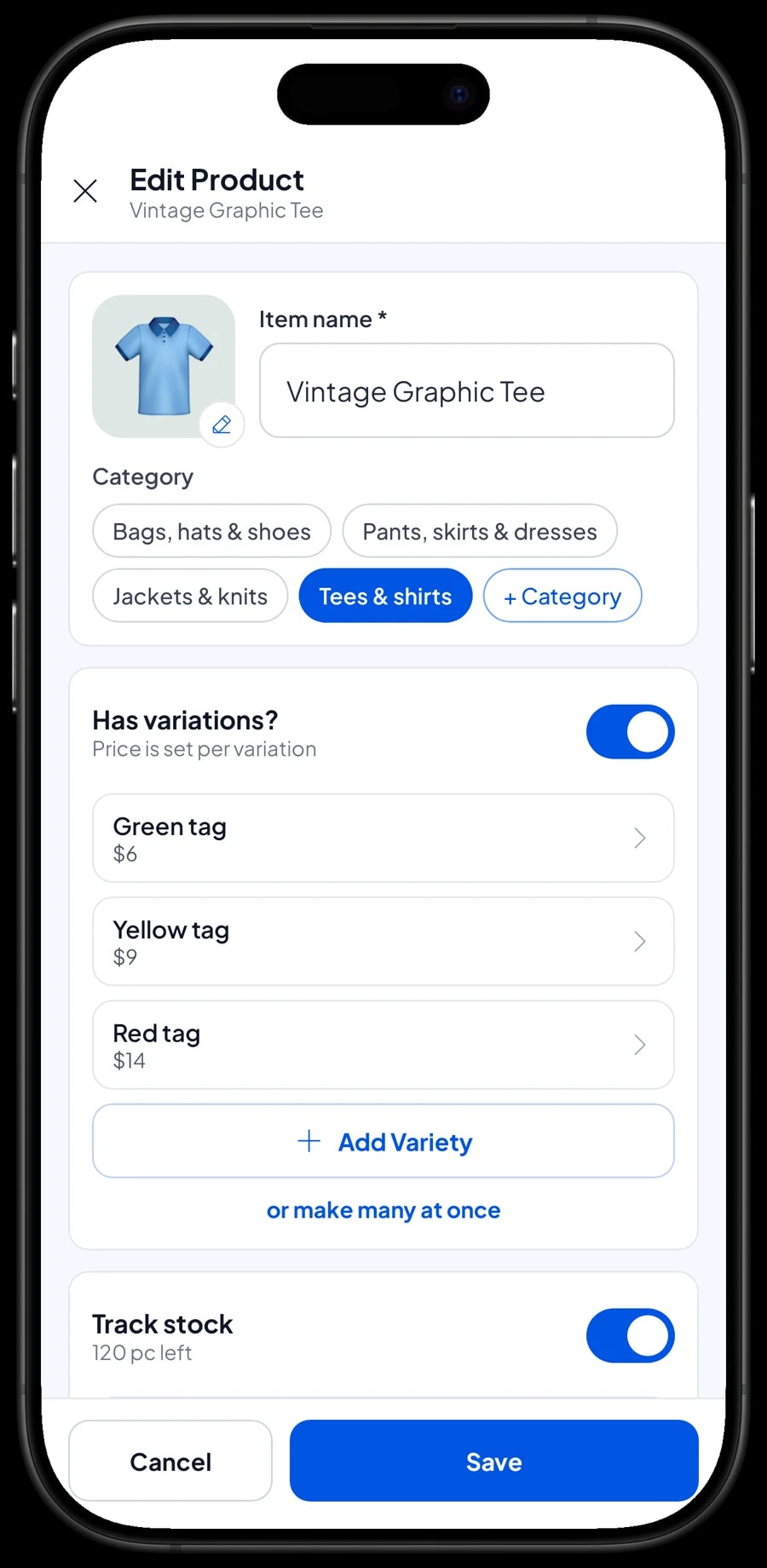
Many thrift stores price with colored tags: green for the cheapest pieces, yellow for mid-range, red for the good stuff. In Salesmaster that maps neatly onto variants. Create one item per type of clothing, such as Vintage Graphic Tee, and add variants for Green tag, Yellow tag and Red tag, each with its own price.
Every variant has its own price, its own cost and its own stock. When you tag 40 tees green and 15 red from a new haul, enter the stock for each tag. Each tee sold takes one off the tag the cashier picked.
You don't have to enter each piece as a separate product. The catalog stays short, checkout stays fast, and the reports still show which types of clothing and which tag colours sell best.
- Step 1: Open Catalog → List Items and add one item per clothing type, for example Vintage Graphic Tee.
- Step 2: Add a variant for each tag colour, with its selling price and average cost.
- Step 3: Enter the stock for each variant based on how many pieces you tagged.
- Step 4: Repeat for shirts, jackets, jeans and any other type that uses the tag system.
Special pieces with their own price
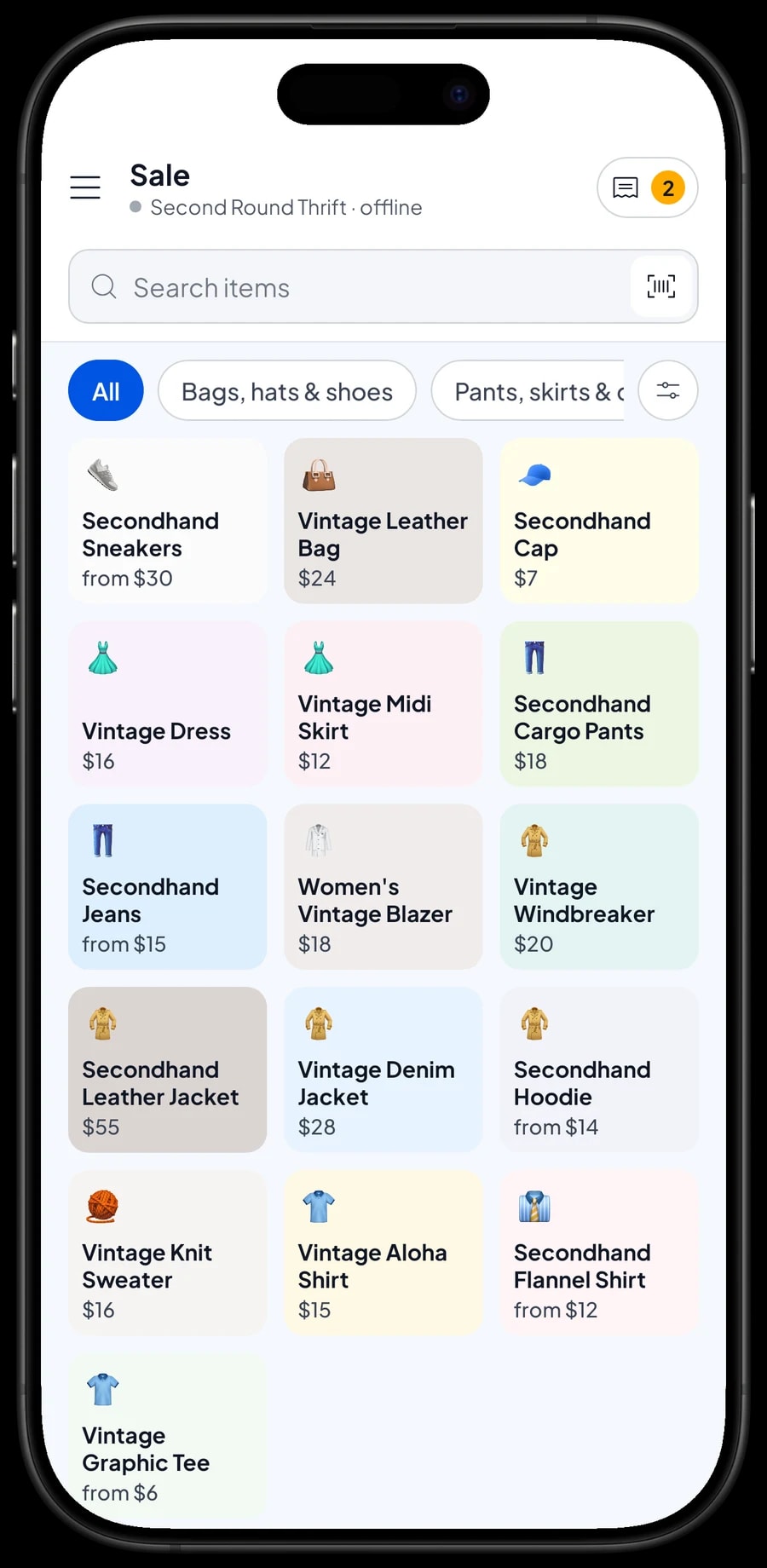
Not everything fits the tag system. A leather jacket, a vintage denim jacket or a leather bag is usually priced on its own. Create those as regular items with a single price, like Secondhand Leather Jacket at $55 or Vintage Denim Jacket at $28.
For shoes, size matters more than print. Secondhand Sneakers can have variants for sizes 39-40, 41-42 and 43-44, so you know what's still on the shelf when someone asks in a DM.
Because the cost of a thrift item is really a share of what you paid for a whole haul, enter an average cost per piece. It doesn't need to be exact to the cent, but it keeps the gross profit in your reports realistic.
Fast checkout on busy weekends
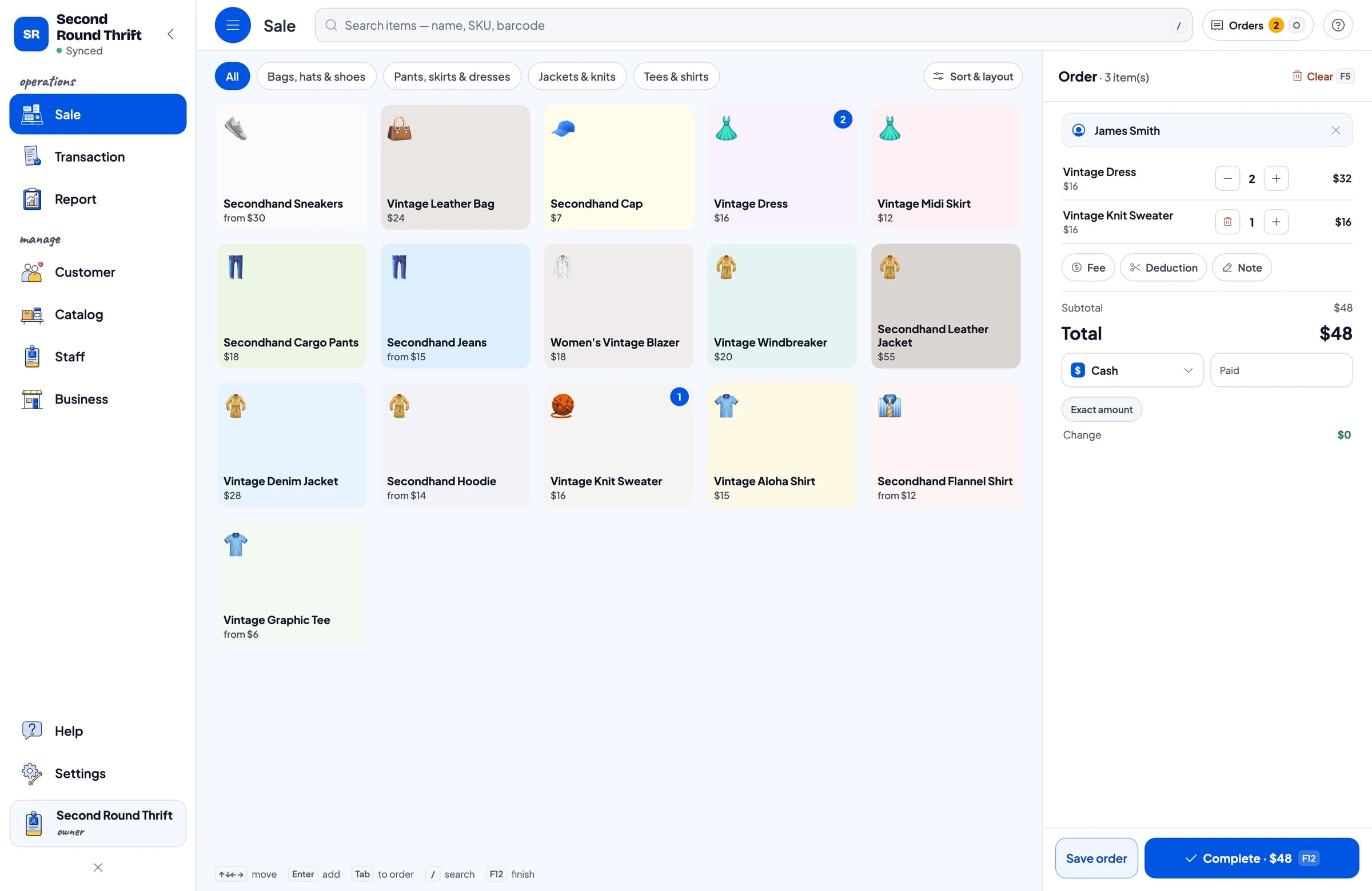
On the Sale screen, the cashier taps the clothing type, picks the tag colour and moves on to the next piece. A customer with five tees and two pairs of jeans is rung up in seconds, no calculator needed.
Add the customer's name to keep a record. Thrift shoppers come back when new stock lands, and your customer list shows who your regulars are. You can also give them member cards, and a regulars’ discount set up in Deductions that the cashier applies at checkout.
Promotions like “all green tags 20% off” are set up once under discounts in the Catalog, then picked by the cashier during checkout.
Holds with Save order
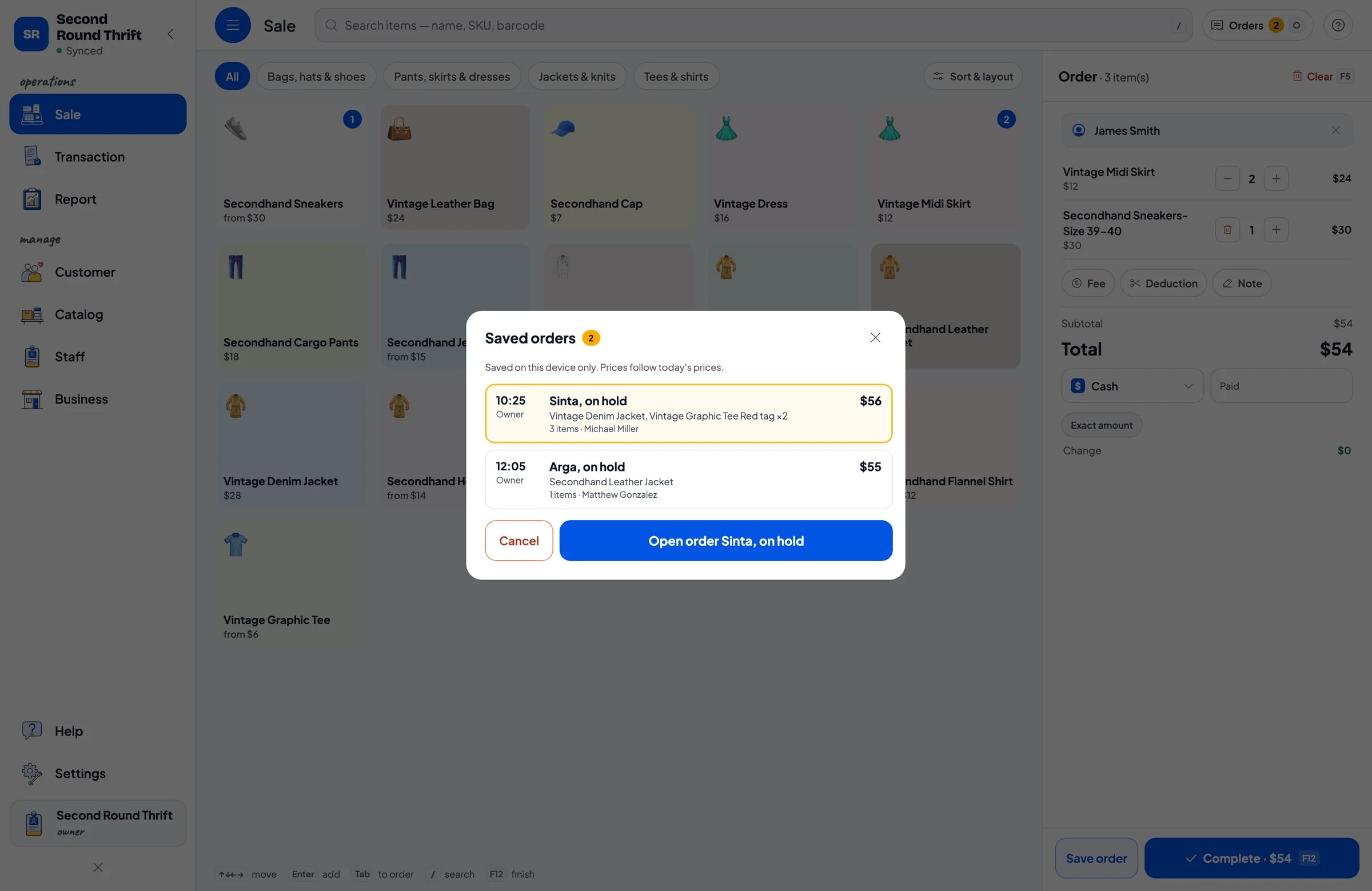
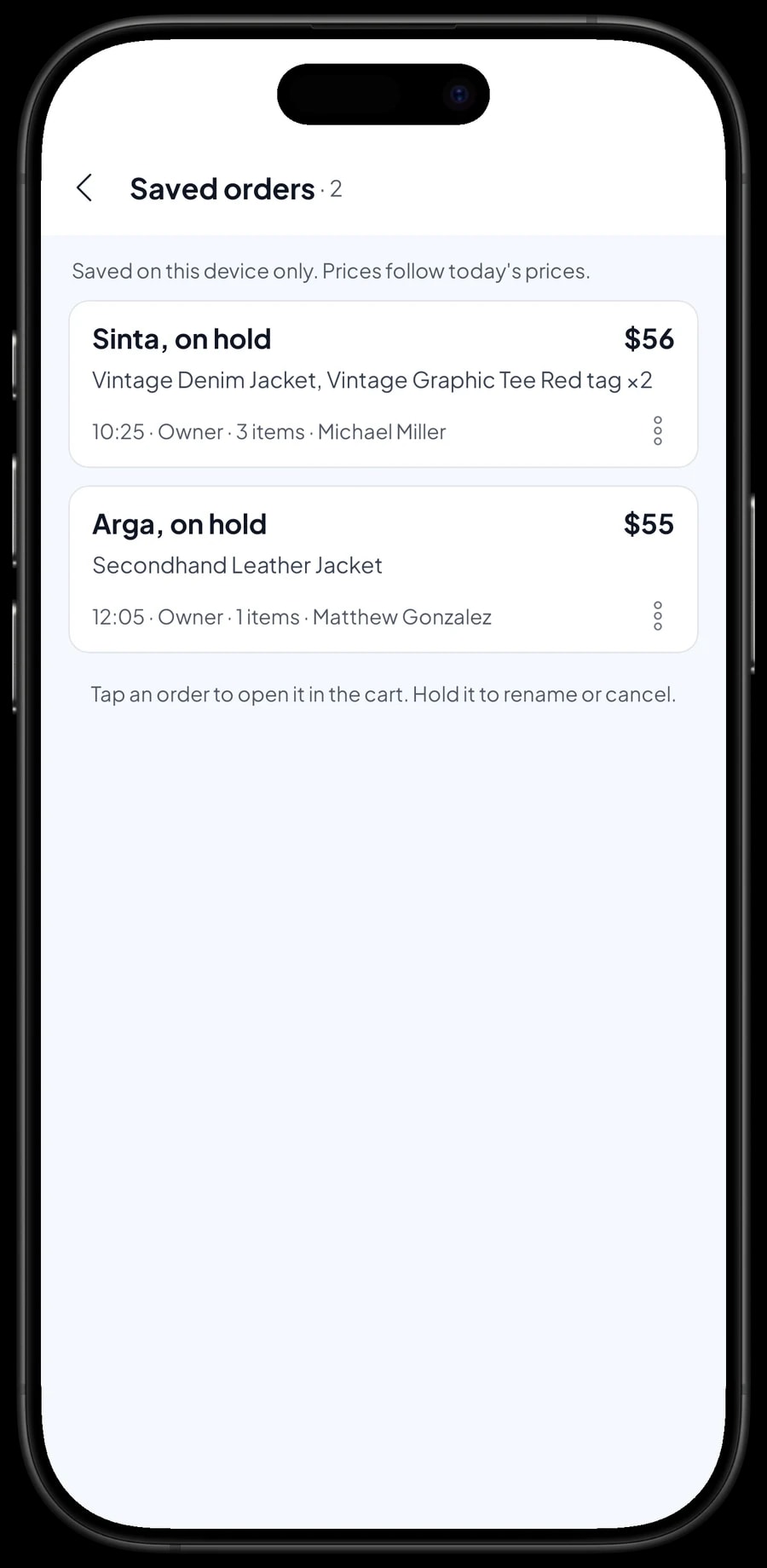
“Can you hold this for me?” is part of daily life in a thrift store. Add the pieces to the cart, tap Save order and name it, for example “Sinta, on hold”, with a note like “Pickup Saturday”. The order shows up in your list of Saved orders.
When the customer comes in, open the order, add anything else they found, and take payment. A saved order is not counted as a sale and does not take stock off until it is paid. It is stored on the device where it was created, so finish it on that same device.
Salesmaster doesn't record a deposit or partial payment on a sale. If the customer pays part of it up front, sell that right away as a separate Service item called “Down payment” for the amount received. At pickup, the held pieces keep their full price and the cashier taps Add Deduction for the down payment, so the drawer and reports match on both days.
Payments and receipts
Create the payment methods you accept, such as cash, card, bank transfer or mobile wallets. Salesmaster doesn't connect to card terminals, so each one is simply a payment method you record. Reports split takings by method, which makes it easy to match the cash drawer and your bank statement.
Receipts can be printed on a Bluetooth or USB thermal printer, or sent by WhatsApp, email or a web receipt link. For customers who reserve through Instagram and pick up in store, a digital receipt is often handier than paper.
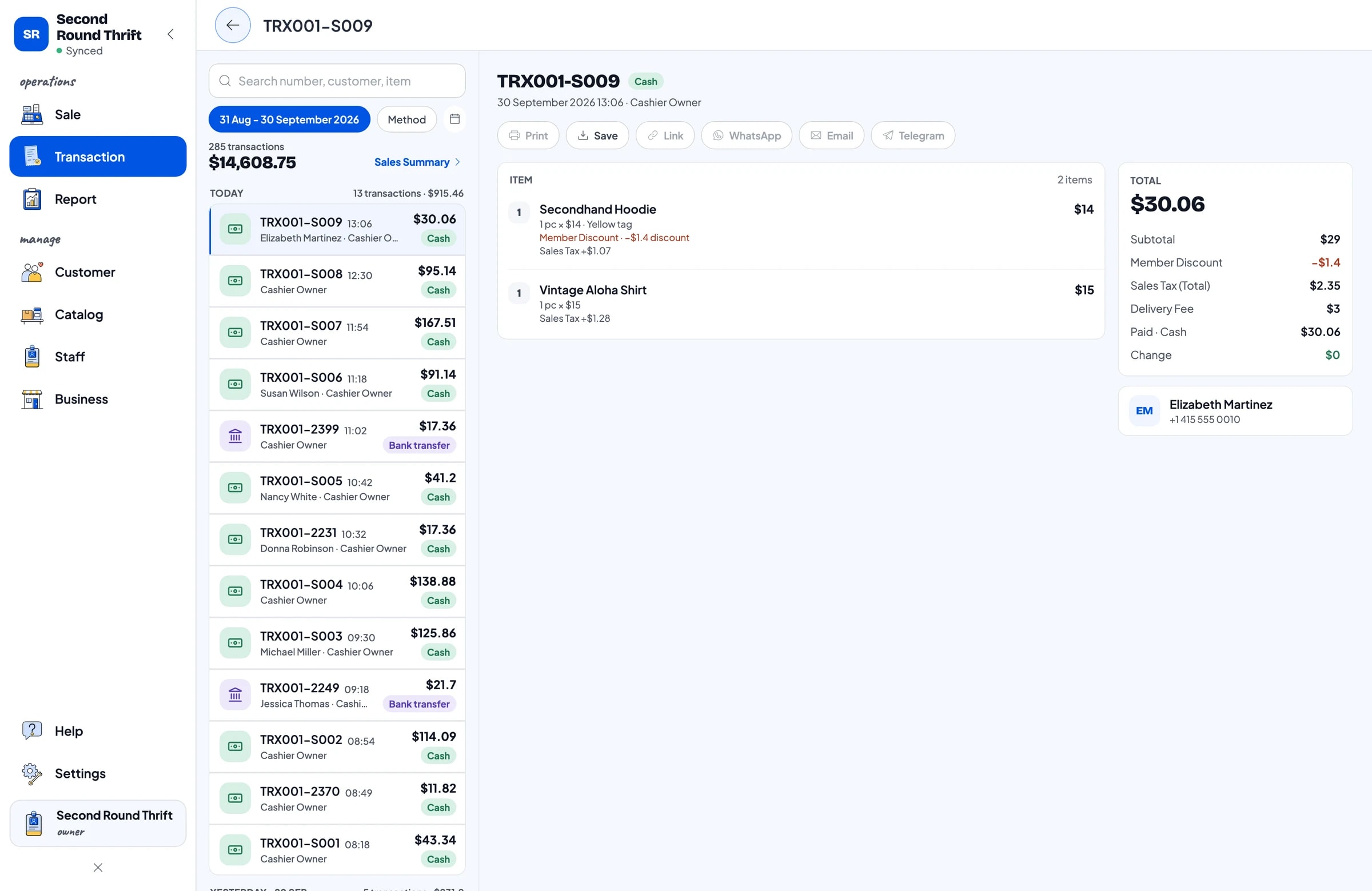
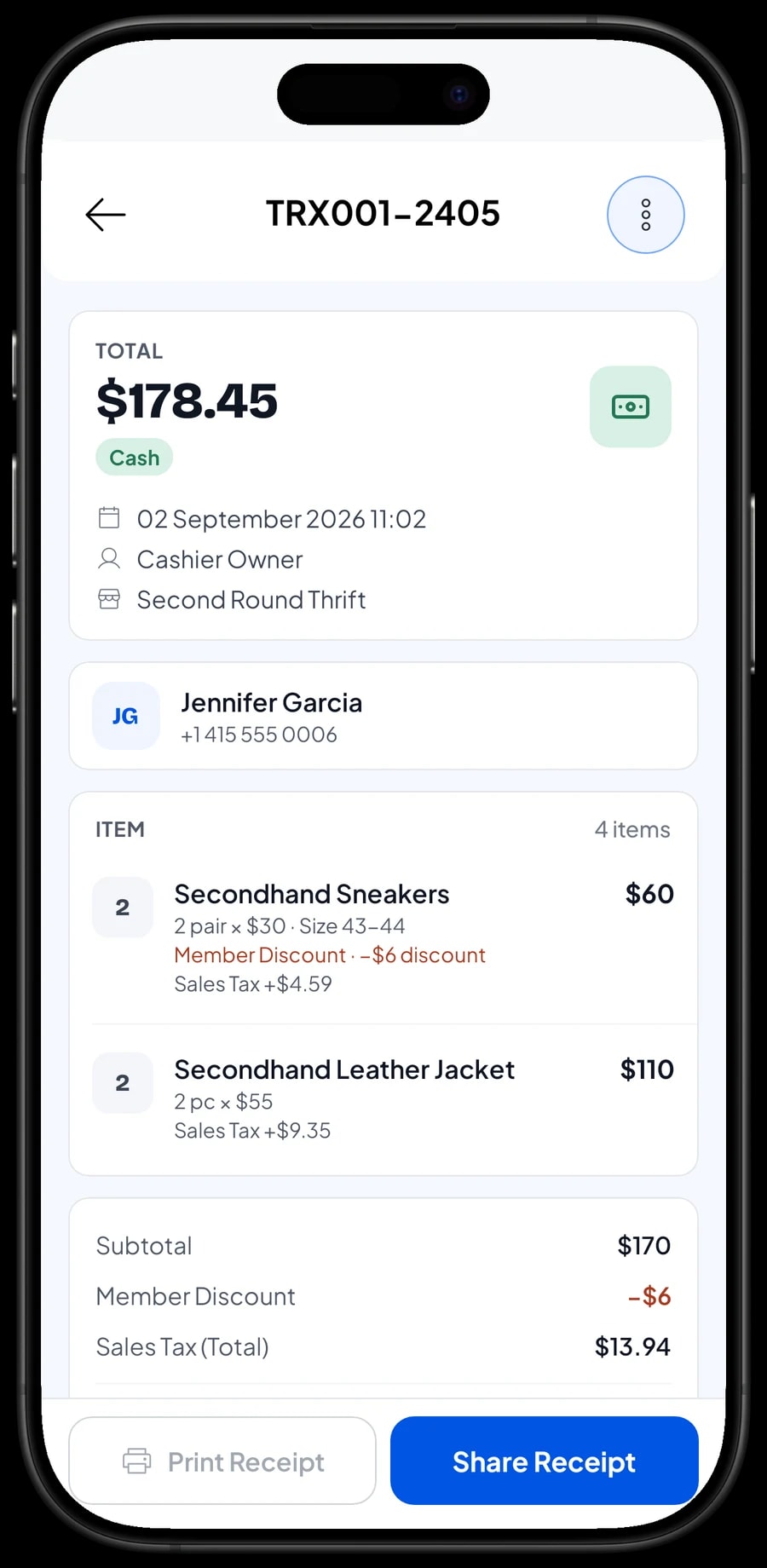
Every sale is kept under Transactions with the items, tag colour, discounts, tax and payment method.
Processing new stock and tracking what it costs
Each time a new haul comes in, sort it, tag it, and add the stock to the right variants. If you find a new type of piece, like blazers or windbreakers, create a new item with the same tag variants.
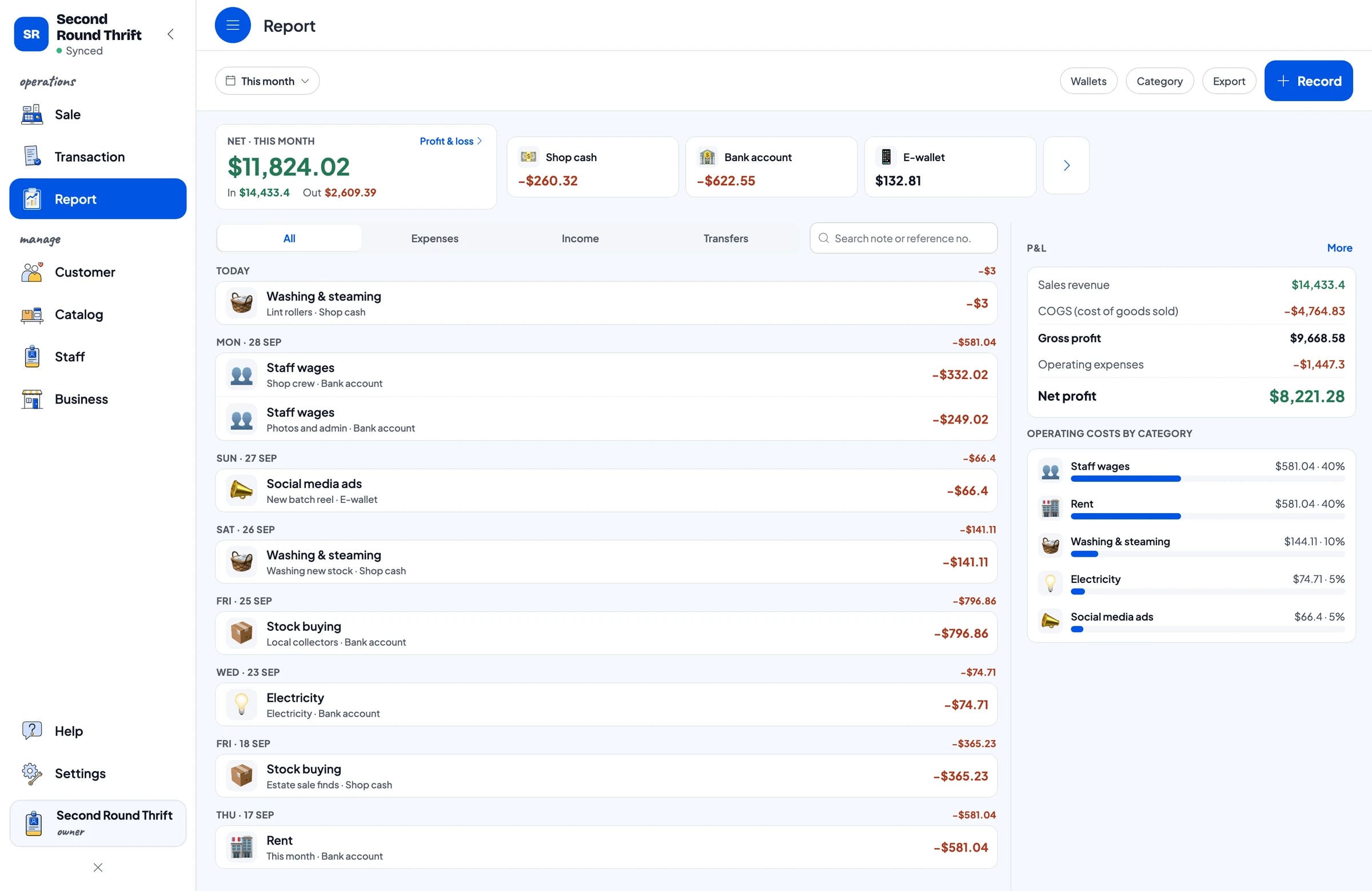
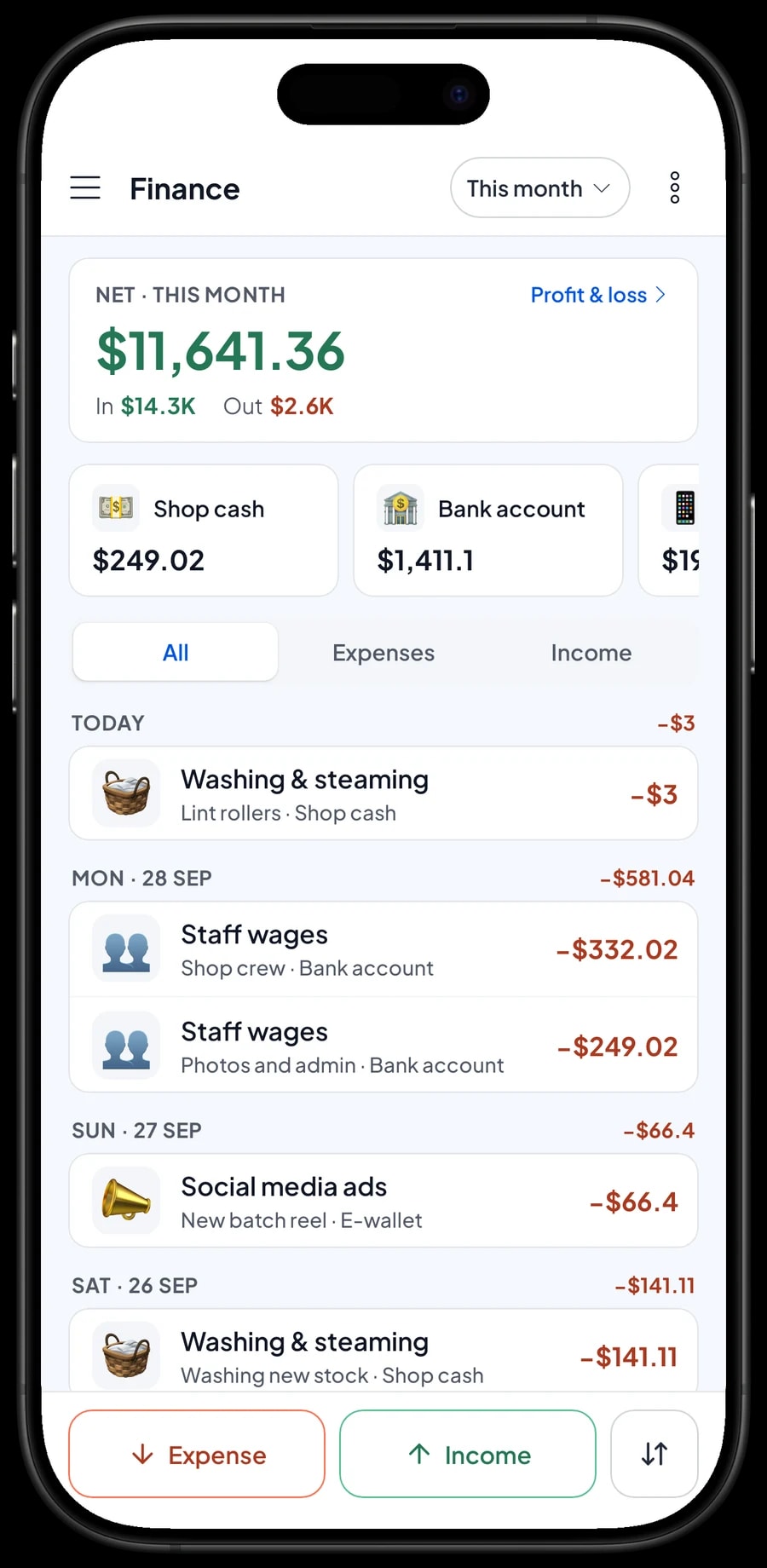
Record what you paid in Finance under a category such as Stock buying, with a note on where it came from, like “Local collectors” or “Estate sale finds”. Washing and steaming, staff wages, rent, electricity and social media ads go in Finance too, each paid from a wallet like shop cash or the bank account.
The Finance report then shows revenue minus cost of goods and operating costs. With the source written in each note, you can compare what you spent with different suppliers against what you sold that month.
Shop staff and cashier devices
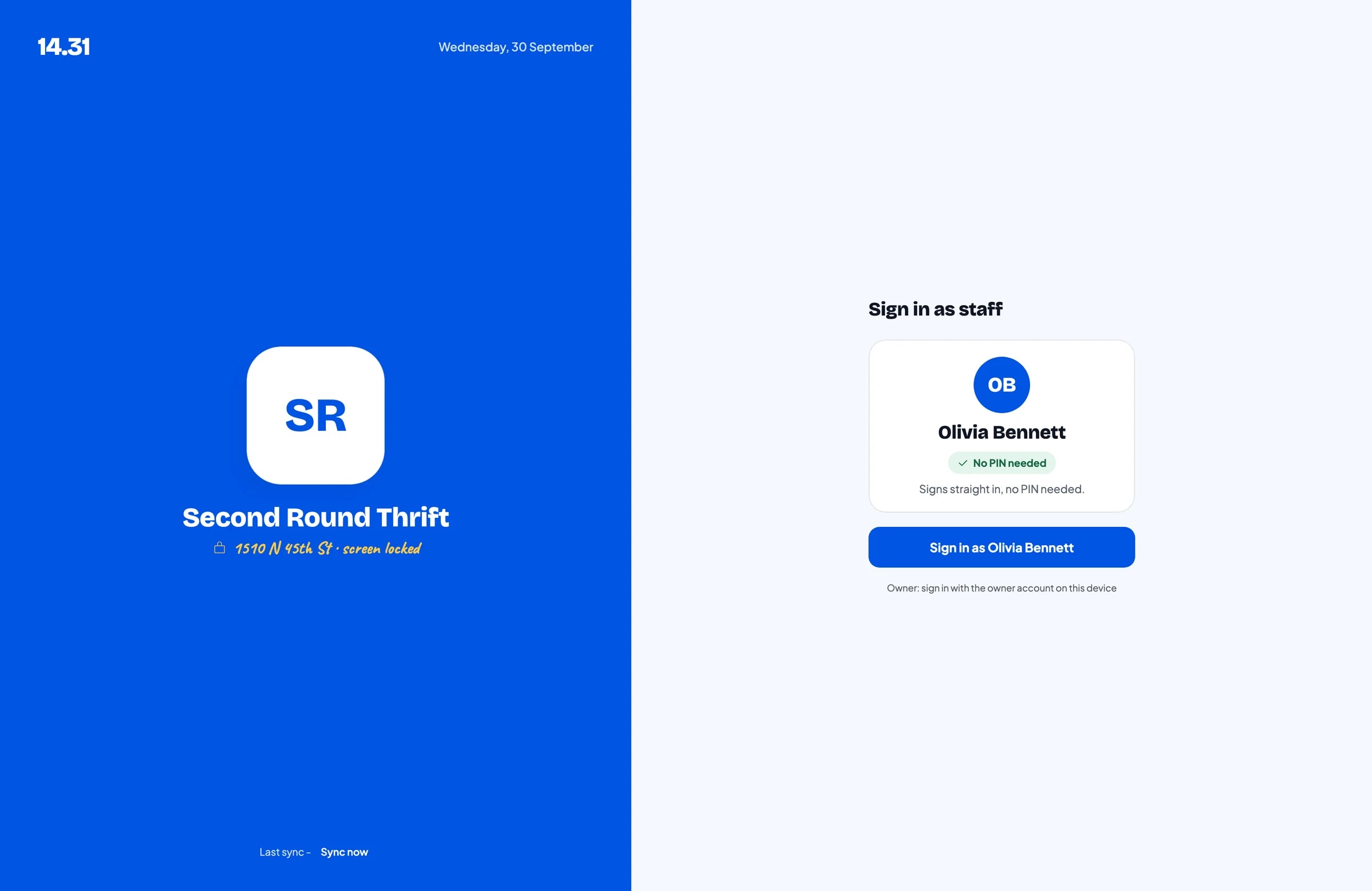
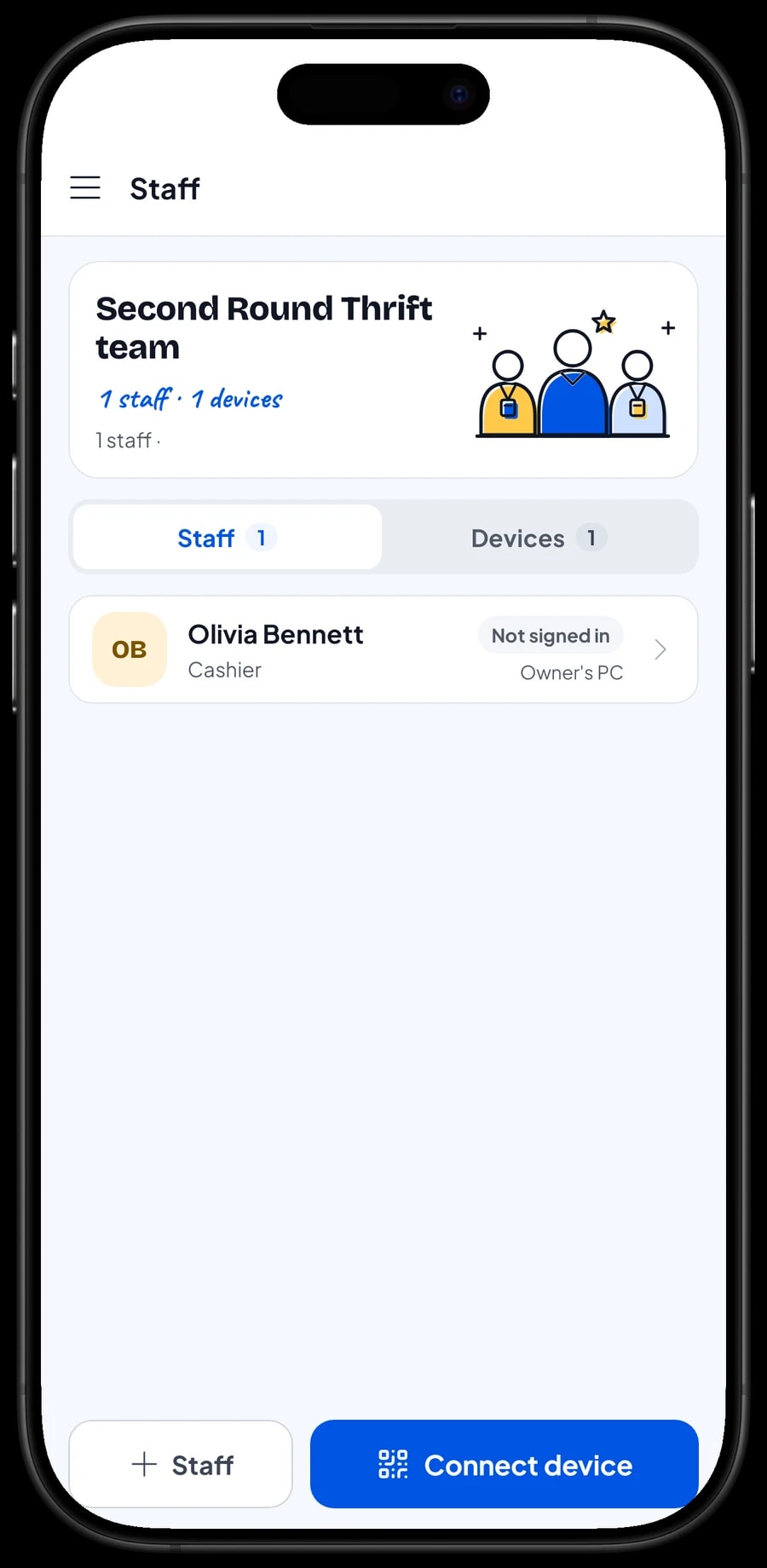
The owner signs in with the main account, and an account is signed in on one device at a time. If staff run the counter, add them as staff and register a cashier device for them. Staff sign in with a PIN. Staff accounts come with Bronze Pro (1 staff) and Silver Pro (2 staff).
Reports: what sells, and at which tag
Reports are available by day, week, month and year. Revenue by item and by variant shows whether jackets earn more than tees, or whether red-tag pieces really sell at that price.
Reports export to Excel or PDF. And the app keeps working without internet for up to 7 days, handy at a flea market with poor signal, then syncs when you're back online.
An example thrift store catalog
Use this table as a starting point. Swap in your own clothing types, tag colours and prices.
| Category | Item | Variants | Price | How it's tracked |
|---|---|---|---|---|
| Tees & shirts | Vintage Graphic Tee | Green, Yellow, Red tag | $6 – $14 | Stock per tag |
| Tees & shirts | Secondhand Flannel Shirt | Yellow, Red tag | $12 – $18 | Stock per tag |
| Jackets & knits | Secondhand Hoodie | Yellow, Red tag | $14 – $22 | Stock per tag |
| Jackets & knits | Secondhand Leather Jacket | - | $55 | Special piece |
| Pants, skirts & dresses | Secondhand Jeans | Yellow, Red tag | $15 – $24 | Stock per tag |
| Pants, skirts & dresses | Vintage Dress | - | $16 | Fixed price |
| Bags, hats & shoes | Secondhand Sneakers | Size 39-40, 41-42, 43-44 | $30 | Stock per size |
| Bags, hats & shoes | Secondhand Cap | - | $7 | Fixed price |
Pieces priced by tag are one item per type with a variant for each tag colour. Special pieces with their own price are regular items.
Which plan fits your thrift store
A thrift store serving around 9 customers a day records roughly 270 transactions a month, and many more on new-stock days.
| Plan | Price | Transactions / month | Staff accounts | Good for |
|---|---|---|---|---|
| Free | Free | 30 | Owner only | To try tag pricing and checkout before using it for real. |
| Solo Pro | $4.90/month | 3,000 | Owner only | Stores or market stalls run by the owner alone. |
| Bronze Pro | $6.90/month | 5,000 | 1 staff | Stores with one staff member on their own cashier device. |
| Silver Pro | $9.90/month | 8,000 | 2 staff | Busy weekend stores with two staff. |
Every plan includes checkout, catalog, receipts, reports and offline mode. You can change plans at any time. See pricing →
Frequently asked questions
- Do I have to enter every thrift piece separately?
- No. Create one item per clothing type and use variants for tag colours, such as Green, Yellow and Red tag. Enter the stock for each tag based on how many pieces you tagged.
- How do I handle holds?
- Save the cart with Save order and name it, for example “Sinta, on hold”. It isn't counted as a sale until it is paid, and it's stored on the device where it was created.
- Can I take a deposit on a held item?
- Salesmaster doesn't record deposits or partial payments on a sale. Sell the deposit right away as a separate Service item called “Down payment” for the amount received. When the customer picks the item up, open the saved order at its full price, tap Add Deduction for the deposit amount, and take the rest.
- How do I work out the cost of pieces from one haul?
- Use an average cost per piece: what you paid for the haul plus washing, divided by the number of sellable pieces. Record the purchase and washing costs in Finance so net profit is accurate.
- Will it work at a flea market with no signal?
- Yes. Sales are stored on the device and sync when the internet is back. Offline mode works for up to 7 days before the app needs to connect.
- Can my staff use their own phone as a register?
- Yes, with a staff account. An account is signed in on one device at a time, so register the staff member's phone as a staff device. Staff accounts come with Bronze Pro (1 staff) and Silver Pro (2 staff).
Need help setting up your catalog? Chat with our team on WhatsApp →