Salesmaster is a point-of-sale (POS) app for cafés and coffee shops on Android, iPhone & iPad, Windows and Mac. You set up drinks with variants such as hot and iced or cup and bottle, sell extras like an extra shot or oat milk as add-ons, and let each drink's recipe take espresso beans, milk, syrup and cups off stock automatically. You can also keep a lingering guest's order open with Save order, reward regulars with loyalty points, and see net profit in the Finance report.
Problems every coffee shop knows
Small cafés and coffee shops run at their own pace. If any of these sound familiar, this page is for you.
- 01
Morning rush at the counter
Orders stack up, the barista is at the machine, and whoever takes payment has to remember which latte was iced and which one had an extra shot. Miss one, and a cup goes out unpaid.
- 02
Out of milk at the worst moment
You find out the last carton of milk is open in the middle of the rush. Beans are bought by the kilo, but nobody knows how many grams actually went into cups this week.
- 03
Prices set by guesswork
The price of a latte was copied from the shop down the street. Meanwhile beans, milk, syrup and cups keep getting more expensive, and nobody knows what one cup really costs to make.
- 04
Guests who stay, bills that drift
A guest orders a latte, adds a croissant an hour later, then a friend joins and orders again. Without an open order, something always slips off the bill.
Building your drinks menu: categories and variants
Start with the menu board you already have. In Salesmaster, every drink and every plate is one item in the Catalog. Use categories your team can scan quickly, such as Coffee, Non-coffee, Pastries and Food, so any item is one or two taps away on the Sale screen.
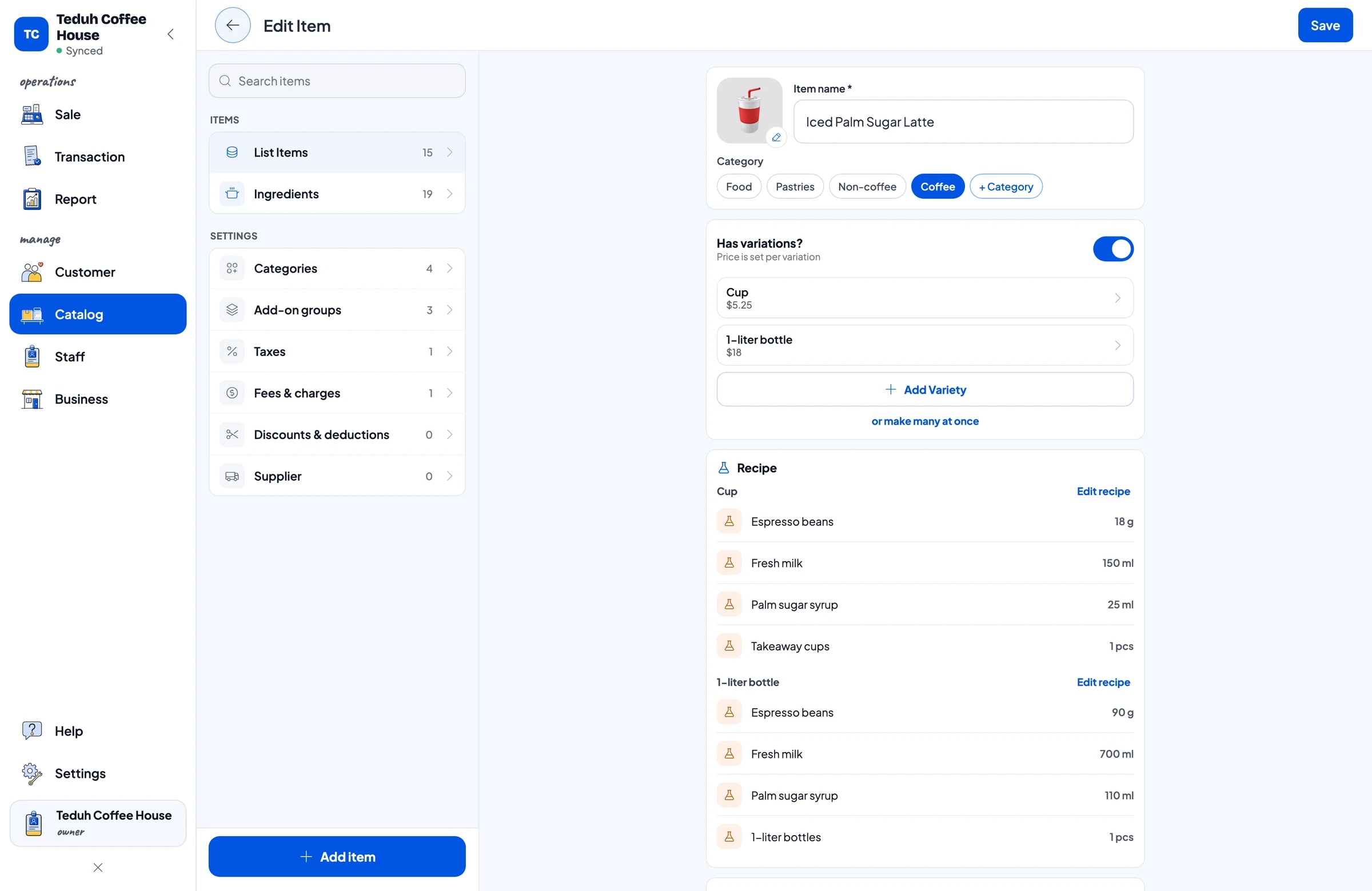
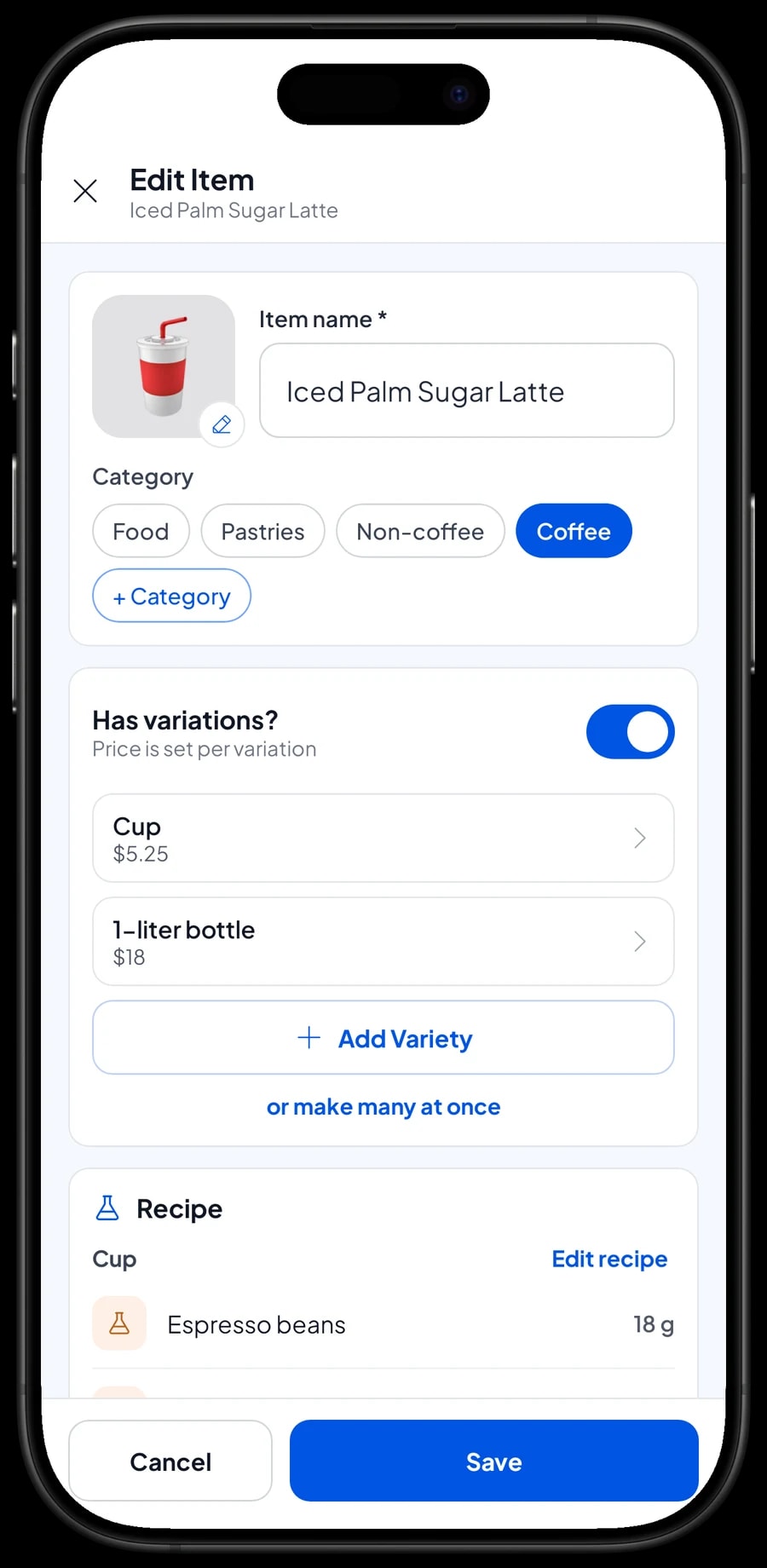
A drink that comes in several forms only needs one item with variants. Americano, caffe latte, matcha latte and chocolate usually come Hot and Iced at different prices. An iced palm sugar latte can be sold by the cup and in a 1-litre bottle to take home. Pour-over can come as a hot V60 or a Japanese iced. The cashier picks the variant and the price follows.
Each variant can also carry its own recipe. An iced latte uses less milk to leave room for ice, and a 1-litre bottle uses five times the coffee and milk of a cup, so the stock that comes off matches what was made.
- Step 1: Open Catalog → Categories and create categories such as Coffee, Non-coffee, Pastries and Food.
- Step 2: Open Catalog → List Items and add each drink as a Made-to-order item with its name and unit, such as cup.
- Step 3: Add variants such as Hot and Iced, or Cup and 1-litre bottle, each with its own price.
- Step 4: Fill in a recipe for each variant so ingredients come off stock by the right amount.
Extra shots, oat milk and sweetness as add-ons
Coffee drinkers like to customise: one more shot, oat milk instead of dairy, or less sugar. If each combination were its own menu item, the list would be endless. In Salesmaster, choices like these are add-ons.
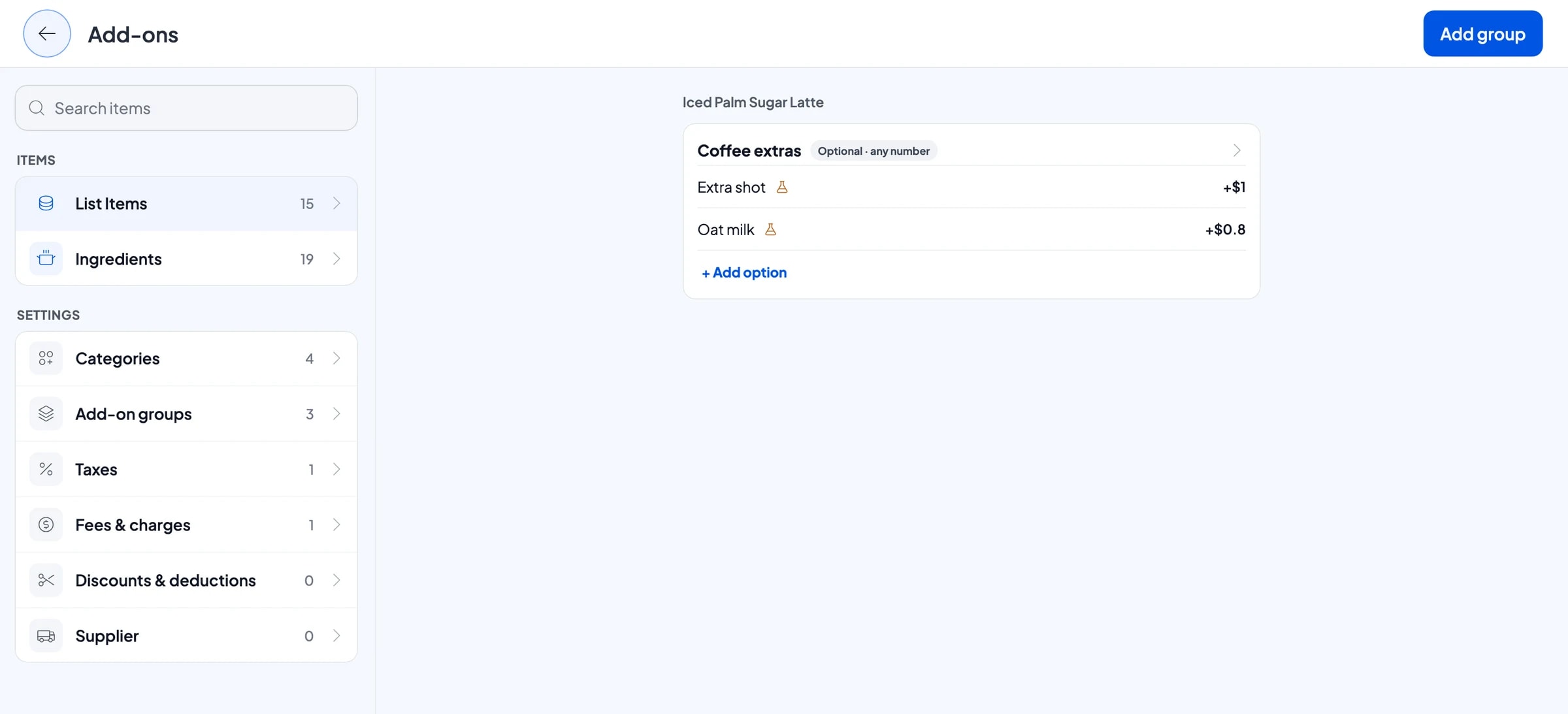
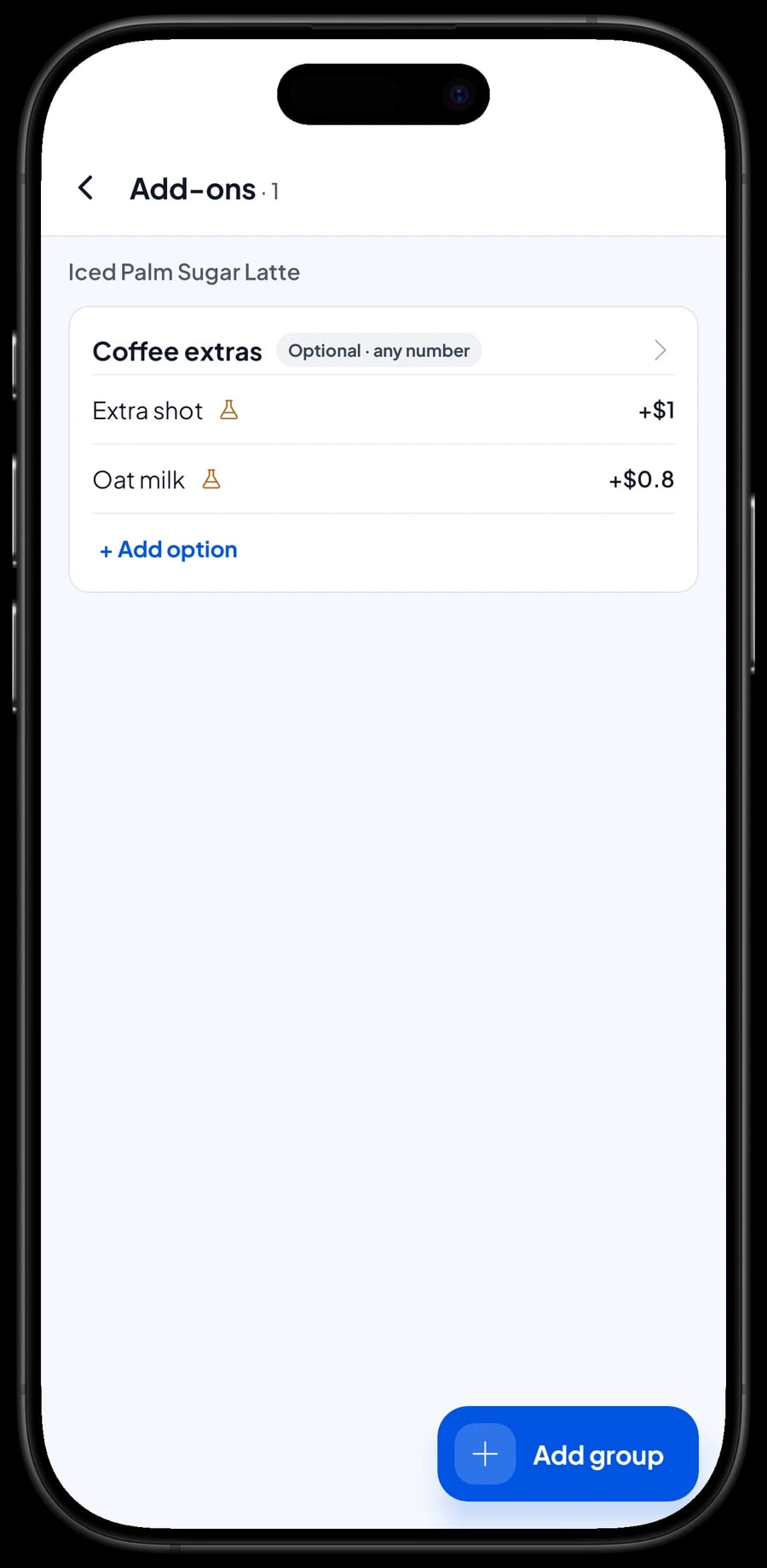
Create a Coffee extras group with Extra shot and Oat milk at their extra prices, and attach it to the iced latte, caffe latte and cappuccino. For non-coffee drinks, create a Sweetness group with Regular, Less sweet and No sugar at no extra charge. The choice prints on the receipt and is saved with the sale, so the barista knows exactly what to make.
Add-ons can take stock off too: an extra shot uses espresso beans, and oat milk uses oat milk, so the pricier oat milk stays tracked.
- Step 1: Open the drink in Catalog → List Items and go to its add-on settings.
- Step 2: Create an add-on group, such as Coffee extras, and add each option with its extra price.
- Step 3: Attach the same group to every drink that uses it.
- Step 4: If you track stock, add the ingredients each option uses.
Bean, milk and cup stock worked out from recipes
A café doesn't sell coffee by the kilo. It sells it by the cup, so what you need to track is the ingredients. In Salesmaster, record espresso and single-origin beans in grams, fresh milk and oat milk in millilitres, syrups in millilitres, and takeaway cups and bottles in pieces. Then write a recipe for each drink.
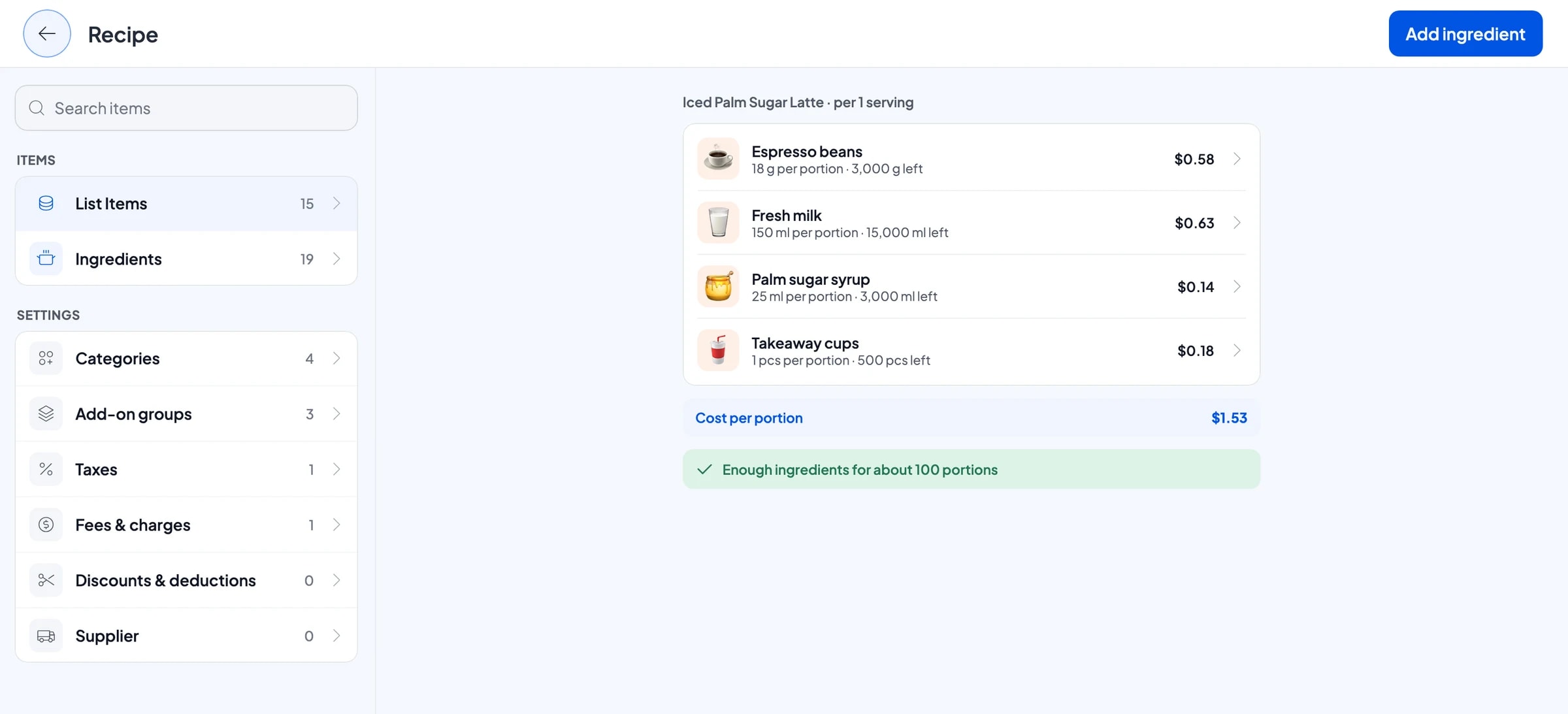
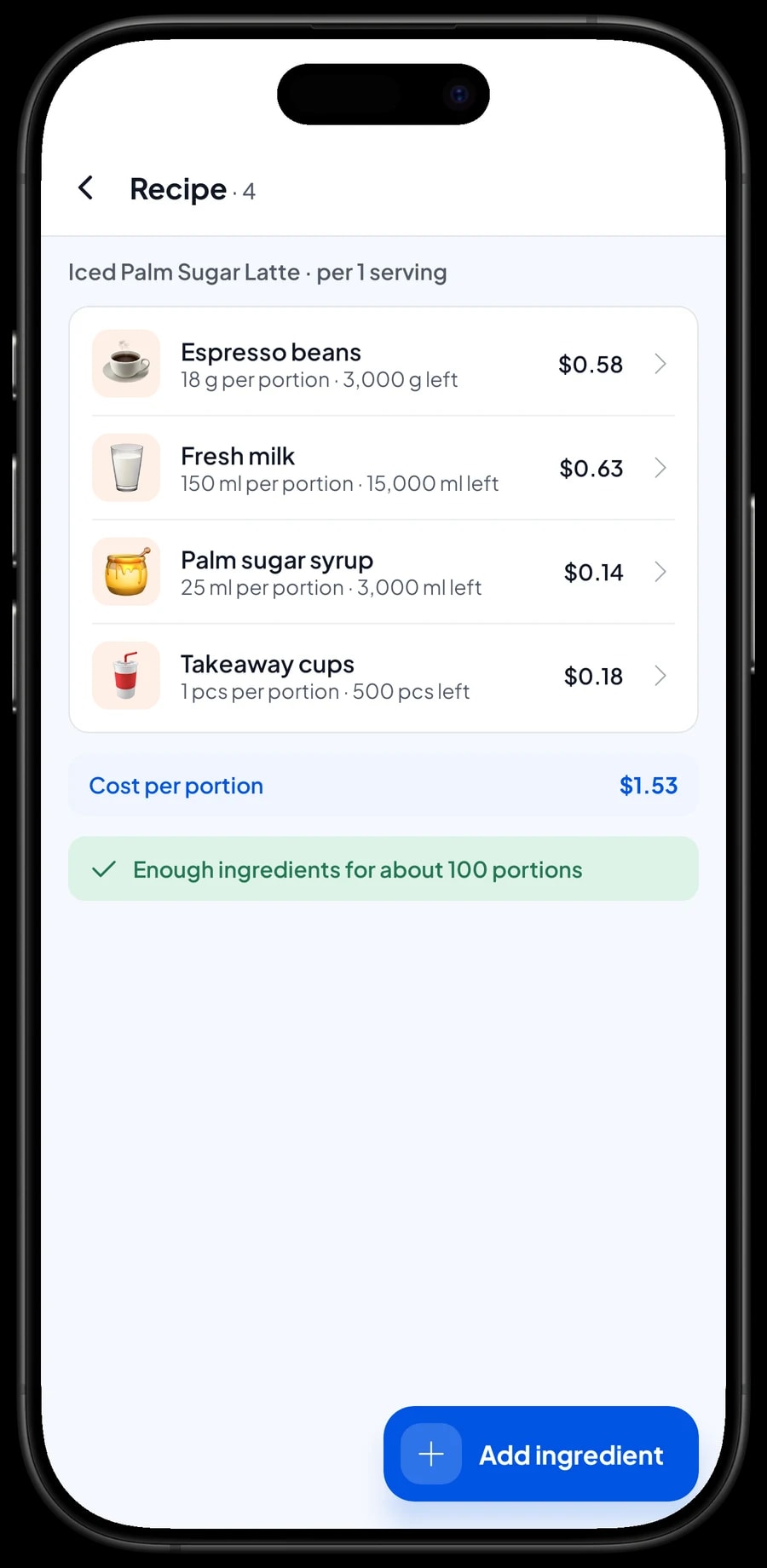
For example, an iced palm sugar latte in a cup: 18 g of espresso beans, 150 ml of fresh milk, 25 ml of palm sugar syrup and 1 takeaway cup. Every cup sold takes those four off stock. At closing you can see how much milk and how many beans are left without weighing anything, and you know when to reorder from your roaster or dairy supplier.
When you buy supplies, record the purchase with its price. Salesmaster uses those prices to work out the cost of goods for each drink. You'll know what a cup of iced latte costs you compared with a cappuccino, and you can set prices from real numbers instead of guesses.
- Step 1: Turn on made-to-order items, then open Catalog → Inventory → Raw materials.
- Step 2: Add ingredients with their units: beans (g), milk and syrups (ml), cups and bottles (pcs).
- Step 3: Enter the opening stock and purchase price of each one.
- Step 4: Open each drink and fill in the recipe for every variant.
- Step 5: Record every purchase so stock and cost of goods stay accurate.
Open orders for guests who stay, and pre-orders
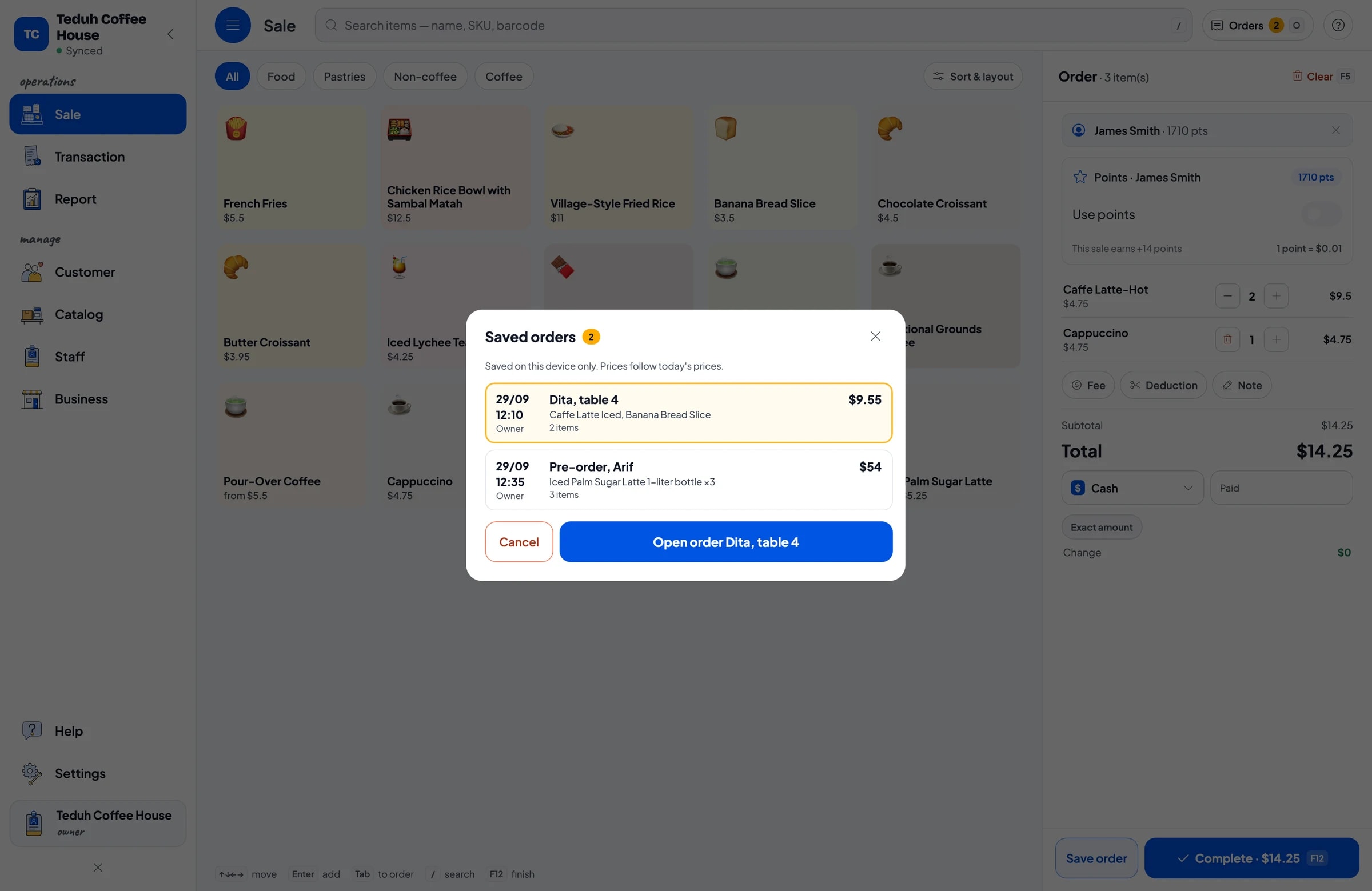
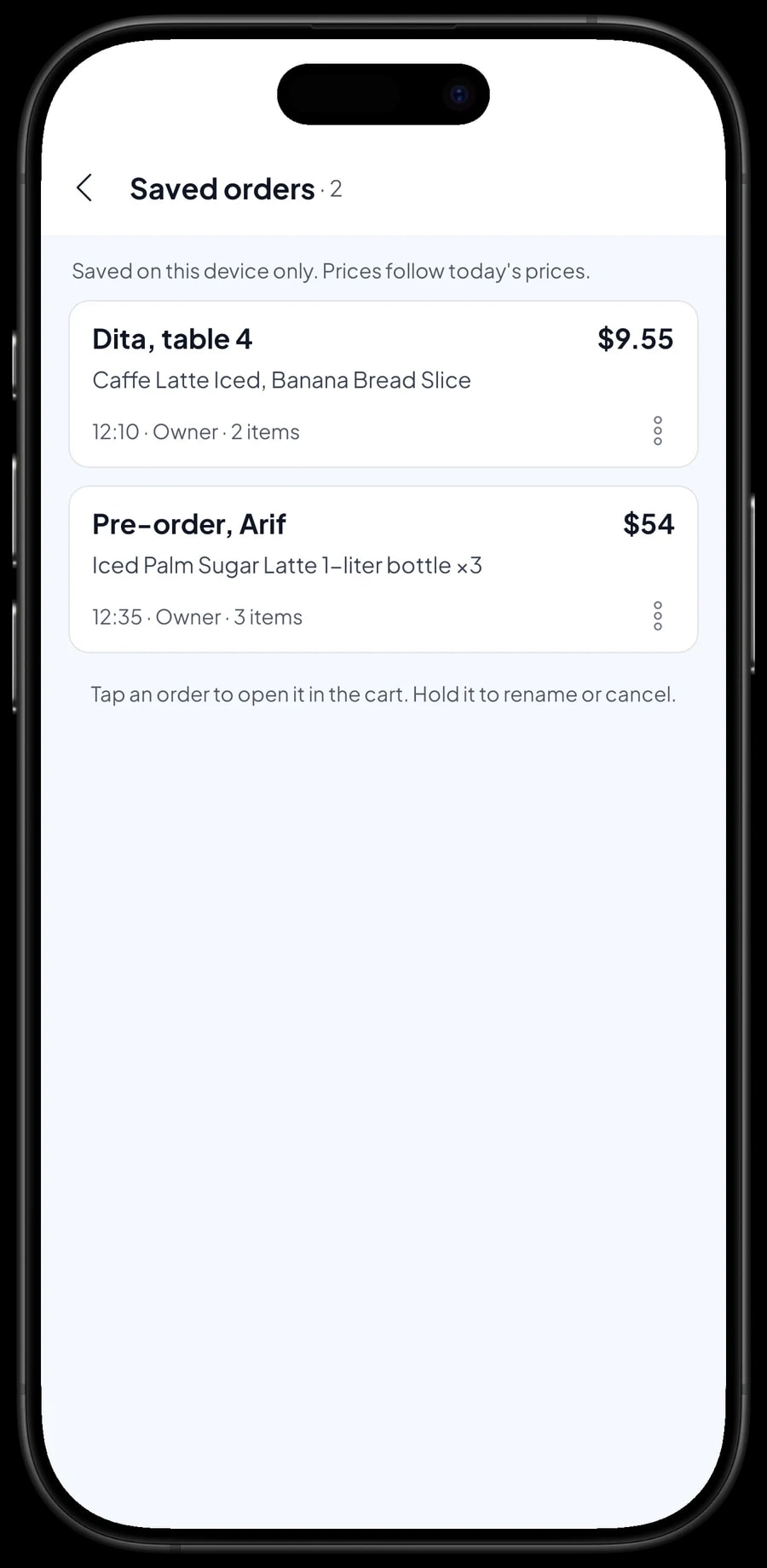
Plenty of café guests settle in for hours: coffee first, a pastry later, lunch after that. That is what Save order is for. The cashier enters the order, names it after the guest and table, for example "Dita, table 4", and saves it. When the guest orders again, open the saved order, add the items and save it again.
The same works for pre-orders: three bottles of iced latte to collect at four o'clock can be saved under the customer's name with a pick-up note, then opened and paid when they arrive.
A saved order isn't counted as a sale and doesn't take stock off until it's paid, so your reports stay clean if an order is cancelled. Saved orders live on the device that created them, so finish the payment on the same device.
Payments, tax and receipts
Set up the payment methods you accept: cash, bank transfer, e-wallets, or any other method you create. Reports show how much came in through each one, so the cash drawer and your bank balance are easy to reconcile at the end of the day.
Sales tax and any service charge are set once in Fees or Tax and then added to every sale. Promotions, such as a happy-hour price or a student discount, are set up in Deductions and picked at checkout.
Receipts print on a Bluetooth thermal printer with 58 mm or 80 mm paper, automatically after every sale if you like. Guests who don't want paper can get a receipt by WhatsApp, email, or a web receipt link with your café's logo, colours and social media.
Baristas and counter devices
The owner uses the main account on their own device. Baristas and cashiers are added as staff, and the tablet or phone at the bar is registered as a staff device. Staff sign in with a PIN, and you decide what they can see and change. Staff accounts come with Bronze Pro (1 staff) and Silver Pro (2 staff).
Regulars: loyalty points and member cards
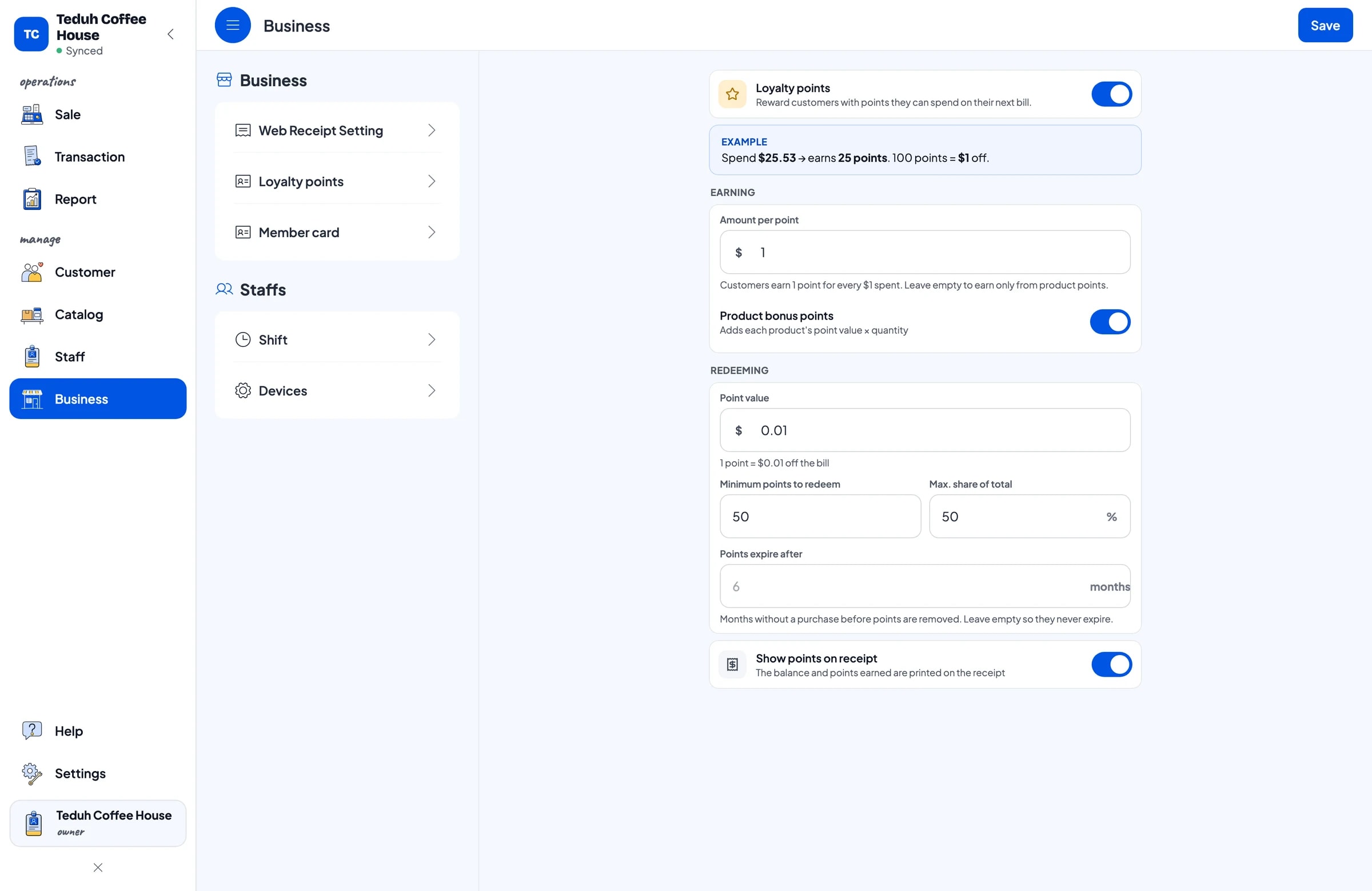
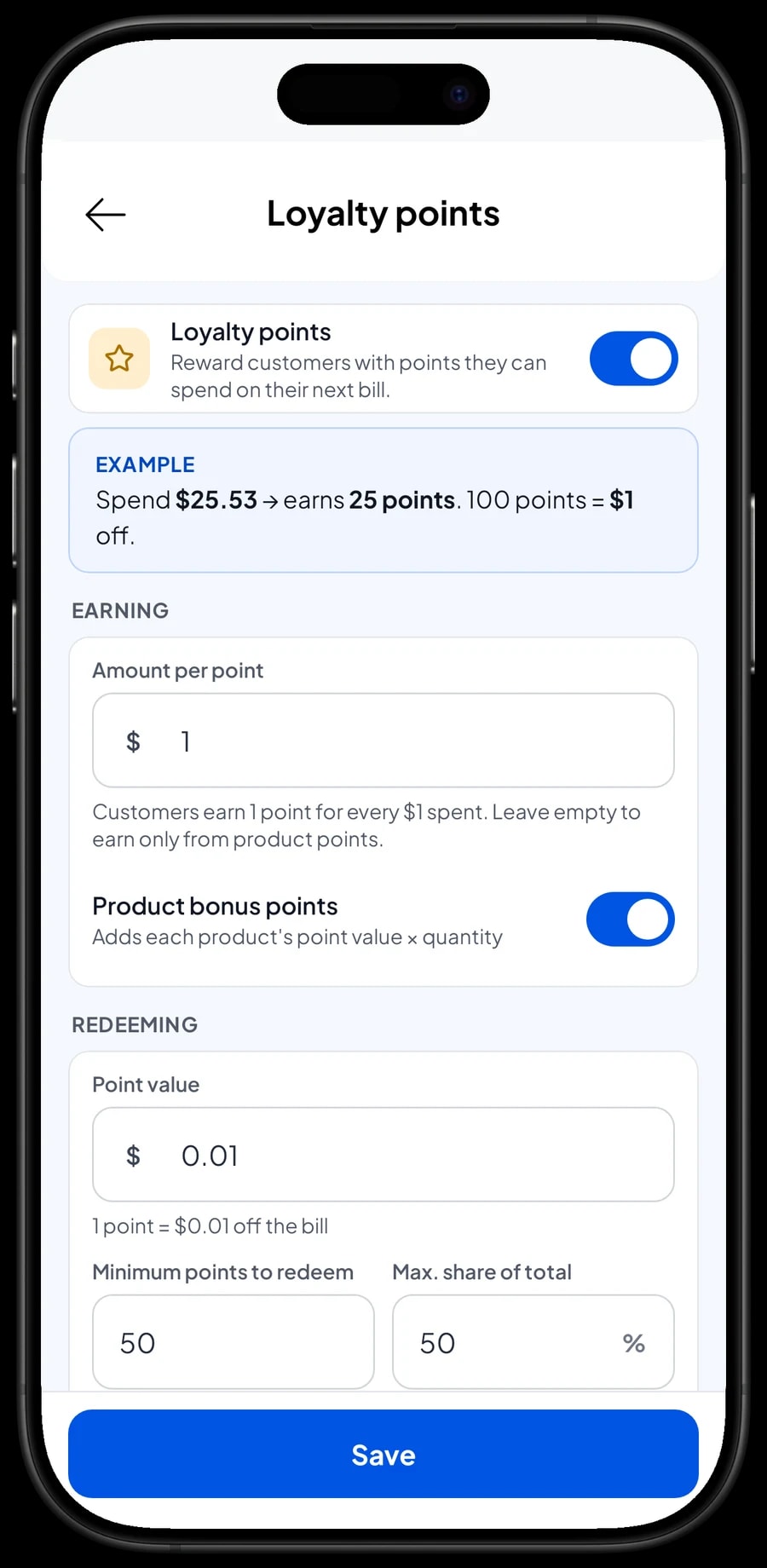
Coffee shops live on the people who come in every morning. Instead of paper stamp cards that get lost, turn on Loyalty points in Salesmaster. You set the rules: how much a customer spends per point, what a point is worth when redeemed, the minimum points to redeem, and the maximum share of a bill points can cover.
Save the customer's name and phone number at checkout and points are added automatically. When a regular wants to use them, the cashier switches on Use points and the discount is applied. Regulars can also get a member card in their name, and their purchase history is kept, so you know who always orders an iced latte with an extra shot.
Sales reports and your café's real profit
Reports are available by day, week, month and year. You see total revenue, discounts, tax collected, payment methods and revenue by item. That tells you whether iced lattes are still carrying the business, or whether pastries and food are starting to pull their weight.
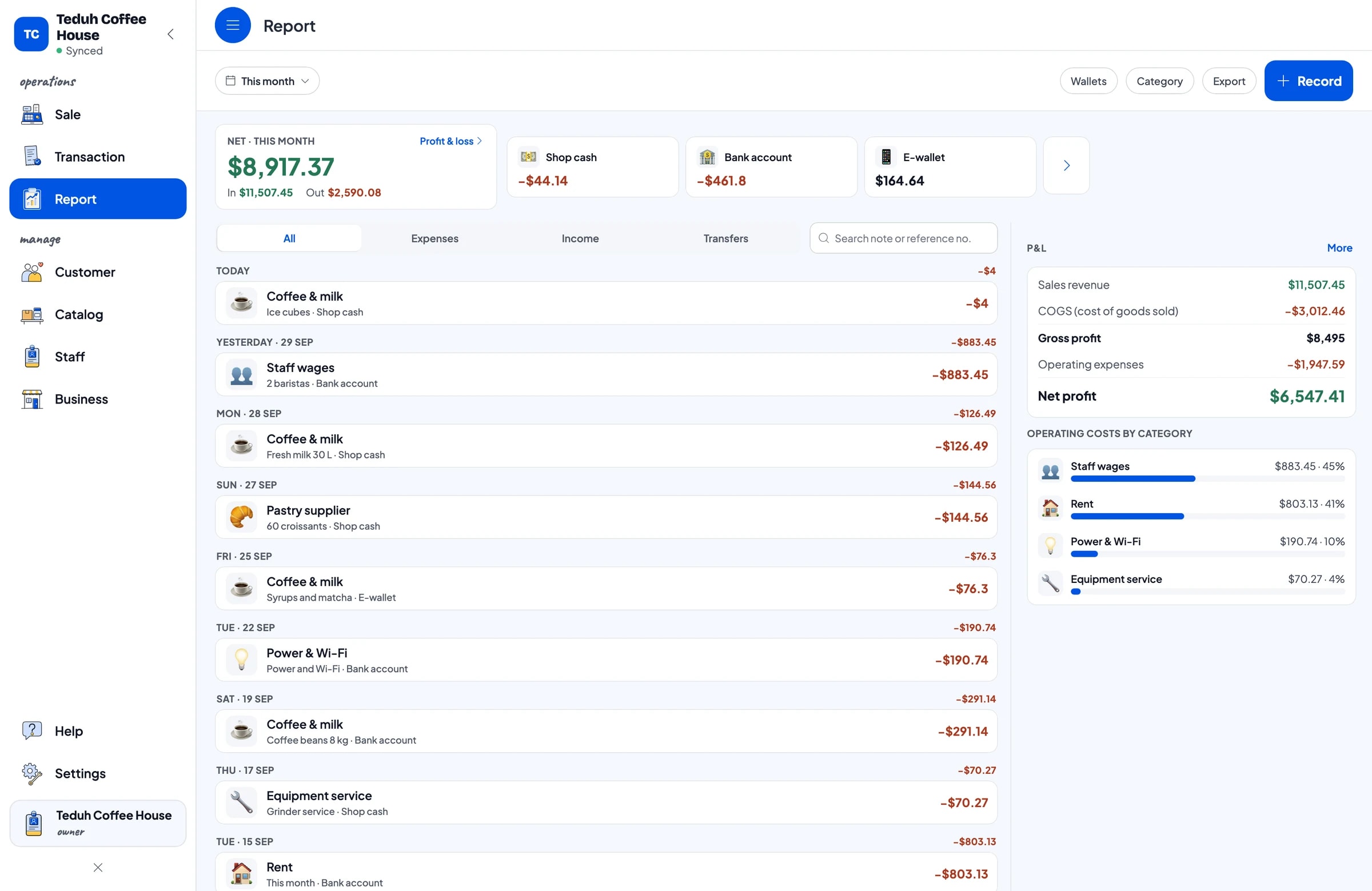
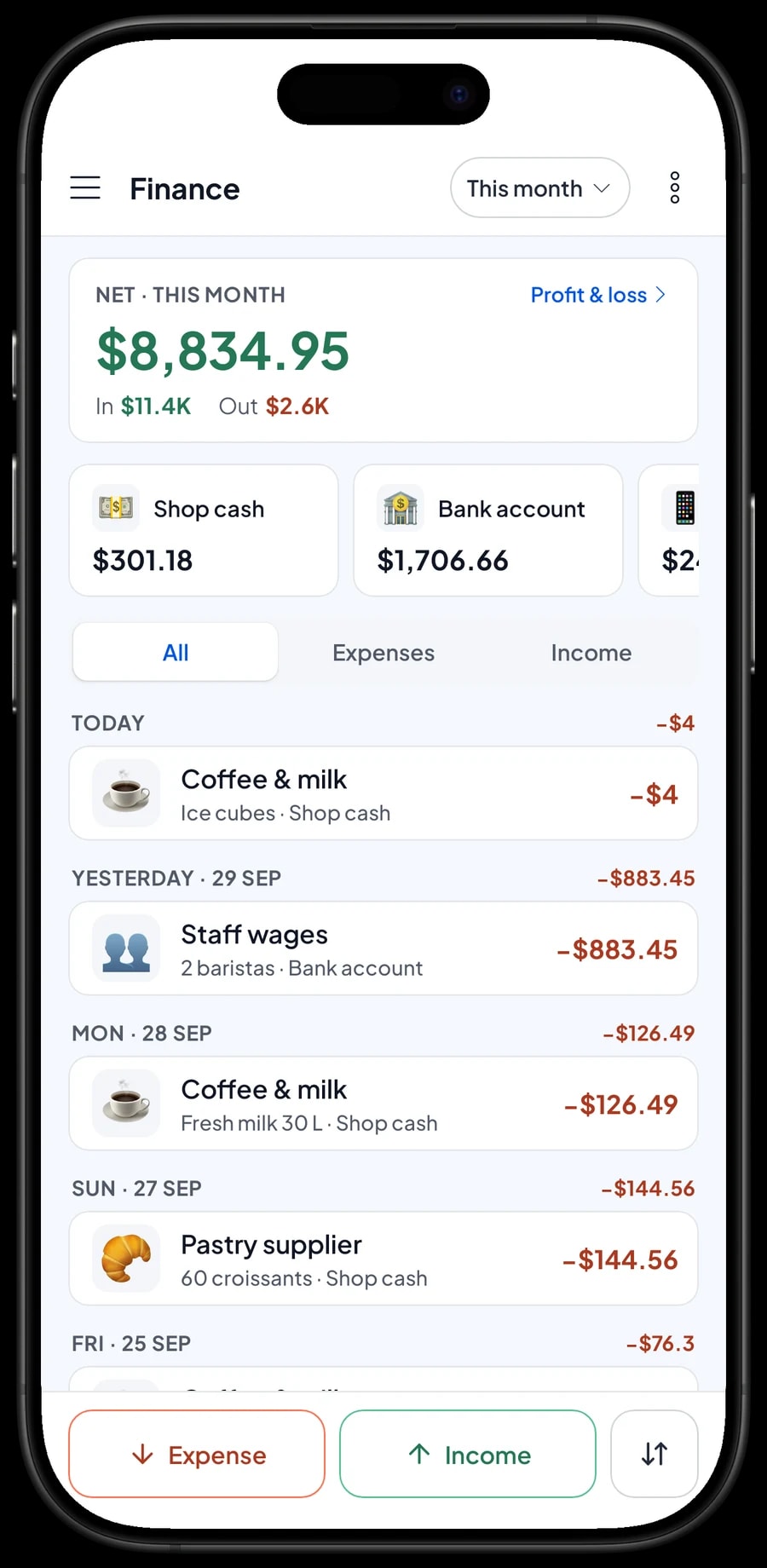
For real profit, record expenses in Finance: coffee and milk, your pastry supplier, barista wages, rent, power and Wi-Fi, even the grinder service. Each expense has a category and the wallet it was paid from, such as shop cash, a bank account or an e-wallet.
The Finance report then shows revenue minus the cost of goods from your recipes and your operating costs: your café's net profit. Reports export to Excel or PDF for a business partner or your accountant.
Getting started without closing for a day
You don't need a day off to switch to Salesmaster. Before opening, install the app on the counter tablet or phone and create an account. Enter your best sellers first, usually ten to fifteen drinks, with their hot and iced variants and the extra-shot add-on. Connect the Bluetooth thermal printer if you use one.
During the first week, run the counter as usual and check the daily report against the cash drawer each night. Once that feels routine, add ingredients and recipes, starting with beans, milk and cups, then start recording expenses in Finance. If the café Wi-Fi drops, sales are saved on the device and sync when the connection is back; offline mode works for up to 7 days.
Step-by-step guides are in the Salesmaster Help Centre, and our team is on WhatsApp if you need help with your menu and recipes.
Example café menu setup
Use this table as a starting point. Swap in your own drinks, variants and prices.
| Category | Item | Variants | Add-ons | Item type |
|---|---|---|---|---|
| Coffee | Iced palm sugar latte | Cup, 1-litre bottle | Extra shot, Oat milk | Made-to-order |
| Coffee | Americano | Hot, Iced | Extra shot | Made-to-order |
| Coffee | Caffe latte | Hot, Iced | Extra shot, Oat milk | Made-to-order |
| Coffee | Pour-over | V60 hot, Japanese iced | - | Made-to-order |
| Non-coffee | Matcha latte | Hot, Iced | Regular, Less sweet, No sugar | Made-to-order |
| Non-coffee | Iced lychee tea | - | Regular, Less sweet, No sugar | Made-to-order |
| Pastries | Butter croissant | - | - | Product |
| Food | Chicken rice bowl | - | Fried egg, Extra sambal | Made-to-order |
Pastries you buy in ready-made are Products with their own stock count. Drinks and dishes made at the bar or in the kitchen are Made-to-order items, so their beans, milk and cups come off stock instead.
Which plan fits your café
Start by counting orders per day. A small coffee shop serving 20 to 30 orders a day records roughly 600 to 900 transactions a month.
| Plan | Price | Transactions / month | Staff accounts | Good for |
|---|---|---|---|---|
| Free | Free | 30 | Owner only | To try the checkout flow and build your menu before going live. |
| Solo Pro | $4.90/month | 3,000 | Owner only | Coffee shops where the owner runs both the bar and the till. |
| Bronze Pro | $6.90/month | 5,000 | 1 staff | Cafés with one barista on their own counter device. |
| Silver Pro | $9.90/month | 8,000 | 2 staff | Busier cafés with two staff on separate devices. |
Every plan includes checkout, catalog, receipts, reports and offline mode. You can change plans at any time. See pricing →
Frequently asked questions
- Can Salesmaster take coffee beans and milk off stock with every cup?
- Yes. Set drinks up as Made-to-order items with a recipe, for example 18 g of beans and 150 ml of milk per cup. Every cup sold takes those ingredients off stock according to the chosen variant, including ingredients from add-ons like an extra shot.
- How do I set up hot and iced drinks at different prices?
- Create one item, such as Caffe Latte, and add Hot and Iced variants with their own prices. Each variant can have its own recipe, so the iced version can use less milk than the hot one.
- Can I keep an order open for a guest who orders several times?
- Yes, with Save order. Save the order under the guest's name and table number, then open it again each time they add something. Saved orders live on the device that created them and only count as a sale once paid. Salesmaster has no table map, so the table goes in the order name.
- Can my barista use their own tablet without my account?
- Yes, through staff accounts. An account signs in on one device at a time, so baristas use a staff device and sign in with a PIN. Staff accounts come with Bronze Pro (1 staff) and Silver Pro (2 staff).
- Does the café keep selling if the Wi-Fi goes down?
- Yes. Sales are saved on the device and sync when the connection is back. Offline mode works for up to 7 days before the app needs to connect to sync.
- Can I run a loyalty program for regulars?
- Yes. Turn on Loyalty points and set your own rules: spend per point, the value of a point, the minimum to redeem and the maximum discount. Regulars can also get a member card.
Need help setting up your catalog? Chat with our team on WhatsApp →