Salesmaster is a point-of-sale (POS) app for internet cafés and game centres on Android, iPhone & iPad, Windows and Mac. Play time and passes are sold as items with variant prices, food and drinks go on the same bill, a player's running bill is kept with Save order until they leave, and snack and kitchen stock is deducted automatically. Salesmaster does not time sessions or lock PCs; it records the sales.
Problems every game centre knows
If any of these happen at your counter, this page is for you.
- 01
Play time and snack money get mixed up
A player pays for a pass up front, then orders noodles and coffee three times. By closing, nobody can say how much came from PCs and how much from the kitchen.
- 02
Extras delivered, never billed
Fries and an energy drink go to PC 12, to be paid when the player leaves. If nobody writes it down, that money quietly disappears.
- 03
The drinks fridge empties without warning
Cans and chips fly off the shelf on tournament nights and weekends. Without stock records, you find out they are gone when a player asks for one.
- 04
Busy floor, thin margins
Dozens of PCs burn electricity, the internet line is expensive, and there is rent and wages on top. Without recorded expenses, monthly profit is a guess.
Setting up play time and passes as items
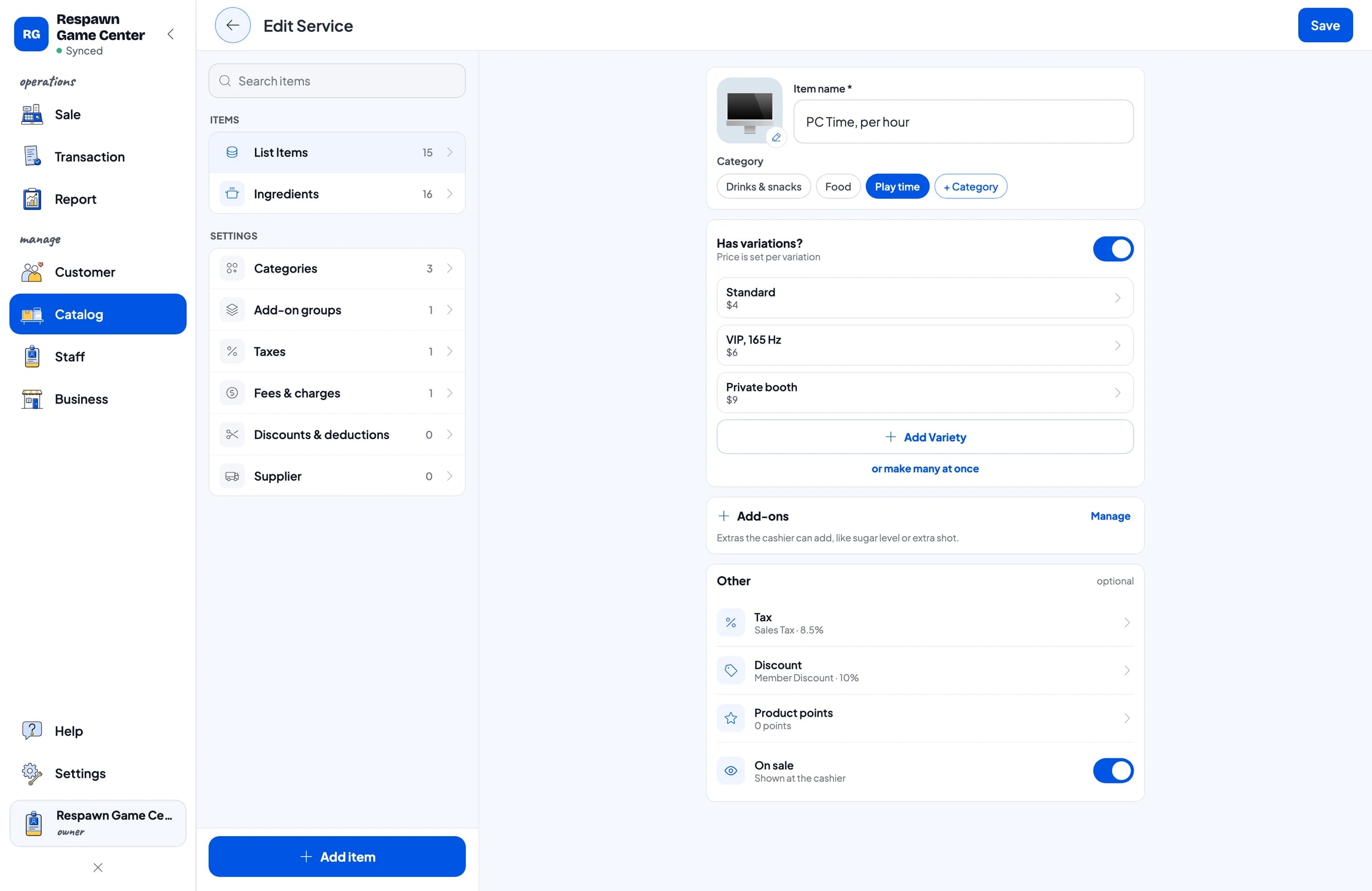
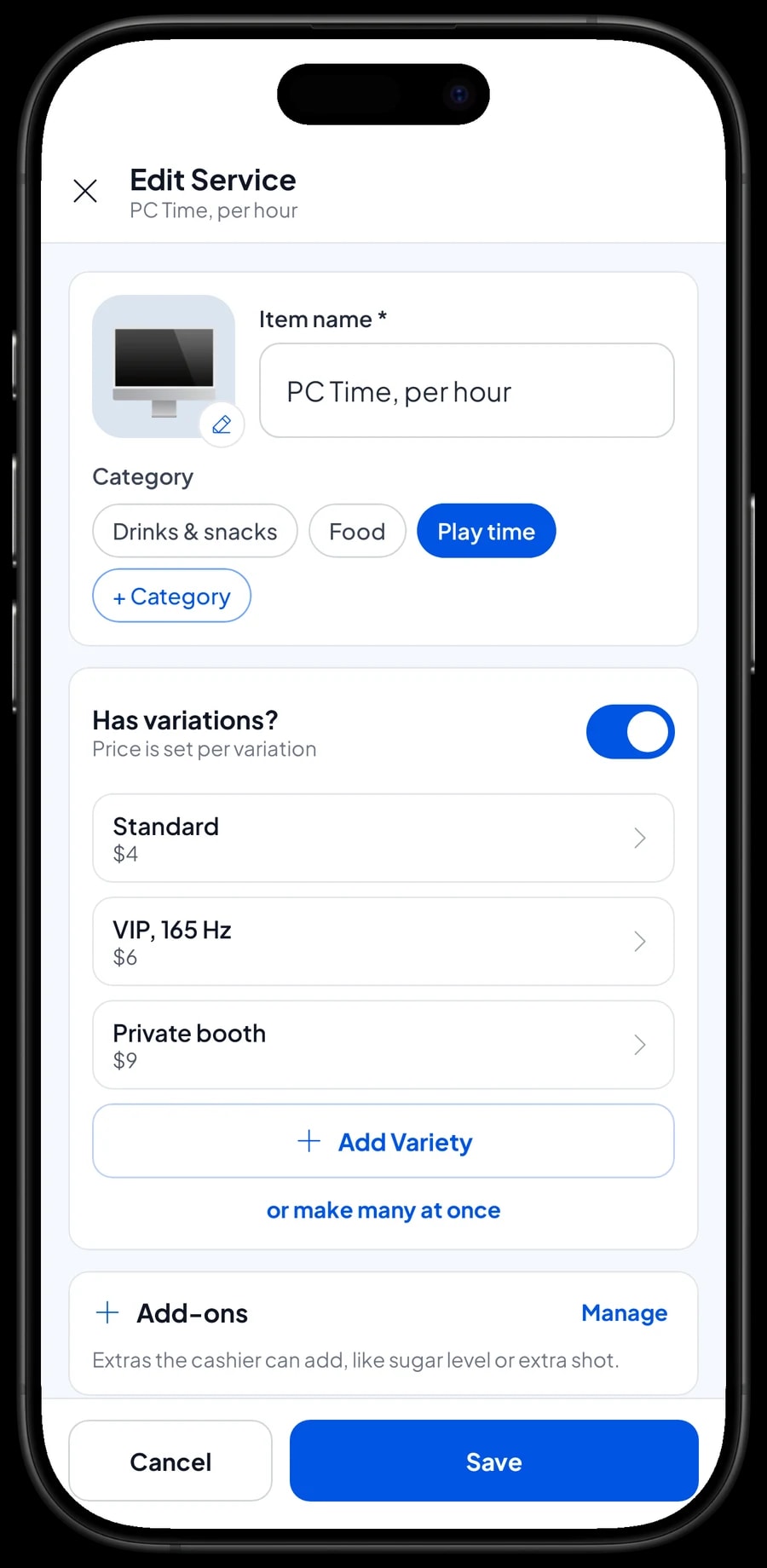
In Salesmaster, everything you sell is an item in the Catalog, and that includes play time. Create one item for hourly PC time and add a variant for each class of machine: Standard, VIP with a 165 Hz monitor, and a private booth. The cashier picks the variant and the price follows. Hours are entered as the quantity, so three hours on a standard PC is simply a quantity of 3.
Fixed-price passes, such as a five-hour pass or an overnight pass from 10 pm to 6 am, are items of their own with the pass price. Small services like black-and-white printing per page can sit in the same catalog, so every dollar the business takes in is recorded in one place.
Be clear about one thing from the start: Salesmaster is a POS, not internet café management software. It does not time sessions, start or lock PCs, or connect to your session software. Staff still check remaining time in the system you already use, then ring up the hours that were paid in Salesmaster.
- Step 1: Open Catalog → Categories and create categories such as Play time, Food, and Drinks & snacks.
- Step 2: Open Catalog → List Items and add PC Time, per hour with hour as its unit.
- Step 3: Add the Standard, VIP and Private booth variants, each with its own price.
- Step 4: Add fixed-price passes, such as the 5-Hour Pass or the Overnight Pass, as separate items.
One bill for play time, food and drinks
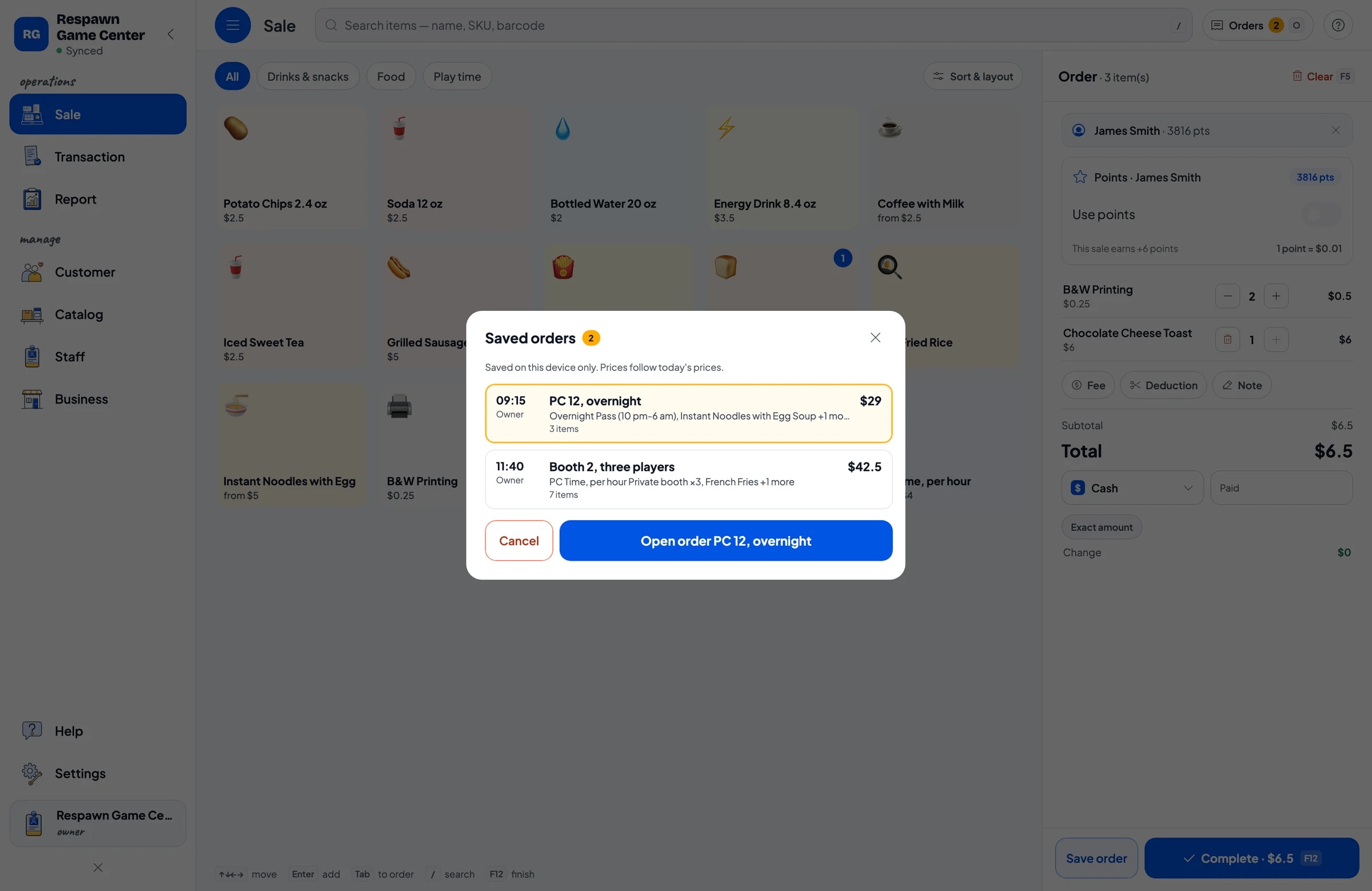
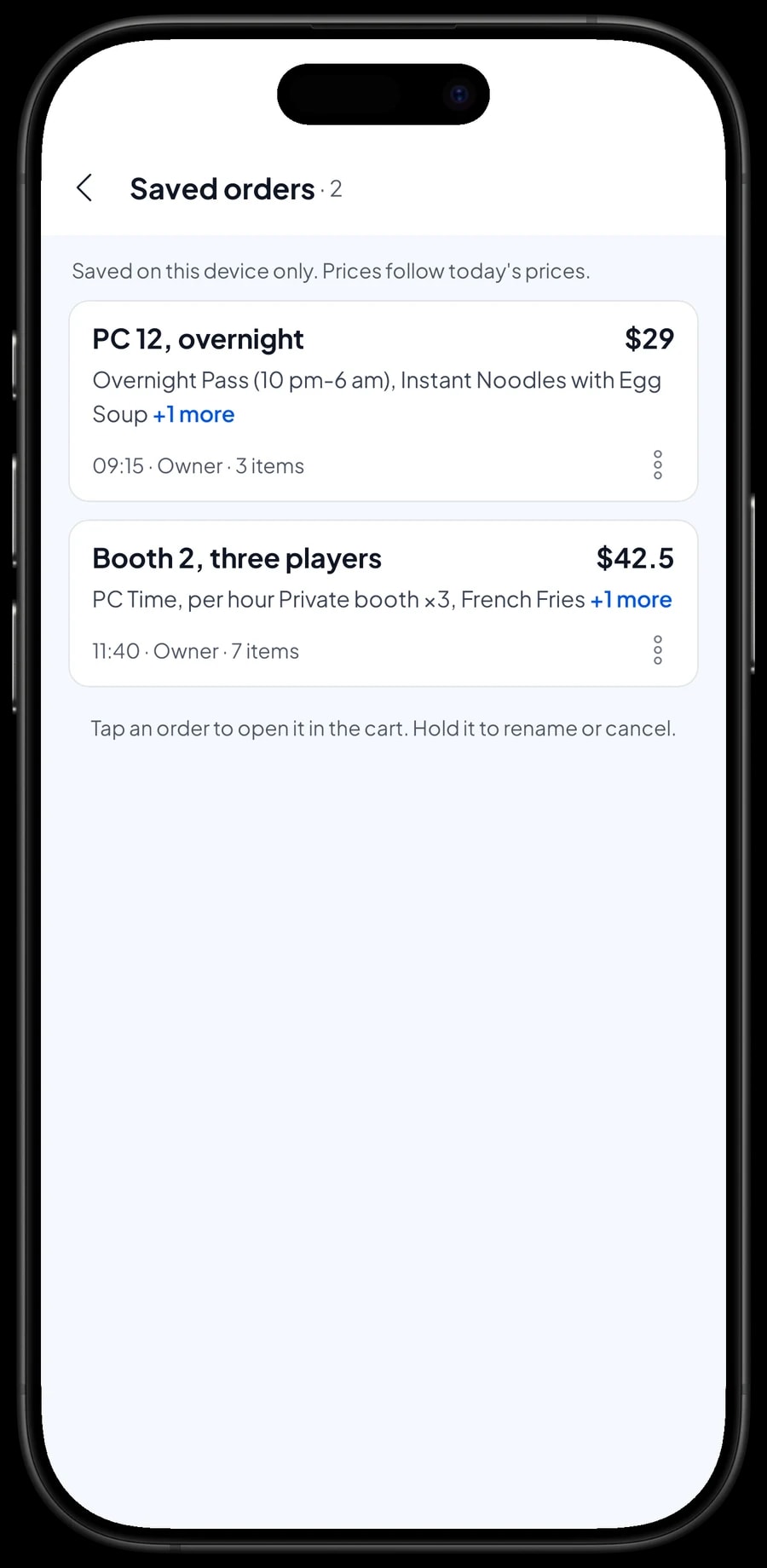
A single visit often means several purchases: an overnight pass at 10 pm, noodles an hour later, an iced coffee at 2 am. For players who pay when they leave, use Save order on the Sale screen. The cart is kept as a saved order under the name you give it, such as "PC 12, overnight" or "Booth 2, three players".
Each time the player orders again, open their order from Saved orders, add the items, and save it again. When they log off, open the order, check the hours against your session software, and take the payment. Everything ends up as one sale with a full breakdown.
A saved order is not counted as a sale and takes nothing off stock until it is paid. It lives on the device that created it, so staff need to finish it on the same counter device. Save order is not a customer credit account; it is a cart held until the player pays during that visit.
Food and drinks: toppings as add-ons, dishes with recipes
A game centre kitchen keeps it simple: instant noodles with egg, egg fried rice, chocolate cheese toast, fries, grilled sausages, iced sweet tea and coffee with milk. Dishes with a choice, like soup or fried noodles and hot or iced coffee, are set up with variants.
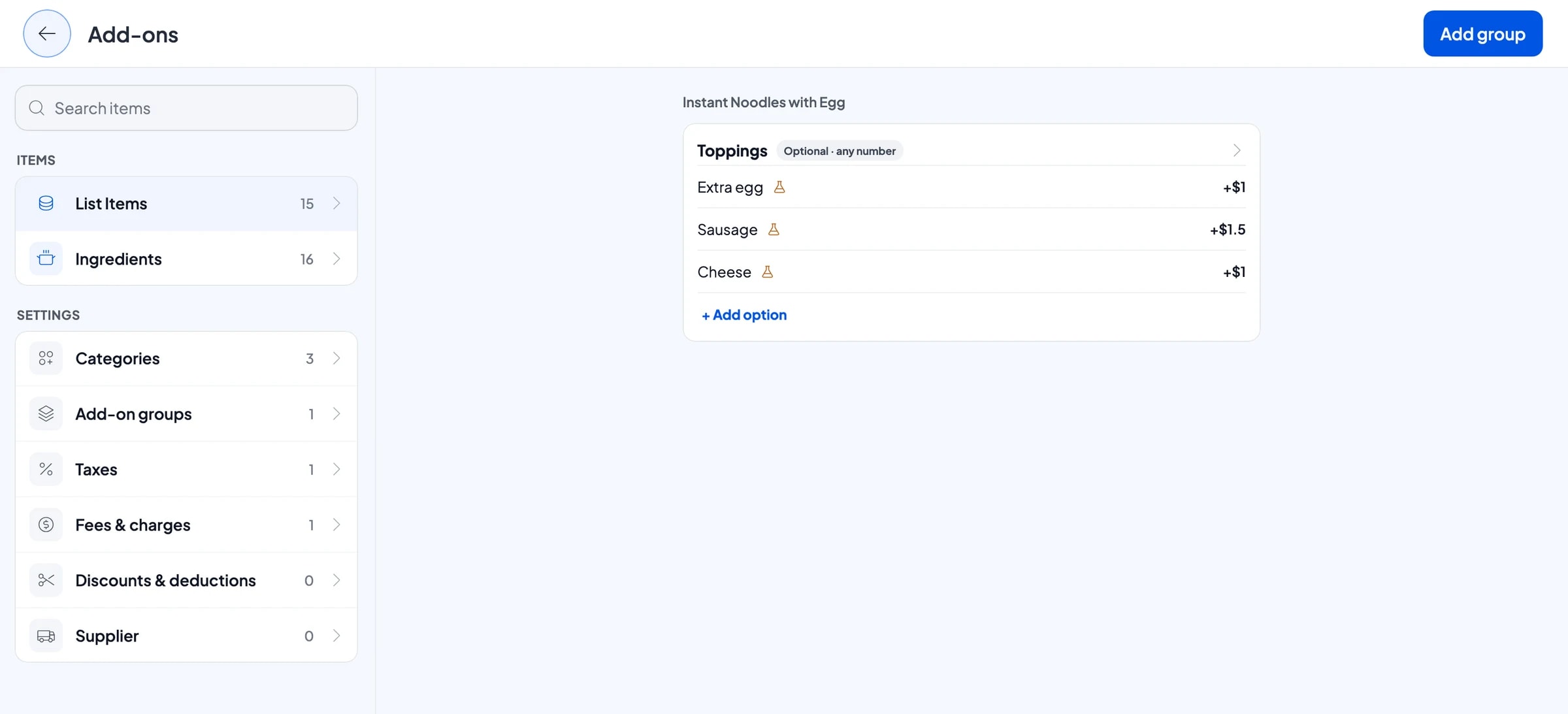
Extras players ask for, such as an extra egg, a sausage or cheese, are add-ons. You manage them on the item itself with Manage add-ons, and the cashier ticks the extra while the price is added to the total. There is no need for a separate "noodles + egg + cheese" item.
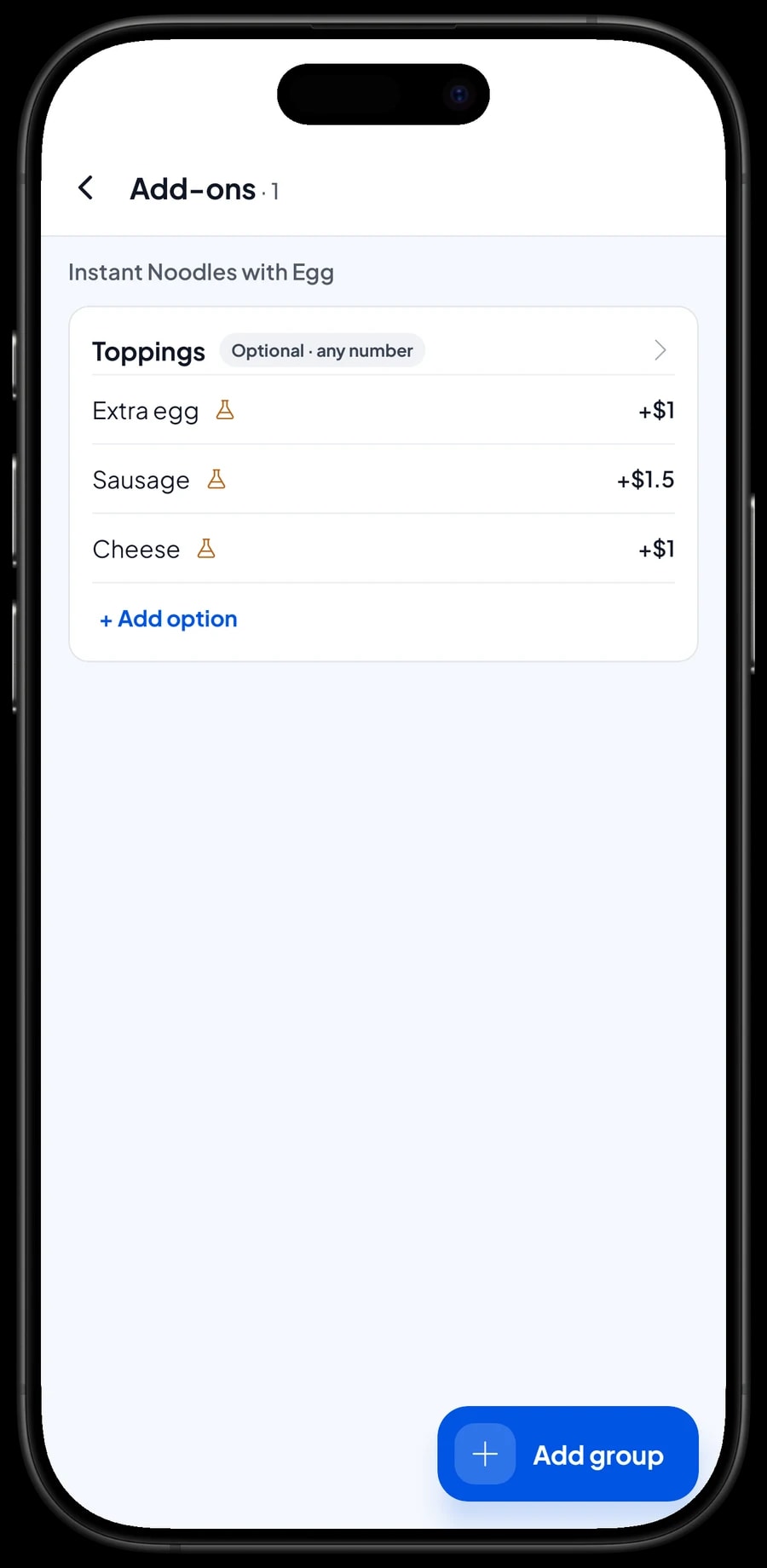
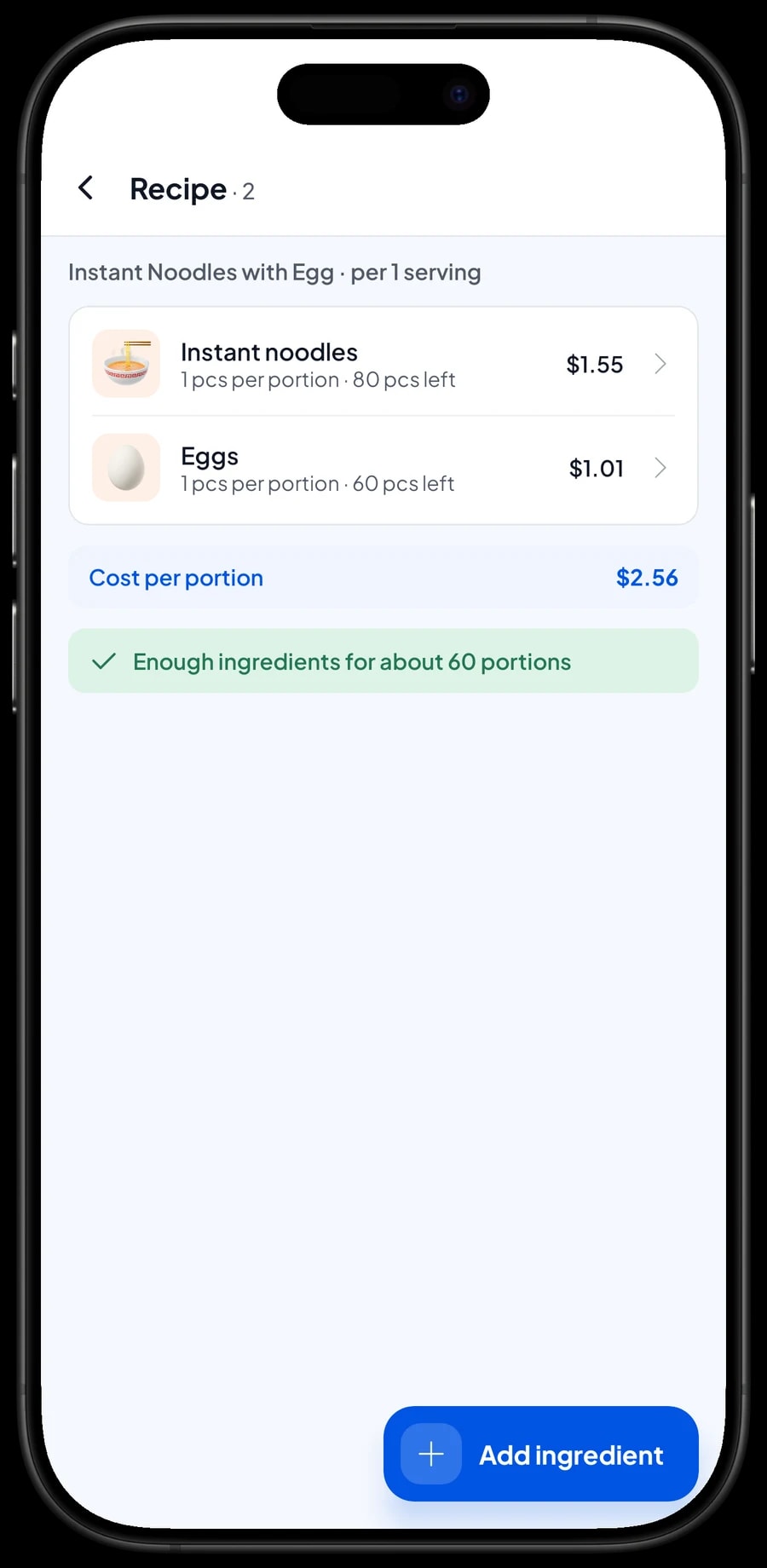
Cooked dishes are Made-to-order items with a recipe. One bowl of noodle soup uses one pack of instant noodles and one egg; one iced sweet tea uses a tea bag, sugar and ice. Every portion sold takes its ingredients off stock, and ingredient costs are used to work out the cost of each portion.
- Step 1: Create each dish and drink in Catalog → List Items as a Made-to-order item.
- Step 2: Fill in the recipe for each dish or variant: which ingredients, and how much per portion.
- Step 3: Open a dish that takes extras, choose Manage add-ons, and create a Toppings group with the extra price of each option.
- Step 4: Ring up a test sale on the Sale screen to check that prices and add-ons add up.
Stock for cans, snacks and kitchen ingredients
Things sold as they are, like energy drinks, bottled water, soda and potato chips, are regular products with their own stock. Each sale takes one off. When a delivery arrives, add it to stock, and you always know what is in the fridge and on the shelf without counting by hand.
Kitchen ingredients go in Catalog → Inventory → Raw materials with a unit: noodles by the pack, eggs by the piece, rice and frozen fries in grams, oil in millilitres. Once recipes are filled in, ingredients come off stock with every portion sold, so you can see what is running low before the weekend rush or a tournament night.
If you buy in bulk, say a case of instant noodles, record the purchase in the same unit the recipe uses (for example 40 packs) with its price. Salesmaster doesn't convert units for you, so keep the purchase unit and the recipe unit the same.
Staff and counter devices
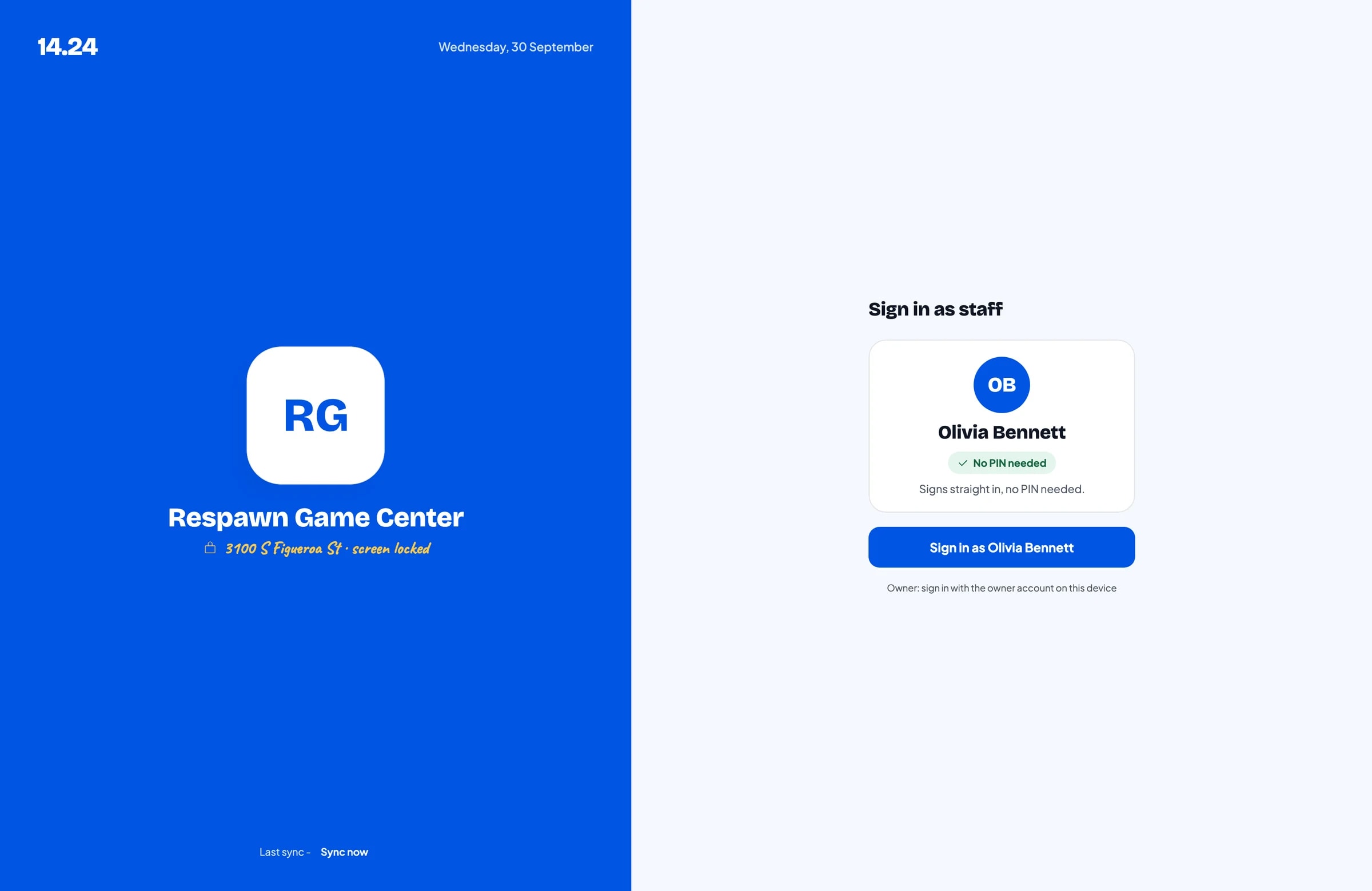
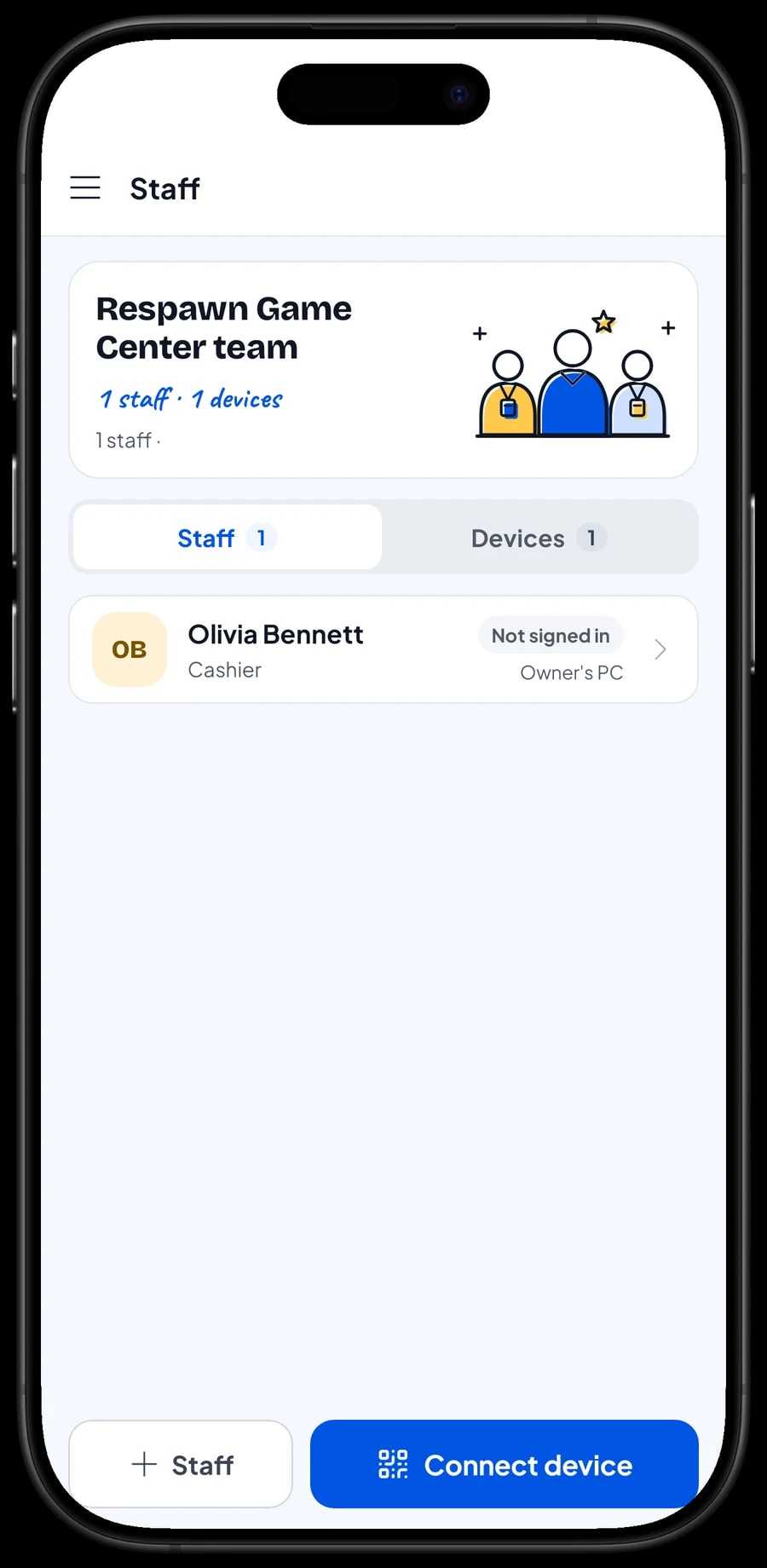
Game centres that stay open late or around the clock usually have more than one attendant. They don't need the owner's account. Add them as staff, then register a counter device for them. Staff sign in with a PIN, and you decide what they can see and change. An account signs in on one device at a time, so extra counter devices run on staff accounts: Bronze Pro includes 1 staff account and Silver Pro includes 2.
Payments and receipts
Players pay in different ways. Create the payment methods you accept, such as cash, card, bank transfer or an e-wallet. Salesmaster isn't connected to card terminals; the cashier picks the method the player used, and reports show how much came in through each one, so the drawer and the bank balance are easy to reconcile.
If you charge sales tax, set it once in Fees or Tax and it is added to every sale. Discounts, such as an off-peak rate or a student discount, are set up in Deductions.
Receipts can print on a Bluetooth or USB thermal printer, or go out by WhatsApp, email or a web receipt link.
Regular players: loyalty points and member cards
A game centre runs on players who come back every week. Save the player at checkout (a name and phone number is enough) and turn on Loyalty points under Business. You set the rules: how much spending earns a point, what a point is worth, the minimum points to redeem, and the largest share of a bill points can cover.
Points are added with every sale, from play time and snacks alike. Regulars can also get a member card in their name, and their purchase history is kept, so you know who buys overnight passes and who only turns up for tournaments.
If you sell prepaid hour bundles that are used over several visits, note that Salesmaster records the sale of the bundle but does not track hours left per player. Keep remaining hours in your session software or on the member card.
Sales reports and real net profit
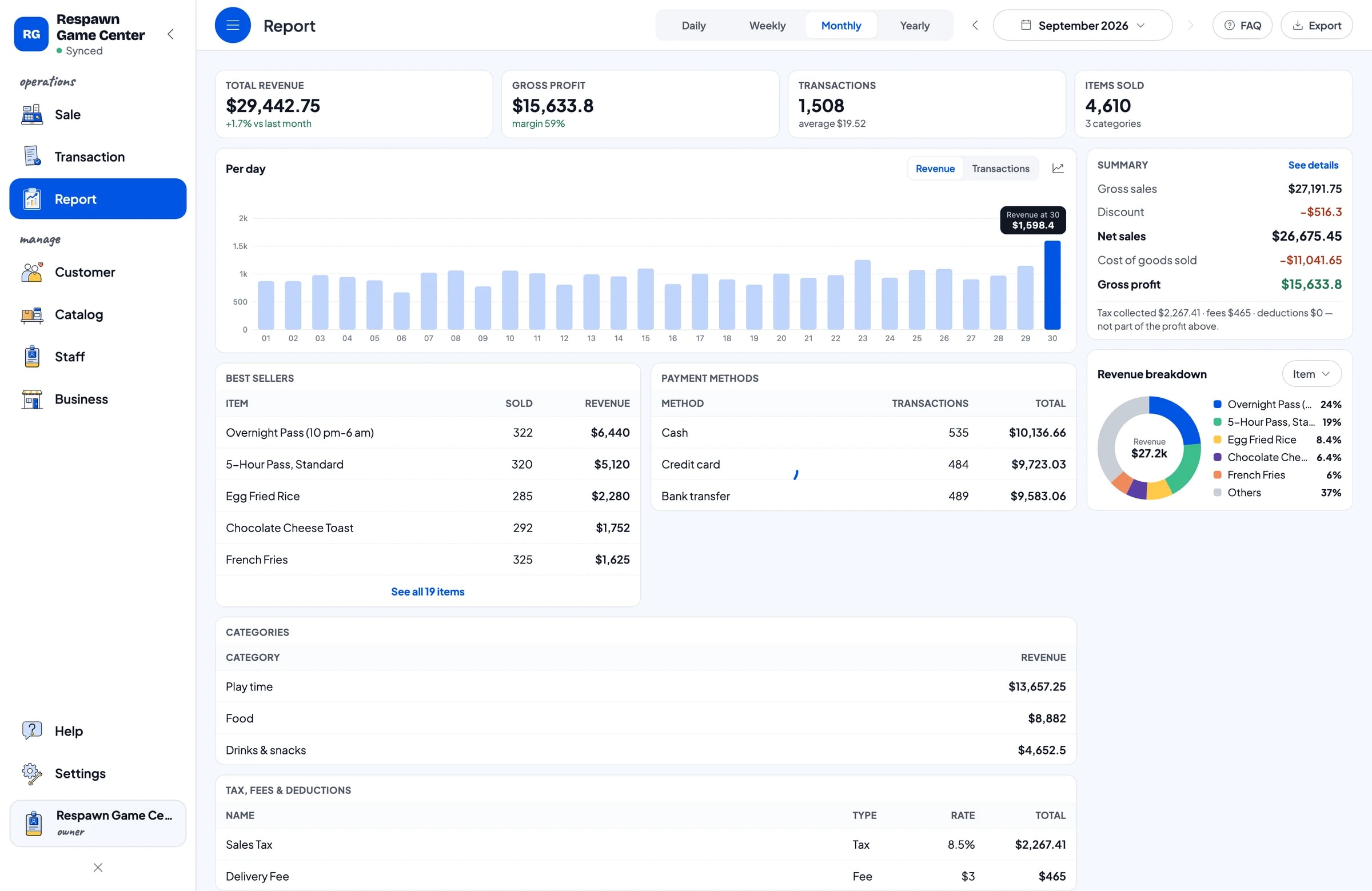
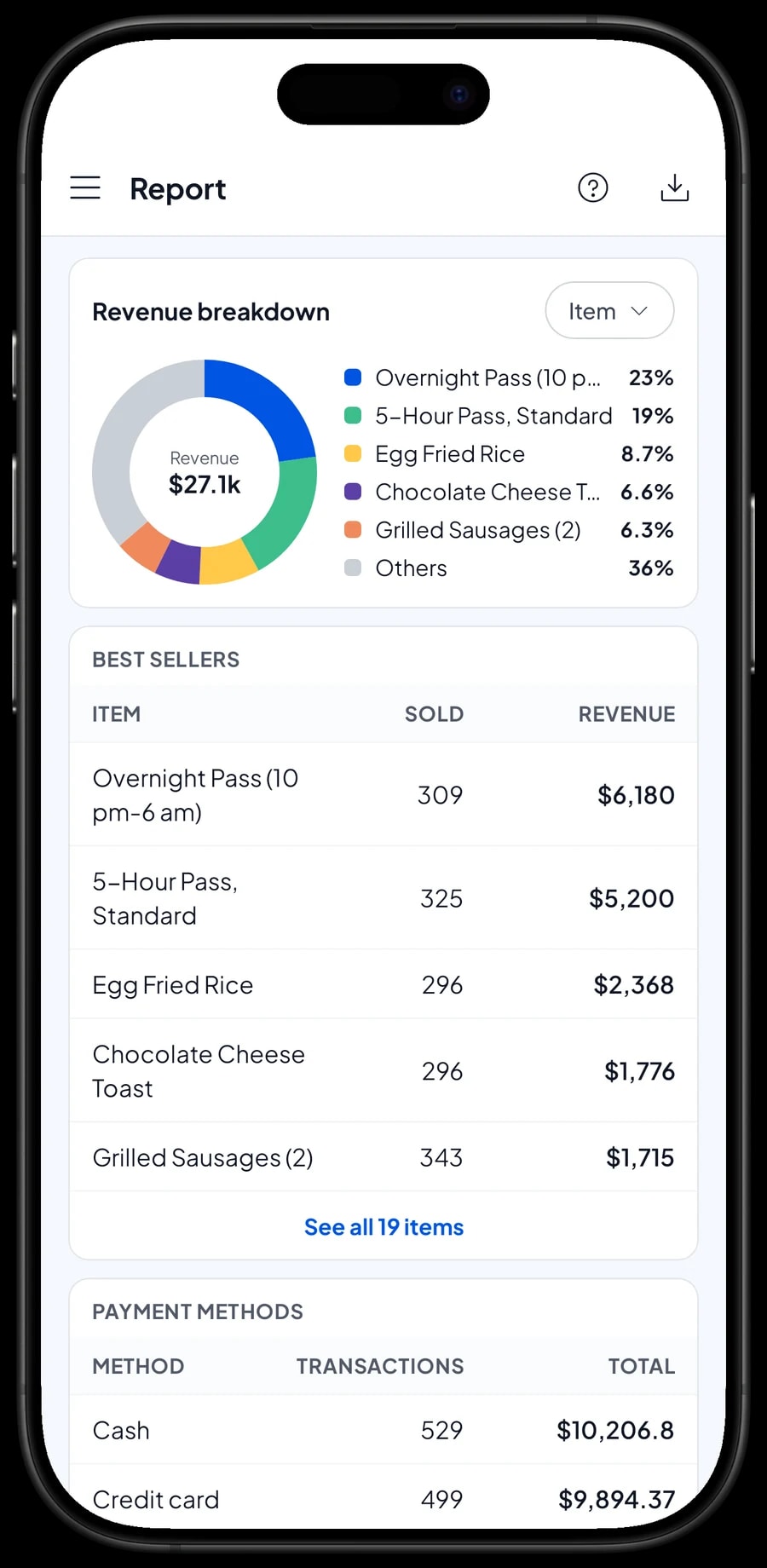
Reports are available by day, week, month and year. You see total revenue, gross and net sales, discounts, tax, payment methods and revenue by item. That shows how much of your income comes from play time versus the kitchen and the fridge, and which days are busiest.
For real profit, record expenses in Finance: food and drink stock, attendant wages, electricity, the internet line, rent and PC upkeep. Each expense has a category and the wallet it was paid from, such as shop cash, a bank account or an e-wallet. The Finance report then shows revenue minus cost of goods and operating costs.
Reports can be exported to Excel or PDF.
Getting started at your game centre
You don't have to replace your session software to start. Install Salesmaster on the counter device, for example the attendant's Windows PC or a tablet at the front desk, and create an account. Enter play time and passes first, then your best-selling food, drinks and snacks. Connect a thermal printer if you use one.
On day one, run the counter as usual: ring up every payment for play time and snacks, and use Save order for players who pay when they leave. In the evening, compare the daily report with the cash in the drawer and your session records. Once that runs smoothly, add ingredients and recipes, staff accounts, and expenses in Finance.
If the internet line goes down, the counter keeps working. Sales are saved on the device and sync when the connection returns; offline mode works for up to 7 days. Step-by-step guides for every feature are in the Salesmaster Help Centre, and our team is on WhatsApp if you need help.
An example game centre catalog
Use this table as a starting point and replace the names and prices with your own passes and menu.
| Category | Item | Variants | Add-ons | Item type |
|---|---|---|---|---|
| Play time | PC time, per hour | Standard, VIP, Private booth | - | Service |
| Play time | 5-hour pass | - | - | Service |
| Play time | Overnight pass (10 pm–6 am) | - | - | Service |
| Play time | B&W printing | - | - | Service |
| Food | Instant noodles with egg | Soup, Fried | Extra egg, Sausage, Cheese | Made-to-order |
| Food | Egg fried rice | - | Extra egg, Sausage, Cheese | Made-to-order |
| Food | French fries | - | - | Made-to-order |
| Drinks & snacks | Coffee with milk | Hot, Iced | - | Made-to-order |
| Drinks & snacks | Energy drink | - | - | Product |
| Drinks & snacks | Potato chips | - | - | Product |
Play time and passes are services with no stock. Kitchen dishes are Made-to-order items so their ingredients come off stock, while packaged drinks and snacks are products with their own stock.
Which plan fits your game center
Count payments per day, snacks included. A game center with about 50 transactions a day records roughly 1,500 transactions a month.
| Plan | Price | Transactions / month | Staff accounts | Good for |
|---|---|---|---|---|
| Free | Free | 30 | Owner only | To try the checkout flow before using it for real. |
| Solo Pro | $4.90/month | 3,000 | Owner only | Small internet cafés where the owner runs the counter. |
| Bronze Pro | $6.90/month | 5,000 | 1 staff | Venues with one attendant on their own counter device. |
| Silver Pro | $9.90/month | 8,000 | 2 staff | Game centers with long hours and two attendants taking turns. |
Every plan includes checkout, catalog, receipts, reports and offline mode. You can change plans at any time. See pricing →
Frequently asked questions
- Can Salesmaster time sessions and lock PCs automatically?
- No. Salesmaster is a POS, not internet café management software. It has no session timer and does not control PCs. Play time is sold as items with variants or passes, and staff ring up the hours that were paid. Keep using your session software for timing.
- How do I bill a player who pays at the end after several orders?
- Use Save order. Keep the cart under a name like "PC 12, overnight", add each new order to it, and take the payment when the player leaves. Saved orders stay on the device that created them and are not counted as sales until paid.
- Can standard PCs, VIP machines and booths have different rates?
- Yes. Create one hourly item with Standard, VIP and Private booth variants, each with its own price. Fixed-price passes like a five-hour or overnight pass are separate items.
- Can Salesmaster track the hours left on a prepaid bundle?
- No. Salesmaster records the sale of the bundle but does not keep an hours balance per player. Track remaining hours in your session software or on the member card. Loyalty points from spending are still added automatically in Salesmaster.
- Does it keep stock for drinks, snacks and kitchen ingredients?
- Yes. Packaged drinks and snacks are products with their own stock. Kitchen dishes are Made-to-order items with recipes, so every portion sold takes ingredients such as noodles, eggs and ice off stock.
- Can day and night attendants use separate devices?
- Yes, through staff accounts. An account signs in on one device at a time, so attendants use staff accounts on registered counter devices. Bronze Pro includes 1 staff account and Silver Pro includes 2.
- Does the counter keep working when the internet is down?
- Yes. Sales are saved on the device and sync when the connection is back. Offline mode works for up to 7 days before the app needs to connect to sync.
Need help setting up your catalog? Chat with our team on WhatsApp →