
Salesmaster is a point-of-sale (POS) app for baby and kids stores on Android, iPhone & iPad, Windows and Mac. Every product can have age-size, colour or type variants, each with its own price, cost and stock, and stock goes down automatically with each sale. You can also scan barcodes, reward regular parents with loyalty points, and see net profit in the Finance report.
Problems every baby store knows
If any of these sound familiar, this page is for you.
- 01
One design, many age sizes
The same romper comes in 0–3, 3–6 and 6–12 months. Without stock per size, you only find out 3–6 months is sold out when a parent asks for it.
- 02
Lots of small items, a few expensive ones
Socks and wipes sell by the dozen every day, while strollers sell a few a month. Both need the same careful records, because one missing stroller is worth a lot of socks.
- 03
Gifts that come back in the wrong size
Baby shower gifts are often too small and get exchanged. If exchanges aren't recorded, stock per size stops matching what is actually on the shelf.
- 04
Loyal parents, no reward
The same families come back every month as their kids grow. Without points or a member card, there is no special reason for them to stay with you instead of the store down the street.
Building your catalog: categories and products
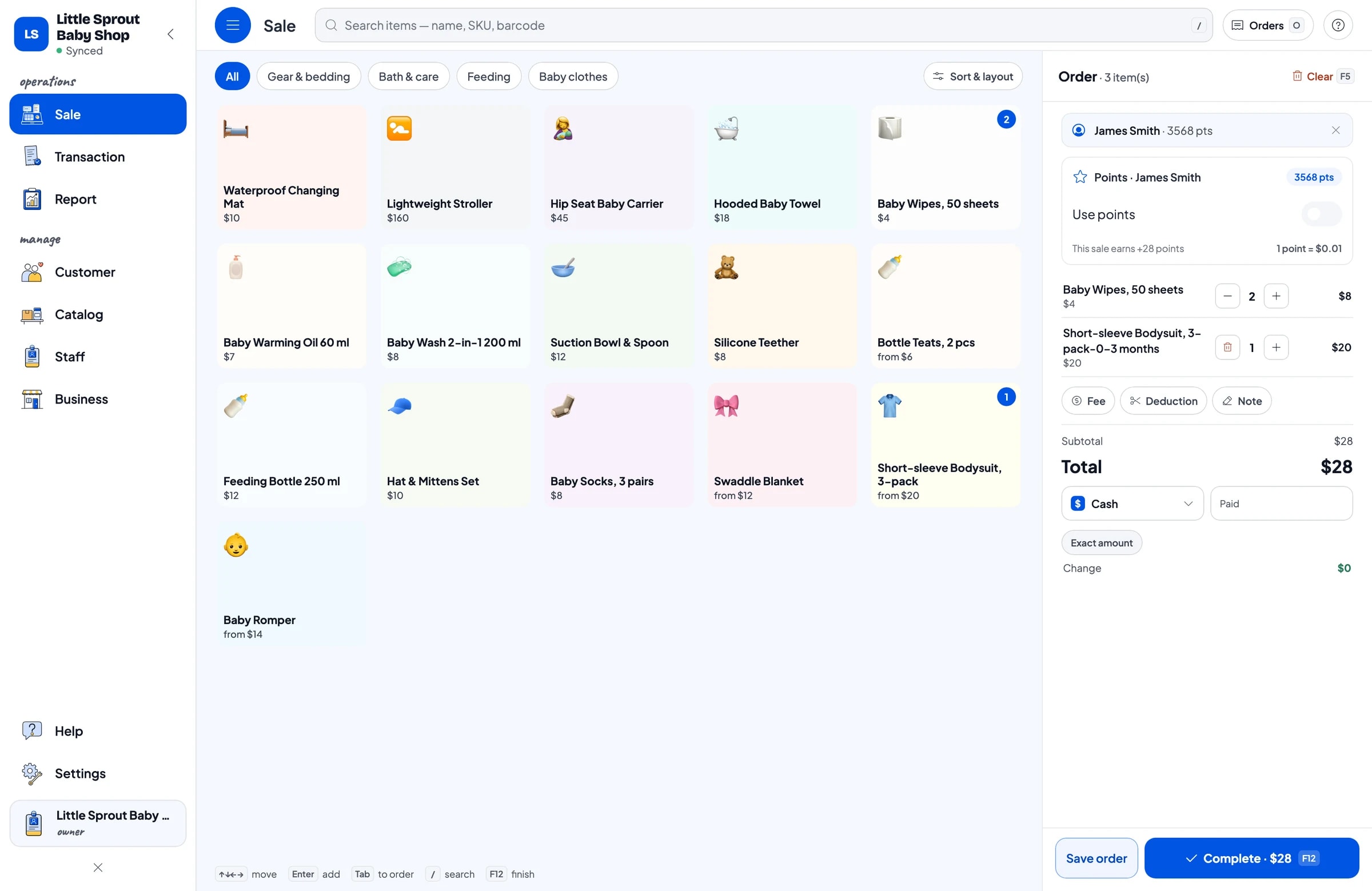
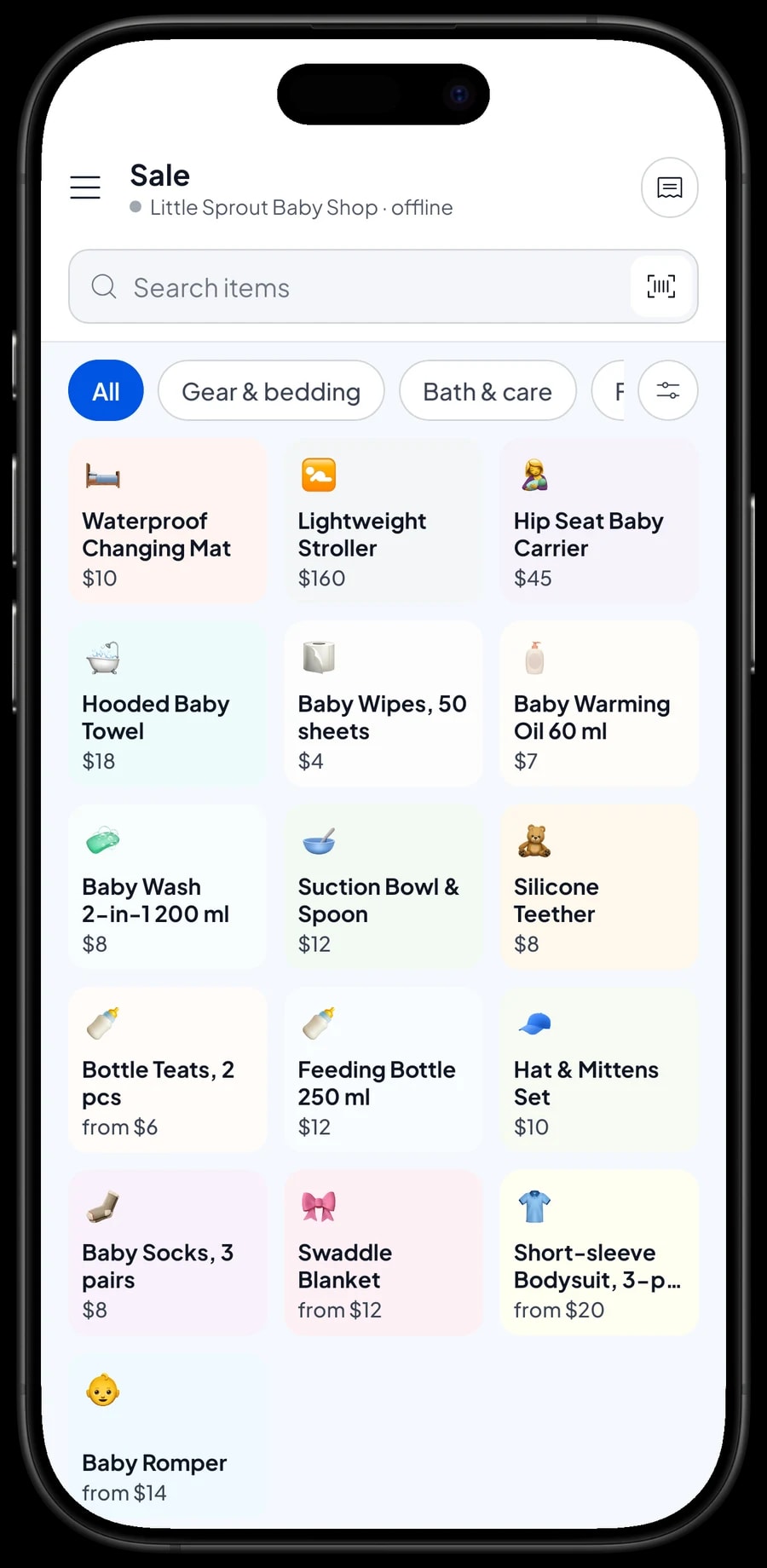
Start with the way your shelves are laid out. In Salesmaster, every product is one item in the Catalog, grouped into categories such as Baby clothes, Feeding, Bath & care and Gear & bedding. Categories show up as tabs on the Sale screen, so the cashier finds any product in one tap, even on a busy Saturday.
Name products fully and consistently, like "Baby Wipes, 50 sheets" or "Baby Wash 2-in-1 200 ml". Clear names help the cashier and make your reports easy to read. Enter both the selling price and the cost of each product, so Salesmaster can work out gross profit on every sale.
If you carry hundreds of products, set up the catalog on a laptop (Windows or Mac) and then sell from a phone or tablet at the counter. The catalog is stored in your account, so it follows you to every registered cashier device.
- Step 1: Open Catalog → Categories and create categories that match your shelves.
- Step 2: Open Catalog → List Items and add each product with its name, selling price and cost.
- Step 3: Enter the barcode from the package for branded goods such as wipes, wash and bottles.
- Step 4: Start with your best sellers, then fill in the rest over time.
Variants for age sizes, colours and types
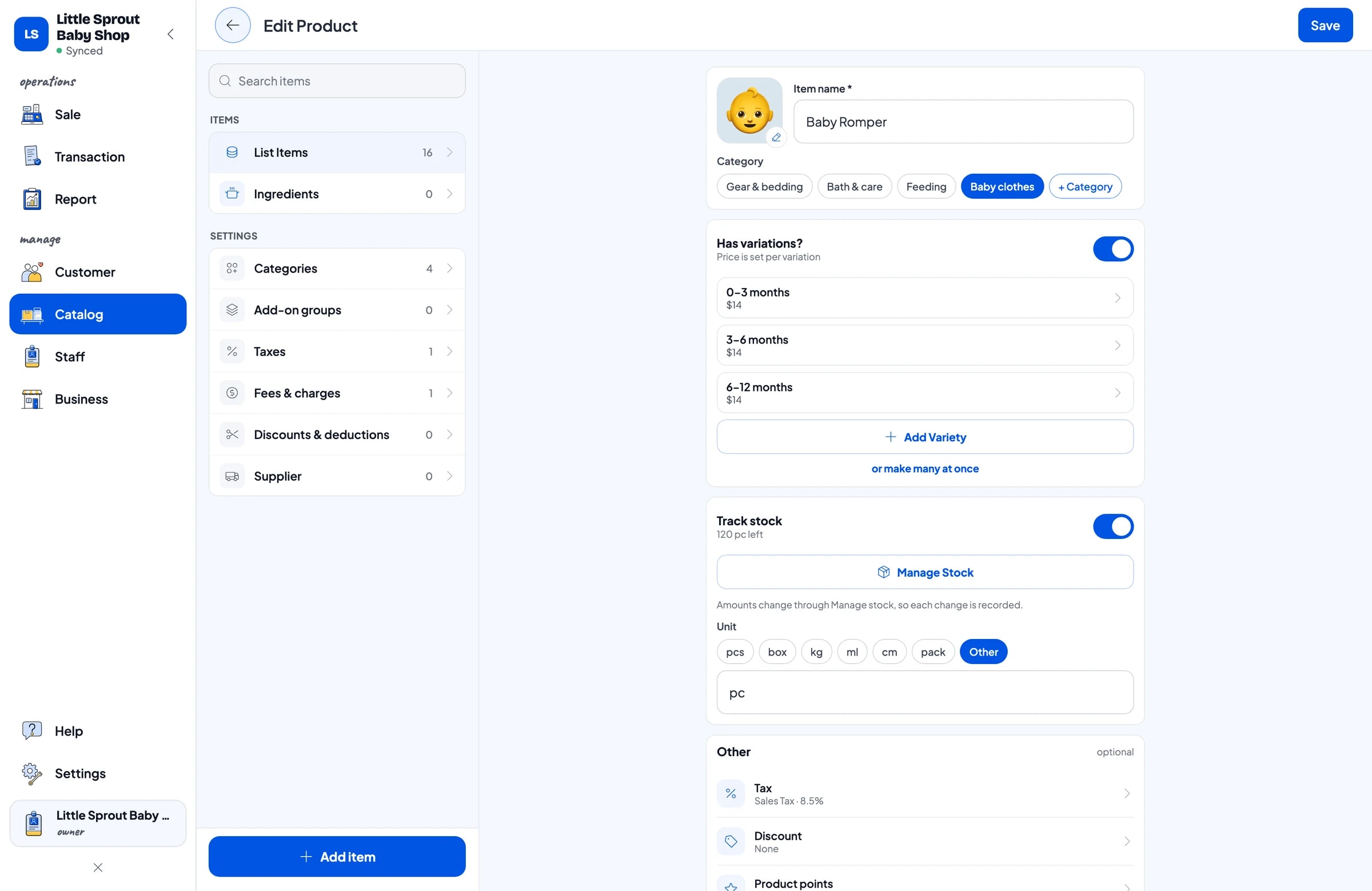
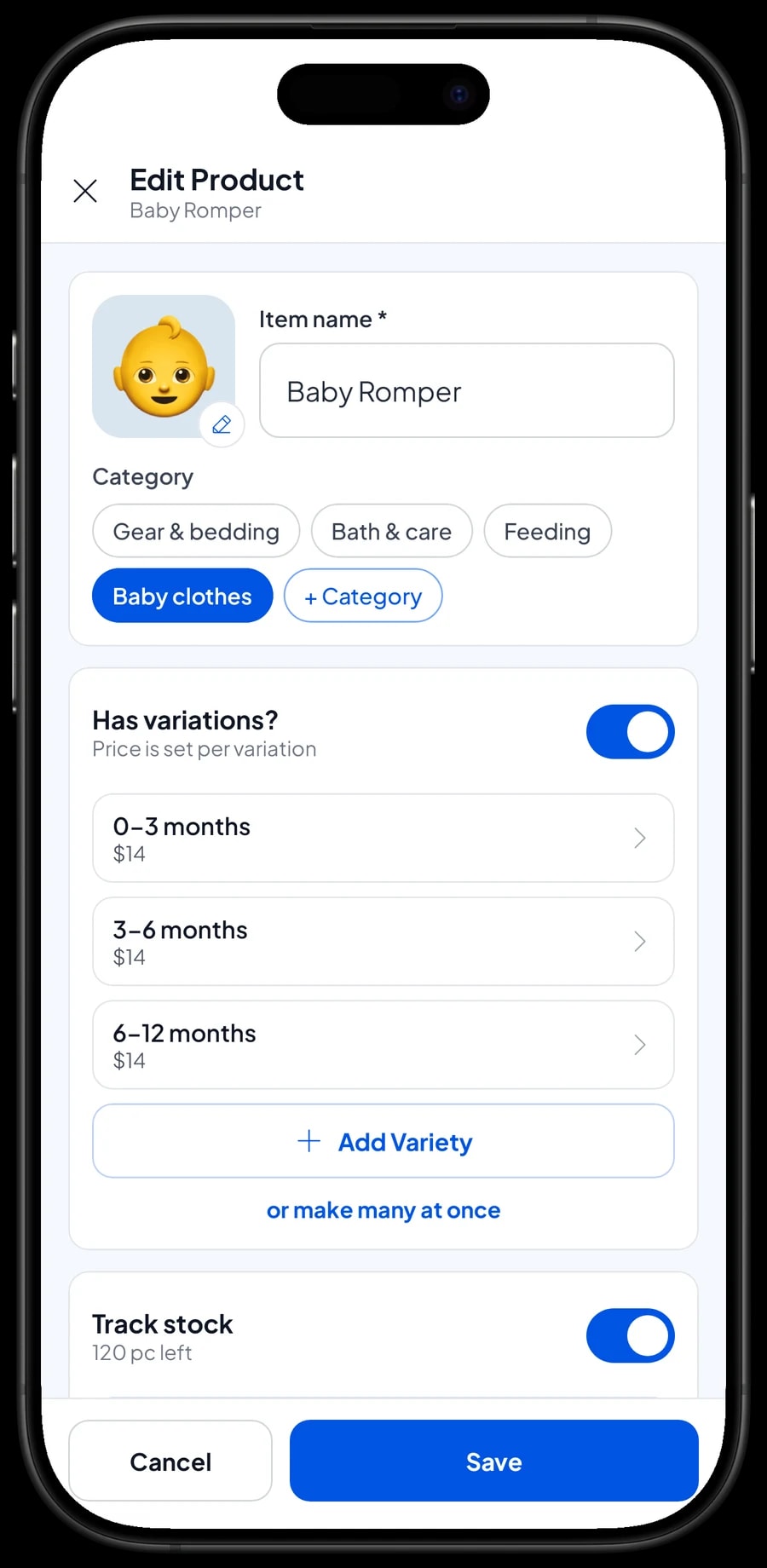
Baby clothes are almost always sold by age size. Instead of three separate items, create one "Baby Romper" item with 0–3 months, 3–6 months and 6–12 months variants. The same works for swaddles by colour (blue, pink, white) and bottle teats by flow (slow, medium, fast). On the Sale screen, the cashier taps the product, picks the variant, and the price follows.
Each variant has its own selling price, its own cost and its own stock. If the 6–12 months size costs more because it uses more fabric, just set that price on that variant. And because stock is kept per variant, you can see that 0–3 months is still well stocked while 3–6 months is down to two.
If each variant has its own barcode on the package, enter it on the variant. When it is scanned, Salesmaster picks the right variant straight away, so the cashier never rings up the wrong size.
- Step 1: Open Catalog → List Items and choose a product that comes in several sizes or colours.
- Step 2: Add variants, for example 0–3 months, 3–6 months and 6–12 months.
- Step 3: Enter the selling price, cost and barcode for each variant.
- Step 4: Save, then try it on the Sale screen: pick a variant and check the price.
Stock per variant, from supplier to shelf
Turn on Stock Tracking for the products you want to count. Every sale takes the variant's stock down automatically. When a delivery arrives, record the quantity received for each variant, and the stock history shows when stock came in, was sold, or was adjusted.
Save your suppliers, such as your clothing maker and your feeding-gear distributor, in the Supplier list. Before you reorder, open Stock and see which variants are running low. It is faster than counting shelves one by one, and you won't reorder a size that is still piling up.
Damaged goods, soiled display samples and missing items are recorded as stock adjustments. Recount regularly, for example once a month, and record the difference, so the numbers in the app match what is on the shelf.
- Step 1: On each product, turn on Stock Tracking and enter the opening stock for every variant.
- Step 2: Add your suppliers in Inventory → Supplier.
- Step 3: When a delivery arrives, open Inventory → Stock and record the quantity for each variant.
- Step 4: Record damaged or missing goods as stock adjustments.
Fast checkout, size exchanges and receipts
At the counter, products can be picked by tapping, by searching the name, or by scanning a barcode with the camera or a barcode scanner. Once the cart is complete, choose one of the payment methods you set up yourself, such as cash, card, bank transfer or a mobile wallet, and finish the sale. Discounts, for example on a newborn bundle, are set up once and applied at checkout.
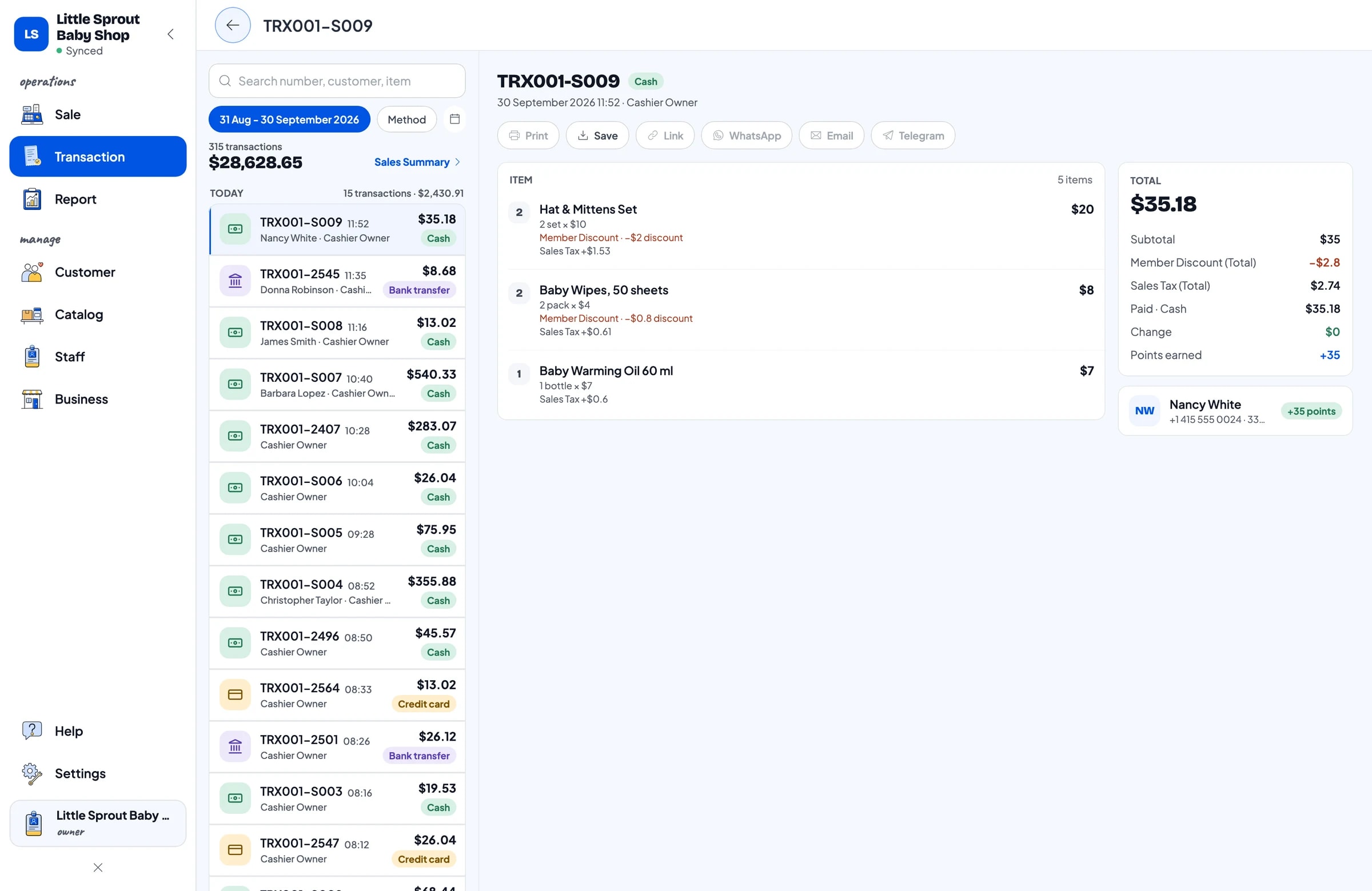
Receipts can be printed on a Bluetooth or USB thermal printer, or sent by WhatsApp or email. Customers can also get a web receipt link. A receipt is handy when a product was bought as a gift and the parent wants to swap the size later.
Salesmaster has no dedicated exchange flow. A tidy way to handle one: add the returned piece back to its old variant as a stock adjustment, then sell the new variant as usual. If the price is the same, give a discount equal to the returned item and write the reason in the sale note.
Parents who come back: loyalty points and member cards
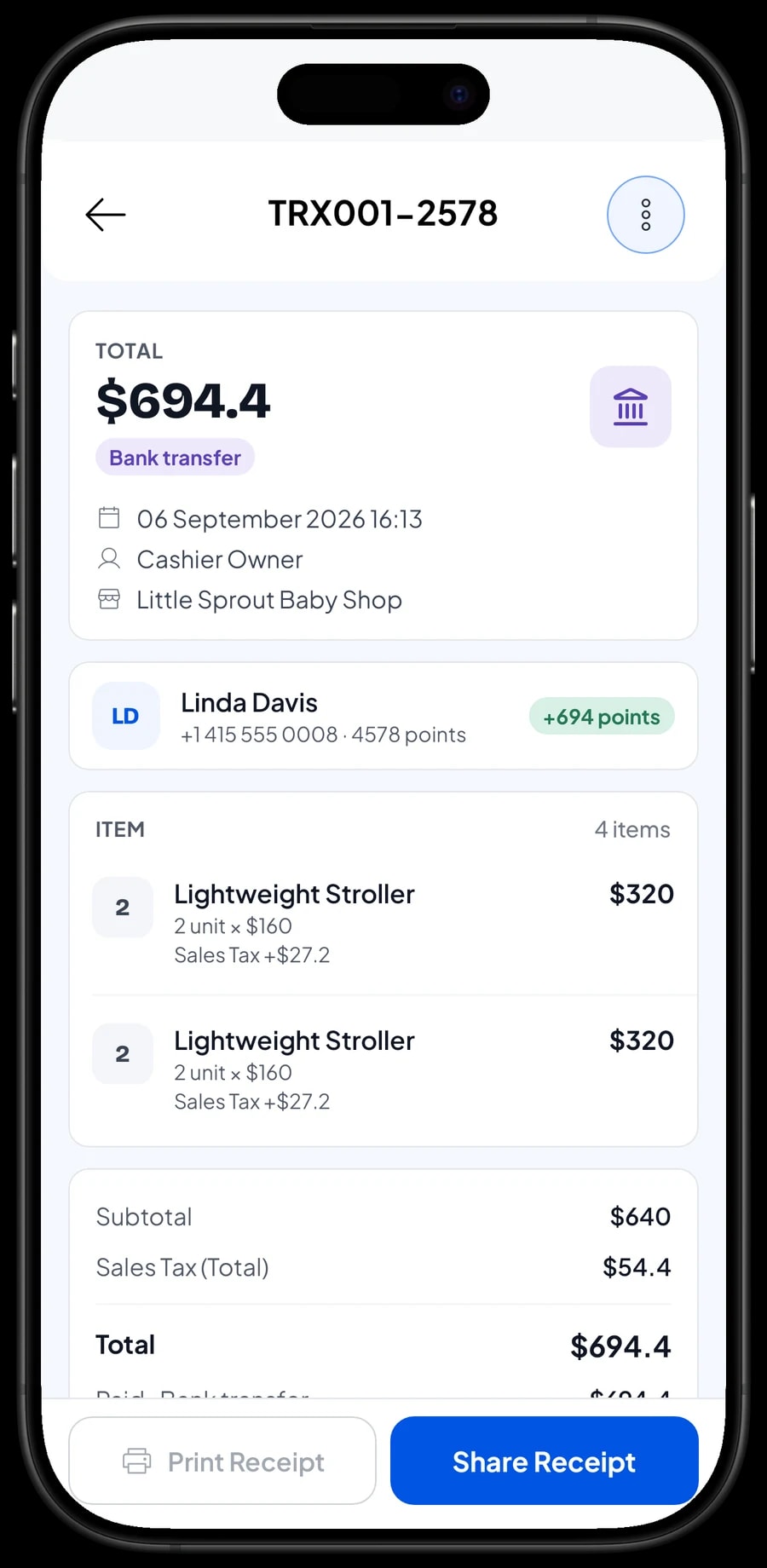
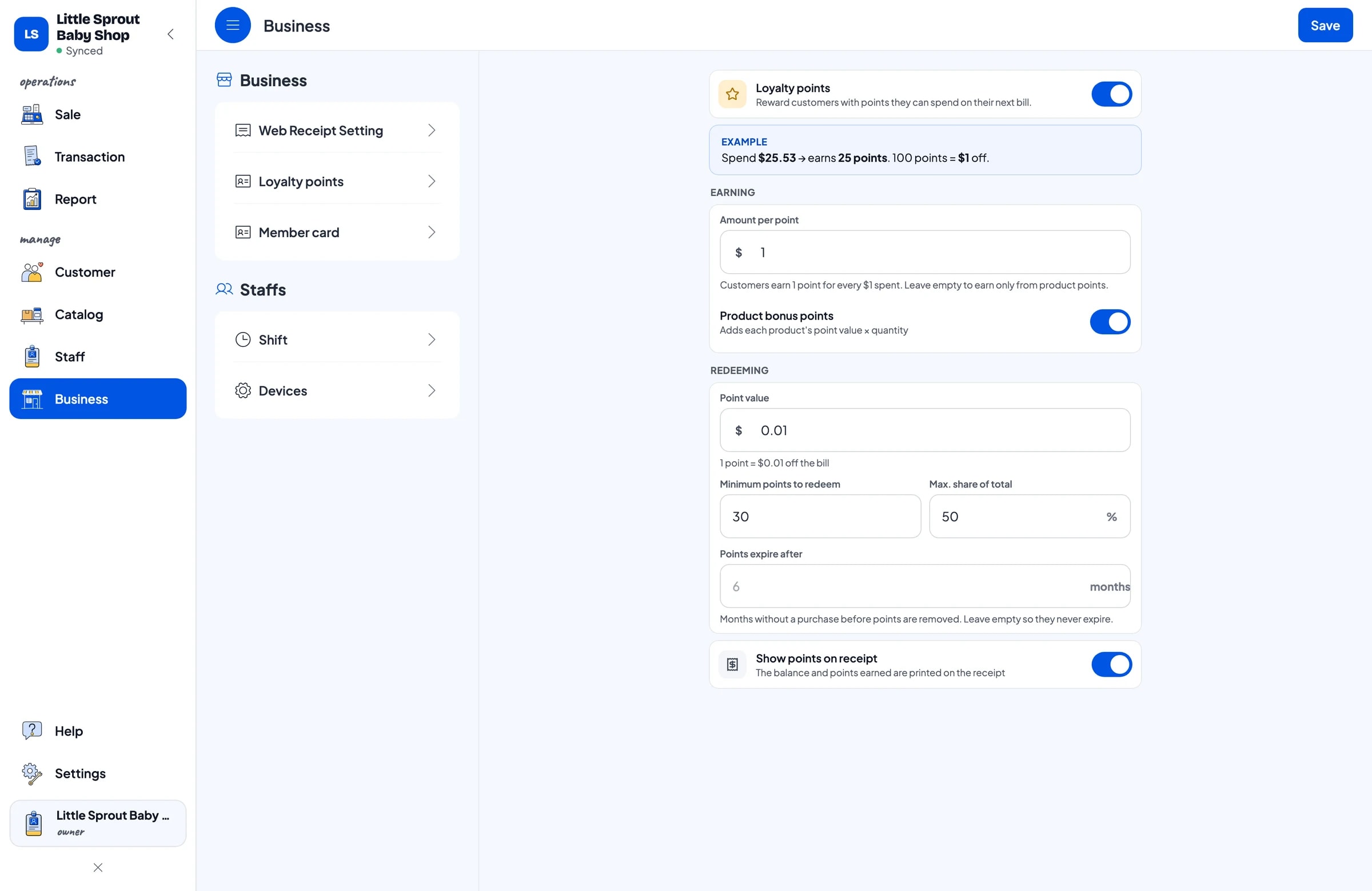
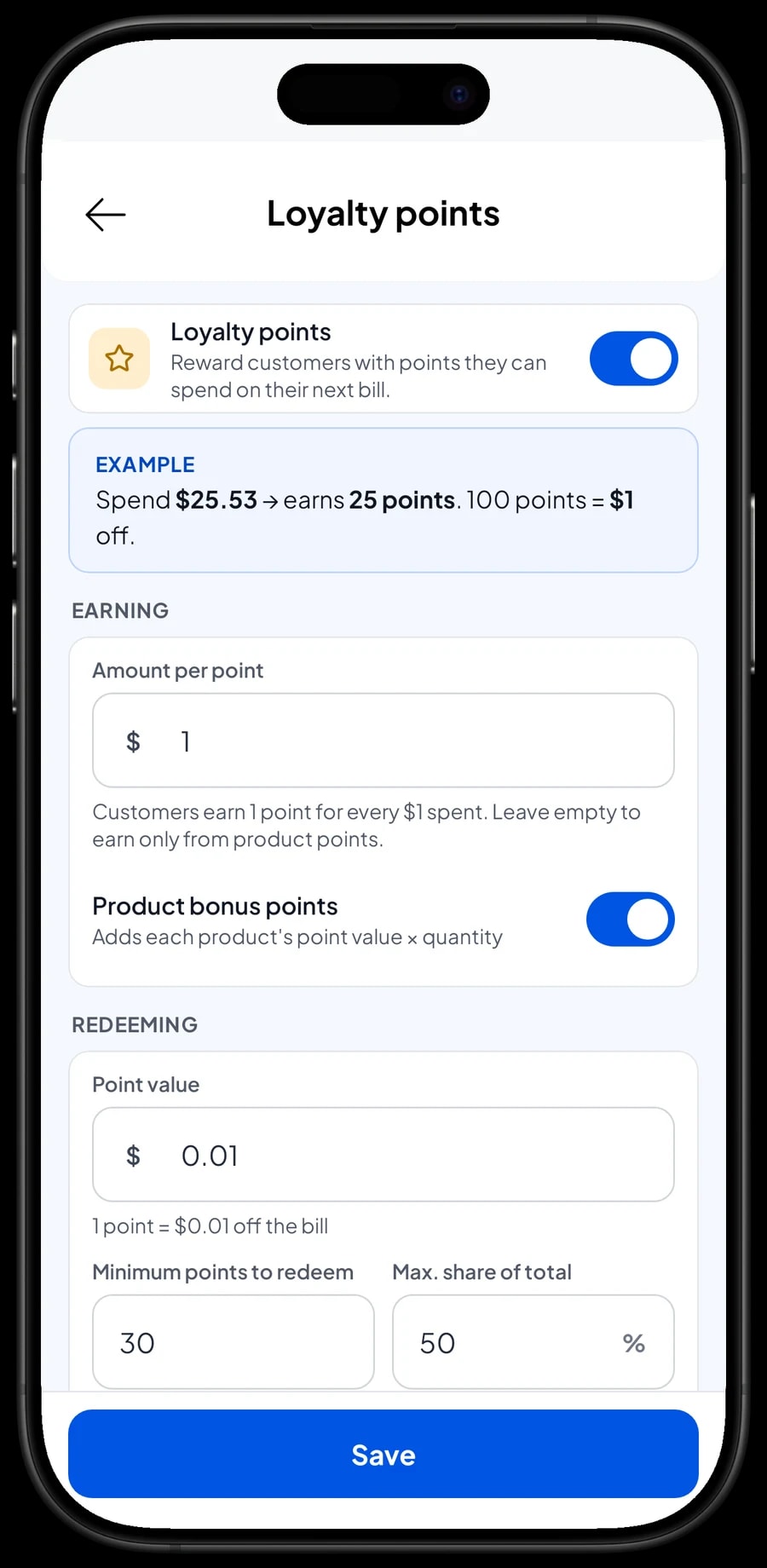
Baby stores have one big advantage: the same customers come back every time their child moves up a size. Save the customer on the sale, a name and phone number is enough, then turn on loyalty points under Business. You set the rules: how much spending earns 1 point, what a point is worth when redeemed, the minimum points to redeem, and the maximum share of the bill that points can cover.
Points are added automatically with every sale, and the cashier doesn't calculate anything when a customer redeems them. Regulars can also get a member card in their name. In Customers, every family's purchase history is kept, so you can see that a parent who bought 0–3 months clothes will probably be looking for the next size soon.
Staff and cashier devices
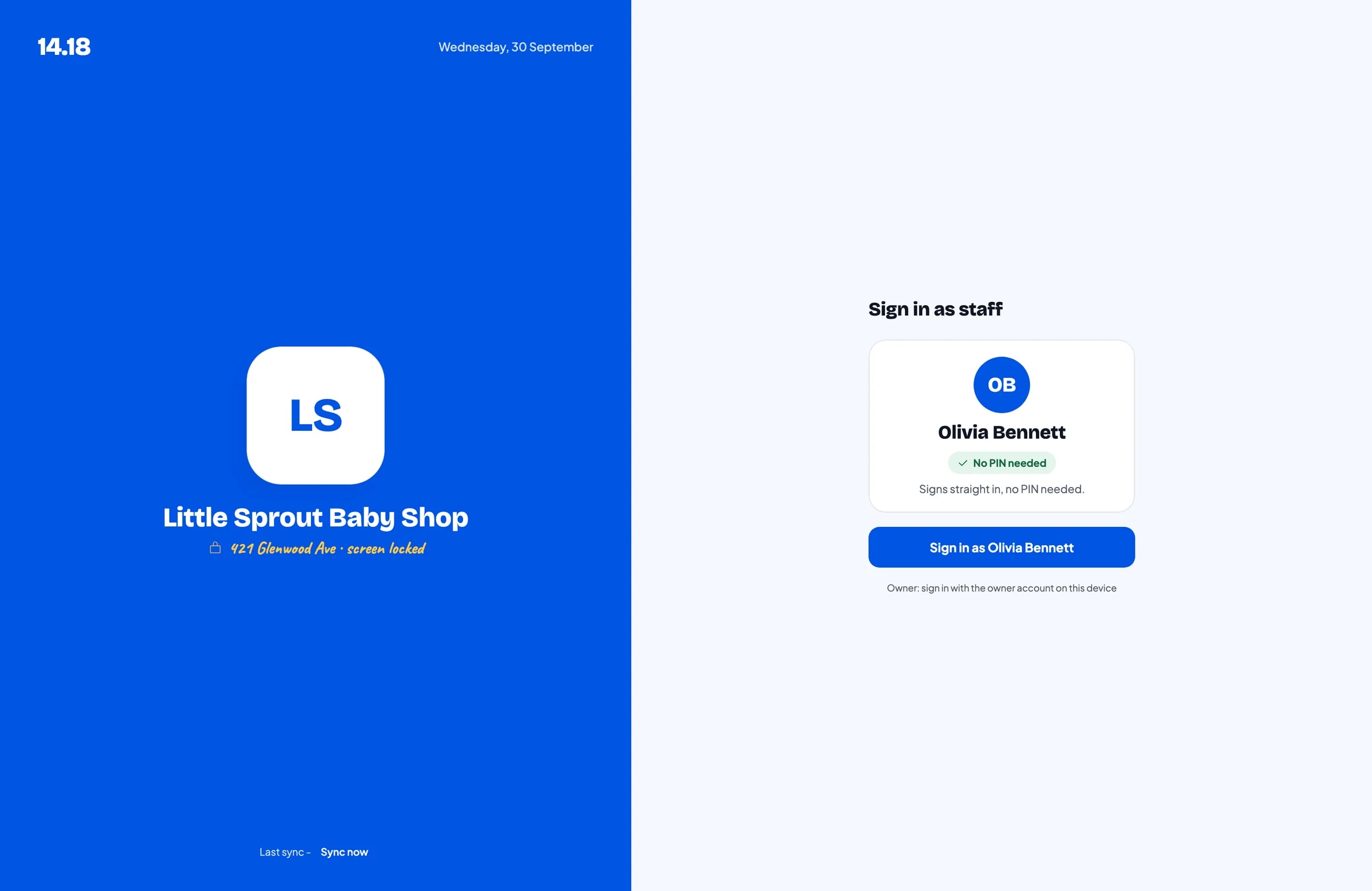
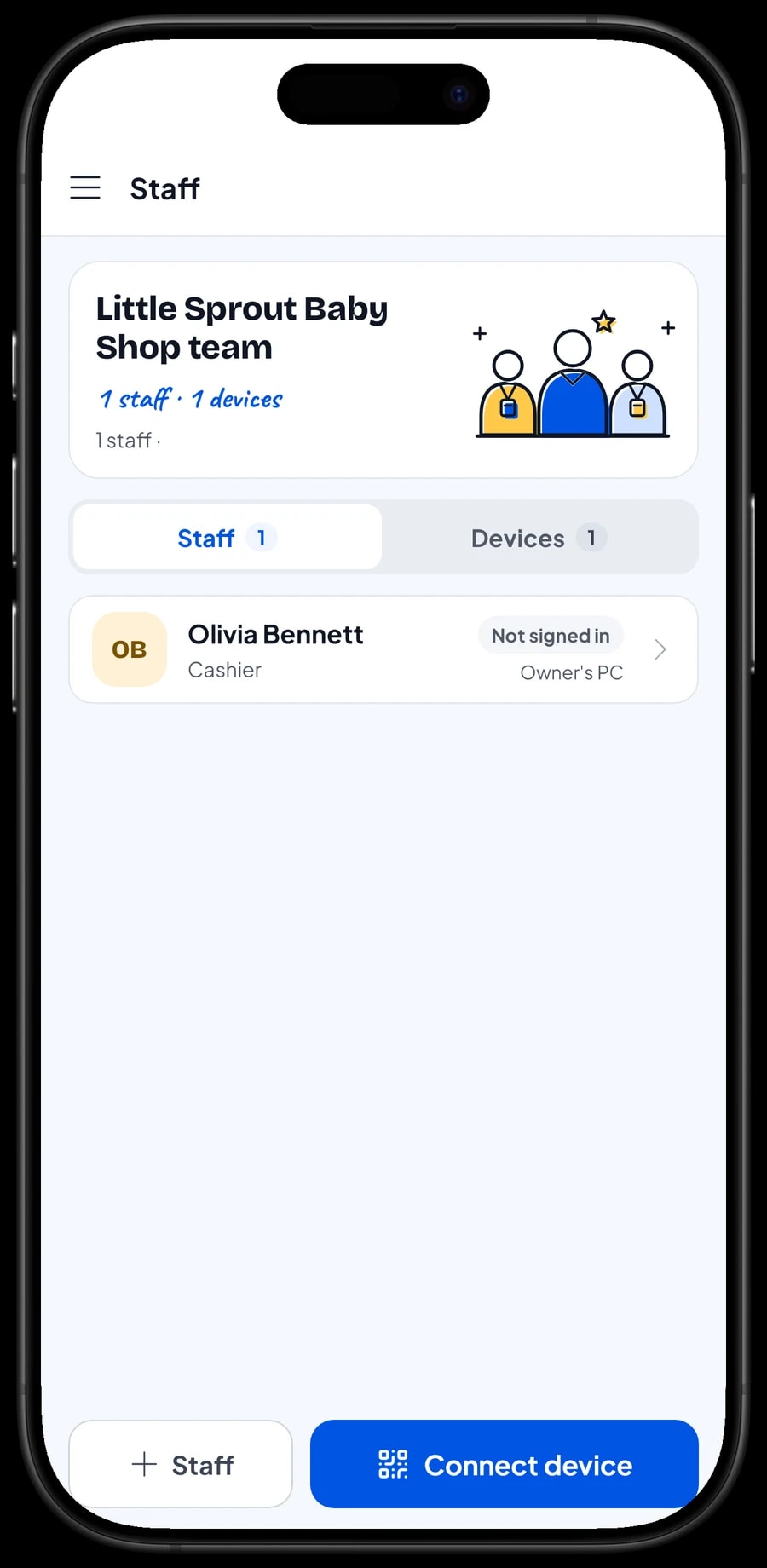
An account signs in on one device at a time. If you have employees at the counter, add them as staff and register a cashier device for them. Staff sign in with a PIN, and you decide what they can see and change. Staff accounts come with Bronze Pro (1 staff) and Silver Pro (2 staff).
Sales reports: which sizes and products sell
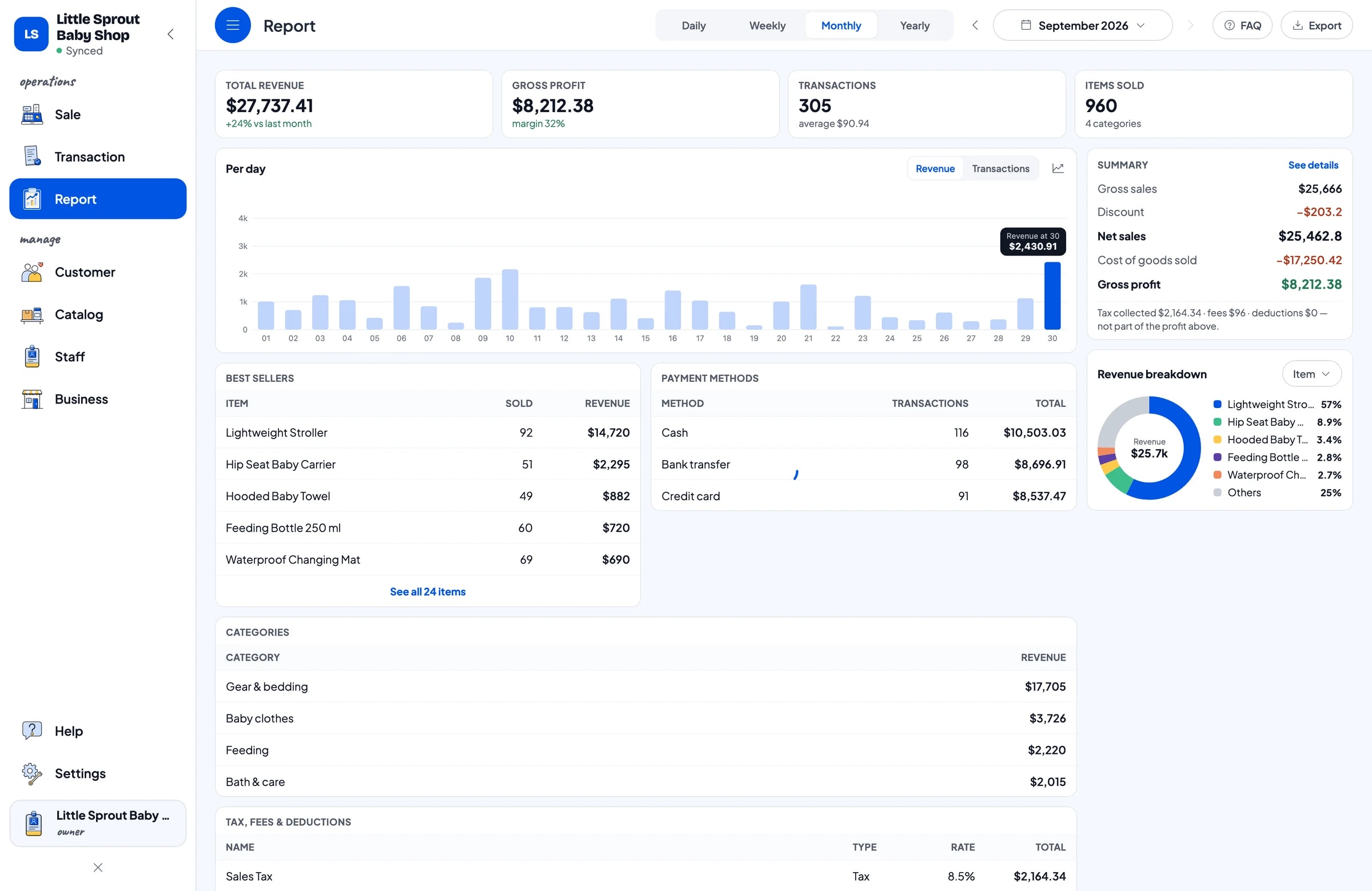
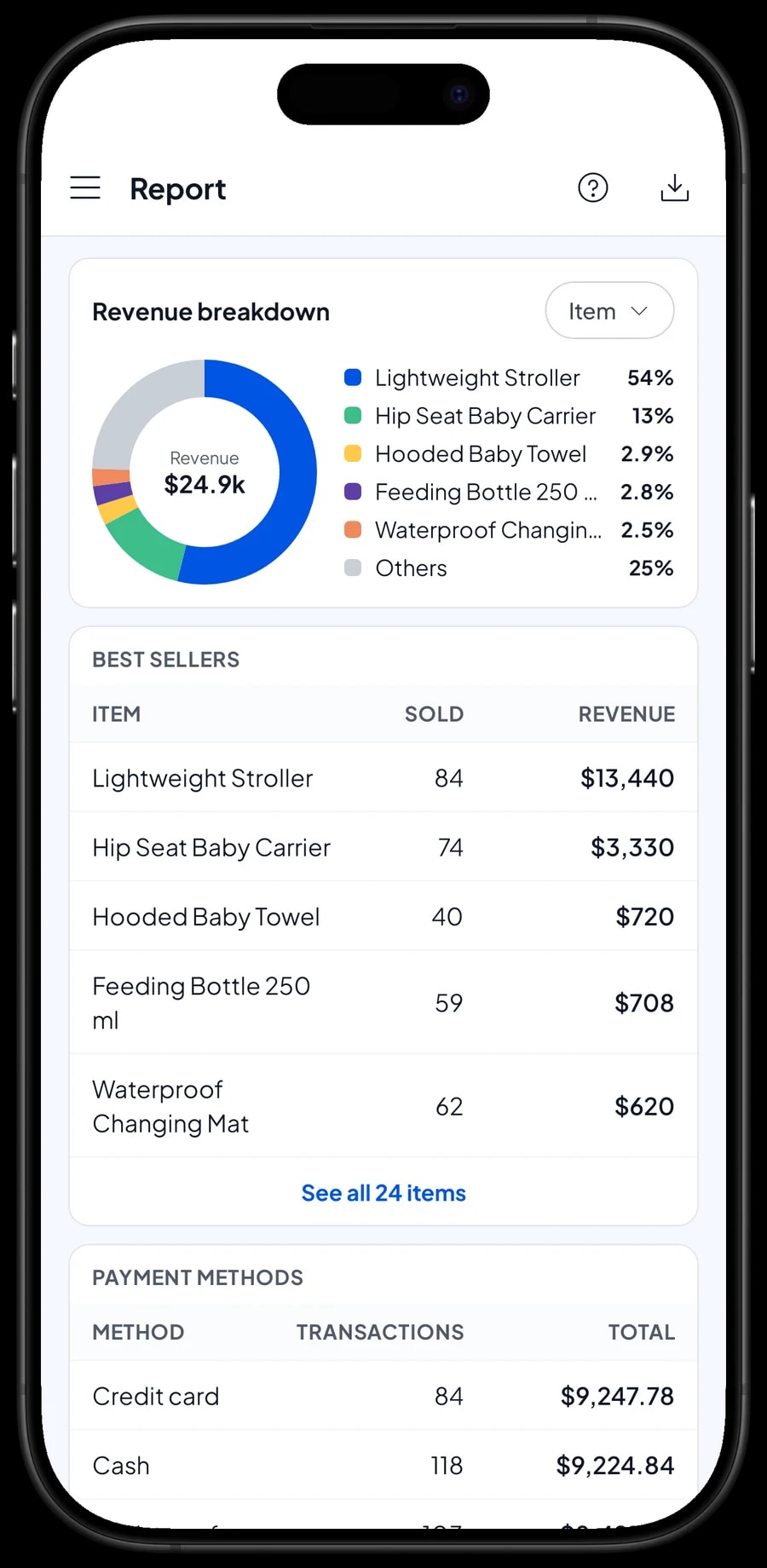
Reports are available by day, week, month and year. You see total revenue, gross profit, transactions per day, payment methods and revenue by product. That shows which products carry the store, like wipes and baby clothes, and which sell rarely but bring in a lot, like strollers.
Use the reports to order more precisely. If 3–6 months clothes always sell out first, order more of that size. Reports can be exported to Excel or PDF for a business partner or your accountant.
Expenses and real net profit
High sales don't always mean high profit. Record your expenses in Finance: clothing restocks, feeding and care stock, staff wages, rent, electricity and shopping bags. Every expense has a category and the wallet it was paid from, such as shop cash, a bank account or an e-wallet.
The Finance report then shows revenue minus the cost of goods sold and operating costs, which is your store's net profit. Sales tax you collect from customers is kept separate from profit, because that money isn't yours.
- Step 1: Open Finance and set up wallets such as shop cash, bank account and e-wallet.
- Step 2: Create expense categories such as stock purchases, staff wages and rent.
- Step 3: Record every expense with its category, wallet and a short note.
- Step 4: At month end, check revenue, cost of goods, operating costs and profit in the Finance report.
Keep selling offline, and get started in a day
Sales are saved on the device first and sent to the cloud when the internet is back. Offline mode works for up to 7 days; after that the app needs to connect briefly to sync. If a phone breaks or is replaced, sign in with the same account on the new device and your store data comes with you.
To start, install Salesmaster on the counter phone or tablet and create an account. Enter your 20 to 30 best sellers first, with their variants and barcodes, and add opening stock. That evening, open the daily report and compare it with the cash in the drawer. Once checkout runs smoothly, finish the catalog, turn on loyalty points, and start recording expenses.
Example catalog for a baby store
Use this table as a starting point. Replace the names, variants and prices with your own products.
| Category | Product | Variants | Barcode | Track stock |
|---|---|---|---|---|
| Baby clothes | Baby romper | 0–3, 3–6, 6–12 months | Per variant | Yes |
| Baby clothes | Swaddle blanket | Blue, Pink, White | Per variant | Yes |
| Baby clothes | Baby socks, 3 pairs | - | From package | Yes |
| Feeding | Feeding bottle 250 ml | - | From package | Yes |
| Feeding | Bottle teats, 2 pcs | Slow, Medium, Fast flow | Per variant | Yes |
| Bath & care | Baby wipes, 50 sheets | - | From package | Yes |
| Bath & care | Hooded baby towel | - | Your own code | Yes |
| Gear & bedding | Lightweight stroller | - | From package | Yes |
| Gear & bedding | Hip seat carrier | - | From package | Yes |
Products without a barcode, like clothes from a local maker, can still be found by name or picked from their category. You can also enter your own code and stick a barcode label on the package.
Which plan fits your baby store
A baby store serving about 10 customers a day records roughly 300 transactions a month.
| Plan | Price | Transactions / month | Staff accounts | Good for |
|---|---|---|---|---|
| Free | Free | 30 | Owner only | To try the checkout flow and build your catalog before using it for real. |
| Solo Pro | $4.90/month | 3,000 | Owner only | Stores where the owner runs the counter. |
| Bronze Pro | $6.90/month | 5,000 | 1 staff | Stores with one cashier on their own device. |
| Silver Pro | $9.90/month | 8,000 | 2 staff | Busier stores with two staff on separate devices. |
Every plan includes checkout, catalog, receipts, reports and offline mode. You can change plans at any time. See pricing →
Frequently asked questions
- Can Salesmaster track baby clothes stock by age size?
- Yes. Create one item with size variants, for example 0–3, 3–6 and 6–12 months. Each variant has its own price, cost and stock, and its stock goes down automatically with every sale.
- Can I scan barcodes at checkout?
- Yes, with the camera on a phone or tablet or with a barcode scanner. Enter the barcode on each product or variant, and scanning adds it straight to the cart.
- How do I record a size exchange?
- Salesmaster has no dedicated exchange flow. Add the returned piece back to its old variant as a stock adjustment, then sell the new variant. Write the reason in the sale note so it is easy to trace later.
- Does Salesmaster track expiry dates on wipes or baby wash?
- Salesmaster doesn't track product expiry dates. A practical routine: check shelves regularly, put older stock in front, and record anything no longer fit to sell as a stock adjustment so your stock numbers stay right.
- Can regular customers collect points?
- Yes. Turn on loyalty points under Business and set your own rules. Points are added with every sale and can be redeemed as a discount. Regulars can also get a member card.
- Can the store keep selling if the internet goes down?
- Yes. Sales are saved on the device and sync when the connection is back. Offline mode works for up to 7 days before the app needs to connect again.
- Can two cashiers use their own devices?
- Yes, with staff accounts. An account signs in on one device at a time, so employees use staff accounts on registered cashier devices. Bronze Pro includes 1 staff account and Silver Pro includes 2.
Need help setting up your catalog? Chat with our team on WhatsApp →