Salesmaster is a point-of-sale (POS) app for neighbourhood shops and corner stores on Android, iPhone & iPad, Windows and Mac. One product can be sold in several sizes through variants, each with its own price; packaged goods are scanned by barcode; stock comes off with every sale; orders collected later are kept with Save order; and the Finance report shows profit after restocking, electricity and other costs. A Free plan lets you try it first.
Problems every neighbourhood shop knows
A corner store sells hundreds of small things on thin margins. If any of these sound familiar, this page is for you.
- 01
One product, many ways to sell it
Coffee goes by the sachet or the strip, eggs by the piece or the kilo, rice by the scoop or the bag. Single and bulk prices get mixed up, especially when someone else is minding the counter.
- 02
You find out it's gone when a customer asks
Gas, cooking oil or instant noodles run out right when people want them. The restock list is built from memory, while slow sellers quietly pile up on the shelf.
- 03
Put-aside orders kept in your head
A neighbor phones ahead for groceries to collect after work. It goes on a scrap of paper when someone remembers to write it down, and by evening nobody is sure what was put aside.
- 04
Till money and shopping money get mixed
Takings pay for the wholesaler run, plastic bags and the electricity token. At the end of the month it is hard to say whether the shop actually made money.
Setting up your product list
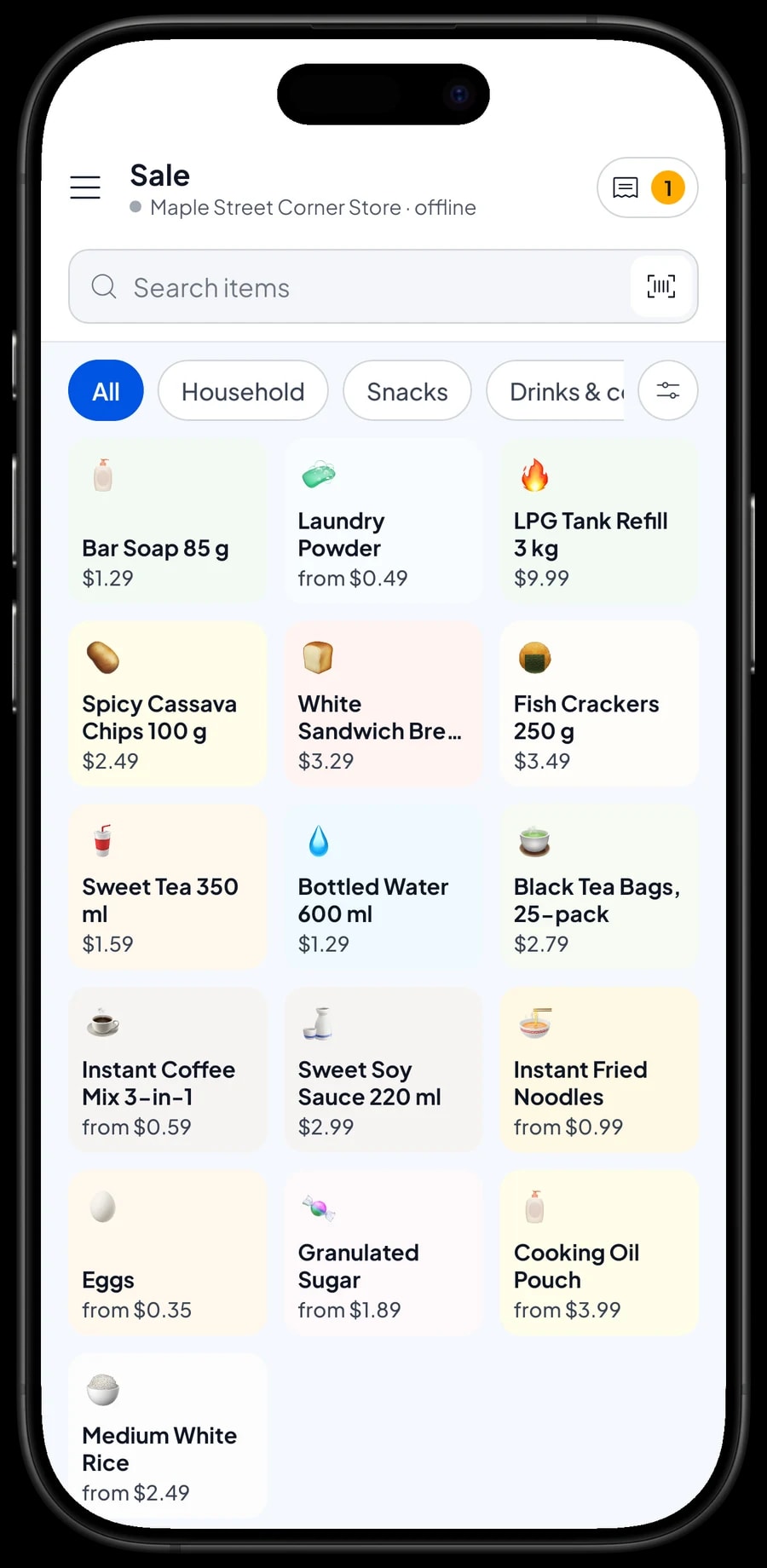
Start with the things people ask for every day: rice, cooking oil, sugar, eggs, instant noodles, coffee sachets, bottled water, gas refills, soap and laundry powder. In Salesmaster, every product is one item in the Catalog. Group them into a few simple categories, such as Pantry staples, Drinks & coffee, Snacks and Household, so the cashier can find anything in one or two taps on the Sale screen.
Each item has a name, a selling price, a cost price and a unit such as pack, bottle, sachet, tank or bag. The cost price matters in a corner store, because the margin on each product is often only a few cents. Salesmaster uses it to work out gross profit in your reports.
If you carry hundreds of products, enter the catalog on a laptop (Windows or Mac) in the evening or during a quiet hour, then sell from the phone or tablet at the counter. You don't have to enter everything at once. Start with your 30 to 50 best sellers and add the rest whenever something comes up that isn't in the catalog yet.
- Step 1: Open Catalog → Categories and create categories such as Pantry staples, Drinks & coffee, Snacks and Household.
- Step 2: Open Catalog → List Items and add each product with its name, unit, selling price and cost price.
- Step 3: Enter or scan the barcode on packaged goods so the cashier can simply scan them at checkout.
- Step 4: Turn on stock tracking for the products whose stock you want to watch.
Singles and bulk in one product: variants
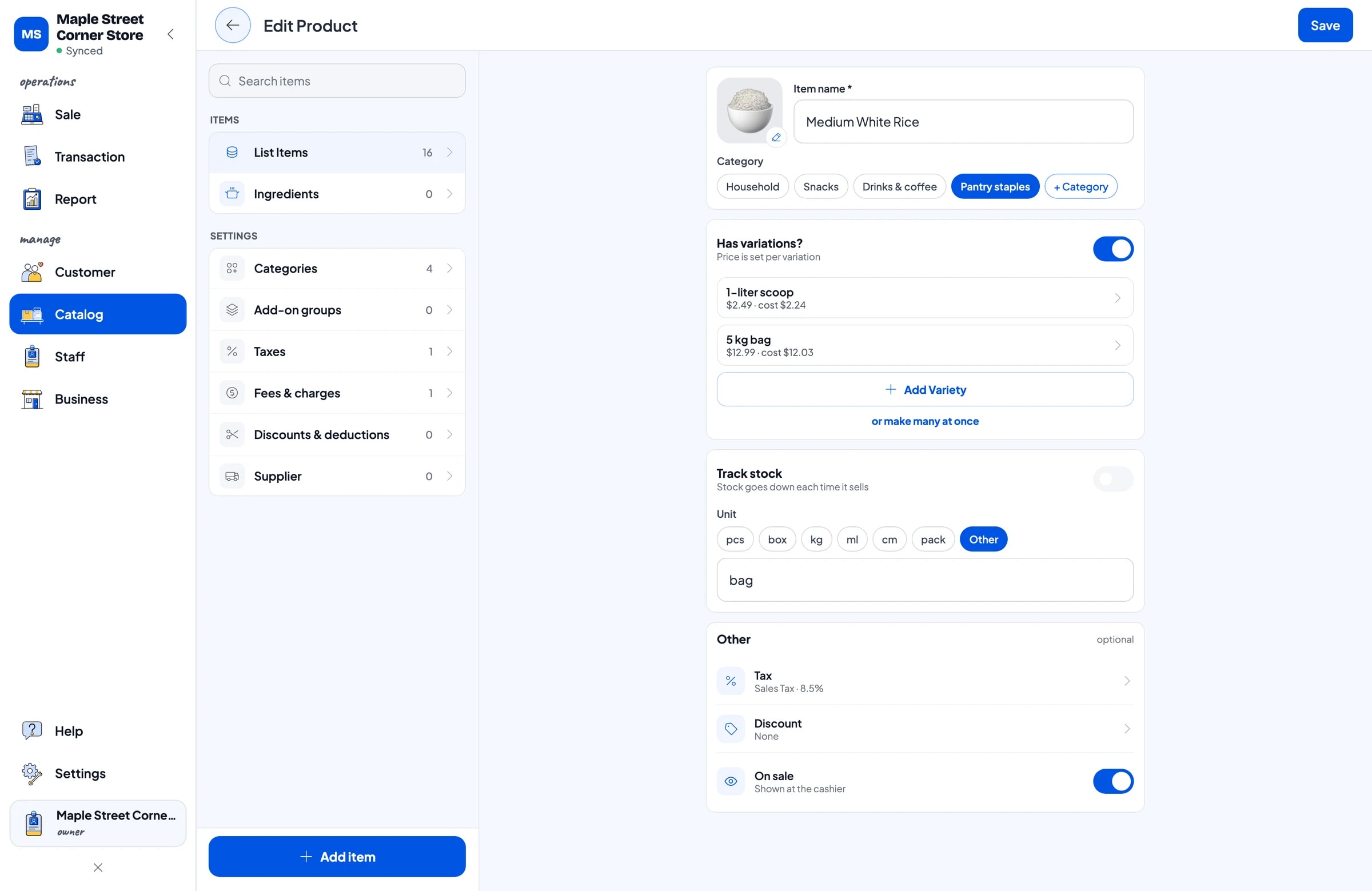
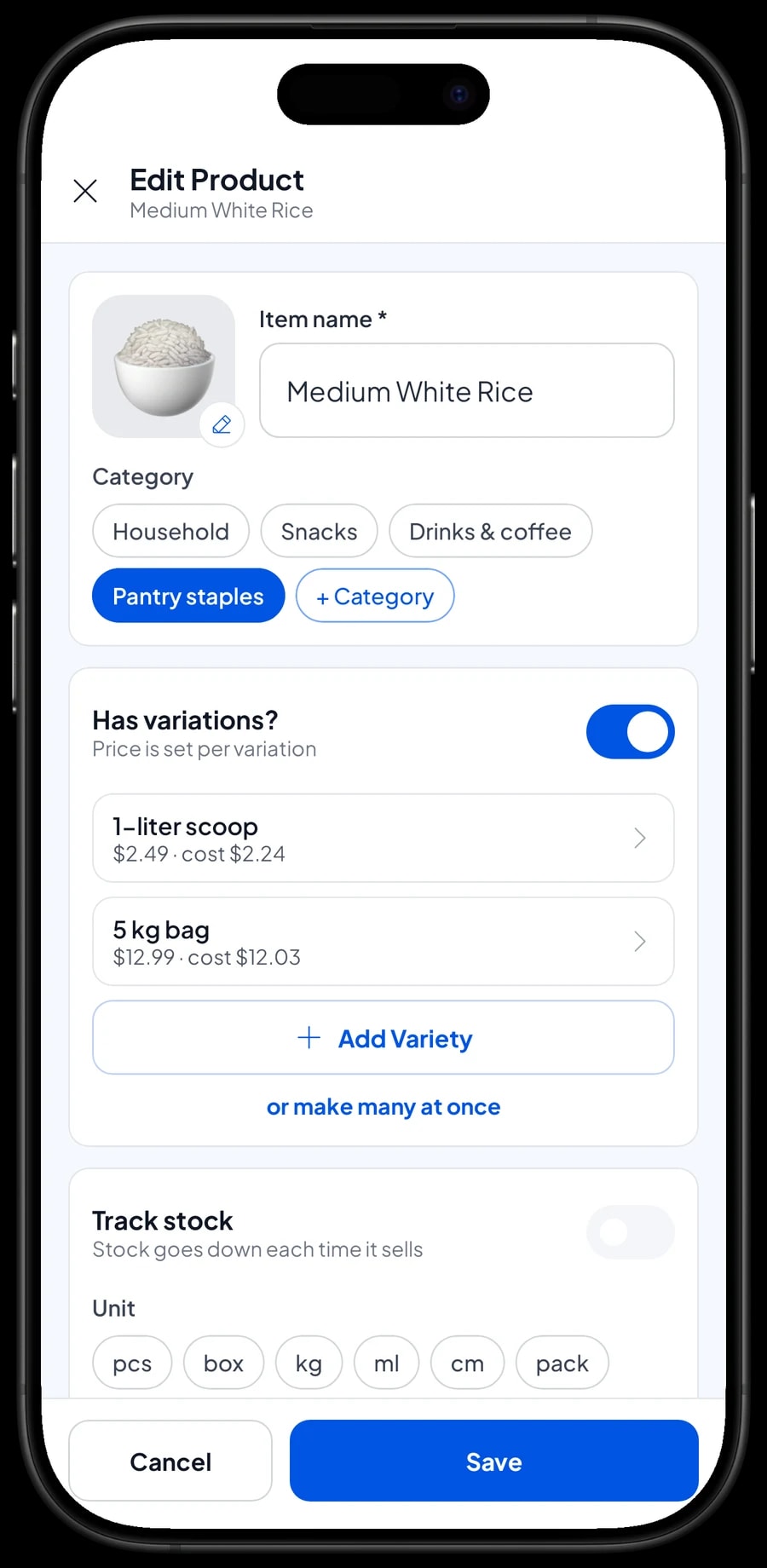
This is what sets a neighbourhood shop apart: the same product is sold several ways. You don't need "Rice by the scoop" and "Rice 5 kg bag" as two separate products. Create one item, Medium White Rice, with two variants, 1-litre scoop and 5 kg bag, each with its own price. When a customer asks, the cashier taps the rice, picks the variant, and the right price follows.
The same idea works for almost everything you sell loose. Eggs each, by four, or by the kilo. Coffee mix by the sachet or a strip of 10. Instant noodles single or in a 5-pack. Laundry powder in a single-use packet or an 800 g pack. Cooking oil in 1-litre and 2-litre pouches. Each variant can have its own cost price and its own barcode, so a strip with a different barcode from the single sachet still scans correctly.
- Step 1: Open Catalog → List Items and pick a product you sell in more than one size.
- Step 2: Add a variant for each way you sell it, such as 1-litre scoop or 5 kg bag, with its price.
- Step 3: Save the item when every variant is in.
- Step 4: Check it on the Sale screen: tap the product and make sure each variant shows the right price.
Serving customers quickly
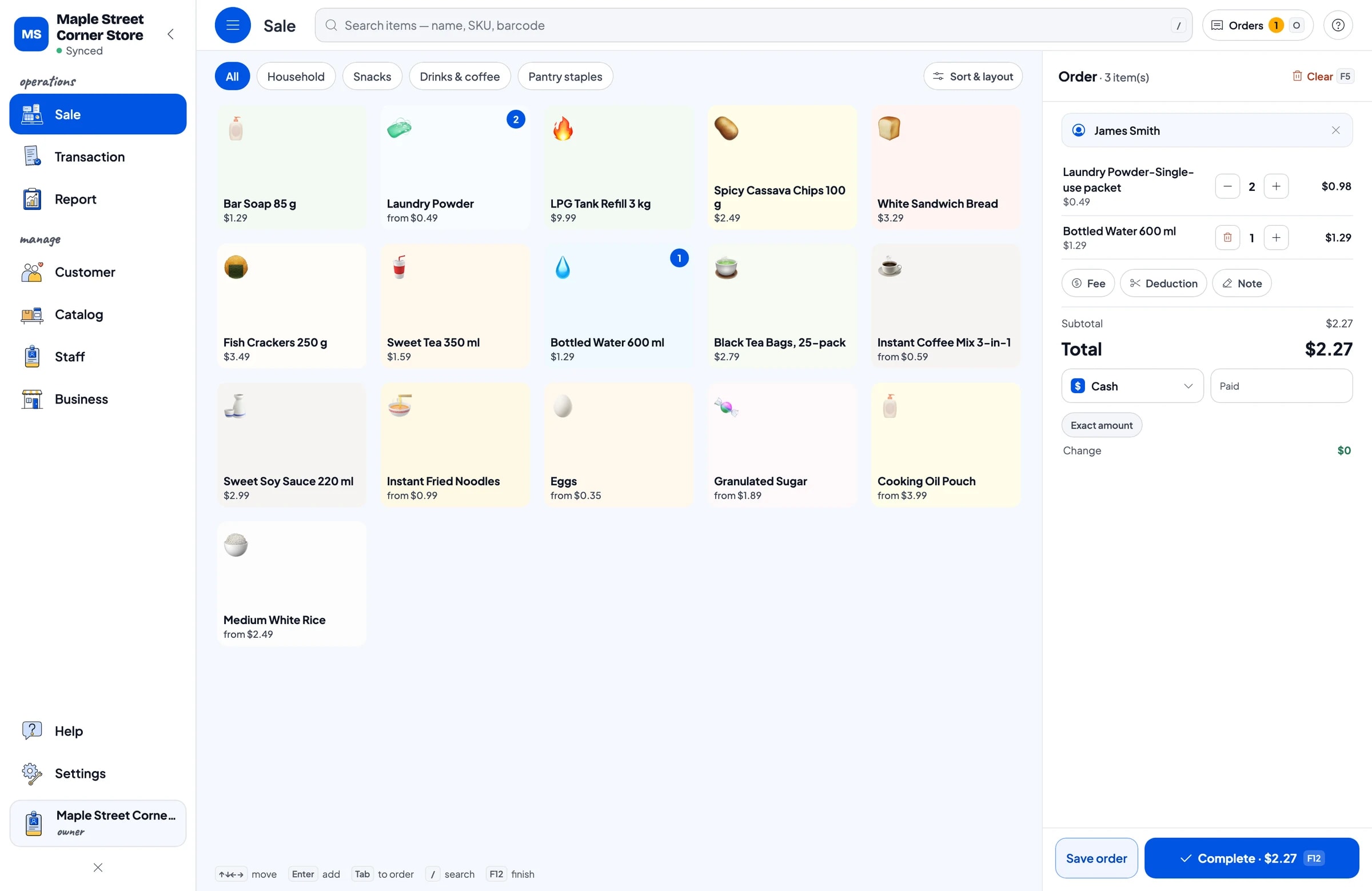
Corner store customers rarely buy much, but they keep coming all day: two packs of noodles and a bag of chips, a coffee sachet and a loaf of bread, one gas refill. On the Sale screen, the cashier taps a product or scans its barcode, picks a variant if needed, and the total is ready. For cash, enter the amount received and the change is calculated for you.
Besides cash, you can add the other payment methods you accept, such as bank transfer or e-wallets. Reports show how much came in through each method, so the cash drawer and your bank balance are easy to reconcile at night.
Receipts can print on a Bluetooth or USB thermal printer, or go out by WhatsApp or as a web receipt link. Plenty of corner stores skip the receipt for small purchases, and that's fine: every sale is still recorded in Transaction and can be looked up later.
Stock and the run to the wholesaler
Turn on stock tracking for fast movers and anything with a big cost, like gas refills, cooking oil, rice and instant noodles. Every sale takes stock off automatically, including sales by variant. Under Inventory → Stock you can see how much of each product is left and its history in and out.
When you get back from the wholesaler, add the stock you bought. That small habit makes the next shopping list easy: open the stock list, look at what's running low, and that is your restock list. Products that haven't moved in weeks also stand out, so you know what not to buy again.
If you buy from several regular suppliers, such as a gas depot, a drinks distributor and a wholesale store, keep them in Inventory → Supplier so their contacts and your notes stay in one place.
- Step 1: Open Inventory → Stock and choose a product that just arrived.
- Step 2: Add the quantity received, in that product's unit.
- Step 3: Check the stock list every few days to see what's running low.
- Step 4: Add your regular suppliers under Inventory → Supplier.
Put-aside orders with Save order
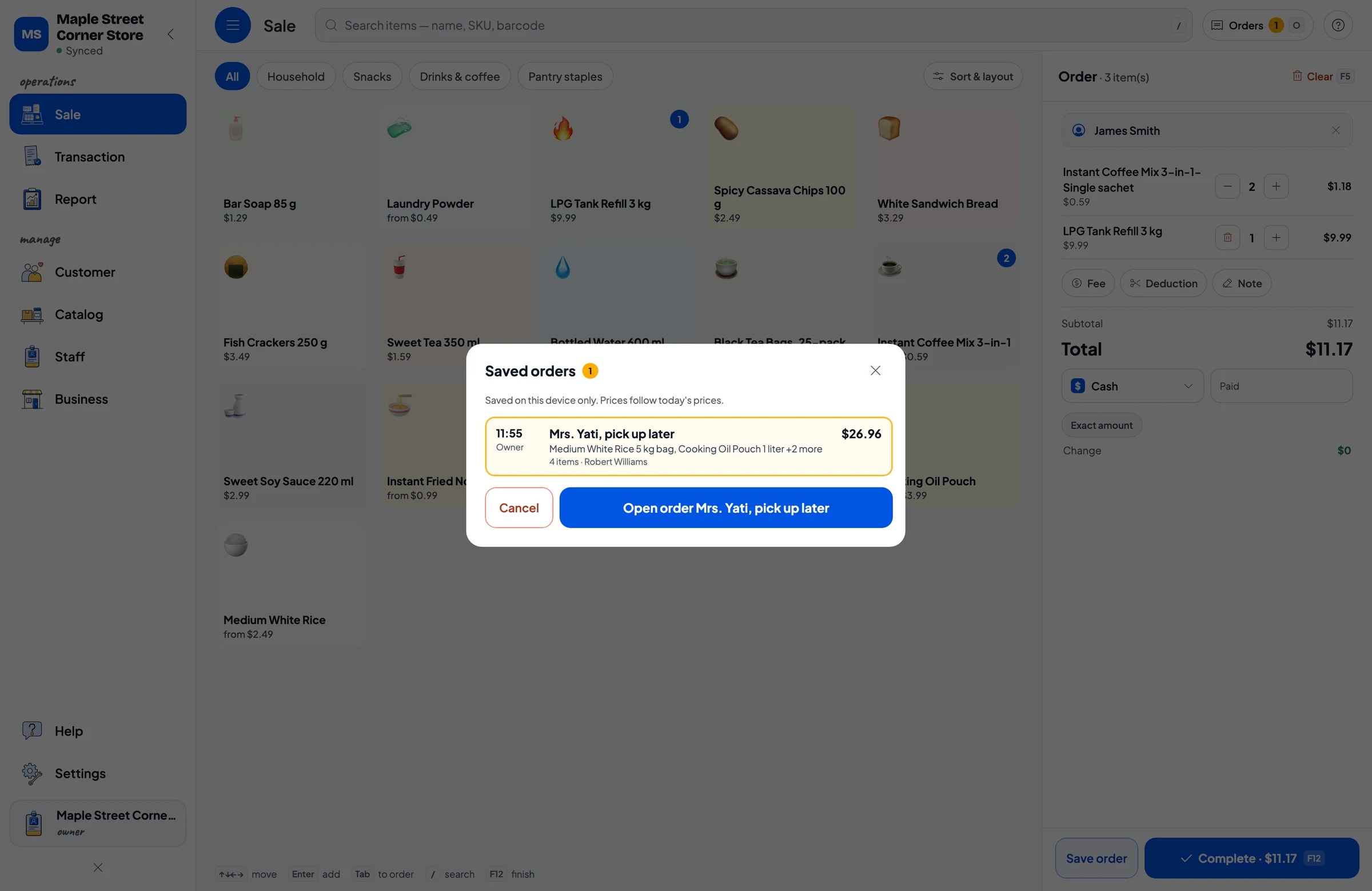
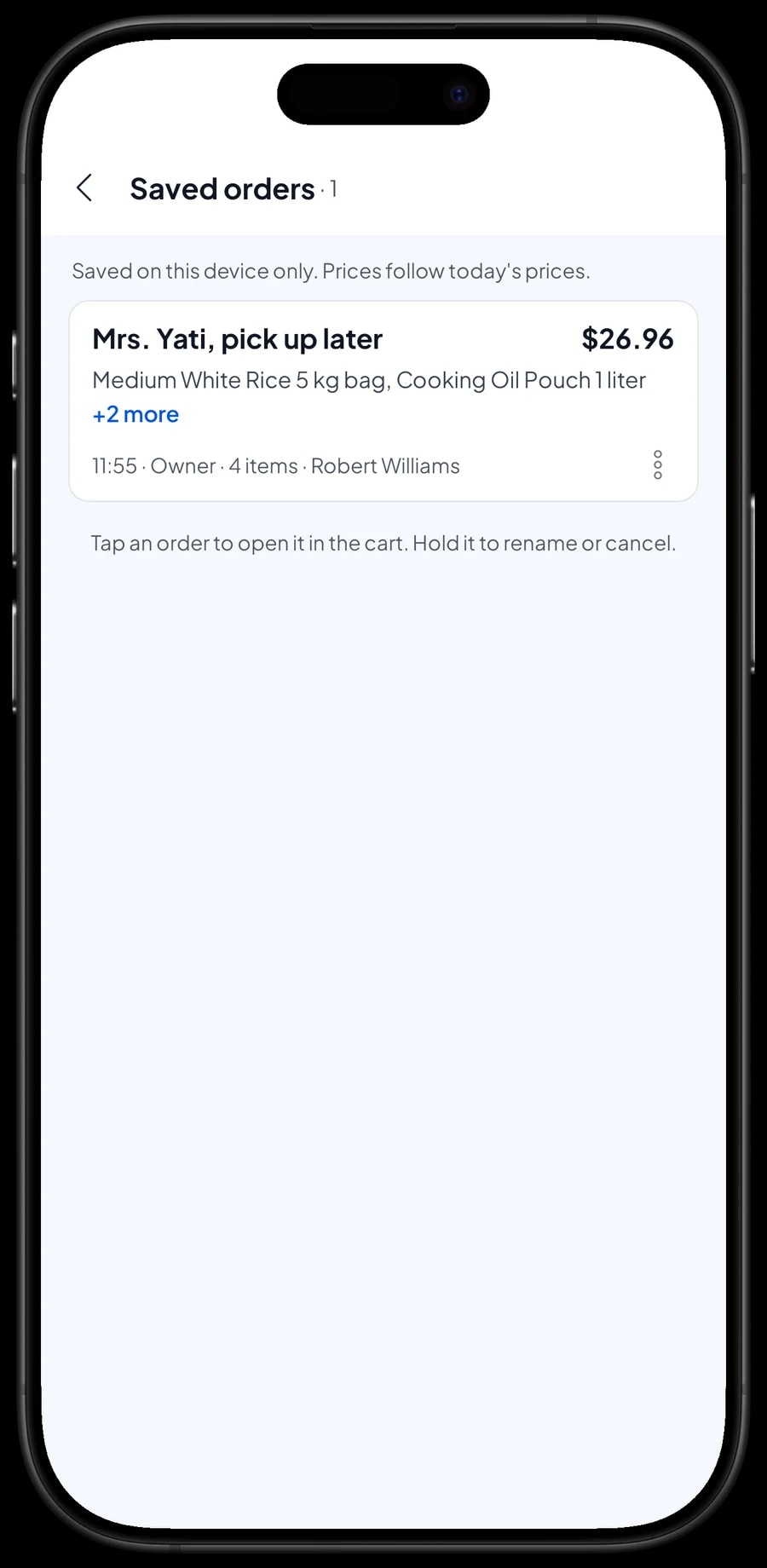
In a neighbourhood shop, customers often ask you to put things aside and pick them up later. Salesmaster has a Save order button for this. The cashier fills the cart as usual, taps Save order and gives it a name, such as "Mrs. Yati", with a note like "Picks up after work". The order waits in Saved orders and the cashier can move straight on to the next customer.
When Mrs. Yati comes in, open Saved orders, pick her order, add anything she's buying today, and complete the payment. Only then does it count as a sale and take stock off. The same works for orders sent by WhatsApp that are picked up or delivered later.
Two things to know. A saved order is kept on the device where it was created, so finish the payment on that same device. Prices on the order follow today's prices when it's opened again. Salesmaster has no customer credit book: a saved order is a cart that isn't a sale until it's paid, so hand over the goods when they are paid for.
Taking turns at the counter: staff accounts
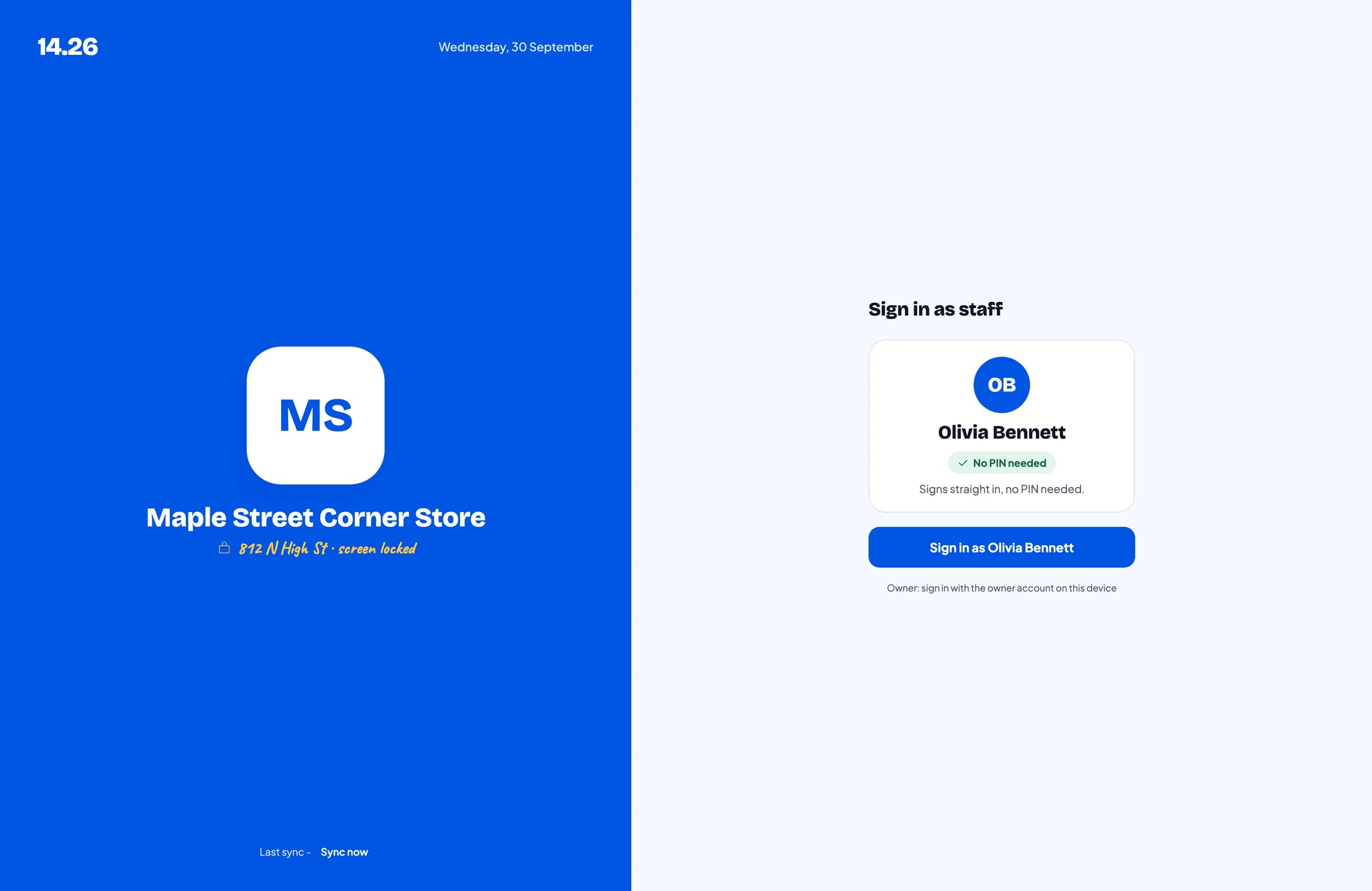
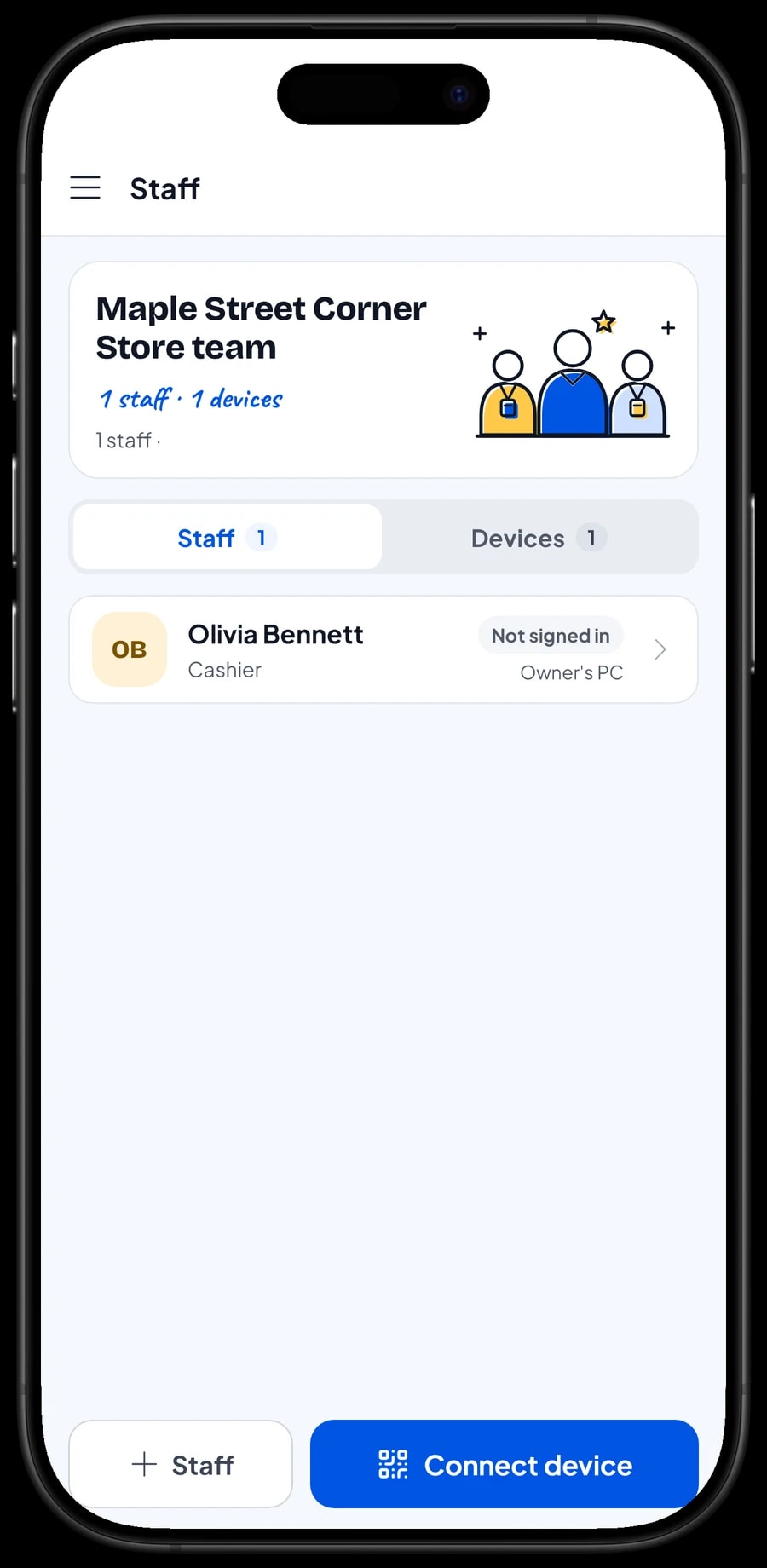
Many corner stores are minded in turns: the owner in the morning, a son or daughter after school, a relative or employee in the evening. A Salesmaster account signs in on one device at a time, so if someone else works the counter on their own phone, add them as staff and register their device. Staff sign in with a PIN, and you decide what they can see and change. Staff accounts come with Bronze Pro (1 staff) and Silver Pro (2 staff).
Restocking, expenses and monthly profit
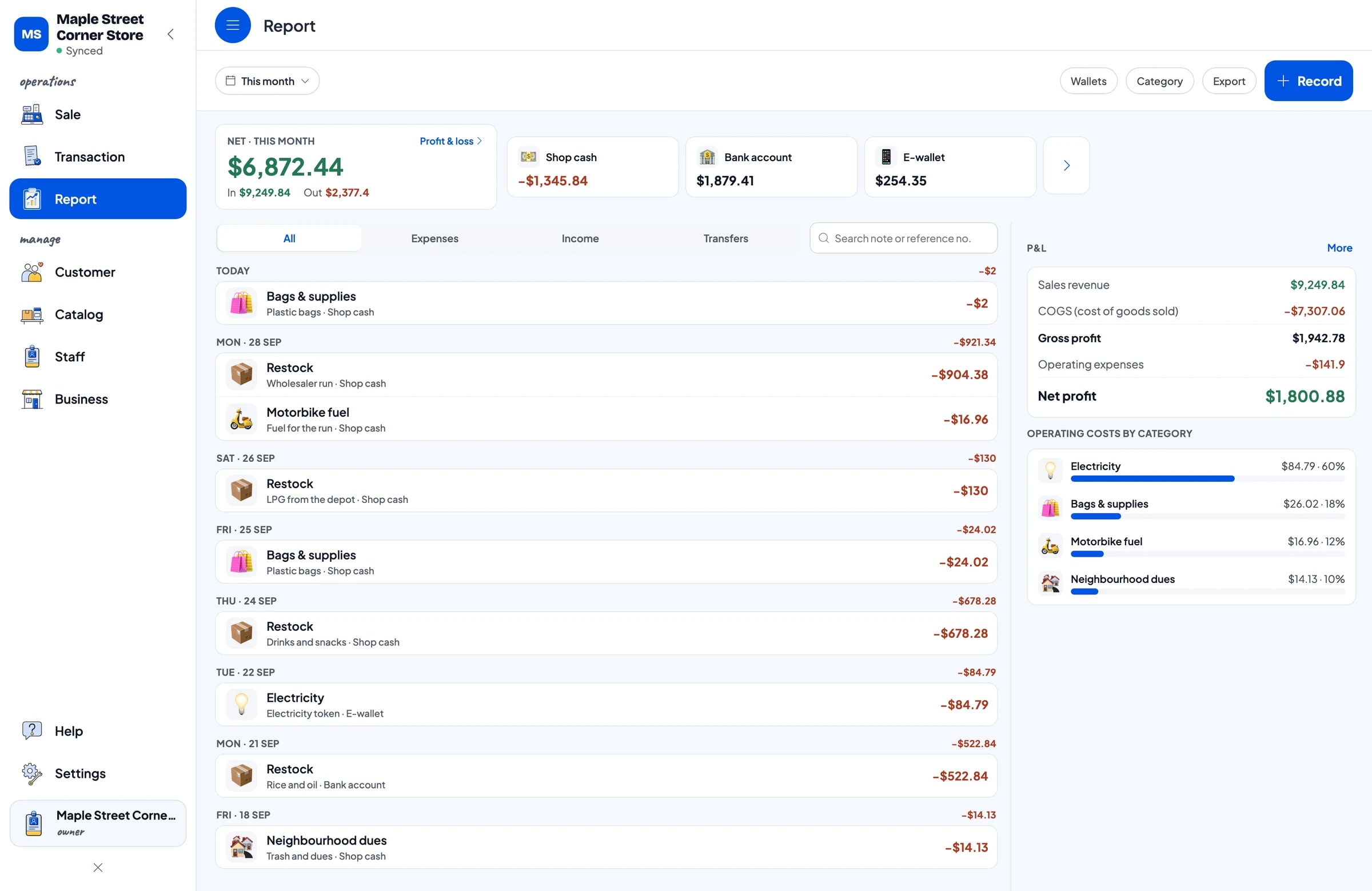
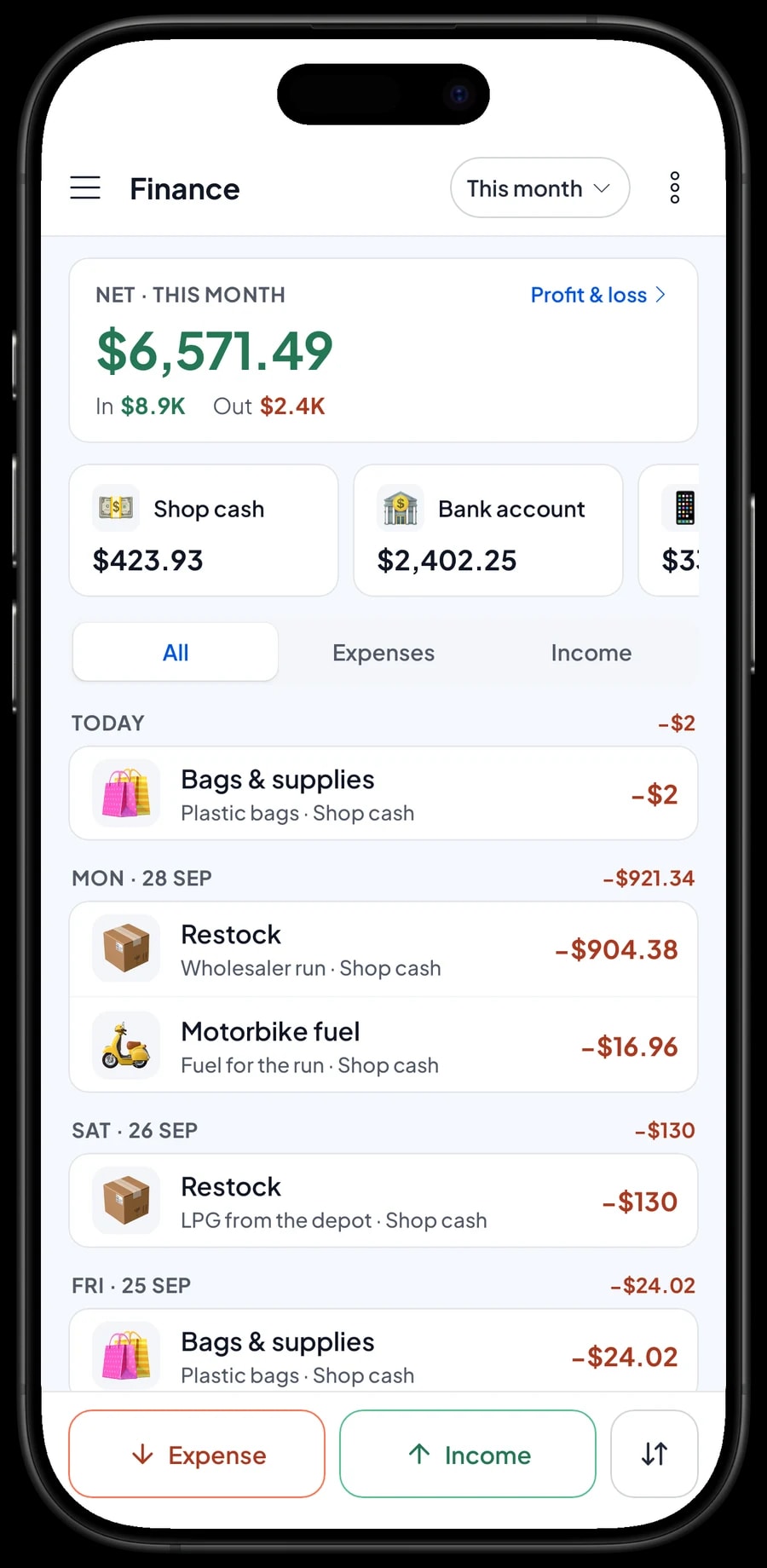
A neighbourhood shop lives on thin margins, so even small costs matter. In Finance, record every expense with its category: restocking at the wholesaler, the electricity token, plastic bags, motorbike fuel for the supply run, even neighbourhood dues and trash collection. Each expense also records which wallet it came from, such as shop cash, a bank account or an e-wallet.
You then see money in and money out on one screen, and your profit: sales minus the cost of the goods you sold and your operating costs. Restock purchases are kept apart from operating costs, because money spent at the wholesaler turns into goods on the shelf rather than disappearing.
- Step 1: Open Finance and create wallets that match where your money is: shop cash, bank account and e-wallet.
- Step 2: Create expense categories such as Restock, Electricity, Bags & supplies and Motorbike fuel.
- Step 3: Record each expense with its amount, category, wallet and a short note.
- Step 4: At the end of the month, review the cash and profit summary for that month.
Reports: which products really earn
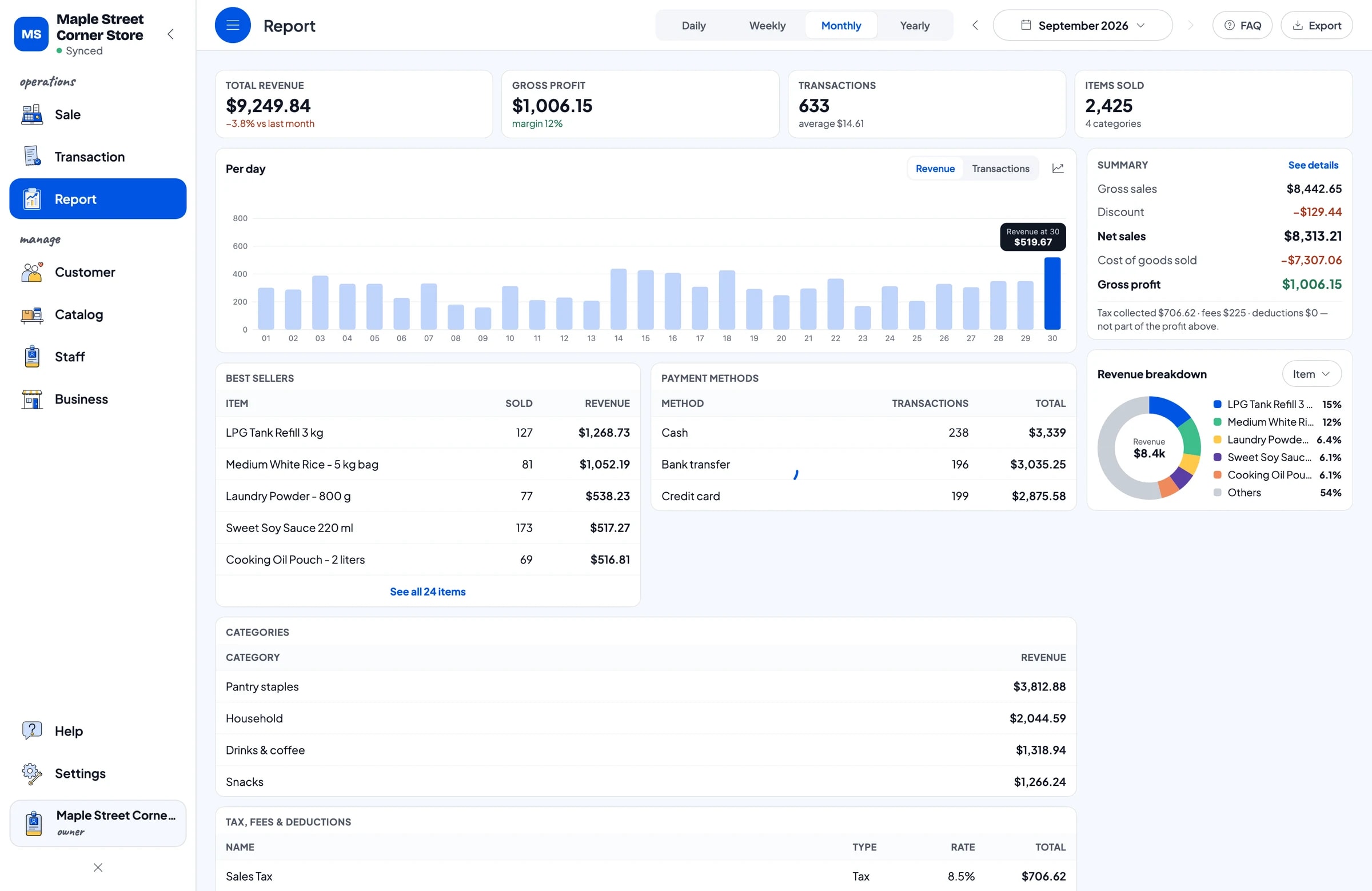
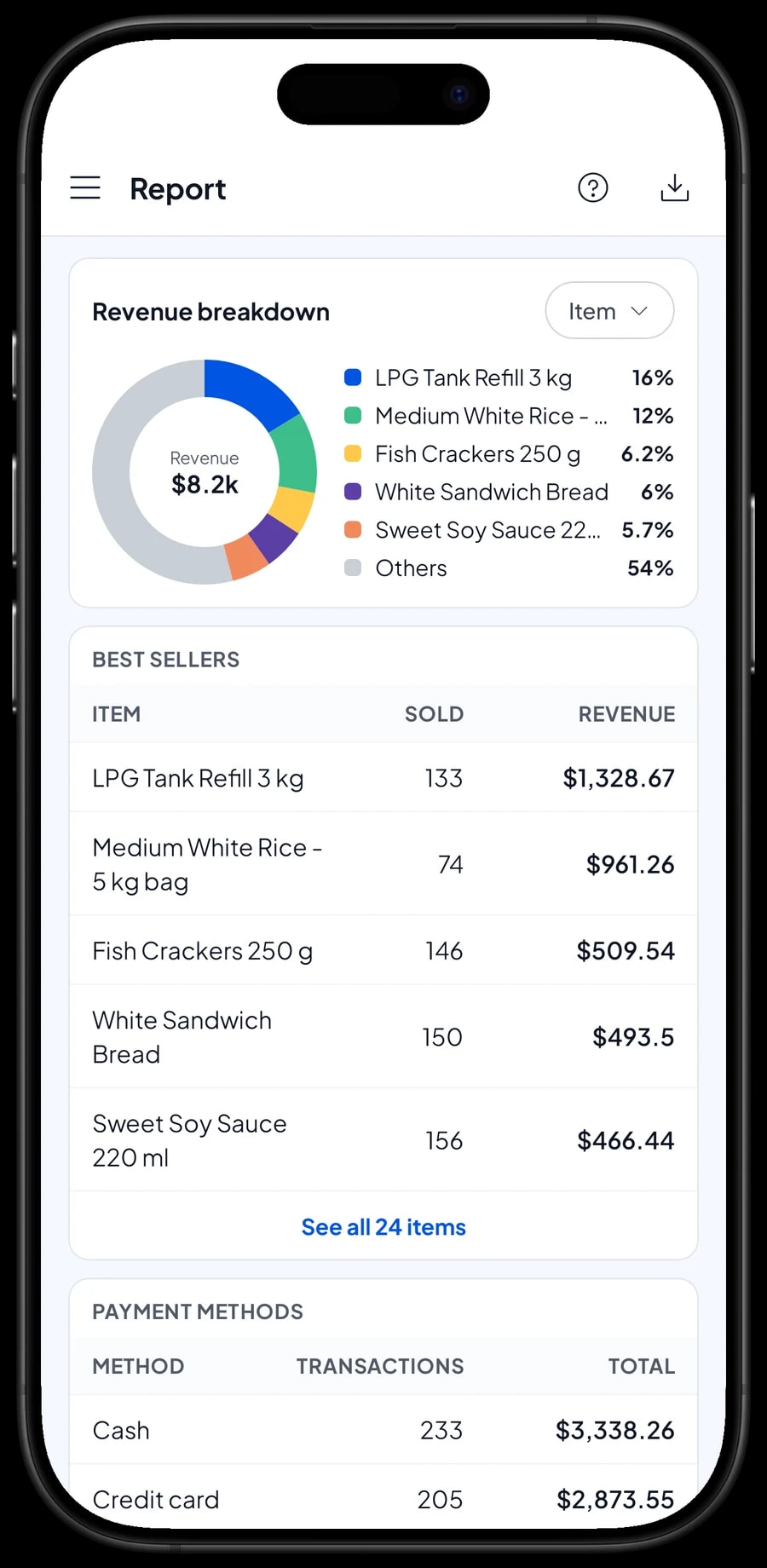
Reports are available by day, week, month and year. You see total revenue, transactions per day, gross and net sales, discounts, any tax you collect, and gross profit from your cost prices. The revenue breakdown by item shows which products bring in the most, whether that's 5 kg bags of rice, gas refills or sandwich bread.
That helps with everyday decisions: what must never run out, what to stock up on at the start of the month when customers get paid, and what sells well but leaves too little margin.
Reports can be exported to Excel or PDF, or printed on a thermal printer.
Getting started without closing the shop
You don't need to close for a day to switch to Salesmaster. Install the app on a phone or tablet, create an account, and enter your best sellers first with their variants. Everything else can be added between customers. Sales are saved on the device first, so the shop keeps selling when the signal drops or your data runs out. Offline mode works for up to 7 days; after that the app needs to connect to the internet to sync.
On the first night, open the daily report and compare it with the cash in the drawer. Once checkout feels natural, move on to stock, then to recording expenses in Finance. Because your data lives in your account and not only on one phone, nothing is lost if the phone breaks or is replaced: sign in with the same account on the new device and your shop comes with you.
An example neighbourhood shop catalog
Use this table as a starting point and replace the names, variants and prices with your own products.
| Category | Product | Unit | Variants | Stock tracking |
|---|---|---|---|---|
| Pantry staples | Medium White Rice | bag | 1-litre scoop, 5 kg bag | Yes |
| Pantry staples | Eggs | egg | Each, 4 eggs, 1 kg | Yes |
| Pantry staples | Cooking Oil Pouch | pouch | 1 litre, 2 litres | Yes |
| Pantry staples | Instant Fried Noodles | pack | Single pack, 5-pack | Yes |
| Drinks & coffee | Instant Coffee Mix 3-in-1 | sachet | Single sachet, Strip of 10 | Yes |
| Drinks & coffee | Bottled Water 600 ml | bottle | - | Yes |
| Snacks | Spicy Cassava Chips 100 g | pack | - | No |
| Household | LPG Tank Refill 3 kg | tank | - | Yes |
| Household | Laundry Powder | pack | Single-use packet, 800 g | Yes |
Anything sold in more than one size is one item with variants, not several separate items. Consignment snacks whose quantities change all the time can be left without stock tracking to keep things simple.
Which plan fits your shop
Start by counting customers per day. A neighbourhood shop serving about 20 to 30 customers a day records roughly 600 to 900 transactions a month.
| Plan | Price | Transactions / month | Staff accounts | Good for |
|---|---|---|---|---|
| Free | Free | 30 | Owner only | To try recording sales and stock before using it for real. |
| Solo Pro | $4.90/month | 3,000 | Owner only | Shops minded by the owner on a single phone. |
| Bronze Pro | $6.90/month | 5,000 | 1 staff | Shops with one other person, such as a family member or employee, on their own device. |
| Silver Pro | $9.90/month | 8,000 | 2 staff | Busier shops where two staff take turns on separate devices. |
Every plan includes checkout, catalog, receipts, reports and offline mode. You can change plans at any time. See pricing →
Frequently asked questions
- Can one product be sold as a single and in bulk at different prices?
- Yes, with variants. Create one item, such as Instant Coffee Mix 3-in-1, and add a Single sachet variant and a Strip of 10 variant, each with its own price. The cashier picks the variant at checkout and the right price follows.
- Can Salesmaster keep track of customer credit?
- No. Salesmaster has no customer credit book. Save order keeps a cart for a customer who will collect and pay soon, named for example "Mrs. Yati". The order is saved on the device where it was created and isn't counted as a sale until it's paid.
- Can I scan barcodes on packaged goods?
- Yes. Enter the barcode on each product, or on each variant when the packaging differs, and the cashier simply scans items at checkout.
- Does stock go down automatically with every sale?
- Yes, for products with stock tracking turned on. Every sale takes stock off, including sales by variant. When goods arrive from the wholesaler, add them under Inventory → Stock.
- Can the shop keep selling when the signal or data runs out?
- Yes. Sales are saved on the device and sync when the internet is back. Offline mode works for up to 7 days before the app needs to connect to sync.
- Can family members or employees mind the shop on their own phones?
- Yes, through staff accounts. An account signs in on one device at a time, so other people at the counter use a staff account on their own device and sign in with a PIN. Staff accounts come with Bronze Pro (1 staff) and Silver Pro (2 staff).
- How much does Salesmaster cost for a neighbourhood shop?
- You can start on the Free plan to try it. The price of each Pro plan (Solo, Bronze and Silver) is listed on the pricing page; shops where staff take turns usually choose Bronze Pro or Silver Pro. Paying yearly costs less.
Need help setting up your catalog? Chat with our team on WhatsApp →