
Salesmaster is a point-of-sale (POS) app for phone and electronics repair shops on Android, iPhone & iPad, Windows and Mac. Repairs are service items, parts like screens and batteries are products with stock per variant, devices left for repair are kept as saved orders until the customer picks up and pays, and expenses such as parts and technician pay feed the Finance report so you see net profit. A Free plan lets you try it first.
Problems every repair shop knows
If any of these sound familiar, this page is for you.
- 01
Devices pile up, bills get lost
One phone needs a screen, another won't power on and is staying two days. Tickets are on paper, and when the customer comes back, someone has to work the price out again.
- 02
Labor and parts blur together
The customer pays one number that hides the screen, the labor and the screen protector. You can't tell how much you made on the work and how much on the part.
- 03
Nobody knows what parts are left
One LCD left, the 5,000 mAh batteries already gone. You find out with the phone open on the bench and the customer waiting for a call.
- 04
Busy bench, thin profit
After parts, technician pay, rent, electricity and glue, what is left? Without recorded expenses, profit is a guess.
Setting up your repair services
Start with the price list you already quote at the counter. In Salesmaster, every kind of job is one Service item in the Catalog: screen replacement labor, battery replacement labor, charging port repair, software reflash, water damage cleaning, back glass replacement, camera repair. Service items have no stock, which is exactly right for a technician's time.
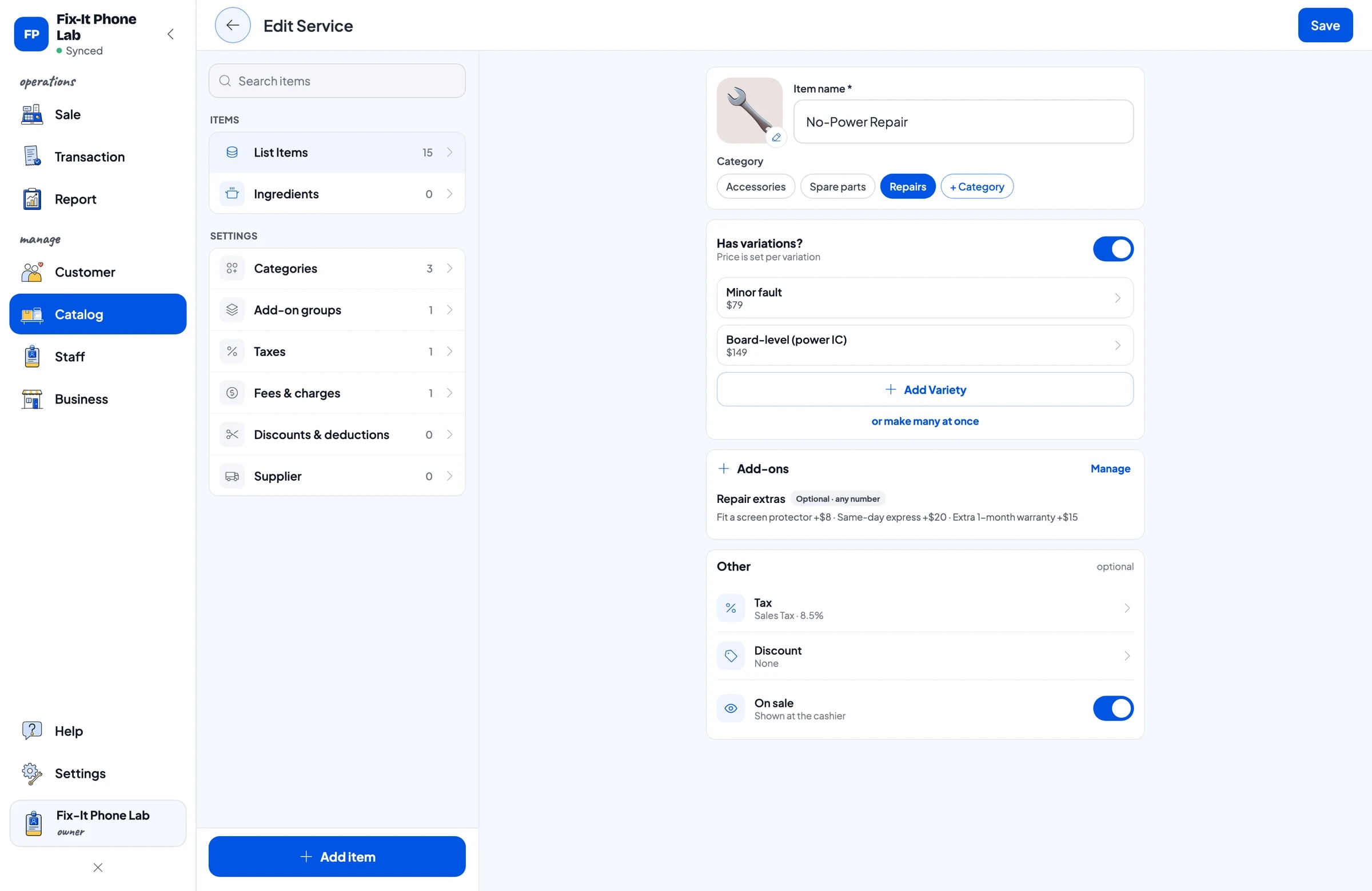
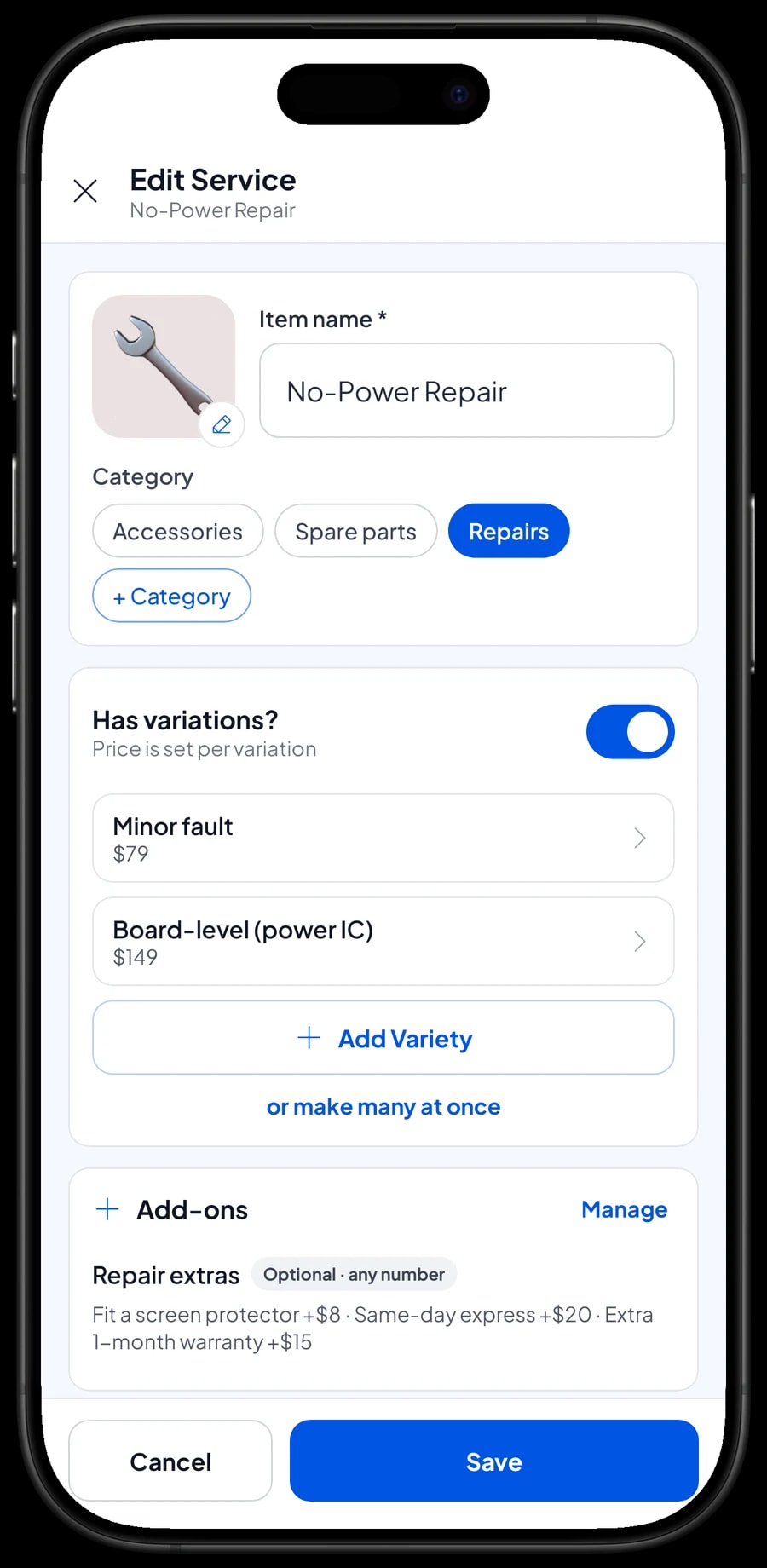
Jobs whose price depends on how bad the damage is only need one item with variants. No-Power Repair, for example, has a Minor fault variant and a Board-level (power IC) variant, each with its own price and cost. The cashier picks the variant the technician diagnosed, and the price follows.
Group items into categories such as Repairs, Spare parts and Accessories, so every job and part is one or two taps away on the Sale screen.
- Step 1: Open Catalog → Categories and create Repairs, Spare parts and Accessories.
- Step 2: Open Catalog → List Items and add each job as a Service item with its price.
- Step 3: For jobs with more than one price level, add variants such as Minor fault and Board-level.
- Step 4: Enter a cost for each service, such as consumables, so the profit on each job shows in reports.
Spare parts with stock by model
Screens, batteries, loudspeakers and ports are things you buy and resell, so create them as Product items with stock. A part that comes in several types is one item with variants: Phone Screen Assembly with LCD 6.5 in and OLED 6.7 in, Phone Battery with 4,000 mAh and 5,000 mAh. Each variant has its own selling price, purchase cost and stock.
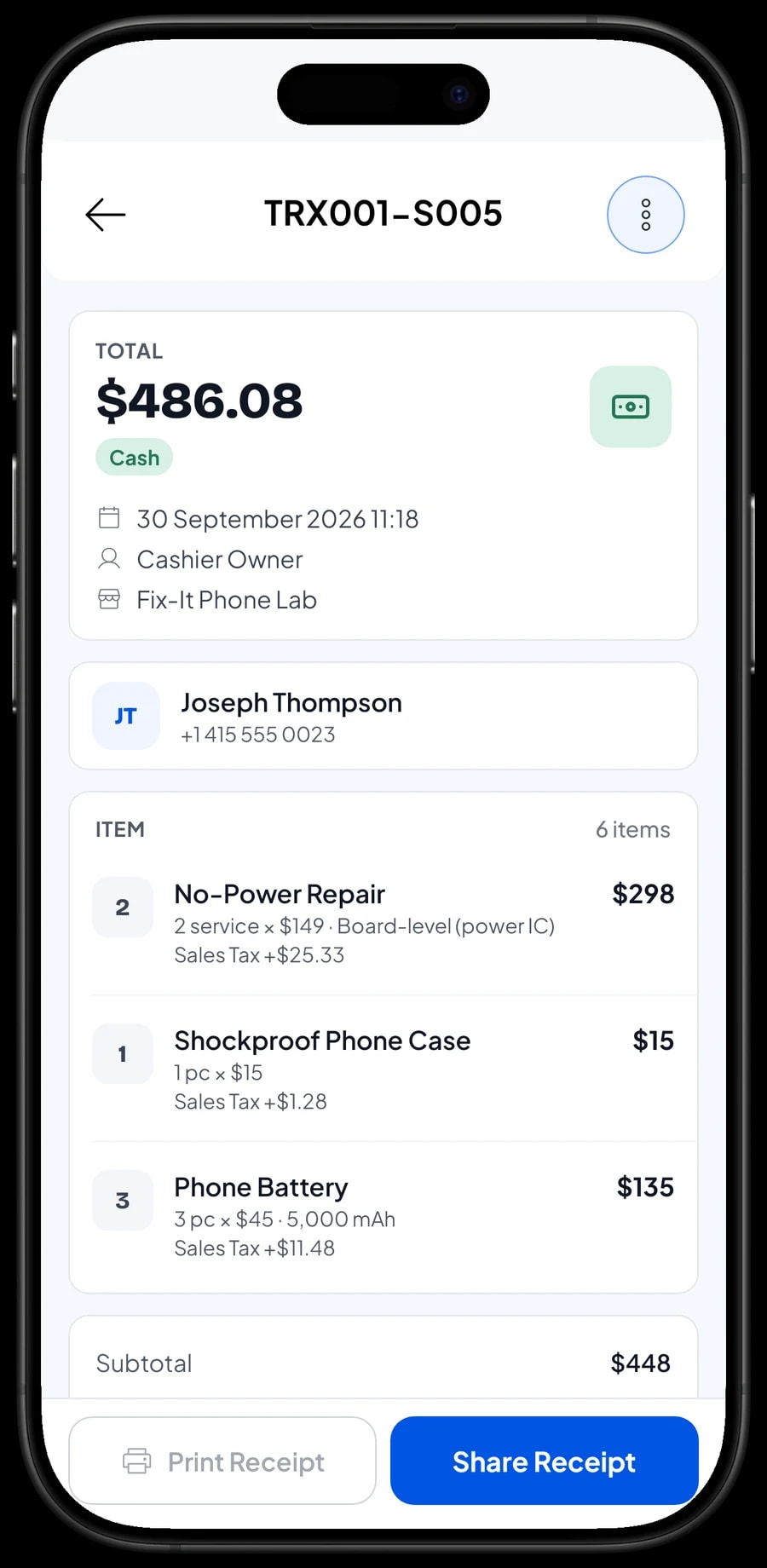
That way a screen repair bill has two lines: Screen Replacement Labor for the technician's work and Phone Screen Assembly for the part. Screen stock drops by one, and the reports keep labor and parts revenue apart, so you can see whether your margin comes from skill or from parts.
When parts arrive from your supplier, add the stock in the Stock menu. If a part is damaged during fitting, record a stock adjustment so the count in the app matches the drawer.
- Step 1: Open Catalog → List Items and add each part as a Product item.
- Step 2: Add a variant per type, such as LCD 6.5 in and OLED 6.7 in, with its selling price and purchase cost.
- Step 3: Open Catalog → Inventory → Stock and enter the opening stock of each variant.
- Step 4: Every time you buy parts, add the stock and record the purchase in Finance.
Repair extras: screen protector, same-day service and warranty
Almost every repair comes with an upsell. A customer getting a new screen often wants a screen protector fitted. Some need the phone back today. Others want a longer warranty. All of these can be add-ons attached to your service items, so the cashier never types an extra line by hand.
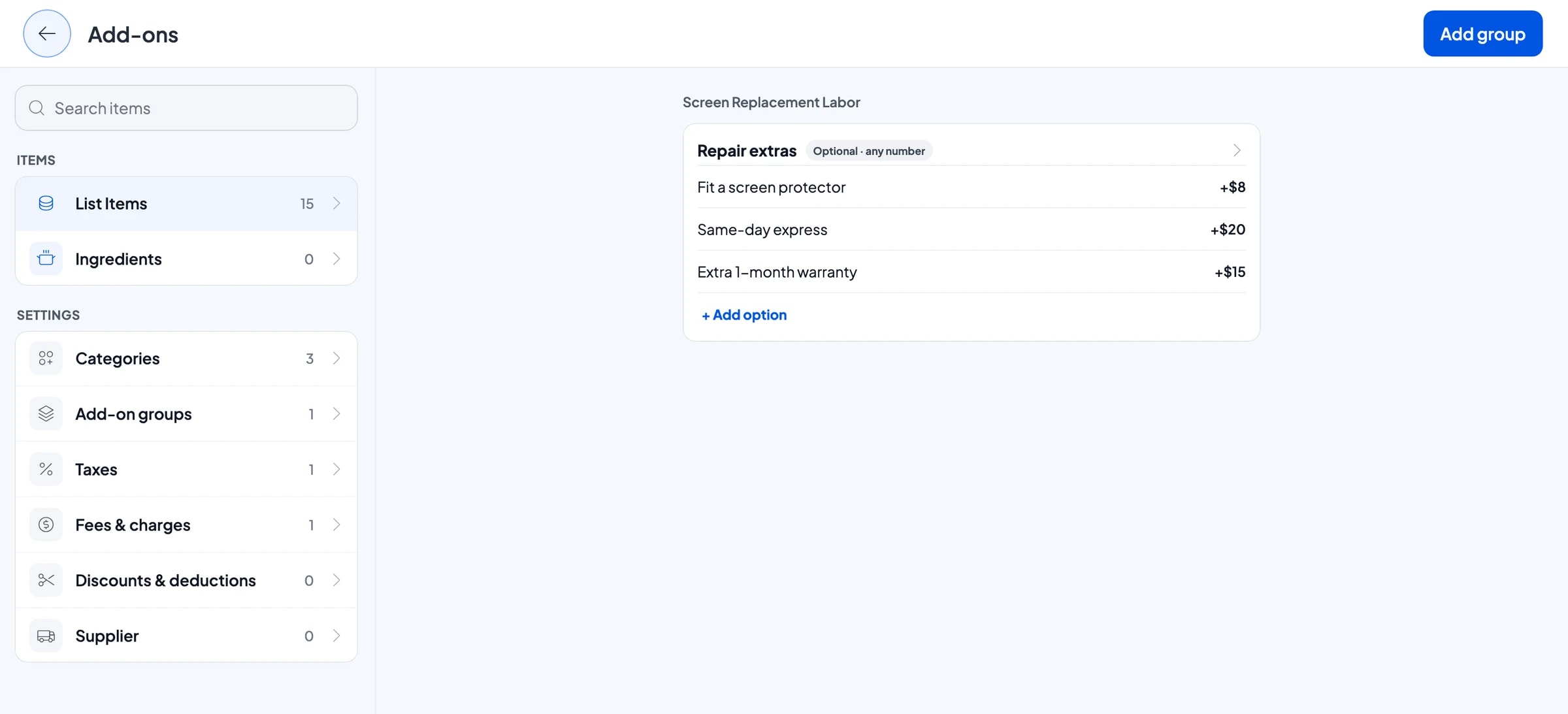
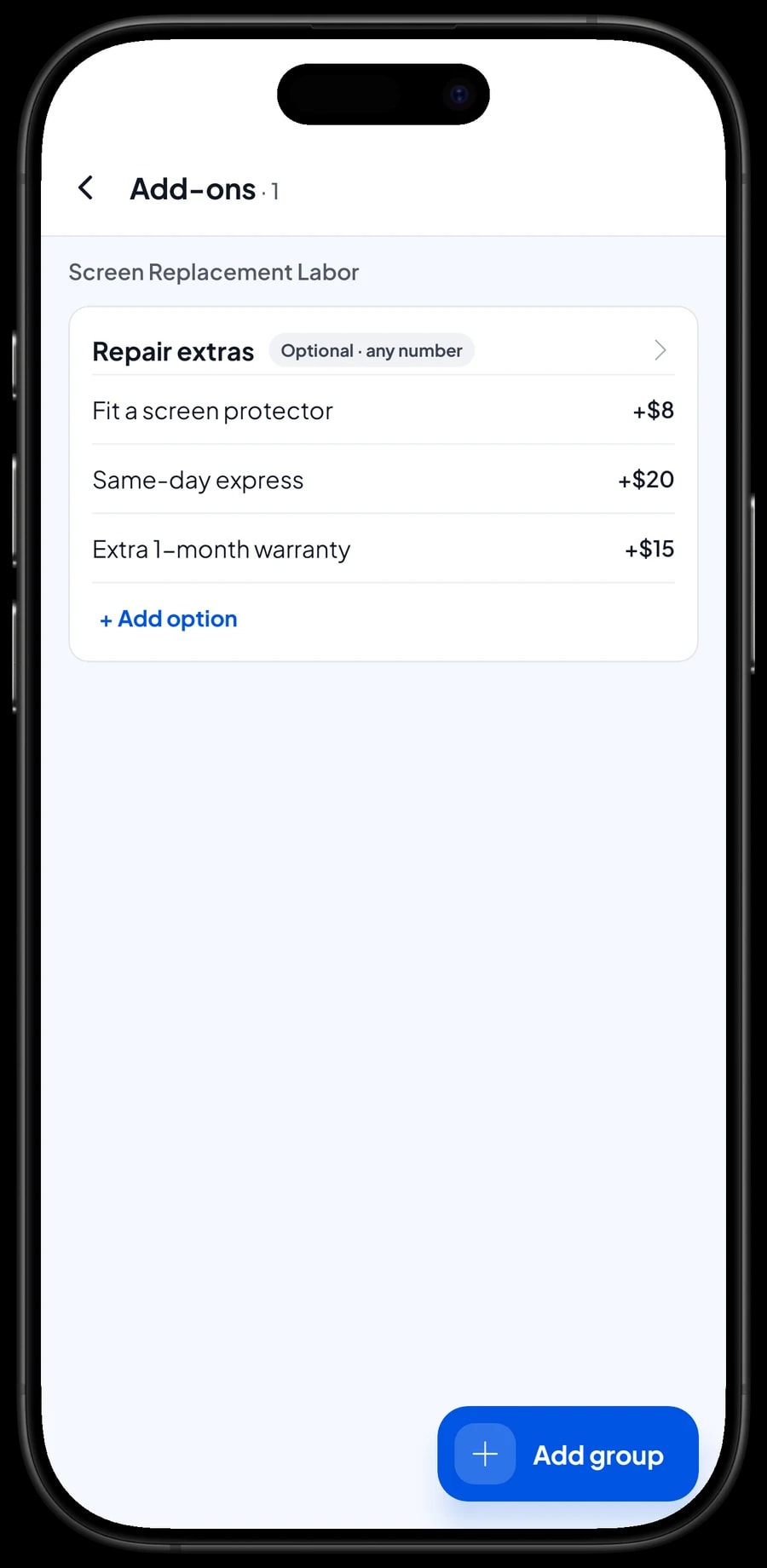
Create one add-on group, for example Repair extras, with Fit a screen protector, Same-day express and Extra 1-month warranty, each with its own price. Attach the group to every job that offers it: screen, battery, charging port, no-power, back glass and water damage.
An extra warranty is saved with the sale and printed on the receipt. Salesmaster doesn't count down warranty periods or remind you when they end, but the receipt and the customer's purchase history show when the repair was done and which warranty was bought.
- Step 1: Open a service item, such as Screen Replacement Labor, and choose Manage add-ons.
- Step 2: Create a Repair extras group and add each option with its price.
- Step 3: Attach the same group to the other repairs that offer these extras.
Devices left for repair: keep the bill with Save order
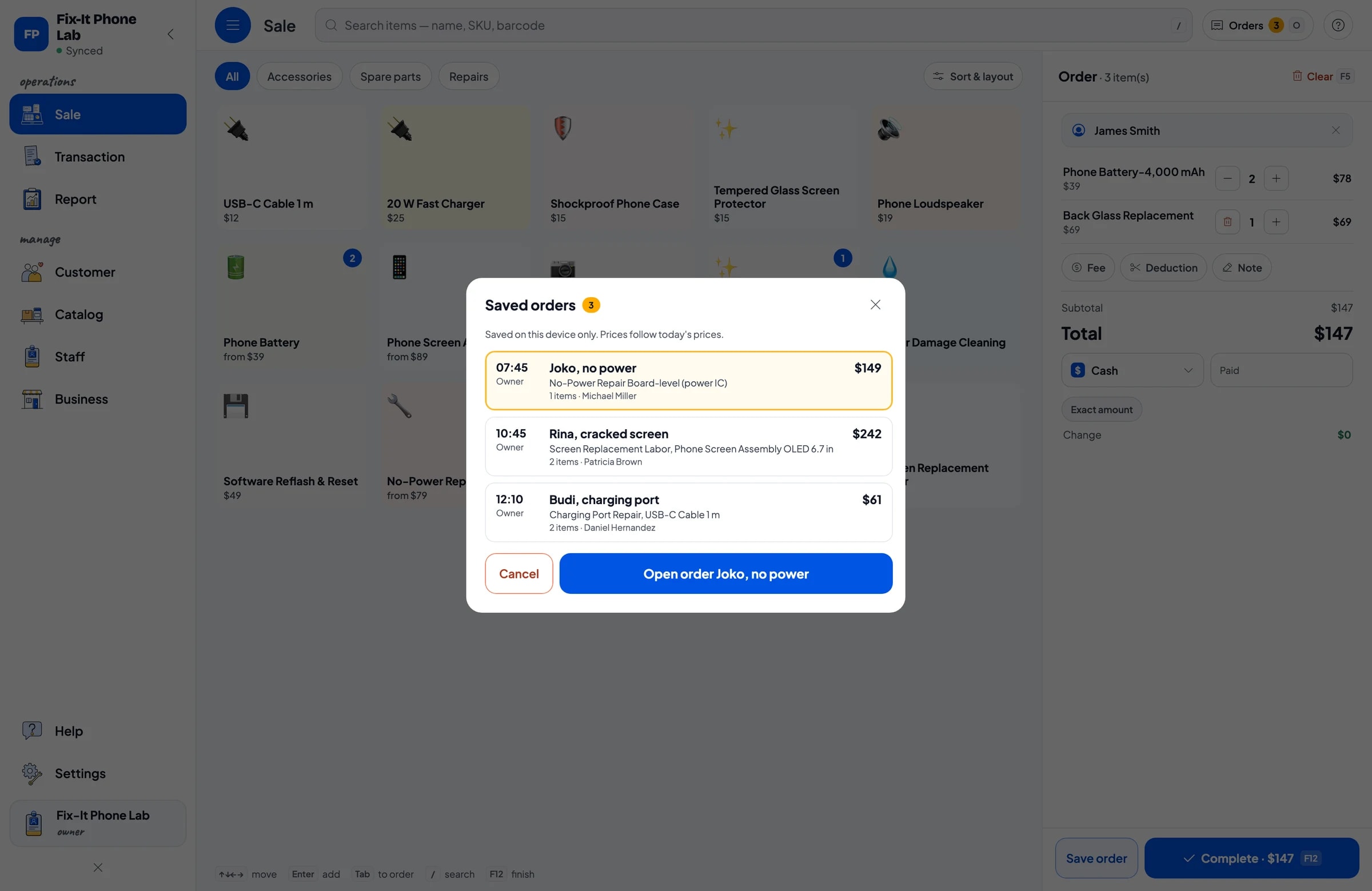
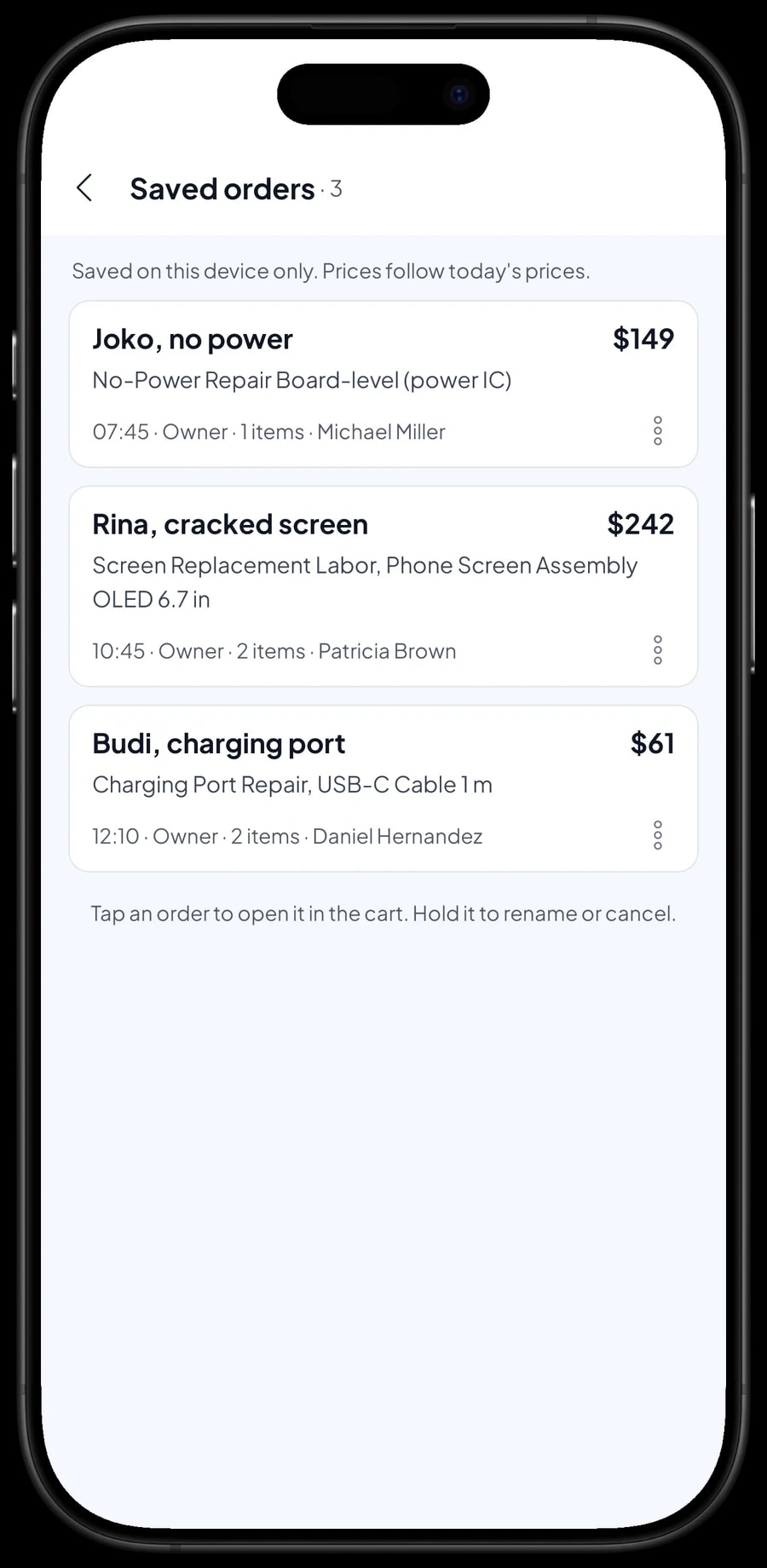
Repair customers rarely pay when they drop a phone off. They pay when they collect it, hours or days later. That is what Save order is for. Add the agreed labor and parts, then save the cart under a name you will recognize, such as "Rina, cracked screen", with a note like "Ready at 4 pm" or "Left for 2 days".
When the customer comes back, open Saved orders, pick their name, add anything else the technician found if they agree to it, and take the payment. A saved order isn't counted as a sale and doesn't take parts off stock until it is paid, so a cancelled job leaves your reports and stock correct.
Saved orders live on the device that created them. Keep one device at the drop-off counter for saving and closing repair orders, so every unpaid job is in one place.
Payments, receipts and customer records
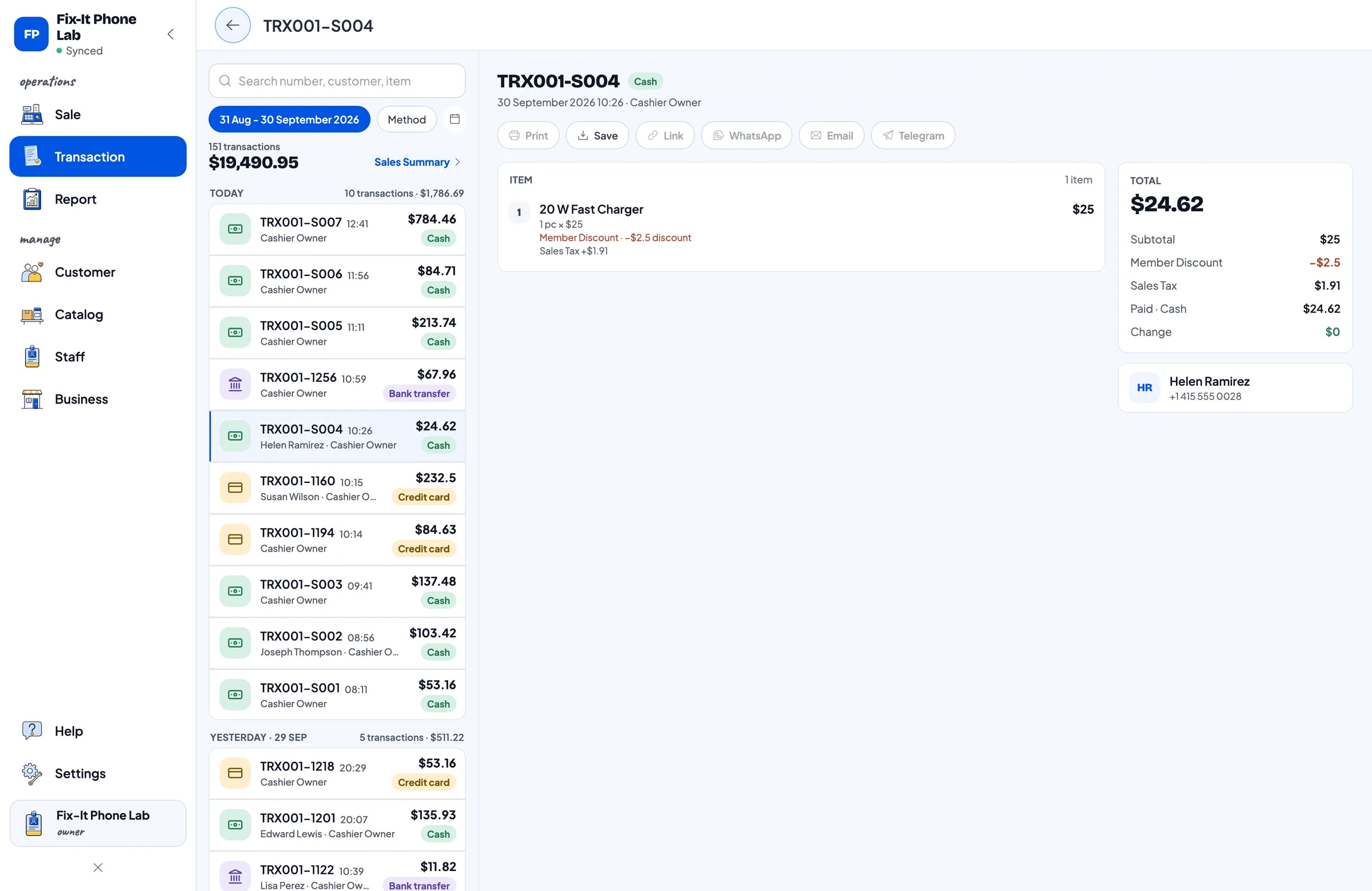
Create the payment methods you accept: cash, card, bank transfer, a payment app, or any other method. Salesmaster doesn't connect to card terminals directly, so each payment is recorded by choosing its method. Reports show how much came in through each one.
Save the customer's name and phone number with the sale. Their repair history stays on file, so when they come back with a complaint you can see when the phone was fixed, what was replaced and what they paid. There is no dedicated IMEI or serial number field; write the IMEI or the make and model in the transaction note.
Receipts print on a Bluetooth or USB thermal printer, or go out by WhatsApp, email or a web receipt link with your shop's logo and contact details. That receipt doubles as the customer's proof of warranty.
Selling accessories at the counter
Customers waiting on a repair often buy something: a screen protector, a shockproof case, a fast charger or a cable. Create these as Product items with stock and add the barcode from the packaging. The cashier scans the barcode or taps the item on the Sale screen.
Accessories can go on the same bill as the repair. Budi can add a USB-C Cable to his charging port order and pay for everything once at pickup.
Technicians and cashiers
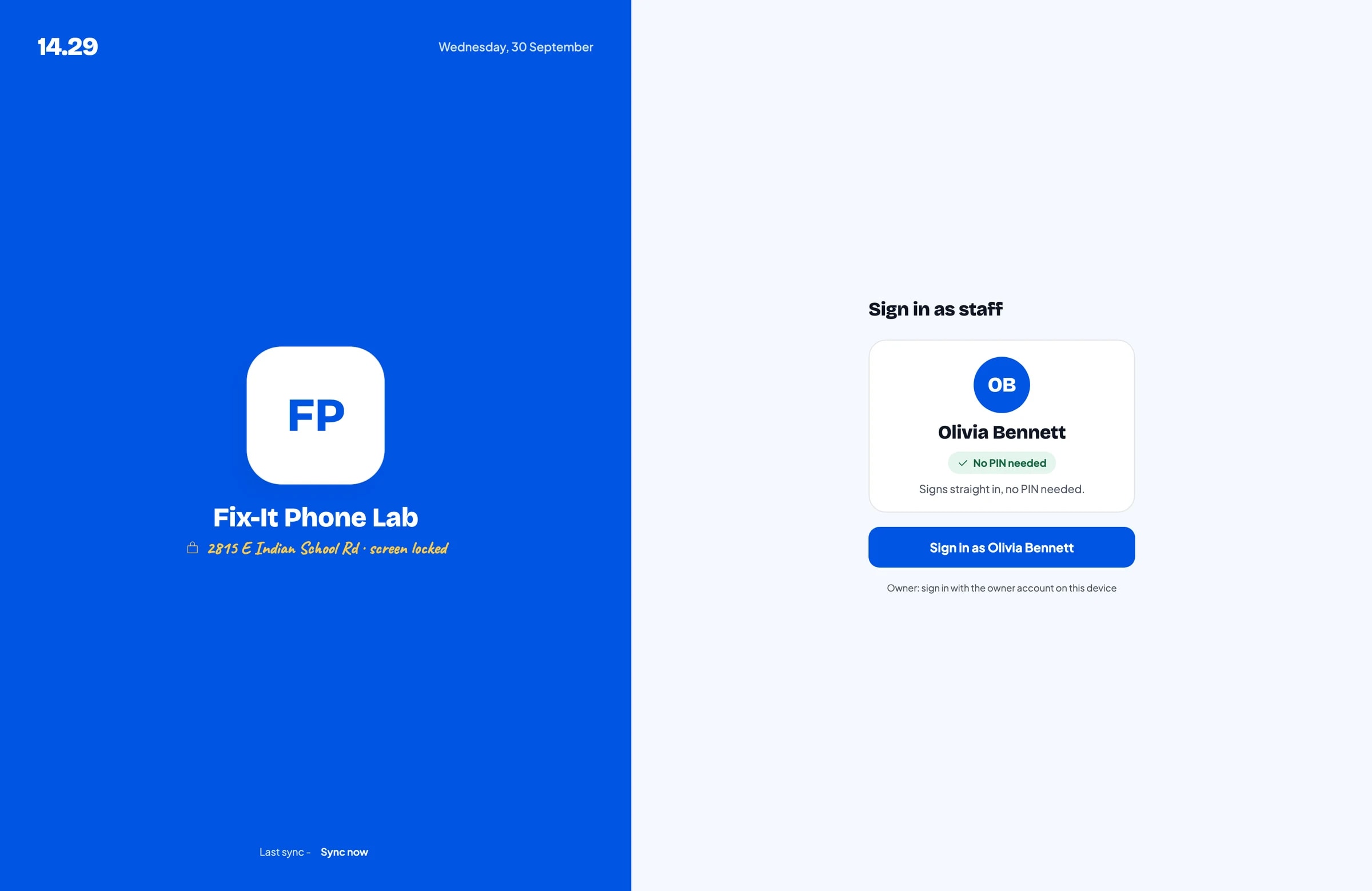
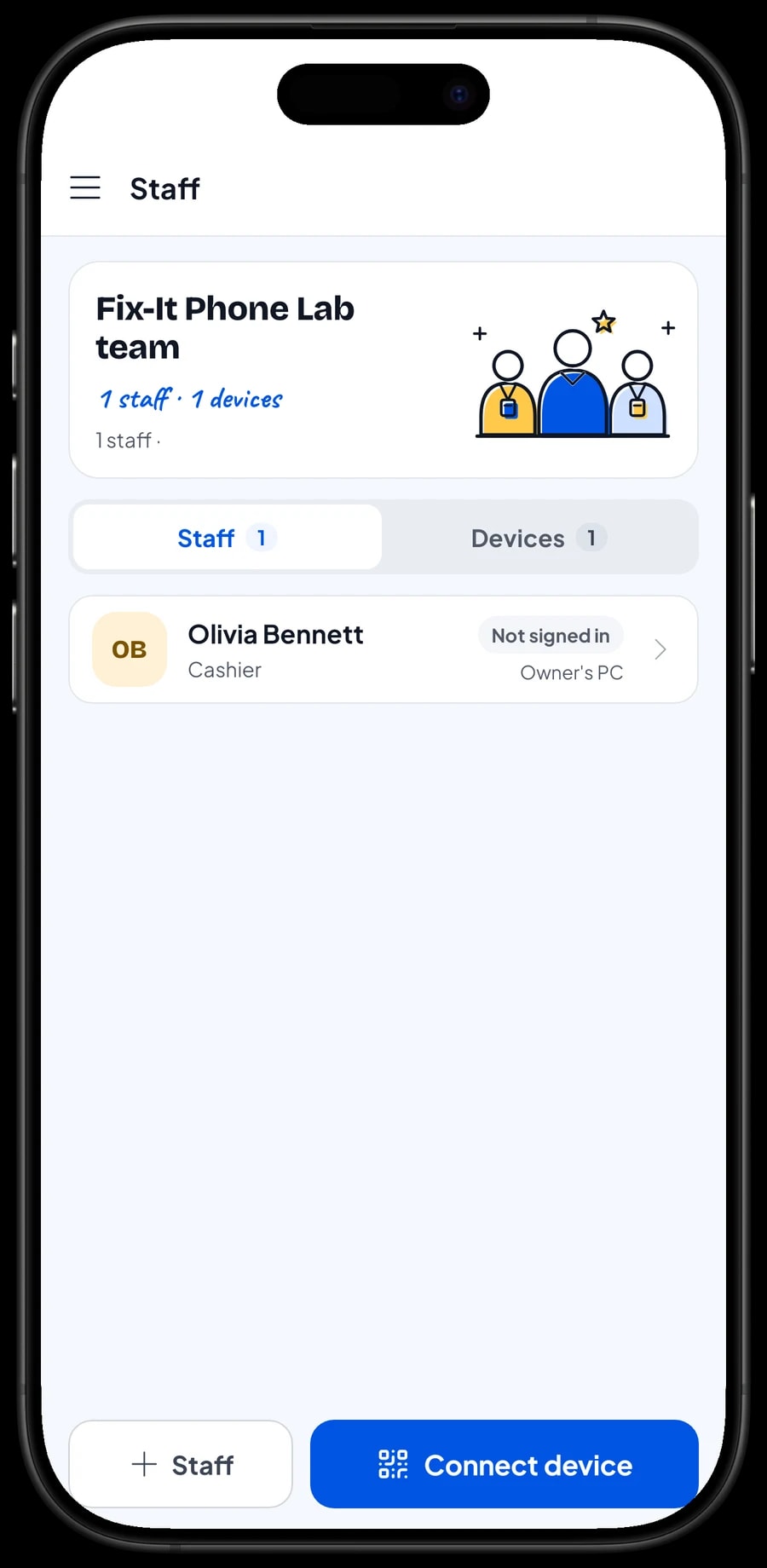
The owner signs in with the main account. An account is signed in on one device at a time, so a cashier or technician on their own device is added as staff. Register a device for them, and staff sign in with a PIN according to their role. Staff accounts come with Bronze Pro (1 staff) and Silver Pro (2 staff).
Salesmaster doesn't calculate technician commission. Write the technician's name in the transaction note, then record pay or commission as an expense in Finance.
Repair reports and real net profit
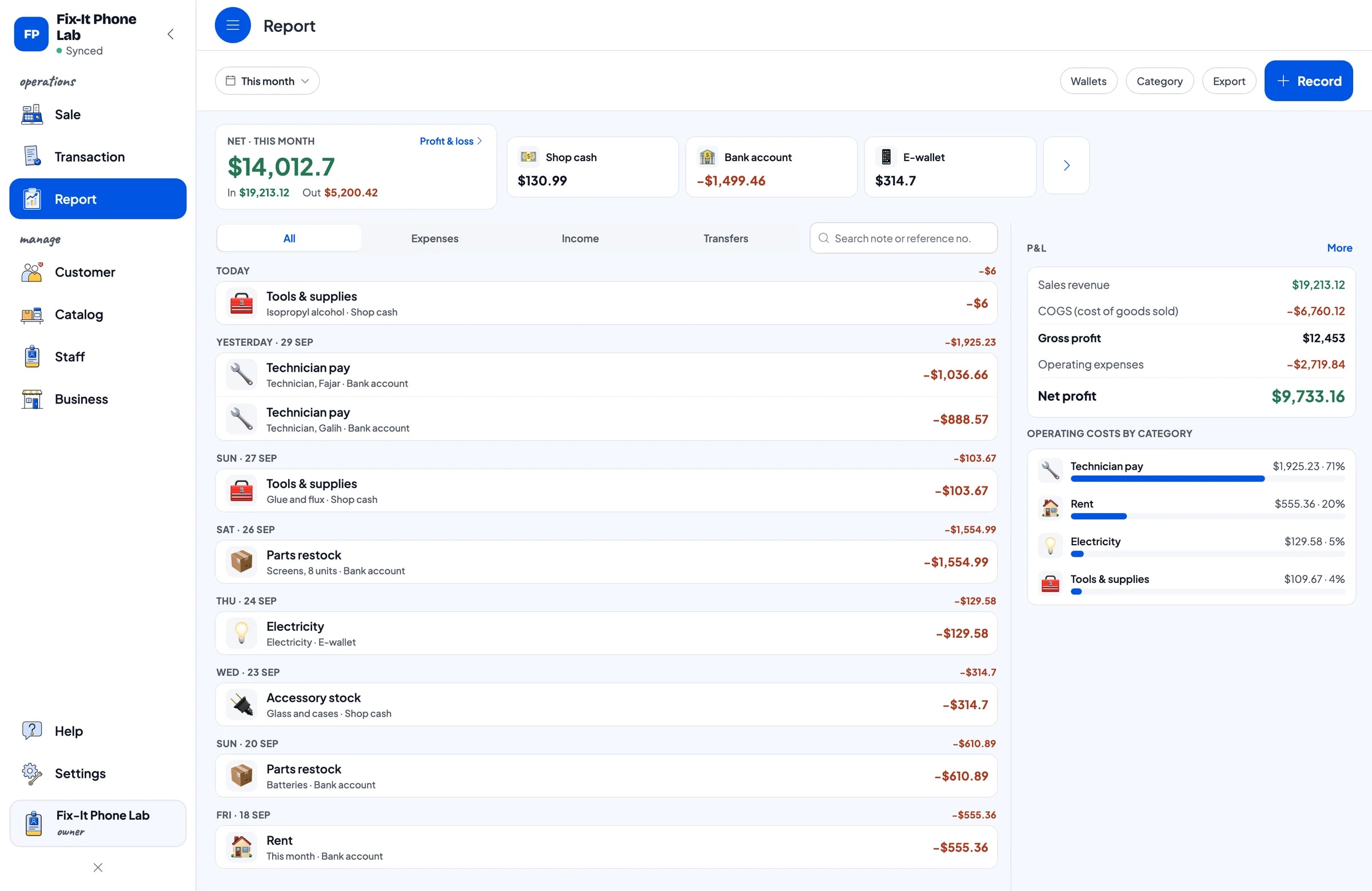
Reports are available by day, week, month and year. You see total revenue, gross and net sales, discounts, tax, payment methods and revenue by item, so it is clear which repairs you do most and which parts sell best.
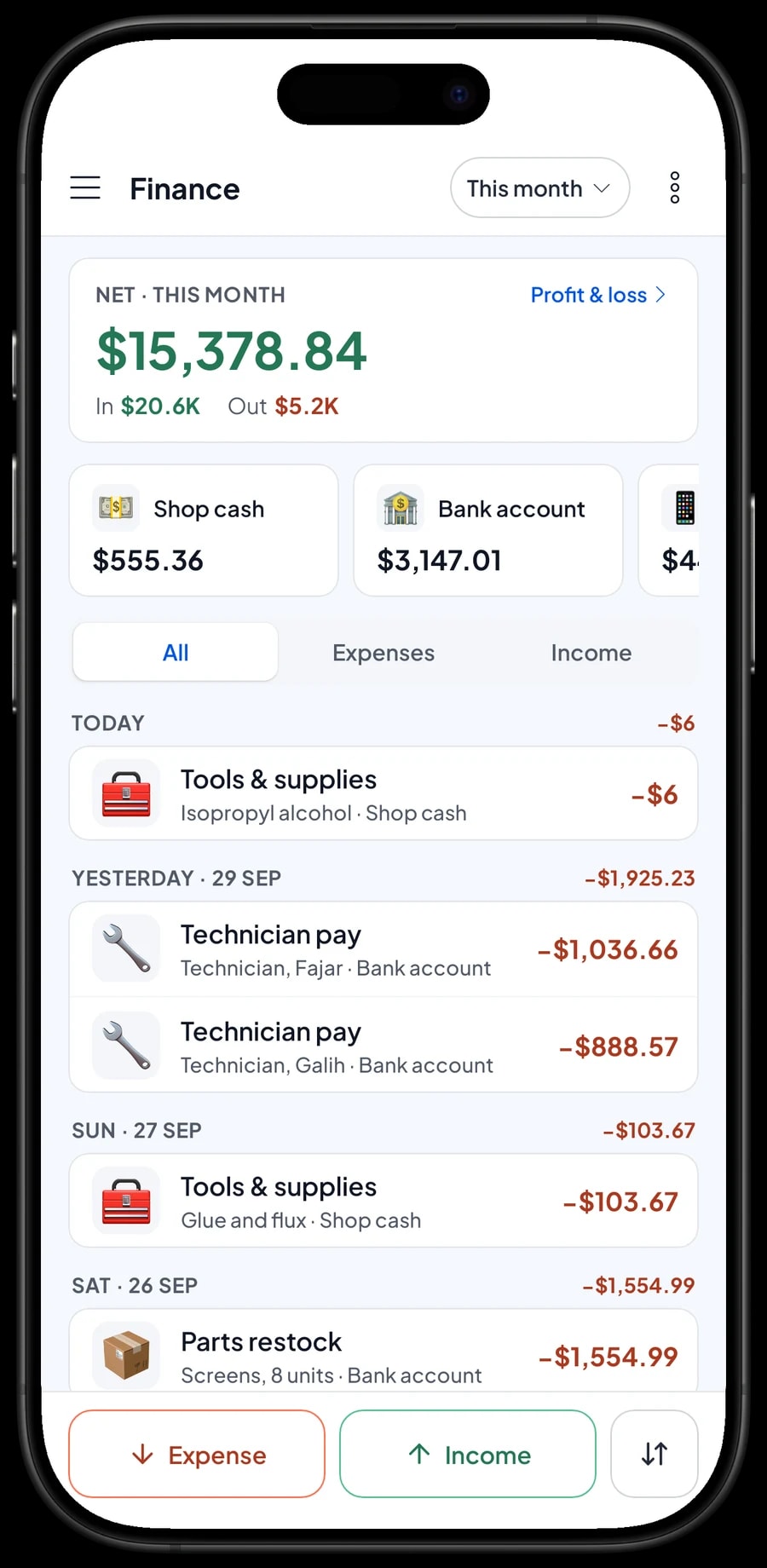
For real profit, record expenses in Finance: screens and batteries, accessory stock, technician pay, rent, electricity, glue and flux. Each expense has a category and the wallet it came from, such as shop cash, a bank account or an e-wallet. The Finance report then shows revenue minus the cost of parts and operating costs: your shop's net profit.
Reports can be exported to Excel or PDF, or printed on the thermal printer.
Get started in a day, keep going offline
You don't need to close the shop to start. Install Salesmaster on the counter phone or laptop, create an account, and enter the 10 to 15 jobs you do most plus the parts in your drawer with their stock. Connect a thermal printer if you use one. Phones already on the bench can be added one by one as saved orders.
Sales are saved on the device first and sent to the cloud when the connection is back. Offline mode works for up to 7 days; after that the app needs to connect briefly to sync and verify your account. Because your data lives in your account, repair history isn't lost if a device breaks or is replaced. Unpaid saved orders stay on the device that created them, so close them before you switch devices.
Step-by-step guides for every feature are in the Salesmaster Help Centre, and our team is on WhatsApp if you need help setting up your catalog.
An example repair shop catalog
Use this table as a starting point and replace the names and prices with your own price list.
| Category | Item | Variants | Add-ons | Item type |
|---|---|---|---|---|
| Repairs | Screen Replacement Labor | - | Repair extras | Service |
| Repairs | Battery Replacement Labor | - | Repair extras | Service |
| Repairs | No-Power Repair | Minor fault, Board-level (power IC) | Repair extras | Service |
| Repairs | Software Reflash & Reset | - | - | Service |
| Spare parts | Phone Screen Assembly | LCD 6.5 in, OLED 6.7 in | - | Product |
| Spare parts | Phone Battery | 4,000 mAh, 5,000 mAh | - | Product |
| Spare parts | Phone Loudspeaker | - | - | Product |
| Accessories | Tempered Glass Screen Protector | - | - | Product |
| Accessories | USB-C Cable 1 m | - | - | Product |
Keep labor (Service items, no stock) apart from parts (Product items, with stock). A screen repair bill carries both, and reports show the revenue from each.
Which plan fits your repair shop
Start by counting bills per day, including accessory sales. A shop that closes about 5 to 8 bills a day records roughly 150 to 250 transactions a month.
| Plan | Price | Transactions / month | Staff accounts | Good for |
|---|---|---|---|---|
| Free | Free | 30 | Owner only | To try the repair and saved-order flow before using it for real. |
| Solo Pro | $4.90/month | 3,000 | Owner only | Repair counters where the owner fixes and takes payment. |
| Bronze Pro | $6.90/month | 5,000 | 1 staff | Shops with one cashier or technician on their own device. |
| Silver Pro | $9.90/month | 8,000 | 2 staff | Busier shops with two staff on separate devices. |
Every plan includes checkout, catalog, receipts, reports and offline mode. You can change plans at any time. See pricing →
Frequently asked questions
- Can Salesmaster hold a repair that is paid for at pickup?
- Yes, with Save order. Add the labor and parts, then save the order under the customer's name and the fault, such as "Joko, no power". Saved orders stay on the device that created them and aren't counted as sales until paid, so finish them on the same device.
- Does it track repair status, like received, in progress and ready?
- No. Salesmaster is a POS, not a repair ticketing system. Put the status in the saved order's name or note, such as "waiting for part" or "ready", and update it as the job moves along.
- How do I record a deposit on a repair?
- Salesmaster doesn't take part payments on a single sale. Sell the deposit right away as a separate Service item called "Down payment" for the amount received. When the device is collected, open the saved order, which keeps the repair at its full price, tap Add Deduction for the deposit amount, and take the balance. The drawer and reports then match on both days.
- Can I record the IMEI or serial number of a customer's phone?
- There is no dedicated IMEI field. Write the IMEI, make and model in the transaction or order note. The note is saved with the sale in the customer's history.
- Can Salesmaster track warranty periods?
- Not automatically. Sell extended warranty as an add-on on your service items so it is recorded on the sale and the receipt. When the customer returns, look up the sale in their history to see the repair date and the warranty they bought.
- How do I keep labor and parts separate?
- Create repairs as Service items and parts as Product items with stock. One bill holds both, parts come off stock when it is paid, and reports show the revenue from each item.
- Which plan suits a phone repair shop?
- Start on the Free plan to try it. A counter run by the owner fits Solo Pro, while shops with a cashier or technician on their own device use Bronze Pro or Silver Pro, because both include staff accounts. Prices for each plan are in the plan table on this page.
Need help setting up your catalog? Chat with our team on WhatsApp →