
Salesmaster is a point-of-sale (POS) app for food trucks and carts that runs on Android phones, iPhone, tablets, Windows and Mac. Sales keep recording offline for up to 7 days and sync to the cloud as soon as the signal comes back. You can build a menu with variants and add-ons, deduct ingredient stock by recipe, print receipts on a thermal printer or send them by WhatsApp, and see net profit in the Finance report.
Problems every food truck knows
If a few of these sound familiar, this page is for you.
- 01
No signal at the busiest moment
At a concert lot, a street fair or a stadium, thousands of people share the same cell towers. A register that has to stay online freezes exactly when the line is longest.
- 02
Tight space, full hands
One or two people cook, pack and take money at the same window. There is no room for a notebook, a calculator and a big cash drawer inside the truck.
- 03
Running out mid-service
A truck only carries so much. If the paper bowls or the chicken run out two hours into an event, the rest of the night is lost, and you only find out when customers walk away.
- 04
Event fees and fuel go unrecorded
A festival day looks great in sales, but after the spot fee, fuel, propane, crew wages and truck repairs, what is left? Without records it is hard to know which events are worth booking again.
Selling without signal: how offline mode works
This is the main reason food truck owners want a POS that runs offline. Salesmaster saves every sale on the device first. Your cashier can ring up orders, take payment and print receipts even when the phone has no signal at all. When the connection returns, say when you drive back to the commissary or move to a busier street, the sales upload to the cloud automatically.
Offline mode works for up to 7 days in a row. After that the app needs a short internet connection to sync and verify your account. Signing up, the first sign-in on a new device and the first sync also need internet, so do your setup at home or somewhere with good coverage, not at the event.
Because your data lives in your account and not just on one phone, your sales history is safe if a phone is dropped, broken or lost on the road. Install Salesmaster on a replacement phone, sign in with the same account, and your synced catalog and sales come back.
Building a truck menu: categories, sizes and variants
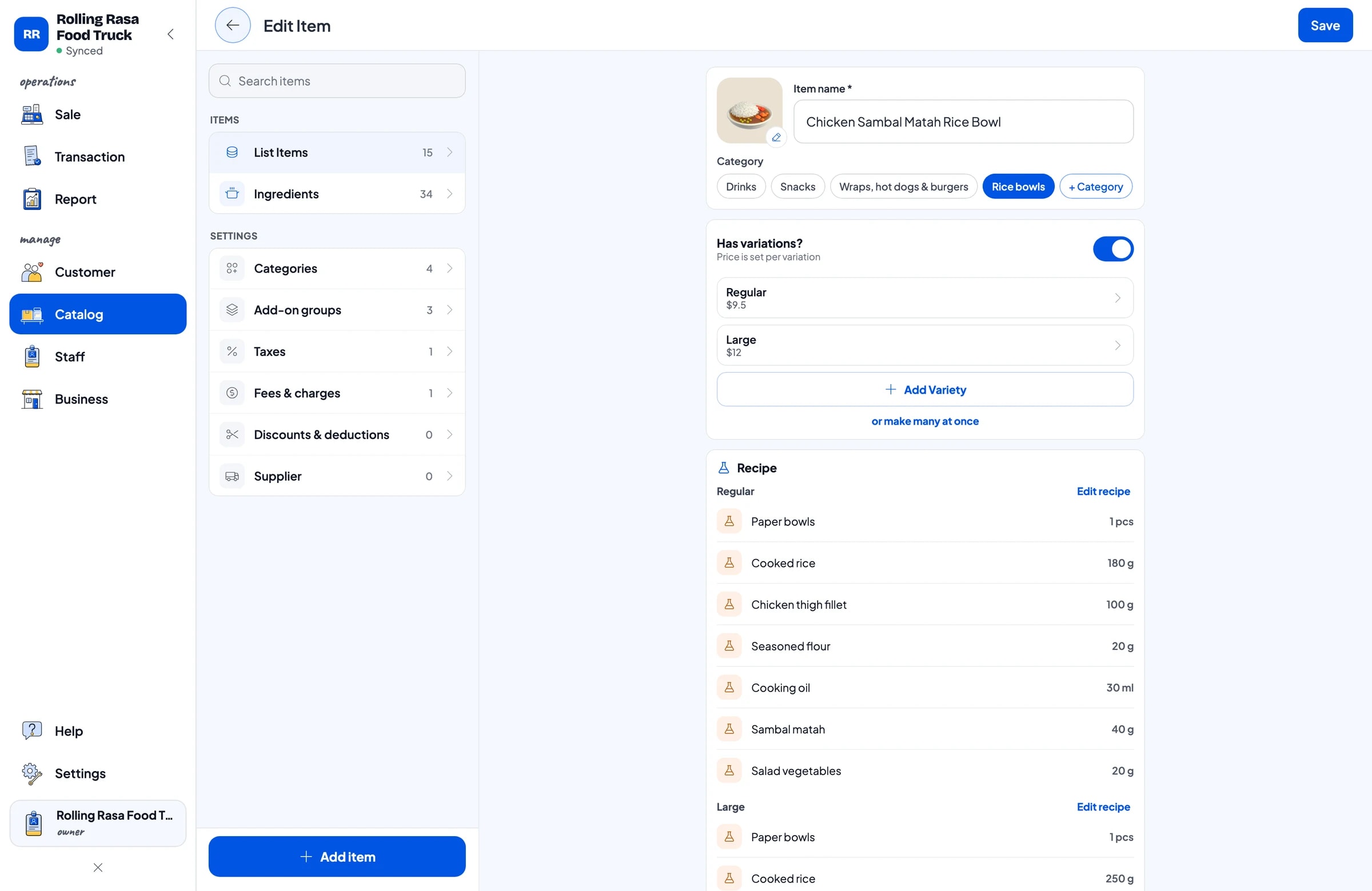
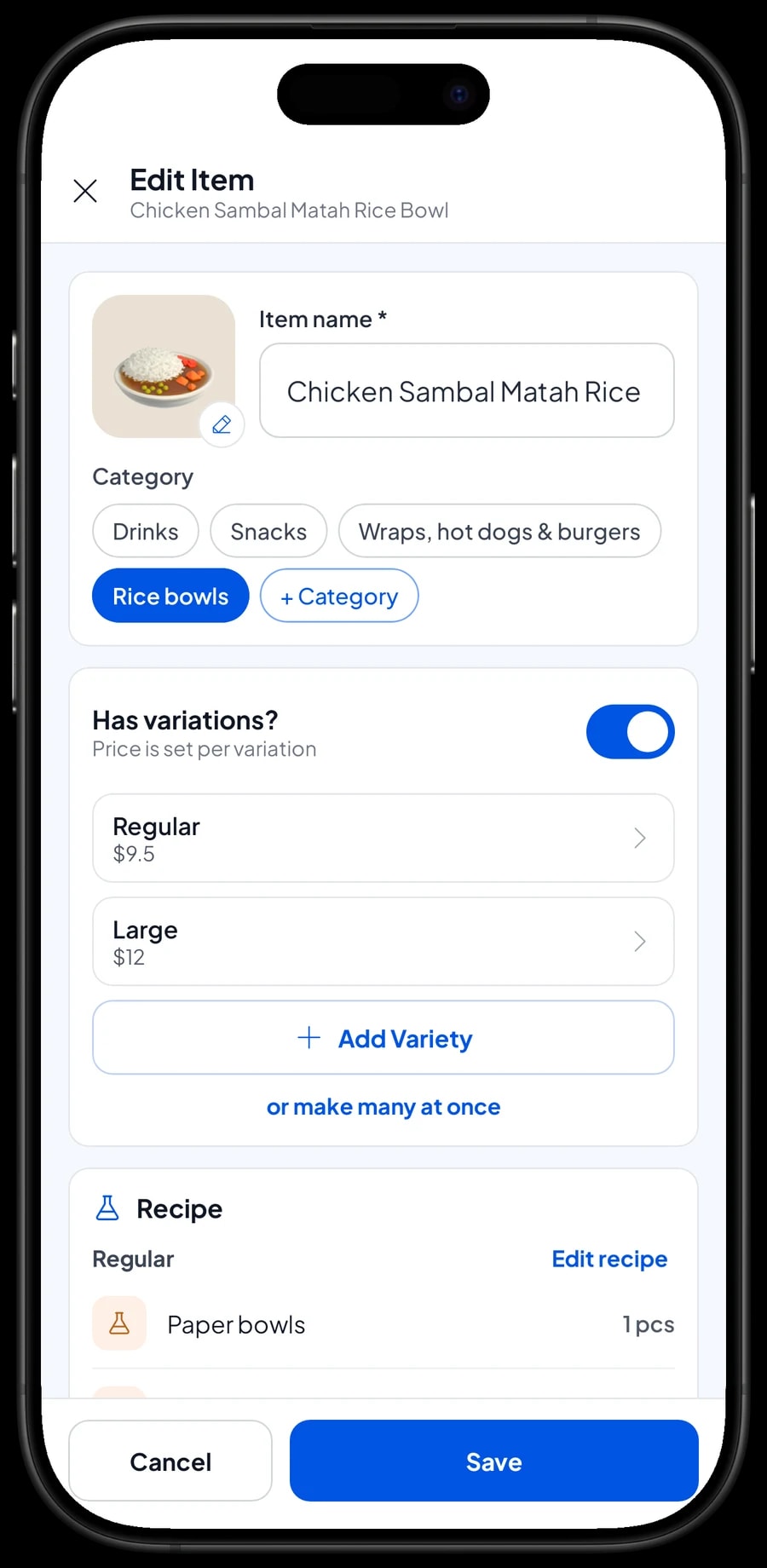
Food truck menus are short but full of choices: a rice bowl in regular or large, a hot dog with beef or chicken sausage, classic fries or loaded fries. In Salesmaster each dish is one item in the Catalog, and sizes or fillings are variants, each with its own price.
Group your menu into the same categories as the board on the side of your truck, for example Rice bowls, Wraps, hot dogs & burgers, Snacks and Drinks. Categories show up as tabs on the Sale screen, so even during a rush the cashier finds any dish in one or two taps.
For event-only specials, add an item for the weekend and delete it afterwards.
- Step 1: Open Catalog → Categories and create categories such as Rice bowls, Snacks and Drinks.
- Step 2: Open Catalog → List Items and add each dish with its name, unit (bowl, pc, cup) and category.
- Step 3: For dishes that come in sizes or fillings, add variants such as Regular and Large with their prices.
- Step 4: Open the Sale screen and check that every dish appears under the right category.
Add-ons: fried eggs, extra rice and spice levels
Customers love extras: a fried egg, extra rice, more sambal, an extra shot. If the cashier has to remember them all, the small ones go unbilled.
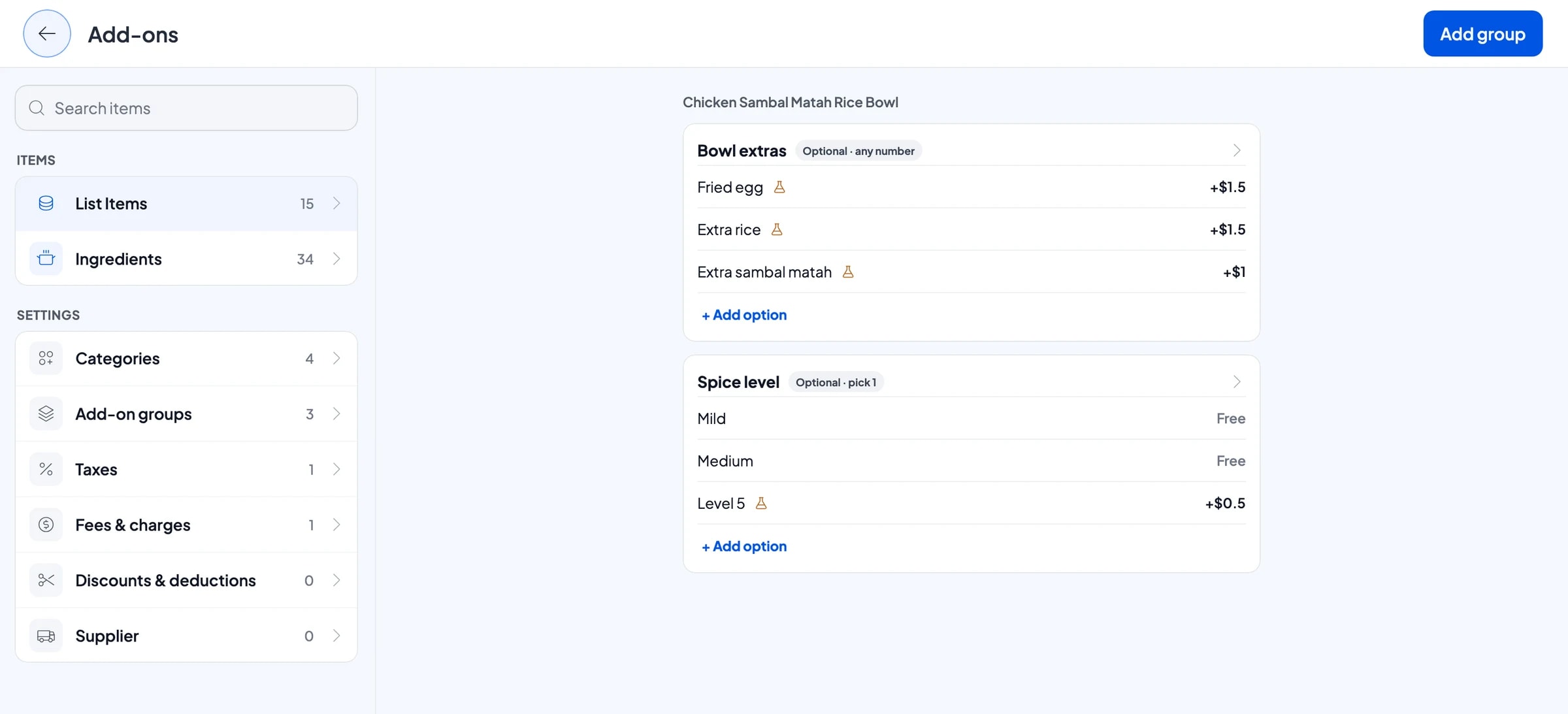
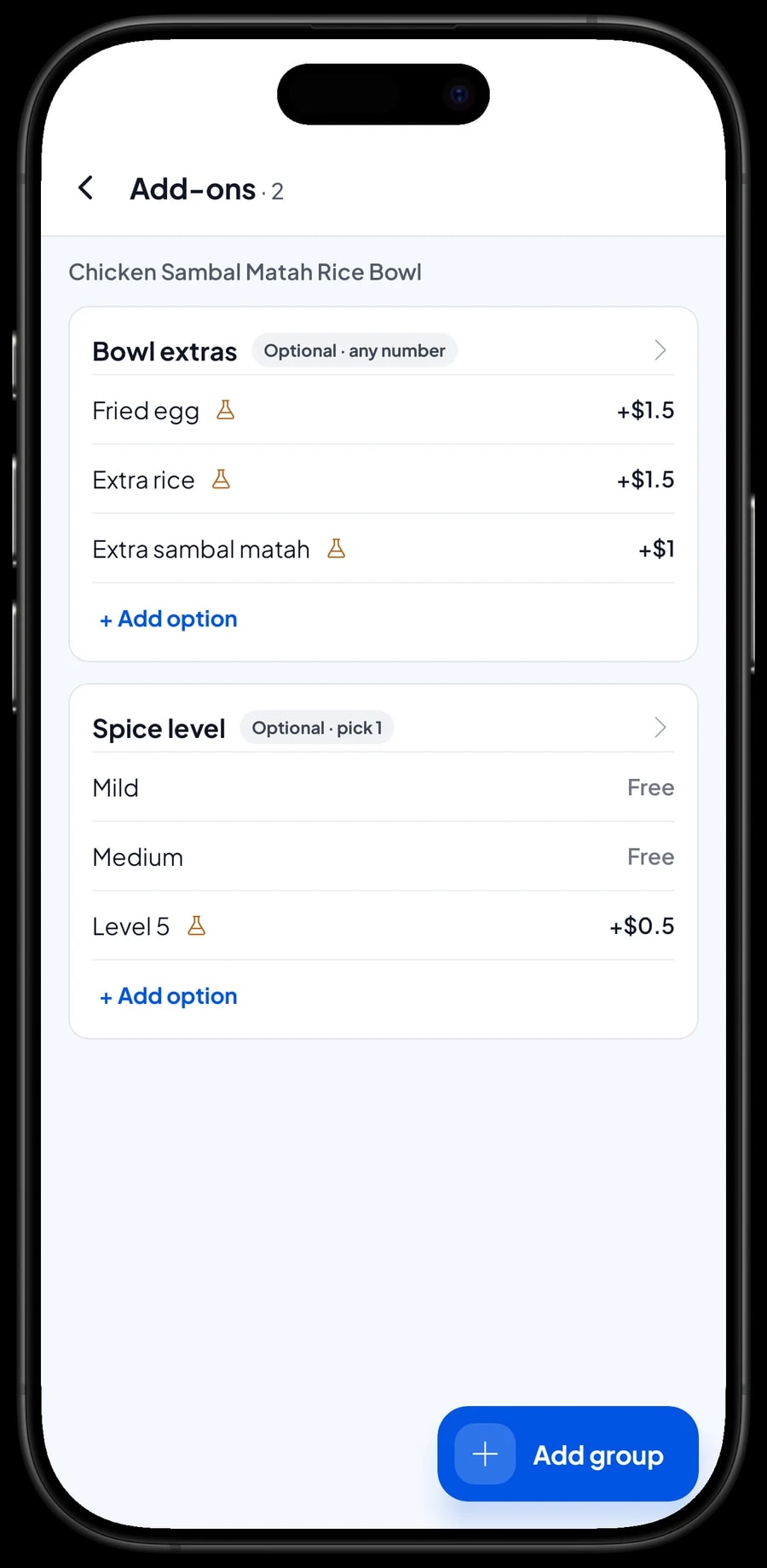
In Salesmaster, extras are add-on groups. One group, such as Bowl extras, holds several options with their own extra charge and can be attached to every rice bowl at once. Another group, such as Spice level, can be limited to a single choice. Free options are still recorded on the order.
Add-ons can have their own recipe too. Extra rice takes rice out of stock and a fried egg takes an egg, so your ingredient counts match what was really used.
- Step 1: Open a rice bowl in Catalog → List Items, choose Manage add-ons and create a new group, for example Bowl extras.
- Step 2: Add options such as Fried egg and Extra rice with their extra charge.
- Step 3: Attach the group to the dishes that use it, such as all your rice bowls.
- Step 4: For choices like spice level, set the group so customers can pick only one option.
Fast payment and receipts from the window
At a food truck, speed at the window decides how many people you serve. On the Sale screen the cashier taps the dish, picks the variant and add-ons, and chooses how the customer pays: cash, bank transfer, e-wallet, or any payment method you set up yourself. Order notes such as "sauce on the side" or "no onions" are saved with the sale.
If you collect sales tax, set it once in Fees or Tax and it is added to every sale automatically. The report shows how much came in through each payment method, so the cash in the drawer and your bank and e-wallet balances are easy to reconcile after the event.
Receipts print on a Bluetooth or USB thermal printer with 58 mm or 80 mm paper. Customers who don't want paper can get a receipt by WhatsApp, email or a web receipt link that carries your truck's logo and social media.
Ingredient stock by recipe: know when to restock
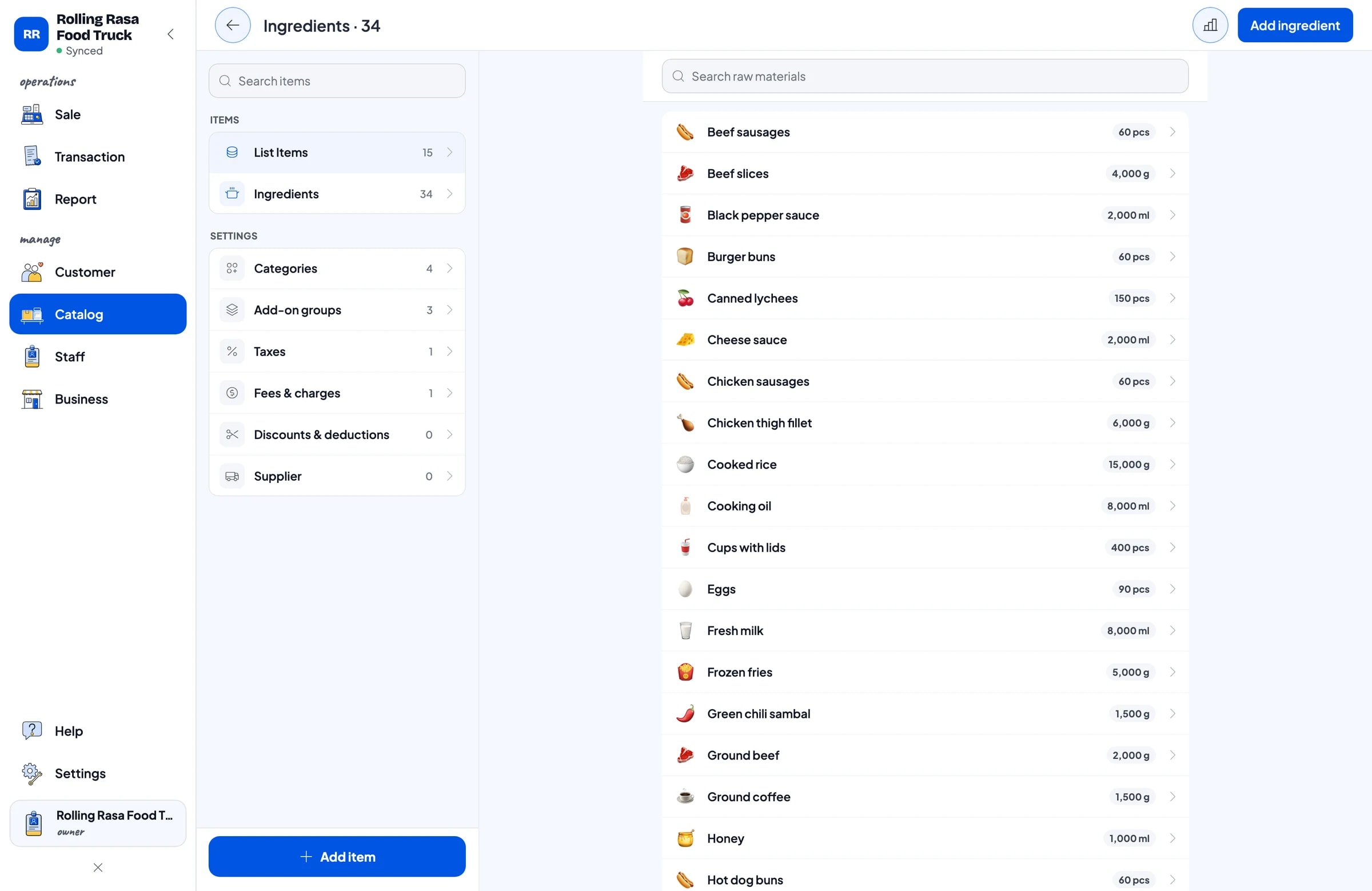
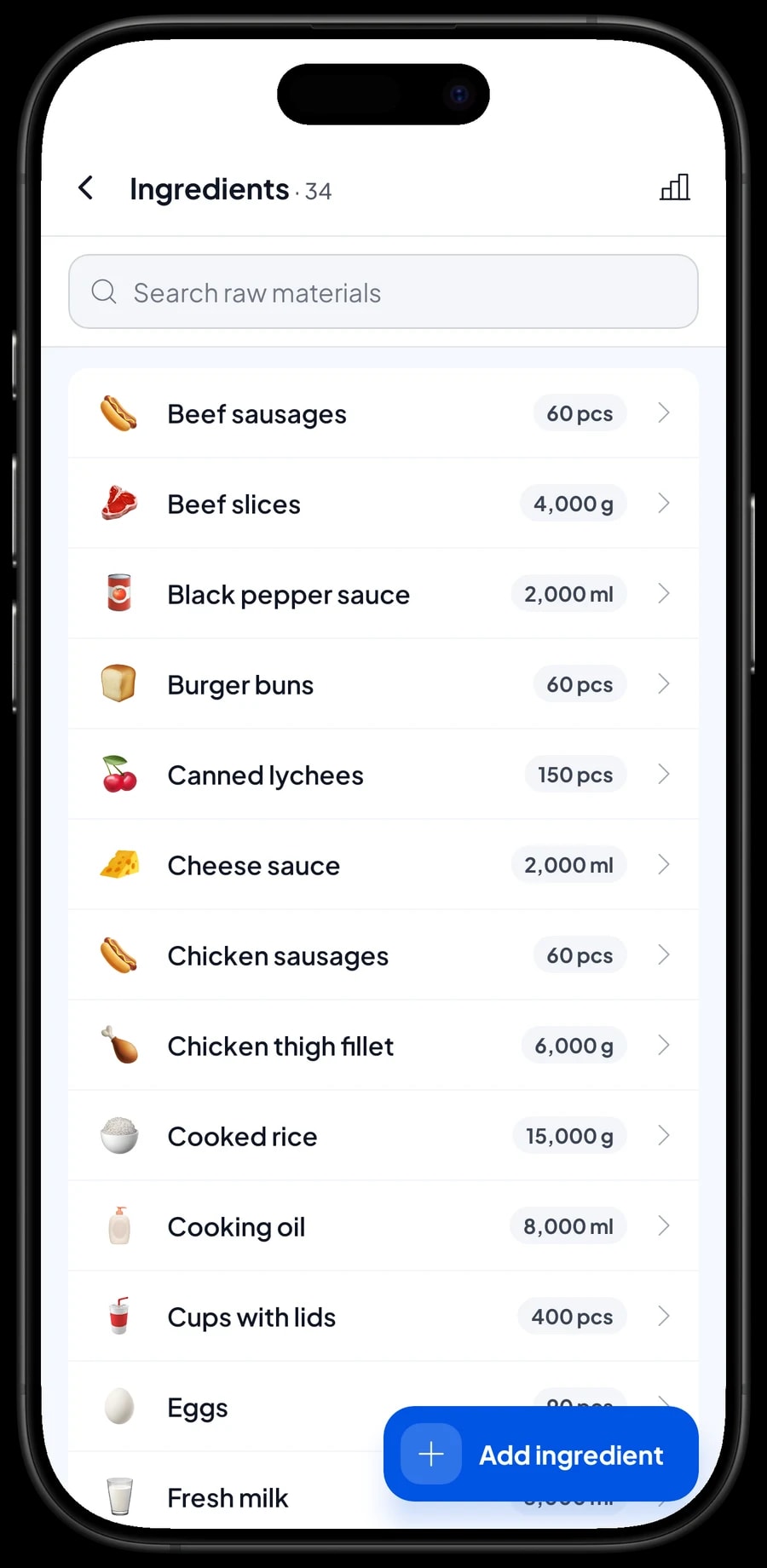
Space in a truck is limited, so you need to know exactly what you loaded and what is left. In Salesmaster, dishes you cook are made-to-order items with a recipe. You record each raw material once, for example rice and chicken in grams, tortillas and buns in pieces, and then write how much one serving uses.
Packaging belongs in the recipe too. Paper bowls, cups and lids come off stock with every serving sold, so you don't run out of containers halfway through service. Each ingredient can have a low-stock threshold, which makes anything running low easy to spot in the ingredient list.
When you shop, record the purchase with its price. Salesmaster uses that price to work out the cost of each serving, so you know what one rice bowl or one iced latte really costs you and can set prices that make sense.
- Step 1: Turn on made-to-order items, then open Catalog → Inventory → Raw materials.
- Step 2: Add each ingredient with its unit, starting stock, purchase price and low-stock threshold.
- Step 3: Open each made-to-order dish in the Catalog and fill in its recipe, including packaging such as paper bowls or cups.
- Step 4: After every supply run, record the purchase so stock and cost per serving stay accurate.
Crew and cashier devices
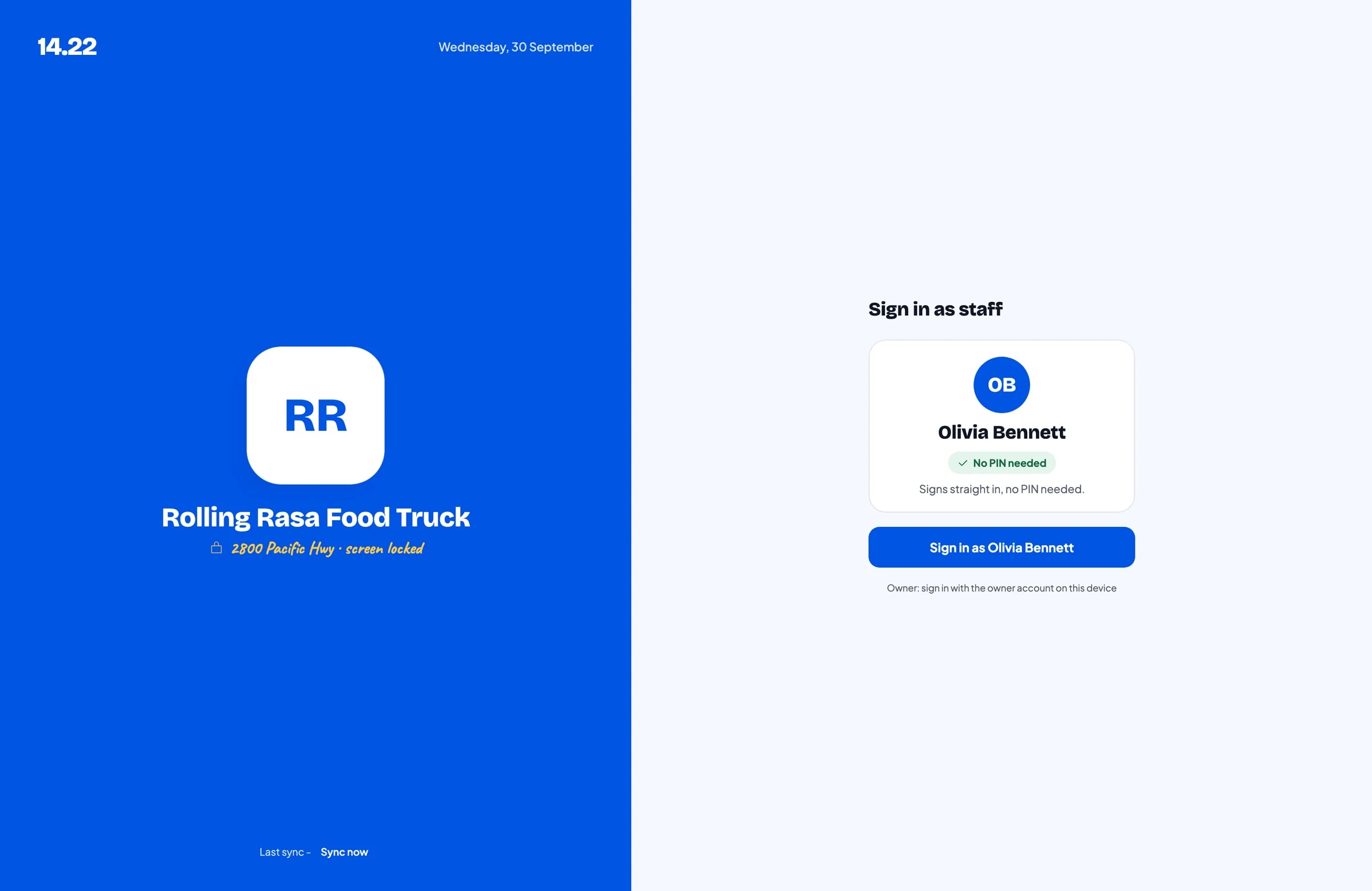
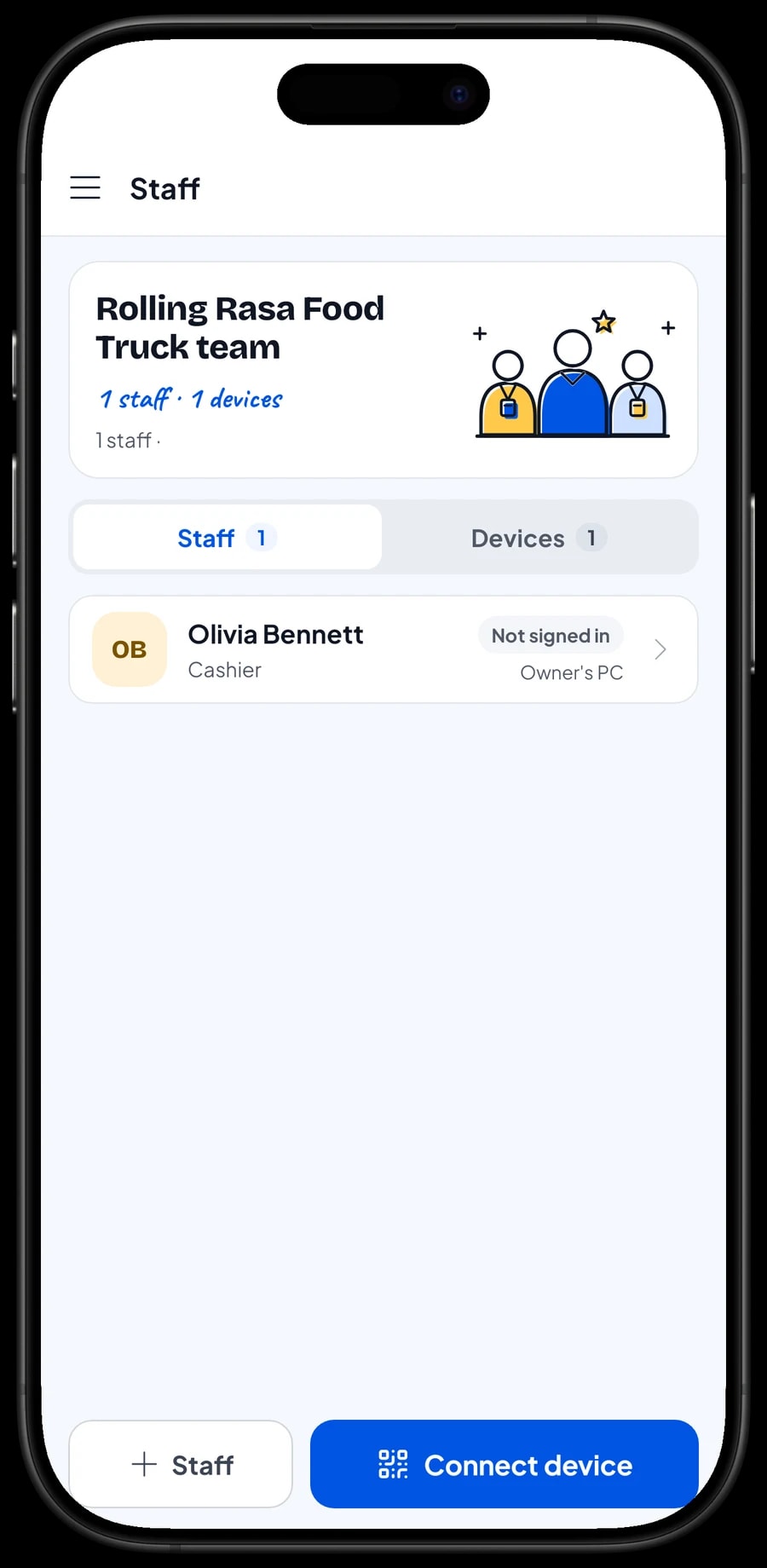
A Salesmaster account signs in on one device at a time. If a crew member runs the truck while you handle other things, add them as staff and register a cashier device for them. Staff sign in with a PIN according to their role, and you decide what they can see and change. Staff accounts come with Bronze Pro (1 staff) and Silver Pro (2 staff).
Reports and profit: which events pay off
Reports are available by day, week, month and year. You see total revenue, gross and net sales, discounts, tax collected, payment methods, and which dishes bring in the most money.
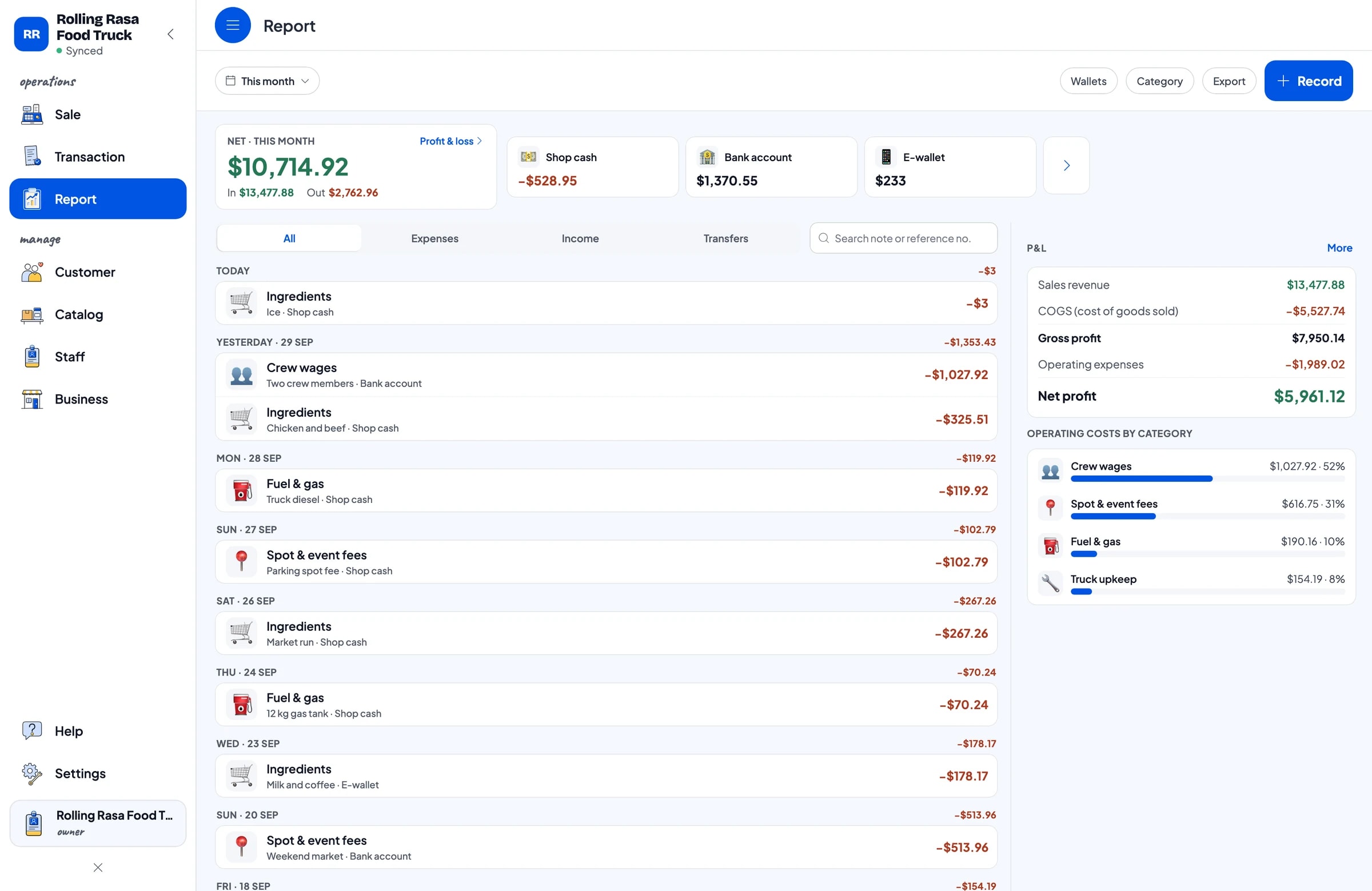
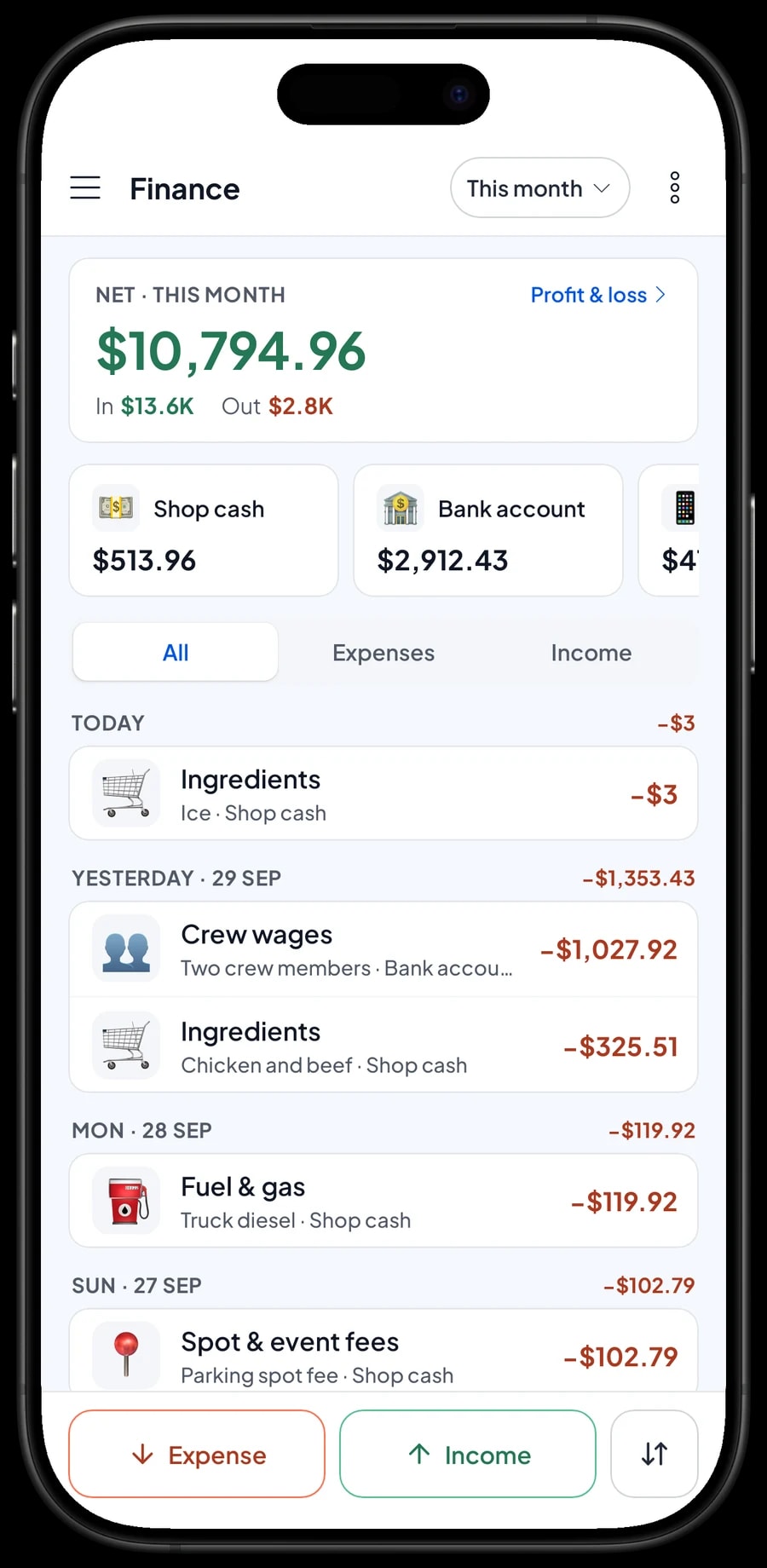
For real profit, record your expenses in Finance: ingredients, fuel and propane, spot and event fees, crew wages and truck upkeep. Each expense has a category and the wallet it was paid from, such as shop cash, a bank account or an e-wallet. The Finance report then shows sales minus the cost of goods from your recipes and your operating expenses. That is your net profit. Reports export to Excel or PDF.
Get set up before your next event
You don't need a day off to switch to Salesmaster. The day before you sell, install the app on the cashier's phone and sign up while you have internet. Enter the dishes on your menu board with their variants and add-ons, then pair your thermal printer if you use one.
On day one, run the register as usual. That night, open the daily report and compare it with the cash in the drawer. Once checkout feels smooth, move on to raw materials and recipes, then start recording expenses in Finance. Within a few weeks you will have sales, stock and profit records for every spot you park at.
Example food truck menu
Use this table as a starting point. Swap the names and prices for your own truck or cart menu.
| Category | Dish | Variants | Add-ons | Item type |
|---|---|---|---|---|
| Rice bowls | Chicken sambal matah rice bowl | Regular, Large | Fried egg, Extra rice, Spice level | Made-to-order |
| Rice bowls | Black pepper beef rice bowl | - | Fried egg, Extra rice | Made-to-order |
| Wraps, hot dogs & burgers | Beef kebab wrap | Regular, Jumbo | - | Made-to-order |
| Wraps, hot dogs & burgers | Hot dog | Beef sausage, Chicken sausage | - | Made-to-order |
| Snacks | Fries | Classic, Loaded cheese & beef | - | Made-to-order |
| Snacks | Tapioca fritters | - | - | Made-to-order |
| Drinks | Iced palm sugar latte | Regular, Large | Extra shot | Made-to-order |
| Drinks | Bottled water | - | - | Product |
Packaged drinks like bottled water or canned soda are regular items with their own stock. Anything you cook or mix is a made-to-order item, so its ingredients and packaging come off stock instead.
Which plan fits your food truck
Start by counting sales per selling day. A truck serving 20 to 30 customers a day records roughly 500 to 900 transactions a month, and event days can be much busier.
| Plan | Price | Transactions / month | Staff accounts | Good for |
|---|---|---|---|---|
| Free | Free | 30 | Owner only | To try the checkout flow on one cart before using it for real. |
| Solo Pro | $4.90/month | 3,000 | Owner only | Carts and trucks where the owner runs the register. |
| Bronze Pro | $6.90/month | 5,000 | 1 staff | Trucks with one crew member at the register on their own device. |
| Silver Pro | $9.90/month | 8,000 | 2 staff | Owners with two trucks or carts, each with its own cashier. |
Every plan includes checkout, catalog, receipts, reports and offline mode. You can change plans at any time. See pricing →
Frequently asked questions
- Does Salesmaster work in a food truck with no internet?
- Yes. Sales are saved on the device and sync automatically when the signal comes back. Offline mode works for up to 7 days before the app needs to connect to sync. Signing up and the first sign-in still need internet.
- What happens to my sales if the cashier's phone breaks on the road?
- Synced sales are stored in your account. Install Salesmaster on another phone, sign in with the same account and your data comes back. Sales that haven't synced yet are still on the old phone, so make a habit of opening the app on Wi-Fi or data after each event.
- Can I use one account on two trucks at the same time?
- No. An account signs in on one device at a time. For a second truck or cart, add a staff member and register a cashier device for them. Staff accounts come with Bronze Pro (1 staff) and Silver Pro (2 staff).
- Which printer works best in a food truck?
- Any Bluetooth or USB thermal printer with 58 mm or 80 mm paper. A small Bluetooth printer is the most practical in a truck because it needs no cables. If you'd rather skip paper, send receipts by WhatsApp, email or a web receipt link.
- Can Salesmaster track ingredients and packaging in the truck?
- Yes. Set dishes up as made-to-order items with a recipe, including packaging like paper bowls or cups. Every serving sold takes its ingredients and packaging off stock, including anything used by add-ons.
- Can I see sales per location or per event?
- The simplest way is to open the daily report for the event's date, and record the spot fee in Finance with the event name in the note. That lets you compare each event's sales with what it cost you.
- Can customers order now and pay when they pick up?
- Most trucks take payment at the window. If you do use Save order for orders collected later, keep in mind that the order stays on the device where it was created and doesn't count as a sale until it is paid.
Need help setting up your catalog? Chat with our team on WhatsApp →