
Salesmaster is a point-of-sale (POS) app for pharmacies and drugstores on Android, iPhone & iPad, Windows and Mac. Cashiers scan a barcode or search by name, sell by the strip or by the bottle with variants, and print or send the receipt. Stock and stock history are kept per product, and the Finance report shows net profit after stock purchases, wages and rent.
Problems every drugstore knows
If any of these sound familiar, this page is for you.
- 01
Look-alike names, wrong prices
Paracetamol tablets and children's syrup, cough syrup in two sizes. When prices come from a notebook or memory, mistakes happen whenever the line gets long.
- 02
One product, several pack sizes
Vitamins sell by the strip and by the bottle, cajuput oil comes in three sizes. Each pack has its own price and cost, and every one of them needs to be right.
- 03
Out of stock, found out at the counter
Rehydration salts, bandages and face masks sell every day. Without stock records you only notice a gap when a customer asks for it, and the distributor order becomes a rush job.
- 04
Busy counter, unclear profit
Margins per product are thin, while the pharmacist's wages, rent and electricity keep coming. Without recorded expenses, nobody knows what is really left each month.
Building your product catalog: categories, units and barcodes
Start with the products customers ask for most. In Salesmaster, every product is one item in the Catalog with a name, a unit (strip, bottle, sachet, pack, box), a selling price and a cost. Group items into categories that match your shelves, such as Everyday medicine, Vitamins, First aid and Health supplies, so the cashier can filter the Sale screen with one tap.
Use the full name printed on the package, including strength and pack size, like "Paracetamol 500 mg, strip of 10" or "Cough Syrup 100 ml". Complete names make search more precise and cut down on mix-ups between products with similar names.
Add the barcode from each package too. If you carry hundreds of products, enter the catalog on a laptop (Windows or Mac) first, then sell from a phone or tablet at the counter. The catalog syncs to your store's devices.
- Step 1: Open Catalog → Categories and create categories such as Everyday medicine, Vitamins, First aid and Health supplies.
- Step 2: Open Catalog → List Items and add each product with its full name, unit, selling price and cost.
- Step 3: Enter the barcode from the package, or scan it with the camera.
- Step 4: Start with your 50 best sellers, then fill in the rest during quiet hours.
One product, several pack sizes: use variants
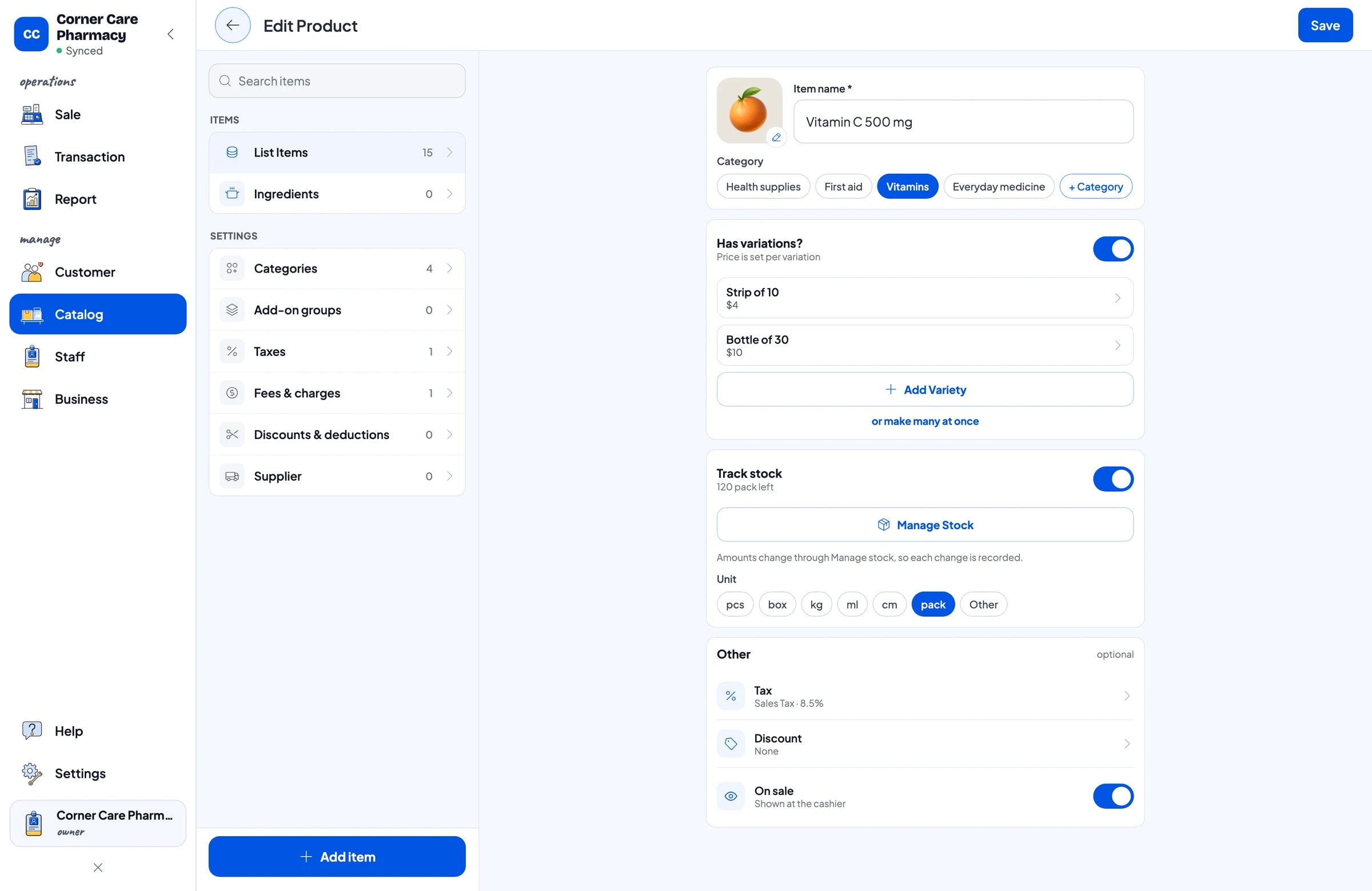
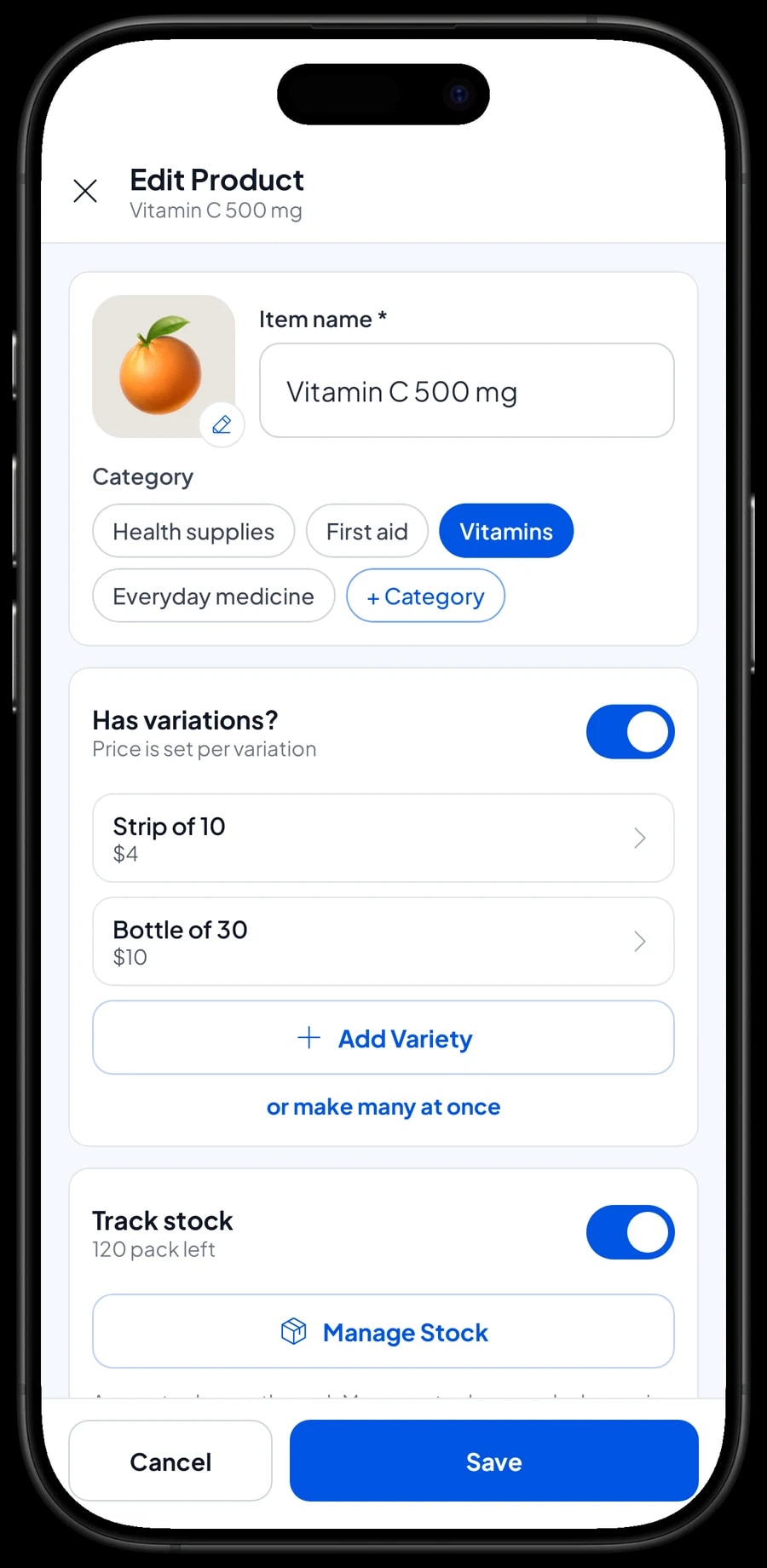
Many drugstore products come in more than one pack. Vitamin C might sell as a strip or a bottle, cajuput oil in several sizes. Instead of separate items for every pack, create one item with variants. The cashier picks the variant and the price follows.
Each variant has its own selling price, its own cost and its own stock, so "Strip of 10" and "Bottle of 30" are counted separately. Salesmaster does not convert one pack into another automatically: if you open a box to sell strips, record the change as a stock adjustment on both variants.
When different packs carry different barcodes, enter a barcode on each variant. Scanning it puts the right variant straight into the cart.
- Step 1: Open Catalog → List Items and choose a product that comes in several packs.
- Step 2: Add variants such as Strip of 10 and Bottle of 30, each with its own price and cost.
- Step 3: Enter a barcode for each variant if the packs have their own codes.
- Step 4: Save, then try it on the Sale screen: the cashier picks the variant and the price follows.
Fast checkout: scan the barcode or search by name
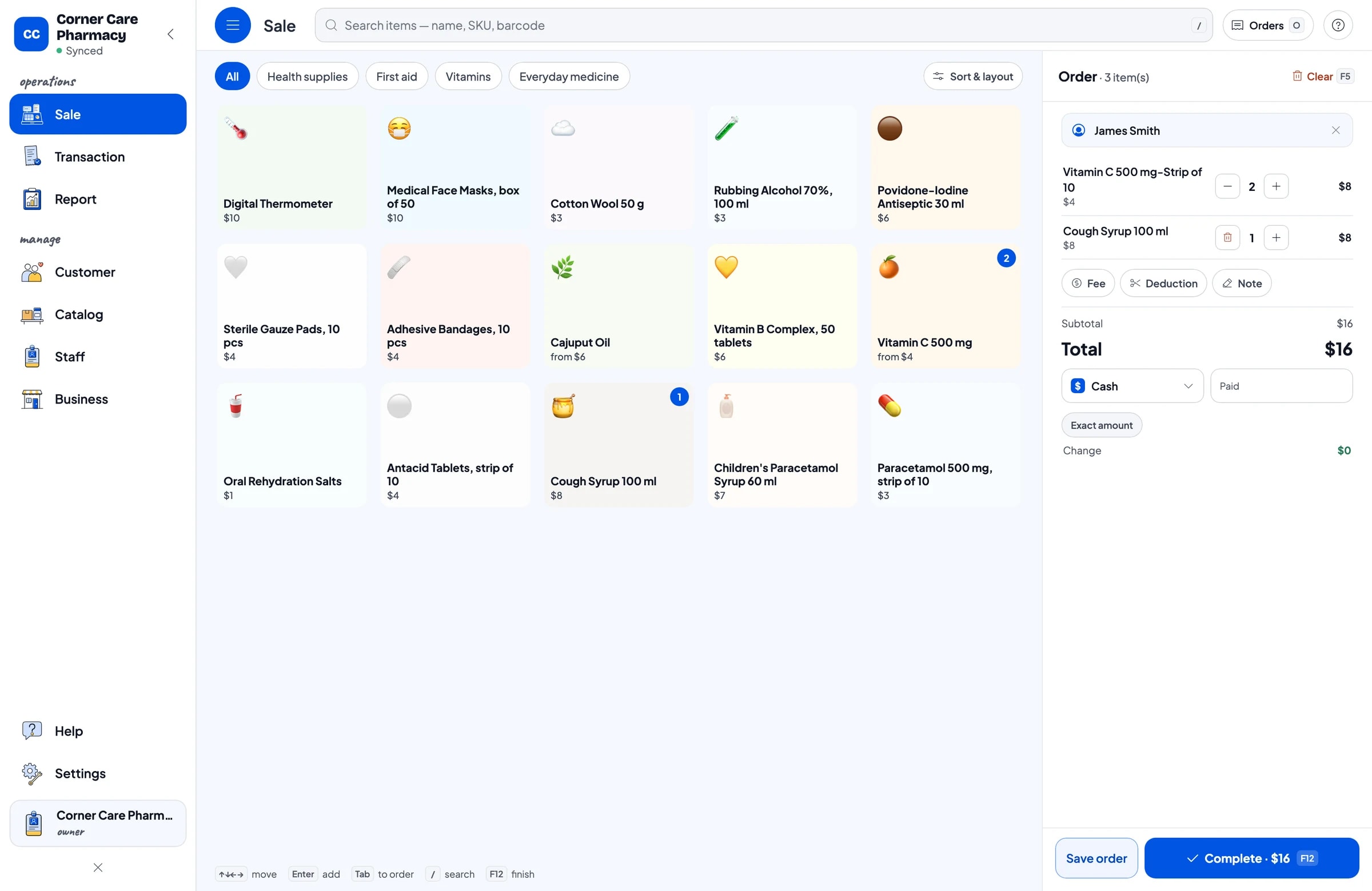
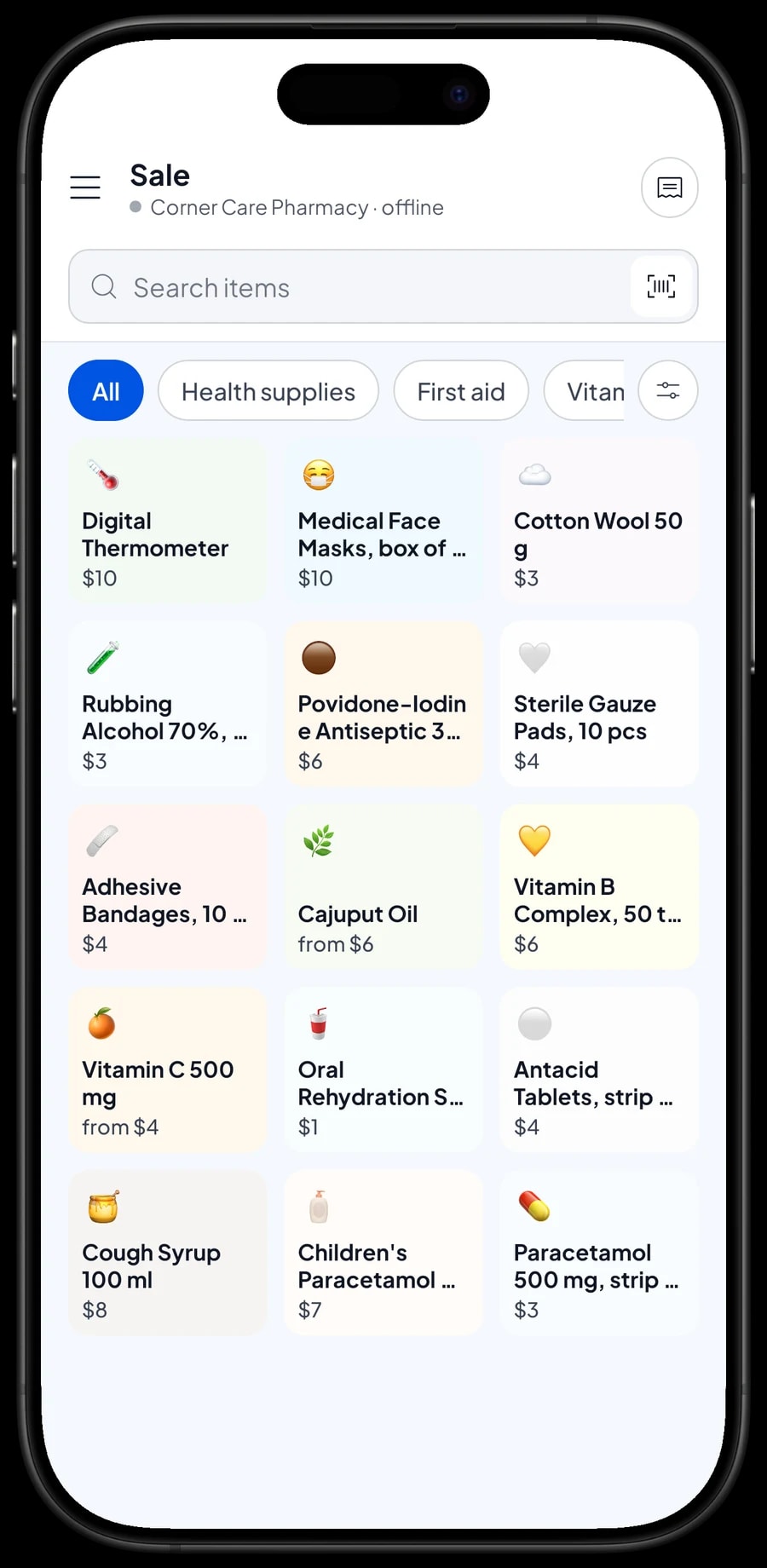
At the morning and after-work rush, the cashier has to be quick. On the Sale screen they scan the package barcode with the phone or tablet camera, or with a barcode scanner connected to the cashier device, and the product lands in the cart.
For products without a barcode, like loose cotton wool or a pack with a damaged label, the cashier types part of the name into Search, such as "cough" or "gauze". The category tabs at the top narrow the list further.
Add the customer's name if they want to be on record, then choose the payment method: cash, card, bank transfer, a mobile wallet, or any method you create yourself. Card terminals and other payment apps are recorded as payment methods; Salesmaster does not connect to them directly.
Stock per product, with a full stock history
Turn on Stock Tracking for every product you want to watch. Each sale takes it off stock automatically. When a distributor delivery arrives, add the new stock, and when something is damaged or missing, record an adjustment. Every change is kept in the product's Stock History, so you can see when stock came in, sold or was adjusted.
Save your distributors in the Supplier list. Before you place an order, open the stock list and look for products that are running low. Fast movers such as rehydration salts, bandages, face masks and paracetamol are worth checking every week.
Salesmaster doesn't track product expiry dates. A simple routine many stores use: check the shelves at the start of every month, pull anything close to its date, record it as a stock adjustment with a short note, and keep a separate list of expiry dates for slow sellers.
- Step 1: Open Catalog → List Items, choose a product and switch on Stock Tracking.
- Step 2: Open Inventory → Stock and enter the opening stock for each product or variant.
- Step 3: Add your distributors in Inventory → Supplier.
- Step 4: Record new stock whenever a delivery arrives, so the numbers match the shelves.
Assistants and cashier devices
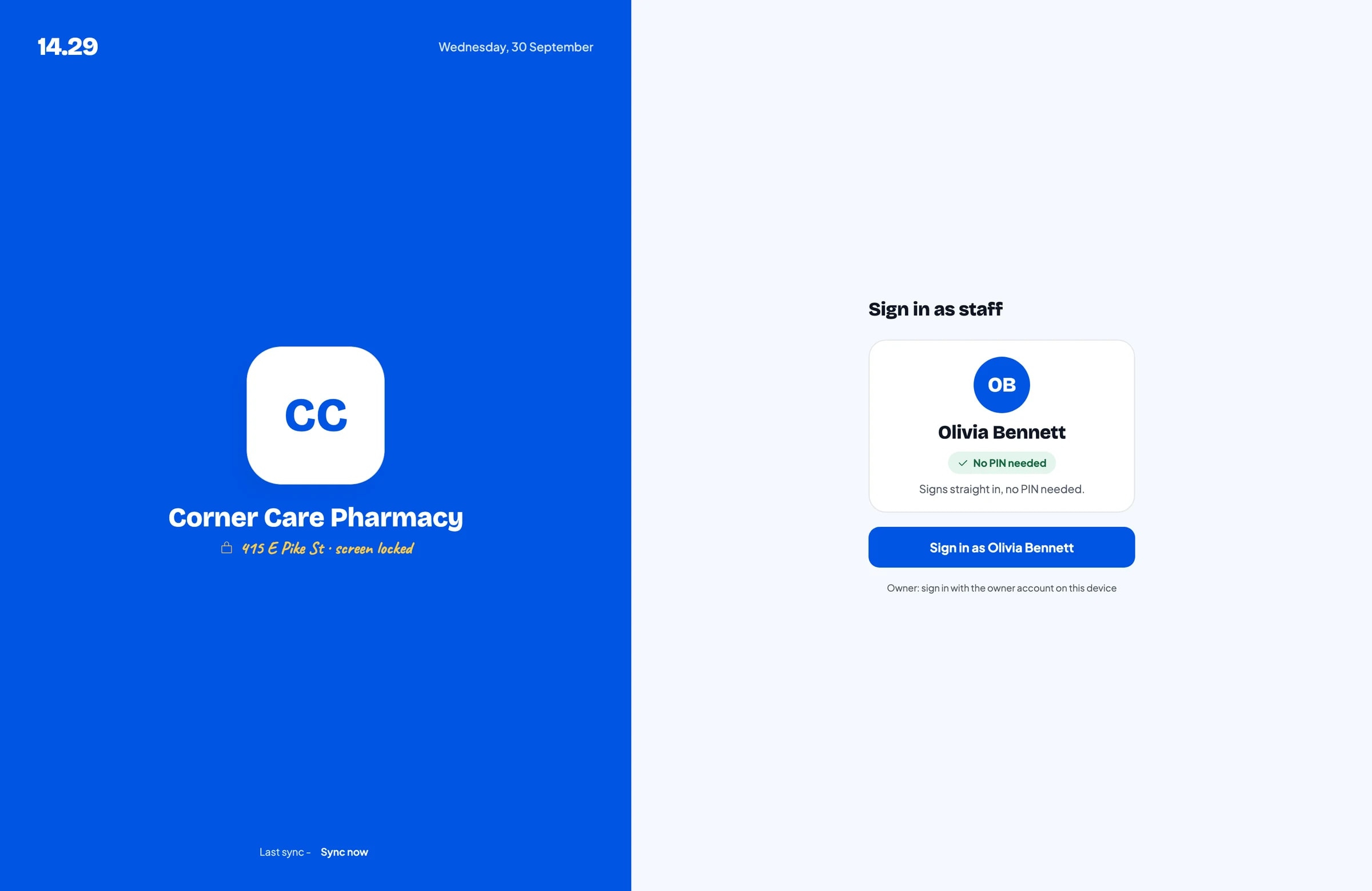
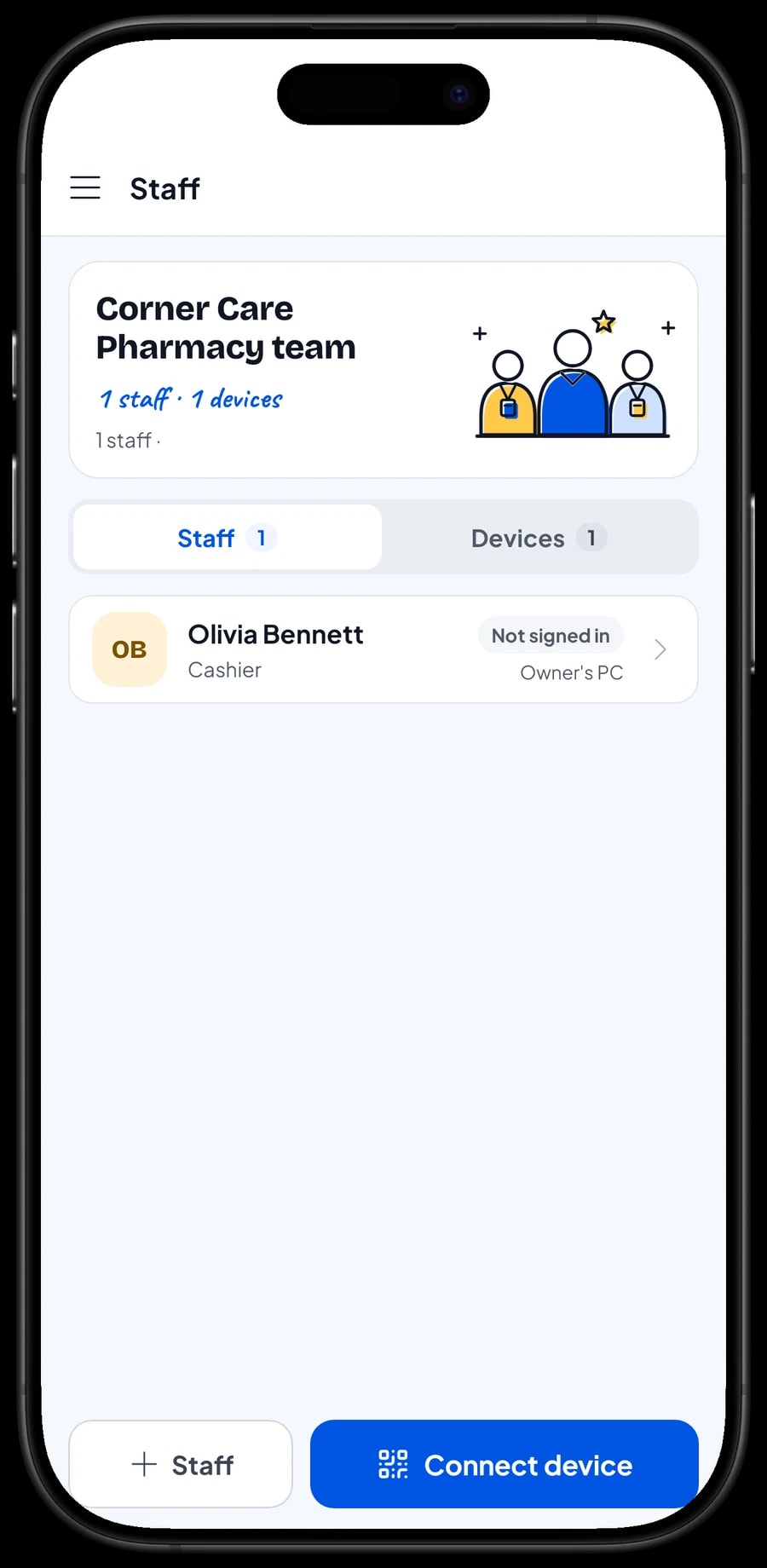
The owner signs in with the main account. An account can be signed in on one device at a time, so assistants and cashiers do not share yours. Add them as staff, register a cashier device for them, and they sign in with a PIN that matches their role. Staff accounts come with Bronze Pro (1 staff) and Silver Pro (2 staff).
Transactions, receipts and sales tax
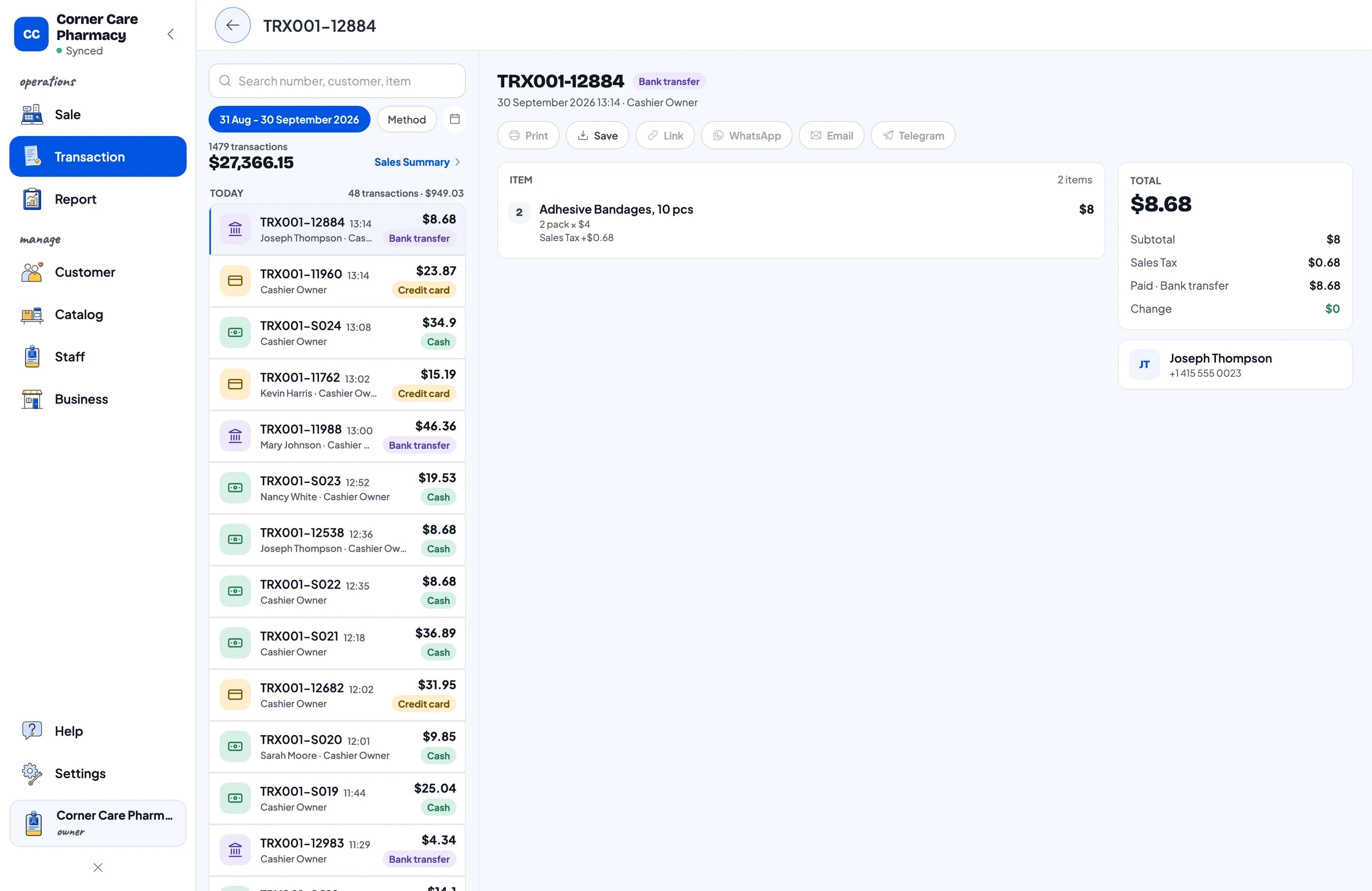
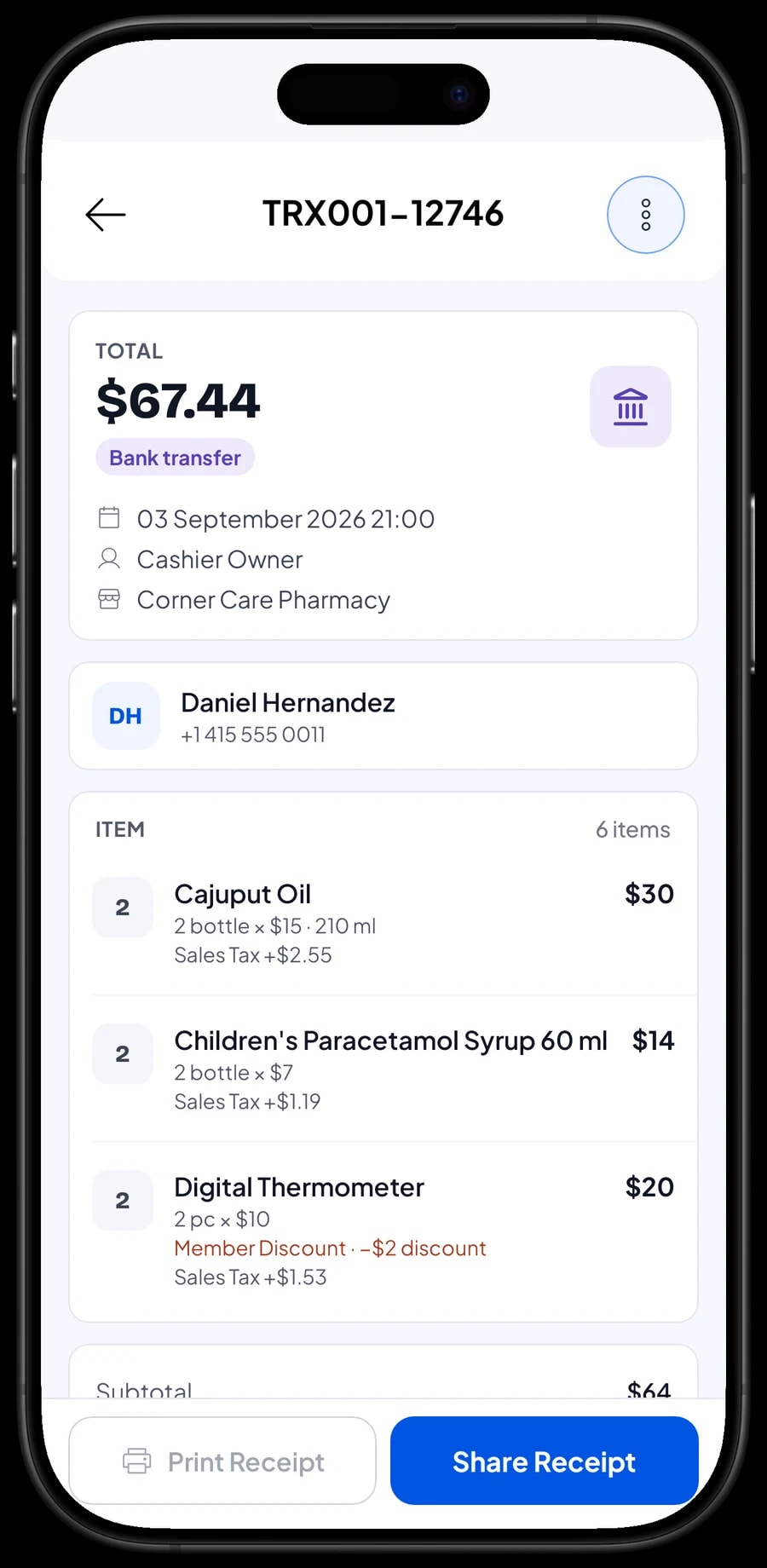
Every sale is saved under Transactions with its products, quantities, tax, discounts, payment method and the customer's name if you added one. When a customer comes back to exchange something or asks what they paid last week, you just look the sale up.
Receipts print on a Bluetooth or USB thermal printer, or go out by WhatsApp, email or a web receipt link. The web receipt is handy for customers who need proof of purchase to claim the cost back from work.
If you collect sales tax, set it once under Fees or Tax and it is added to every sale automatically. Discounts for regulars or promotions are set under Deductions.
Sales reports: what actually sells
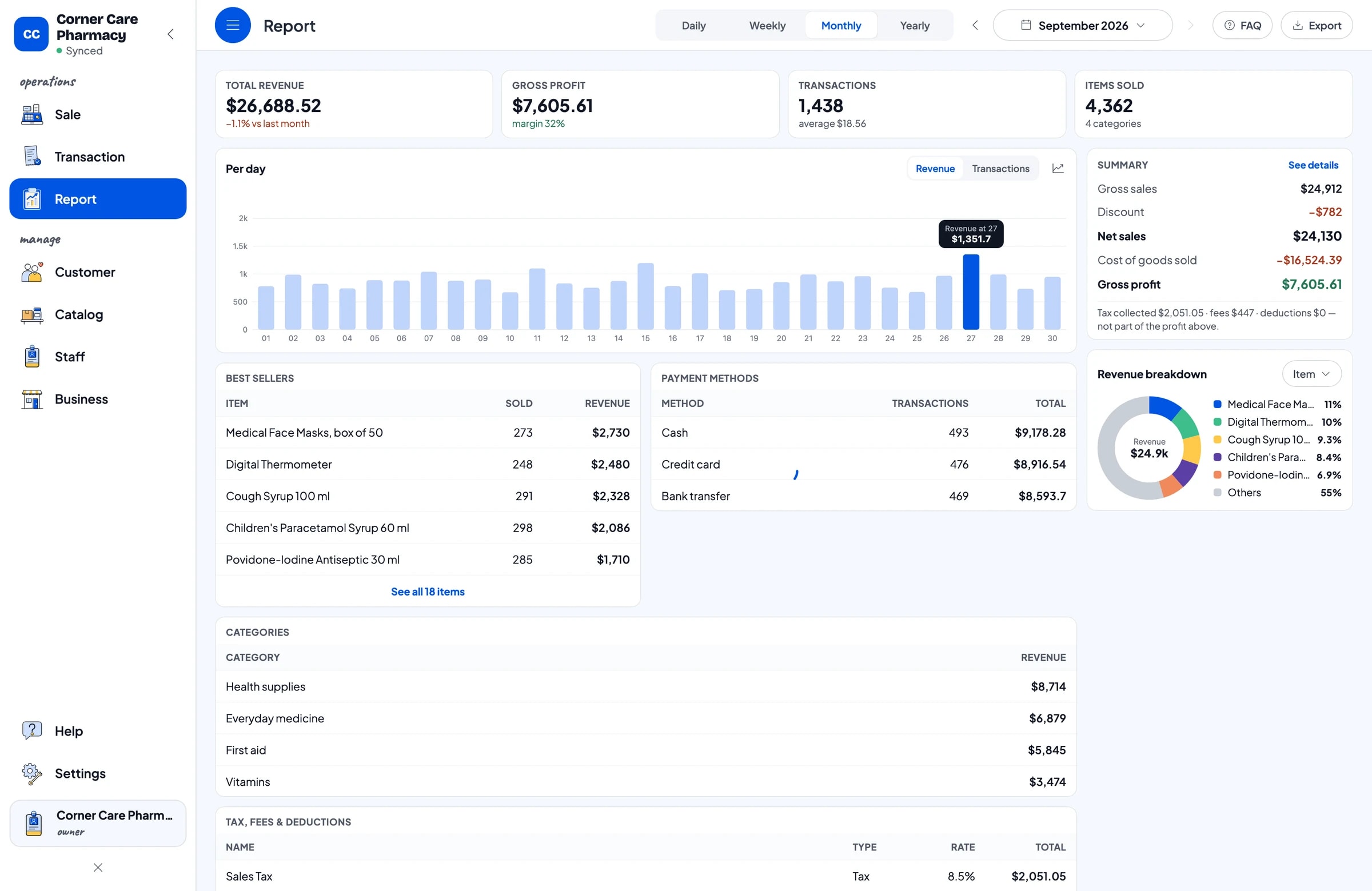
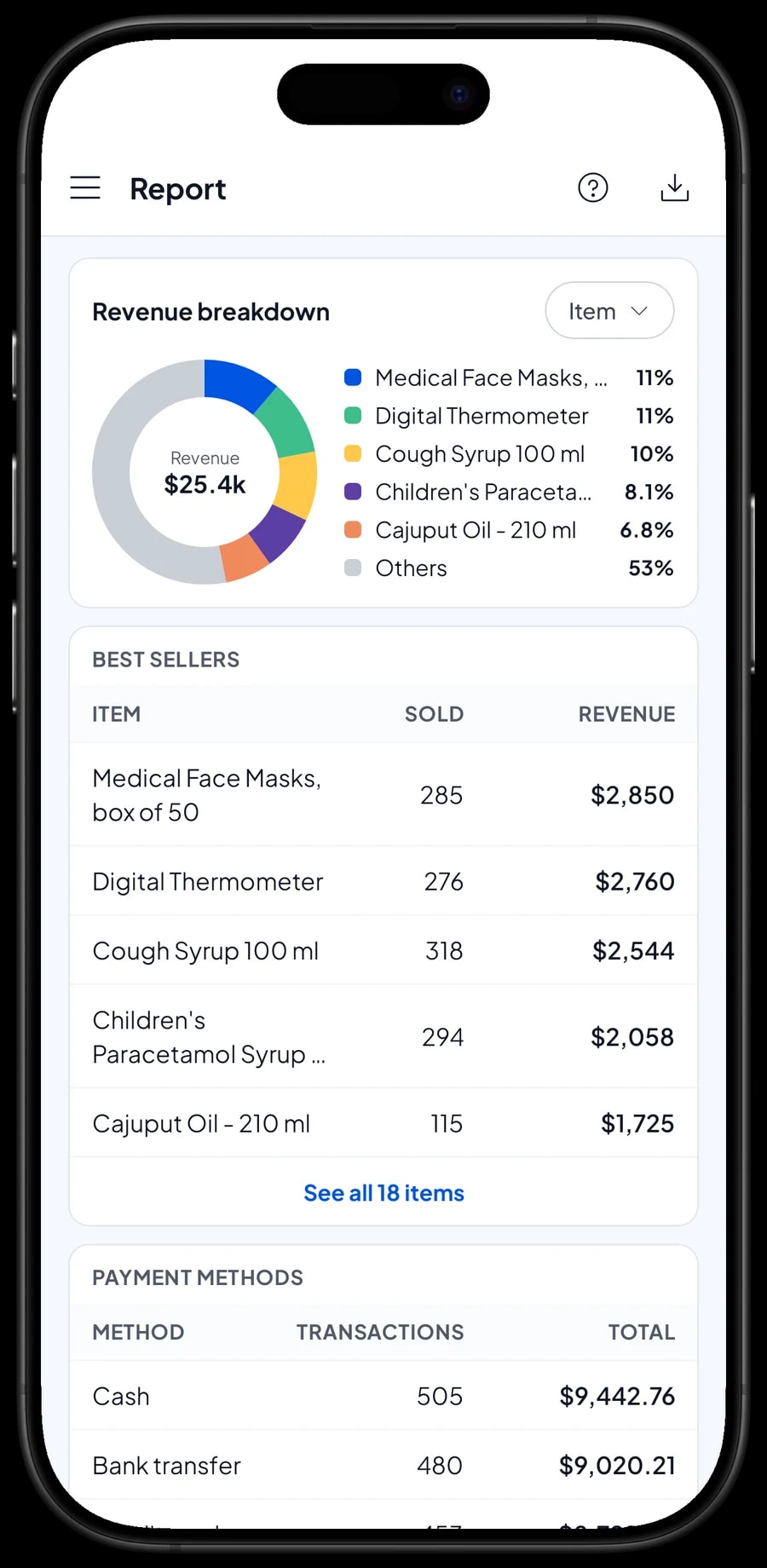
Reports come daily, weekly, monthly and yearly. You see total revenue, gross profit, the number of transactions, a daily chart and revenue by product, so it is clear which products bring in the most money and which days are busiest.
Use the report when you order from your distributor. Products that sell every day need deeper stock, while slow sellers can be ordered in small amounts so your money is not stuck on the shelf.
Reports export to Excel or PDF for your accountant or business partner.
Expenses and real net profit
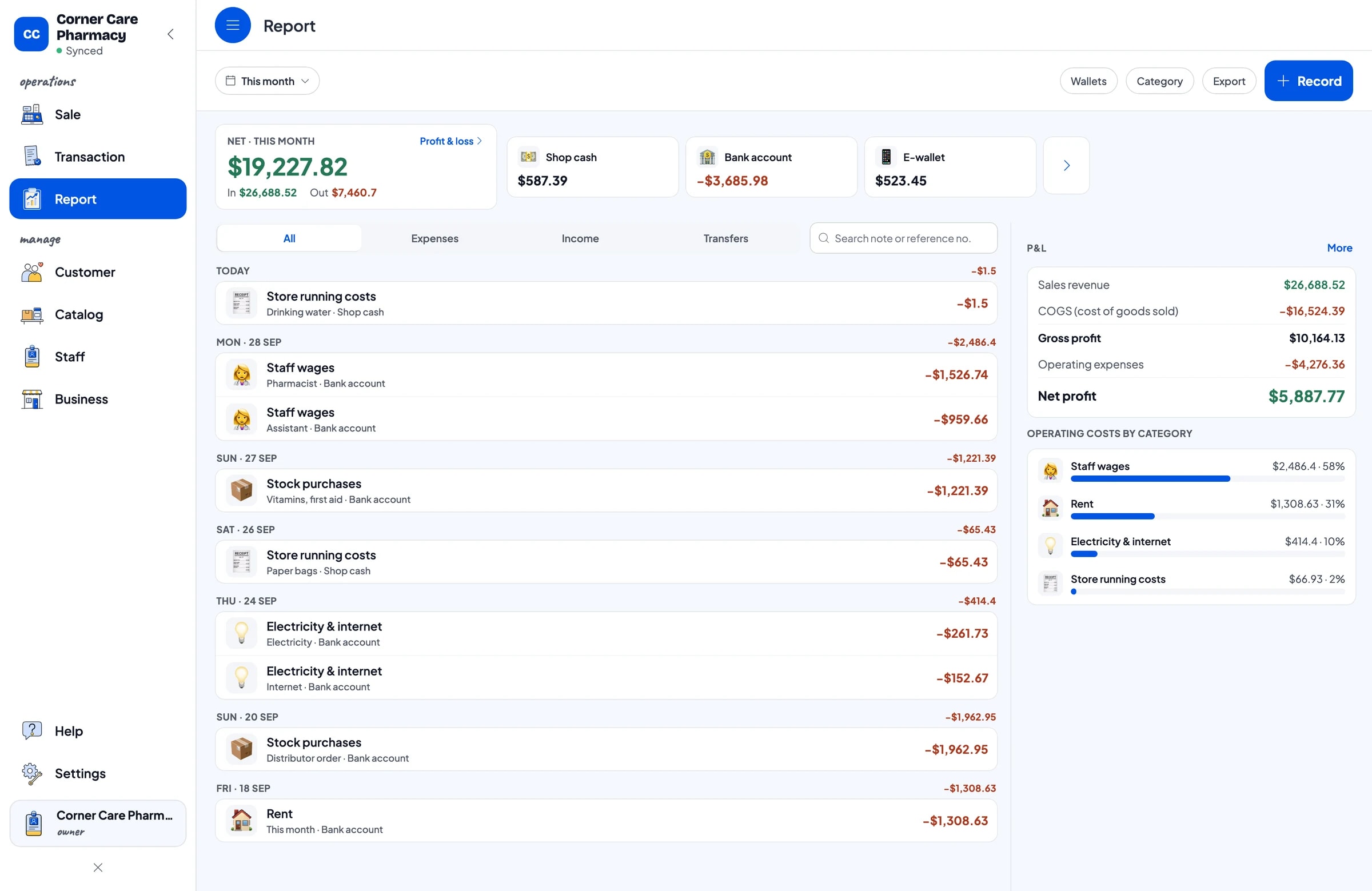
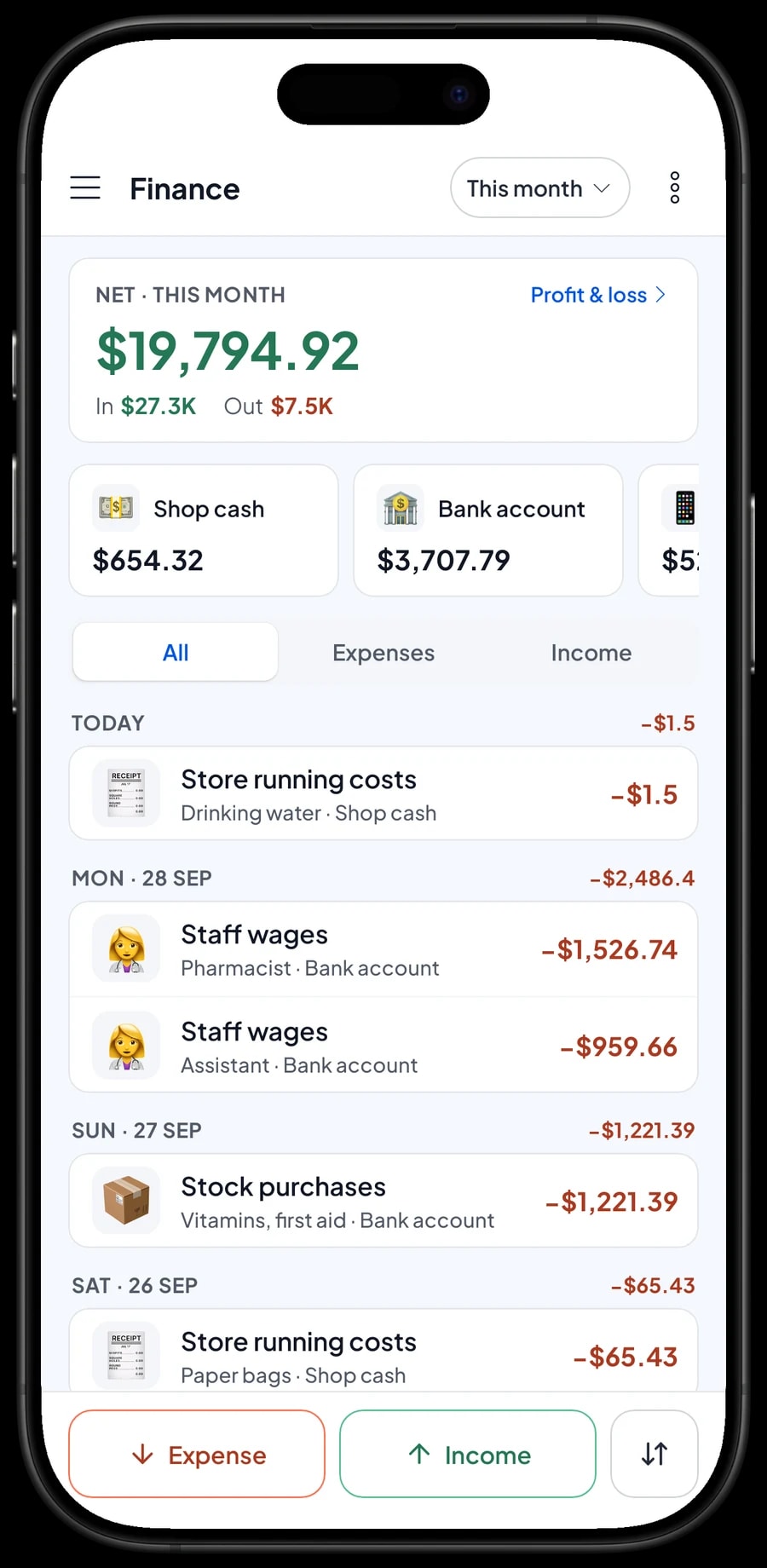
Gross profit does not tell you what is left. In Finance, record every expense with a category: stock purchases from your distributor, wages for the pharmacist and assistant, rent, electricity and internet, and running costs like paper bags. Each expense also has the wallet it was paid from, such as shop cash, a bank account or an e-wallet.
At month end, the Finance report shows revenue, the cost of the goods you sold, operating costs and net profit. Sales tax you collected is kept apart from profit, because that money is not the store's.
- Step 1: Open Finance and set up wallets such as Shop cash, Bank account and E-wallet.
- Step 2: Create expense categories such as Stock purchases, Staff wages, Rent and Electricity & internet.
- Step 3: Record every expense with its category, wallet and a short note.
- Step 4: At month end, check revenue, cost of goods, operating costs and profit in the Finance report.
Start without closing, and keep selling offline
You can switch on an ordinary day. Install Salesmaster on the cashier's phone, tablet or laptop, create an account and add your best sellers with their barcodes. The rest can go in during quiet hours. On the first evening, open the daily report and check it against the cash drawer.
If the internet or signal drops, the cashier keeps selling. Sales are saved on the device and sent to the cloud when the connection returns. Offline mode works for up to 7 days; after that the app needs to go online briefly to sync. Because your data lives in your account, you do not lose your records if a device breaks or is replaced.
Step-by-step guides are in the Salesmaster Help Centre, and our team is on WhatsApp if you want help setting up your catalog.
Sample drugstore catalog
Use this table as a starting point. Replace the names, packs and prices with your own products.
| Category | Product | Unit | Variants | Barcode |
|---|---|---|---|---|
| Everyday medicine | Paracetamol 500 mg, strip of 10 | strip | - | From package |
| Everyday medicine | Cough Syrup 100 ml | bottle | - | From package |
| Everyday medicine | Oral Rehydration Salts | sachet | - | From package |
| Vitamins | Vitamin C 500 mg | pack | Strip of 10, Bottle of 30 | Per variant |
| Vitamins | Vitamin B Complex, 50 tablets | bottle | - | From package |
| First aid | Adhesive Bandages, 10 pcs | pack | - | From package |
| First aid | Cotton Wool 50 g | pack | - | None |
| Health supplies | Cajuput Oil | bottle | 60 ml, 120 ml, 210 ml | Per variant |
| Health supplies | Digital Thermometer | pc | - | From package |
Products without a barcode can still be sold by searching their name. For products in several packs, create one item with variants so each pack keeps its own price, cost and stock.
Which plan fits your pharmacy
Start by counting customers per day. A drugstore serving about 50 customers a day records roughly 1,500 transactions a month.
| Plan | Price | Transactions / month | Staff accounts | Good for |
|---|---|---|---|---|
| Free | Free | 30 | Owner only | To try checkout and barcode scanning before using it for real. |
| Solo Pro | $4.90/month | 3,000 | Owner only | Drugstores where the owner runs the counter. |
| Bronze Pro | $6.90/month | 5,000 | 1 staff | Pharmacies with one assistant or cashier on their own device. |
| Silver Pro | $9.90/month | 8,000 | 2 staff | Pharmacies open from morning to night, with two staff on separate devices. |
Every plan includes checkout, catalog, receipts, reports and offline mode. You can change plans at any time. See pricing →
Frequently asked questions
- Can Salesmaster scan barcodes on medicine and vitamin packs?
- Yes. The cashier scans the package barcode with the phone or tablet camera, or with a barcode scanner connected to the cashier device, and the product goes into the cart. Products without a barcode can be found by typing their name.
- Can I sell one product by the strip and by the bottle?
- Yes, with variants. Create one item, such as Vitamin C 500 mg, and add the variants Strip of 10 and Bottle of 30. Each variant has its own price, cost and stock. Stock is not converted between variants automatically; if you break open a larger pack, record it as a stock adjustment.
- Does Salesmaster remind me about expiry dates?
- No. Salesmaster doesn't track product expiry dates. Check your shelves regularly, for example at the start of each month, record pulled products as stock adjustments, and keep a separate list of expiry dates for slow sellers.
- Can Salesmaster manage prescriptions?
- No. Salesmaster is a checkout app for recording sales, stock and reports. Prescriptions and any rules on dispensing are handled outside the app, under the regulations that apply to you.
- Can I see the stock history of a single product?
- Yes. Every product with Stock Tracking on has a Stock History: sales, deliveries and adjustments are all listed there. It helps when you compare the shelf with your records.
- Can my store keep selling when the internet is down?
- Yes. Sales are saved on the device and sync when the connection returns. Offline mode works for up to 7 days before the app needs to go online to sync.
- Can my assistant use their own cashier device?
- Yes, with a staff account. An account is signed in on one device at a time, so add your assistant as staff and register their cashier device. Staff accounts come with Bronze Pro (1 staff) and Silver Pro (2 staff).
Need help setting up your catalog? Chat with our team on WhatsApp →