
Salesmaster is a point-of-sale (POS) app for boutiques and clothing stores on Android, iPhone & iPad, Windows and Mac. Each style is one item with size or colour variants, and every variant has its own price, cost and stock, so you always know which sizes are running low. It also applies discounts, rewards regulars with loyalty points, prints or sends receipts, and works out net profit from your store's expenses.
Problems every boutique knows
Clothing retail has its own headaches. If any of these sound familiar, this page is for you.
- 01
In stock, but not in that size
Your notes say there are ten linen shirts left, but they are all smalls. The customer who wanted a large walks out, and you only notice the gap when it is time to reorder.
- 02
Sales that nobody can keep straight
End-of-season markdowns hit part of the rack, not all of it. Your sales assistant has to remember which styles are 20% off, and every wrong total eats into your margin.
- 03
Guessing what actually sells
The floor looks busy, but you are not sure which styles and colours sell through fastest. So the next order from your supplier is still based on a hunch.
- 04
Busy register, thin profit
Sales look healthy, then restocking, wages, rent, electricity and social media ads take their share. Without tracking expenses, you do not know what the store really earns.
Setting up your catalog by category
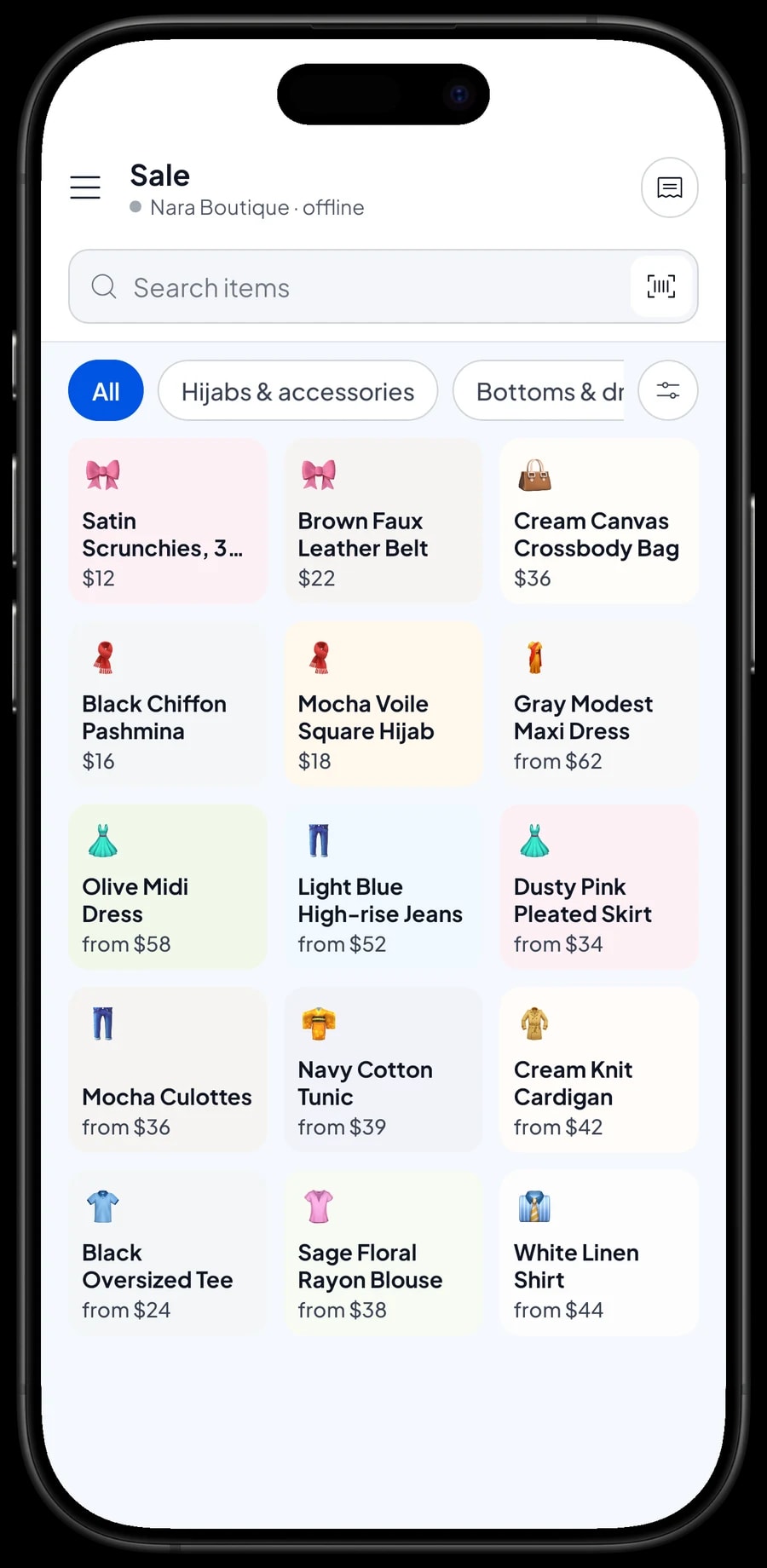
Start by splitting your stock into a few categories shoppers would recognize, such as Tops, Bottoms & dresses, and Hijabs & accessories. Categories show up as tabs on the Sale screen, so whoever is at the register can find any piece in a tap or two, even with hundreds of styles on the floor.
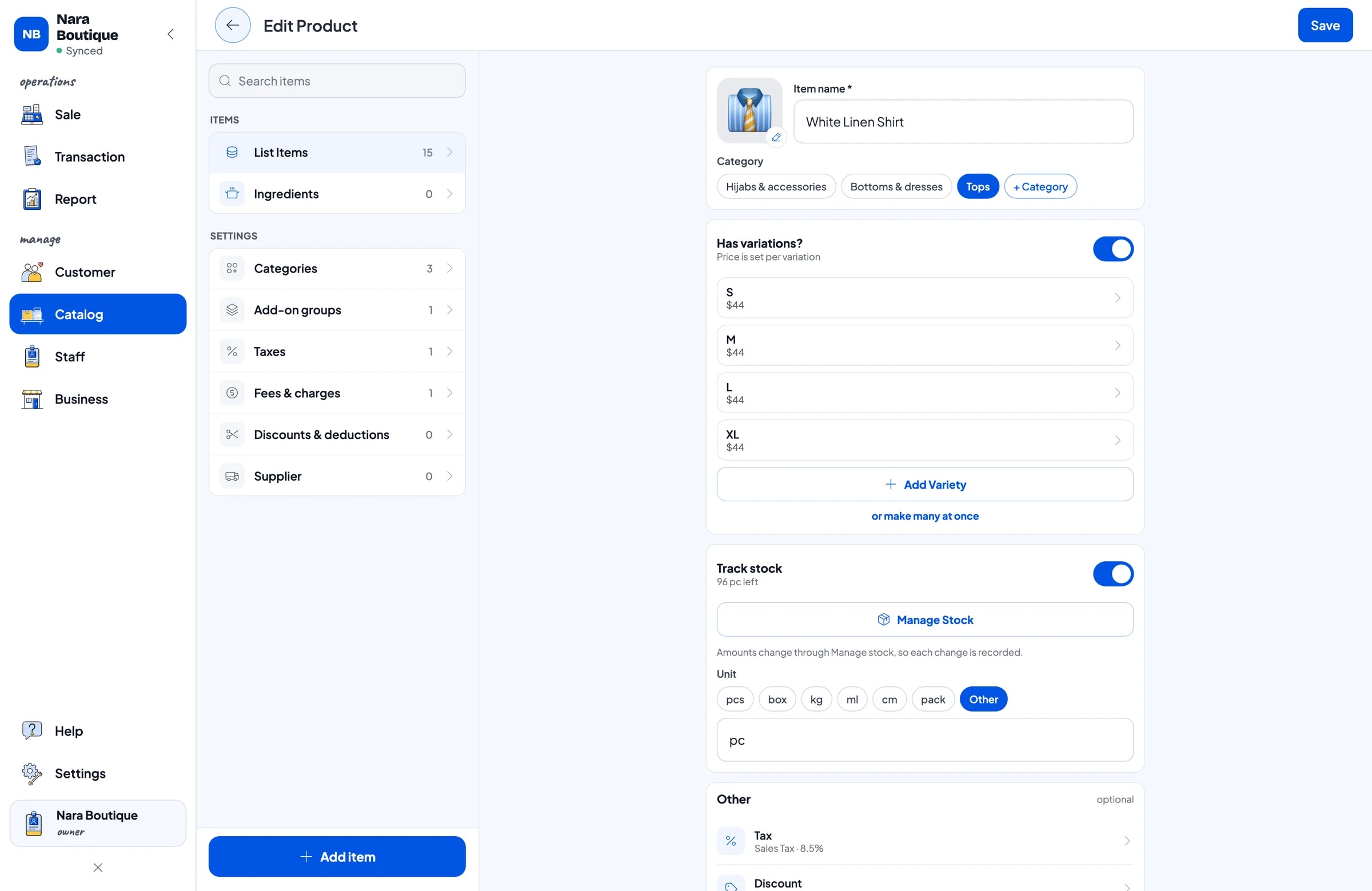
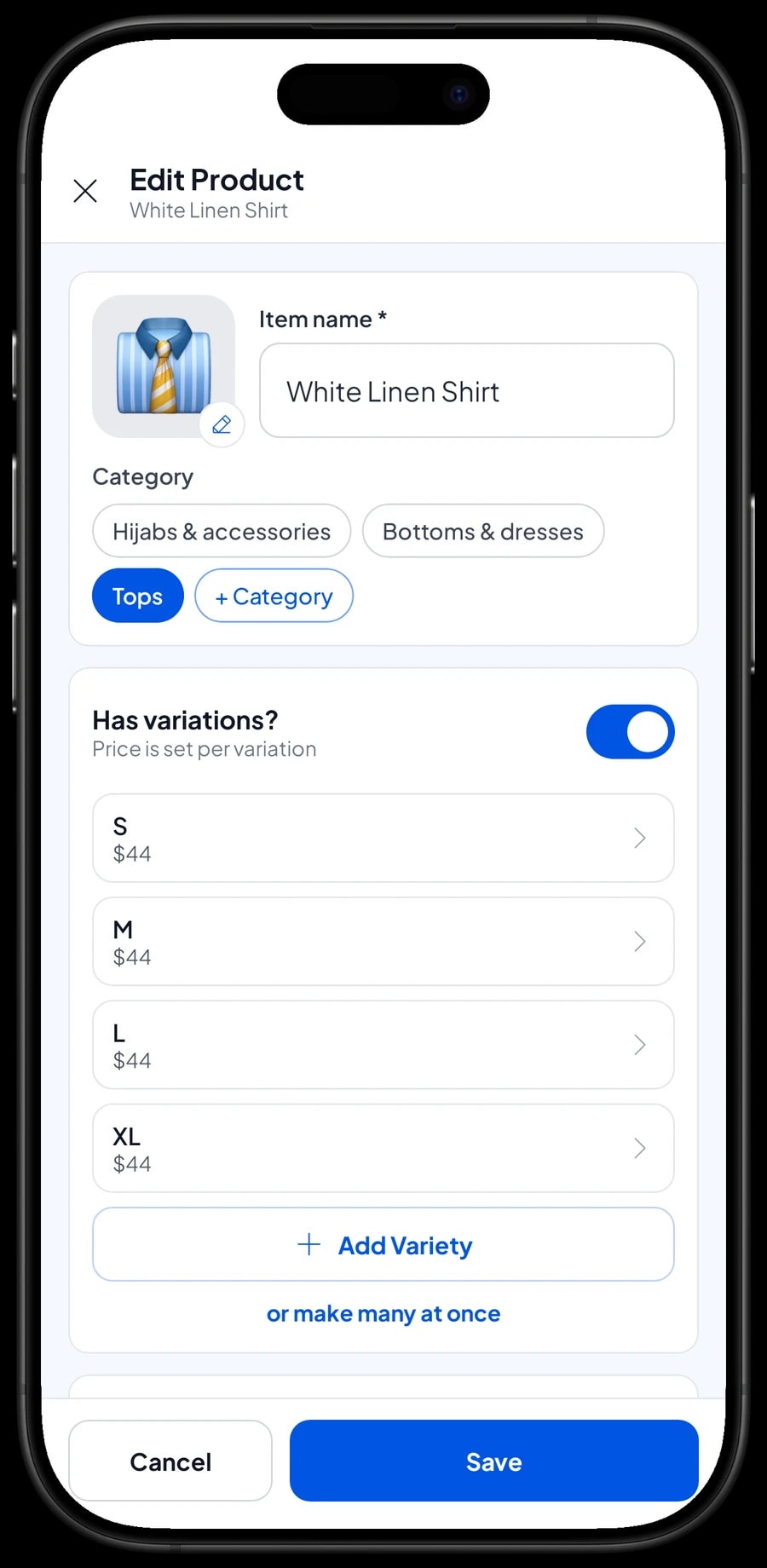
Each style is one item in the Catalog. Use clear, consistent names like "White Linen Shirt" or "Dusty Pink Pleated Skirt" and add a photo, so a new hire recognizes the piece without asking. Set the unit that fits: each for garments, pack for things sold in bundles like a 3-pack of scrunchies.
If you carry a lot of styles, build the catalog on a laptop first (Windows or Mac), then sell from a phone or tablet at the counter. The catalog is stored in your store's account, so every register sees the same data. Items with a supplier barcode can be scanned right at checkout.
- Step 1: Open Catalog, go to Categories and create categories such as Tops, Bottoms & dresses, and Accessories.
- Step 2: Go to the item list in Catalog and add one item for each style.
- Step 3: Fill in the name, unit and category, then add a photo so staff can spot the piece quickly.
- Step 4: Turn on Stock Tracking for every item you want to count.
Size and colour variants, each with its own stock
This is the part that matters most for a boutique. A linen shirt in S, M, L and XL is not four separate items. It is one item with four variants. Each variant has its own selling price, its own cost and its own stock, so you can see that the medium is down to two while the XL still has eight.
Per-variant pricing also helps when bigger sizes cost more to make. Your high-rise jeans can sell at one price in S through L and a little more in XL. The cashier just picks the size and the right price lands in the cart.
For styles that come in several sizes and colours, create each combination as its own variant, like "M Black" and "M Cream", so each one keeps its own count. When new stock arrives, add it to the right variant under Inventory, Stock.
- Step 1: Open the item in your Catalog and add a variation.
- Step 2: Enter the variant name (S, M, L, XL or M Black), its selling price and its cost.
- Step 3: Save the item, then open Inventory, Stock to enter the opening stock for each variant.
- Step 4: Each time a delivery arrives, add the new units to the matching variants.
A fast checkout at the counter
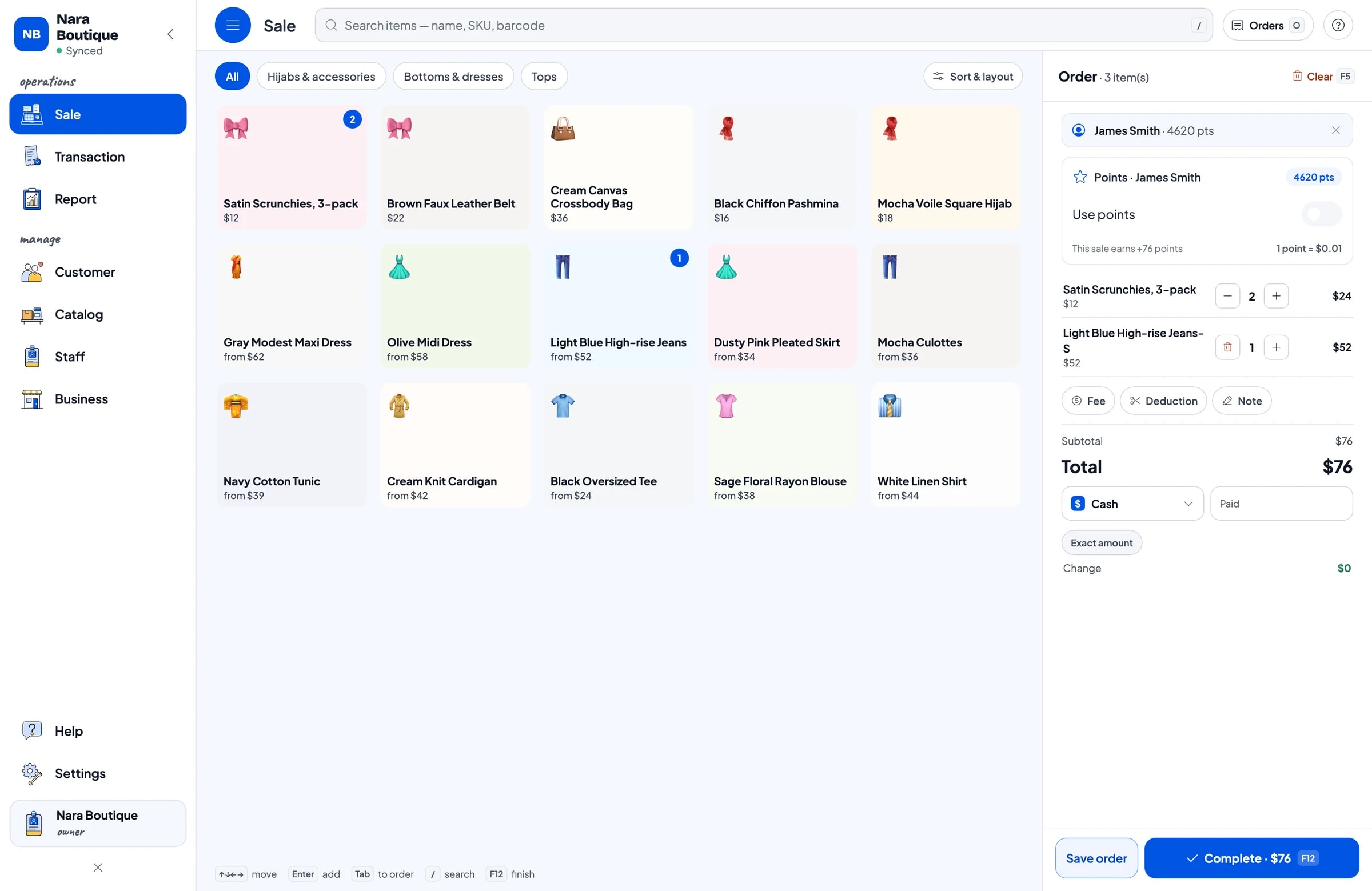
On the Sale screen, the cashier picks a category, taps the style and chooses the size. When a shopper brings several pieces to the counter, each one shows in the cart with its size and price. If the tag has a barcode, just scan it.
Add the customer's name to the sale if they want to earn points, and use Add Note for details like "hem to be taken up" or "picking up this afternoon". Choose a payment method you have set up, such as cash, card or a bank transfer, and Salesmaster works out the change.
If a shopper wants to try on a few more things first, save the cart with Save order. Saved orders stay on the device that created them and are not counted as sales until they are paid, so finish the payment on the same device.
Seasonal sales, clearance and receipts
Boutiques run on seasons: new arrivals, holiday gifting, back to school, then clearance for last season's styles. Salesmaster separates two things. A discount applies to items, as a fixed amount or a percentage, and can go on specific items or on everything in the cart, so only the pieces on sale get marked down. A deduction applies to the whole sale, which suits one-off cases like $5 off a big order.
Discounts are recorded on every sale and added up in your reports. When the promotion ends, you can see how much you gave away and whether the extra sales were worth it. Sales tax is set up once and calculated on every sale.
After payment, print the receipt on a Bluetooth or USB thermal printer, or send it by WhatsApp or email. There is also a web receipt: a link with your logo, colours and social media accounts, a tidy way to remind shoppers to follow the store and come back.
- Step 1: Open the discounts settings in your Catalog and create a discount such as "End of season 20%".
- Step 2: On the Sale screen, add items to the cart and apply the discount to the pieces on sale.
- Step 3: For money off the whole order, tap Add Deduction in the cart.
- Step 4: When the promotion ends, open Report to see total discounts and sales for the period.
Gift wrap as an add-on
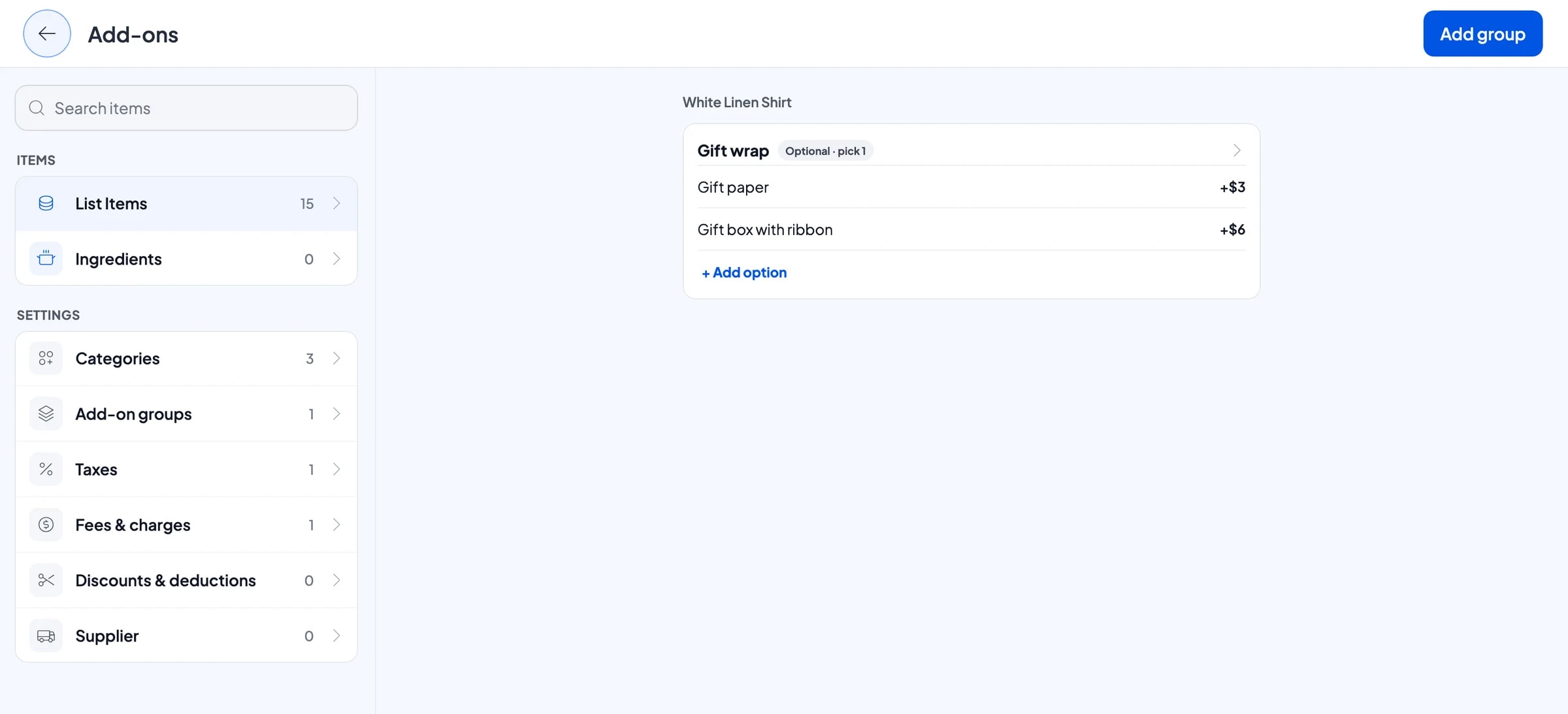
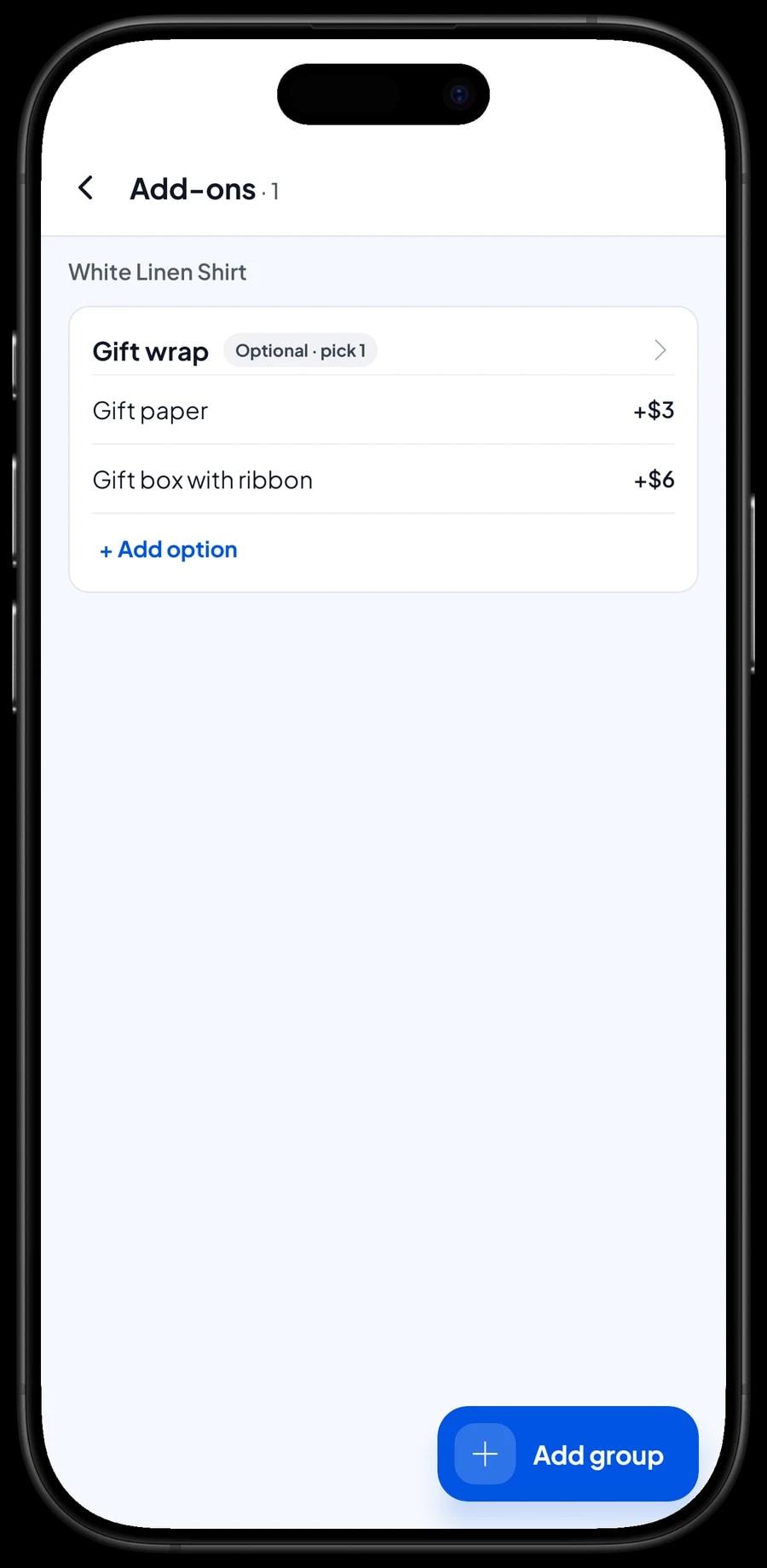
Plenty of boutique purchases are gifts. Instead of the cashier charging for wrapping outside the system, make gift wrap an add-on. One add-on group, called Gift wrap, can hold options like Gift paper and Gift box with ribbon, each with its own price.
You attach the group once to as many items as you like. When the cashier picks a shirt or a dress, the gift wrap choices appear and the price is added to the total. Because it is recorded on the sale, you can also see how often shoppers ask for wrapping around Mother's Day, Valentine's Day or the holidays.
- Step 1: Open a garment in your Catalog and manage its add-ons.
- Step 2: Add a group called Gift wrap and leave it optional.
- Step 3: Add options like Gift paper and Gift box with ribbon with their prices.
- Step 4: Attach the same group to other items that are often bought as gifts.
Sales assistants and registers
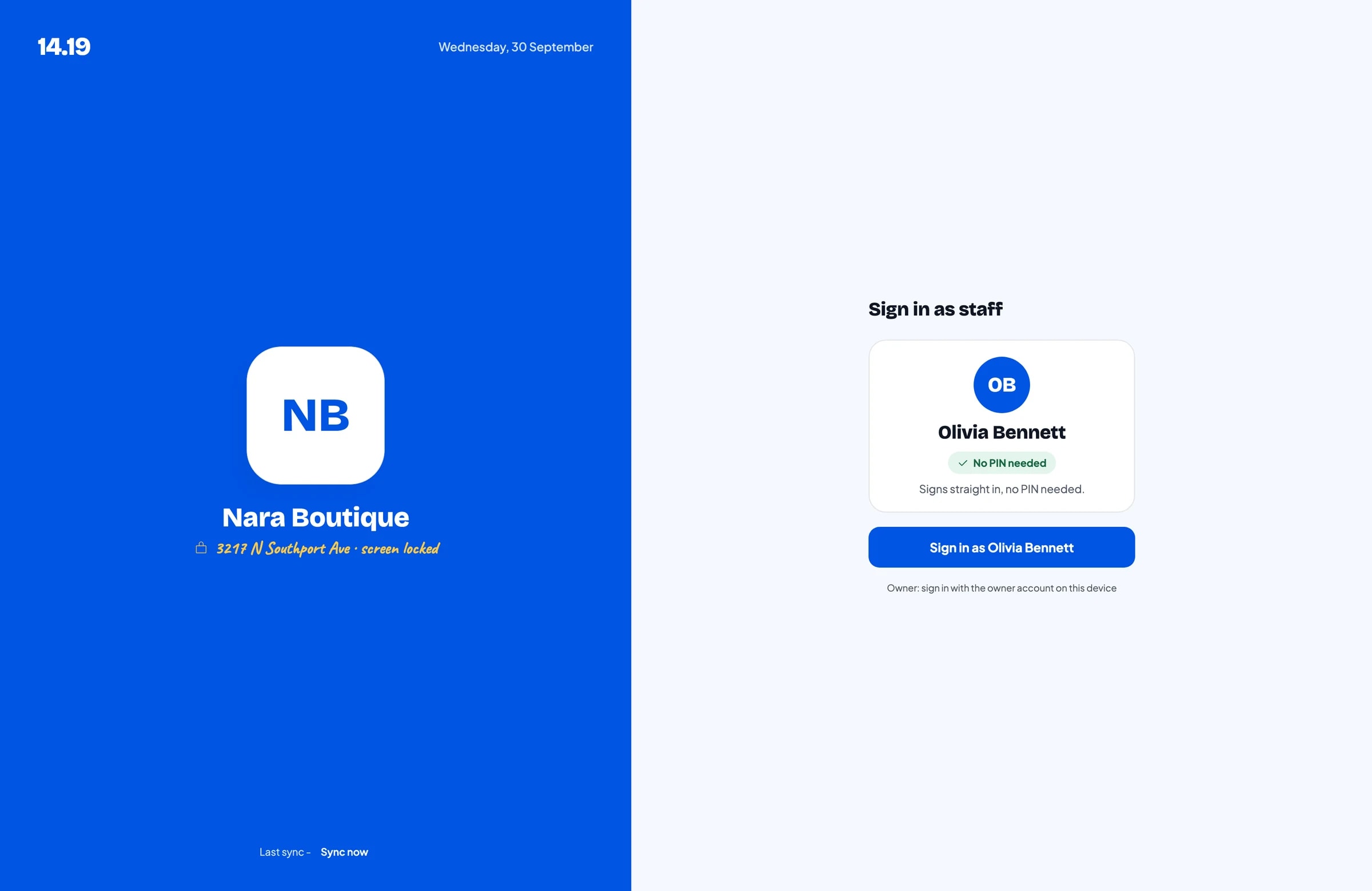
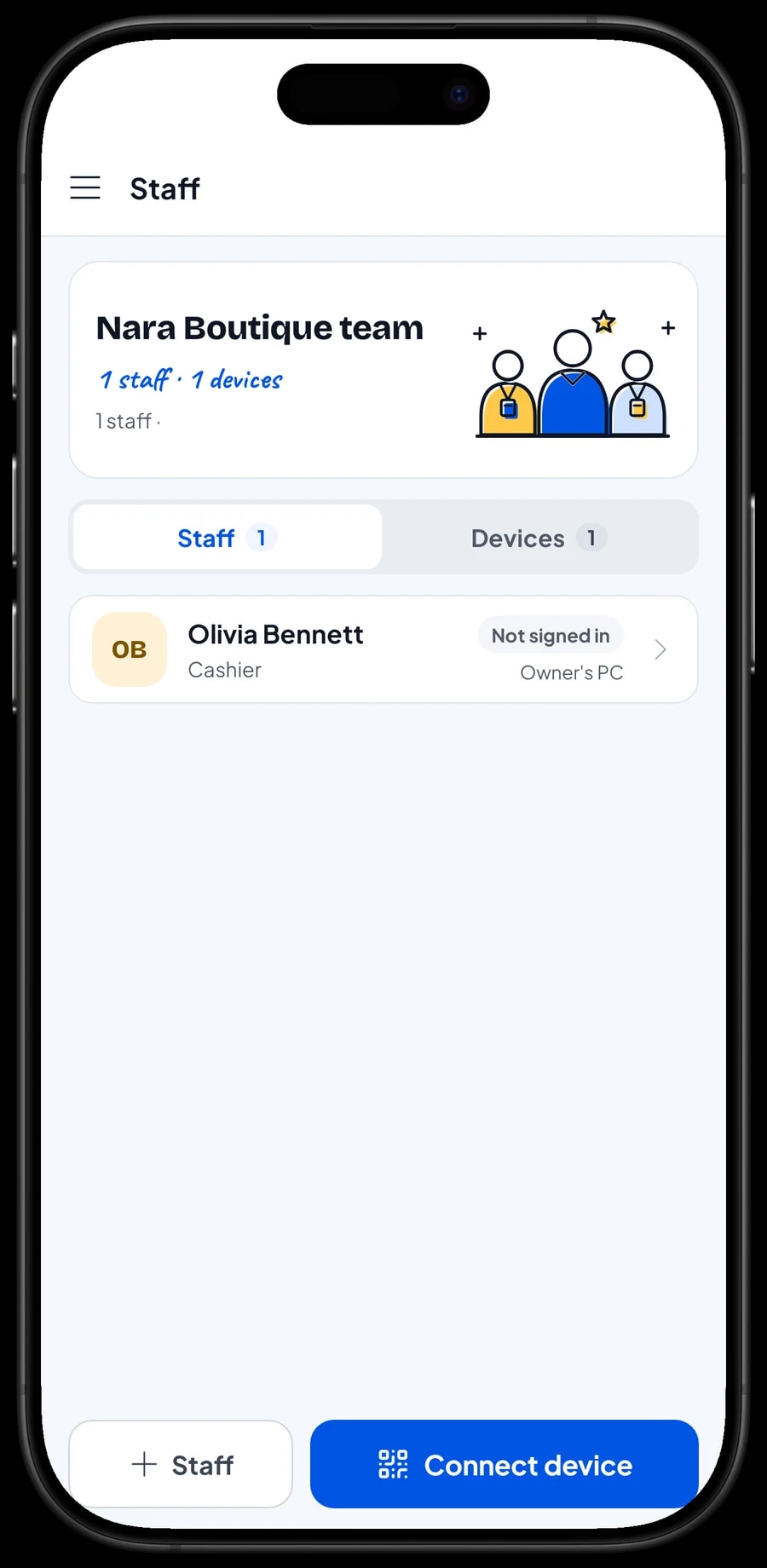
The owner signs in with the main account. An account is active on one device at a time, so your sales assistants do not share your login. Add them as staff, register a cashier device for them and decide what they can see and change. Staff sign in with a PIN. Staff accounts come with Bronze Pro (1 staff) and Silver Pro (2 staff).
Every sale is recorded as it happens, so you can leave the store with your team and still see in the daily report how much came in, without recounting a notebook every night.
Regulars: loyalty points and member cards
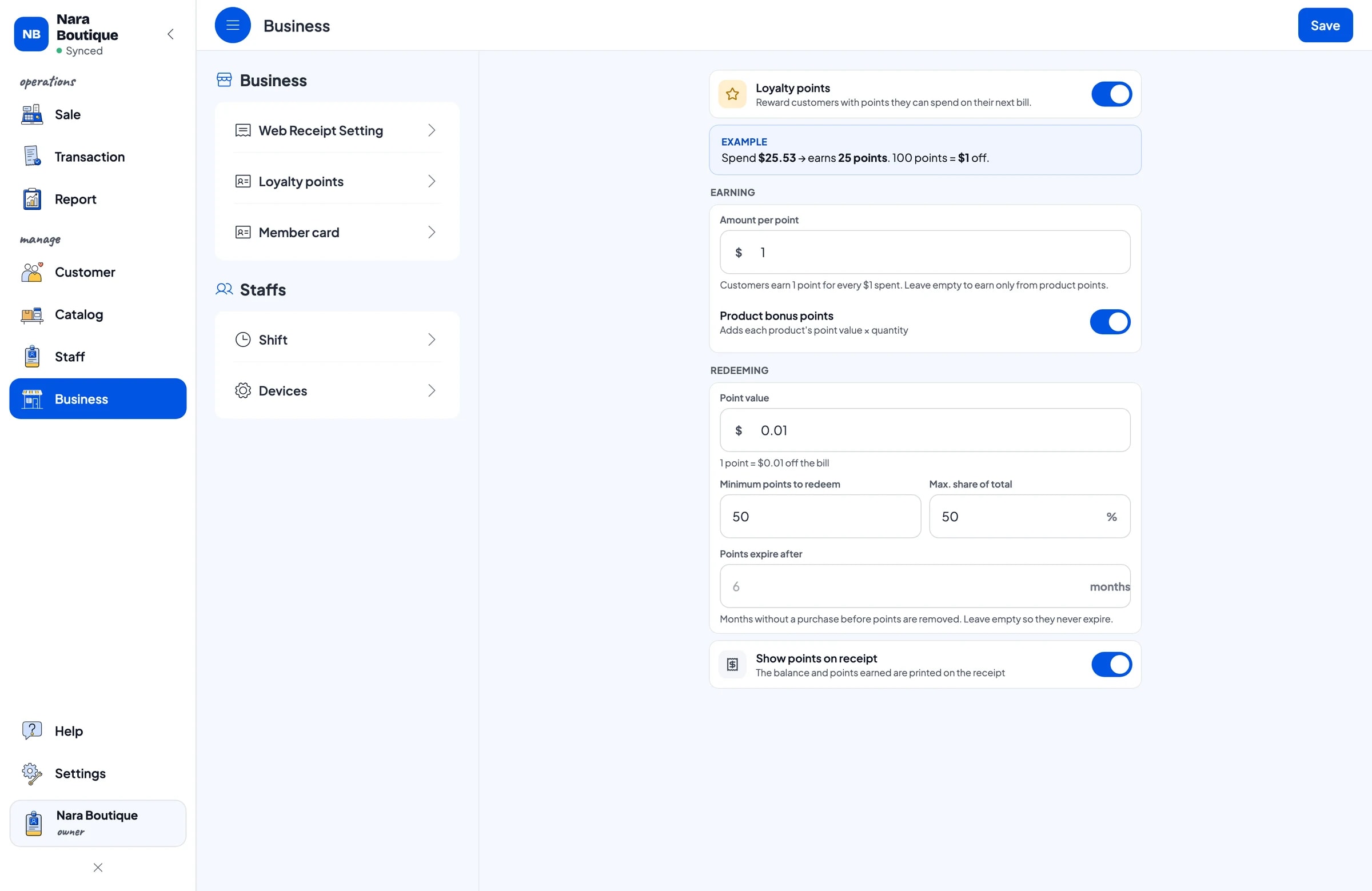
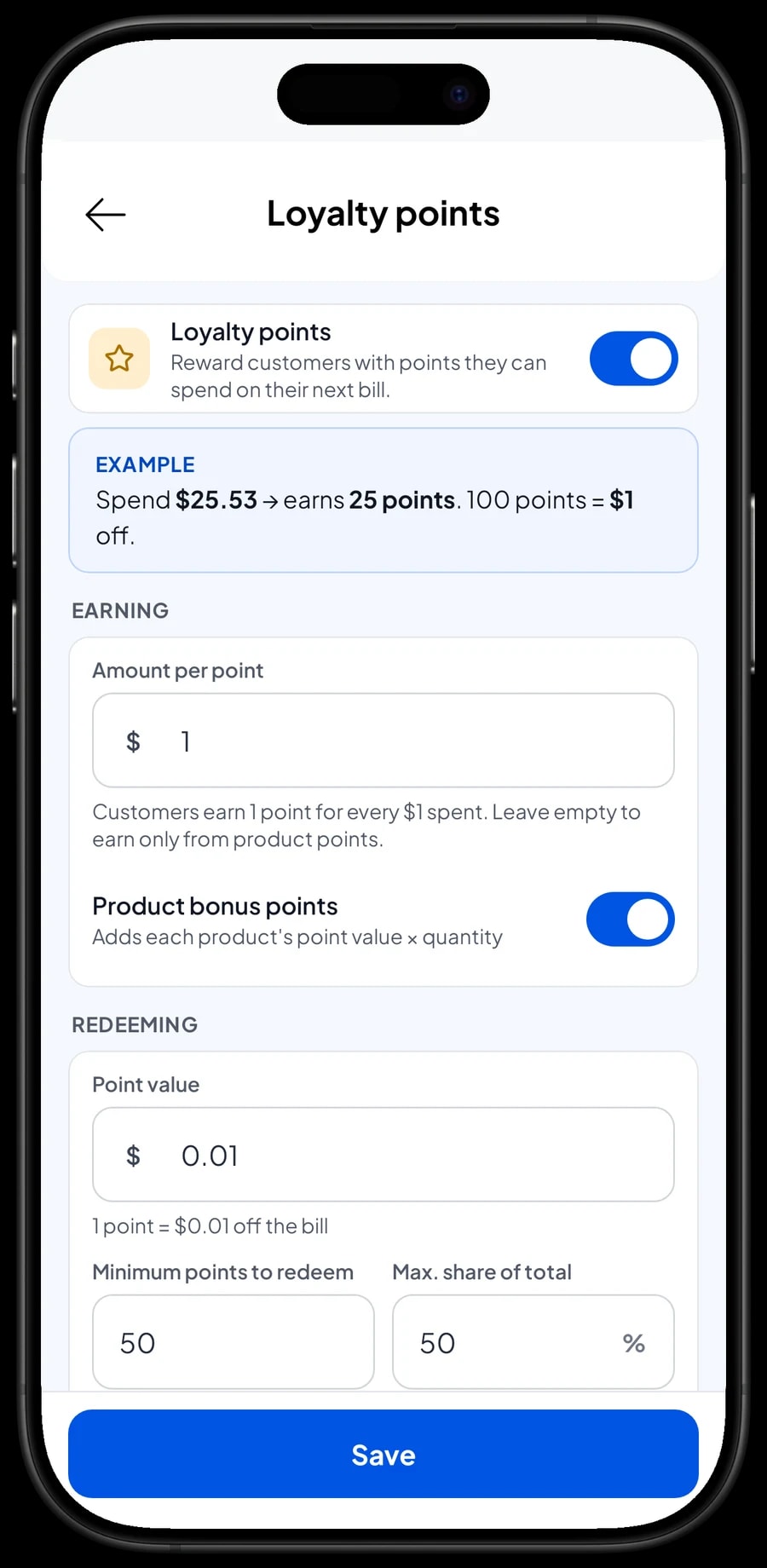
Happy boutique customers come back for every new collection. Save their name and phone number on the sale, then turn on Loyalty points under Business. You set the rules: how much a customer spends to earn a point, what a point is worth when redeemed, the minimum points to redeem and the most a customer can take off one order.
Points are added on every sale automatically, and the cashier can apply them as a discount when the customer asks. Regulars can also get a member card in their name. Their purchase history is kept under Customers, so you know who loves a certain size or style and can message them when something they would like arrives.
Best sellers and your real net profit
Reports are available by day, week, month and year. You see total revenue, gross and net sales, discounts, tax, payment methods and how revenue splits across items. That shows which styles carry the store, a much better basis for your next order than a hunch.
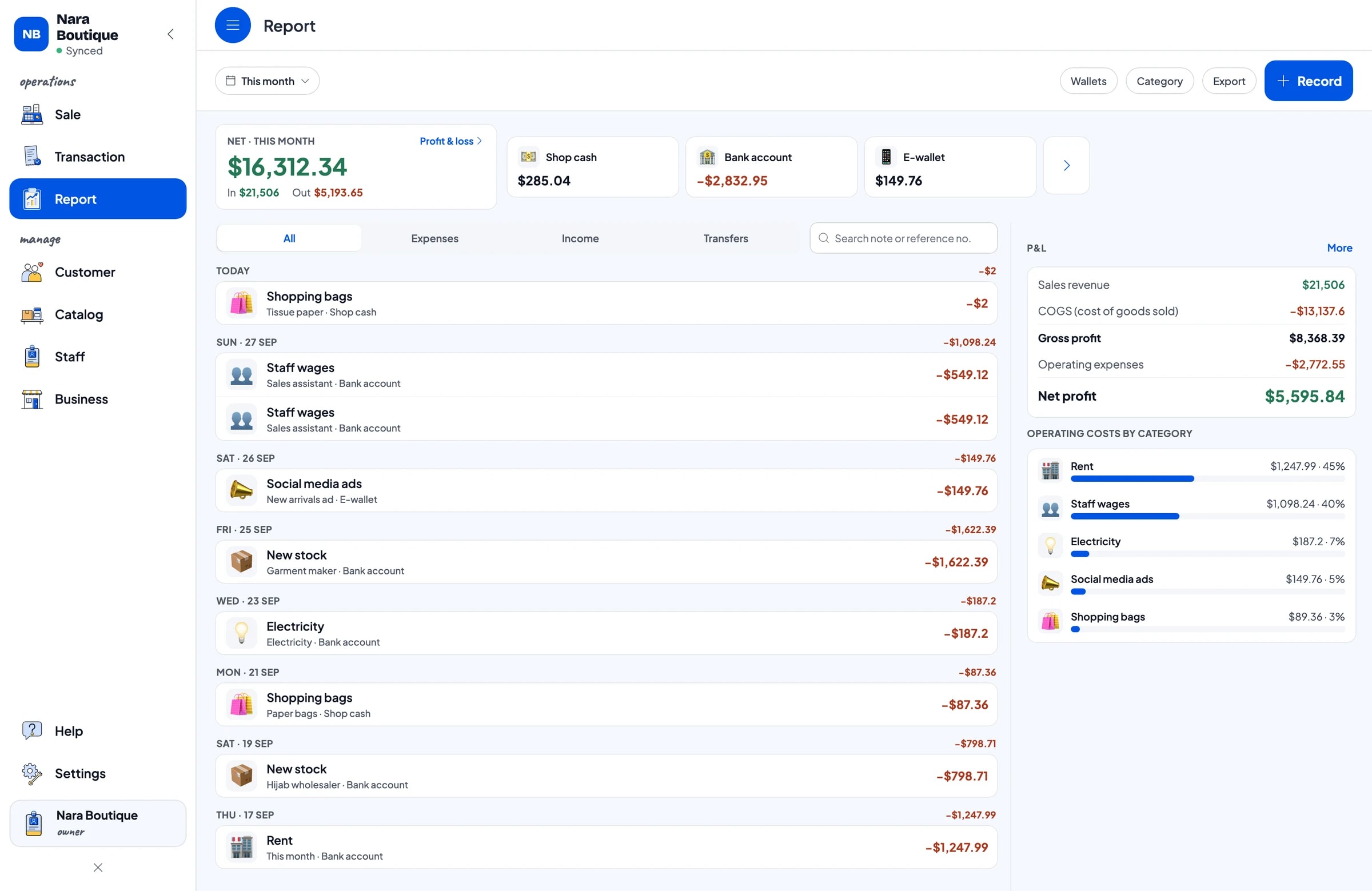
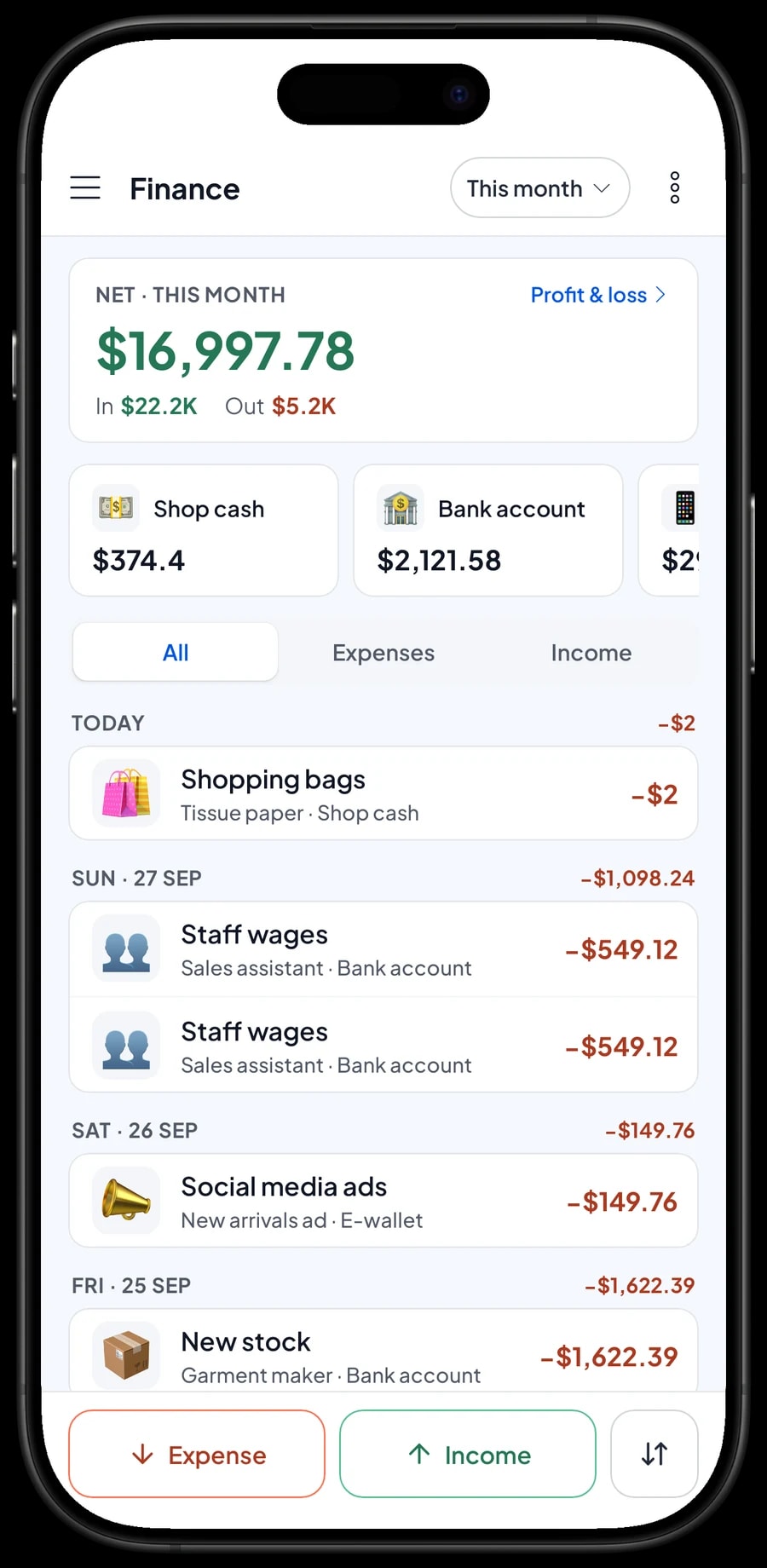
Because every variant has its own cost, reports also work out the cost of goods actually sold. For net profit, record your expenses in Finance: new stock, staff wages, rent, electricity, social media ads and shopping bags. Each expense has a category and the wallet it was paid from, such as shop cash, a bank account or an e-wallet.
The Finance summary then shows revenue minus cost of goods and operating costs, which is what your boutique earned this month. Every report can be exported to Excel or PDF for your accountant or business partner.
Start in a day, keep selling offline
You do not need to close the store to switch. Install Salesmaster on the phone, tablet or laptop at the counter, create an account, then add your 20 to 30 best-selling styles with their variants. Enter the opening stock for each size and connect a thermal printer if you use one. The rest of the catalog can go in during quiet hours.
Every sale is saved on the device first and sent to the cloud when the internet is back, so you can keep selling when the Wi-Fi drops. Offline mode works for up to 7 days; after that the app needs to connect briefly to sync. If a device breaks or is replaced, sign in with the same account on the new one and your store's data comes with you.
Salesmaster does not connect to online marketplaces or your web store automatically. If you also sell online, ring those orders up as sales at the register so the stock for every size stays accurate in one place.
An example boutique catalog
Use this table as a starting point and swap in your own styles, sizes and prices.
| Category | Item | Variants | Unit | Add-ons |
|---|---|---|---|---|
| Tops | Linen shirt | S, M, L, XL | each | Gift wrap |
| Tops | Floral blouse | S, M, L | each | Gift wrap |
| Tops | Knit cardigan | S, M, L | each | Gift wrap |
| Bottoms & dresses | Culottes | S, M, L, XL | each | Gift wrap |
| Bottoms & dresses | High-rise jeans | S, M, L, XL (priced higher) | each | Gift wrap |
| Bottoms & dresses | Midi dress | S, M, L | each | Gift wrap |
| Accessories | Square hijab | - | each | - |
| Accessories | Canvas crossbody bag | - | each | Gift wrap |
| Accessories | Satin scrunchies | - | pack of 3 | - |
Garments sold in several sizes are one item with variants, so each size keeps its own count. Accessories without sizes, like a hijab or a bag, are regular items with their own stock.
Which plan fits your boutique
Start by counting sales per day. A boutique ringing up 8 to 10 sales a day records roughly 250 to 300 transactions a month, with more around the holidays.
| Plan | Price | Transactions / month | Staff accounts | Good for |
|---|---|---|---|---|
| Free | Free | 30 | Owner only | To try checkout and size variants before using it for real. |
| Solo Pro | $4.90/month | 3,000 | Owner only | Small boutiques where the owner runs the register. |
| Bronze Pro | $6.90/month | 5,000 | 1 staff | Boutiques with one sales assistant on their own register. |
| Silver Pro | $9.90/month | 8,000 | 2 staff | Busier stores with two sales assistants on separate devices. |
Every plan includes checkout, catalog, receipts, reports and offline mode. You can change plans at any time. See pricing →
Frequently asked questions
- Can Salesmaster track stock by size and colour?
- Yes. Create one item per style and add a variant for each size, or for each size and colour combination. Every variant has its own price, cost and stock, and its stock goes down automatically when it sells.
- Can larger sizes have a different price?
- Yes. Prices are set per variant, so XL or XXL can cost more than the other sizes of the same style. The cashier picks the size and the price follows.
- How do I handle a size exchange?
- Add the returned size back with a stock adjustment on that variant, take the replacement size out with a stock adjustment too, and write what happened in a note. If the prices differ, ring up the difference as a new sale.
- Does it sync stock with my online store or marketplace?
- No, Salesmaster does not connect to online stores or marketplaces automatically. Many boutiques ring up online orders as sales at the register so the stock for every size stays in one place.
- Can I put only part of the collection on sale?
- Yes. Discounts in Salesmaster apply to items, as a fixed amount or a percentage, so you can apply them only to the pieces on sale. For money off a whole order, use Add Deduction in the cart. Total discounts show in your reports.
- Can my sales assistants use their own phone or tablet?
- Yes, with staff accounts. An account is active on one device at a time, so the owner keeps the main account, adds staff and registers their cashier devices. Staff accounts come with Bronze Pro (1 staff) and Silver Pro (2 staff).
- Can I keep selling if the internet goes down?
- Yes. Sales are saved on the device and sync when the connection is back. Offline mode works for up to 7 days before the app needs to connect to sync.
Need help setting up your catalog? Chat with our team on WhatsApp →