
Salesmaster is a point-of-sale (POS) app for computer and laptop stores on Android, iPhone & iPad, Windows and Mac. Every laptop, PC, part and accessory is an item with variants (such as 8 GB and 16 GB RAM), each with its own price, cost and stock; setup services go on the same receipt; custom builds wait as saved orders until they are picked up; and stock purchases and technician pay feed the Finance report so you see net profit. A Free plan lets you try it first.
Problems every computer store knows
If any of these sound familiar, this page is for you.
- 01
One model, many specs
The same laptop comes with 8 GB or 16 GB of RAM, monitors come in 24 and 27 inches, SSDs in 512 GB and 1 TB. Count them all as one product and the stock never matches the shelf.
- 02
Expensive stock, thin margins
A laptop costs hundreds of dollars, but the gap between cost and price is small. One wrong discount or one forgotten setup fee wipes out the profit on a unit.
- 03
Builds waiting to be picked up
A customer orders a custom PC today and collects it tomorrow. The parts list lives on a scrap of paper, and by pickup time nobody remembers exactly what went into it.
- 04
Big revenue, unclear profit
Laptop sales bring in a lot of money, but after paying the distributor, the technician, rent and power, how much is actually left?
Building your catalog: units, parts, accessories and services
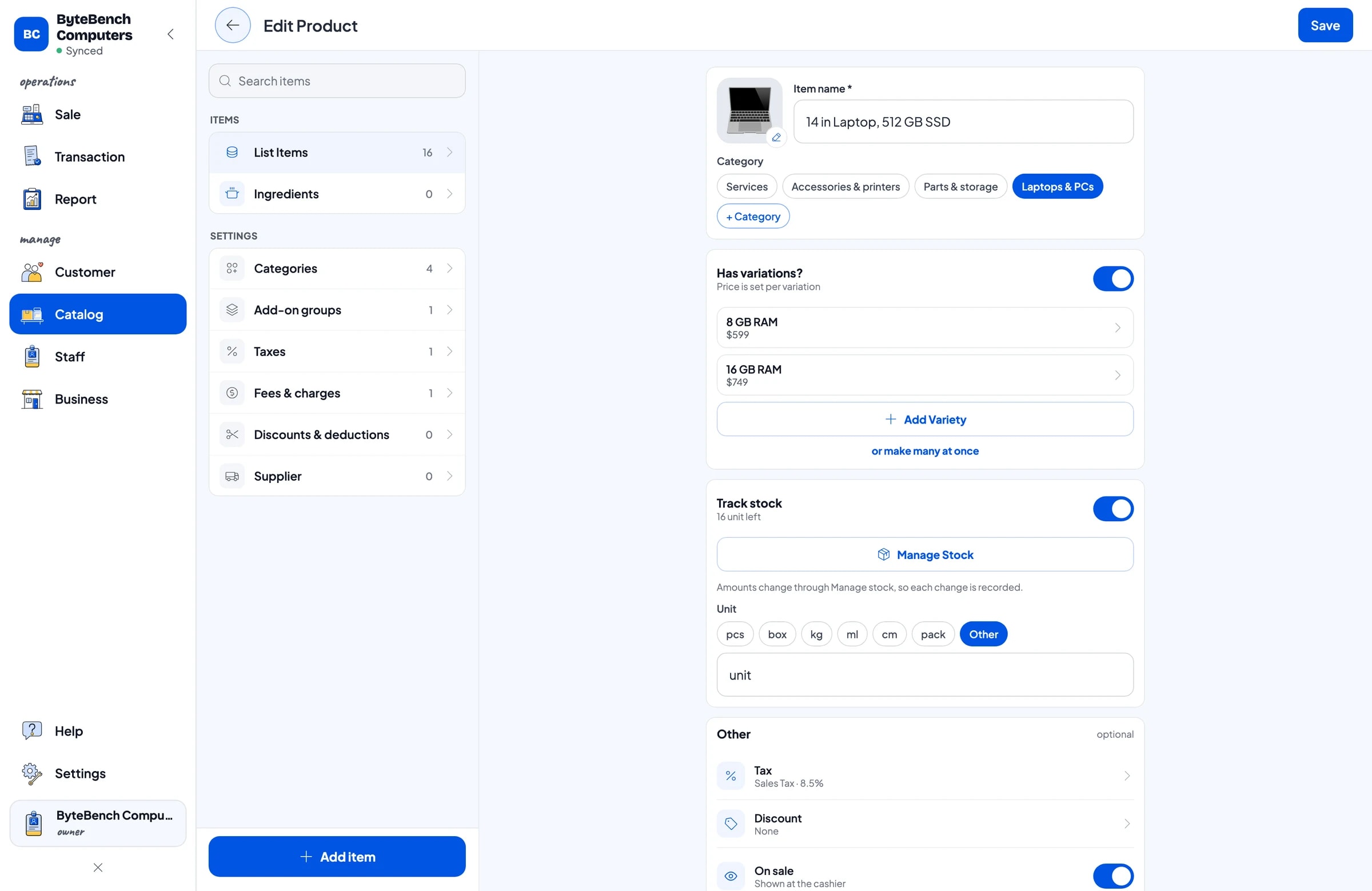
Start with the products that sell most. In Salesmaster, every product is one item in the Catalog. Group them into categories such as Laptops & PCs, Parts & storage, Accessories & printers and Services, so the cashier finds anything in one or two taps on the Sale screen.
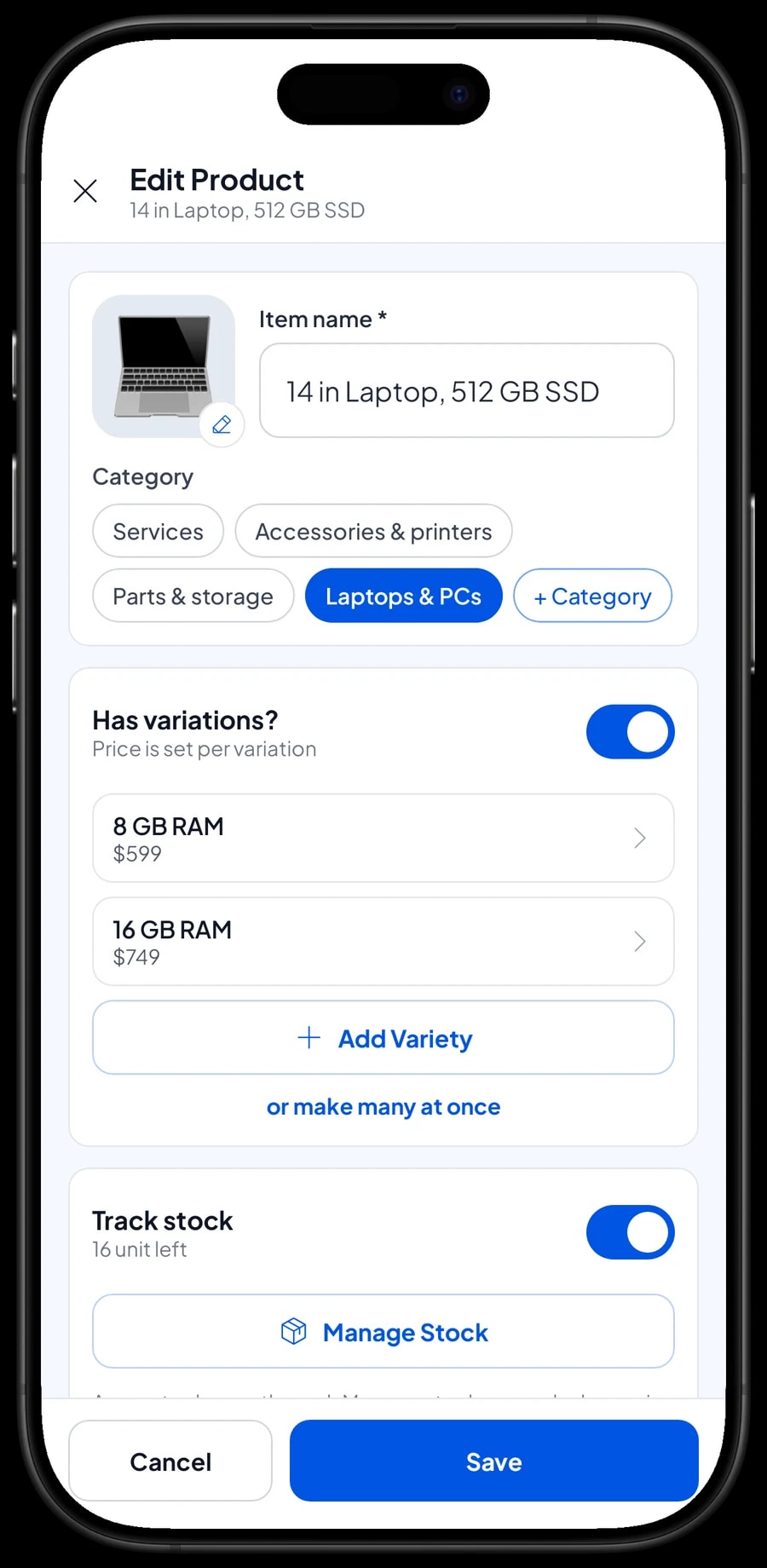
A model sold in several specs only needs one item with variants: a 14 in laptop with 8 GB or 16 GB of RAM, a monitor in 24 or 27 in, an SSD in 512 GB or 1 TB, a mouse in black or white, ink in black, cyan, magenta and yellow. Each variant has its own selling price, its own cost and its own stock, so you know exactly how many 16 GB laptops are in the back room, not just how many laptops in total.
If your catalog is long, enter it on the store's PC or laptop first (Windows or Mac), because long model names are faster to type on a keyboard. The cashier can then use a phone or tablet at the counter. Products with a barcode on the box can be scanned at checkout, so nobody has to scroll for a long model name.
- Step 1: Open Catalog → Categories and create categories such as Laptops & PCs, Parts, Accessories and Services.
- Step 2: Open Catalog → List Items and add each model with a clear name, including screen size and storage.
- Step 3: Add variants for each spec, then fill in the selling price, cost and stock of every variant.
- Step 4: Enter the box barcode on products that have one so they can be scanned on the Sale screen.
Stock per variant for high-value products
In a computer store, one missing or miscounted unit is a real loss. Salesmaster takes stock off every time something sells, per variant. When a customer buys the 16 GB laptop, it is the 16 GB variant's stock that goes down, not the 8 GB one.
When a delivery arrives from your distributor, add it in Catalog → Inventory → Stock. If a physical count doesn't match the app, for example a display unit you took for the office or a flash drive that turned out faulty, record the difference as a stock adjustment so the numbers match the shelf again. Suppliers can be saved under Inventory → Supplier, so you know where each product usually comes from.
Salesmaster does not track serial numbers per unit. If you need to record the serial number of each laptop or PC you sell, type it into the transaction note at checkout. The note is saved with the sale, so you can find it again when the customer comes back with a warranty claim.
- Step 1: Open Catalog → Inventory → Stock and pick the item or variant that just arrived.
- Step 2: Add the quantity received, matching the distributor's delivery note.
- Step 3: After a physical count, record any difference as a stock adjustment.
Setup, data transfer and extended warranty
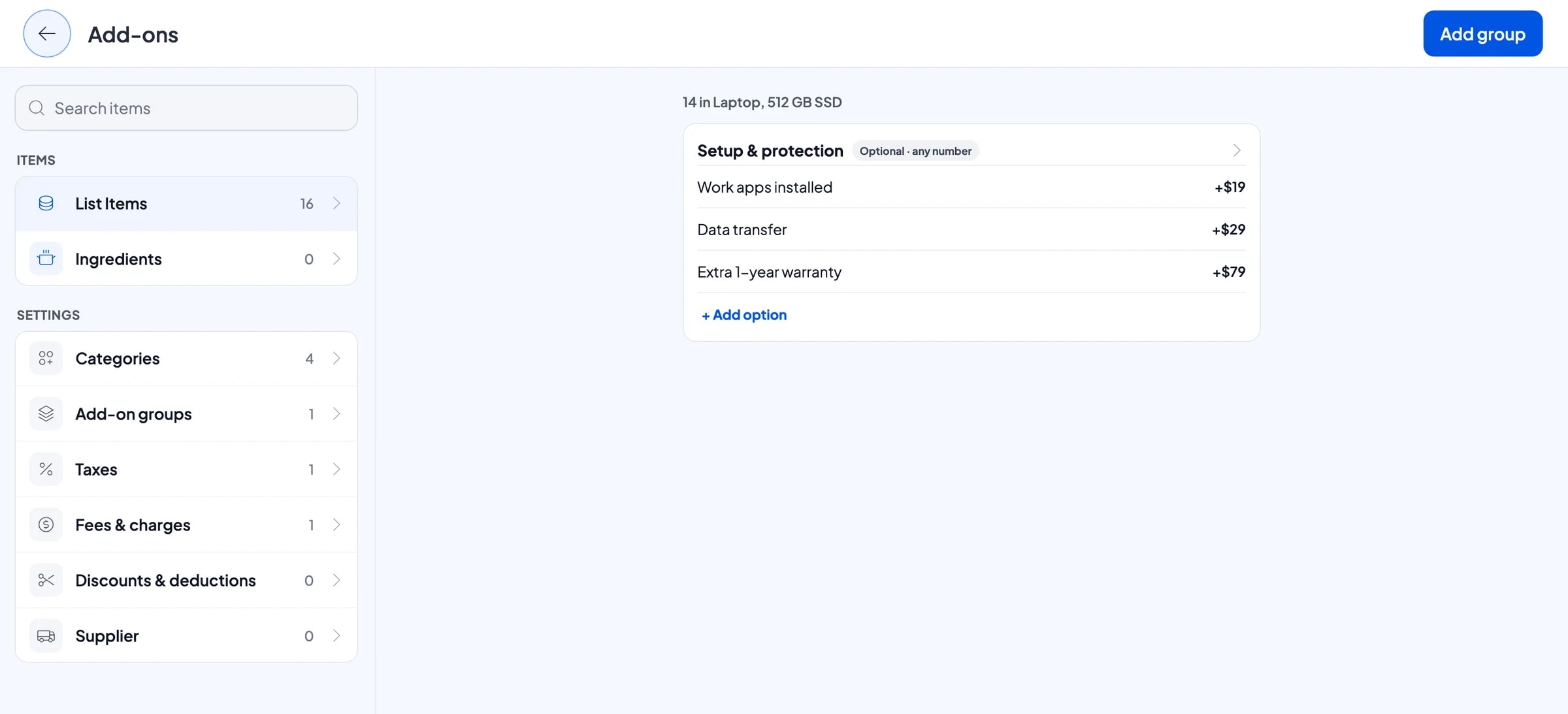
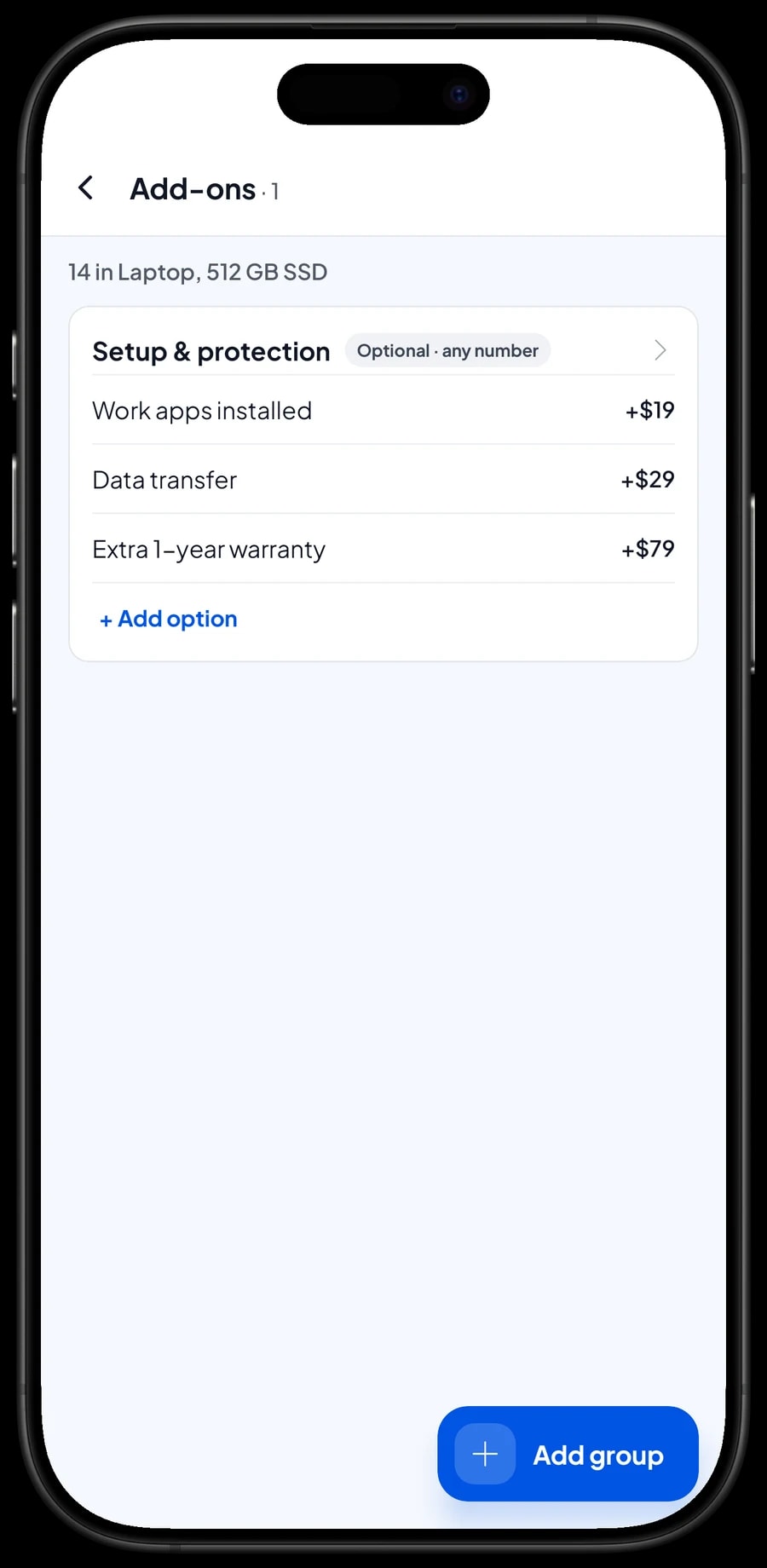
Many laptop buyers want the machine ready to use when they walk out: work apps installed, files moved over from the old laptop. Services like these are easy to forget to charge for. In Salesmaster, extras that belong to a unit are add-ons, such as Work apps installed, Data transfer and Extra 1-year warranty, attached to the laptops and PCs that offer them.
When selling a laptop, the cashier ticks the add-ons the customer wants and their prices are added to the total. One add-on group can be attached to many items at once, so you never need a separate "laptop + setup" item for every model.
Stand-alone services, such as an OS install or a PC build, are Service items with no stock that still show up in your sales report.
- Step 1: Open a laptop or PC item and choose Manage add-ons.
- Step 2: Create an add-on group, for example Setup & protection, and enter each option with its price.
- Step 3: Attach the same group to every laptop and PC that offers those services.
- Step 4: Create stand-alone services, such as an OS install, as Service items in Catalog → List Items.
Custom PC builds and orders picked up later
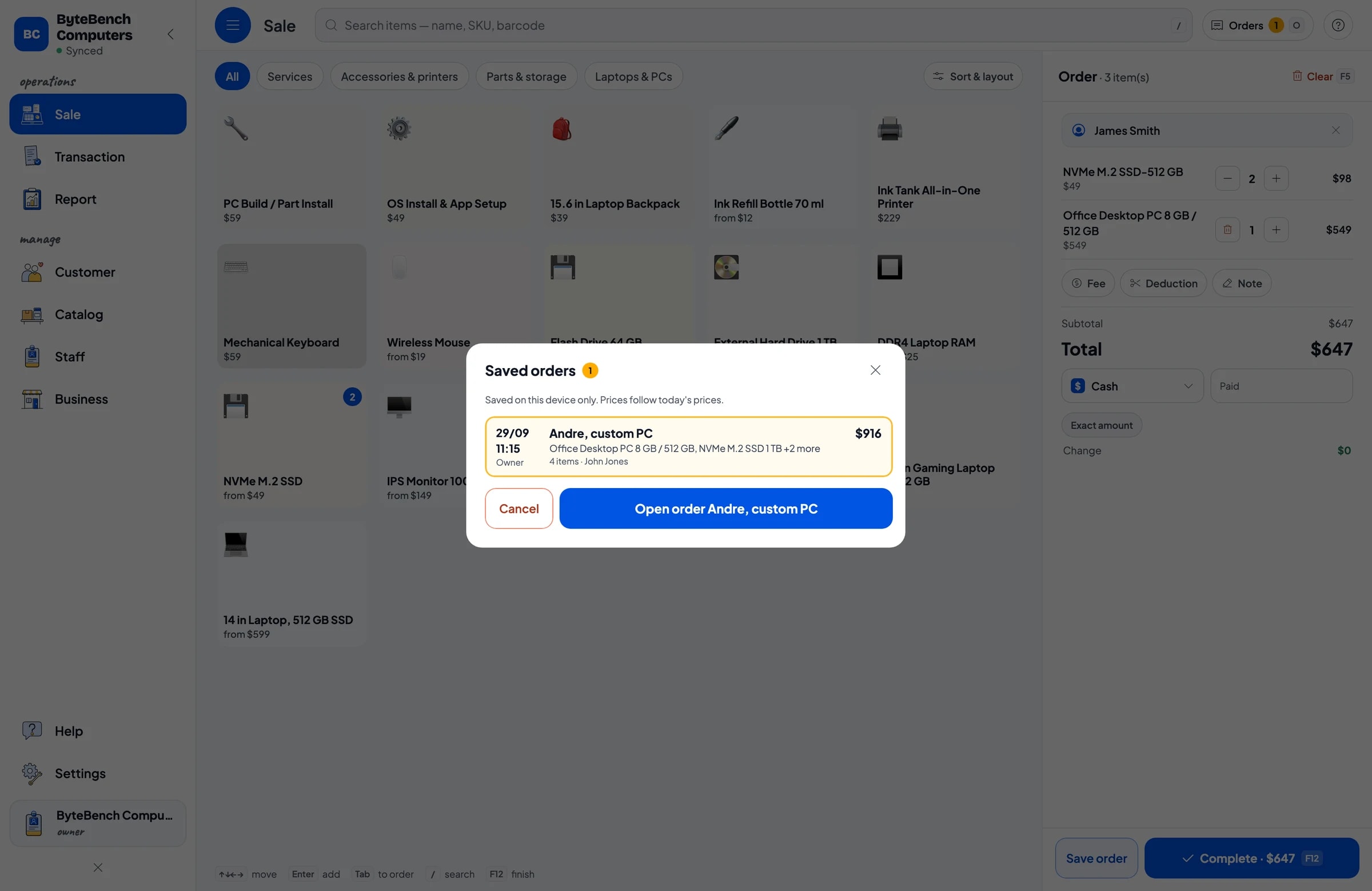
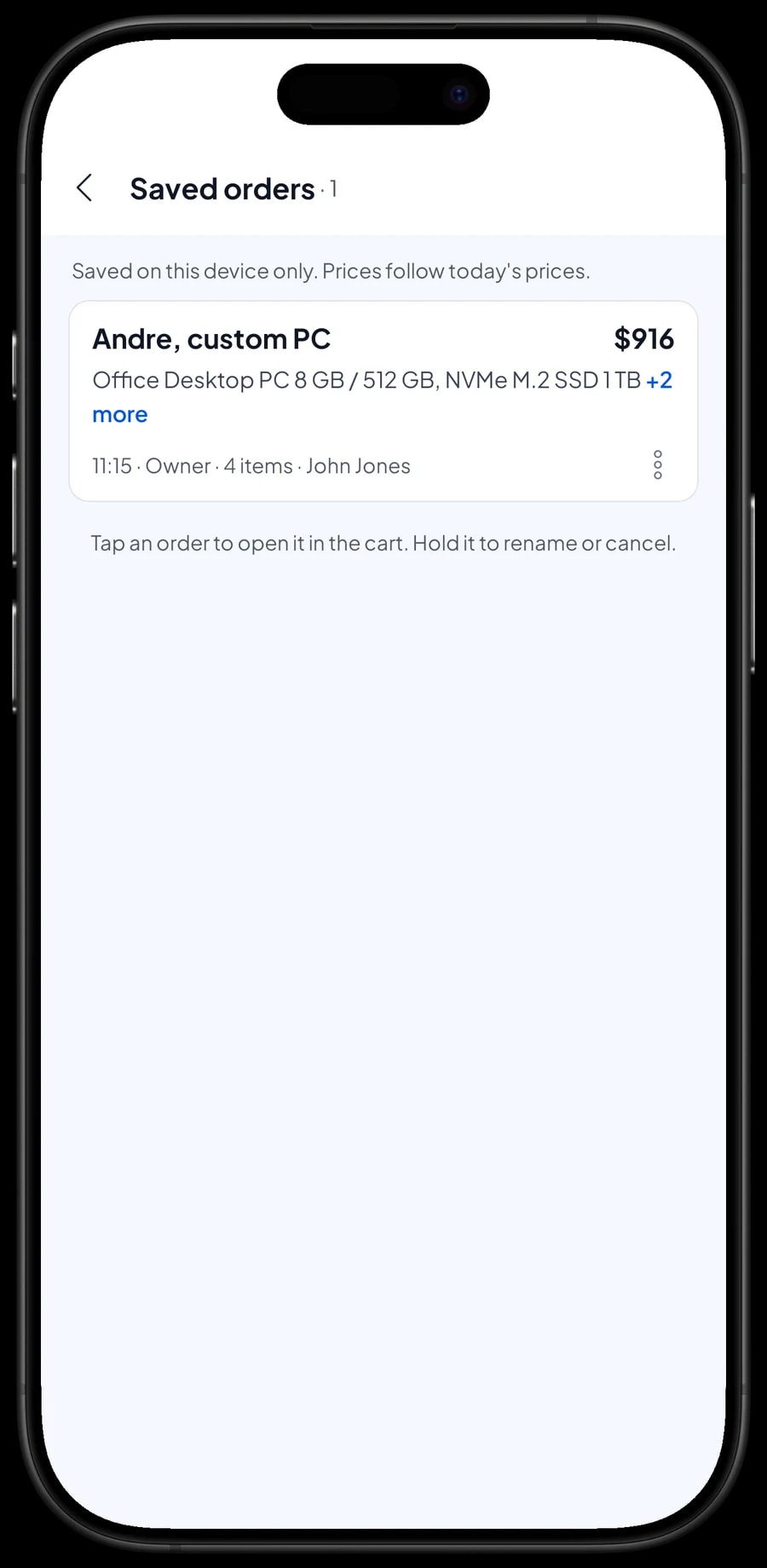
Custom builds are rarely finished while the customer waits. They choose parts today, the technician assembles, and the PC is collected tomorrow. That is what Save order is for: add the PC, the SSD, the monitor and the build service to the cart, then save it under a clear name such as "Andre, custom PC" with a note like "pick up tomorrow noon".
When the customer arrives, open Saved orders, pick the order, add anything extra they decide on, like a mouse or keyboard, and complete the payment. A saved order is not counted as a sale and does not take stock off until it is paid. Saved orders live on the device that created them, so finish the payment on the same device.
Salesmaster does not take component stock off automatically from a single "custom PC" item. If you want SSD, RAM and case stock to go down, add each part as its own line in the cart, plus one line for the build service. The customer gets a clearer receipt that way too.
Payments, financing, discounts and receipts
Create the payment methods you accept: cash, bank transfer, card, e-wallet, or any method you name yourself. Salesmaster does not connect to card terminals, so the cashier runs the card on your terminal and picks the matching method in the app.
Salesmaster does not track installments or customer balances. If you work with a financing company, create a payment method such as "Financing", so the sale is recorded in full and money due from the lender is kept apart from cash.
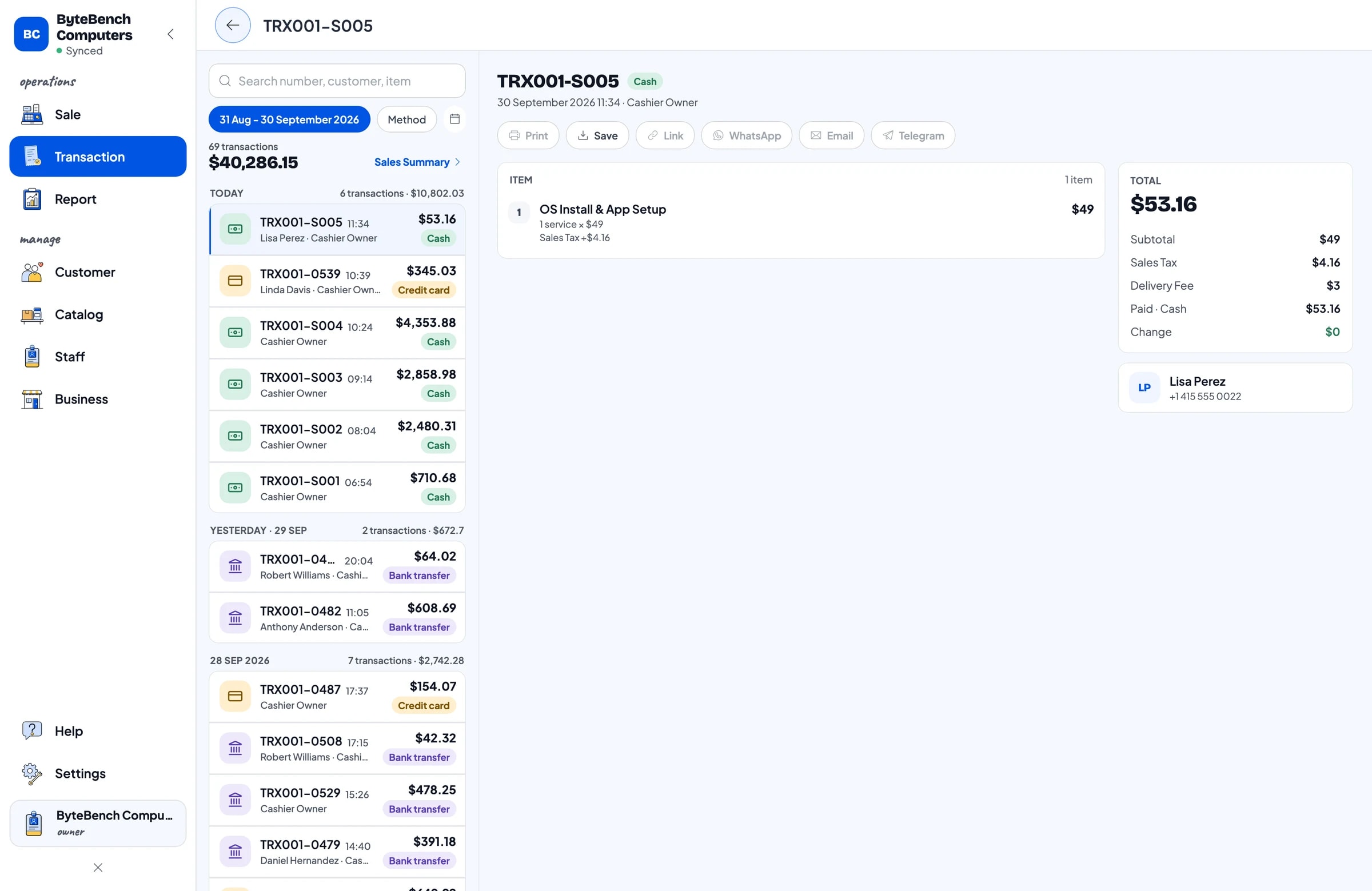
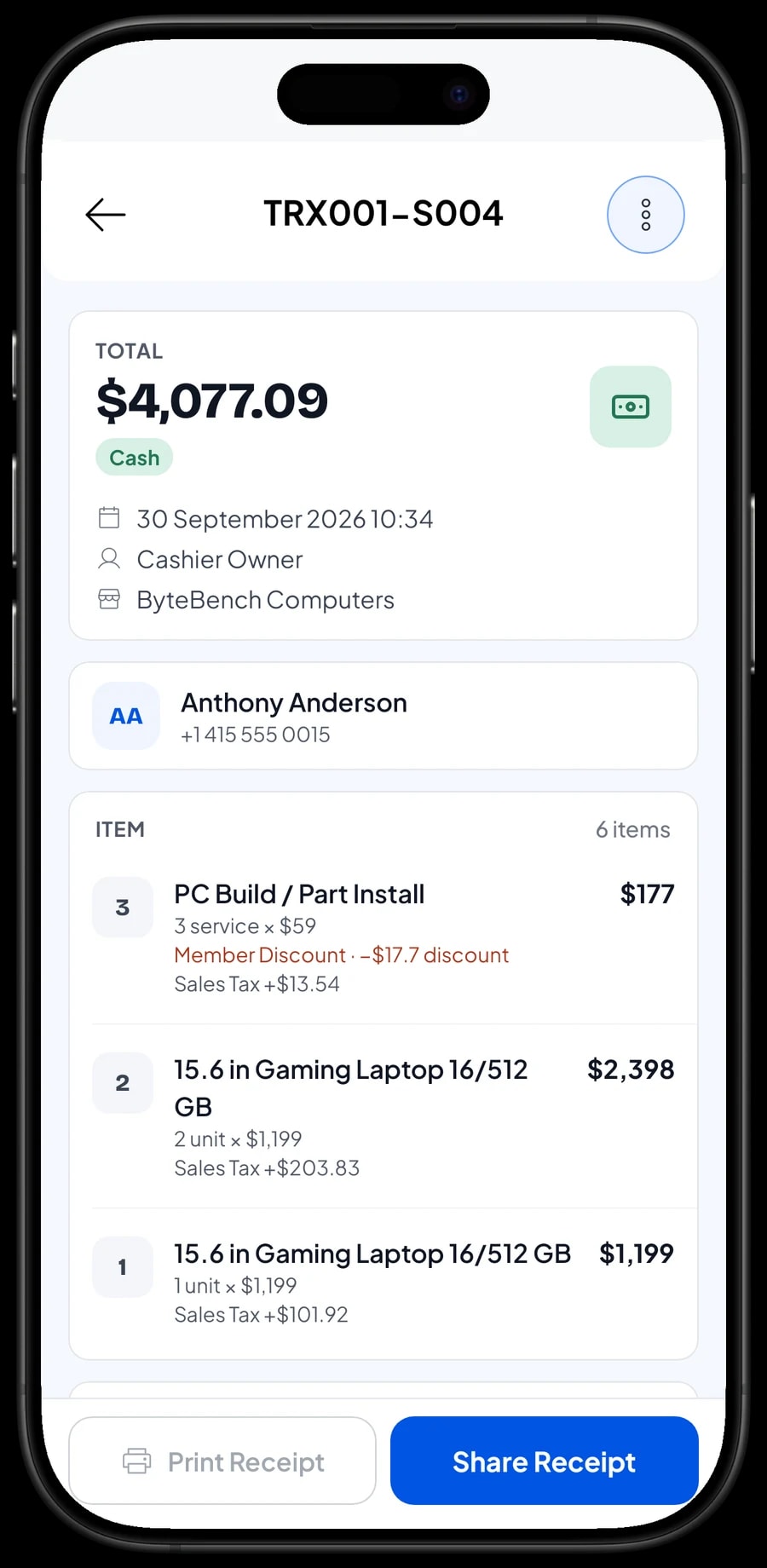
Sales tax is set once in Fees or Tax and calculated on every sale. Discounts, such as a student price or an end-of-month promotion, are set up in Deductions. There is no automatic bulk pricing for office orders; create separate price variants such as "Bulk" and "Retail" that the cashier chooses. Once paid, the receipt can print on a Bluetooth or USB thermal printer, or go out by WhatsApp, email or a web receipt link with your store's logo.
Cashiers, sales staff and cashier devices
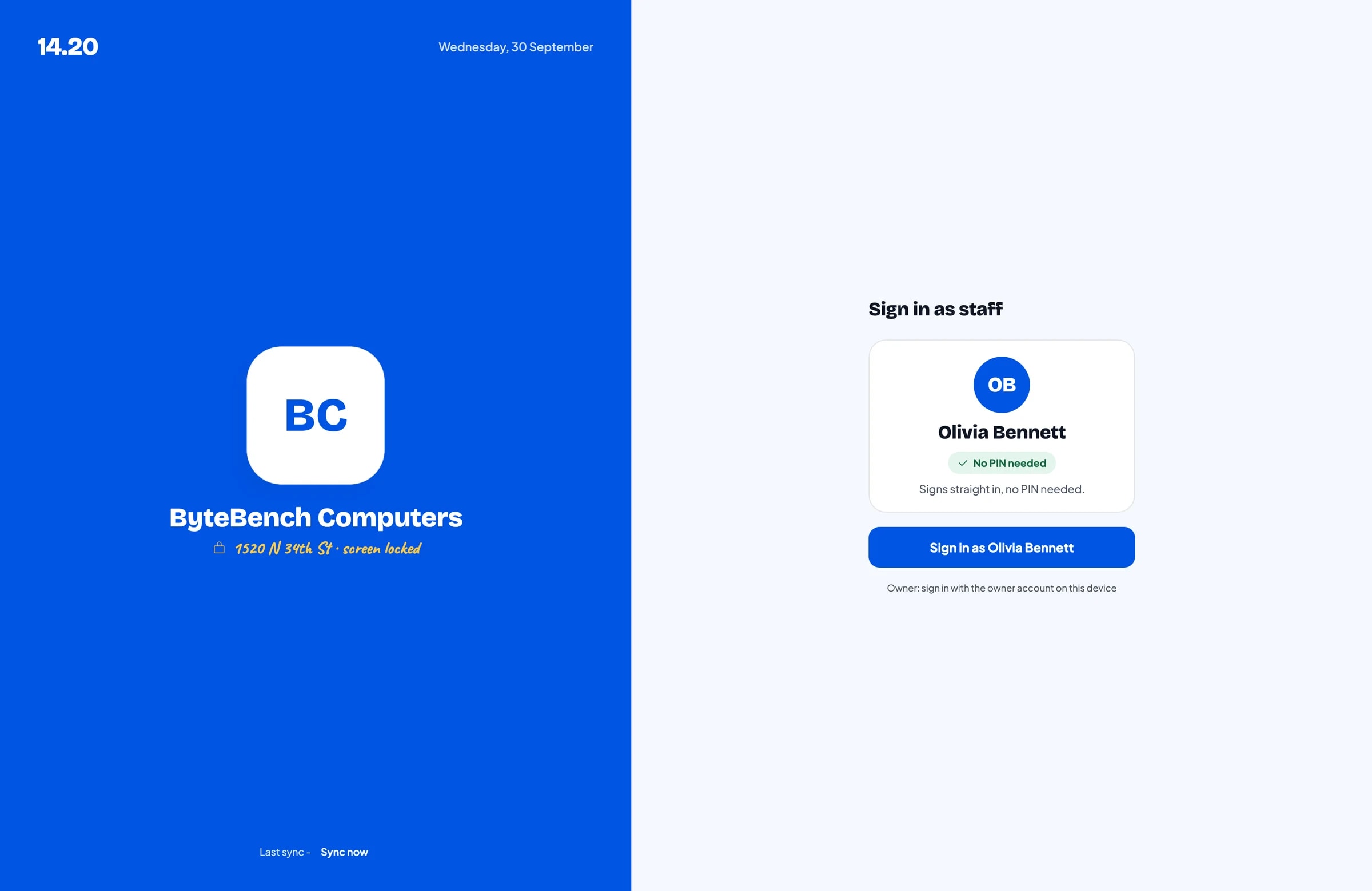
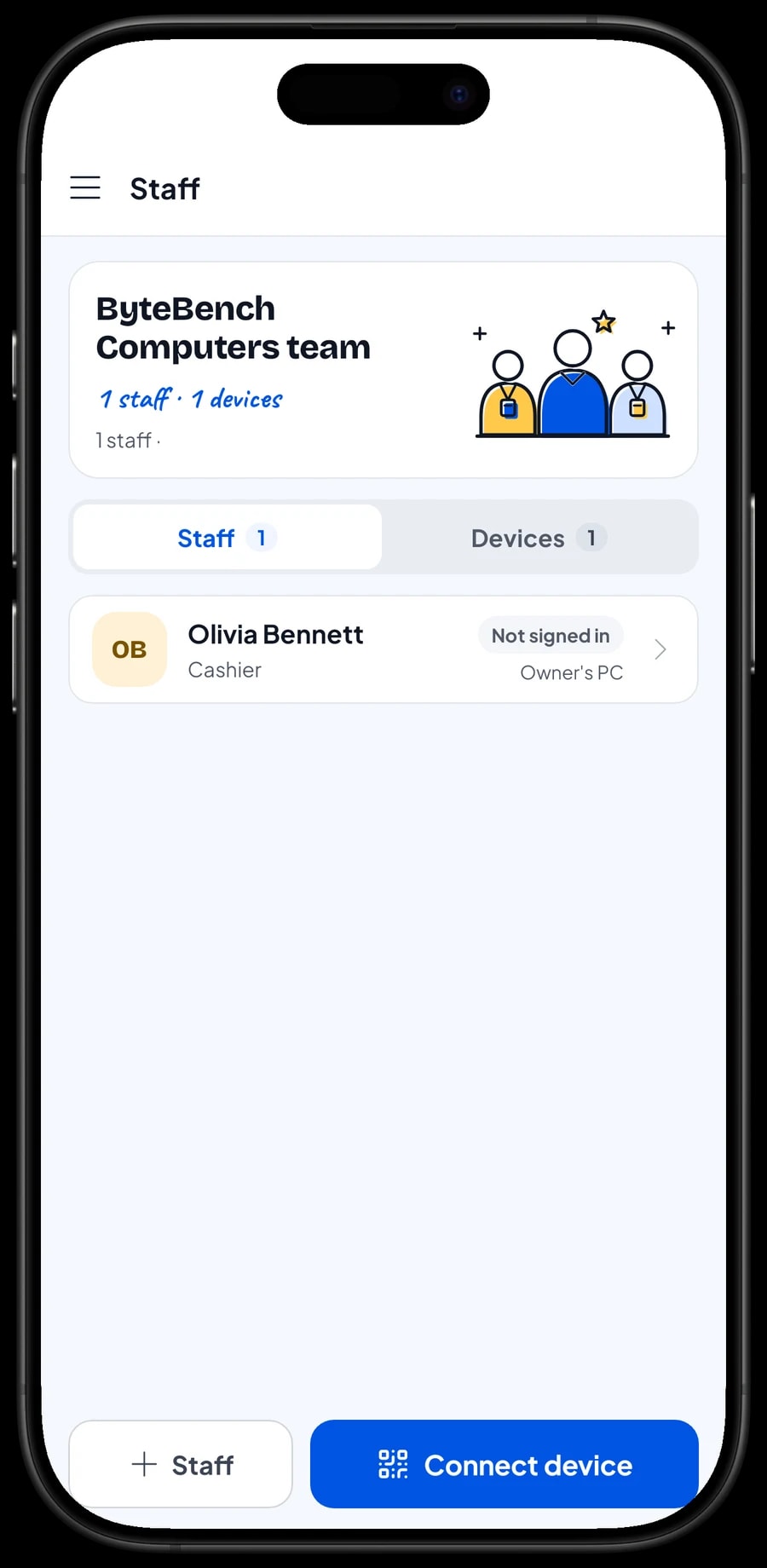
The owner signs in with the main account. Cashiers and sales staff don't need your account: add them as staff, then register a cashier device for them. Staff sign in with a PIN, and you decide what they can see and change. An account signs in on one device at a time; extra devices use staff accounts, which come with Bronze Pro (1 staff) and Silver Pro (2 staff).
Stock purchases, technician pay and net profit
Sales reports are available by day, week, month and year. You see total revenue, gross and net sales, discounts, tax collected, payment methods and revenue per item, so it is clear whether the store lives on laptops, on parts or on services.
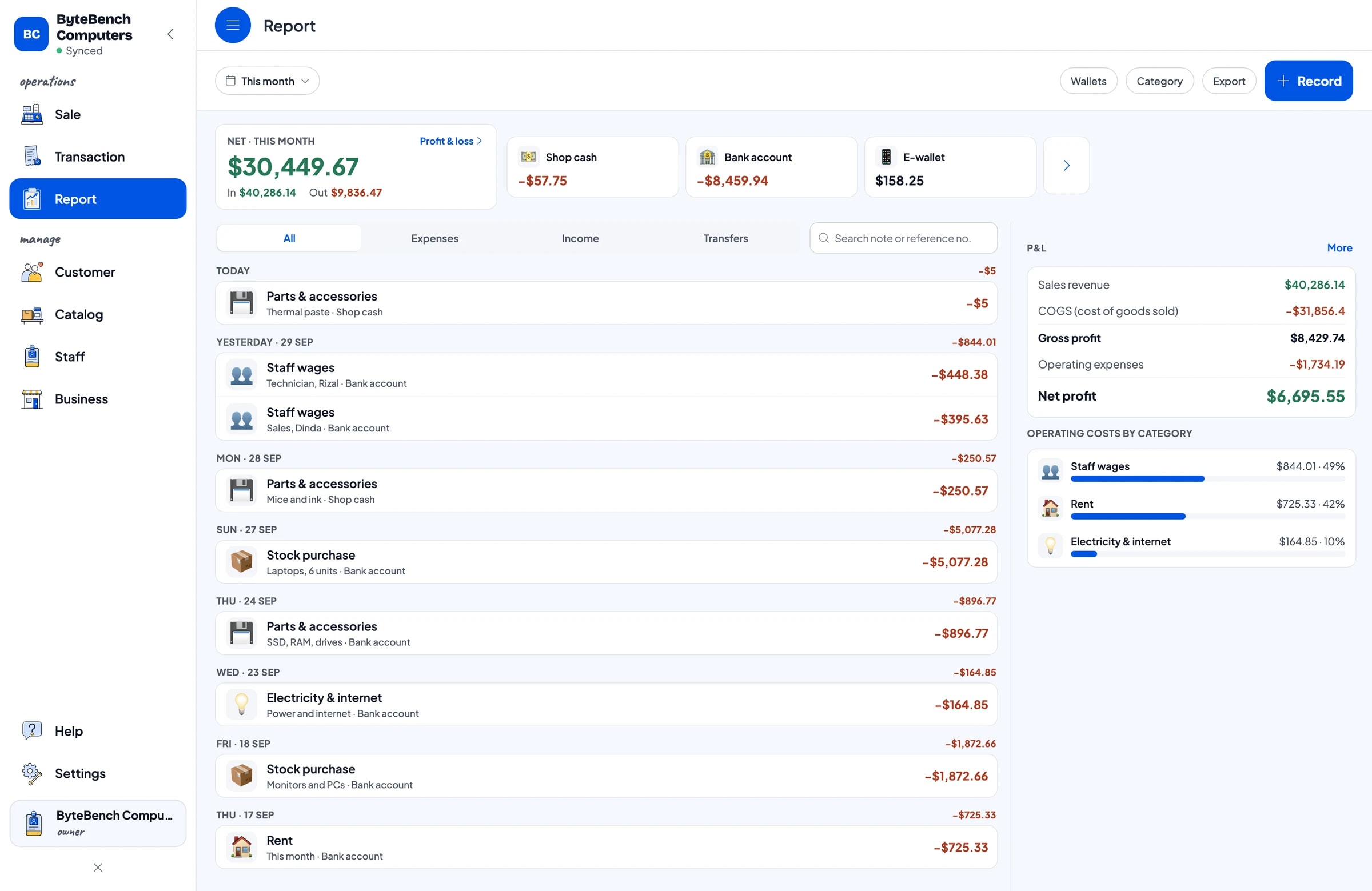
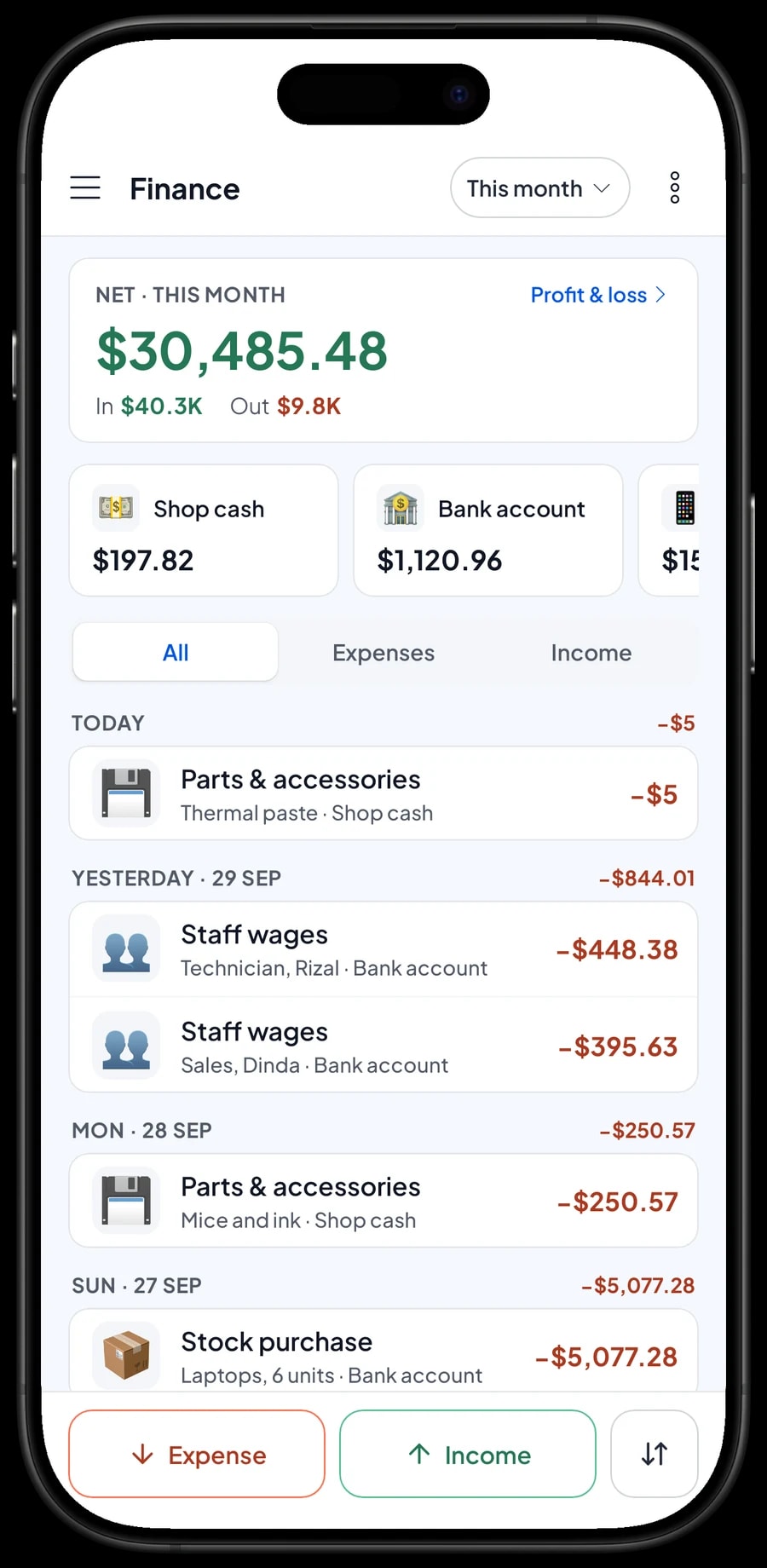
Because each variant has its cost recorded, reports use real costs for gross profit. For net profit, record expenses in Finance: laptops from the distributor, parts and accessories, technician and sales staff pay, rent, power and internet. Each expense has a category and the wallet it was paid from, such as shop cash, a bank account or an e-wallet.
The Finance report then shows revenue minus cost of goods and operating costs: your store's net profit. Sales tax collected from customers is kept apart from profit. Reports can be exported to Excel or PDF for your accountant or business partner.
- Step 1: Open Finance and create expense categories such as Stock purchase, Parts & accessories, Staff wages and Rent.
- Step 2: Record each expense with its amount, category and the wallet it came from.
- Step 3: At month end, open Reports for sales, then Finance for net profit.
Customer records and purchase history
Computer customers come back: ink every month, a RAM upgrade a year later, a laptop brought in for a reinstall. Save the customer at checkout, a name and phone number is enough, and their purchase history is kept under Customers. When someone says "I bought this laptop here last year", you can find the sale, see the model and date, and the serial number you typed in the note.
For offices, schools and internet cafés that buy regularly, you can turn on loyalty points and member cards under Business → Loyalty points and Member card. You set the rules: how much spending earns 1 point and what a point is worth when redeemed.
Get started in a day, keep selling offline
You don't need to close the store to switch to Salesmaster. Install the app on the store PC or laptop and on the counter phone or tablet, then create an account. Enter your 20 to 30 best-selling models first, with variants, costs and stock, plus the setup services people ask for most. Connect a thermal printer if you use one.
On day one, run the till as usual and add missing products during quiet moments. In the evening, compare the daily report with the cash in the drawer.
If the store's internet goes down, you can keep selling. Sales are saved on the device and sent to the cloud when the connection is back. Offline mode works for up to 7 days; after that the app needs to connect briefly to sync. Because your data lives in your account, a broken or replaced device doesn't take your records with it.
An example computer store catalog
Use this table as a starting point and replace the names, specs and prices with your own products.
| Category | Item | Variants | Add-ons | Item type |
|---|---|---|---|---|
| Laptops & PCs | 14 in Laptop, 512 GB SSD | 8 GB RAM, 16 GB RAM | Setup & protection | Product |
| Laptops & PCs | 11.6 in Student Laptop 4/128 GB | - | Setup & protection | Product |
| Laptops & PCs | Office Desktop PC 8 GB / 512 GB | - | Setup & protection | Product |
| Laptops & PCs | IPS Monitor 100 Hz | 24 in, 27 in | - | Product |
| Parts & storage | NVMe M.2 SSD | 512 GB, 1 TB | - | Product |
| Parts & storage | DDR4 Laptop RAM | 8 GB, 16 GB | - | Product |
| Accessories & printers | Wireless Mouse | Black, White | - | Product |
| Accessories & printers | Ink Refill Bottle 70 ml | Black, Cyan, Magenta, Yellow | - | Product |
| Services | OS Install & App Setup | - | - | Service |
| Services | PC Build / Part Install | - | - | Service |
Physical products are Product items, so their stock is tracked per variant. Services like OS installs and builds are Service items with no stock, while extras that belong to a laptop or PC are add-ons.
Which plan fits your computer store
Start by counting sales per day, including small ones like ink and flash drives. A computer store serving about 10 customers a day records roughly 250 to 300 transactions a month.
| Plan | Price | Transactions / month | Staff accounts | Good for |
|---|---|---|---|---|
| Free | Free | 30 | Owner only | To try checkout, variants and saved orders before using it for real. |
| Solo Pro | $4.90/month | 3,000 | Owner only | Small computer stores where the owner runs the till. |
| Bronze Pro | $6.90/month | 5,000 | 1 staff | Stores with one cashier or salesperson on their own device. |
| Silver Pro | $9.90/month | 8,000 | 2 staff | Busier stores with two staff on separate devices, such as a front counter and a repair bench. |
Every plan includes checkout, catalog, receipts, reports and offline mode. You can change plans at any time. See pricing →
Frequently asked questions
- Can Salesmaster track laptop stock per spec?
- Yes. Create one item per model and add variants for its specs, such as 8 GB RAM and 16 GB RAM. Each variant has its own price, cost and stock, and stock goes down per variant with every sale.
- Can Salesmaster record laptop serial numbers?
- There is no serial number field per unit. Type the serial number into the transaction note when you sell it, and find it again in your transaction history for a warranty claim.
- Does Salesmaster track warranty periods?
- Not automatically. You can sell extended warranty as an add-on, and the purchase date is on the receipt and in the customer's purchase history. Use those as proof when a claim comes in.
- How do I record sales paid through financing or card installments?
- Salesmaster does not track installments or customer balances. Create payment methods such as "Financing" or "Credit card" so the sale is recorded in full and kept apart from cash in your reports. Cards are processed on your own terminal, because Salesmaster does not connect to payment terminals.
- Does part stock go down when I sell a custom PC?
- Only if each part is added as its own line in the cart. A single "custom PC" item does not take the SSD or RAM inside it off stock. Add the parts one by one, plus the build service, so both your stock and the receipt are clear.
- A customer paid a deposit on a build. How do I record it?
- Salesmaster has no deposit on a single sale. Sell the deposit right away as a separate Service item called "Down payment" for the amount received, and keep the build as a saved order. At pickup, open the order at its full price, tap Add Deduction for the deposit amount, and complete the payment on the same device, because saved orders live on the device that created them.
- How much does Salesmaster cost for a computer store?
- You can start on the Free plan to try it. Stores with a cashier or salesperson usually choose Bronze Pro or Silver Pro, because both include staff accounts. Prices for each plan are in the plan table on this page, and paying yearly costs less.
Need help setting up your catalog? Chat with our team on WhatsApp →