
Salesmaster is a point-of-sale (POS) app for musical instrument stores on Android, iPhone & iPad, Windows and Mac. You can track stock for guitars, keyboards and accessories down to each variant, sell setup and restring services, hold repair jobs with Save order until pickup, reward regulars with loyalty points, and see net profit after expenses in the Finance report. A Free plan lets you try it first.
Problems every music store knows
If any of these sound familiar, this page is for you.
- 01
Expensive stock that has to be exact
One electric guitar is worth as much as a few hundred string sets. If your count is off by a single unit, you feel it. Without stock by finish and model, you only find out something is missing at stocktake.
- 02
One product, many options
Acoustic, electric and bass strings all have different prices. So do soprano and concert ukuleles. If the person at the counter has to remember every price, something gets charged wrong.
- 03
Setup jobs pile up with no record
A customer drops off a guitar for a setup or new strings and comes back in the afternoon. The paper ticket gets lost, and nobody remembers which strings went on.
- 04
Big sales, unclear profit
Guitar sales look like a lot of money, but most of it goes straight back to the importer. After the tech's wages, rent and ads, what is actually left? Without recorded expenses, profit is a guess.
Building your catalog: categories, finishes and types
Start with what customers ask for most. In Salesmaster, every product is one item in the Catalog. Group items into categories such as Guitars & basses, Keys & drums, School & wind, and Accessories & service, so staff can find anything in one or two taps on the Sale screen.
A product with several options only needs one item with variants. The same electric guitar in Sunburst, Black and White; a ukulele in Soprano and Concert; guitar strings in Acoustic, Electric and 4-string Bass. Each variant has its own selling price, its own purchase cost and its own stock. So you know how many black guitars and how many white ones are left, not just a total for the model.
If you carry a lot of products, enter the catalog on a laptop first (Windows or Mac), then use it on the phone or tablet at the counter.
- Step 1: Open Catalog → Categories and create categories such as Guitars & basses, Keys & drums and Accessories & service.
- Step 2: Open Catalog → List Items and add each product with its name, selling price, cost and category.
- Step 3: For products with several finishes or types, add variants and enter the price and stock of each one.
- Step 4: Enter the barcode on the item if your products are already labeled, so staff can simply scan them.
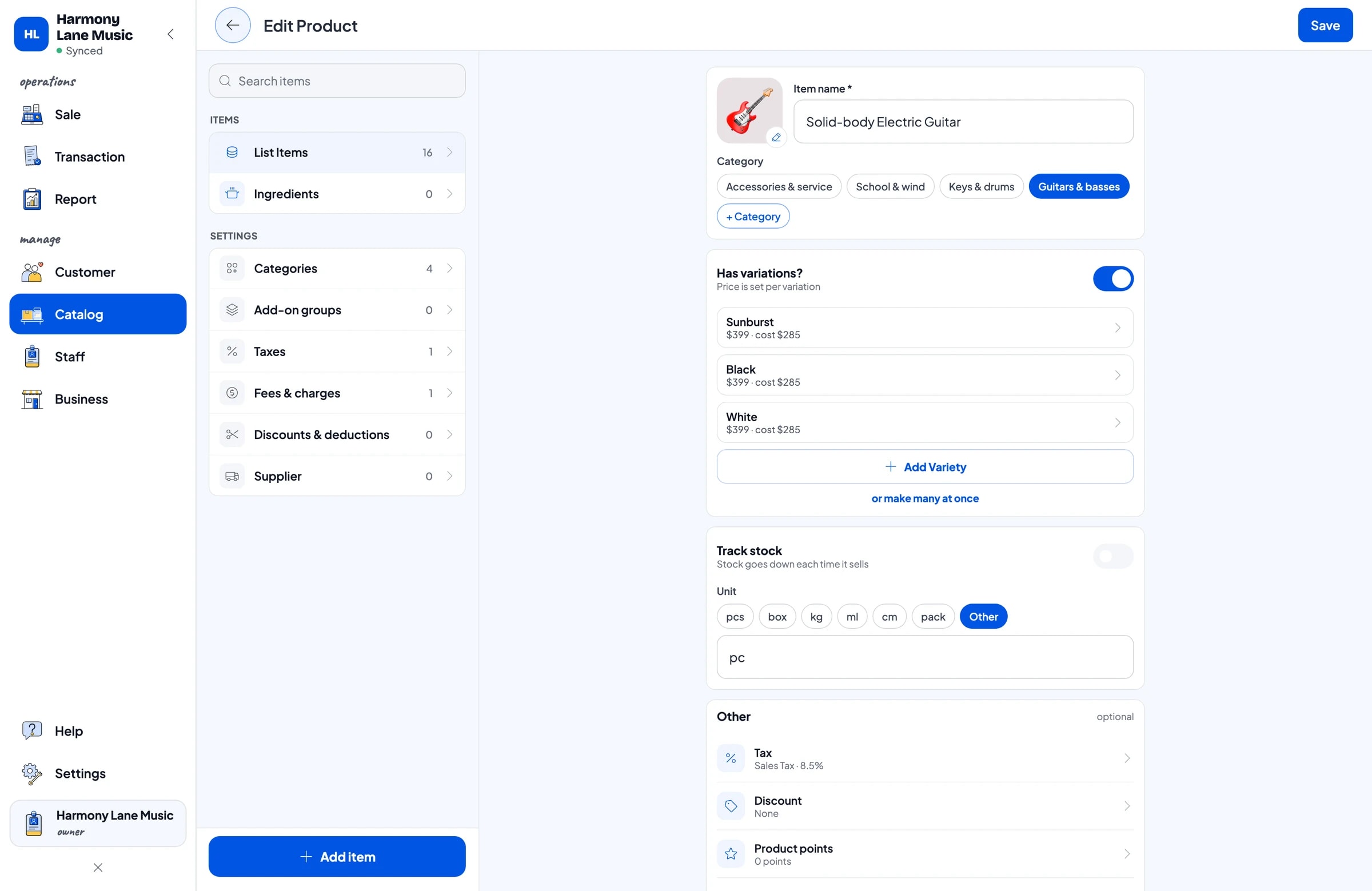
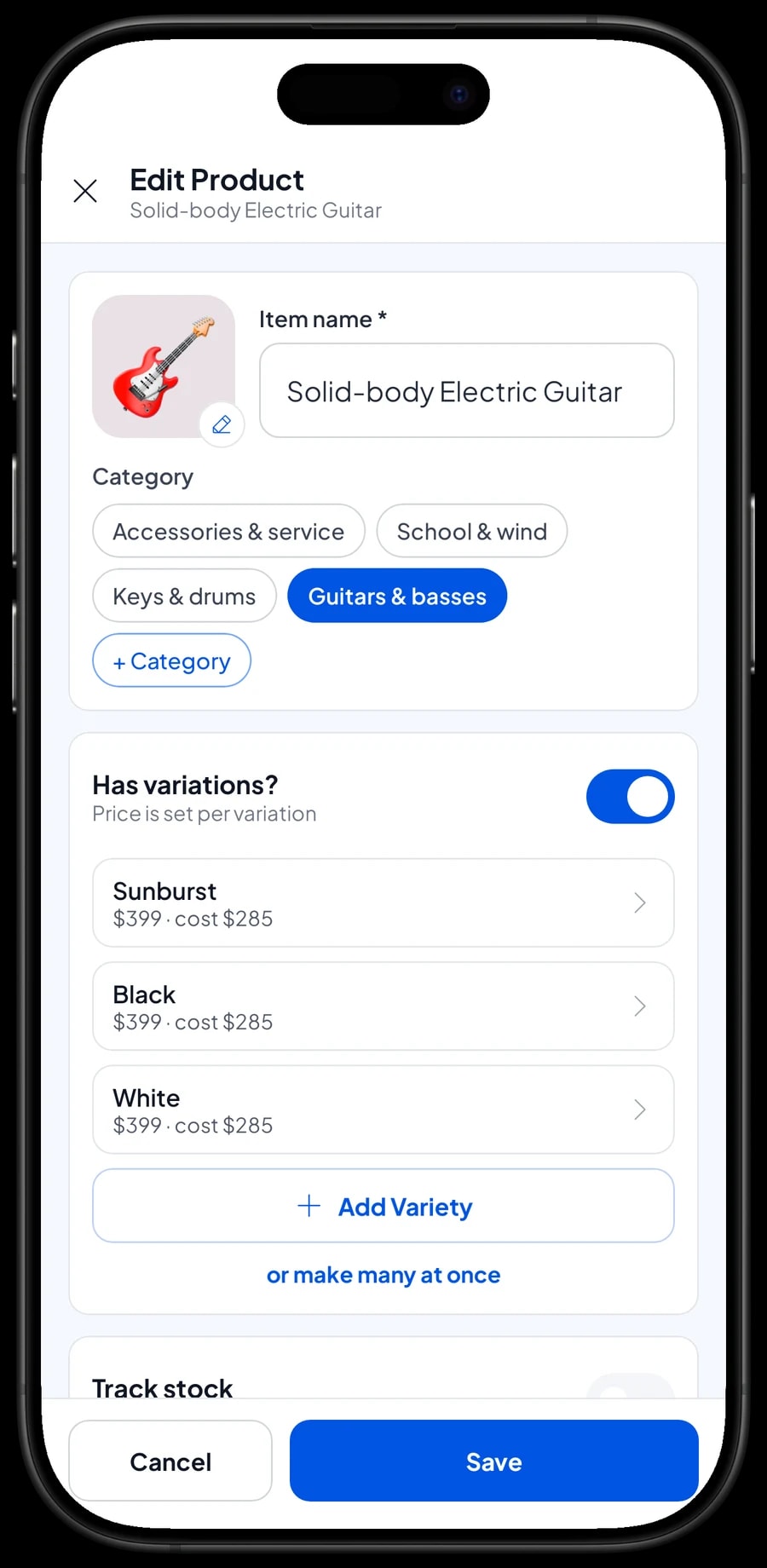
Unit stock for big-ticket instruments and small accessories
A music store sells two very different kinds of product: expensive instruments that sell a few units a month, like guitars, basses and keyboards, and small things that sell every day, like strings, picks and drumsticks. Both work the same way: every sale takes the item or variant off stock automatically.
When a shipment arrives from the importer or distributor, add it in Catalog → Inventory → Stock. If something arrives damaged, a guitar has a cracked top, or a set of strings goes on a demo instrument, record it as a stock adjustment so the app matches what is on the wall. The stock history shows when stock went up and down, which makes gaps at stocktake easier to trace.
Units can differ per product: guitars by the piece, drumsticks by the pair, strings by the set, picks by the 6-pack. Salesmaster does not convert one unit into another automatically. If you break open a pack of picks to sell them one by one, record the pack going out and the single picks coming in as stock adjustments.
- Step 1: Open Catalog → Inventory → Stock and pick the item or variant that just arrived.
- Step 2: Add the quantity received and save.
- Step 3: For damaged stock or demo use, reduce the stock and note the reason.
- Step 4: Check the stock history at your monthly stocktake to find any gaps.
Serving customers at the counter
Music store customers often try an instrument first, ask plenty of questions, then buy several things at once: a guitar, a gig bag, spare strings and a capo. On the Sale screen, staff tap or scan each product, pick its variant, and the total adds up as they go.
Add a Note when it matters, such as the guitar's serial number, your store warranty, or a request to restring before pickup. For bundle deals, like money off a gig bag with a new guitar, use Deductions. Sales tax is set once in Fees or Tax and calculated on every sale.
You create your own payment methods: cash, card, bank transfer, mobile payments and so on. Card payments on your terminal are recorded as a payment method; Salesmaster does not connect to the card terminal itself. Each sale is paid in full, so installments or partial payments on one sale are not recorded.
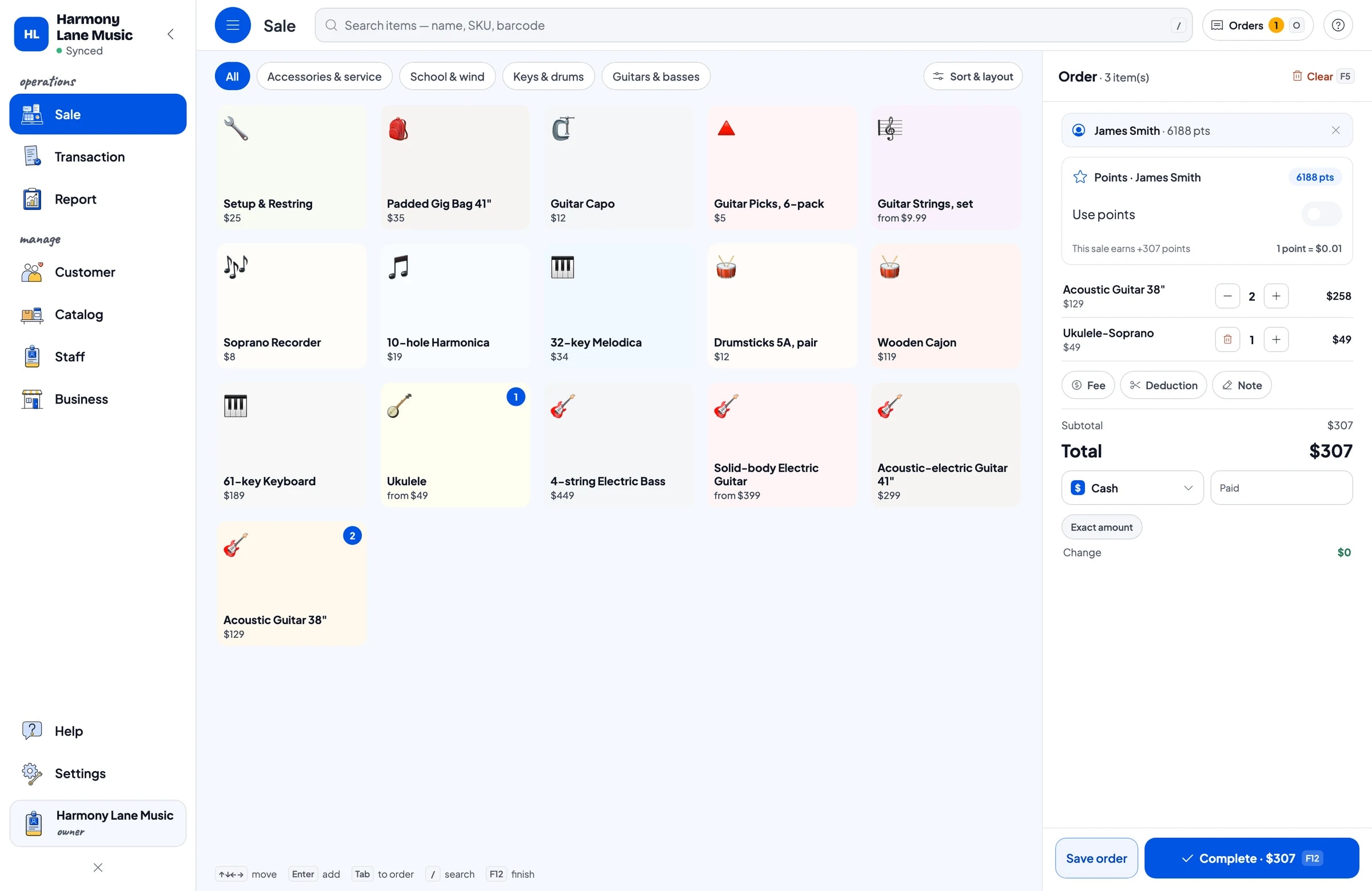
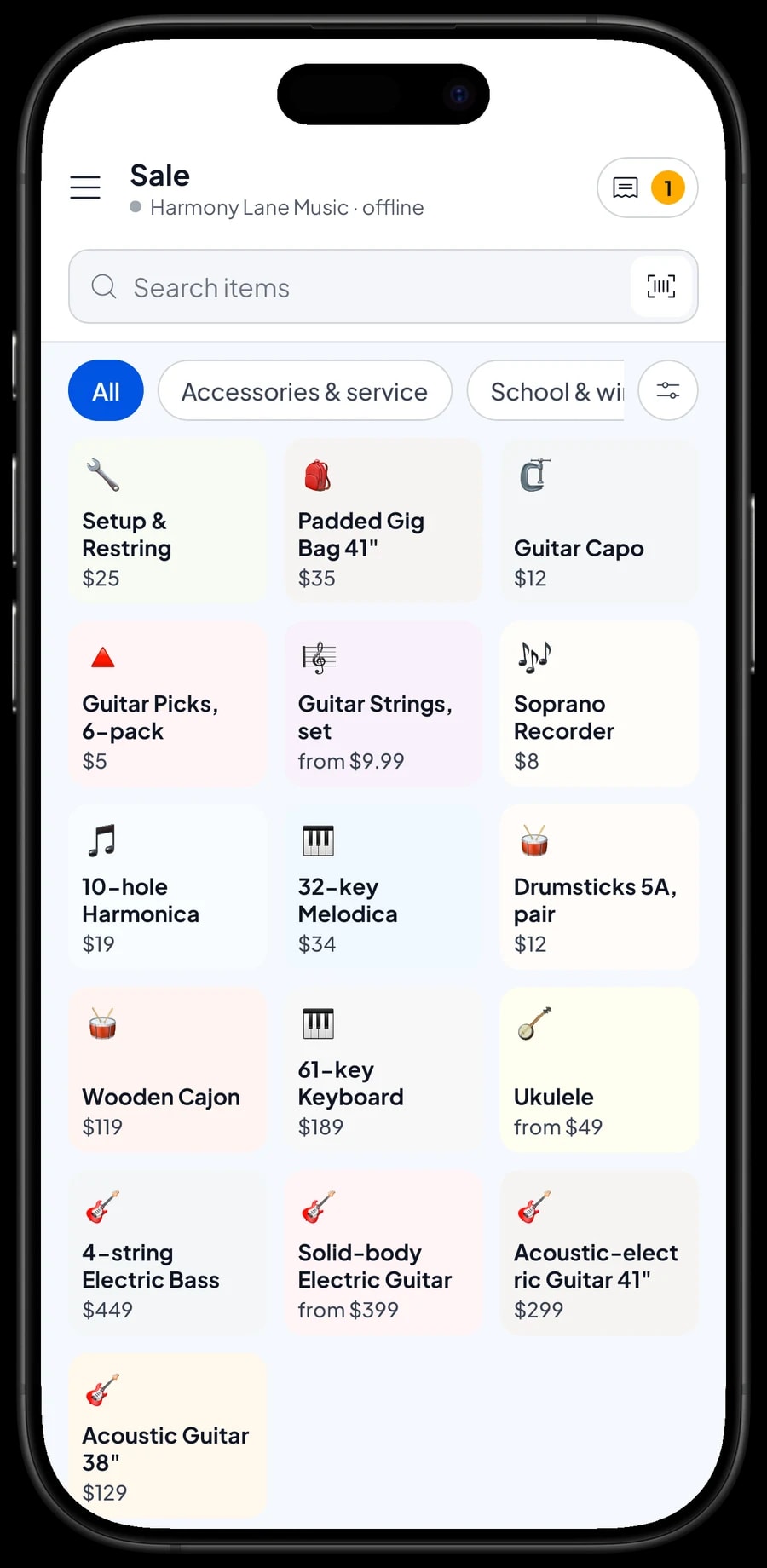
Setup and restring jobs with Save order
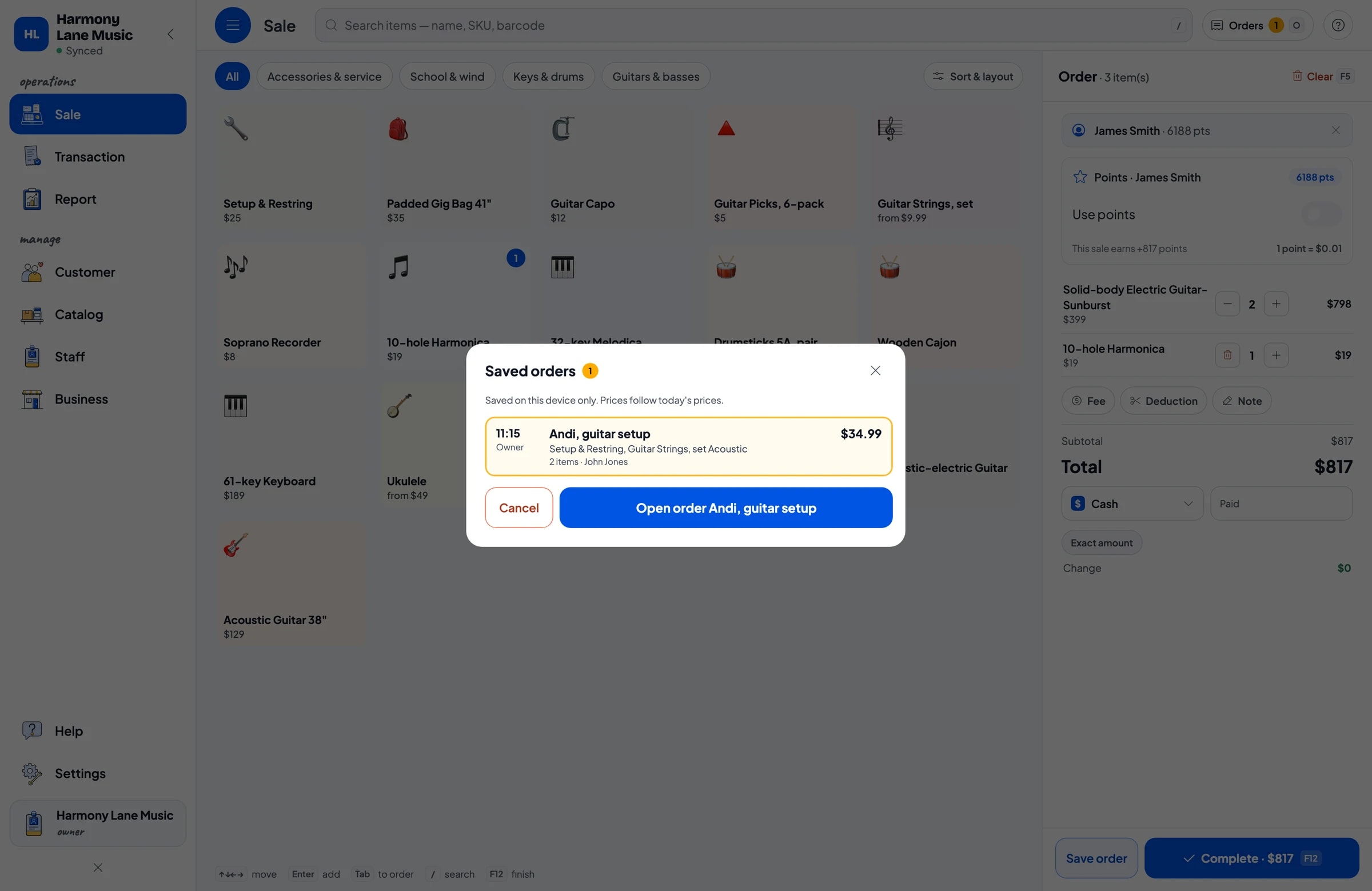
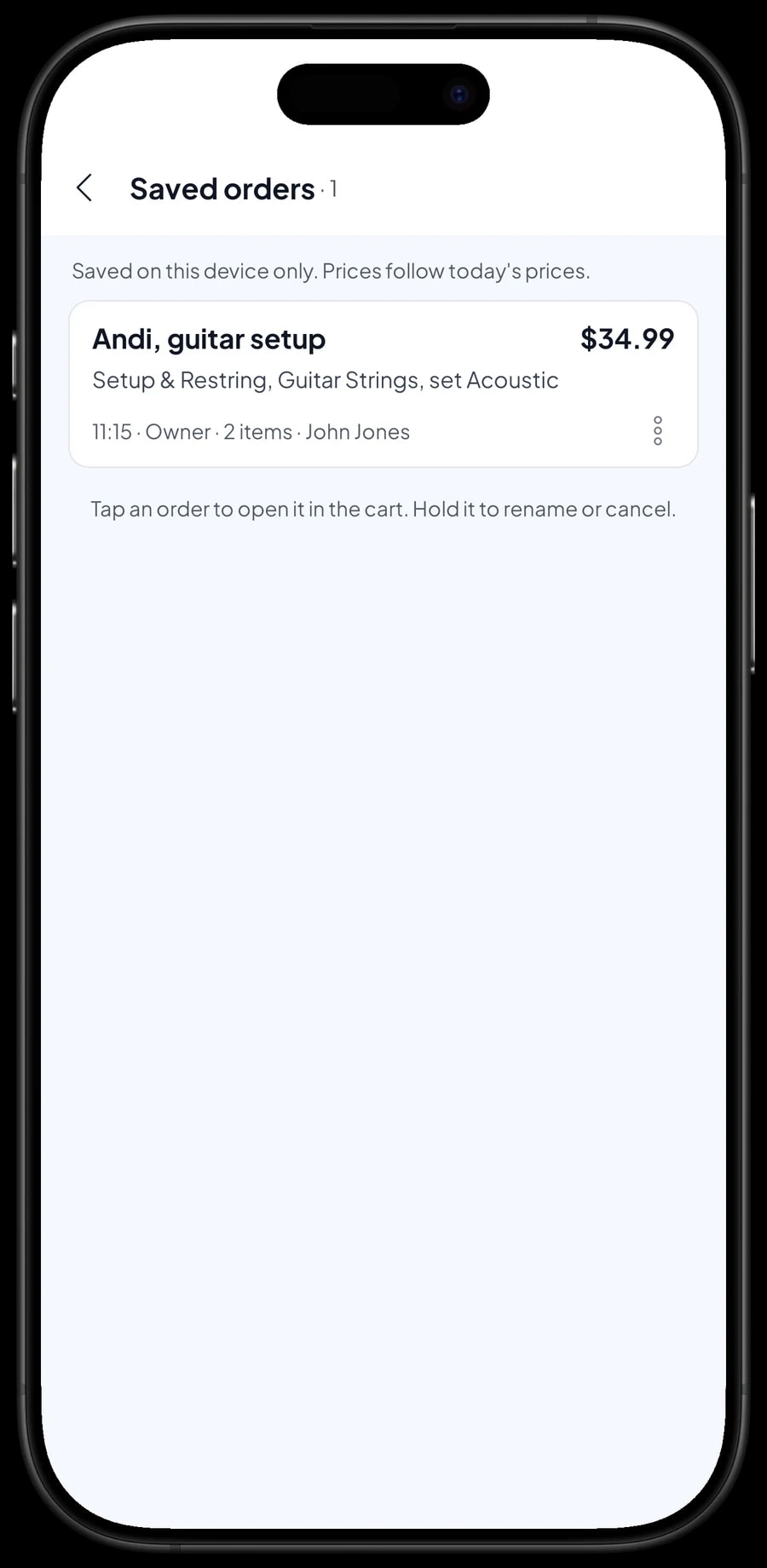
Services can be sold just like products. Create a Setup & Restring item with its price and no stock. When a customer drops off a guitar, add the service and the strings you will fit to the cart, tap Save order and name it, for example Andi, guitar setup. Put the pickup time in the note.
The job now sits in Saved orders. When Andi comes back after 5 PM, open his order, add anything else he picks up, like a capo or a pack of picks, and complete the payment. A saved order is not counted as a sale and does not take the strings off stock until it is paid.
Saved orders stay on the device that created them, so open and finish them on the same counter device. It is not a customer tab or a credit account; it is a cart held until payment. If a customer leaves a deposit on a special-order instrument, sell it right away as a separate Service item called Down payment for the amount received. When the instrument is paid off, it keeps its full price and staff tap Add Deduction for the deposit amount, so the drawer and reports match on both days.
- Step 1: On the Sale screen, add the setup service and the strings you will fit to the cart.
- Step 2: Tap Save order and name it with the customer's name and the job.
- Step 3: Write the pickup time or any special request in the order note.
- Step 4: When the customer returns, open Saved orders, choose the order and complete the payment.
Sales staff and cashier devices
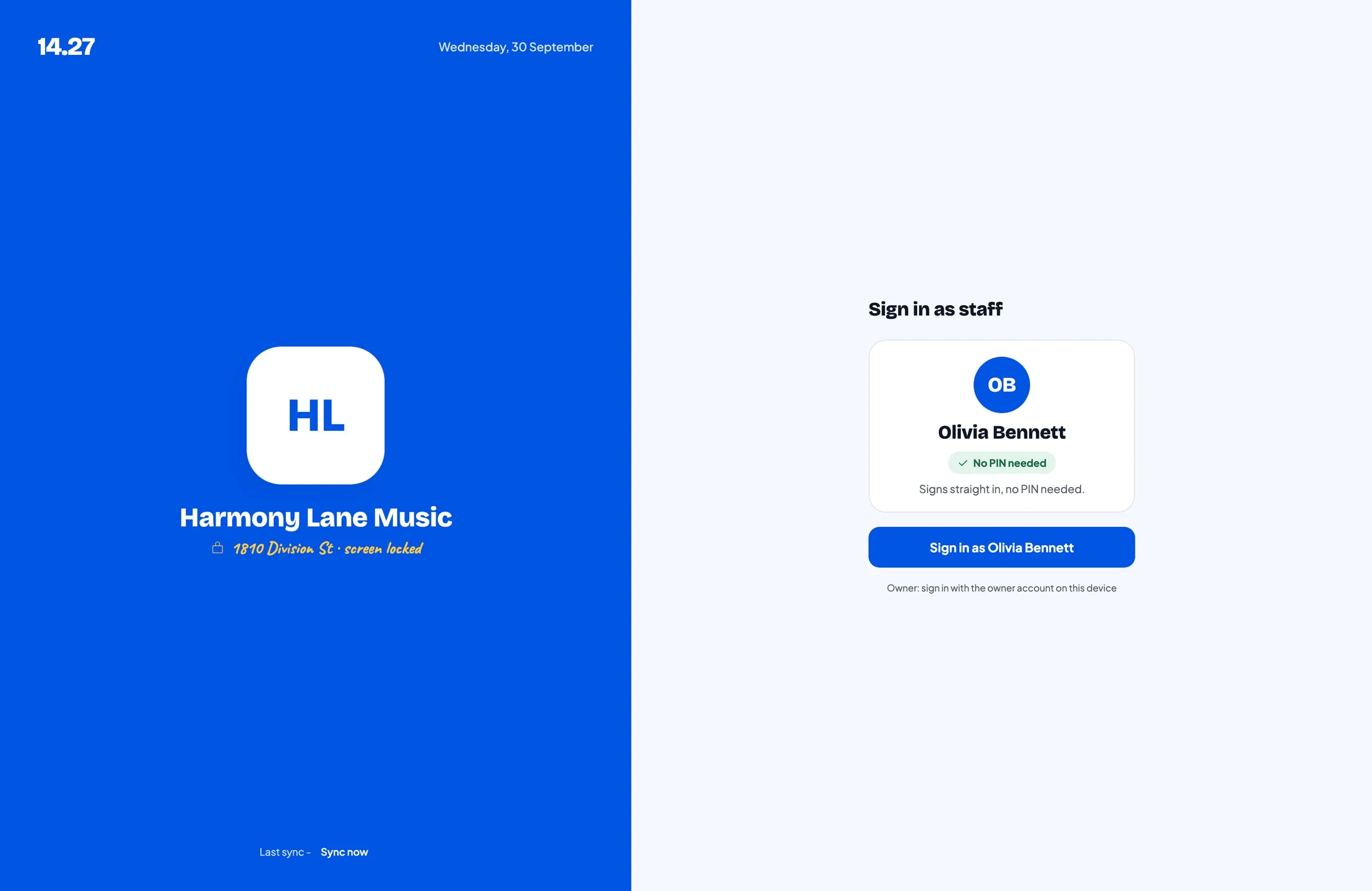
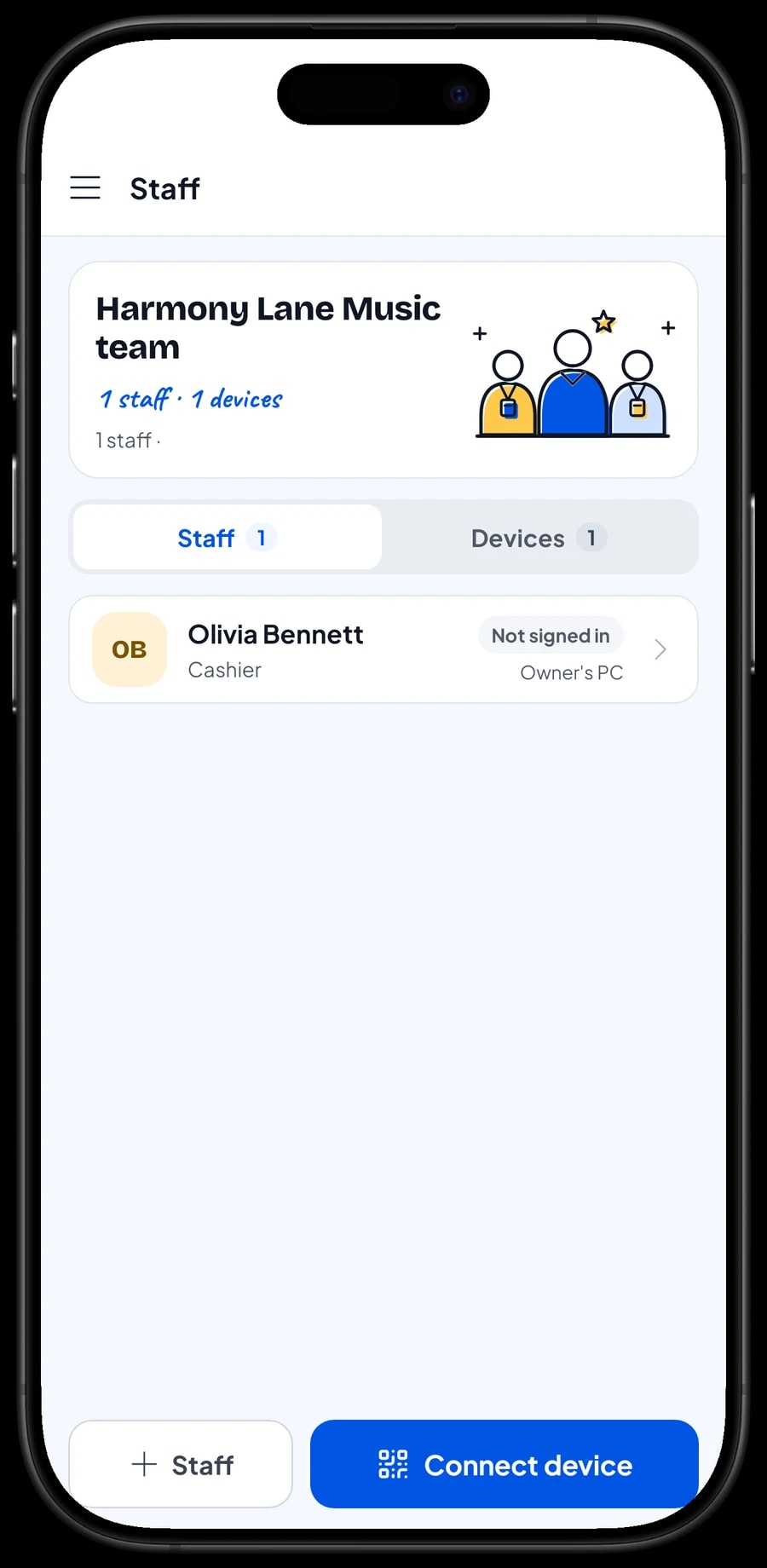
The owner signs in with the main account. An account is active on one device at a time, so your sales assistant does not use your login. Add them as staff with their own role, then register a cashier device for them. Staff sign in with a PIN, and you decide what they can see and change. Staff accounts come with Bronze Pro (1 staff) and Silver Pro (2 staff).
Regulars, students and loyalty points
Music stores have customers who come back again and again: guitarists who restring every month, drummers who keep breaking sticks, students picking up songbooks, and parents buying a melodica or recorder for school. Save them in Customers at checkout, a name and phone number is enough, so their purchase history is kept.
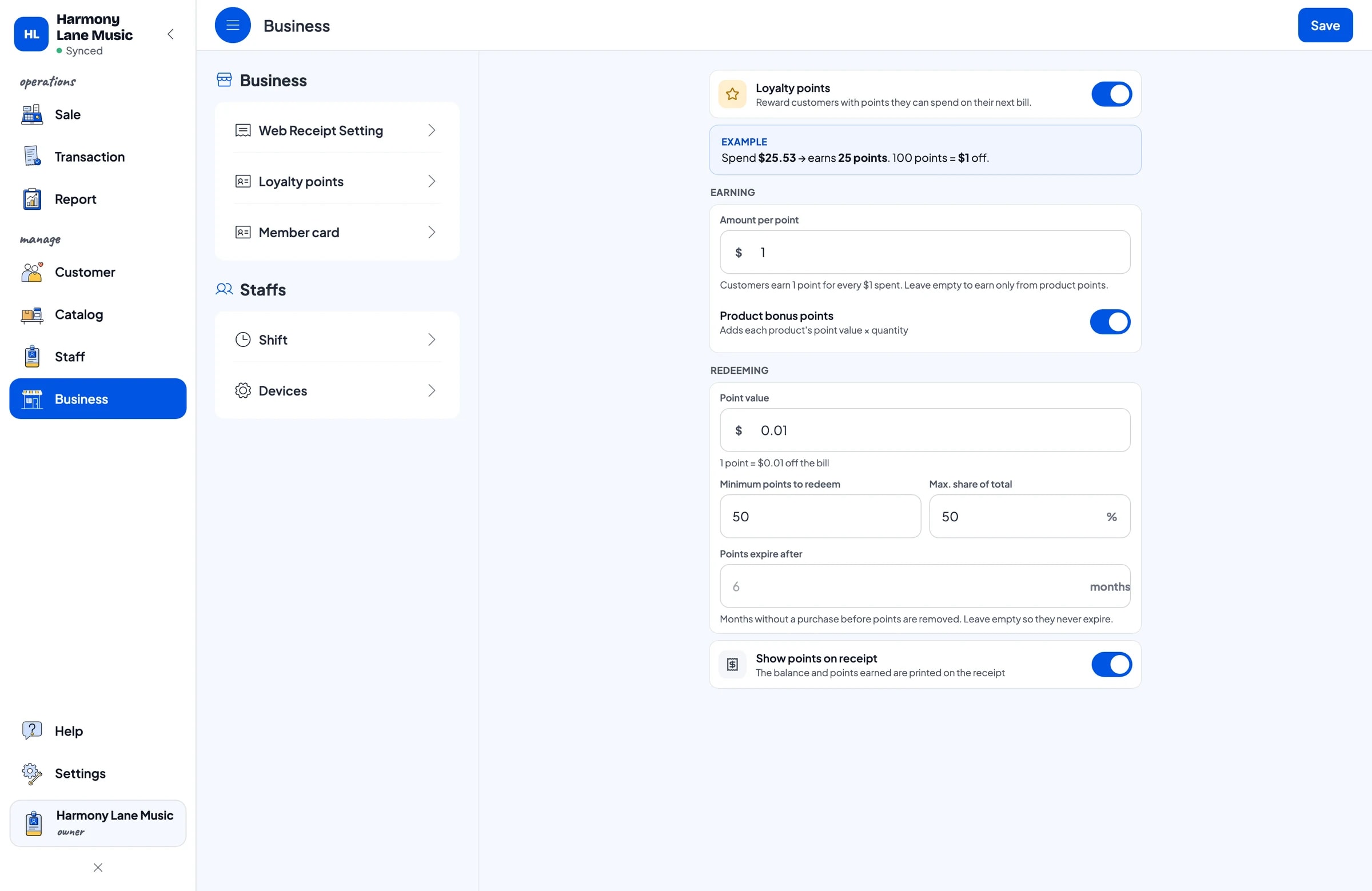
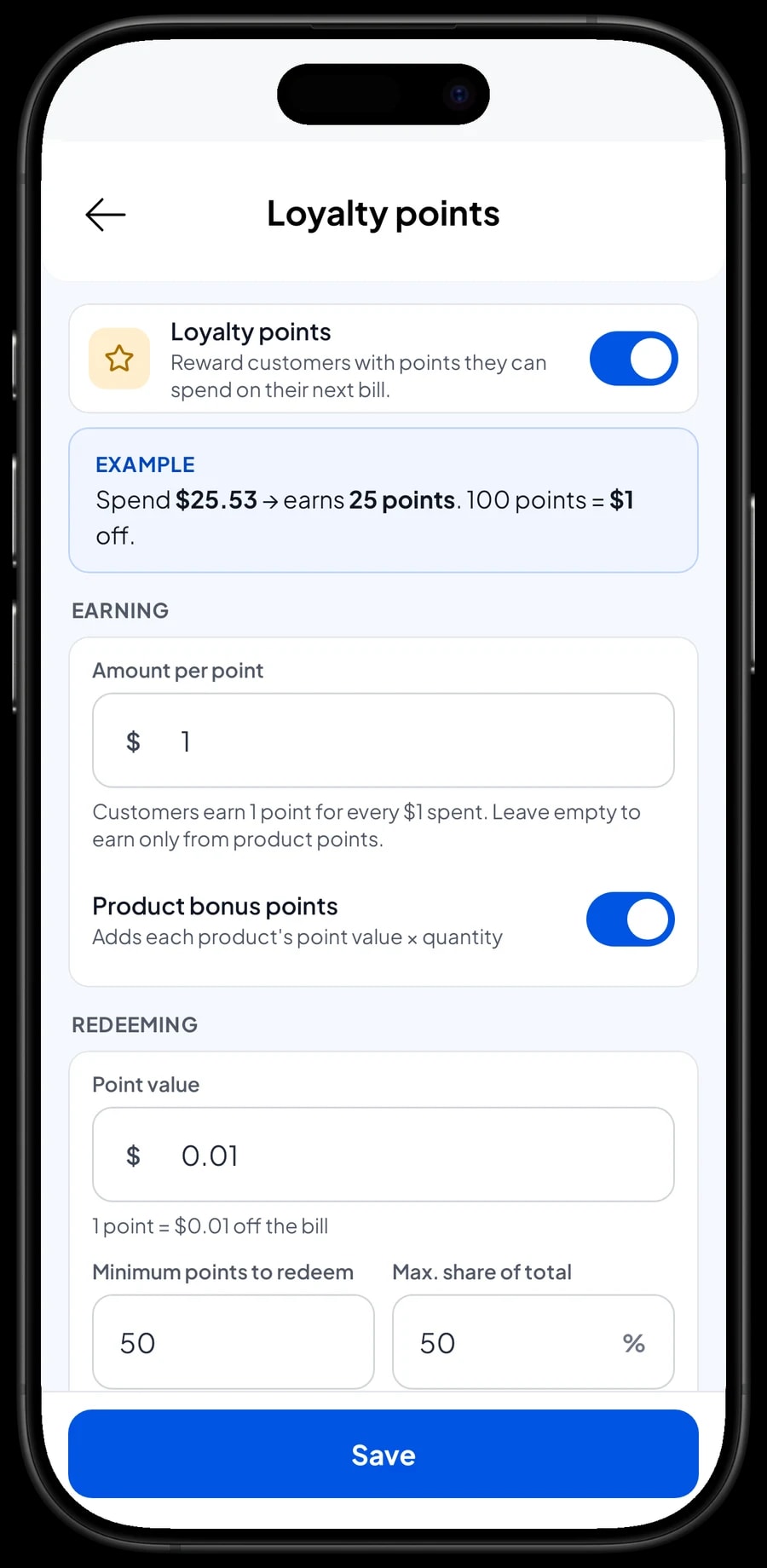
Turn on Loyalty points and set the rules: how much is spent per point, what a point is worth, the minimum points to redeem, and the largest share of a bill that points can cover. Points are added with every sale. Regulars can also get a member card in their name.
Sales reports and real net profit
Reports are available by day, week, month and year. You see total revenue, gross and net sales, discounts, tax collected, payment methods and revenue by item. It becomes clear whether your revenue comes from guitars that sell now and then, or from accessories that sell every day.
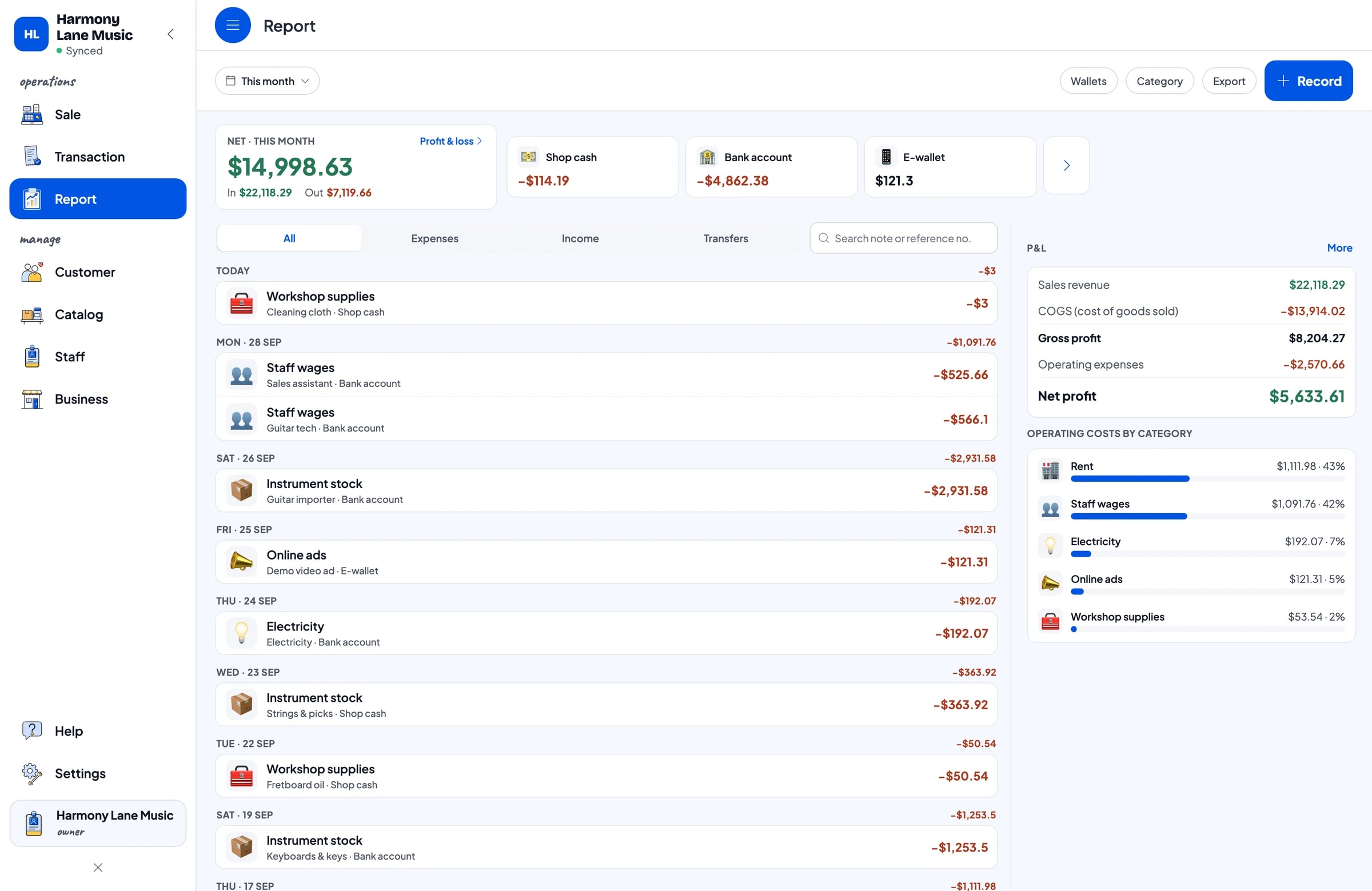
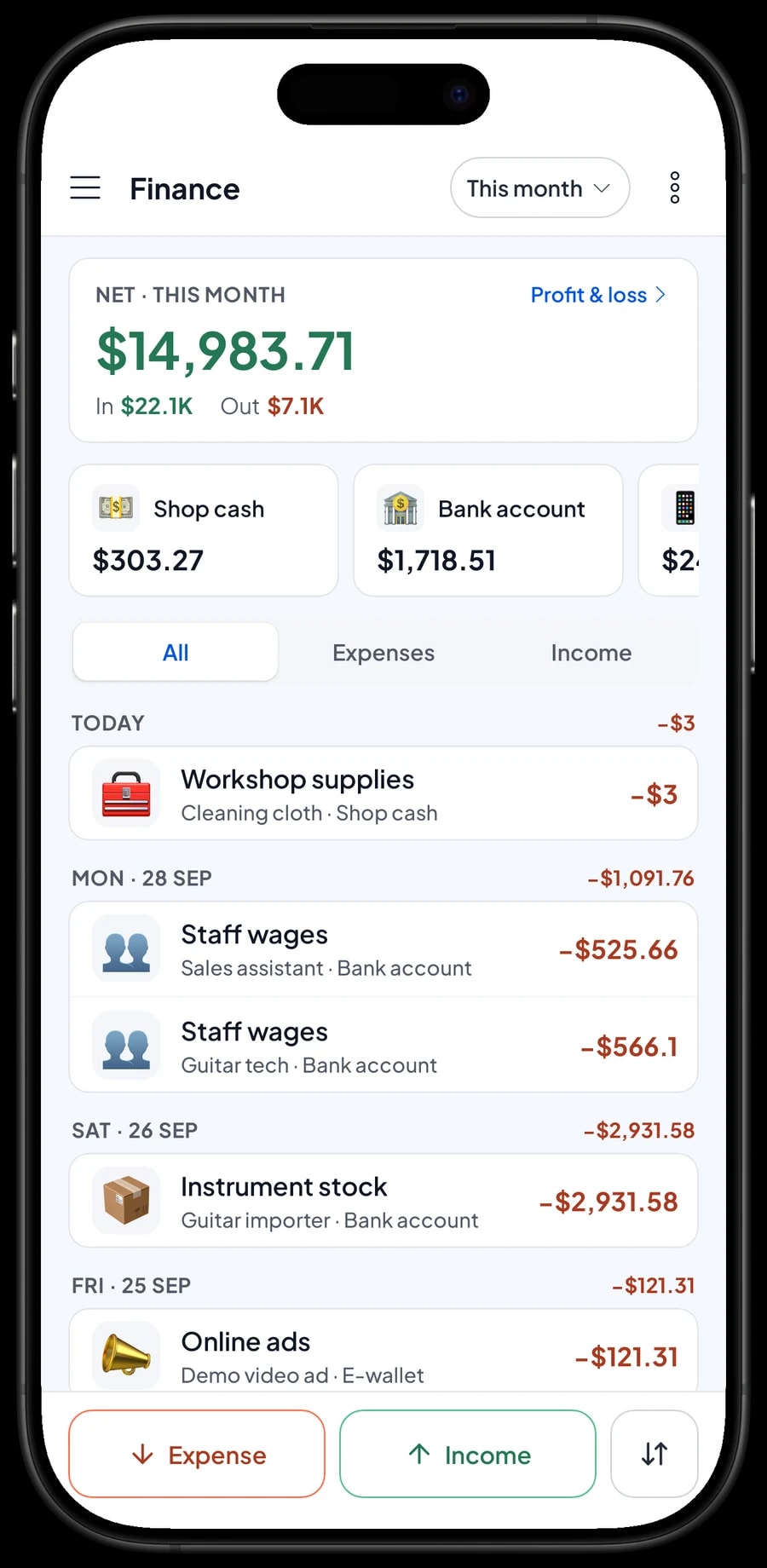
For real profit, record expenses in Finance: payments to the guitar importer, keyboard and melodica orders, strings and picks, wages for the sales assistant and the guitar tech, rent, electricity, a demo video ad, even fretboard oil for the workshop. Each expense has a category and the wallet it was paid from, such as shop cash, a bank account or an e-wallet.
Because every item and variant has a cost, reports work out gross profit from the cost of what was sold. The Finance report then shows net profit after operating costs. Reports can be exported to Excel or PDF for your accountant or business partner.
Keep selling when the internet drops
Every sale in Salesmaster is saved on the device first and sent to the cloud when the connection is back. Offline mode works for up to 7 days; after that the app needs to connect briefly to sync. The first sync after signing in also needs internet.
Your data lives in your account, not only on one phone. If a device breaks, sign in on a new one and your store's data comes with it.
Get started in a day
You don't need to close the store to switch to Salesmaster. In the morning before opening, install the app on the counter phone, tablet or laptop and create an account. Enter your fastest sellers first, like strings, picks and capos, then the guitars and keyboards on display with their finishes as variants. Connect a Bluetooth or USB thermal printer if you print receipts.
On day one, run the counter as usual. Products that are not in the catalog yet can be added in quiet moments. In the evening, open the daily report and compare it with the cash in the drawer. Once the counter runs smoothly, count your stock and enter it in Catalog → Inventory → Stock, then start recording expenses in Finance. Within a week or two, your store has complete records of sales, stock and profit.
An example music store catalog
Use this table as a starting point and replace the names and variants with your own products.
| Category | Item | Variants | Item type | Stock |
|---|---|---|---|---|
| Guitars & basses | Acoustic guitar 38" | - | Product | Per piece |
| Guitars & basses | Solid-body electric guitar | Sunburst, Black, White | Product | Per variant |
| Guitars & basses | Ukulele | Soprano, Concert | Product | Per variant |
| Keys & drums | 61-key keyboard | - | Product | Per piece |
| Keys & drums | Drumsticks 5A | - | Product | Per pair |
| School & wind | 32-key melodica | - | Product | Per piece |
| Accessories & service | Guitar strings, set | Acoustic, Electric, Bass 4-string | Product | Per variant |
| Accessories & service | Guitar picks | - | Product | Per 6-pack |
| Accessories & service | Setup & restring | - | Service | No stock |
Physical products are regular items with their own stock, and every variant keeps its own count. Services like a guitar setup are service items with no stock, so they can be sold together with strings in one transaction.
Which plan fits your music store
Start by counting sales per day. A music store serving 3 to 5 customers a day records roughly 100 to 150 transactions a month, usually more at the start of the school year.
| Plan | Price | Transactions / month | Staff accounts | Good for |
|---|---|---|---|---|
| Free | Free | 30 | Owner only | To try the checkout flow and catalog before using it for real. |
| Solo Pro | $4.90/month | 3,000 | Owner only | Music stores where the owner runs the counter. |
| Bronze Pro | $6.90/month | 5,000 | 1 staff | Stores with one sales assistant on their own cashier device. |
| Silver Pro | $9.90/month | 8,000 | 2 staff | Busier stores with a sales assistant and a tech on separate devices. |
Every plan includes checkout, catalog, receipts, reports and offline mode. You can change plans at any time. See pricing →
Frequently asked questions
- Can Salesmaster track guitar stock by colour?
- Yes. Create the guitar as one item with colour variants, such as Sunburst, Black and White. Each variant has its own price, cost and stock, and every sale takes stock off the variant that was sold.
- Can Salesmaster record serial numbers and warranties?
- There is no dedicated serial-number or warranty feature. What works: type the serial number and warranty period into the sale's Note. The note is saved with the transaction and appears in its details.
- Can customers pay for an instrument in installments?
- Salesmaster does not record installments or partial payments on a single sale. A credit card payment on your bank's card terminal can be recorded as a payment method. For a special order with a deposit, sell the deposit as a separate Service item called Down payment, keep the order with Save order, and at pickup sell it at full price with an Add Deduction equal to the deposit.
- How do I handle setup and restring jobs?
- Create the setup as a service item with no stock. When the guitar is dropped off, add the service and strings to the cart and tap Save order with the customer's name. At pickup, open it from Saved orders and complete the payment on the same device.
- Can staff scan barcodes?
- Yes. Enter the barcode on the item or its variant, then scan the product on the Sale screen. It goes straight into the cart at the right price.
- Can my sales assistant and guitar tech use their own devices?
- Yes, through staff accounts. The owner uses the main account on one device, then adds staff and registers cashier devices for them. Staff accounts come with Bronze Pro (1 staff) and Silver Pro (2 staff).
- Can the store keep selling when the internet is down?
- Yes. Sales are saved on the device and sync when the internet is back. Offline mode works for up to 7 days before the app needs to connect to sync.
Need help setting up your catalog? Chat with our team on WhatsApp →