Salesmaster is a point-of-sale (POS) app for minimarkets and convenience stores on Android, iPhone & iPad, Windows and Mac. Cashiers scan barcodes, stock is tracked for every product, staff sign in with a PIN on their own cashier device, regulars collect loyalty points, and the owner sees revenue and net profit in Reports and Finance. A Free plan lets you try it first.
Problems every minimarket knows
If any of these sound familiar, this page is for you.
- 01
The after-work rush
Late afternoon, everyone shows up at once with five or ten items each. A cashier who still types prices by hand turns the line at the counter into a line down the aisle.
- 02
Hundreds of products, no idea what is left
Noodles, bottled water, soap, laundry powder, chips in three flavors. Without stock records you only learn something is sold out when a customer asks, and every supplier order is a guess.
- 03
Big revenue, thin margins
Everyday goods earn a small margin per item. After rent, wages and electricity, what is actually left? Without recorded expenses, profit is an estimate.
Building your product catalog and barcodes
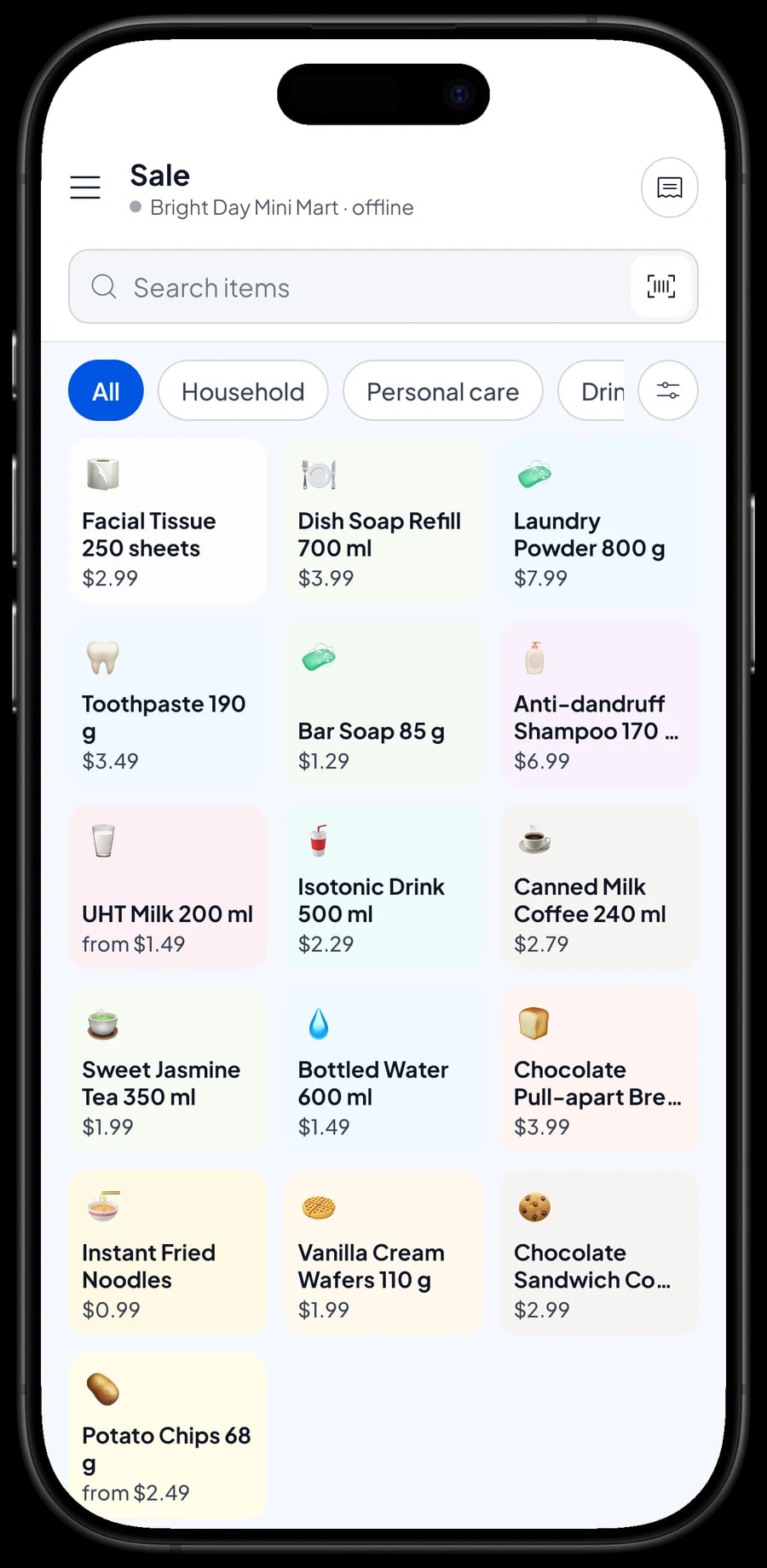
A minimarket sells a lot of similar products, so a tidy catalog is the foundation. In Salesmaster, every product is one item in the Catalog. Group items into categories such as Snacks & food, Drinks, Personal care and Household, so the cashier can find anything without a barcode in one or two taps on the Sale screen.
Give each product a full name that includes its size, like "Bottled Water 600 ml" or "Laundry Powder 800 g", then add its selling price, cost and unit (bottle, pack, pouch, carton). Enter the barcode printed on the package as well. At the counter, the cashier simply scans the product and it lands in the cart at the right price.
If you carry hundreds of products, enter the catalog on a laptop first (Windows or Mac). Typing names, prices and barcodes is much faster with a keyboard. The catalog then syncs to the other devices in your store, such as the phone or tablet at the counter.
- Step 1: Open Catalog → Categories and create categories such as Snacks & food, Drinks, Personal care and Household.
- Step 2: Open Catalog → List Items and add each product with its name, unit, selling price and cost.
- Step 3: Enter the barcode from the product's package.
- Step 4: Start with your best sellers, then fill in the rest over time.
Variants for flavors, colours and sizes
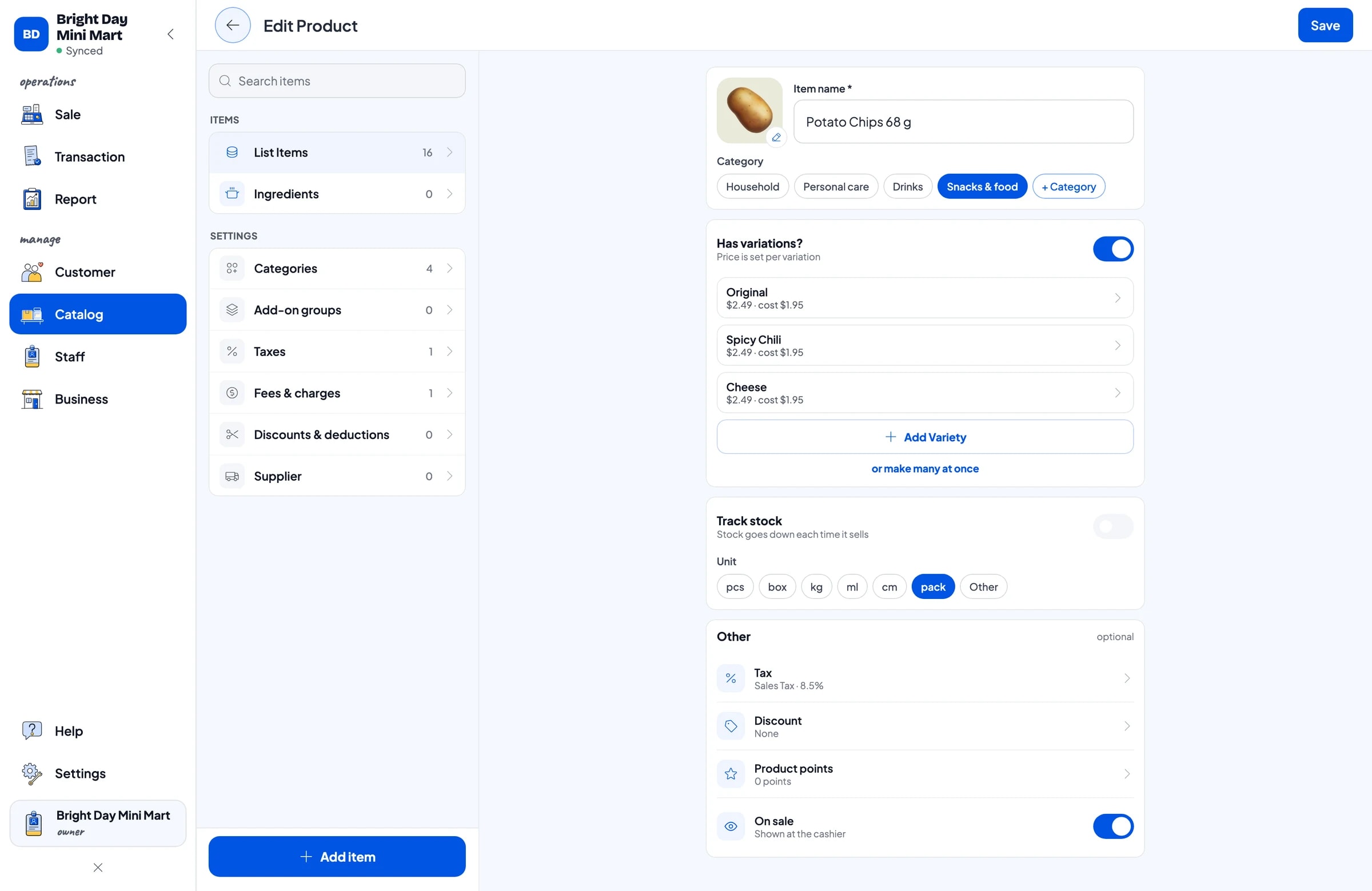
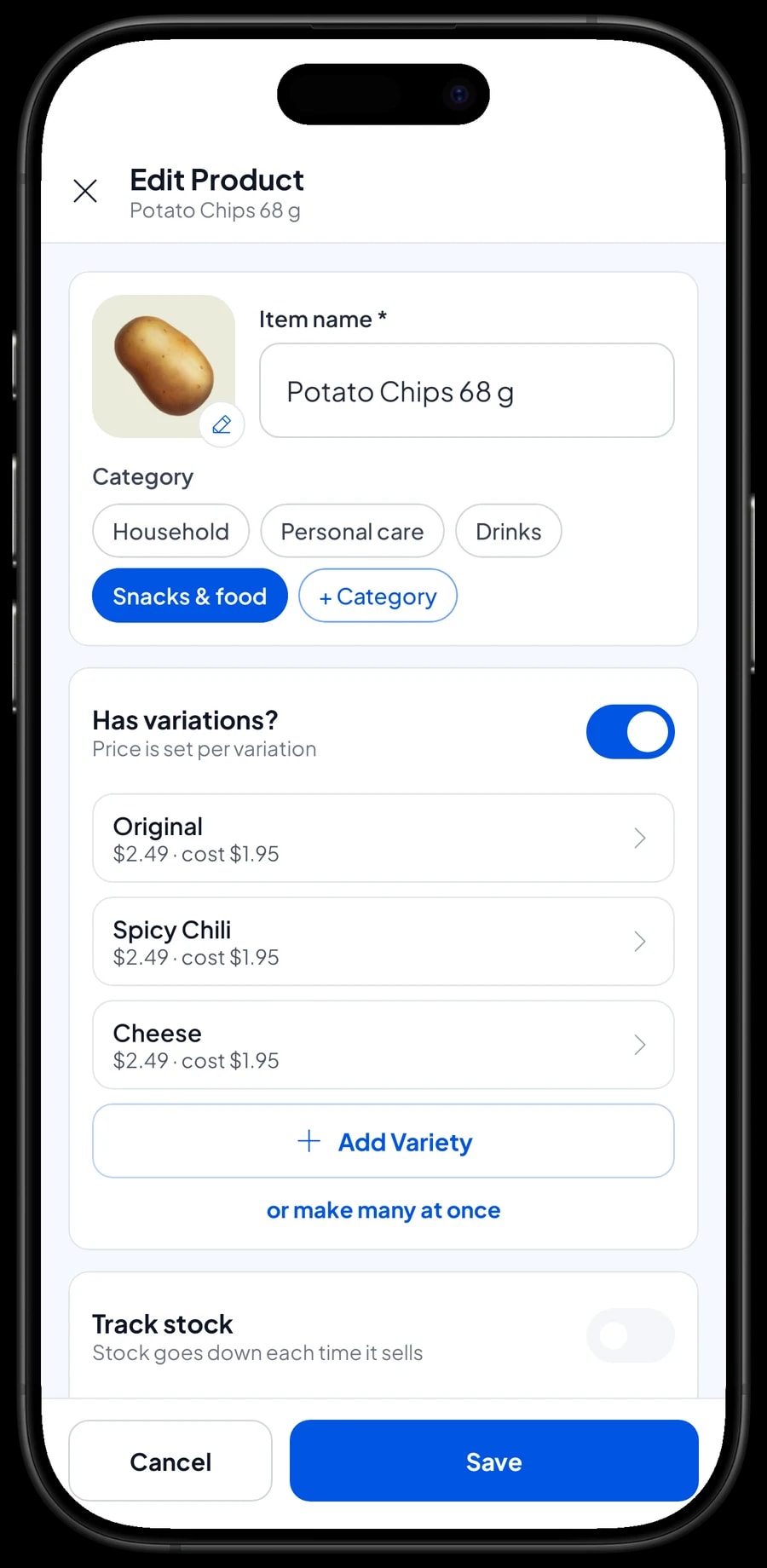
Many minimarket products come in several versions at the same or different prices: potato chips in Original, Spicy Chili and Cheese; UHT milk in Chocolate, Strawberry and Full Cream; dish soap in a bottle or a refill pouch. You don't need three separate items. Create one item and add variants.
Each variant has its own price, and when the packages differ, each variant can have its own barcode too. When the cashier scans the cheese chips, the cheese variant goes into the cart, not another flavor, and the transaction records exactly what was sold.
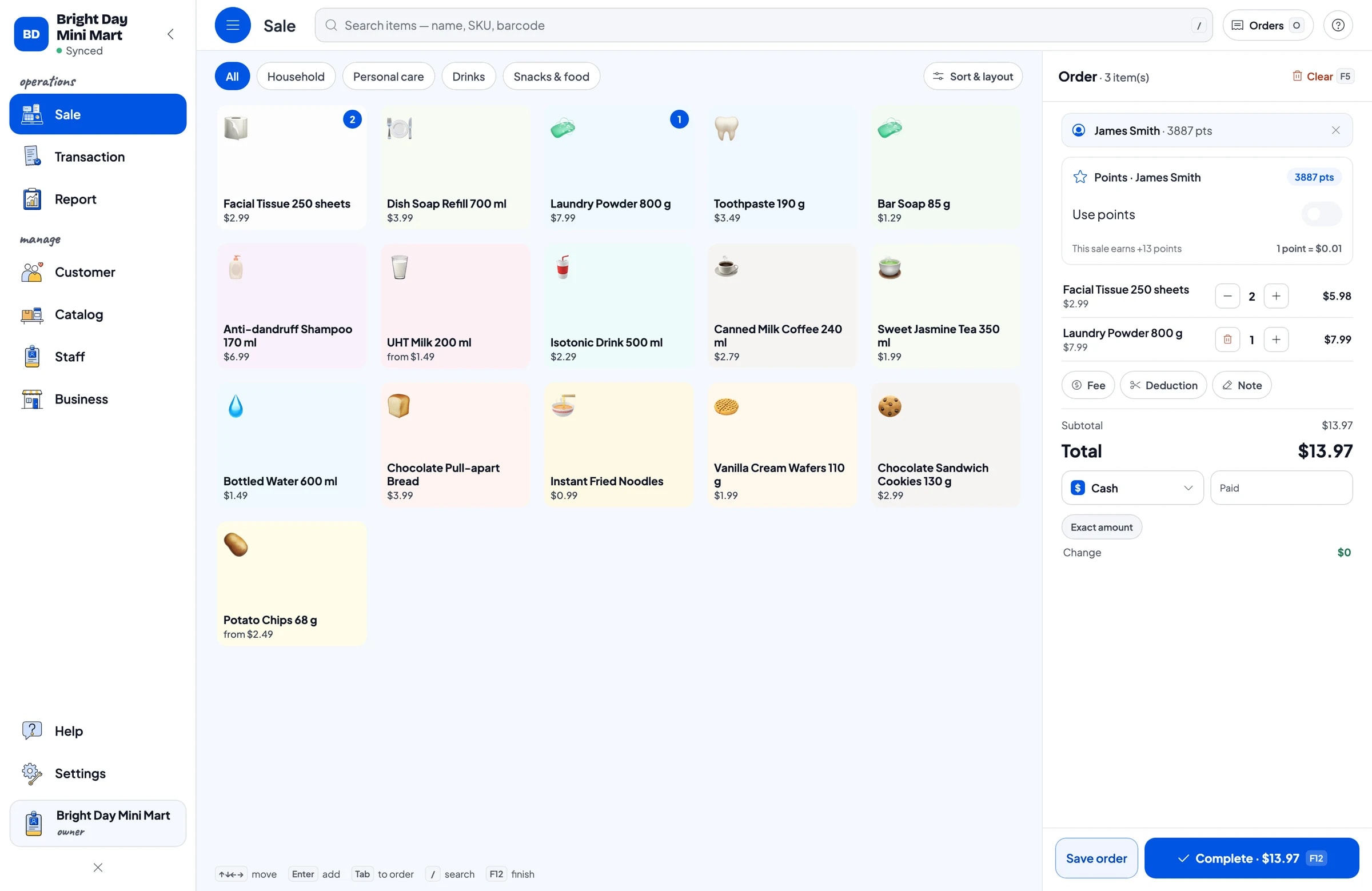
Variants also keep the Sale screen clean. The cashier sees one Potato Chips tile instead of three tiles with nearly identical names, so picking the wrong product happens far less often.
- Step 1: Open Catalog → List Items and choose a product that comes in several flavors or sizes.
- Step 2: In the Variants section, tap Add Variant and enter the name and price of each one.
- Step 3: Enter a barcode for each variant if the packages carry different codes.
- Step 4: Save, then try it on the Sale screen: the cashier picks the variant and the price follows.
Fast checkout at the counter
On the Sale screen, the cashier scans a barcode or taps a product, and the cart fills with quantities and subtotals. For several of the same item, scan again or change the quantity. The total is always visible, and for cash payments the cashier enters the amount received and the change is calculated.
Set up the payment methods you accept: cash, bank transfer, card, e-wallets, or any other method you create. Sales tax is set once in Fees or Tax and applied automatically. Deductions such as a member discount or a weekend promotion are set up in Deductions and applied to the right sales.
Once paid, the receipt can print on a Bluetooth or USB thermal printer, automatically after every sale if you like. Customers who don't want paper can get the receipt by WhatsApp, email, or a web receipt link. If a cash drawer is connected to the printer, it can open automatically.
Stock that updates itself
Turn on stock tracking for the products you want to watch and enter their starting stock. Every time one is sold, its stock goes down automatically. Inventory → Stock shows what is left of each product and its history, so you can see when goods came in and how fast they move.
When a delivery arrives from a distributor or wholesaler, record the stock you received. Keep your suppliers in Inventory → Supplier as well, such as the drinks distributor, the snack wholesaler or the soap agent, so you know who to call when something runs low.
A habit that helps: every morning before opening, open the stock list and check the products with the least left. That becomes your shopping list for the day, instead of waiting for a customer to ask for something that is already gone.
- Step 1: Open Catalog → List Items, choose a product and switch on Stock Tracking.
- Step 2: Open Inventory → Stock and enter the starting stock for each product.
- Step 3: Add your suppliers in Inventory → Supplier.
- Step 4: Record new stock whenever a delivery arrives, so the numbers match the shelves.
Morning cashier and evening cashier
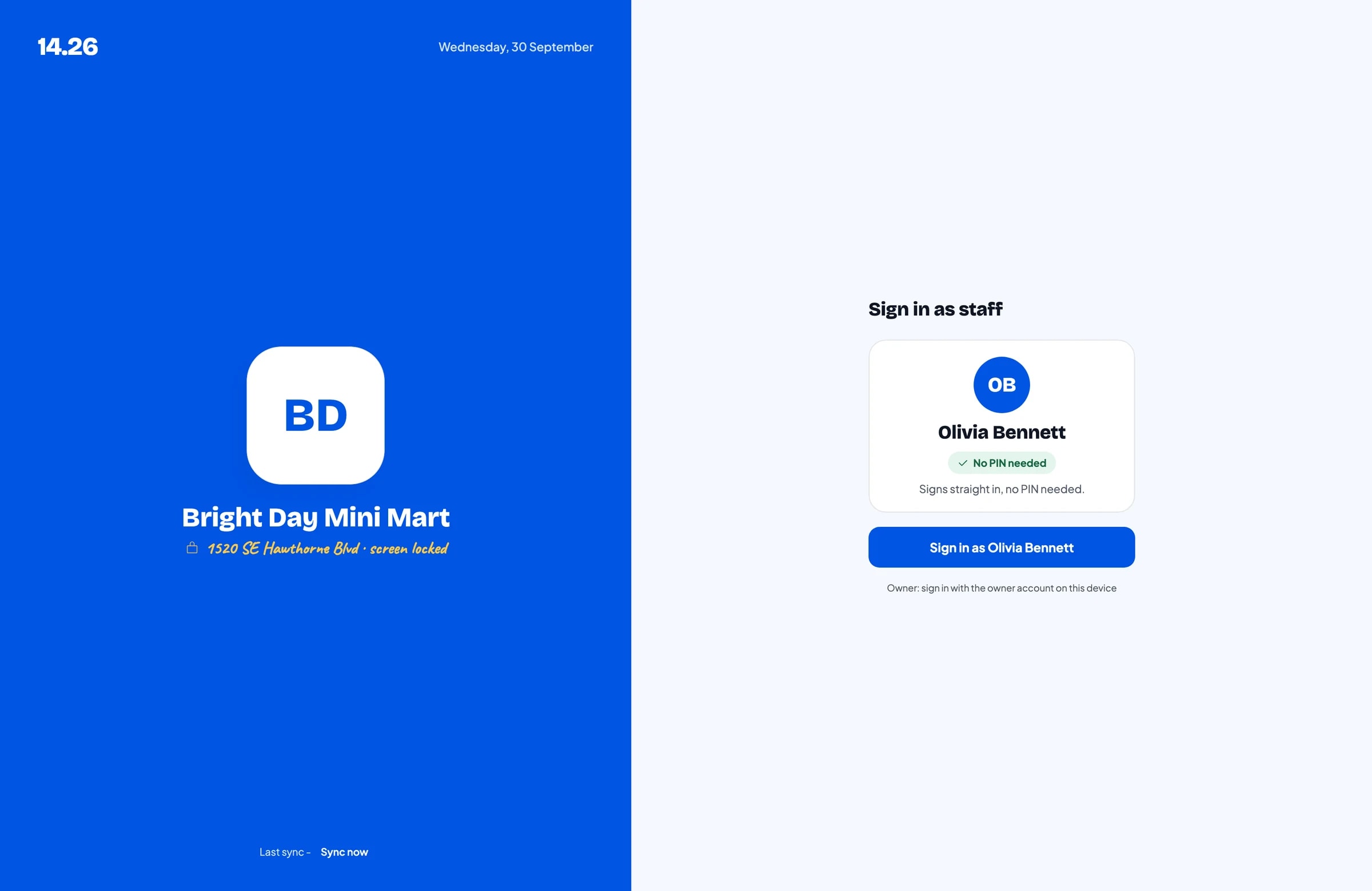
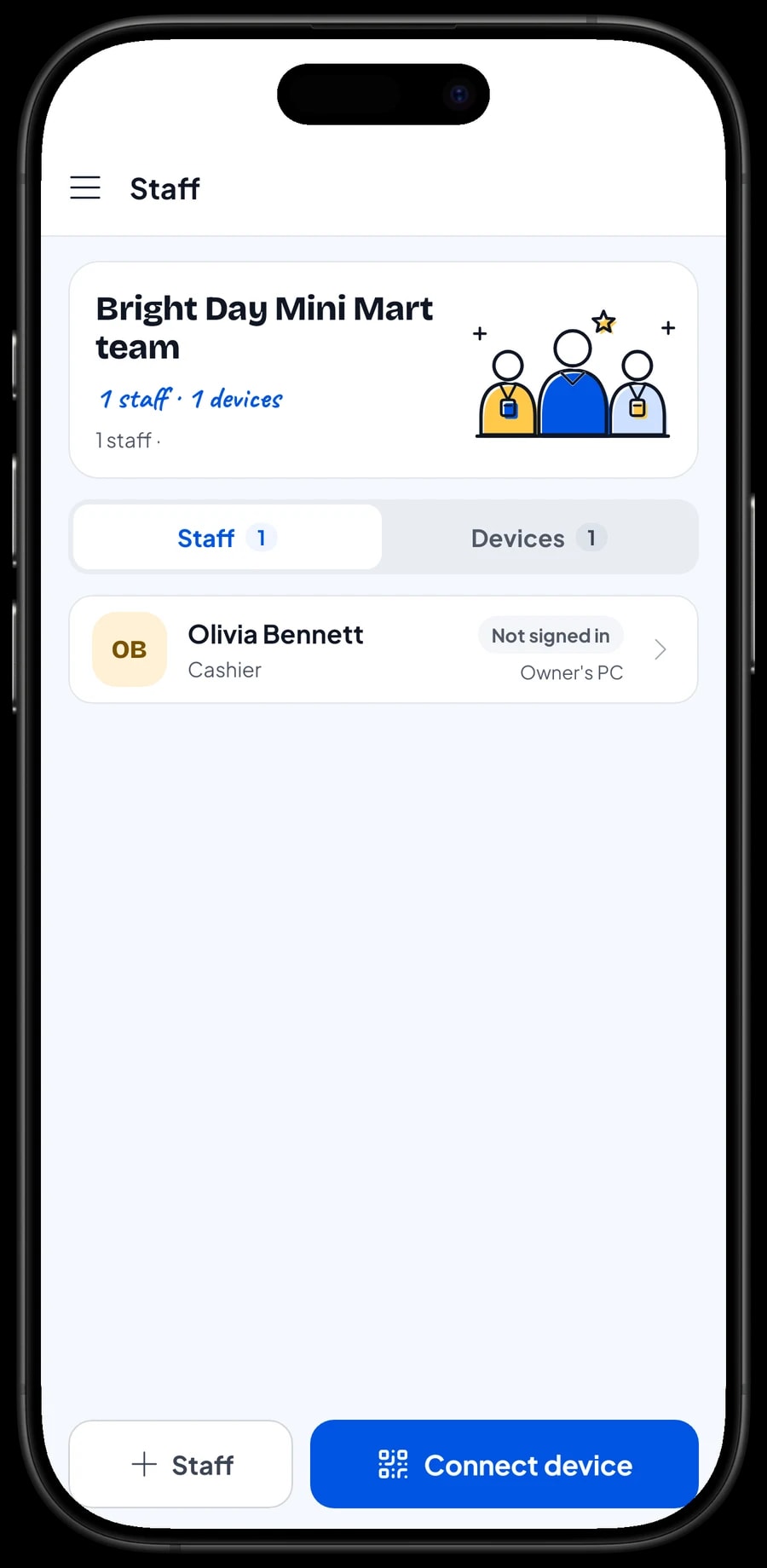
Most minimarkets are open from morning to night with two cashiers taking turns. The owner signs in with the main account, and cashiers don't need to use yours. Add them as staff, register a cashier device for them, and they sign in with a PIN. You decide what they can see and change. Staff accounts come with Bronze Pro (1 staff) and Silver Pro (2 staff).
Keep in mind that one account signs in on one device at a time. A second cashier device is used by a staff account, not by the owner's account signed in twice.
Regulars: loyalty points and member cards
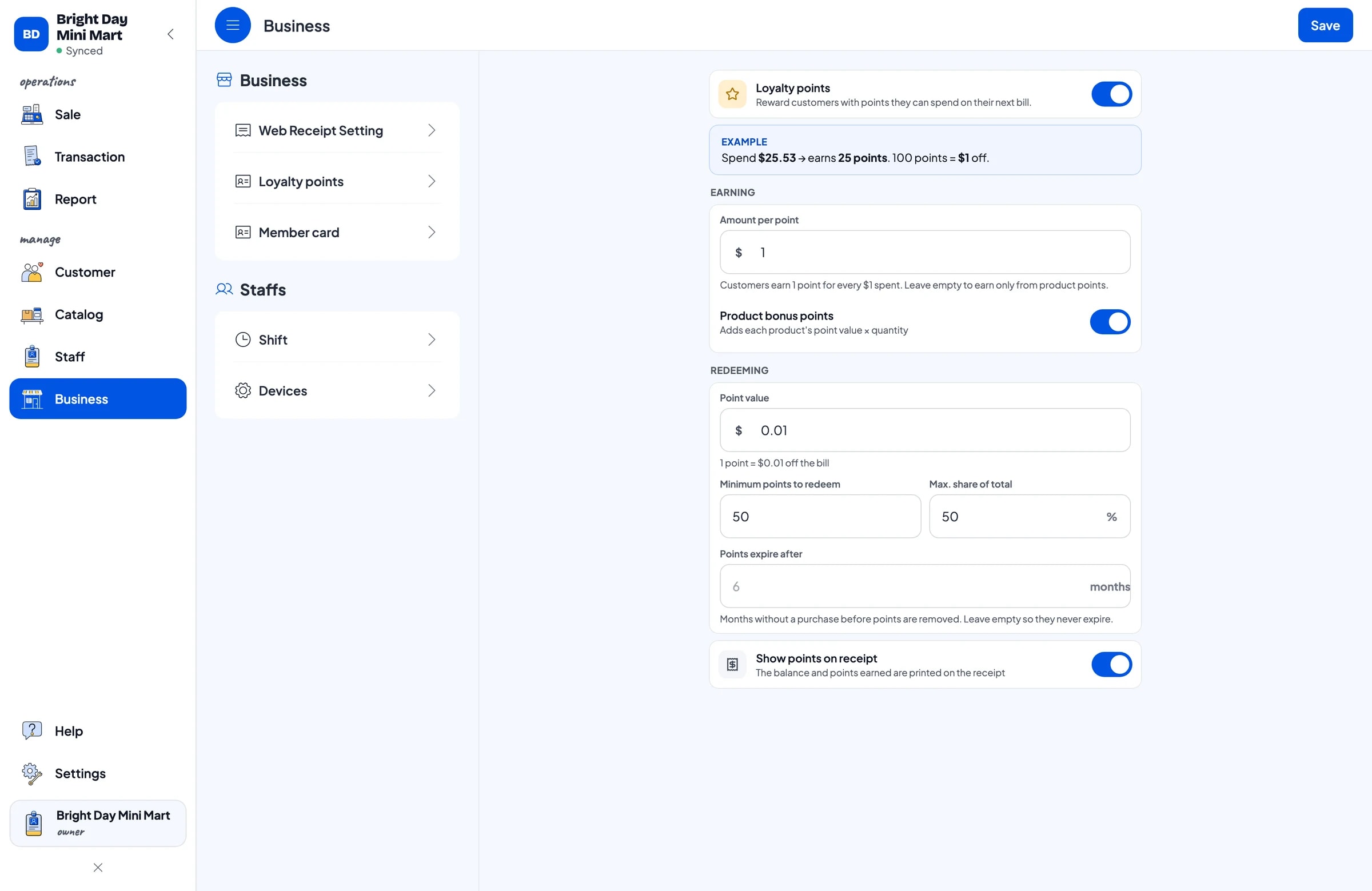
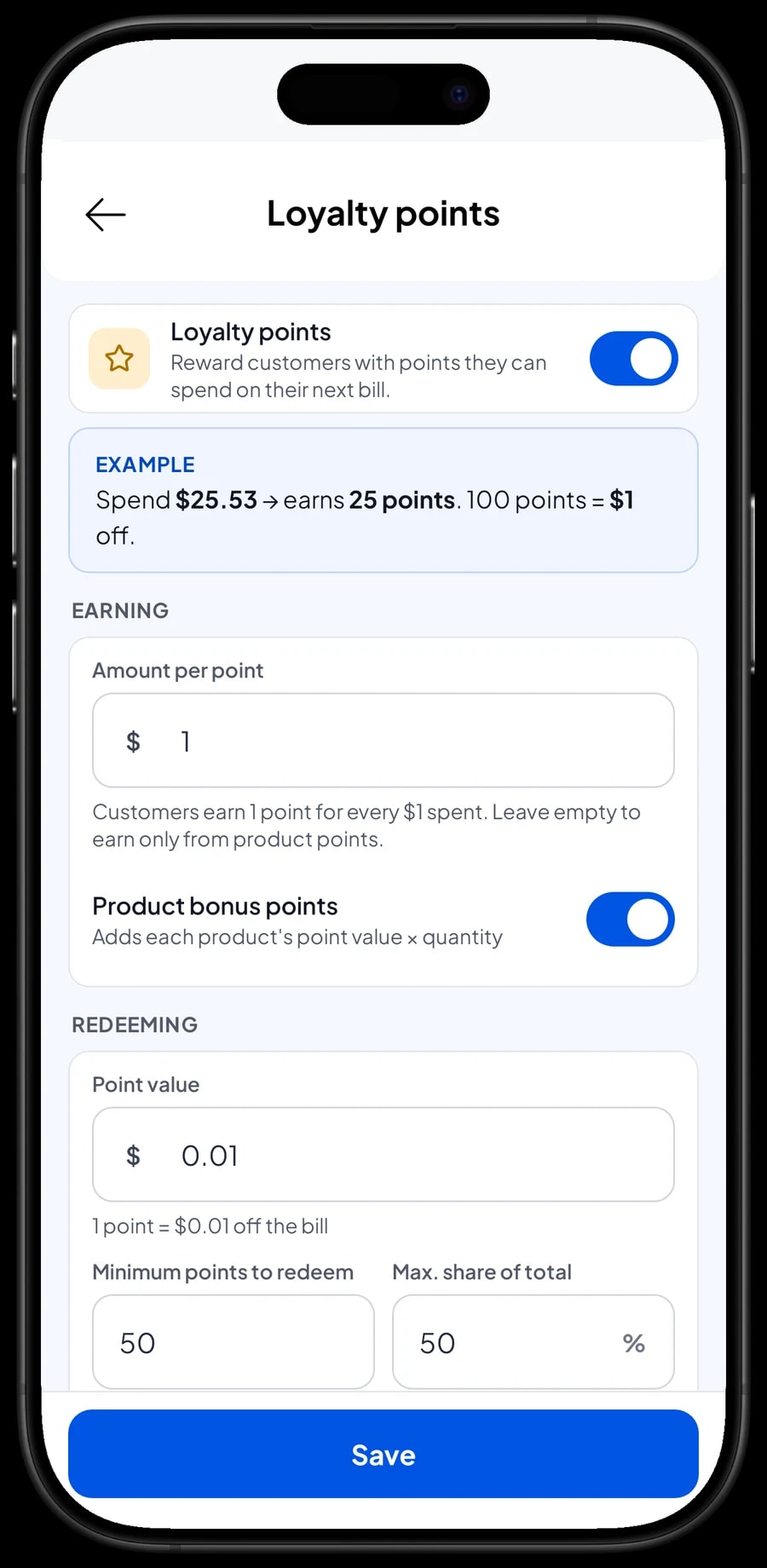
Minimarket customers come in almost every day for small purchases. Loyalty points give them a reason to keep choosing your store. Save the customer on the sale (a name and phone number is enough), then turn on Loyalty points in the Business menu.
You set the rules: how much a customer spends to earn 1 point, what 1 point is worth when redeemed, the minimum points to redeem, and the maximum share of a bill points can cover. Points are added on every sale automatically, and when a customer wants to use them, the cashier switches on Use points and the discount is applied.
Regulars can also get a member card in their name. Their purchase history is kept under Customers, so you know who your regular shoppers are and what they usually buy.
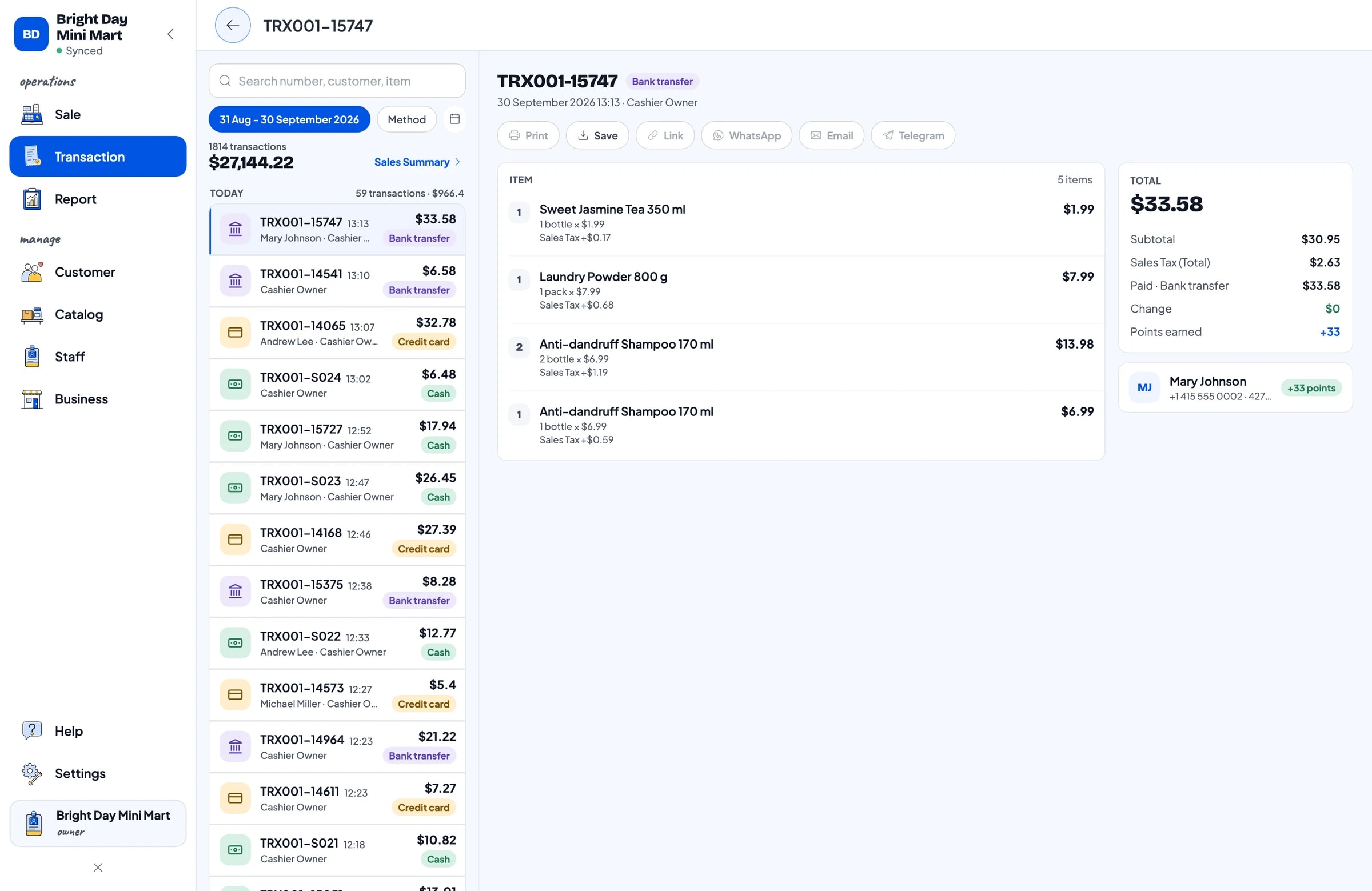
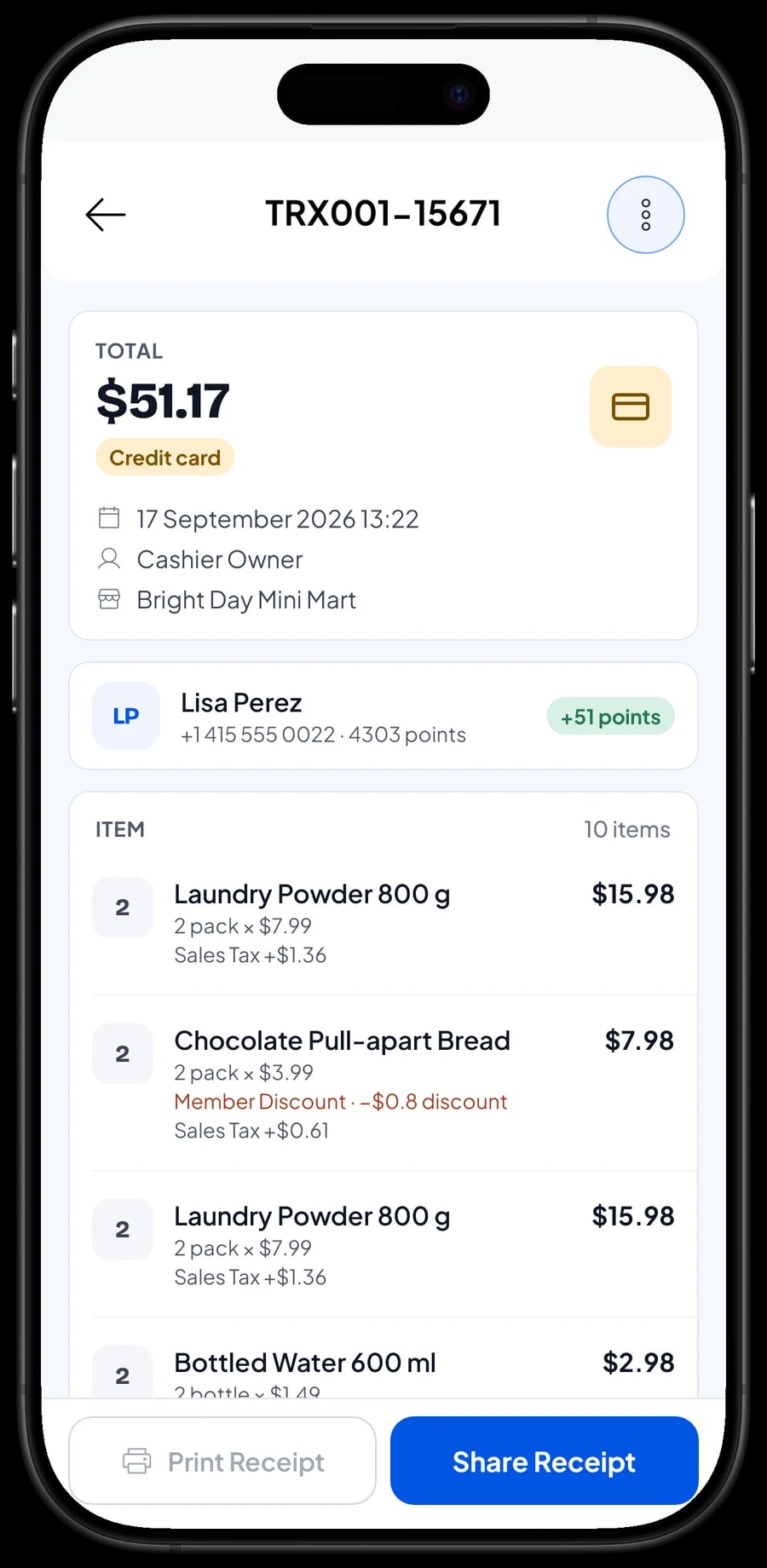
Transaction history and receipts
Every sale is saved under Transactions with the date, time, customer, items, tax, discounts and payment method. If a customer comes back to exchange something or asks for a receipt, find the sale in the list and send the receipt again by WhatsApp or email, or print it once more.
At the top of the list you also see total revenue and the number of transactions for the date range you pick: today, yesterday, 7 days or 30 days. It is a quick way to check whether today is busier than usual.
Sales reports and net profit
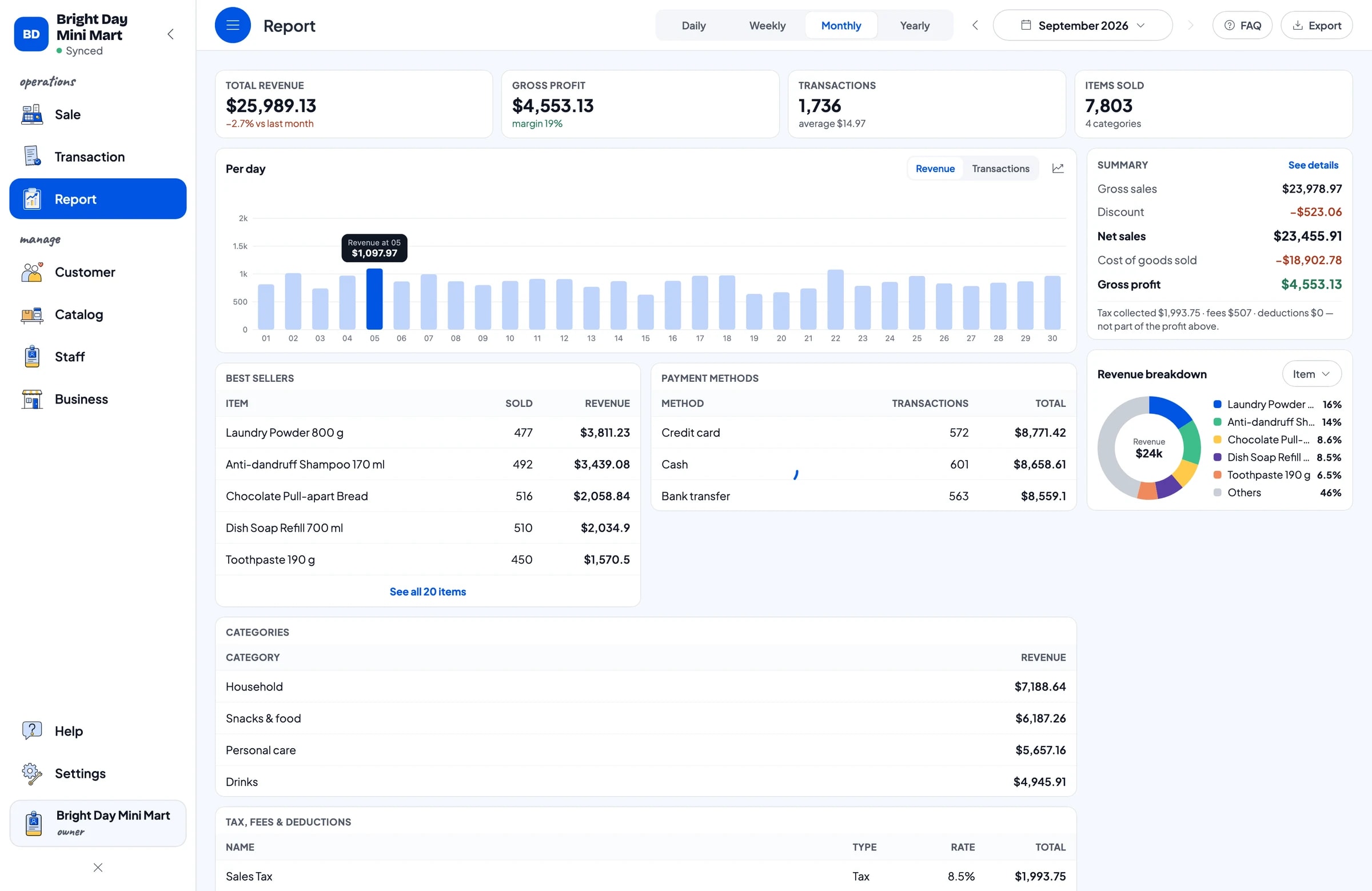
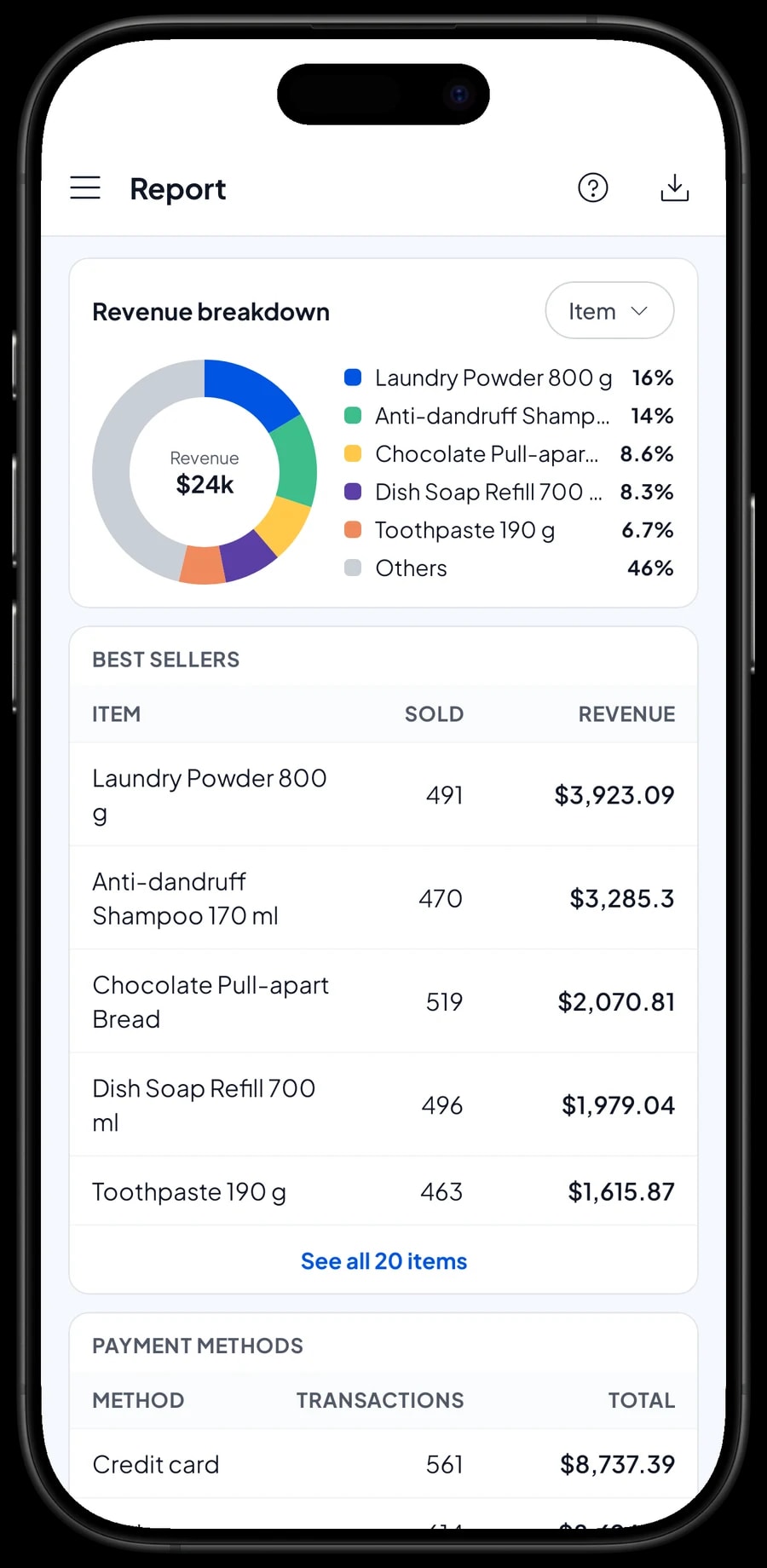
Reports are available by day, week, month and year. You see total revenue, gross and net sales, discounts, tax, payment methods and revenue by product. For a minimarket, that answers an important question: which products bring in the most money, and which ones only take up shelf space.
For your real profit, record expenses in Finance: restocking, cashier wages, rent, electricity and water, plastic bags. Each expense has a category and the wallet it was paid from, such as shop cash, the bank account or an e-wallet. The report then shows revenue minus cost of goods sold and operating costs, which is your store's net profit.
Reports can be exported to Excel or PDF and sent to your accountant, a business partner or the family members who help run the store.
Keep selling when the internet drops, and start in a day
A minimarket can't stop serving customers because the Wi-Fi went down. Sales in Salesmaster are saved on the device first and sent to the cloud when the connection returns. Offline mode works for up to 7 days; after that, the app needs to go online briefly to sync. Your first setup and first sync need an internet connection.
You don't need to close the store to get started. Install the app on the cashier device, create an account, and add your best sellers with their barcodes. On day one, run the counter as usual and add missing products during quiet hours. In the evening, open the daily report and compare it with the cash in the drawer. Once checkout runs smoothly, move on to stock and staff accounts, then to recording expenses in Finance.
Example minimarket catalog
Use this table as a starting point. Replace the names, prices and barcodes with your own products.
| Category | Product | Variants | Unit | Track stock |
|---|---|---|---|---|
| Snacks & food | Potato chips 68 g | Original, Spicy Chili, Cheese | Pack | Yes |
| Snacks & food | Instant fried noodles | - | Pack | Yes |
| Snacks & food | Chocolate pull-apart bread | - | Pack | Yes |
| Drinks | Bottled water 600 ml | - | Bottle | Yes |
| Drinks | UHT milk 200 ml | Chocolate, Strawberry, Full Cream | Carton | Yes |
| Drinks | Canned milk coffee 240 ml | - | Can | Yes |
| Personal care | Anti-dandruff shampoo 170 ml | - | Bottle | Yes |
| Personal care | Bar soap 85 g | - | Bar | Yes |
| Household | Laundry powder 800 g | - | Pack | Yes |
| Household | Plastic bags | Small, Large | Piece | No |
Products that come in several flavors or colours are one item with variants, and each variant can have its own barcode. Extras like plastic bags can be left without stock tracking.
The right plan for your minimarket
Start by counting transactions per day. A minimarket that serves about 60 customers a day records roughly 1,800 transactions a month.
| Plan | Price | Transactions / month | Staff accounts | Good for |
|---|---|---|---|---|
| Free | Free | 30 | Owner only | To try checkout and barcode scanning before using it for real. |
| Solo Pro | $4.90/month | 3,000 | Owner only | Small minimarkets where the owner runs the counter. |
| Bronze Pro | $6.90/month | 5,000 | 1 staff | Minimarkets with one cashier on their own device while the owner checks in from theirs. |
| Silver Pro | $9.90/month | 8,000 | 2 staff | Minimarkets open from morning to night, with a morning and an evening cashier. |
Every plan includes checkout, catalog, receipts, reports and offline mode. You can switch plans at any time. See pricing →
Frequently asked questions
- Can Salesmaster scan barcodes in a minimarket?
- Yes. Enter the barcode on each product or variant, then scan it on the Sale screen. The product goes straight into the cart at the price you set.
- How does stock go down in a minimarket?
- Turn on stock tracking for the products you want to watch and enter their starting stock. Every sale takes stock off automatically. Remaining stock and its history are in Inventory → Stock, and you record new stock when deliveries arrive.
- Can two cashiers use different devices at the same time?
- Yes, with staff accounts. One account signs in on one device at a time, so an extra cashier device is used by a staff member who signs in with a PIN. Staff accounts come with Bronze Pro (1 staff) and Silver Pro (2 staff).
- Can my minimarket keep selling if the internet goes down?
- Yes. Sales are saved on the device and sync when the connection returns. Offline mode works for up to 7 days before the app needs to go online to sync.
- Can one product be sold by the piece and by the pack at different prices?
- Yes, with variants. Create one item, for example instant noodles, then add Single and 5-pack variants, each with its own price. If the packages have different barcodes, enter a barcode on each variant so the cashier only has to scan.
- Can I see my minimarket's net profit, not just revenue?
- Yes. Enter the cost on each product and record expenses such as rent, wages and electricity in Finance. The report then shows revenue minus cost of goods sold and operating costs as net profit.
Need help setting up your catalog? Chat with our team on WhatsApp →