
Salesmaster is a point-of-sale (POS) app for print and copy shops on Android, iPhone & iPad, Windows and Mac. Each print service is an item with its own unit (square meter, sheet, box or pack), materials and single or double-sided options are variants, and design, finishing and rush turnaround are add-ons. Jobs that are printed first are kept with Save order, stationery is sold with its own stock, and Finance shows your net profit once ink, media and machine service are recorded.
Problems every print shop knows
If any of these happen at your counter, this page is for you.
- 01
A different price for every job
Standard or heavy vinyl, laminated or not, single or double-sided cards. When prices live in the operator's head, the same customer can pay two different prices on two different days.
- 02
Design and finishing go unbilled
The operator lays out the file, adds grommets and pole pockets, and then hands over the banner at the print price. The extra work walks out the door for free.
- 03
Jobs waiting, tickets missing
An office's banners are due tomorrow, a student's thesis needs binding by four. Unpaid jobs are written on sticky notes, and when the customer arrives nobody can find the ticket.
- 04
Ink and media are expensive, profit is a guess
Vinyl rolls, eco-solvent ink, card stock and machine service eat a lot of cash. Sales look healthy, but without recorded expenses you don't know what is actually left.
Building a catalog with the right units
A print shop sells things measured in very different ways. Banners and stickers are priced by the square meter, posters by the sheet, business cards by the box of 100, flyers and invitations by the pack, binding by the book. In Salesmaster, each service is one item in the Catalog with its own unit. The cashier just enters the quantity, say 6 square meters of banner or 2 boxes of cards, and the total follows.
Group items into categories such as Large format, Print & copy, Finishing and Stationery. The operator then finds anything in one or two taps on the Sale screen, even with three customers waiting at the counter.
For custom banners, work out the area first and round up to the next whole square meter, because cart quantities are whole numbers: a 3 by 1 meter banner is 3 square meters, and a 1.5 by 1.5 meter banner is charged as 3. Standard sizes that people order often, such as an X-banner with stand or a roll-up banner, are better as their own items with a flat price, so nobody has to do the math each time.
- Step 1: Open Catalog → Categories and create Large format, Print & copy, Finishing and Stationery.
- Step 2: Open Catalog → List Items and add each service with its name, unit (square meter, sheet, box, pack, book) and price.
- Step 3: Add standard sizes such as X-banners and roll-up banners as items with a price per piece.
- Step 4: Ring up a test sale on the Sale screen to check that units and totals look right.
Materials, sides and colour as variants
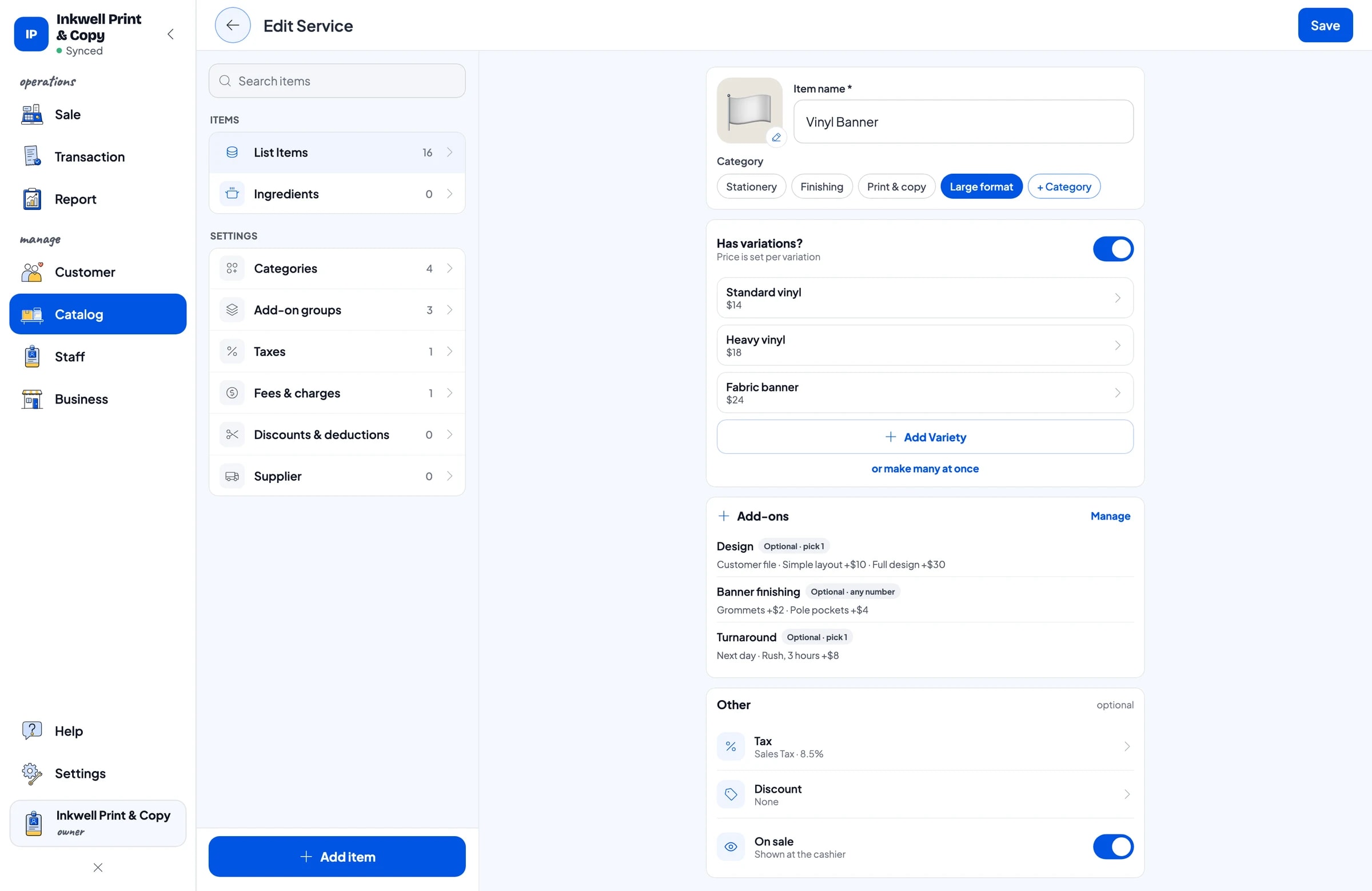
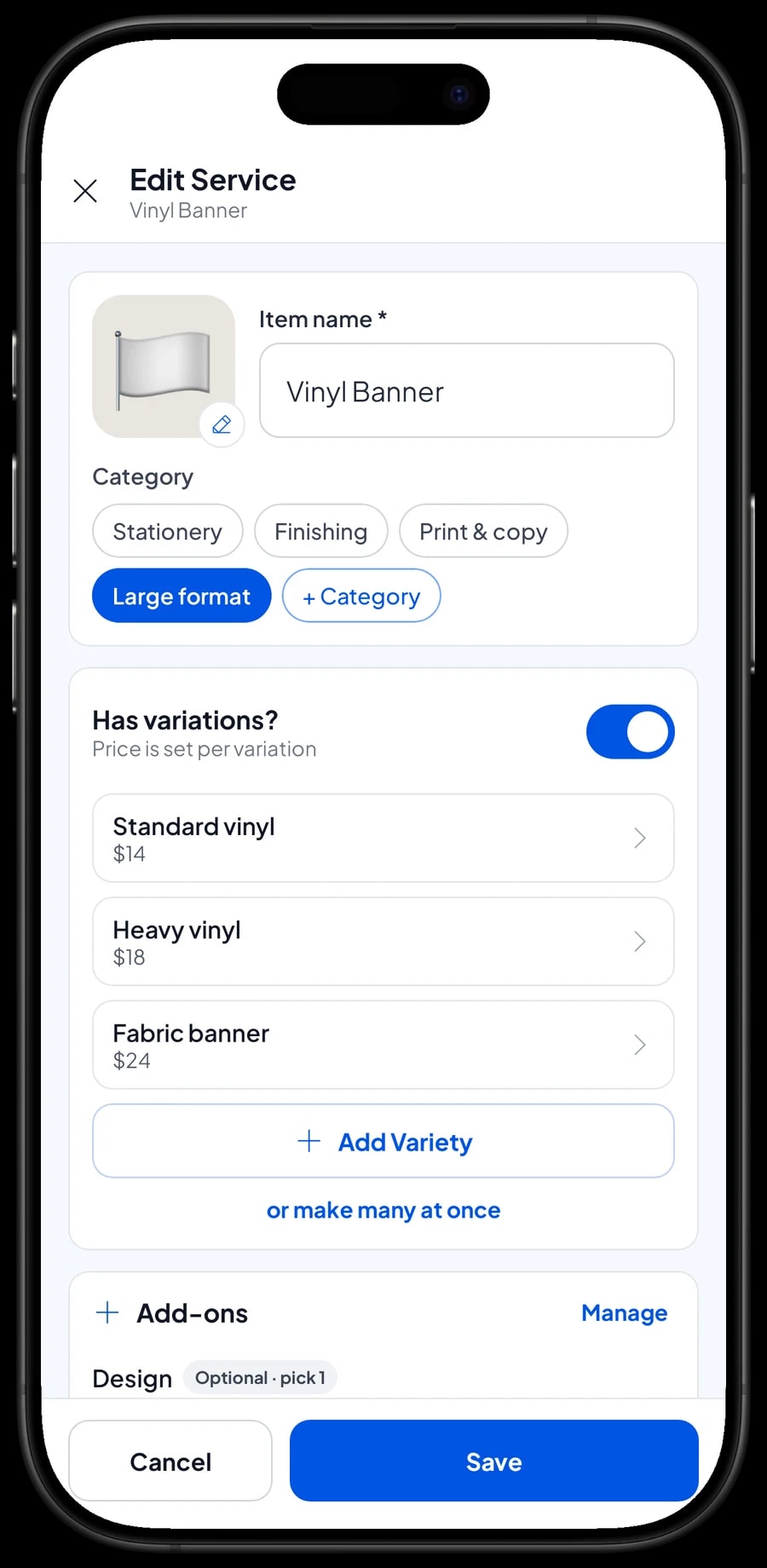
Few print jobs have only one price. A banner can be standard vinyl, heavy vinyl or fabric. Business cards can be single-sided, double-sided, or double-sided with a matte finish. Document printing differs between black and white and colour. In Salesmaster, options like these are variants of one item, each with its own price.
The cashier picks the variant and the price follows. Your item list stays short and easy to search, and every operator charges the same price for the same job.
Worth knowing: Salesmaster doesn't lower prices automatically by quantity. If you offer a bulk rate, create it as its own variant, for example “Photocopy – over 100 pages”, and the operator chooses it when the order qualifies. Or give a discount through Deductions.
Design, finishing and turnaround as add-ons
A lot of a print shop's income comes from the extras. A customer shows up without a file and needs a layout. A banner needs grommets or pole pockets. A box of business cards is wanted in three hours. All of these work well as add-ons, so they are charged every time they are chosen.
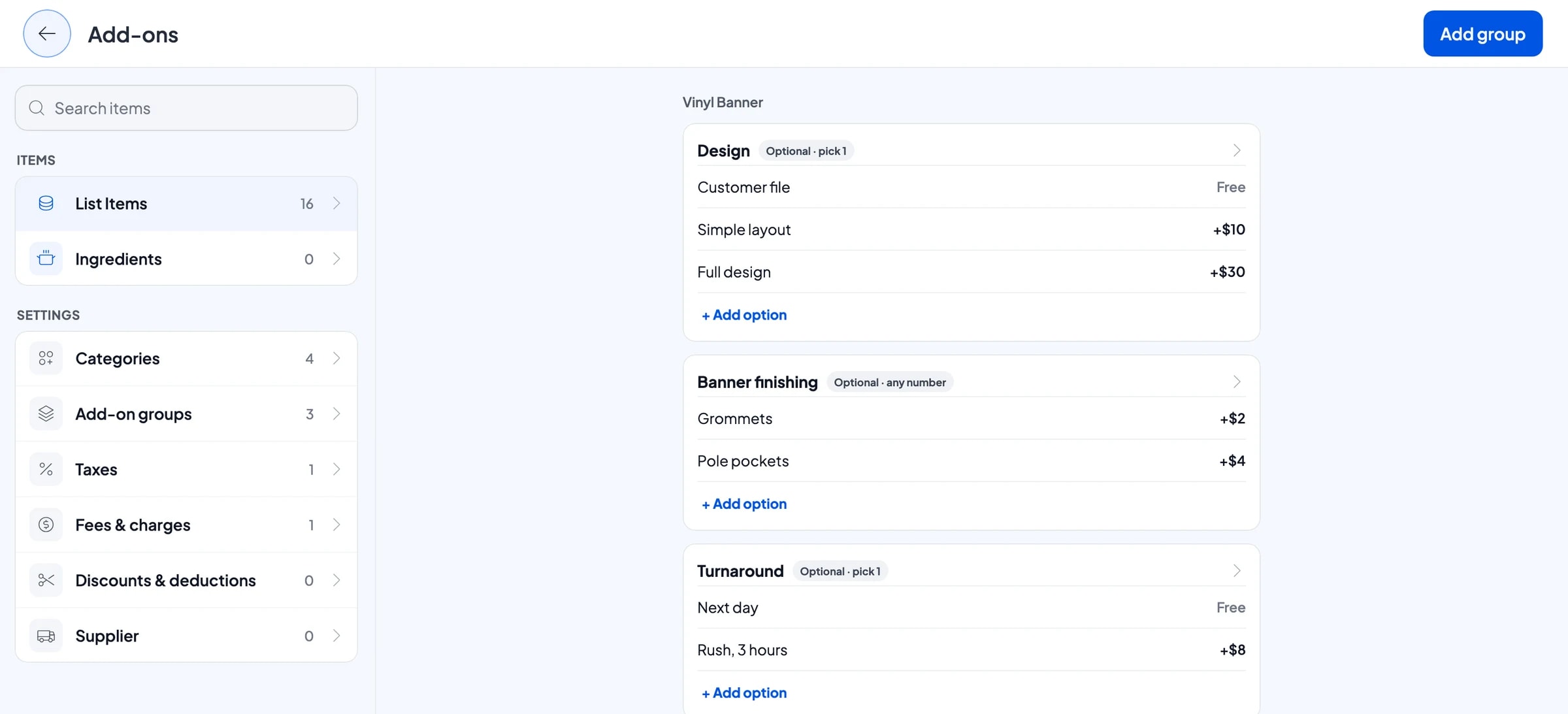
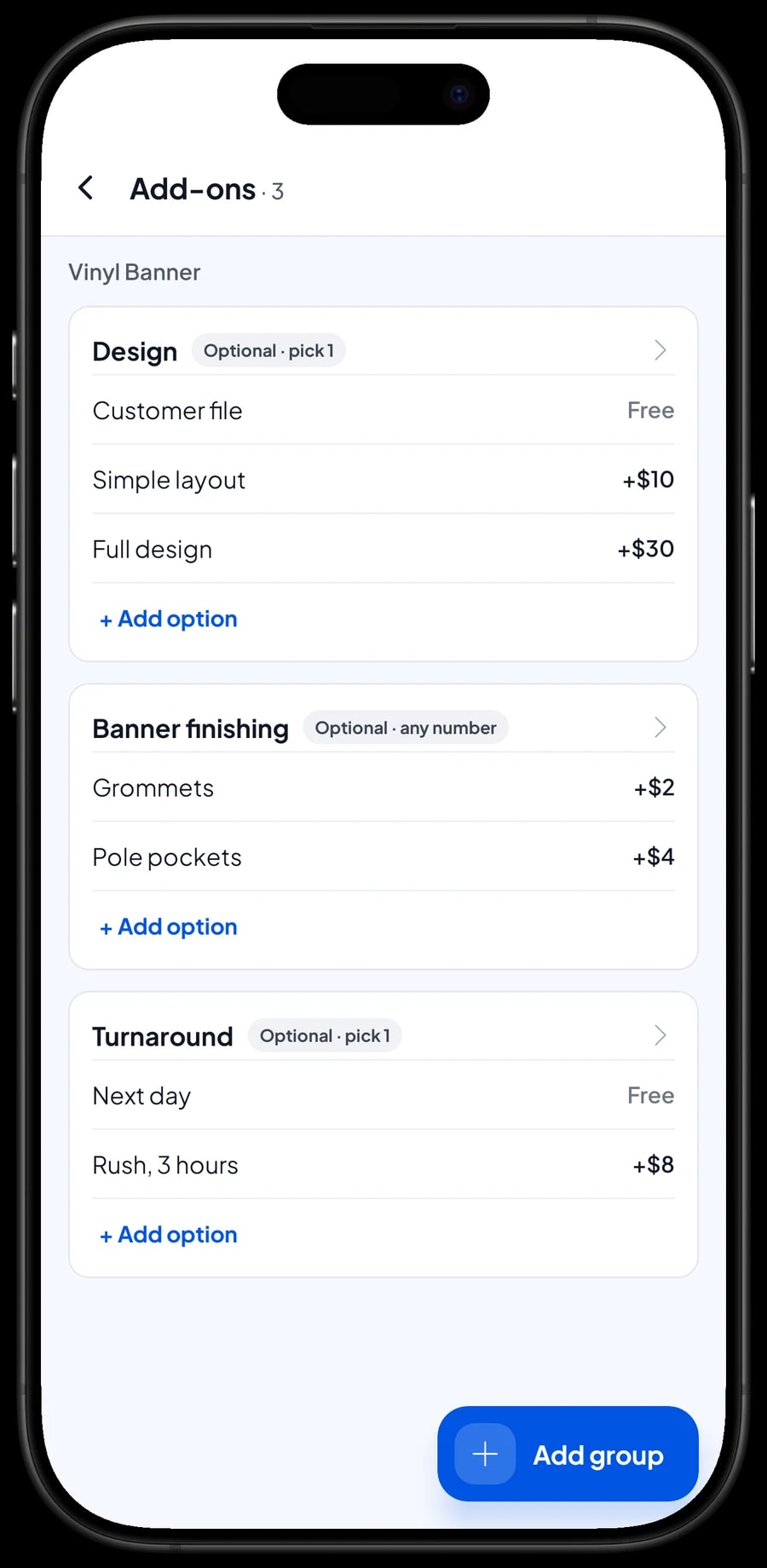
Create a Design group with Customer file at no charge, Simple layout and Full design, limited to one choice. Create a Banner finishing group with Grommets and Pole pockets, where both can be chosen. Then add a Turnaround group with Next day and Rush, 3 hours.
One add-on group can be attached to many items. Design, for instance, goes on banners, stickers, business cards, flyers, invitations and posters at once. Add-ons are managed from the item itself, under Manage add-ons.
- Step 1: Open Vinyl Banner in Catalog → List Items and choose Manage add-ons.
- Step 2: Create a Design group with Customer file, Simple layout and Full design, and allow one choice.
- Step 3: Create a Banner finishing group with Grommets and Pole pockets and their prices.
- Step 4: Create a Turnaround group with Next day and Rush, 3 hours, and attach it to the other items that offer it.
Jobs printed first, paid at pickup
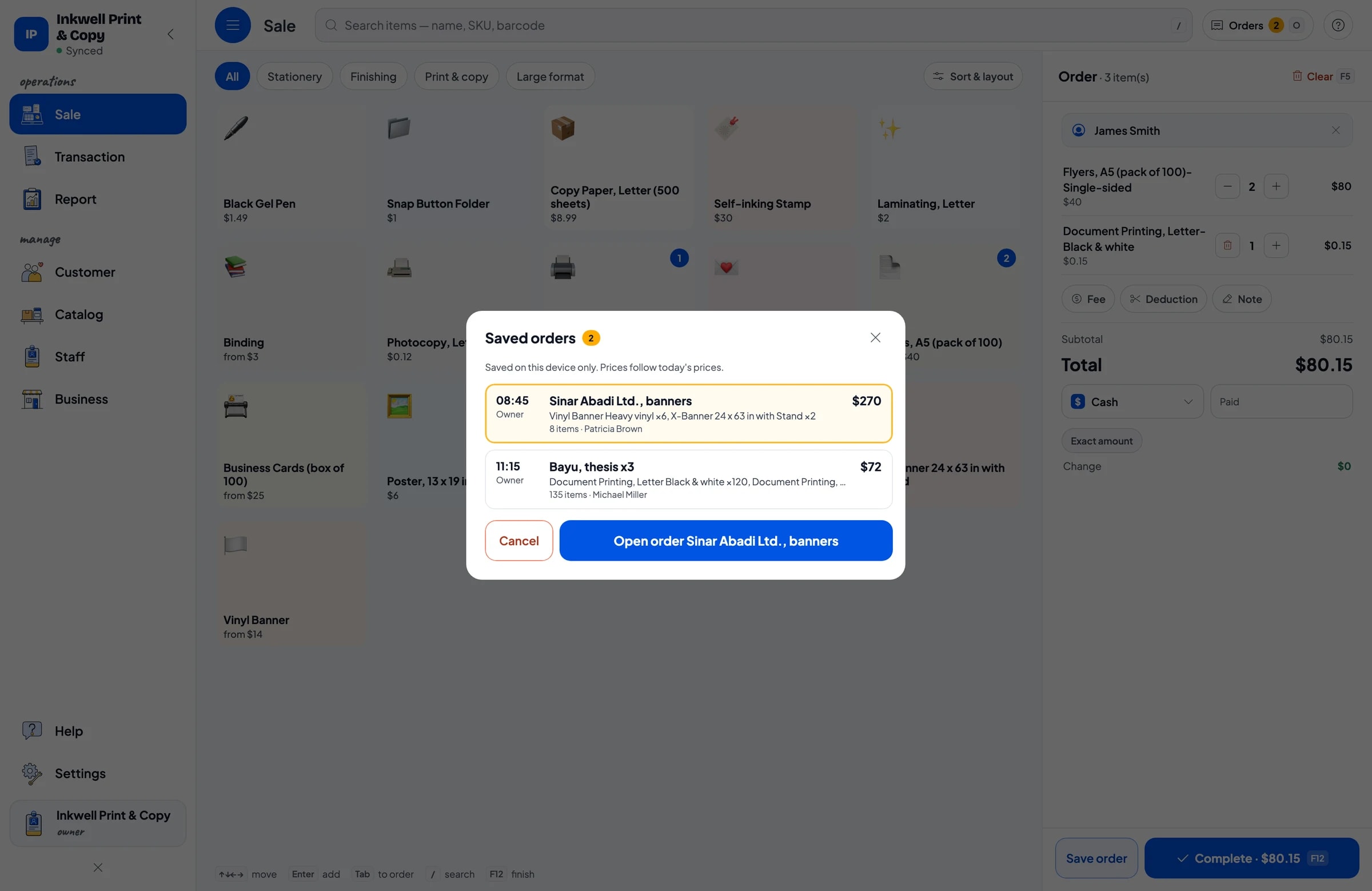
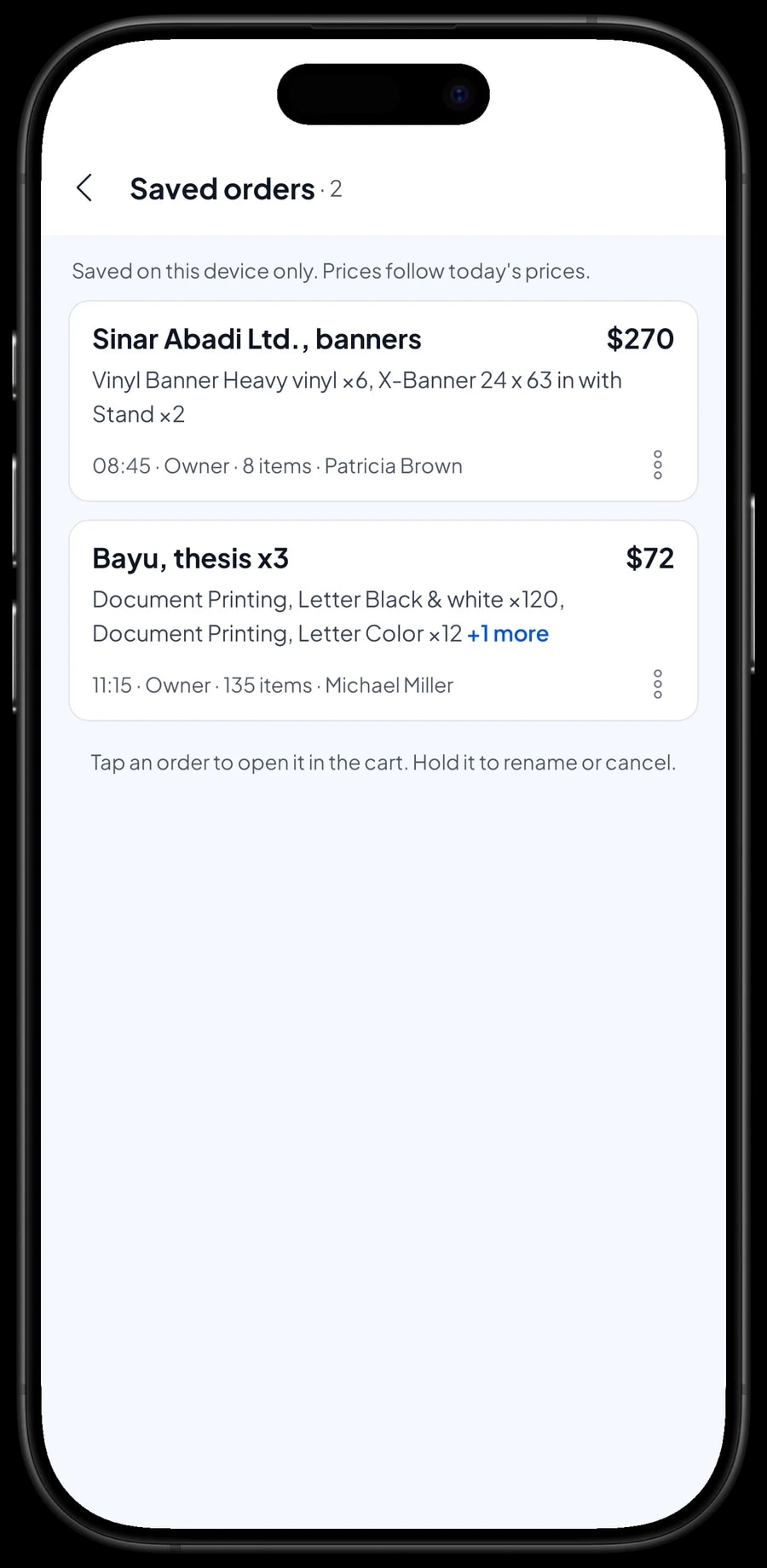
Some jobs are paid on the spot, like copies or a few pages printed while the customer waits. Others are produced first: banners for an office event, three bound copies of a thesis, wedding invitations. For these, use Save order. Add everything to the cart, then save it under a name such as “Sinar Abadi Ltd., banners” or “Bayu, thesis x3”.
When the job is ready and the customer comes in, open Saved orders, pick the order, add anything extra such as a reprint, and complete the payment. A saved order isn't counted as a sale until it is paid, so your reports only show money that actually came in.
Saved orders live on the device that created them, so take and finish the order on the same counter device. The feature keeps a cart until it is paid; it isn't an accounts-receivable ledger or an invoice for business customers.
Stationery and retail items with their own stock
Many print shops also sell copy paper by the ream, folders, pens and other office supplies. These are regular product items with their own stock. Each sale takes them off stock, and you can check what is left under Catalog → Inventory → Stock.
When a delivery arrives from your supplier, record the stock added. If items are damaged or go missing, record a stock adjustment. That way you know when to reorder before the shelf is empty.
Print services work differently: banners, cards and document printing are service items without stock. The vinyl rolls, ink and paper you use in production are recorded as expenses in Finance, so their cost still shows up in your profit.
Payments, sales tax and receipts
Create the payment methods you accept: cash, card, bank transfer, digital wallets or anything else. Businesses often pay by card or transfer, students more often in cash. Reports show each method separately, so the cash drawer and your bank balance are easy to reconcile.
If you charge sales tax, set it once in Fees or Tax and it is added to every sale. Delivery or installation fees can be set up there too. Once paid, the receipt can print on a Bluetooth or USB thermal printer, or go out by WhatsApp, email or a web receipt link with your shop's logo. Business customers usually need that receipt for their expense claims.
Operators and staff devices
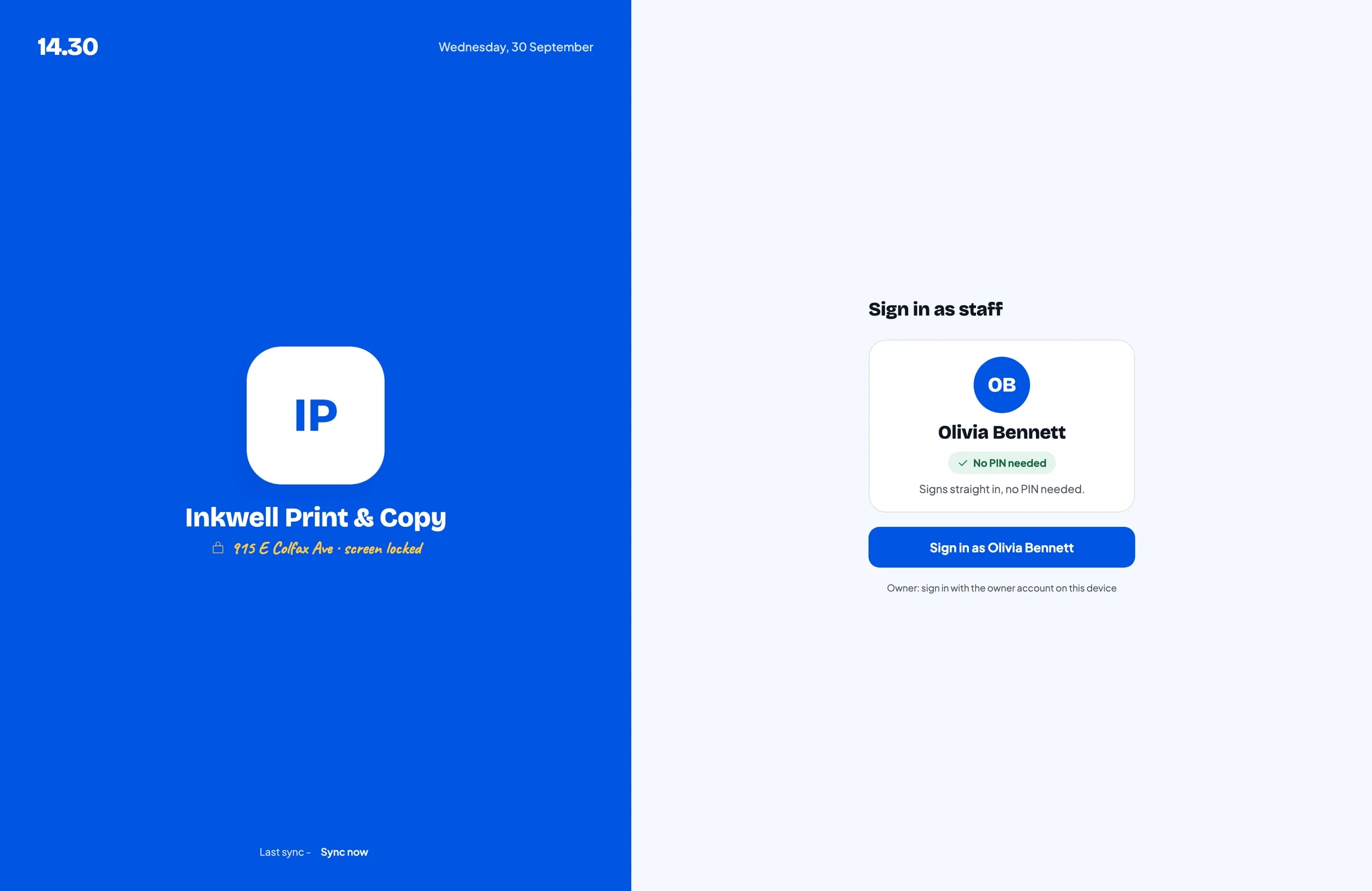
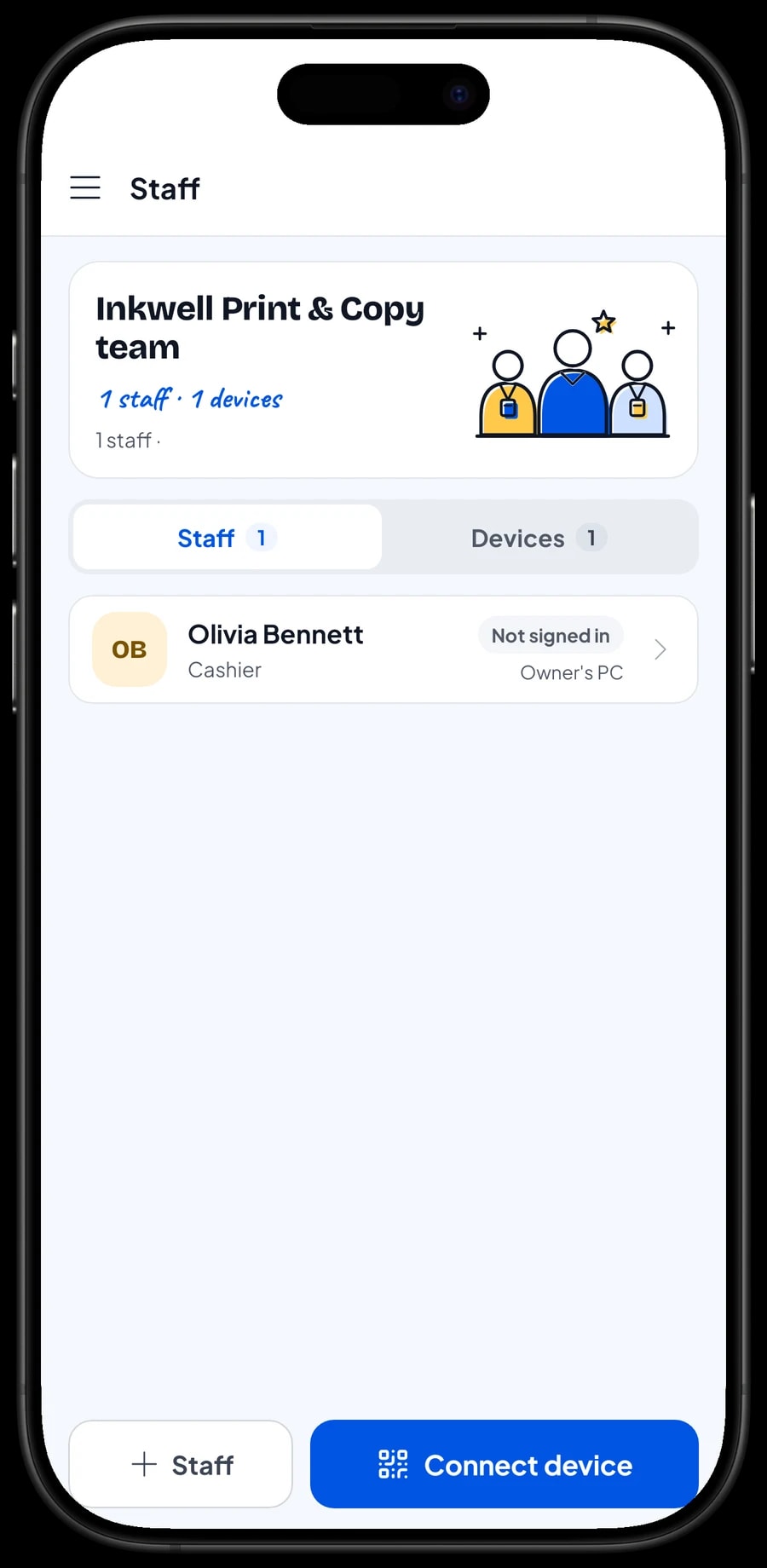
The owner signs in with the main account, and an account is active on one device at a time. Operators who take orders and money don't need your login: add them as staff and register a cashier device for them. Staff sign in with a PIN and see only what their role allows. Staff accounts come with Bronze Pro (1 staff) and Silver Pro (2 staff).
Sales reports and profit after ink and media
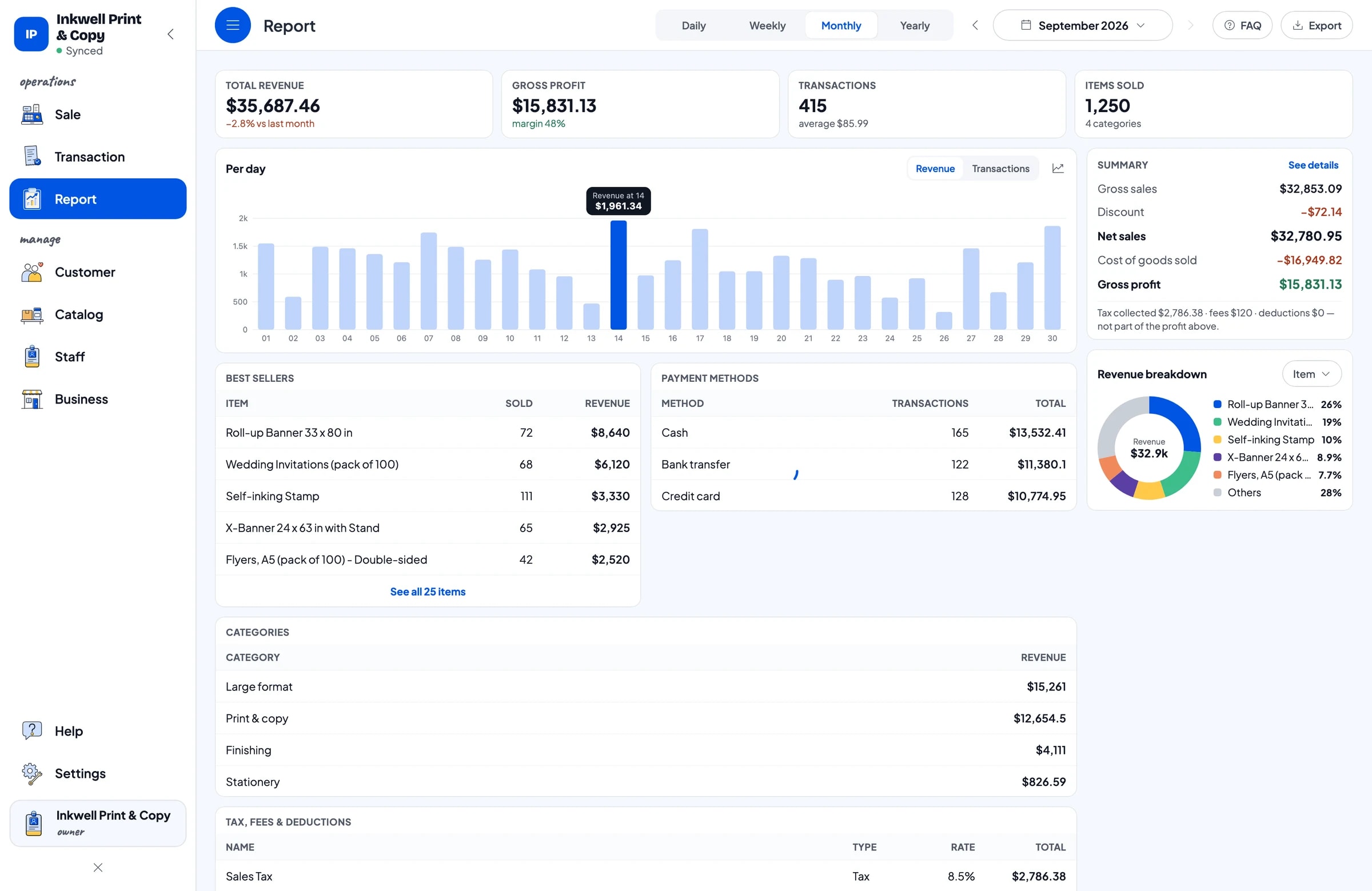
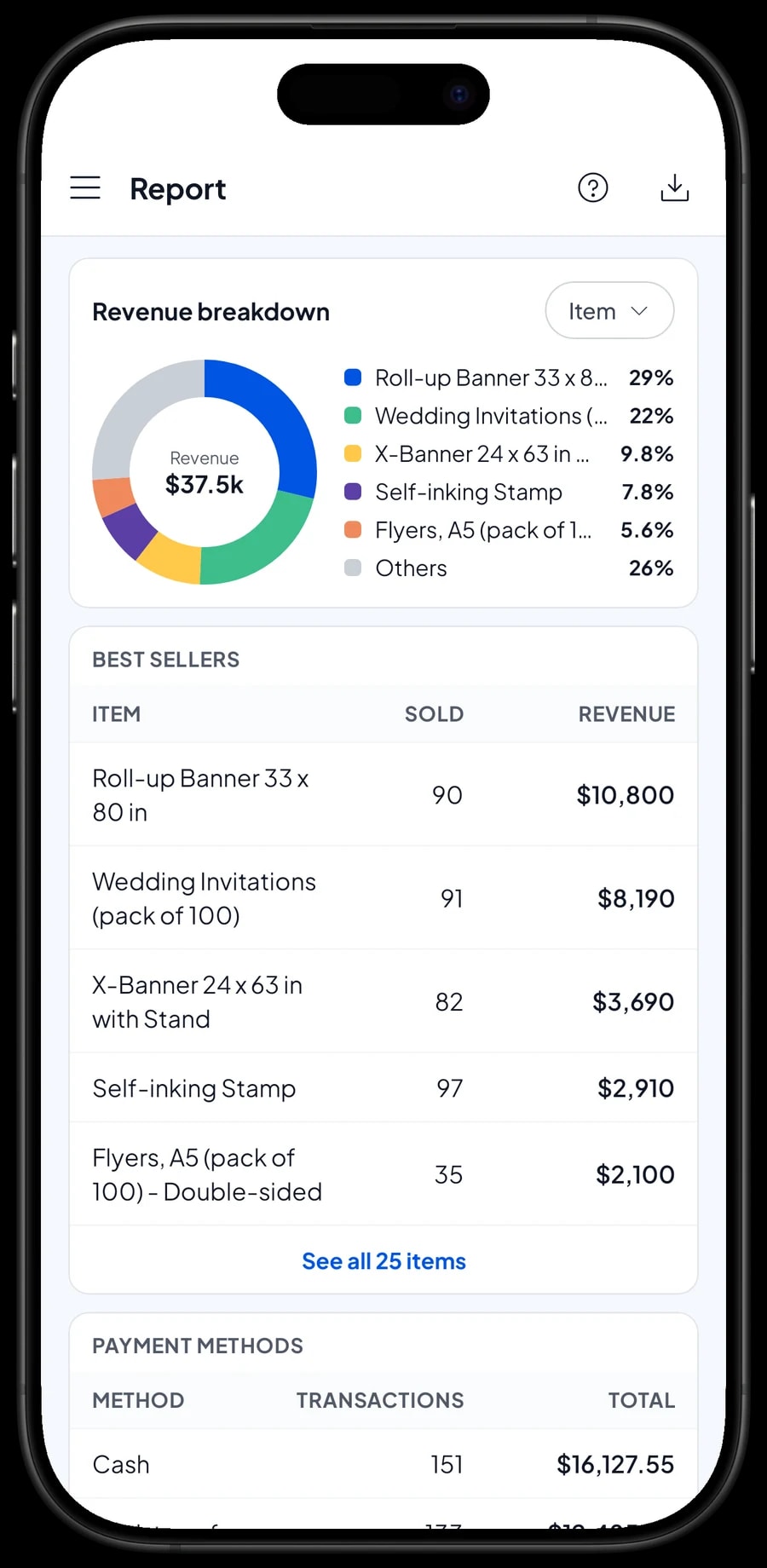
Reports are available by day, week, month and year: total revenue, gross and net sales, discounts, tax, payment methods and revenue by item. You can see whether most of your money comes from large-format work, business printing, or everyday copies. Busy seasons show up too, such as graduation, elections, back-to-school and the holidays.
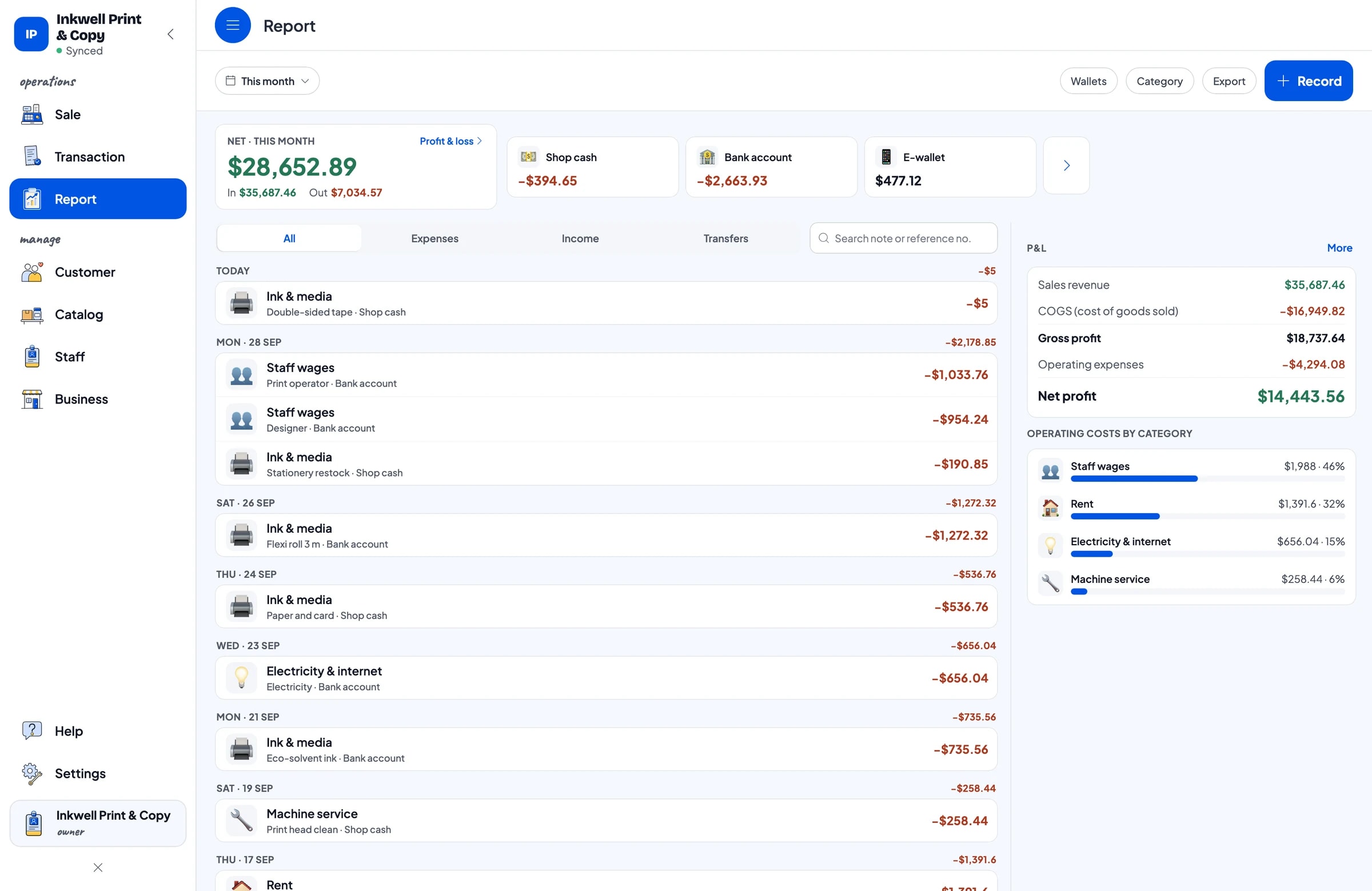
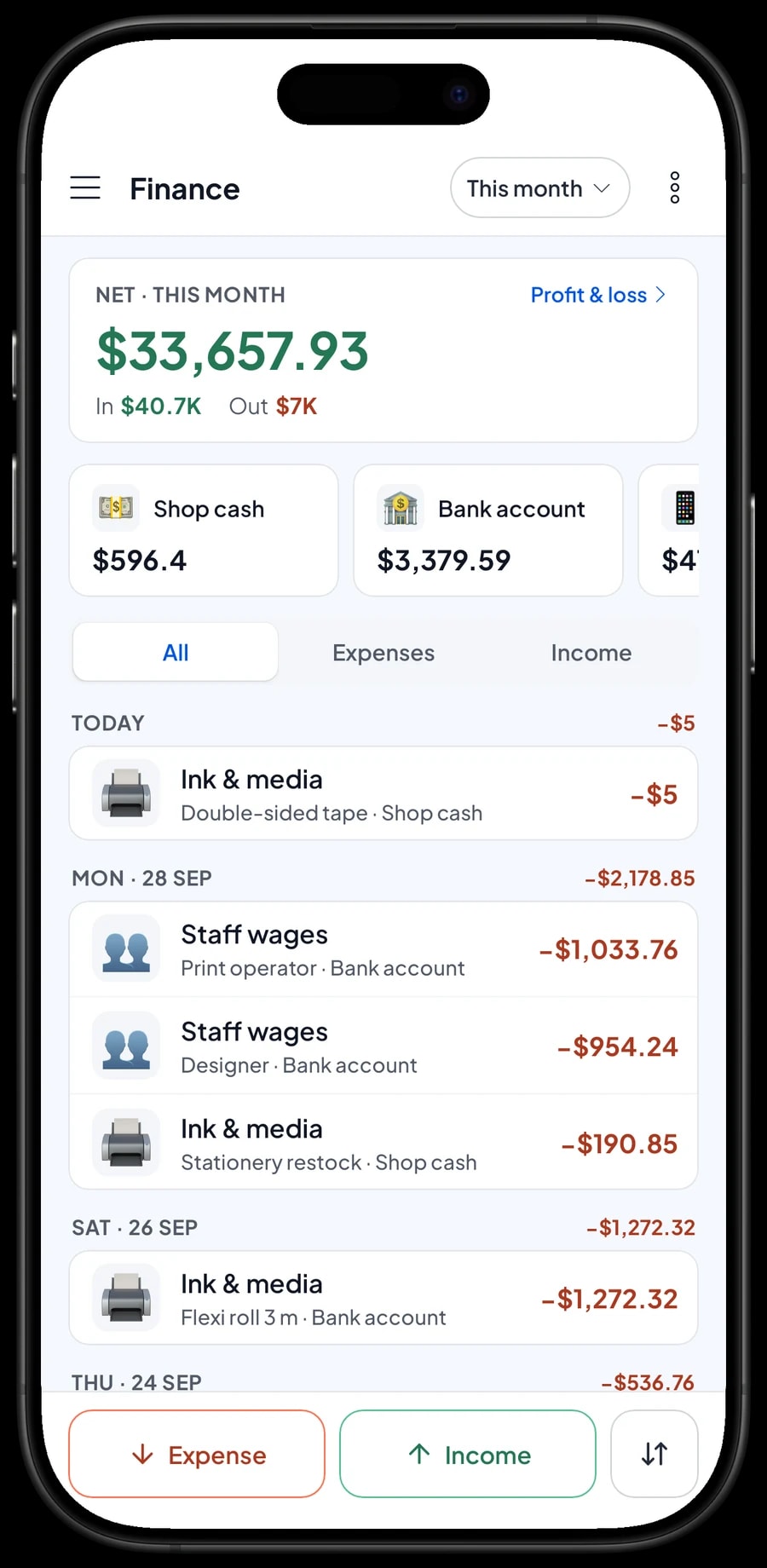
Record expenses in Finance: ink and media, staff wages, rent, electricity and internet, machine service. Each expense has a category and the wallet it was paid from. Finance then shows revenue minus operating costs, which is your shop's net profit. Reports export to Excel or PDF for your accountant or business partner.
Get started in a day, keep going offline
Install Salesmaster on a phone, a tablet, or a Windows or Mac computer at the counter, and create an account. Enter the jobs you do most first: banners, document printing, copies, business cards and binding, with their variants and add-ons. Less common items, like stamps or invitations, can be added between jobs.
If the internet or Wi-Fi drops, sales are still saved on the device and sent to the cloud when the connection is back. Offline mode works for up to 7 days; after that the app needs to connect briefly to sync. If you'd like help setting up your catalog, our team is on WhatsApp.
An example print shop catalog
Use this table as a starting point and replace the names and prices with your own.
| Category | Item | Unit | Variants | Add-ons |
|---|---|---|---|---|
| Large format | Vinyl banner | square meter | Standard vinyl, Heavy vinyl, Fabric banner | Design, Banner finishing, Turnaround |
| Large format | Vinyl sticker | square meter | Unlaminated, Matte laminated | Design, Turnaround |
| Large format | X-banner with stand | piece | - | Design, Turnaround |
| Print & copy | Business cards (box of 100) | box | Single-sided, Double-sided, Double-sided matte | Design, Turnaround |
| Print & copy | Flyers, A5 (pack of 100) | pack | Single-sided, Double-sided | Design, Turnaround |
| Print & copy | Document printing | page | Black & white, Colour | - |
| Finishing | Binding | book | Soft cover, Spiral, Hard cover | - |
| Finishing | Laminating | sheet | - | - |
| Stationery | Copy paper (500 sheets) | ream | - | - |
Print services are service items without stock. Stationery such as paper by the ream, folders and pens are products with their own stock.
Which plan fits your print shop
A print shop handling about 14 jobs a day records roughly 400 transactions a month. A busy copy counter can do far more, so count payments per day.
| Plan | Price | Transactions / month | Staff accounts | Good for |
|---|---|---|---|---|
| Free | Free | 30 | Owner only | To try a print catalog and saved orders before using it for real. |
| Solo Pro | $4.90/month | 3,000 | Owner only | Small shops where the owner runs the counter. |
| Bronze Pro | $6.90/month | 5,000 | 1 staff | Shops with one operator on their own counter device. |
| Silver Pro | $9.90/month | 8,000 | 2 staff | Busier shops with two operators on separate devices. |
Every plan includes checkout, catalog, receipts, reports and offline mode. You can change plans at any time. See pricing →
Frequently asked questions
- Can Salesmaster price banners by the square meter?
- Yes. Create a banner item with square meters as its unit and a price per square meter for each material as a variant. The operator enters the area rounded up to a whole number, for example 3 for a 3 by 1 meter banner, and the total is calculated.
- Can copy prices drop automatically for large quantities?
- No. Salesmaster has no quantity-based pricing tiers. Create a separate bulk variant the operator chooses, or apply a discount through Deductions.
- How do I charge for design work and finishing?
- Create add-on groups such as Design, Banner finishing and Turnaround, and attach them to the items that use them through Manage add-ons. The price of each chosen add-on is added to the total.
- Can I take a job now and have the customer pay at pickup?
- Yes, with Save order. The order is saved under the customer's name and opened again from Saved orders at pickup. It stays on the device that created it and isn't counted as a sale until it is paid.
- Can Salesmaster track deposits or invoices for business accounts?
- No. Each sale is paid in full, and there is no accounts-receivable ledger. A deposit is sold as a separate Service item called “Down payment”, then taken off the full order price with Add Deduction when the balance is paid.
- Does paper and ink stock go down automatically with each print?
- Stock goes down automatically for products you sell, like reams of paper or folders. Production supplies such as vinyl rolls and ink are recorded as expenses in Finance, so their cost is part of your profit.
- Does Salesmaster run on the computer at my counter?
- Yes. Salesmaster runs on Windows and Mac as well as Android, iPhone and iPad. An account is active on one device at a time; extra devices for operators use staff accounts.
Need help setting up your catalog? Chat with our team on WhatsApp →