Access: Business > Payment Methods
Payment methods are how customers pay for a Sale. The app comes with a built-in Cash method. You can add others, for example QRIS, Bank transfer or Debit card.
The top of the list shows how many methods are active and inactive. The method that is picked automatically has a Default label.
Add a payment method
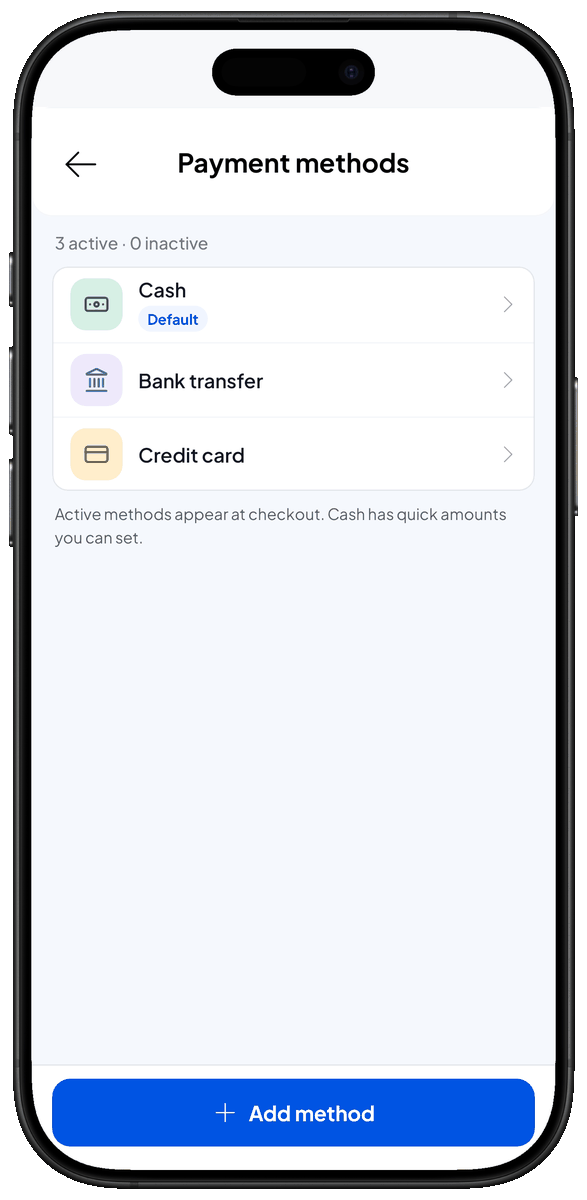
- Open Business > Payment Methods. The list of payment methods opens.
- Tap Add method. The Add payment method form appears.
- Enter a Name, for example "QRIS". This is the name the cashier sees at checkout and the one printed on the receipt.
- Leave Enable on. The method will show as an option at checkout.
- Turn on Default if this is the method you use most (optional). It will be selected automatically on the payment screen. Only one method can be the Default.
- Tap Add. The new method appears in the list, ready to use in Sale.
Edit, turn off or delete a method
- Open Business > Payment Methods and tap the method you want to change. The Edit payment method form opens.
- Change the Name, or turn off Enable if you're not using the method for now. A method that is off gets an Inactive label and does not show at checkout.
- Tap Update. Your changes are saved.
To delete a method, open its form, tap Delete, then tap Delete again to confirm. Past transactions that used it don't change.
Cash and quick amounts
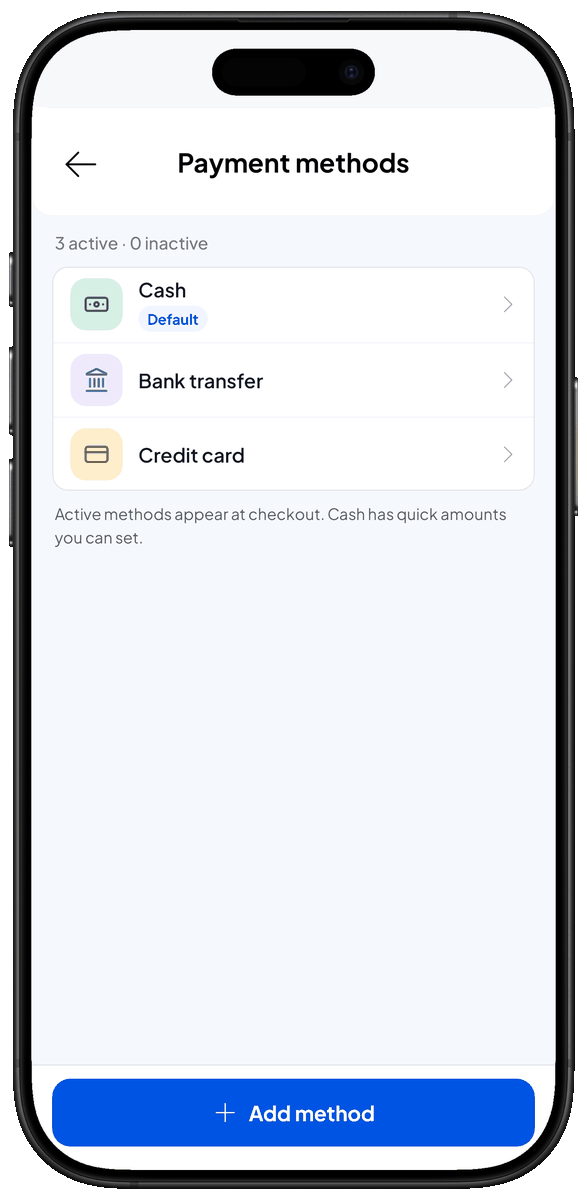
Cash is a special method. When it's selected, the cashier enters the money received and the app shows the Change. Cash can't be renamed, turned off or deleted.
Quick amounts (cash) are amount buttons on the payment screen, for example Rp50,000 and Rp100,000. The cashier taps one instead of typing.
- Open Business > Payment Methods and tap Cash. The Cash form opens with a Quick amounts (cash) section.
- Tap Add in the Quick amounts section. An amount field appears.
- Type the amount, for example 50000, and tap Add. The amount appears as a button in the form. Tap the × on that button to remove it.
- Tap Update. Your quick amounts are saved.
On the payment screen the app only shows quick amounts that are higher than the total, plus an Exact amount button.
How methods work at checkout
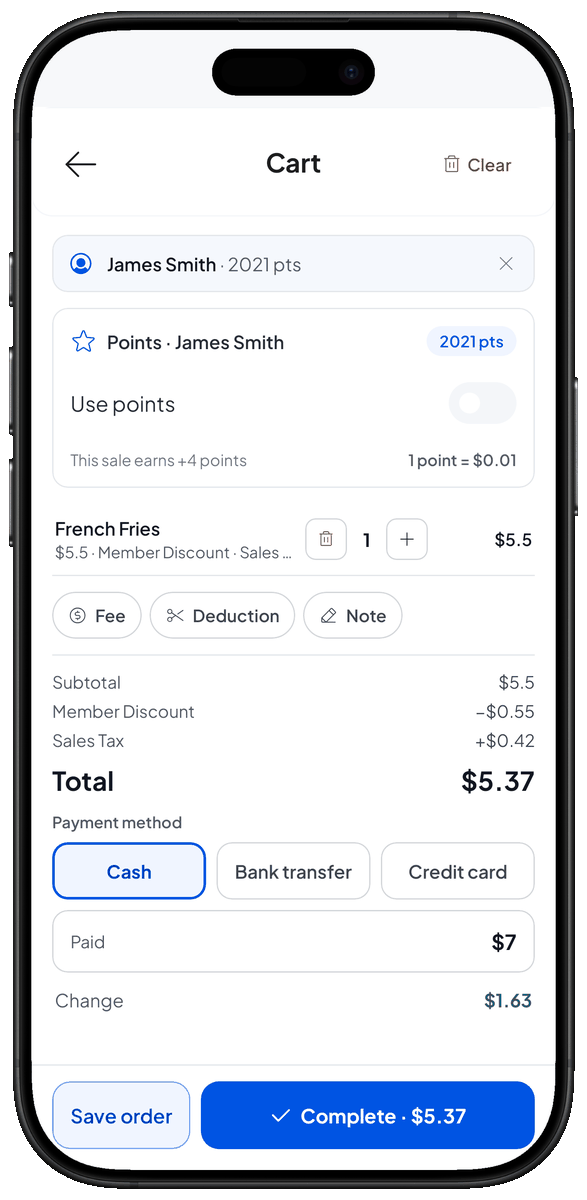
- Cash: the cashier taps Exact amount, taps a quick amount, or types the amount Paid. The app shows the Change.
- Other methods: recorded as the payment type for the full total. There is no amount-received field and no change.
- To use a different method, tap the arrow next to the payment method and pick one.
If no method is active, the payment screen shows Add Payment Method First. Turn on at least one method in Business > Payment Methods.
Related pages
- Create a sale — how to record a sale and take payment.
- Transactions — look back at completed sales.