A supplier is a person or business that supplies goods to your shop. Recording suppliers is optional, but it shows you who delivered your stock and how much you have spent with each one.
Access: Catalog > Supplier
Add a supplier
- Open Catalog > Supplier. The supplier list opens. If it's empty, it says No suppliers yet.
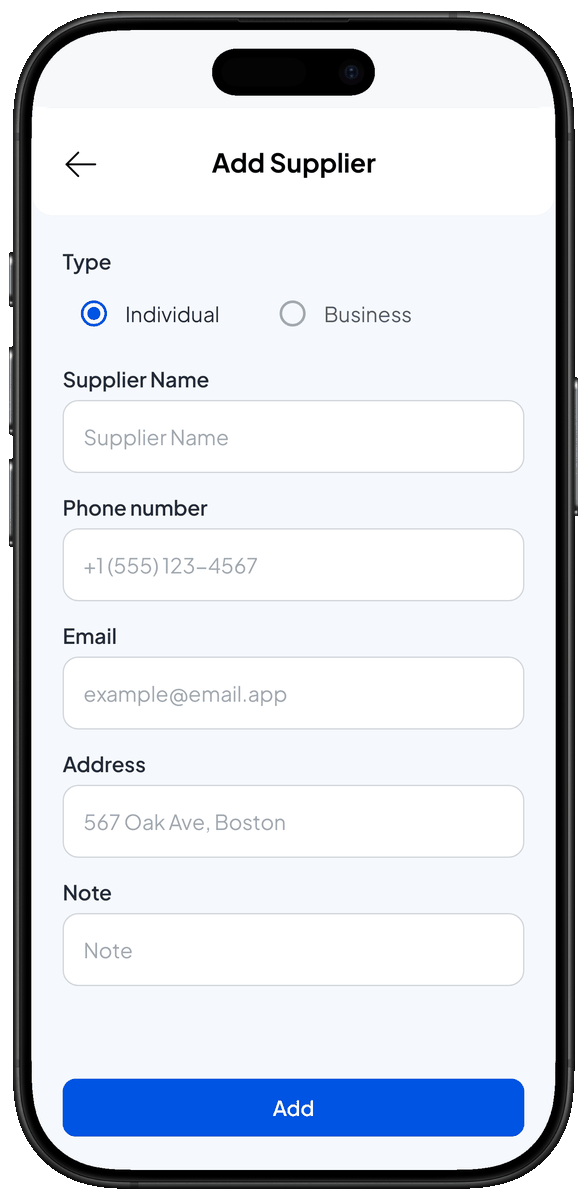
- Tap Add Supplier. The Add Supplier form opens.
- Choose the Type: Individual or Business. If you choose Business, a Contact Name field appears.
- Enter the Supplier Name, for example "Makmur Wholesale".
- Fill in the rest if you have it (optional): Contact Name, Phone number, Email, Address and Note. The phone number is used for the Call and WhatsApp buttons on the supplier's page.
- Tap Add. The new supplier appears in the list.
Record a delivery from a supplier
A delivery is recorded when you add stock and pick its supplier.
- Open Catalog > Stock, pick an item whose stock is tracked, and tap Add Stock. The Add Stock sheet opens.
- In the Supplier field, tap Select Supplier and pick the supplier.
- Enter the quantity and its cost, then tap Save stock. The delivery shows on that supplier's page.
The full steps for adding stock are in Stock tracking.
See a supplier's details
- Open Catalog > Supplier and tap a supplier's name. The supplier's page opens.
- Read the summary:
- Total purchases — the money spent across all deliveries from this supplier.
- Deliveries — how many times this supplier has delivered stock.
- Deliveries from this supplier — the list of deliveries, newest first.
- Tap Call or WhatsApp to contact the supplier. These buttons show when a phone number is saved.
Edit or delete a supplier
- Open the supplier and tap Edit in the Profile section. The Edit supplier sheet opens.
- Change what you need and tap Save. Your changes are saved.
- To delete, tap Delete in the same sheet, then tap Delete again to confirm. The supplier disappears from the list. Its delivery history is kept.
Tips
- Use one spelling for each supplier, for example always "Makmur Wholesale", never sometimes "Makmur". That way you won't end up with duplicates.
- Use Search suppliers above the list to find a supplier quickly.