A transaction is the record of a completed Sale. It holds the items sold, the payment method, the customer (if one was picked), fees, deductions, points, the transaction number, the cashier, the time and any note.
Access: the Transaction menu
View your transactions
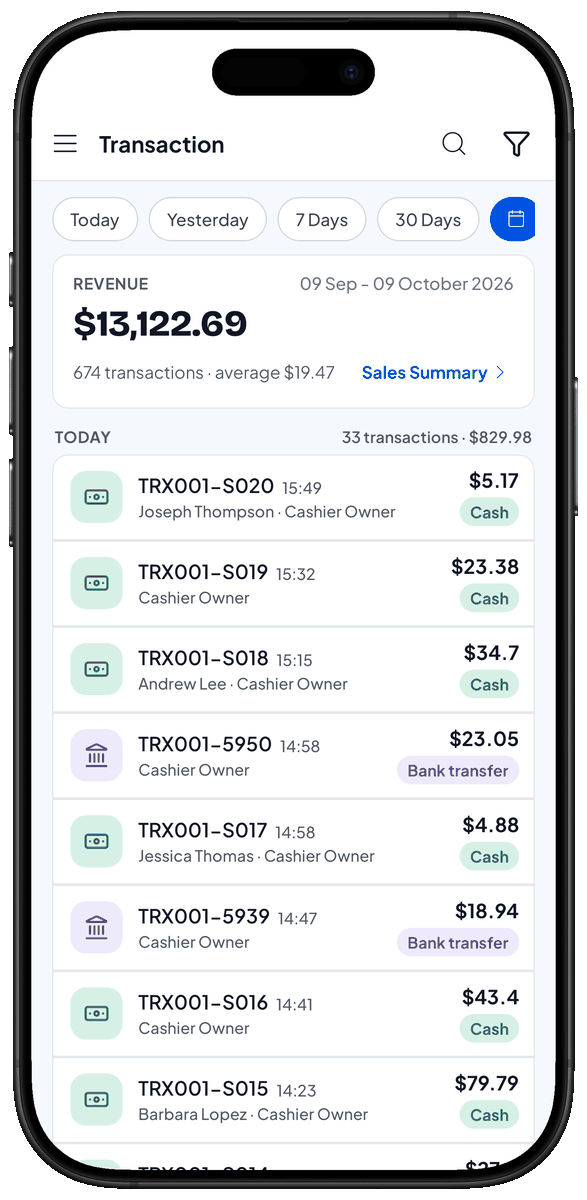
- Open the Transaction menu. Today's transactions appear, with the number of transactions and their total at the top.
- Tap the Filter icon (funnel). The Filter sheet opens.
- Pick a date range: Today, Yesterday, 7 Days, 30 Days, or tap the calendar icon to Pick dates yourself. The list shows the transactions in that range. The longest range is 30 days.
- If you need to, pick a Cashier or Payment Method to narrow it down, then close the Filter sheet. Only matching transactions are shown. Tap Reset to clear every filter.
- Tap a transaction. Its details open: items, payment, change, customer and cashier.
Search for a transaction
- Tap the Search icon (magnifying glass) at the top. A search field appears.
- Type a transaction number, customer name or item name. Matching transactions are shown. The search covers the date range you have picked.
Send, save or print a receipt
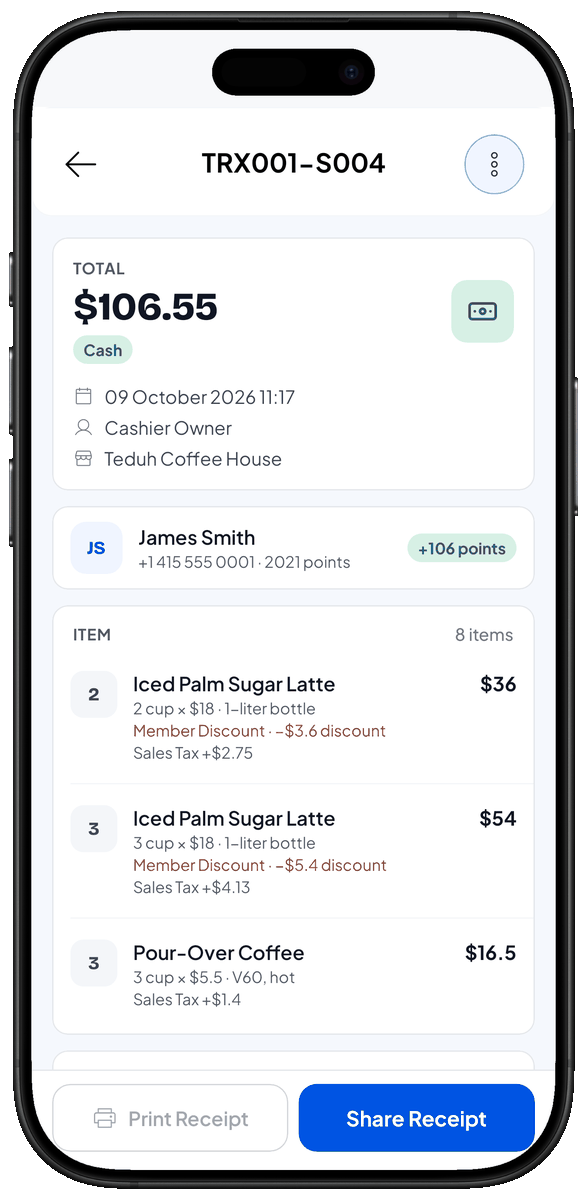
- Open the transaction you want to send or print. At the bottom are Print Receipt and Share Receipt.
- Tap Share Receipt. The sharing options appear.
- Choose one:
- WhatsApp or Telegram — send the receipt link to the customer's number. Shown when the transaction's customer has a phone number.
- Email — open your email app with the receipt link for the customer. Shown when the customer has an email address.
- Copy Link — copy the web receipt link to paste anywhere.
- Share image — send the receipt as a PNG through another app. On a computer this is Save image. The receipt is sent, copied or saved, depending on your choice.
To print, tap Print Receipt. It works once a thermal printer is connected. See Thermal printer.
If you see Receipt available after sync, wait until the device is online. Receipt links and messages can be sent once the transaction has synced.
If the Kitchen Slip feature is on, you can also tap Reprint kitchen slip from the transaction details.
Download a sales summary
- On the Transaction screen, tap Sales Summary. The Sales Summary sheet opens for the date range you have picked.
- Choose Print to Thermal Printer, Save as PDF File or Save as Excel File. The summary has revenue per day, items sold and payment methods.
For fuller reports, open the Report menu. See Reports.
Delete a transaction
Only delete a transaction when the sale really is wrong, for example when it was recorded twice.
- Open the wrong transaction and tap Share Receipt. The list of actions appears. Delete Transaction is at the bottom.
- Tap Delete Transaction. The app asks you to confirm and explains what happens: stock is returned and customer points are adjusted.
- Tap Delete. The transaction moves to the Deleted list and no longer counts in the totals.
Keep in mind:
- A transaction can only be deleted for 7 days. After that the button reads Older than 7 days, can no longer be deleted.
- Only users with permission to delete transactions see this button.
- To see deleted transactions, open Filter and turn on Show deleted transactions.
Related pages
- Create a sale — how to record a sale.
- Receipt configuration — how your receipt looks and what it shows.
- Reports — sales and profit summaries.