Business Configuration holds the settings that apply to your whole business and every device: the shape of item photos, currency, date format, language, and the price of Pay Later orders.
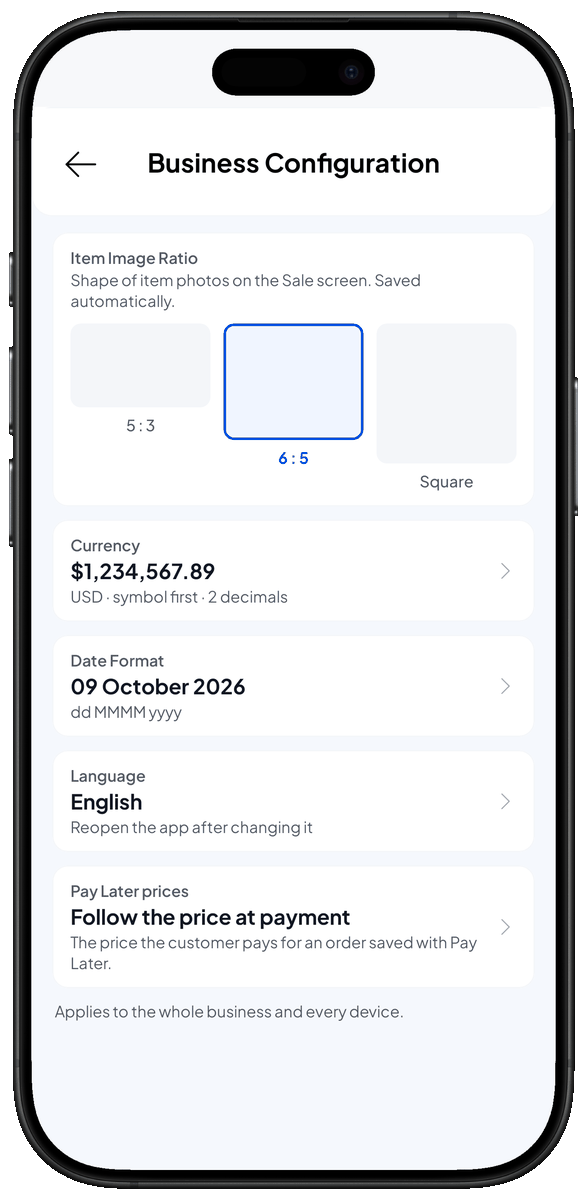
Open Business Configuration
- From the Main Menu, open Business. The list of business settings appears.
- Tap Business Configuration. The Business Configuration screen opens and shows the current values.
Item Image Ratio
The ratio sets the shape of item photos on the Sale screen.
- On the Item Image Ratio card, tap 5 : 3, 6 : 5 or Square. Your choice is saved automatically.
Currency
- Tap the Currency card. The currency settings open, with a Preview.
- Tap Choose currency and pick your currency, for example IDR. The currency symbol changes with it.
- Adjust the rest if needed:
- Symbol Placement: Before (Rp10,000) or After (10,000Rp).
- Decimal Separator and Group Separator: dot or comma.
- Decimal Precision: the number of digits after the decimal point, from 0 to 3. Choose 0 for rupiah without decimals. The preview shows the result.
- Tap Update. Receipts, reports and the Sale screen use the new format.
Date Format
- Tap the Date Format card. A list of date formats appears.
- Pick the format you want.
- Tap Update. Dates in the app use the new format.
Language
- Tap the Language card. On phones and tablets, the device's app language settings open. On Windows and Mac, a language list appears in Salesmaster.
- Pick a language.
- Close Salesmaster and open it again. The app shows the new language.
Pay Later prices
This sets the price a customer pays for an order saved with Pay Later when an item's price changes before it is paid.
- Tap the Pay Later prices card.
- Pick one:
- Follow the price at payment: the order follows the new price.
- Lock the price when the order is saved: the customer pays the price from when the item was ordered. Your choice is saved at once.
Country (Windows and Mac)
On Windows and Mac, a Country card is shown too. The country is used for phone number formatting. Changing it does not change the currency.